CMIS Client
System Requirements
Installation
You can download the MacOS app here: smb://ap-fs/AP/RND/cmis/client/releases/<version>/signed
Login
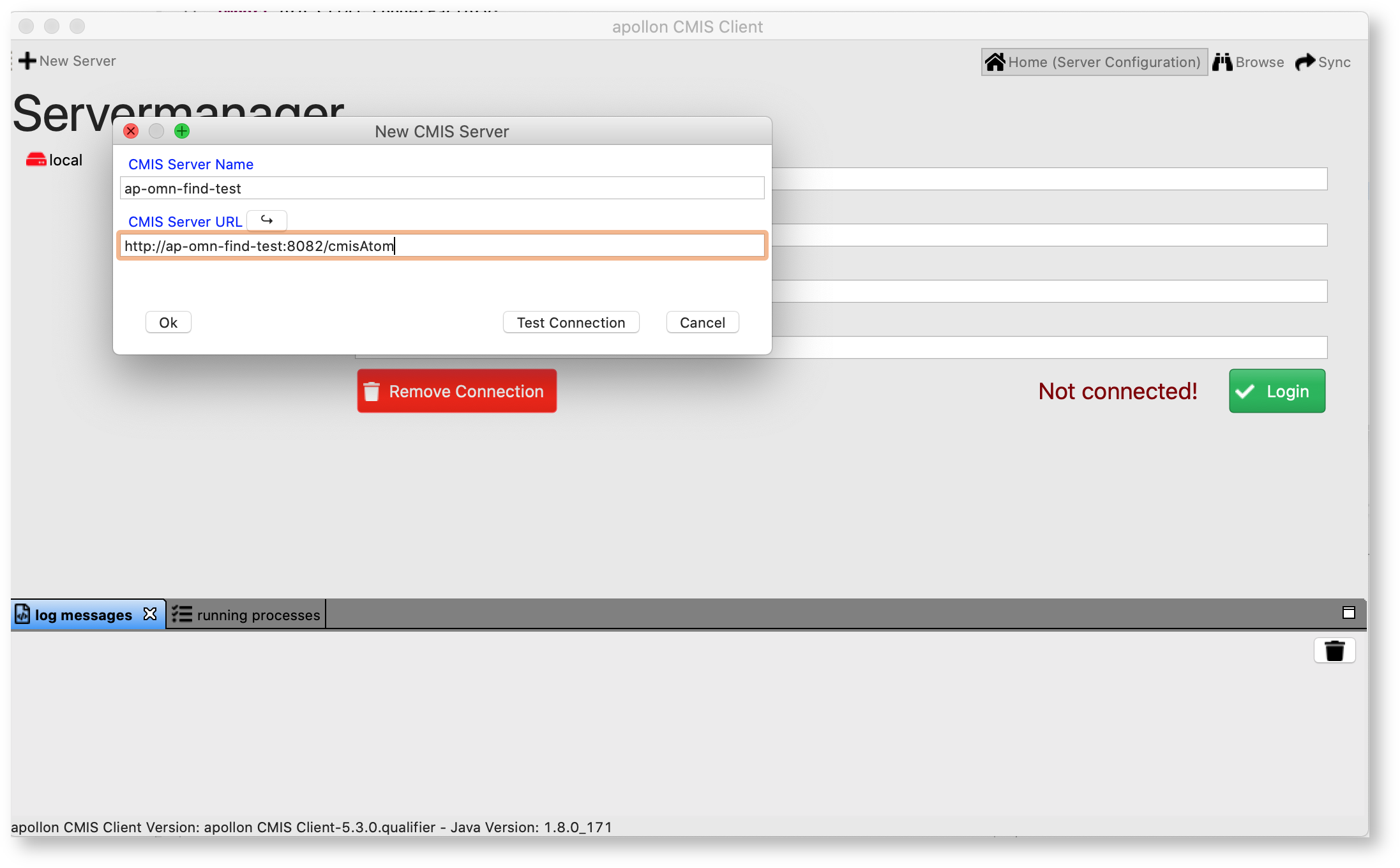
Add a new server by clicking on the "New Server" Button and entering a name and the url for the server.
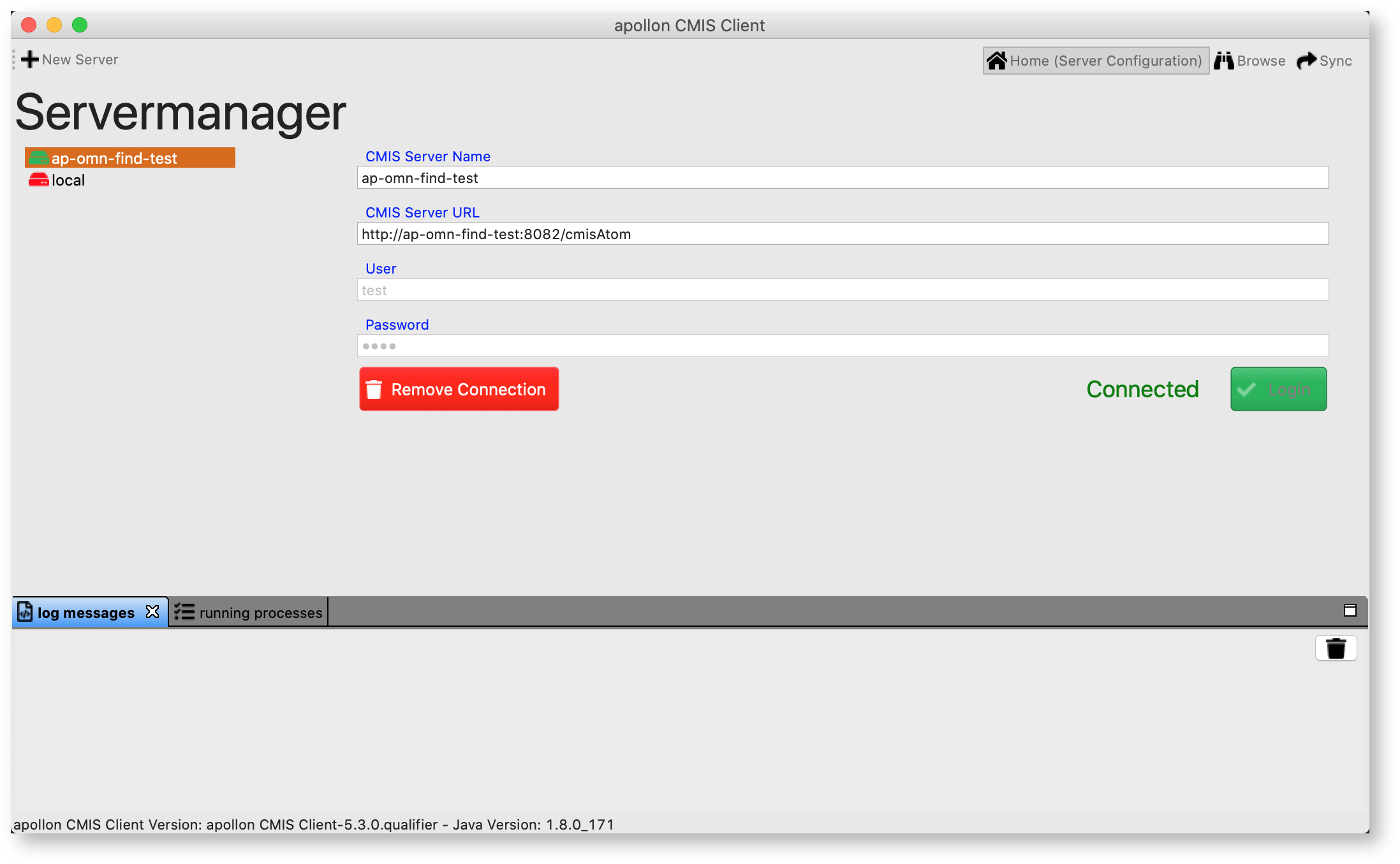
Enter your login credentials and click Login.
Browse
Switch to the "Browse" view and select the repository you want to connect to
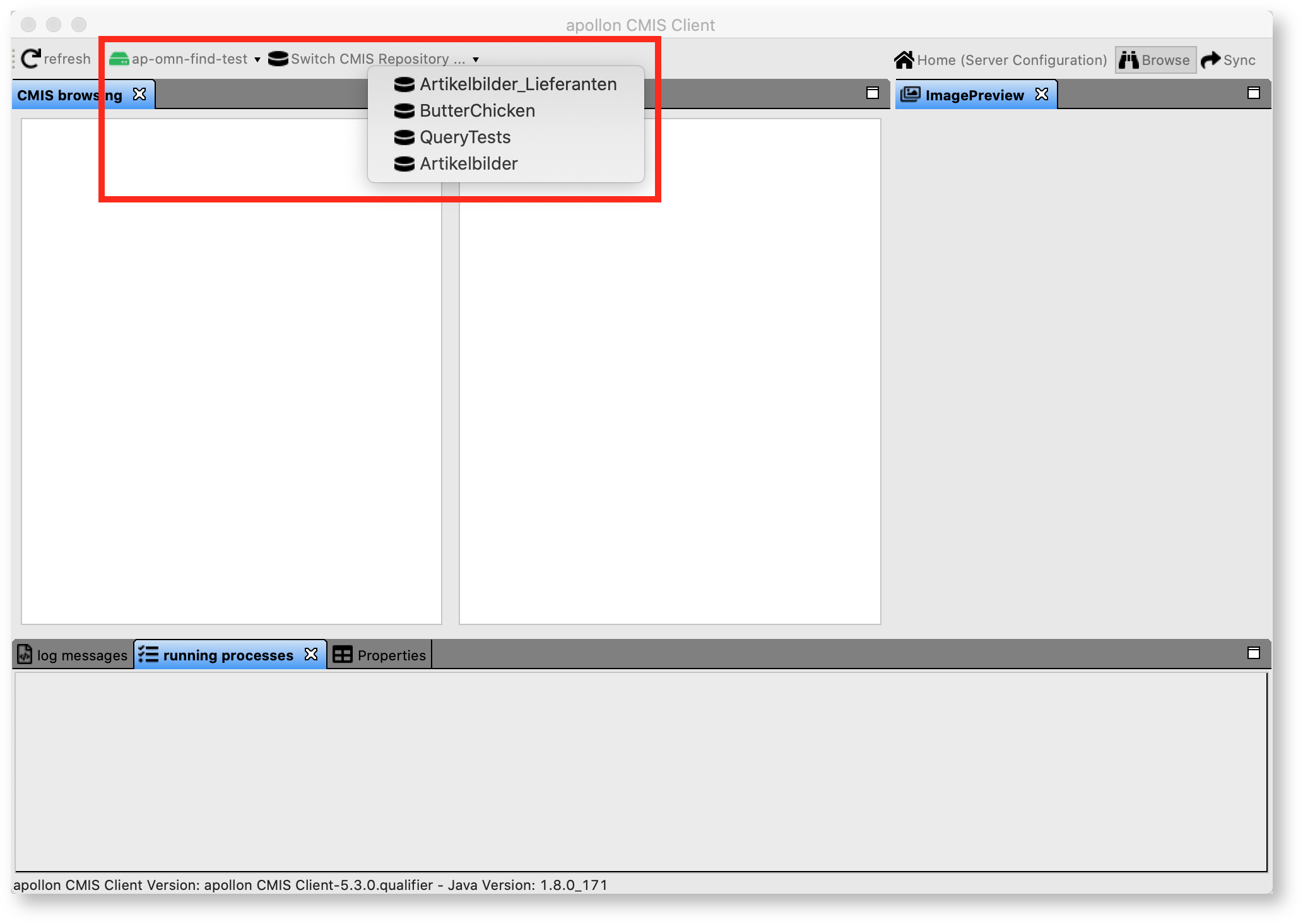
You can browse through the folders, preview and download files and inspect the properties
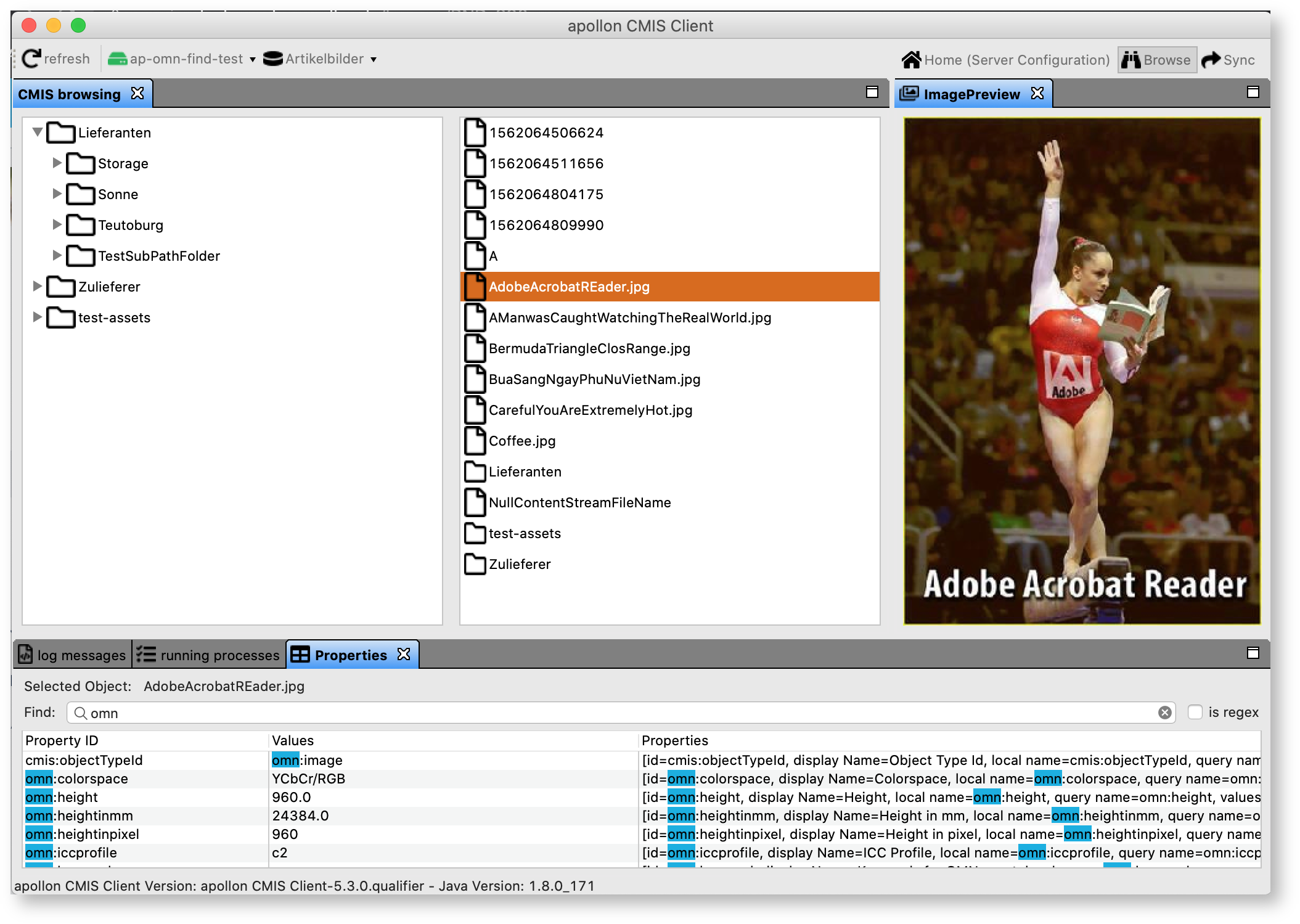
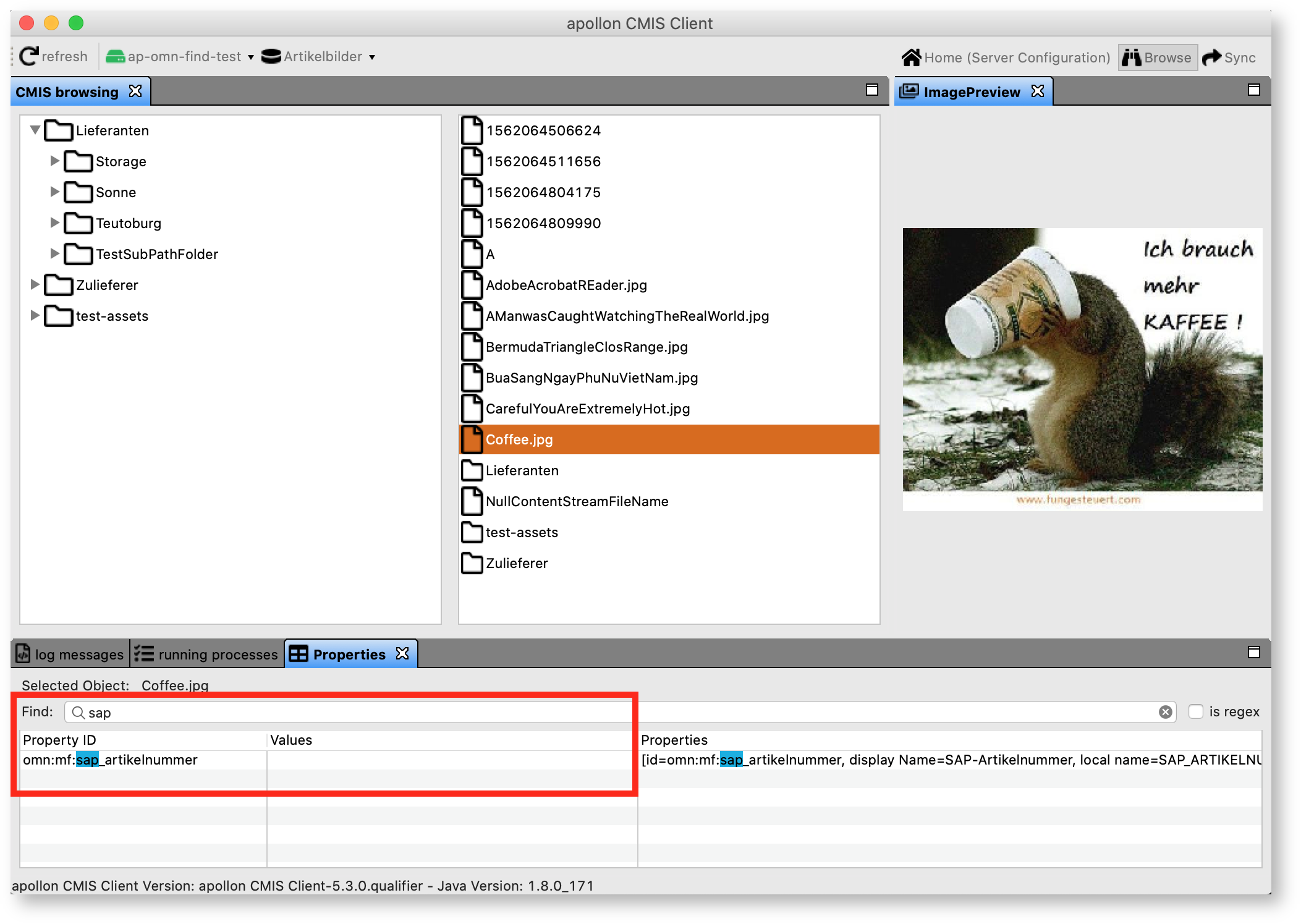
You can also filter for properties
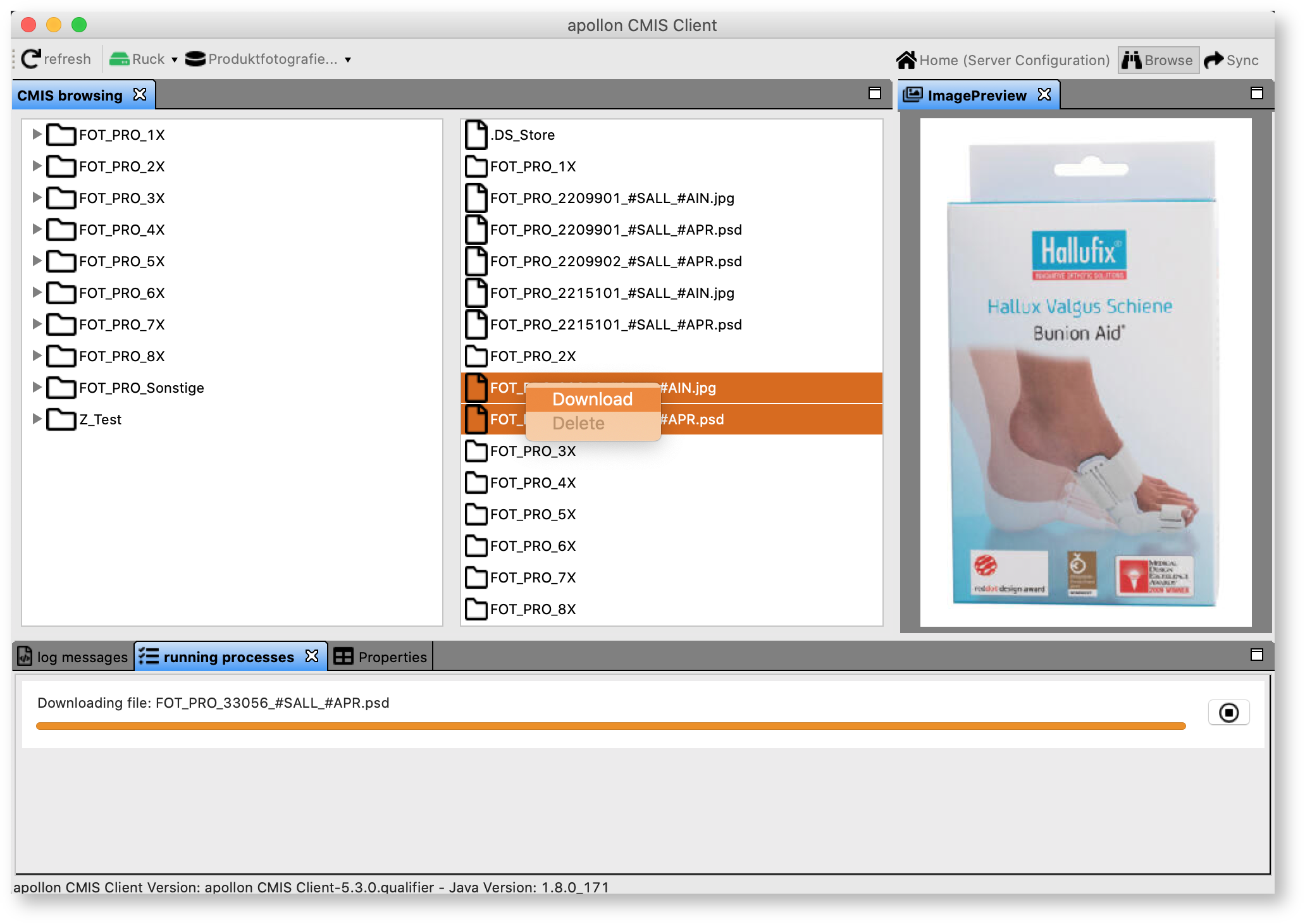
Select one or multiple files and rightclick "Download" for downloading images
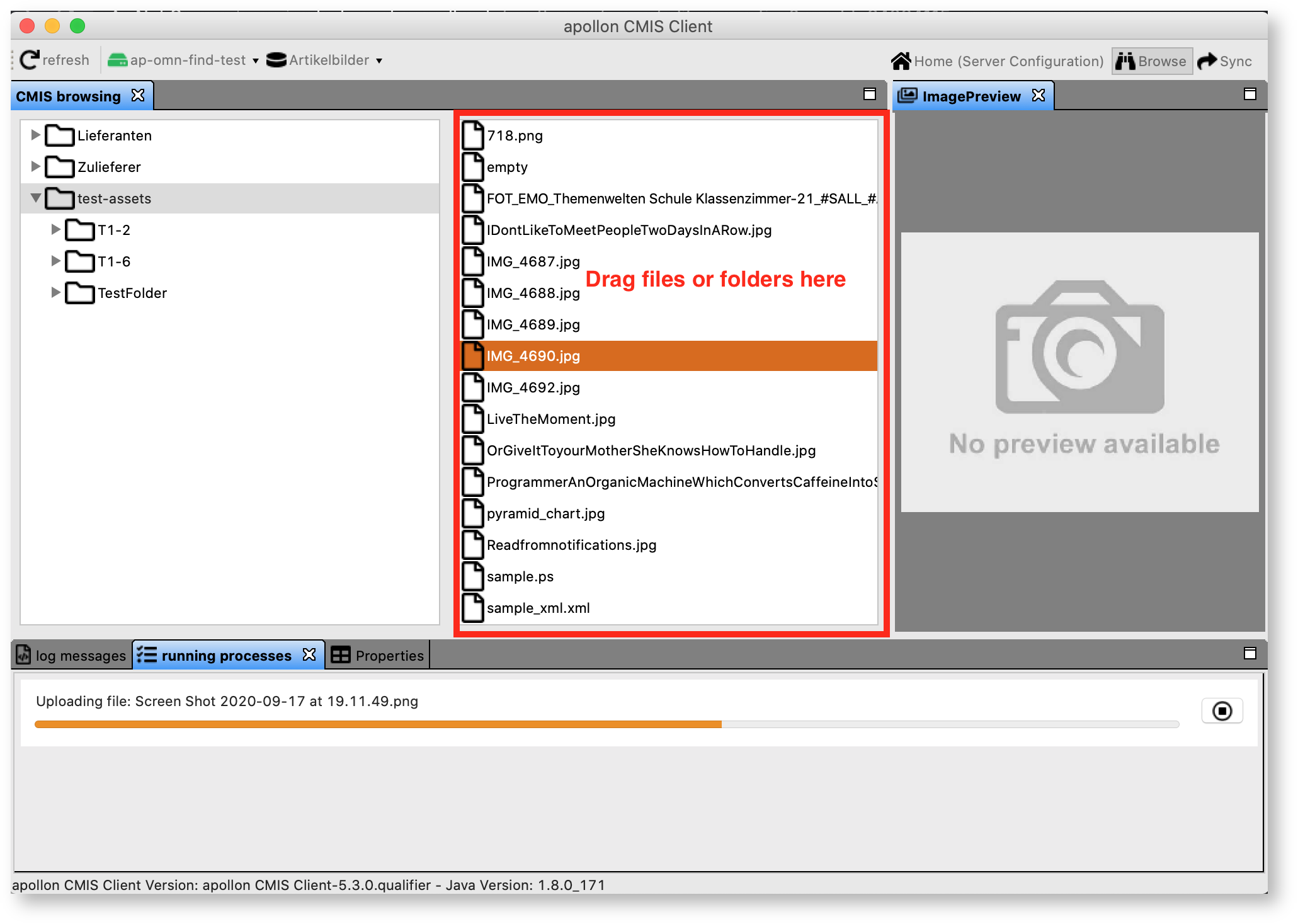
Upload files or whole folders by dragging them into the right files view
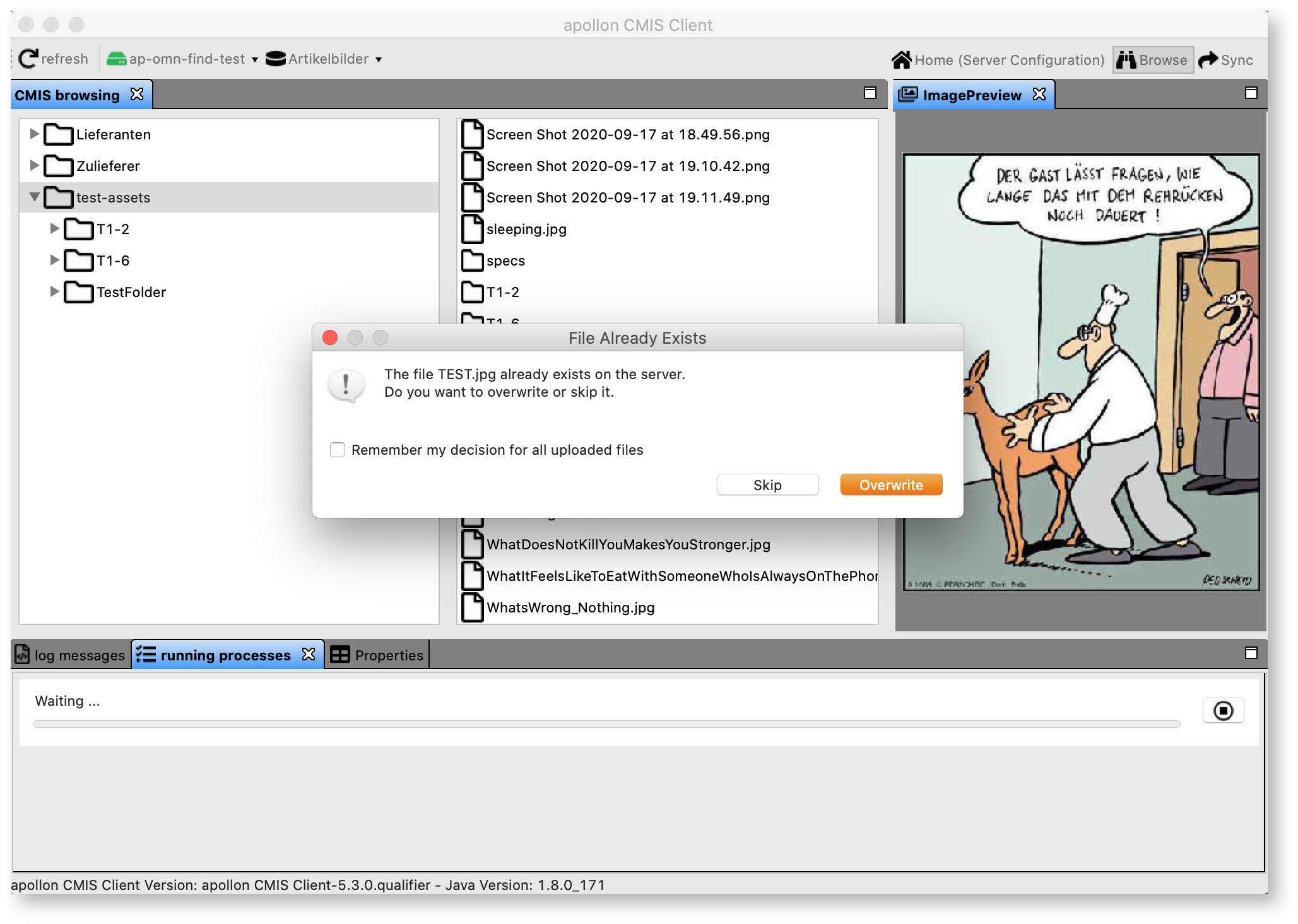
If a file already exists you can choose to overwrite or skip it
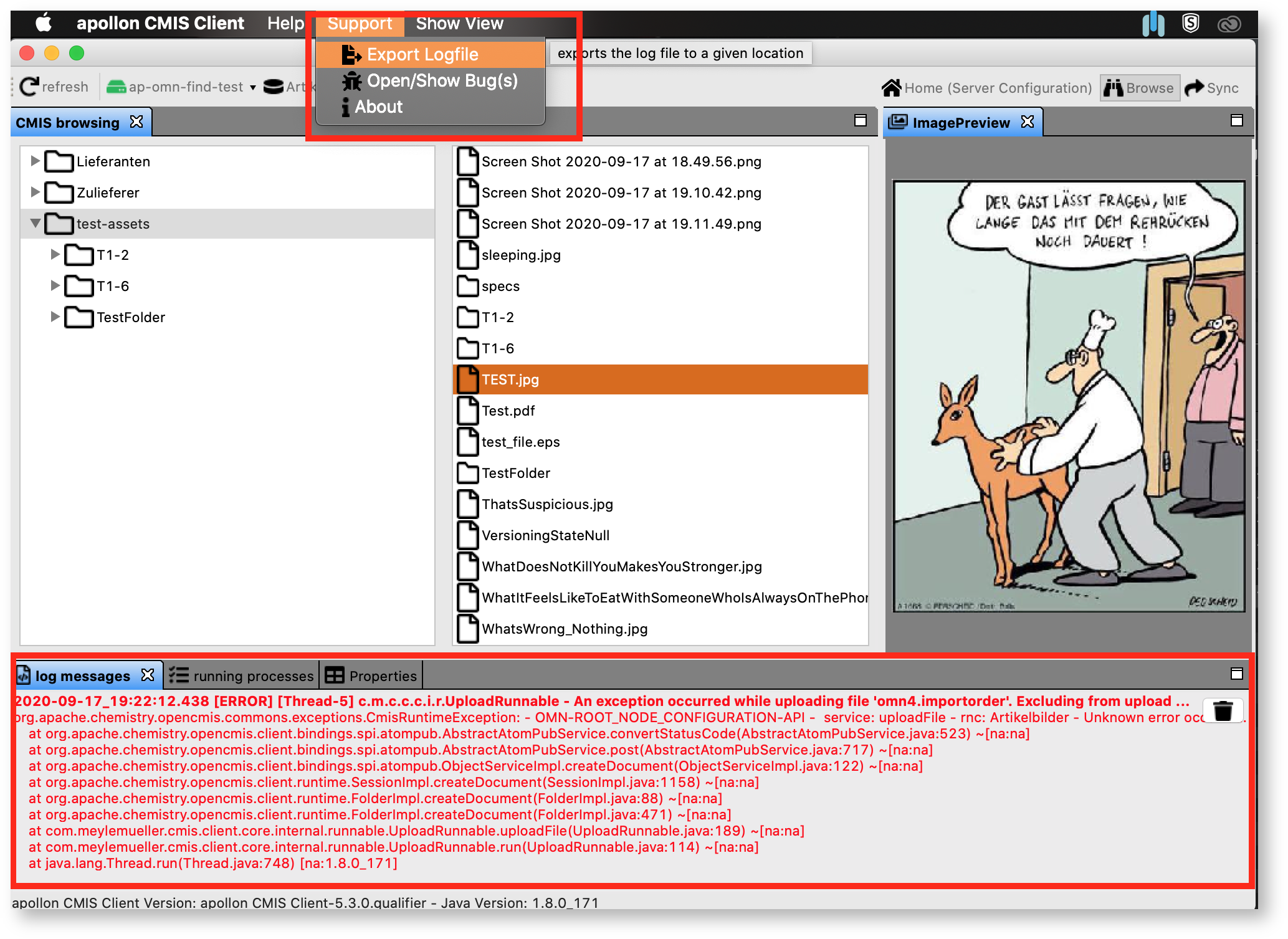
In case of an error you can inspect the error message in the "log messages" view and download the log file via menu "Support" → "Export Logfile". The logfile is needed by apollon support for further investigation
Sync
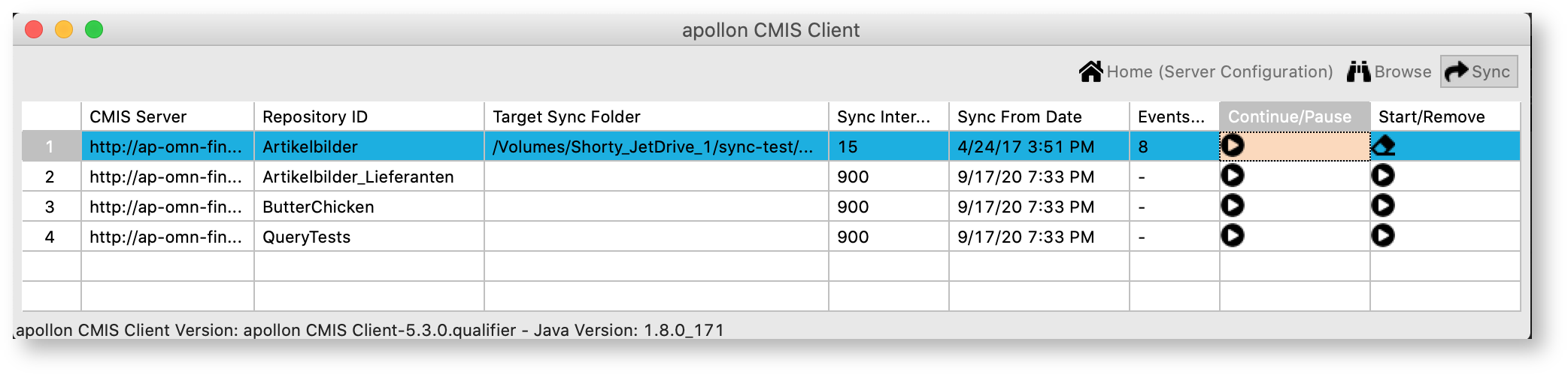
In "Sync" view you see all repositories available for syncing.
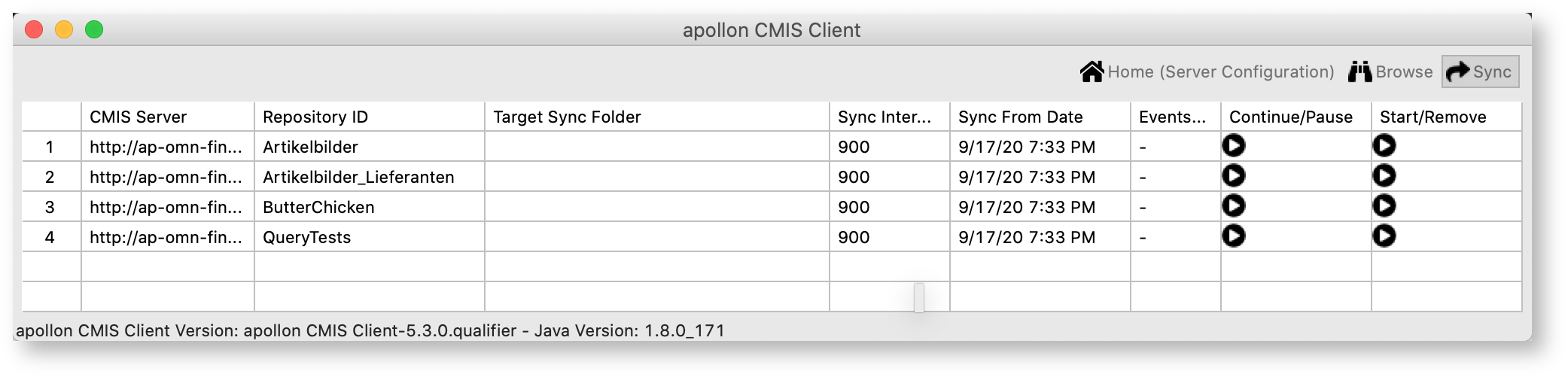
To sync a repository you need to choose a target folder by clicking into the cell in "Target Sync Folder" column. Choose the directory where you want to sync the files to.
You can specify the sync interval after how many seconds the server is asked again for changes to sync to your local hard drive
Also you need to set the date from when to sync from the server (only changes beginning from that date will be synced).
To start the sync click on the Start/Remove Button.
You can see the number of events to process in the "Events" column or in the tray menu
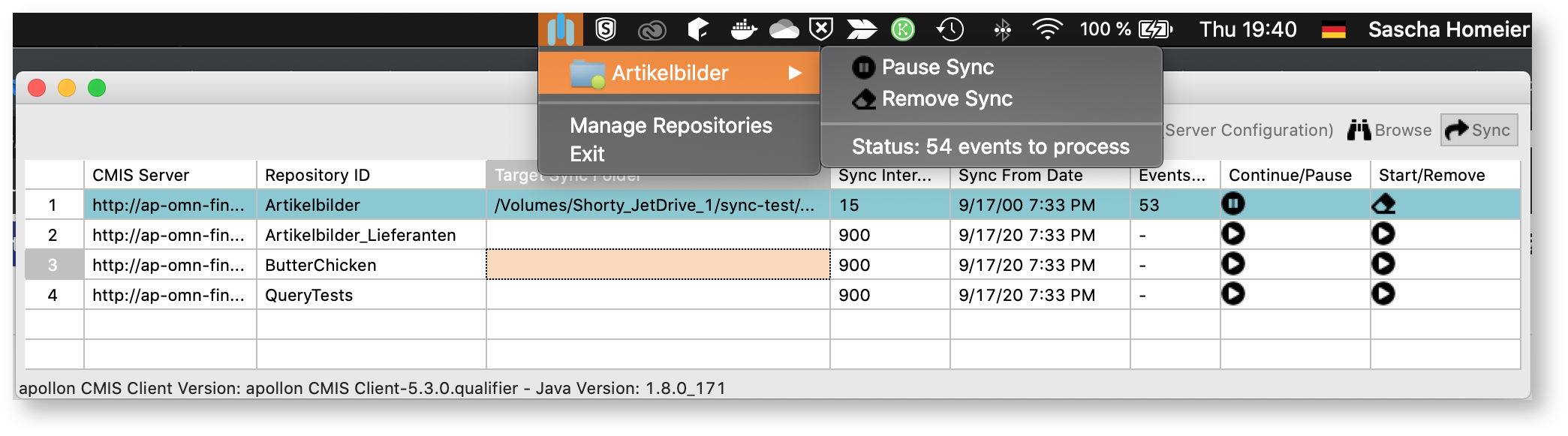
Pause a sync by clicking the button in the "Continue/Pause" column