AI Image workflows and components

AI Image allows processing images on base of different smart AI components, which can be combined in a kind of workflow directly out of OMN.

Triggering an AI process over OMN will initiate a workflow execution which will manipulate the image on base of the AI-Service
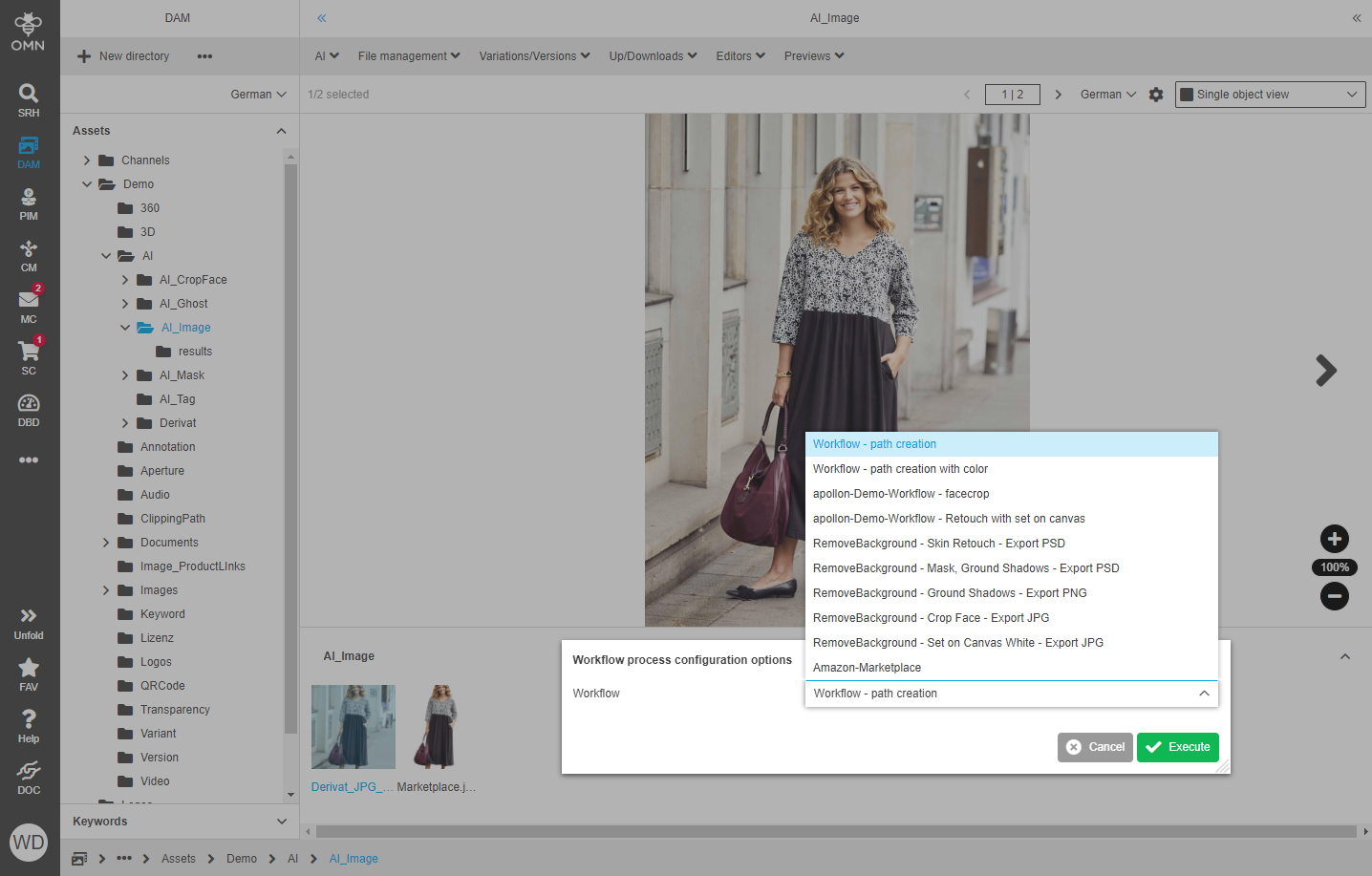
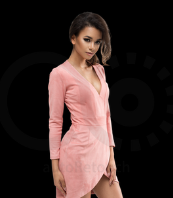
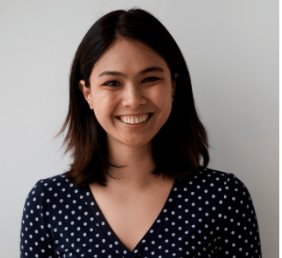
AI workflow execution
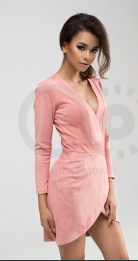
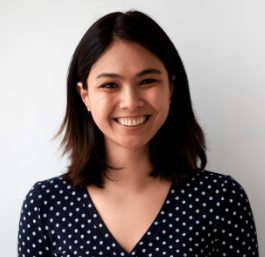
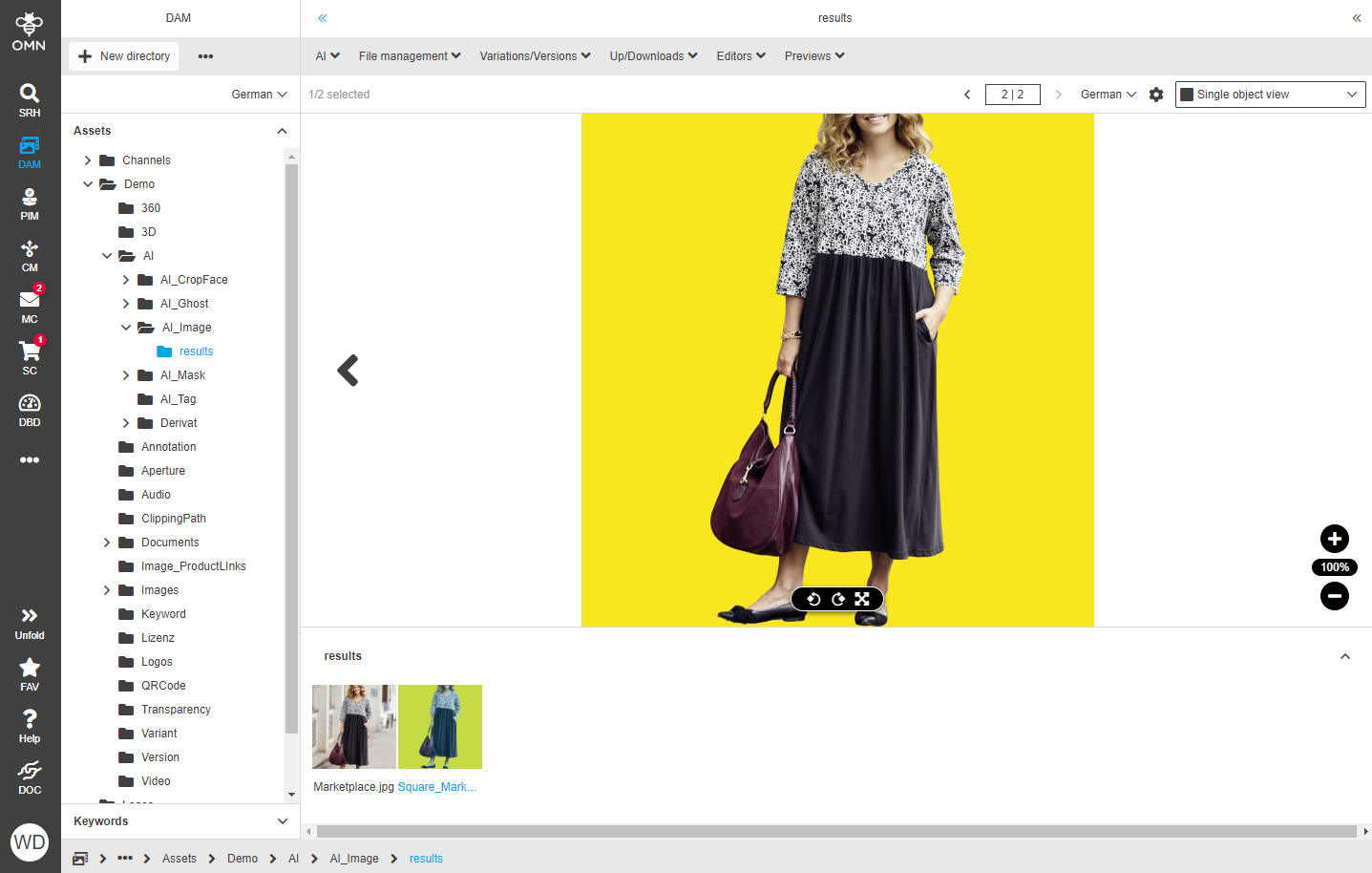
AI workflow execution result

Workflow Execution

A workflow execution occurs when you’re running a workflow to process an image (or multiple) and the image(s) is/are subsequently available to you for download (regardless of whether you actually download it/them or not).

The workflow execution price is automatically deducted from your credit balance.

AI-Components

The following AI components are currently specialized for retouching Fashion product images like human models wearing clothing or clothes on humans or mannequins

1. The main input files should be Fashion product images (Apparel/Clothing).

2. Supported file formats: JPEG, PNG, TIFF with a maximum file size of 50MB

Component DE EN Example

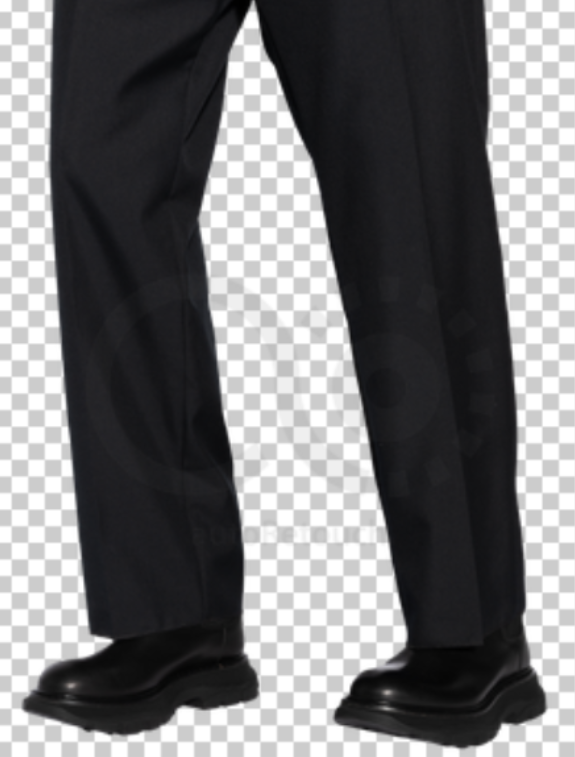
Remove Background

remove background

  • removes the background on fashion or product images

Available Settings

  • Removal options

    • Select clothing & model

    • Select clothing

    • Remove plain background

    • Select object

  • Additional Options

    • Smooth Edges: smooth visual transition between the foreground and background

    • Vector Paths : will create a vector path which can be exported with export formats: JPG, tif and PSD (the name of the path can be specified)

Best results

  • fashion product images where a product is worn by a human model

  • images where the clothing is presented on a mannequin or standalone

remove background example

Skin Retouch

skin retouch

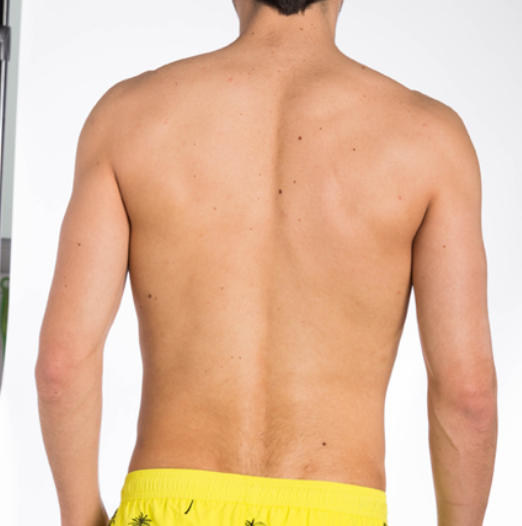
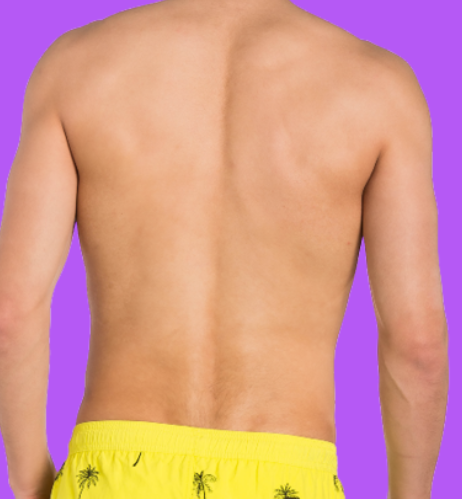
  • Component specialized for skin retouching segmenting human skin for mole removal and airbrushing

Available Settings

  • Mole Removal from the skin

  • Airbrushing for highpass & gaussian blur to the skin of the human model

skin retouch before skin retouch after

Set on Canvas

set on canvas

  • Defines the canvas for the image and the placing of the images on this canvas

Available Settings

  • Padding (left, right, top, bottom)

  • Size (dimension of the canvas)

  • Alignment (horizontal and vertical)

  • Background (color)

PREREQUISITES + Conditions

  • component requires following components to run before: Remove Background

set on canvas before set on canvas after

Crop

crop

  • Easily adjust images for marketplace style guides

  • Apply up to 2 crop lines (e.g. above nose, above knees)

  • Set a custom or maintain current aspect ratio

Available Settings

  • Top crop line

  • Bottom crop line

  • Aspect ratio

Best Results

  • Works best with fashion images on models

crop before crop after

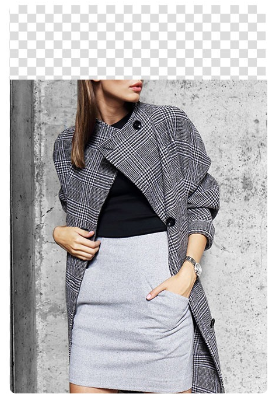
Crop Face

crop face

  • component is specialized in face recognition

  • recognizes faces and removes the part of the image with a person that is a few pixels above the lip to focus more on the fashion rather than on the face of the person

Best Results

  • Works best with fashion images

crop face before crop face after

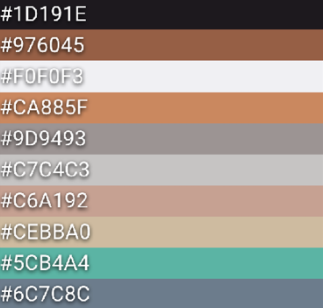
Color Palette

color palette

  • determines the dominant colors in a Fashion product image as metadata

  • will write the metadata information directly into the output files

  • does not manipulate the image in any way

Available Settings

  • Palette size

PREREQUISITES + Conditions

  • only works in combination with export component and file types of JPEG, TIFF or PSD Export

color palette before color palette after

Extract Patch

extract patch

  • will intelligently select a representative patch of a Fashion product

  • patches are typically used to indicate color variations, or patterns, of a particular base product in an eCommerce shop

Available Settings

  • none

PREREQUISITES + Conditions

  • component requires following components to run before: Remove Background

Best Results

  • input image is one single product, best on a mannequin

  • remove background is used with select clothing method

extract patch before extract patch after

Trim2Content

trim to content

Cuts the image to the border/content

Available Settings

  • none

PREREQUISITES + Conditions

  • component requires following components to run before: Remove Background

trim to content before trim to content after

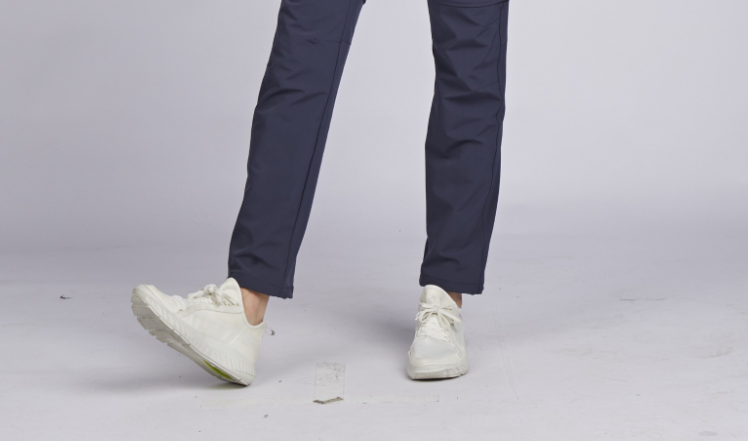
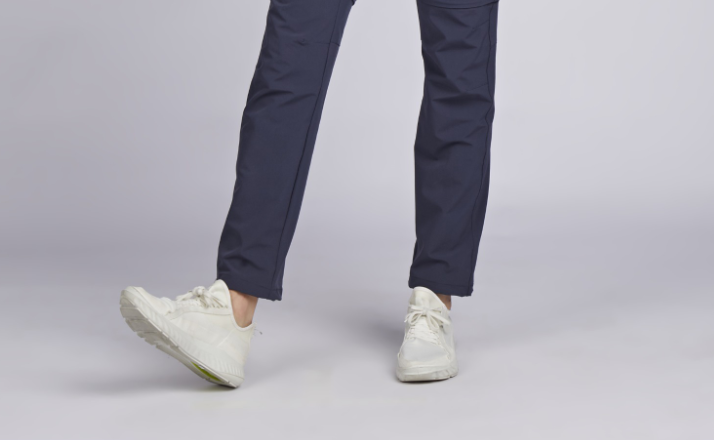
Cleanup Background (Beta)

cleanup background

  • Keep and optimize original studio backgrounds

  • Maintain natural shadows

  • Remove shoe prints, dirt, scuffs, and small objects from your studio backdrop simultaneously

  • create a pleasing studio image by removing smudges (dust bunnies, footprints, tiny objects) from the floor while maintaining the original lighting and shadows of the studio environment

Available Settings

  • none

Best Results

  • recommend using studio images showing models

  • algorithm can work with objects but not with same quality results as model images

  • component works best on evenly colored studio backgrounds in different colors

  • also works on backgrounds with solid-colored floors and wall

  • Unexpected results may occur with textured backgrounds like wooden floors or patterned carpets, and with images taken outside a studio

cleanup background before cleanup background after

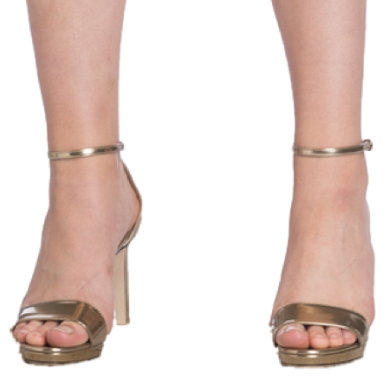
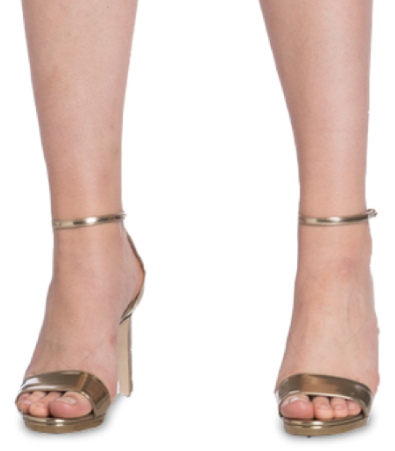
Add Ground Shadows

add ground shadows

  • allows to place a non-invasive shadow under a human model’s shoes or feet

  • component is mainly intended to avoid visual impression that a human model is floating in free space after removing the images' original background and placing it on a newly defined master canvas

Available Settings

  • size, blur factor and angle of the shadow

PREREQUISITES + Conditions

  • component requires following components to run before:

    • Remove Background

add ground shadows before add ground shadows after

Fix Portrait Exposure fix portrait exposure

  • Fix lighting issues by automatically adjusting the exposure

  • detects key objects on images and individually tunes their respective exposure with pixel precision

  • Get vibrant, balanced portrait photos

Available Settings

  • none

Best Results

  • on photos taken in a photo studio environment

fix portrait exposure before fix portrait exposure after

Edit Filename edit filename

  • allows to change the name of output files by adding a custom pre- or postfix

Available Settings

  • Prefix

  • Postfix

PREREQUISITES + Conditions

  • component requires following components to run afterwards

    • Export

Original image: testimage.jpg

Adjusted Image testimage_manipulated.jpg (“_manipulated = postfix)

Export

export

Define the export file type for output file like

  • JPEG (Determining quality/compression)

  • PNG (Determining Transparency On/Off)

  • PSD (Choose to include Guides, Layer Masks, Input Image and Set on Canvas Layers)

PSD Output format allows postprocessing images in tools like Photoshop and offers following additional options to be included in the export

  • Include guides: Set on Canvas component is used, the PSD file will contain layer guides at the outer borders and the padding

  • Include layer masks: if Remove Background component is used, the PSD can include a separate layer mask which can be further edited

  • Include input image: can include the original input image into PSD file. (Will increase the PSD file size)

  • Include Set on Canvas layers: if Set on Canvas component is used, the PSD file can include a separate layer for the object and the canvas background

  • Include Vector Path: if remove background or skin retouch is used a vector path can be included in the PSD file

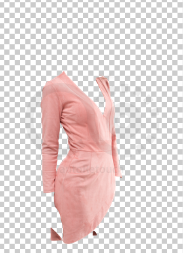
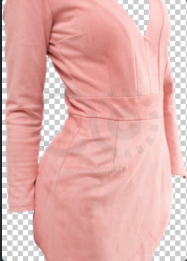
Ghost

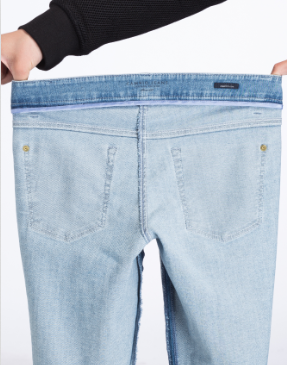
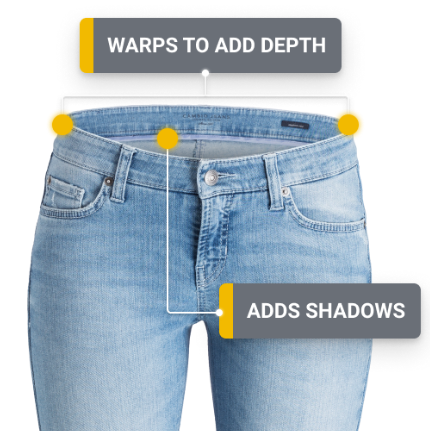
  • creates a finished product image based on two initial product photography shots: The product and the inlay shot

Best Results

  • Dresses

  • Skirts

  • Pants, Shorts & Bathing trunks

  • Tops, T-shirts & Pullovers

  • Jackets & Outerwear

  • Underwear & Bikini bottoms

ghost1 ghost2 ghost3

Welcome to the AI Chat!

Write a prompt to get started...