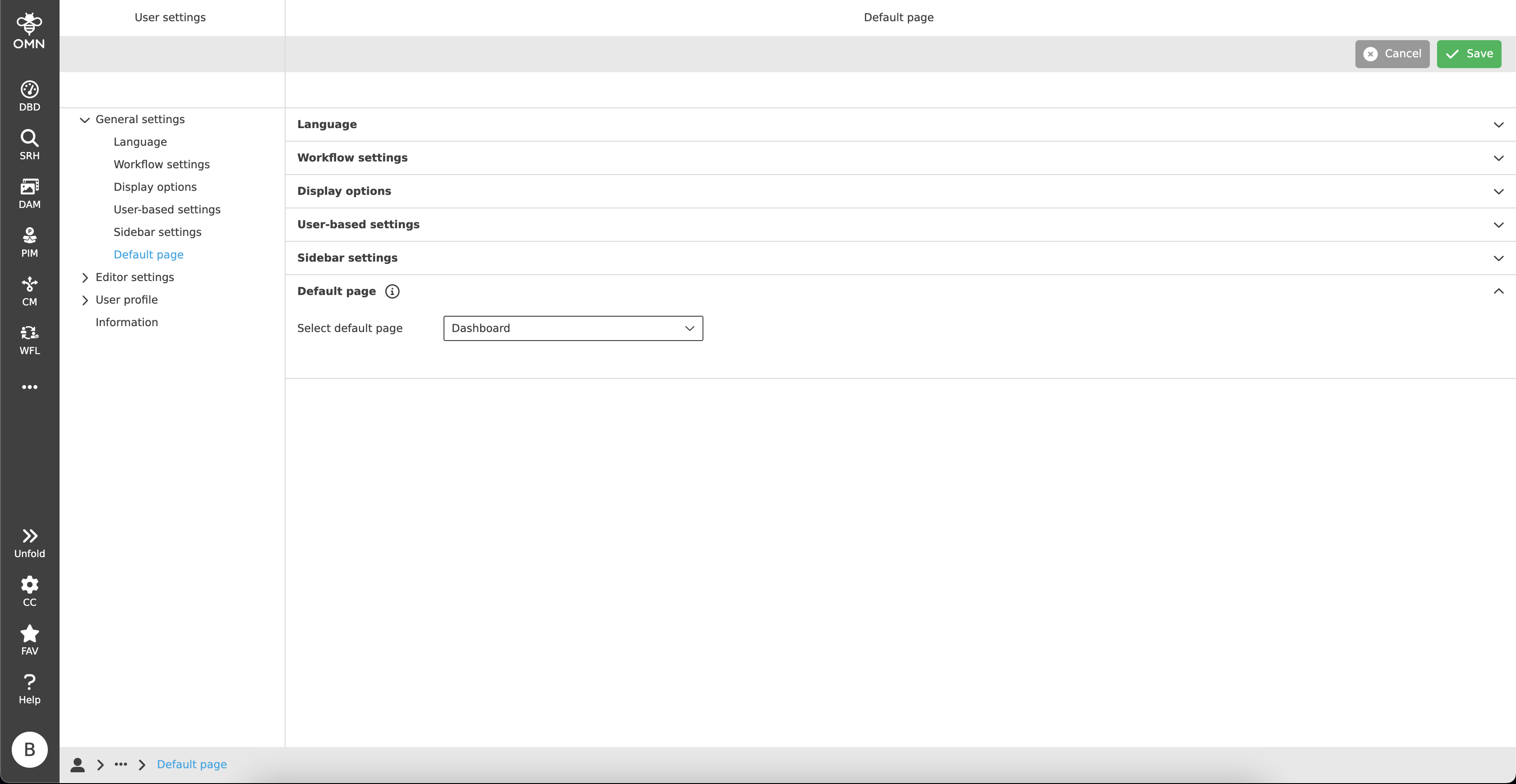
General settings
In the general settings, users can make all settings that affect the system in general. These include, for example, language settings, display options or user-based settings.
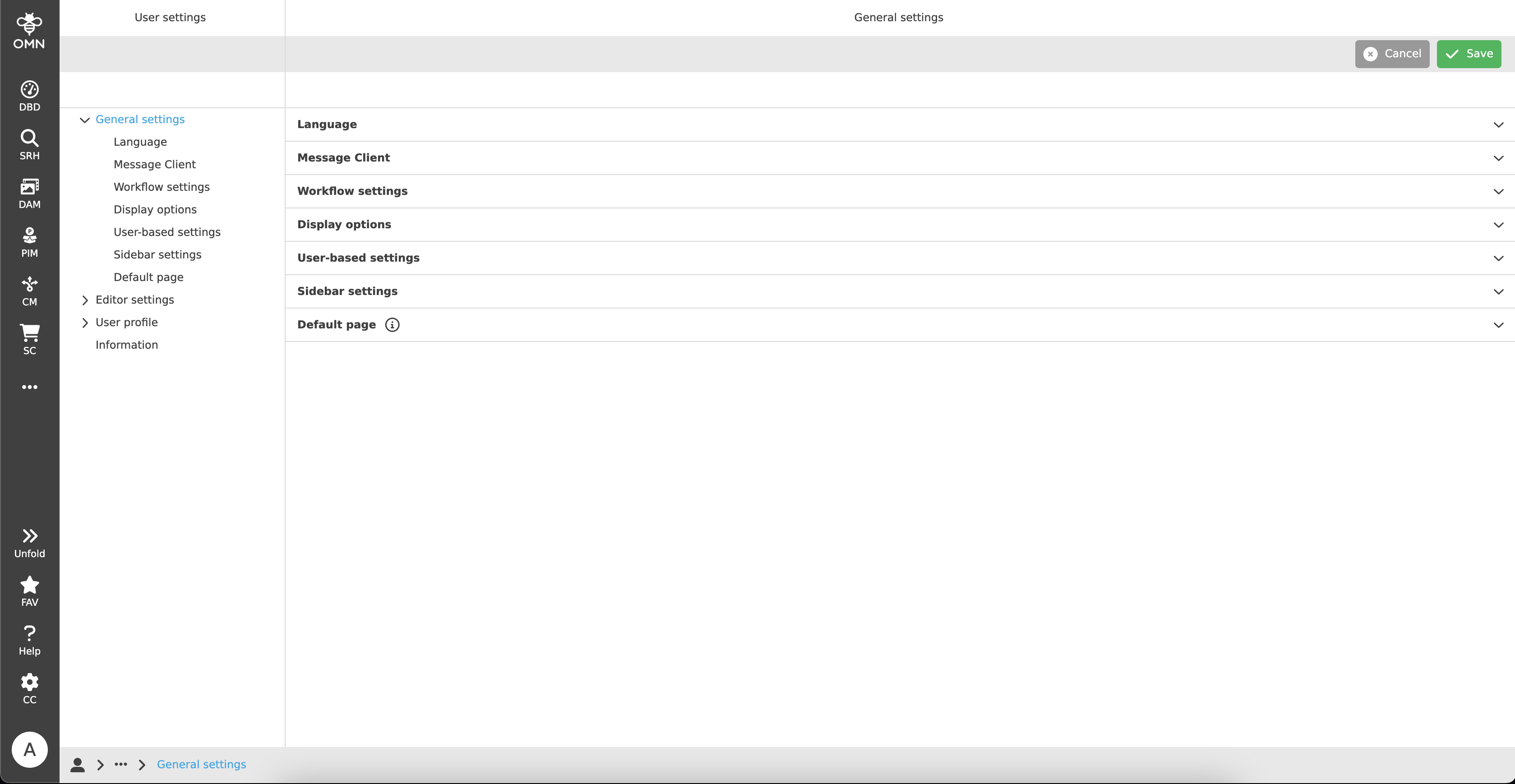
Language
The OMN can handle different languages, if available, and display system or content in the desired language (provided by the Configuration Client).
In the "Language" area, the user has the option to change the respective data/content language and system language via a drop-down input.
Message Client
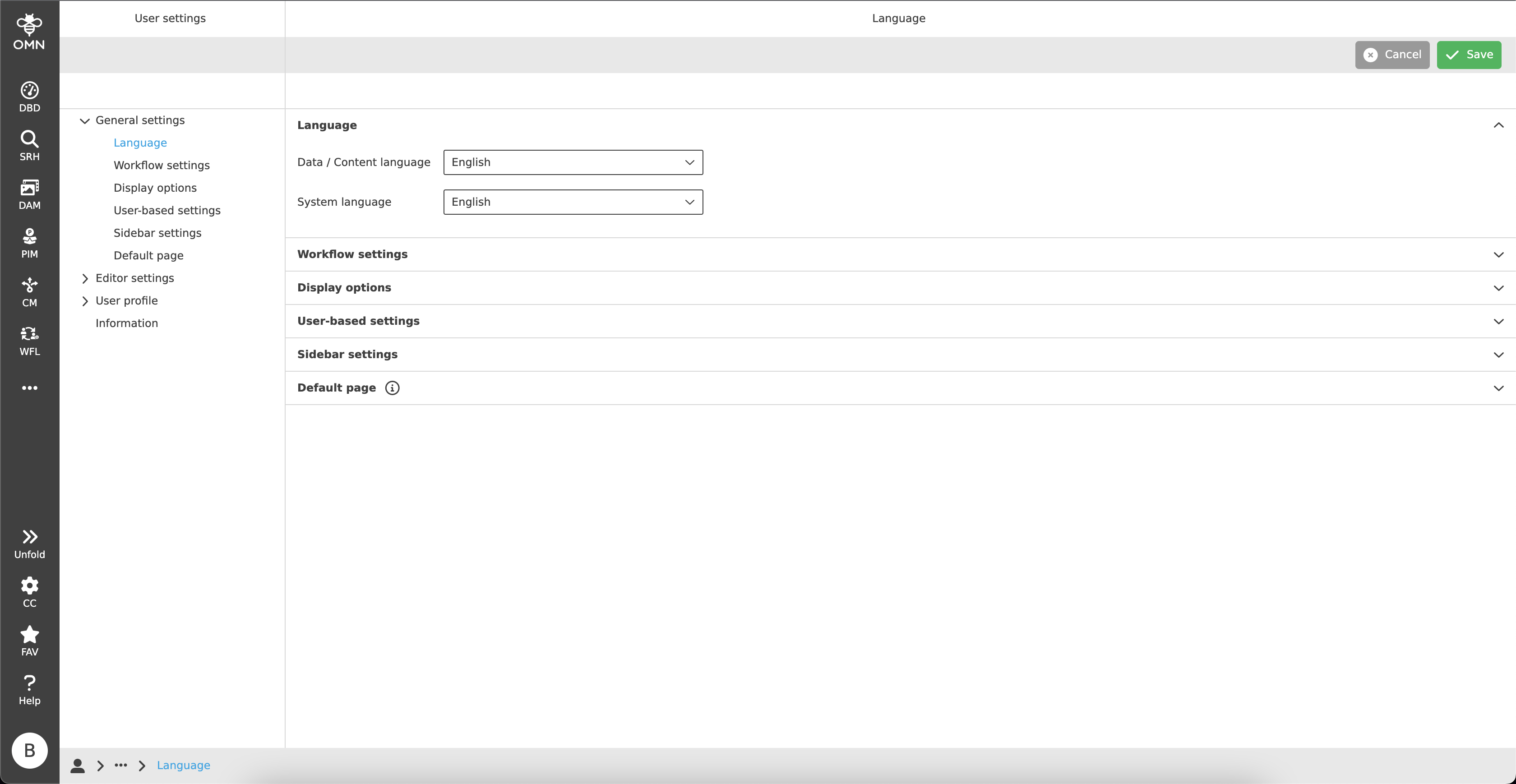
In the Message Client area, a user has the option to activate filters from the Message Client for an email subscription and to accumulate messages.
By default, all filters are deactivated and activated by clicking on the checkbox in the "Activate" column.
Only then it is possible to activate the "Cumulate" column and thus the cumulation function.
After activation, it is possible to enter one or more email addresses in the "Subscription Mail Address" section. A notification will then be sent to this e-mail address(es) as soon as a message relating to the respective filter is received.
Alternatively, these emails can also be sent cumulatively in order to only receive such notifications in a specific time frame.
To do this, the user can specify after how many hours and minutes a cumulative email should be received.
| The Message Client area is only visible in case that users have the corresponding access rights and minimum one filter is set in the Message Client. |
Workflow settings
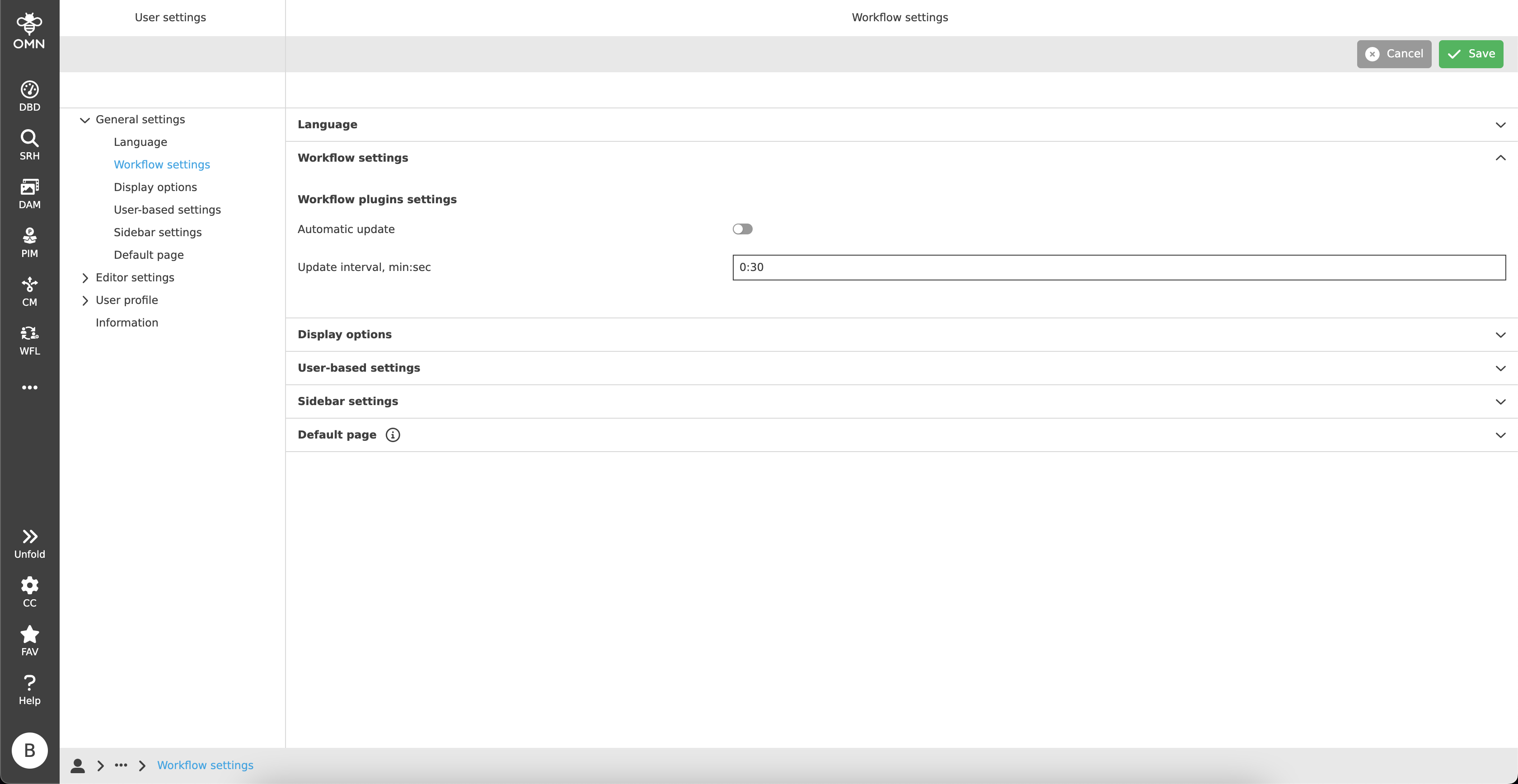
Within the Workflow settings area users have the possibility to activate the "Automatic update" function by toggle, which means, that there will be done an automatic refresh for Workflow Statuslist and Tasklist.
The refresh interval can be set in the line below (Update interval, min:sec) by entering minutes and seconds.
| The section will only be visible, if a task or status is available. |
Display options
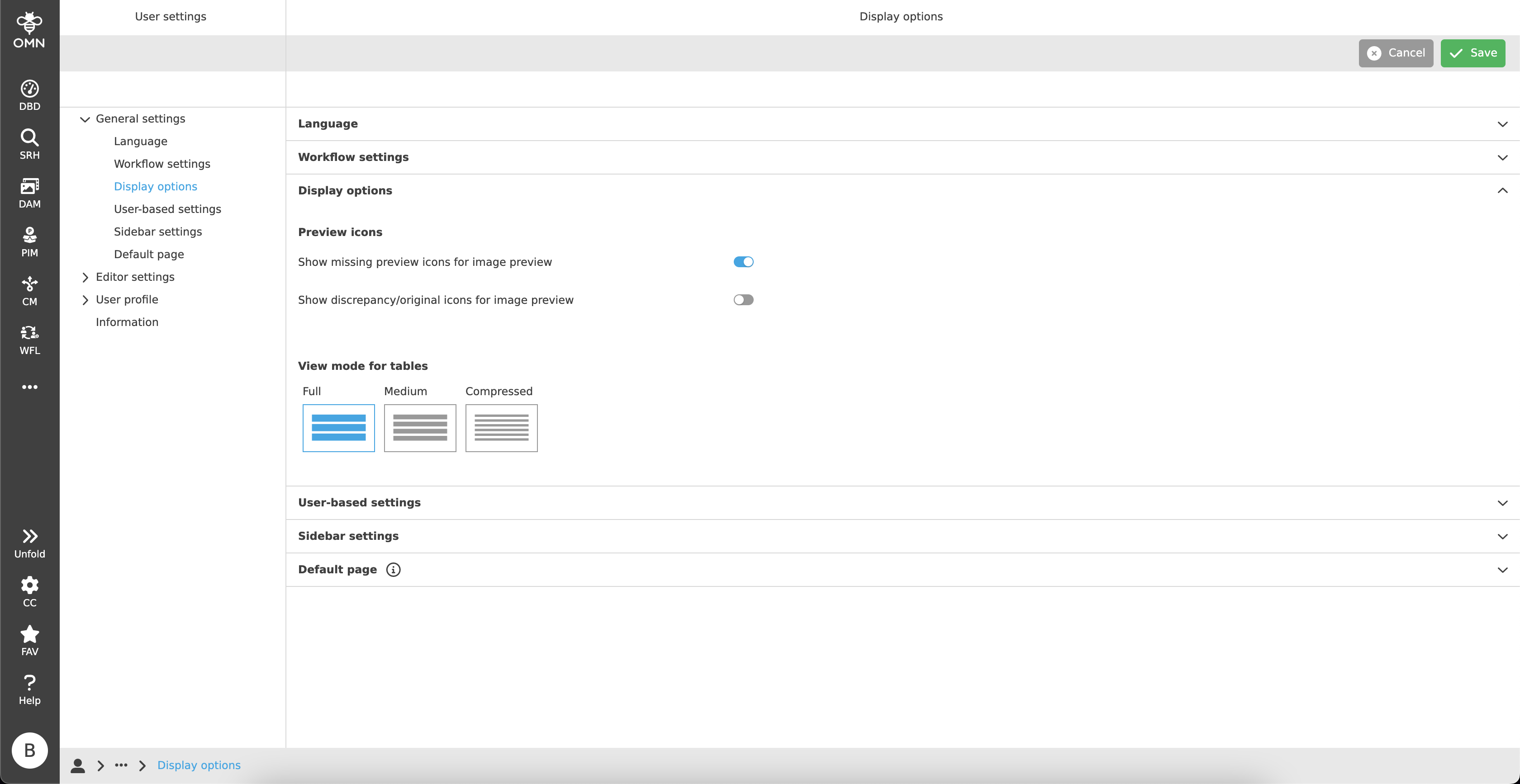
The "Display options" section allows users to individualize specific areas of the user interface, such as showing or hiding icons or the height of table rows.
Preview icons
OMN offers the option of displaying various icons for a better status overview:
-
Show missing preview icons for image preview
For hiding or showing the icons for missing previews on preview images for files and folders.
Icons will show, if a file is known by OMN or not. -
Show discrepancy/original icons for image preview
For hiding or showing the discrepancy and original icons on preview images.-
Discrepancy
 : the preview image may have changes compared to the original
 -
Original
 : the preview image shown corresponds to the original
-
View mode for tables
To allow users a high degree of customizability, OMN provides three view modes for tables, which are displayed with a small preview image:
-
Full
The table rows are displayed particularly high to give a more airy impression and more space (e.g. for preview images). -
Medium
The table rows are displayed in "normal" size. This keeps the table clear and displays an average number of rows.
The medium mode is set by default. -
Compressed
The table rows are shown as small as possible in order to display as many rows as possible.
User-based settings
The user-based settings enable users to permanently save certain settings, such as column widths, filters, etc.
This means that each setting does not have to be readjusted when the page is visited again.
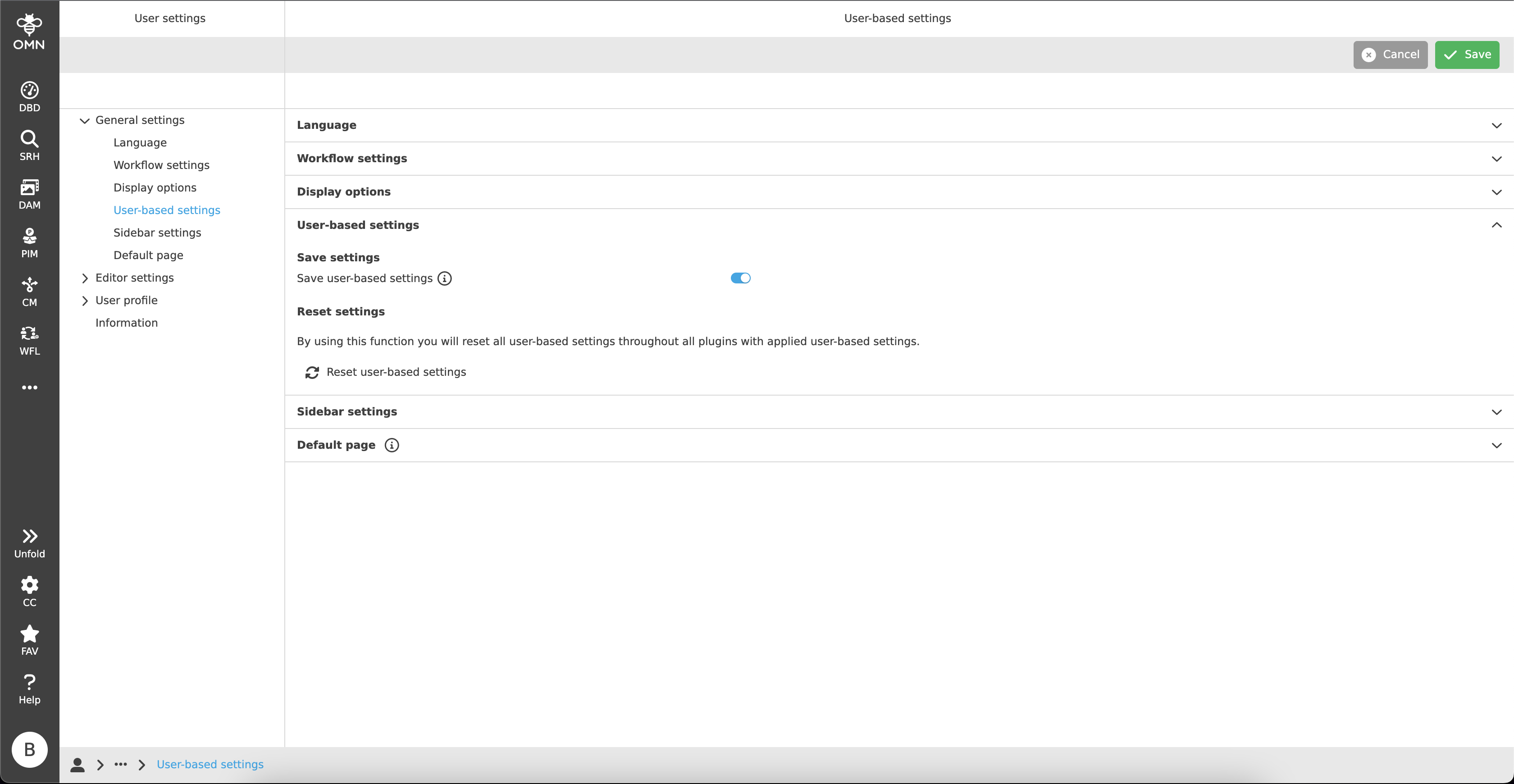
The accordion "User-based settings" contains two options, to save the settings system-wide or to reset this setting.
Save settings
With the help of a toggle button, the option "Save user-based settings" can be activated.
Subsequently, all settings are saved system-wide for all users, regardless of the device used.
If the function is switched off again, the settings are deactivated, but can be reactivated at any later time.
This means that the settings remain saved and the saved status can be accessed again at any time.
Reset settings
In the "Reset settings" area, in contrast to deactivating the user-based settings, all settings made across all plugins are deleted.
This means that this action is final and cannot be restored.
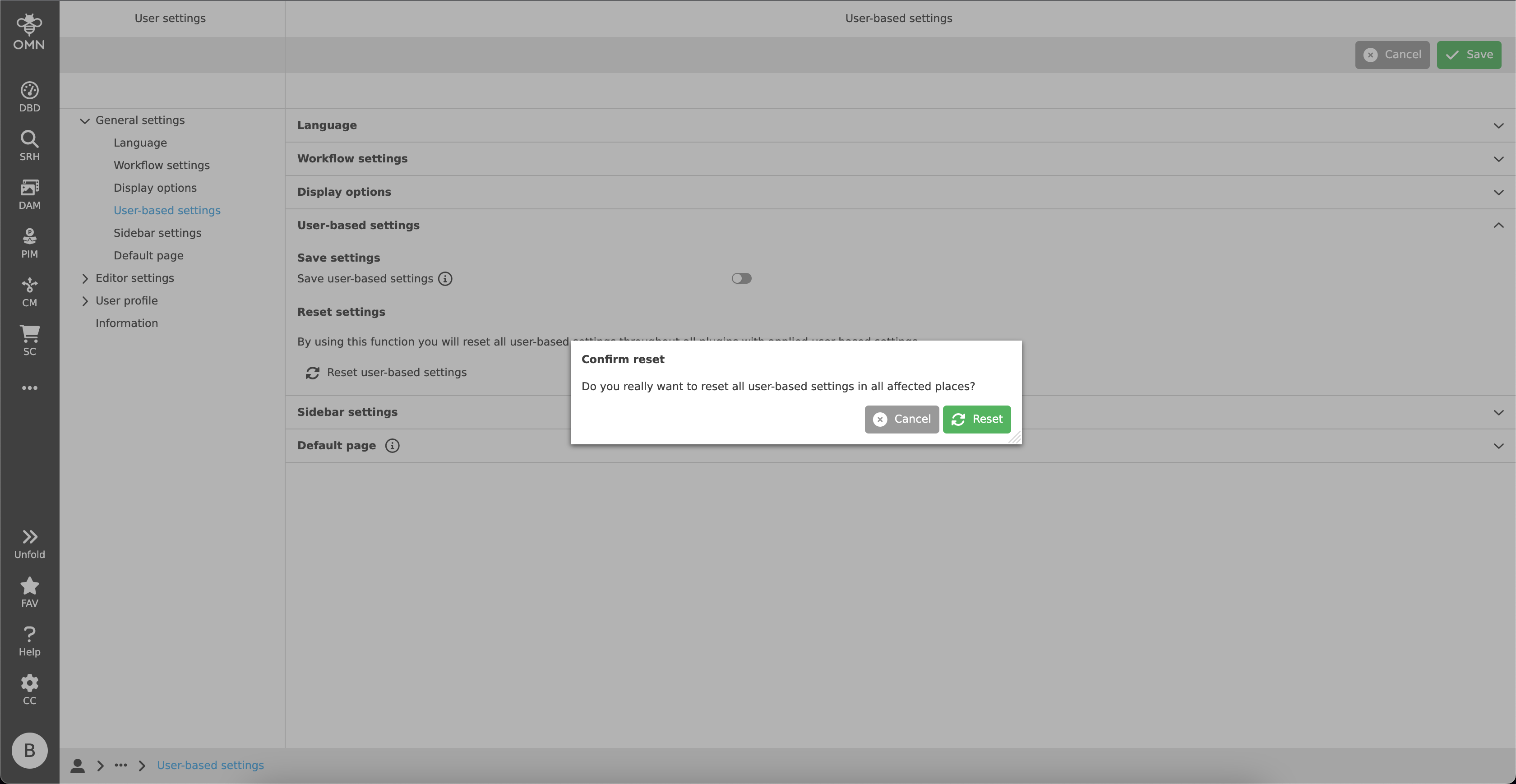
To carry out the action, the button "Reset user-based settings" must be clicked.
A dialogue opens asking if the action should actually be carried out.
After "Reset" has been clicked, all settings are deleted.
| Since all dashboards are saved on a custom basis, performing the reset action will also delete all dashboards and their widgets. |
Sidebar settings
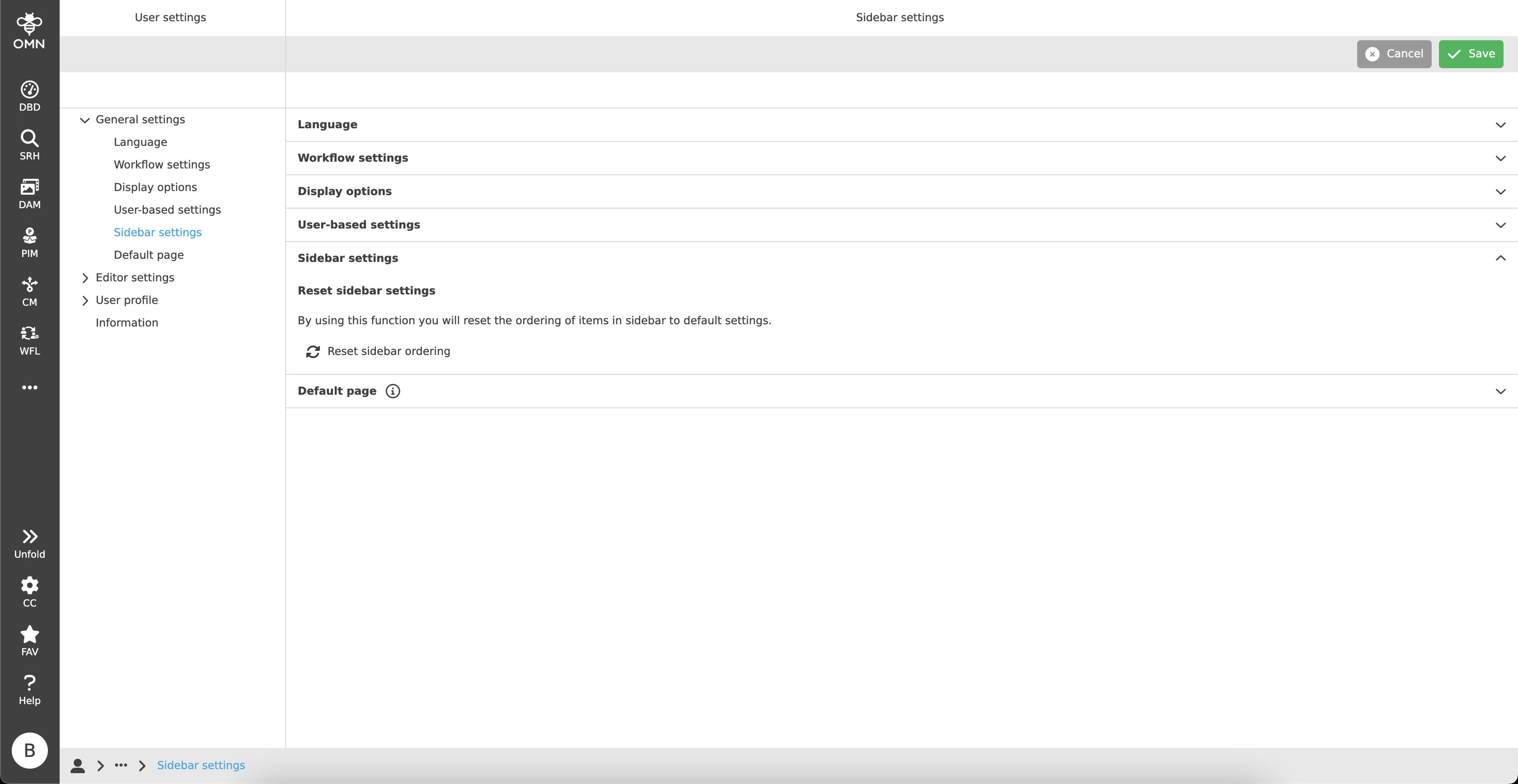
In the sidebar settings, users can reset the order of the elements in the sidebar to the default settings (set in Configuration Client).
To do this, users only need to click on the button "Reset sidebar ordering".
Default page
In general, it is possible to define a default start page in the Configuration Client that is always displayed after logging in.
The "Default Page" area within the user settings allows the user to override this setting and define his or her own start page.
To do this, the user simply has to select the desired page in the "Select default page" dropdown.
The available pages are displayed in alphabetical order and can also be filtered using the dropdown’s search function if desired.
By default, "Default" (start page set in Configuration Client) is selected.