Create a Custom Preview Configuration
This page describes the shell custom preview run by the on-prem synchronizer (script type SHELL). With the Lambda synchronizer introduced in OMN 7.0, custom previews are JavaScript objects stored in S3 instead — see Custom Preview Generation with the Lambda Synchronizer in the OMN 7.0 documentation.
|
Precondition
In order to create a custom preview configuration, an OMN product version >= 4.5.0 is required.
Configure OMN
Open the OMN configuration interface and navigate to Administration.
There you will find a new menu entry called Previews configuration.
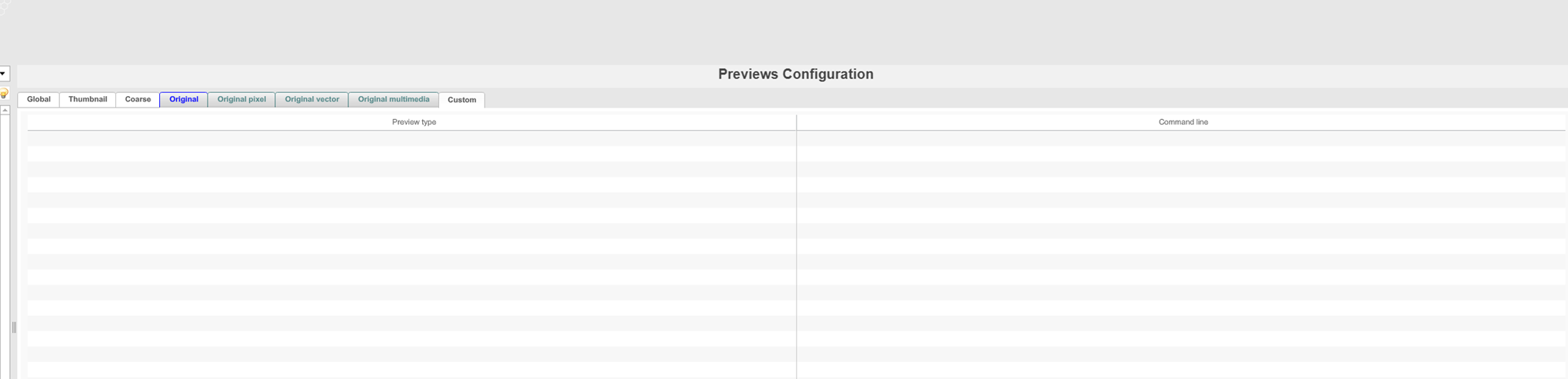
-
Add a new preview type e.g. named RotatedImage
-
Add the path to the script and the parameter e.g. /usr/local/bin/omn-convert.sh {sourceFilePath} {fileType} {tempDirPath} {pageCount} {previewType}
-
Place the script on the target system in the folder and name it like above
The following parameters are available:
{sourceFilePath} |
The path to the source file |
{ fileType } |
The file type |
{tempDirPath} |
The temp directory. Follow-up function will assume that files will be located there. |
{pageCount} |
The total page count of the document if supported otherwise 1 |
{previewType} |
The name of the preview type e.g. RotatedImage |
The script is expected to return the file type of the file it has created. This type has to match any of OMN’s file types otherwise this preview will be ignored.
| E.g: The creation script’s was called with the below parameters and the return value was TIFF |
| {tempDirPath} = /tmp/previews/123456789 {previewType} = RotatedImage |
| Follow-up functionality will assume that the generated preview will be found at: /tmp/previews/123456789/RotatedImage.tiff |
| Please keep in mind that file extension and file type might not always match, e.g.: png versus PNGf, tif versus TIFF, jpg versus JPEG, pdf versus "PDF " (white space at the end!) |
| Currently it will not work for "PDF " as the script’s return value is trimmed! |
A Sample Script
The below sample bash script (bash version >= 4) will create a by 90° rotated file of type $2 (e.g. this script will work for JPEG, TIFF, etc.).

Meaning of parameters:
-
$1 = Path to original file
-
$2 = file type
-
$3 = Path to temp
-
$4 = Page count (e.g. required for multipage documents like PDF)
-
$5 = Custom preview type name
| The order of parameter depends on the order you have specified in the OMN configuration. |
Q+A
| Question | Answer |
|---|---|
when are custom previews generated |
Custom previews are created/updated after any changes which trigger preview regeneration |
custom previews automatically deleted when the original is deleted |
They should be dropped but not absolutely sure, if this works |
could we make the custom previews also available via UI generally (e.g. via own widget preview downloads)? |
I think yes. Custom previews are already shown in PeoView. Some assets might not have custom previews so we should think how to handle this case. |
The location of custom previews can be defined in the omn_*.properties with the parameter FileSystems.CustomFileSystemPath=<Path to previews>.