Versioning
Versions
For each asset, versions can be created in any Page-plugin showing assets in the content. As soon as the first version exists, it becomes visible in the asset view of the corresponding asset.
To create a version, click the corresponding function button and the “Create versions” dialog pops up.

In this dialog, enter a suitable comment for the version. You can also specify a timeout date for a version, i.e. the version will automatically be deleted when this date is exceeded.
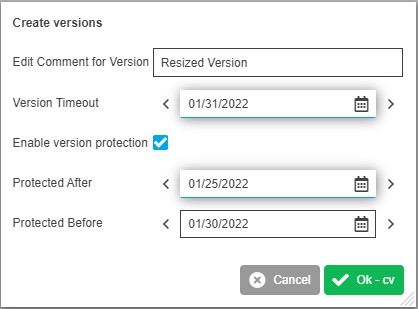
The option “Enable version protection” allows to protect a version, i.e. it may not be activated, nor is it possible to turn a version into a variant (see below) as long as it is protected. When you activate the option two date fields appear; “Protected After” and “Protected Before”. If you enter a date in the first field and leave the second one empty, the version will always be protected after the entered date in “Protected After”. If you leave the first field empty and only fill in a date in the “Protected Before” field, a version is protected until one day before the date entered here. When a date is entered in both fields, the version is protected during the corresponding time span. Both fields can be edited later in the version set (per version).
| Depending on Backend configuration it is possible that versions are created automatically during check-in process. Automatic creation is configured in the Backend per root node configuration. |
After opening the asset view, click on the appropriate menu item (e.g. Versions) to view the version set of an asset. The versions display in a static table.

The version set displays all existing versions of an asset. By default the table is sorted by the version creation date.
For each version, a preview, version number and size, creation date, the name of the user, who created the version, and the comment entered during version creation are shown. The column “Created by” displays the workflow name of the corresponding workflow, if an ISY3 Workflow Management is integrated and the version creation is done via workflow.
Furthermore, there are several dates shown for each version:
-
Last usage date: This date records the last time stamp when a version was activated. This date may be the version creation date in case a version was never activated.
-
Timeout date: Date at which a version is automatically deleted (as specified during version creation).
-
Protected after date/Protected before date: When version protection was enabled during version creation, the corresponding dates display. They may be modified or removed if protection time span shall be changed (or nullified).
Activating/Deleting Versions
A selected version can be activated clicking the Activate version button. One or more selected versions can be removed clicking the Delete version button.
| If a version is protected, it cannot be activated as long as protection is lasting. A corresponding warning message appears when trying to activate a protected version. |
If you activate a version, it will become the ISYFileObject. I.e. an activated version overwrites the current ISYFileObject. As soon as the Activate version button is clicked a message pops in which you must confirm the activation.
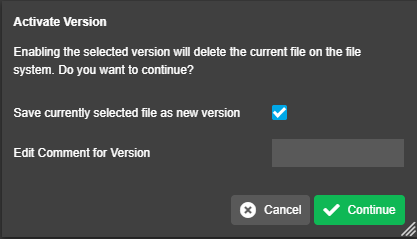
If you enable the checkbox “Save the current file as a new version” you can enter a text in the comment field. When you submit the dialog with Continue, the current online file is overwritten, but will be saved as version. If you disable the checkbox, the current online file is overwritten. Clicking Abort cancels the activation of the version.
Activation of versions, which are attached to an offline ISYFileObject is possible, too. The target file for the operation, however, will be the online file. So if the current ISYFileObject is online, it will be overwritten. If it is offline, it will become online after activation is finished.
Edit protected Date Version
If version protection was enabled during version creation, the date fields can be edited to modify the protection time span or also to remove protection.
Turn Version into Variant
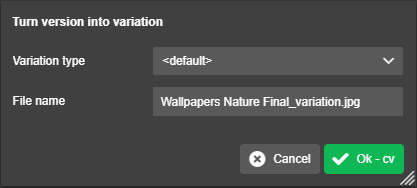
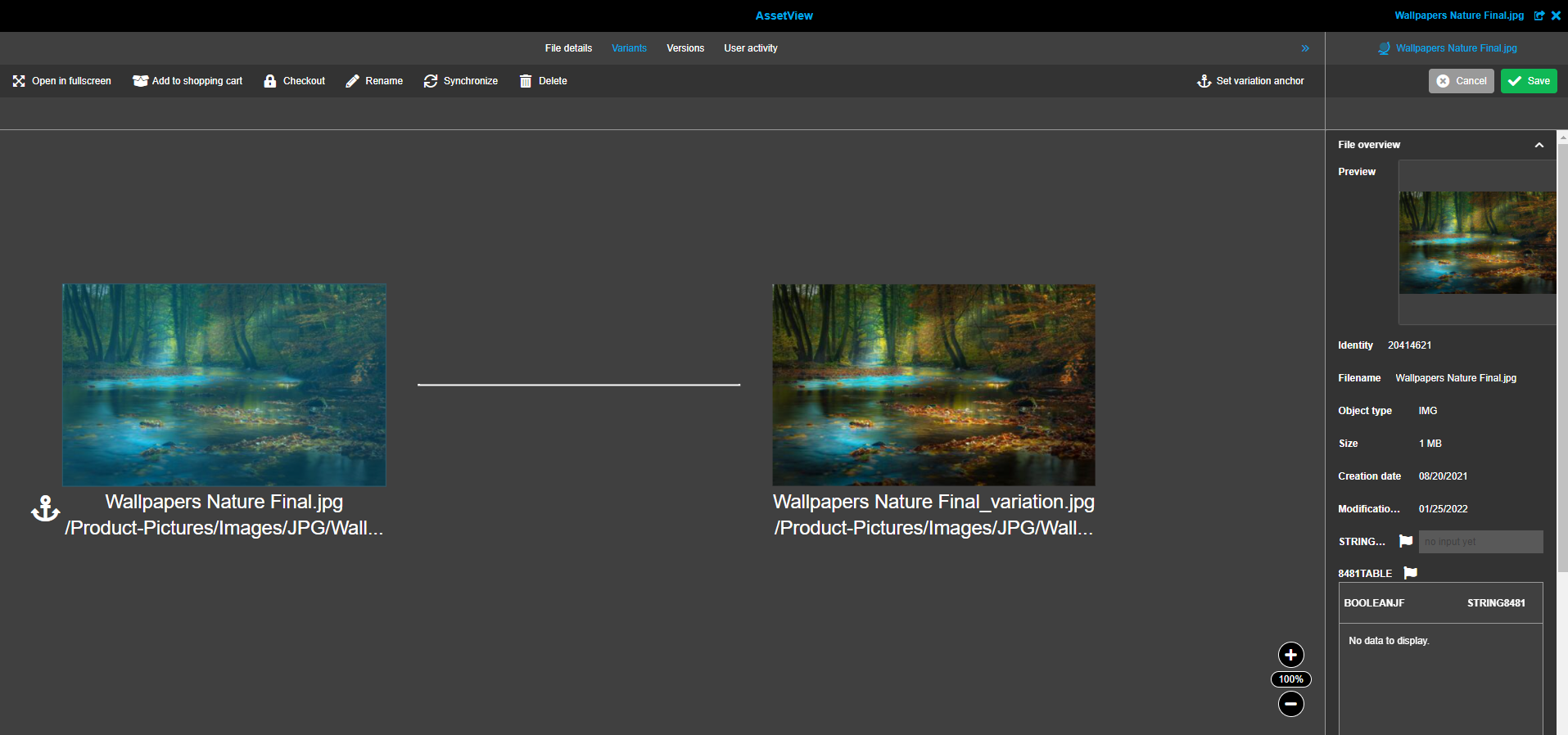
A version can be turned into a variant. This means the system will retrieve a version from the DTS Storage System to the online file system. Afterwards the version will be linked to the currently selected asset as variant.
When clicking the function button the dialog “Create variant” appears, in which you choose the variant type from the selection list. The field “File name” shows the name of the new variant according to the naming convention of the chosen variant type (as configured in the Metadata Fields administration in the Backend). Submit the dialog with OK to create the variant in the file system in the same folder as the current asset.
| If a version is protected, it cannot be turned into a variant as long as protection is lasting. A corresponding warning message appears when trying to turn a protected version into a variant. |