DuplicateSearch usage
The main goal of DuplicateSearch is going through the OMN system and looking for file-duplicates to get a complete overview of all duplicated objects and work with them further (e.g. remove). DuplicateSearch can be opened both from the sidebar and global OMN-Search page depending on configuration.
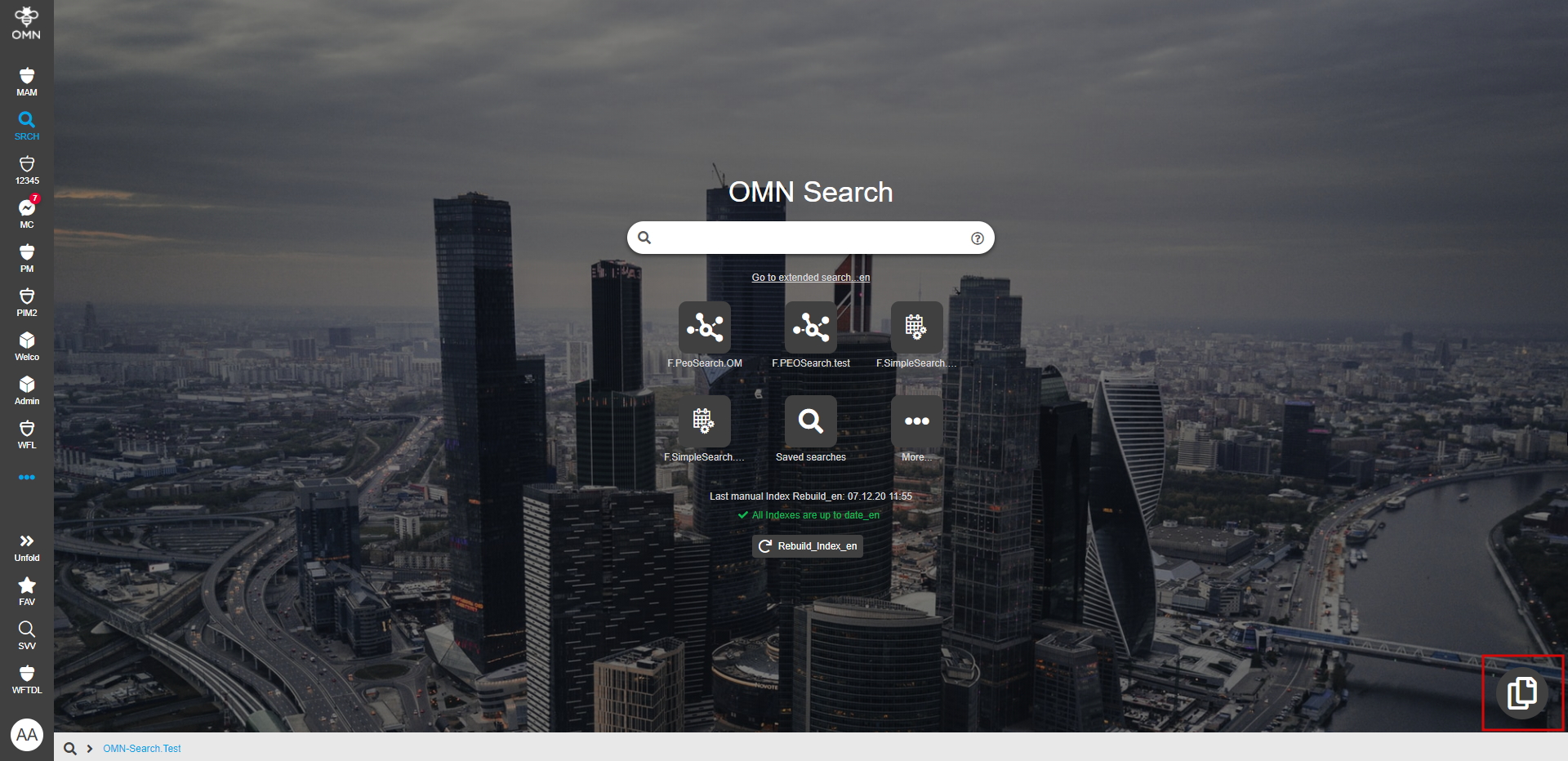
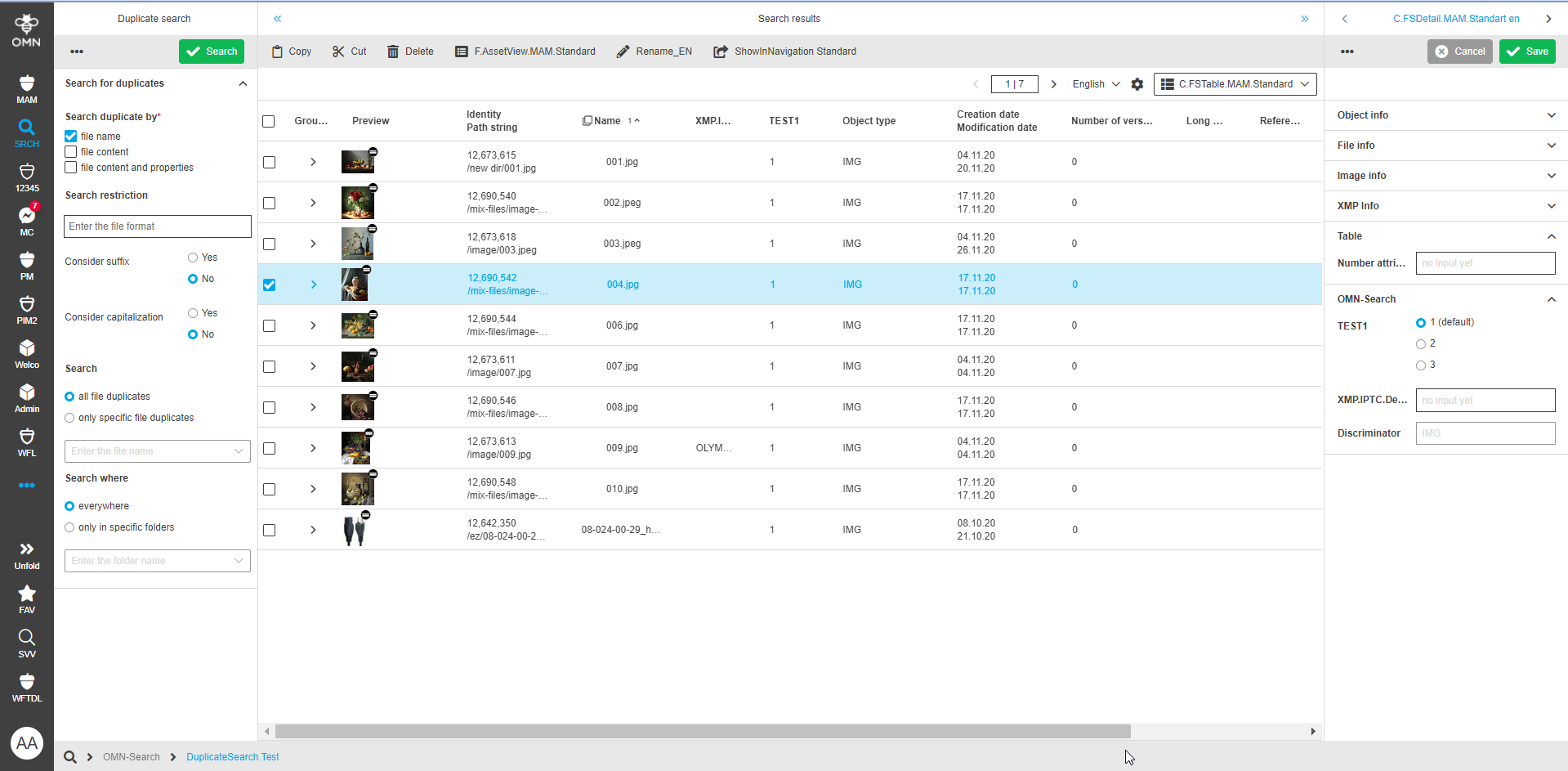
Duplicate search results page contains three areas:
-
Left Area: The width of the area depends on backend configuration. The following options are placed there:
-
Toolbar contains:
-
"Search" button to execute a search for duplicates based on selected parameters (found results are shown in center view)
-
"Reset" button to reset all data to the default state (all fields are cleared, search options - by default)
-
"Save search" button to store specific duplicate searches with defined parameters (if one is saved, it is shown in the "Saved searches" accordion below)
-
"Rename search" button (only shown when a saved search is available and selected, allows to change the name of the selected saved search)
-
"Remove search" button ( only shown when a saved search is available and selected, allows to remove the selected saved search)
-
-
"Search duplicate by" option contains checkboxes, multi-select is possible (mandatory field, min 1 value has to be selected, "file name" is selected per default)
-
search by "filename" → search for duplicates on the base of equal filenames
-
search by "file content" → search for duplicates with the same content data (eg. pixel image content)
-
search by "file content and properties" → search for duplicates with the same content data and file-metadata (file properties like e.g. modification date)
-
-
"Search restrictions" contains some filter options to restrict the search results including:
-
the field to specify the possible file-formats, multiple are possible
-
if "filename" is selected in "Search duplicate by", the extra option appear:
-
"Consider suffix" with radio buttons "Yes" and "No" ("no" option by default) - > if enabled consider file suffix in duplicate search by filename
-
"Consider capitalization" with radio buttons "Yes" and "No" ("no" option by default) - > if enabled consider upper/lower case letters in duplicate search for filename
-
-
-
"Search" with radio buttons:
-
search for "all file duplicates" (default)
-
"only specific file duplicates": if activated, file names/folder names can be selected in the search field below and the Duplicate Search for this selected images/images contained in a selected folder/both is performed
-
-
"Search where" with radio buttons:
-
"everywhere" (by default) - > search in all RNC accessible for a user
-
"only in specific folders": if activated, the user searches for folders by name and see appropriate results in the dropdown, folders to search in can be selected (search includes all files that are located below the selected folder)
-
-
"Saved searches" in alphabetical ascending order if available
-
-
Center Area
Search results are displayed in the center as a table according to FSTable configuration. ContentView Switcher is available in case of multiple configured FSTables (default view from configuration is considered). General settings options (such as select all, sorting, filtration, pagination, etc.) are available. Grouping is also available and works as follows: search option by Filename only → grouping on the base of attribute filename, by file content only → grouping on the base of attribute "Image Data Checksum" ("Without metadata" search option in old client), by file content and metadata combinations → grouping on the base of attribute "Total File Checksum"("With or without metadata" in old client). The default grouping can be changed by a user.
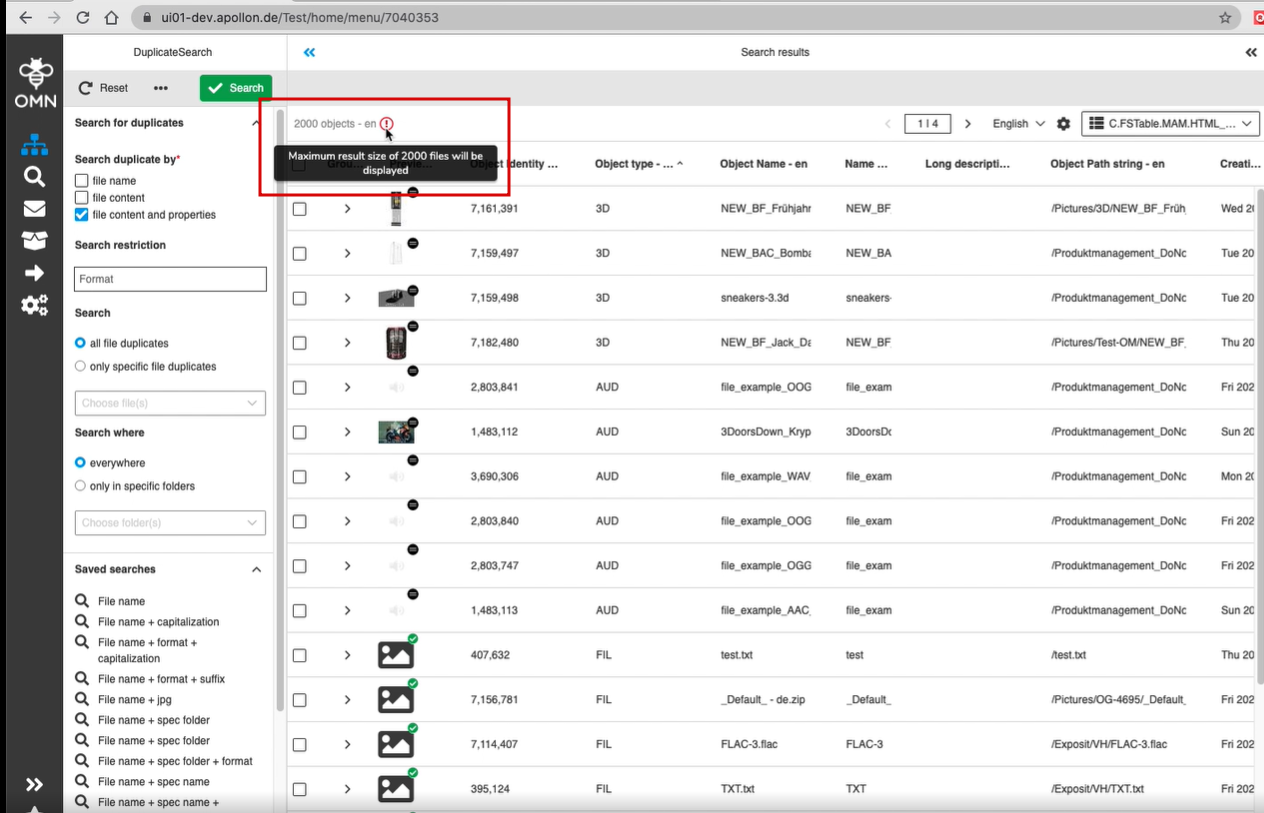
To have correct grouping "Total File Checksum" and "Image Data Checksum" expressions should be configured (otherwise grouping will not work) Currently, "Grouping" option from FSTable configuration is not considered and search results are always grouped in DuplicateSearch. In case of "Calculate results total count" is enabled in the backend, amount of found items is shown even if the table cannot display all objects due to DB limitation (if so the corresponding message with max result size value is shown):
-
Right Area
Display of duplicates' data is supported for further checking and editing of metadata in the right view. Right view is available if FSDetail(s) is (are) configured in the backend (tab navigation is available in case of multiple configured FSDetails, set default view is considered). It appears only if a found item is selected in the center. All information is shown in UI language according to backend localization. The width of the right area depends on DuplicateSearch backend configuration
Any duplicate search can be saved and then used repeatedly. The access to duplicate search can be restricted by access rights.