Icon assignment
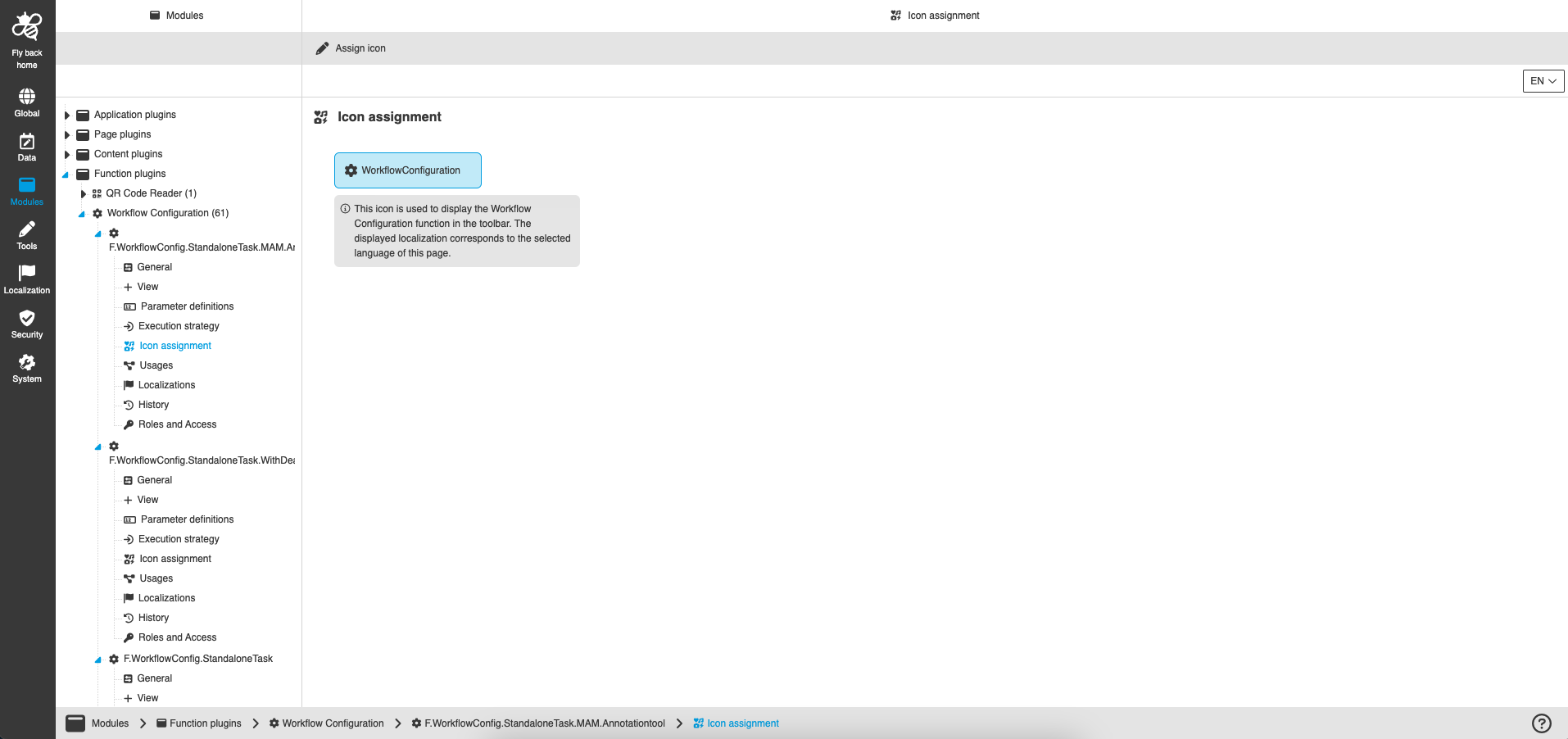
Described using the example of Function plugin Workflow Configuration.
Icon assignment is a standard configuration, which is available in several plugins in the Configuration Client. It allows to provide an use case specific icon to the user interface. This tab is available for:
-
Function plugins
-
Content plugins
-
Page plugins
-
Tools
For function plugins and tools the icon will be shown in the frontend toolbar button. For content plugins the icon will be shown in the navigation bar or in the statusbar content-switcher in the frontend. For page plugins the icon will be shown in the frontend sidebar.
| The exact usage of the icon is explained in the respective plugin context, so that it is clear where in the frontend the icon is displayed. |
Functions for configuration:
| Function name | Description | Note |
|---|---|---|
Assign icon |
With this function it is possible to change the provided standard icon to an individual icon. |
see 'Assign icon' |
Delete icon |
With this function it is possible to delete the icon, so that the view is represented purely by text in the frontend. |
It is only allowed to delete the icon for content view plugins, so the function is only available for this plugin type. see 'Delete icon' |
Set to default icon |
With this function it is possible to reset the icon to the default icon configuration. |
The function is only visible if another icon than the default icon is currently configured. will be supported in later version |
Assign icon
To assign an icon the following steps need to be done:
-
Select icon box in canvas.
-
Click on function 'Assign icon' in the toolbar
-
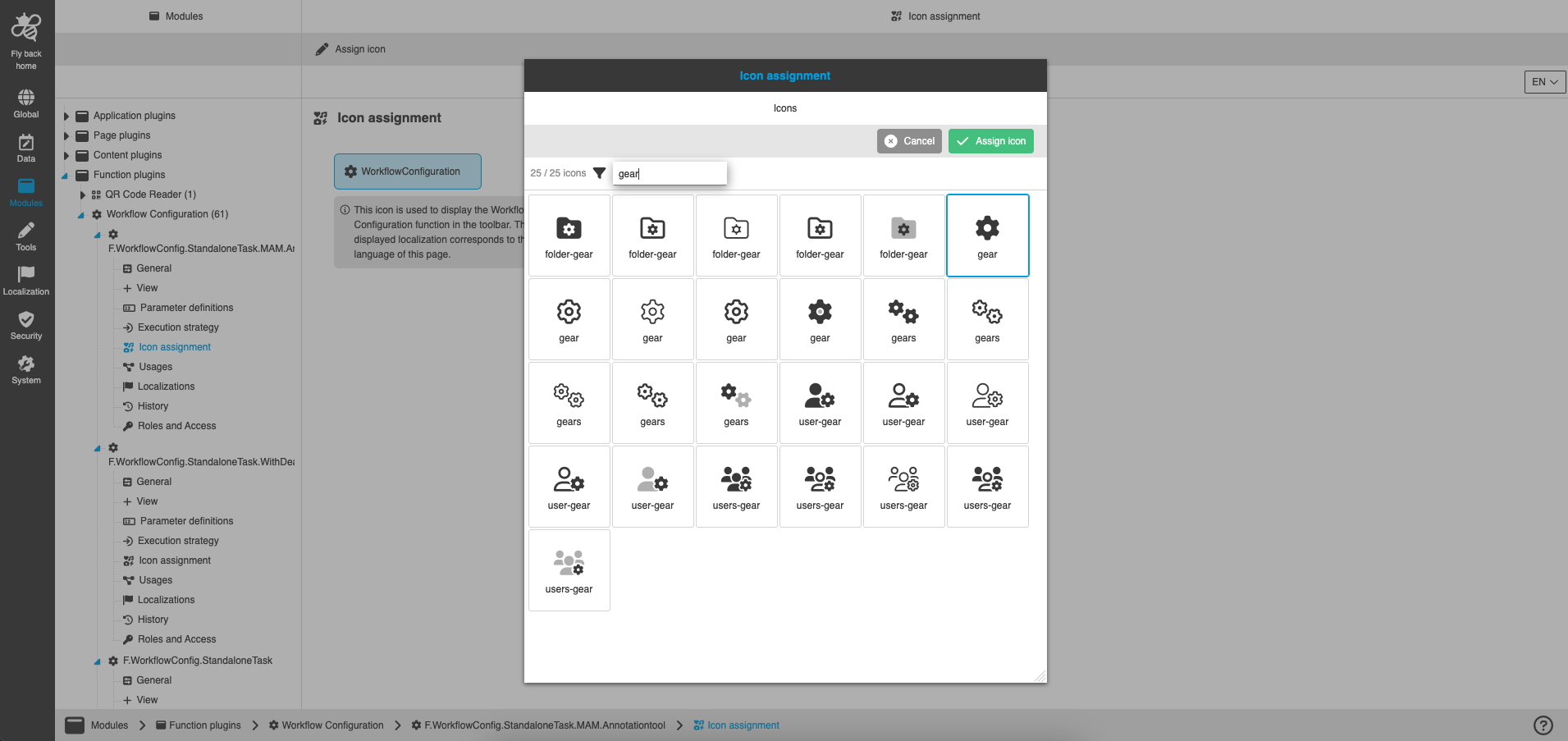
Select the wished icon in the modal
-
Thereby a search and several pages of icons are available
-
-
Click on 'Assign icon' to apply the selected icon
Delete icon
To delete an icon the following steps need to be done:
-
Select icon box in canvas.
-
Click on function 'Delete icon' in the toolbar
-
Confirm the modal
-
With 'Delete icon' button the current icon will be deleted
-
With 'Set to default icon' button the default icon will be set for the plugin
-
| Image for this function will be provided in later version. |