Template View
Purpose of the plugin
With the help of the template view, users can use PEO templates to configure the distribution of products to defined channels, such as print or webshop.
Introduction
A PEO (Product Export Option) is a type of "filter" across the entire article data master. Only the explicitly permitted attributes are transferred to the target channel. This reduces the volume of data and ensures that sensitive attributes are not transferred to every channel.
In addition, it is possible to define for each attribute and channel which attributes are transferred 1:1 (read-only) and which may still be edited per channel in contrast to the article master. In addition, there is also the option of "direct connection", which means pushing back to the PIM (caution: this option should only be selected after careful consideration and training).
How to use
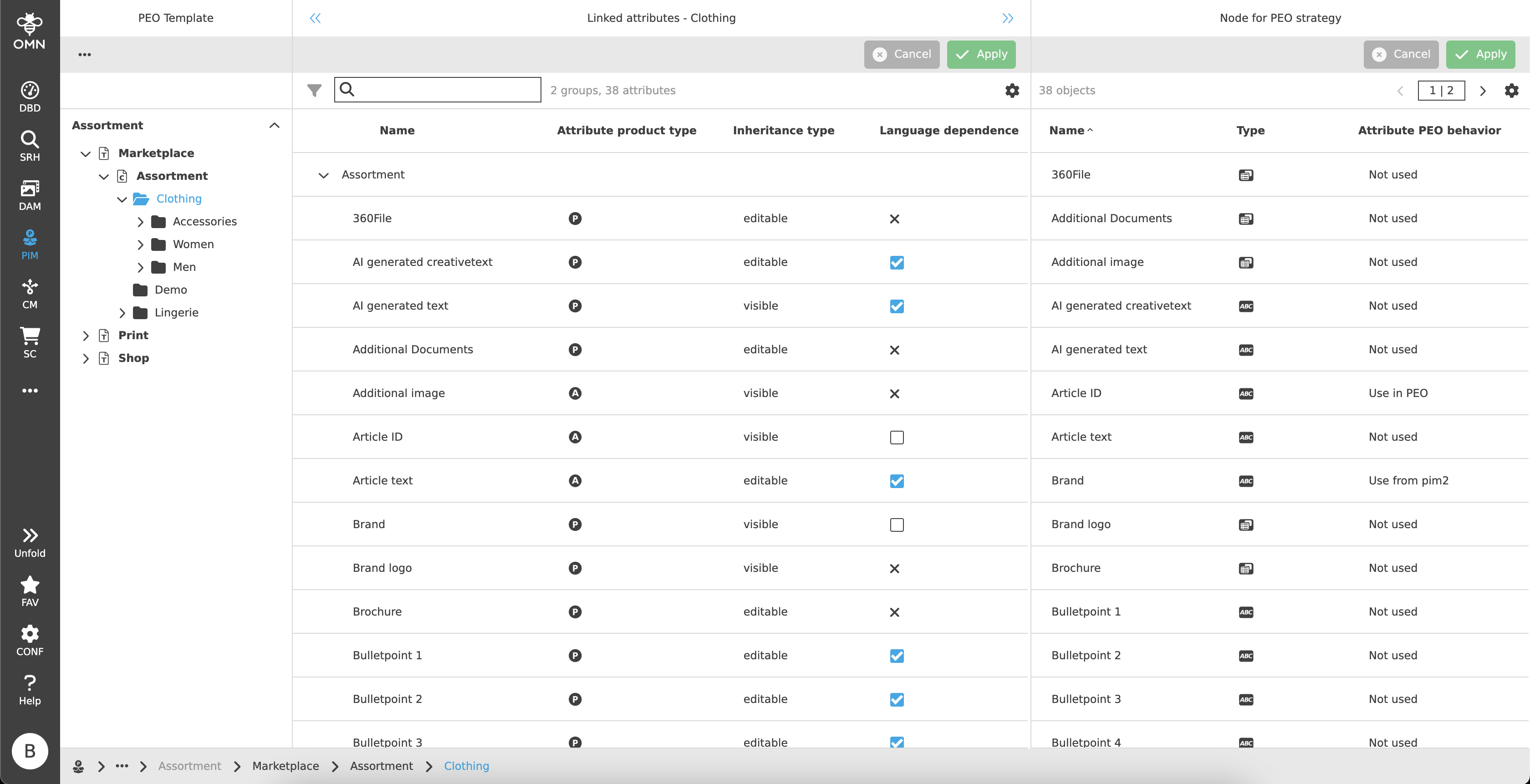
Like most plugins, the template view consists of a left, center and right view.
-
Left View
Navigation overview, contains PEO templates and the underlying classifications and nodes -
Center View
Display of the linked attributes and editing of the various setting options -
Right View
View for managing the PEO attribute behavior or the PEO strategy
Left View
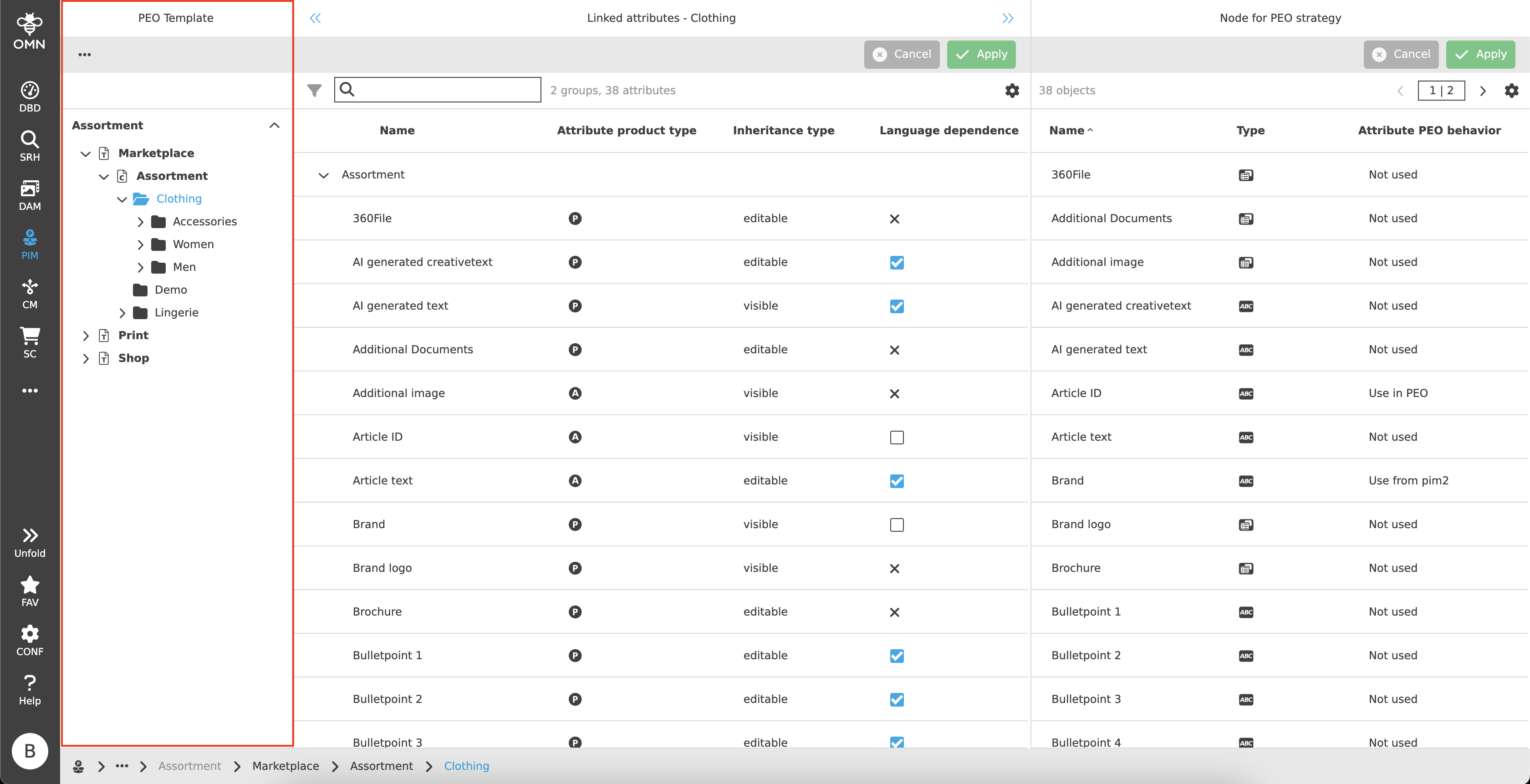
The left view shows PEO templates and the underlying classifications and nodes.
New PEO templates can be created or existing ones can be edited or deleted.
Toolbar & Functions
The toolbar contains various functions, including:
-
Add template
-
Rename template
-
Remove template
-
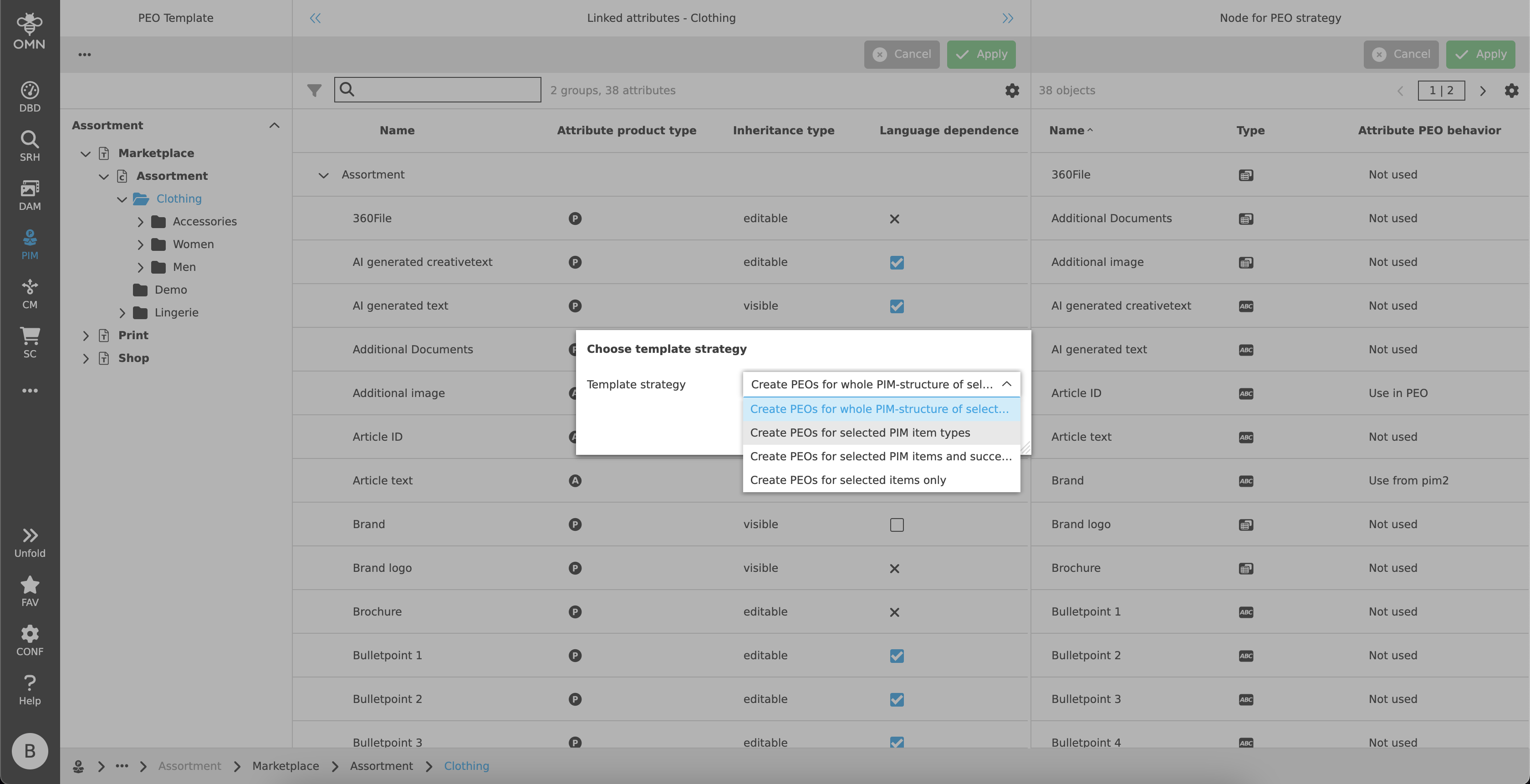
Choose template strategy
The template strategy defines the rules for creating PEOs for each specific template. The available PEO template strategies are:
-
Create PEOs for whole PIM-structure of selected object(s)
-
Create PEOs for selected PIM item types
-
Create PEOs for selected PIM item types and successors
-
Create PEOs for selected items only
Center View
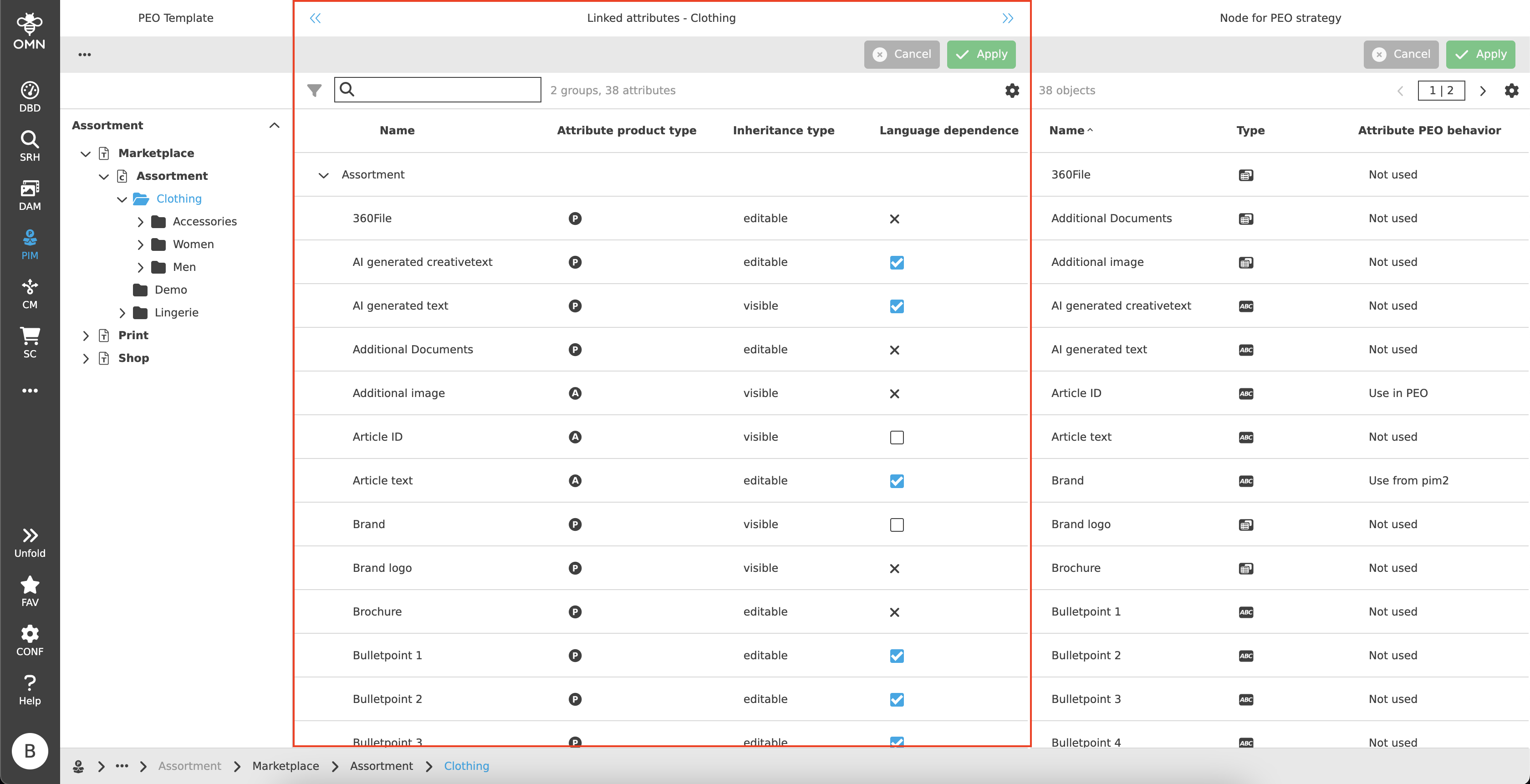
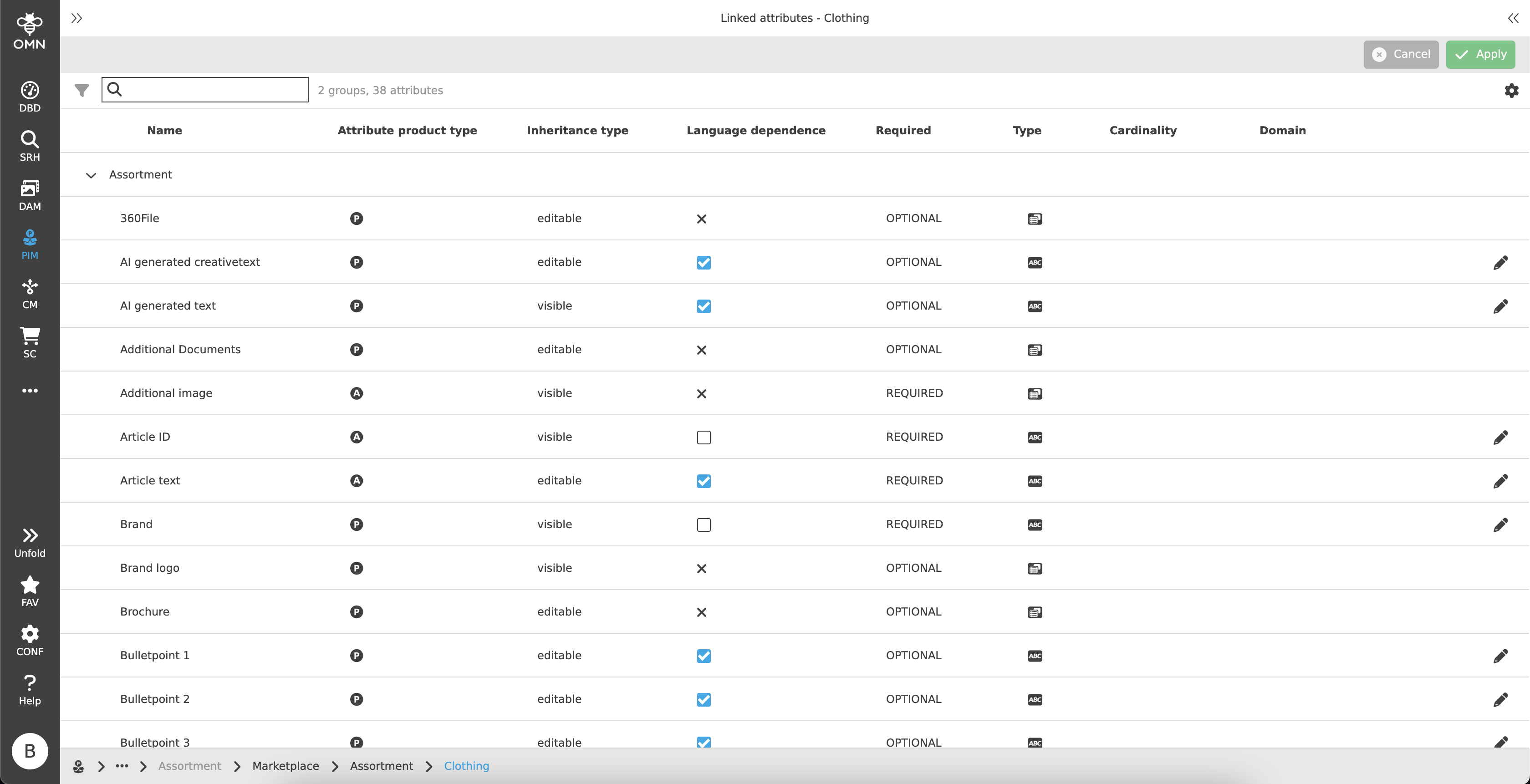
The attribute settings for each template can be adjusted in the Center View.
The Center View shows the same content as the Center View of Configuration View: the linked attributes.
Here, users can define the behavior of the attributes (e.g. language dependency or inheritance rules).
Toolbar
In addition to functions, the toolbar also offers the option of saving and discarding changes.
Statusbar
The statusbar contains a quick search and settings.
Quick Search & Object Counter
A quick search function is available to users to reduce content and simplify the search for specific attributes.
One or more values can be entered here to find the desired attribute.
Next to the quick search is an "object counter", which displays the number of groups and attributes. In the case of selections, only the attributes are counted.
Canvas
The structure and editing options are the same as in the configuration view. Further information can be found here.
Right View
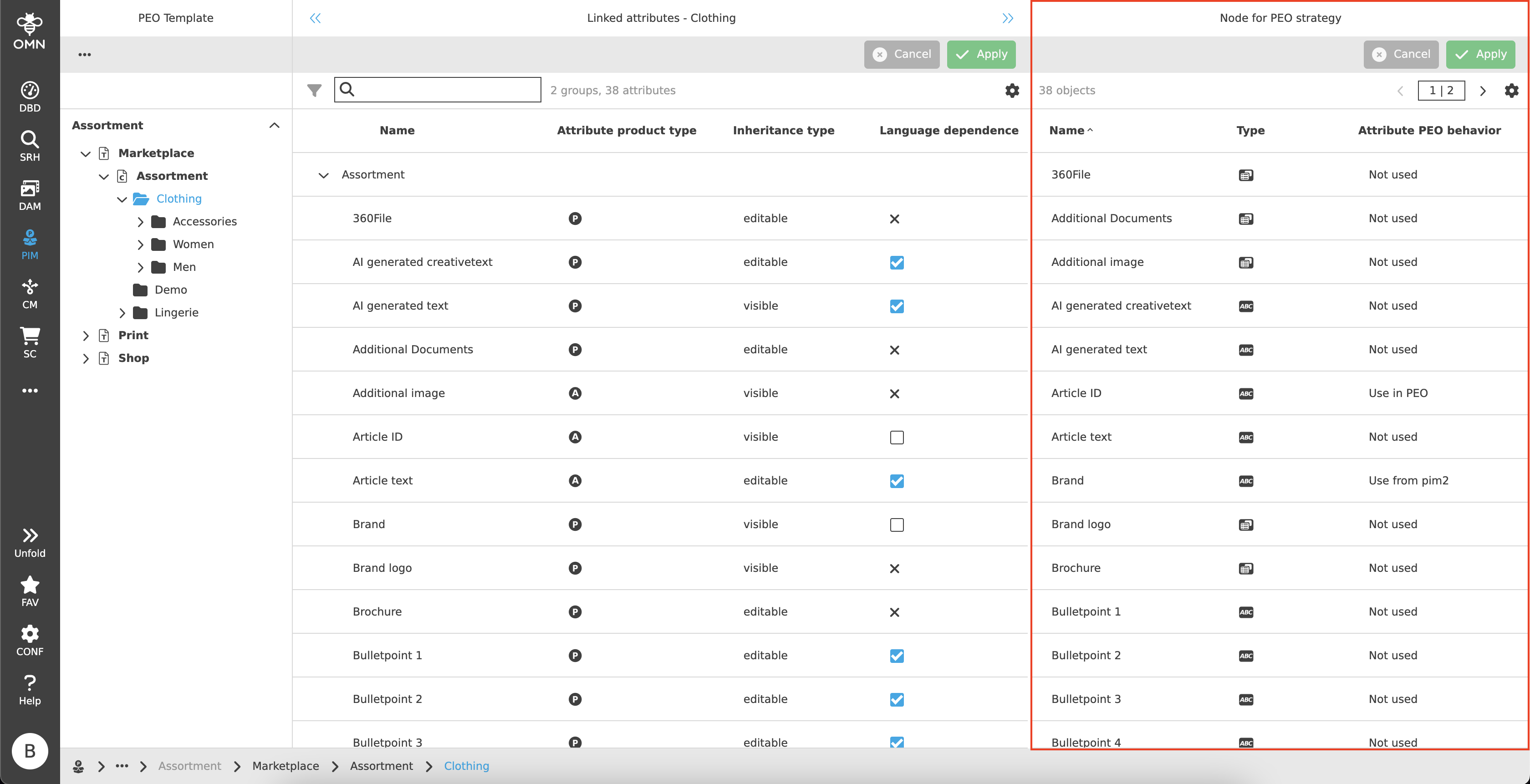
The right view defines the PEO attribute behavior or the PEO strategy for each PEO template.
Toolbar - Save & Discard
The toolbar contains an option to save or discard all changes.
-
Discard
If the "Discard" button is clicked, all changes made up to the last save are discarded. -
Save
Clicking on the "Save" button saves all changes made up to the last save.
Canvas
The right view is used to set the desired PEO attribute behavior.
For this purpose, the workspace is structured like a table with three columns:
-
Name
-
Type
-
Icon of the respective type
-
 String
 -
 Real
Real -
 Date
Date -
 Boolean
 -
 Table
Table -
 Reference table
-
-
-
Attribute PEO behavior
-
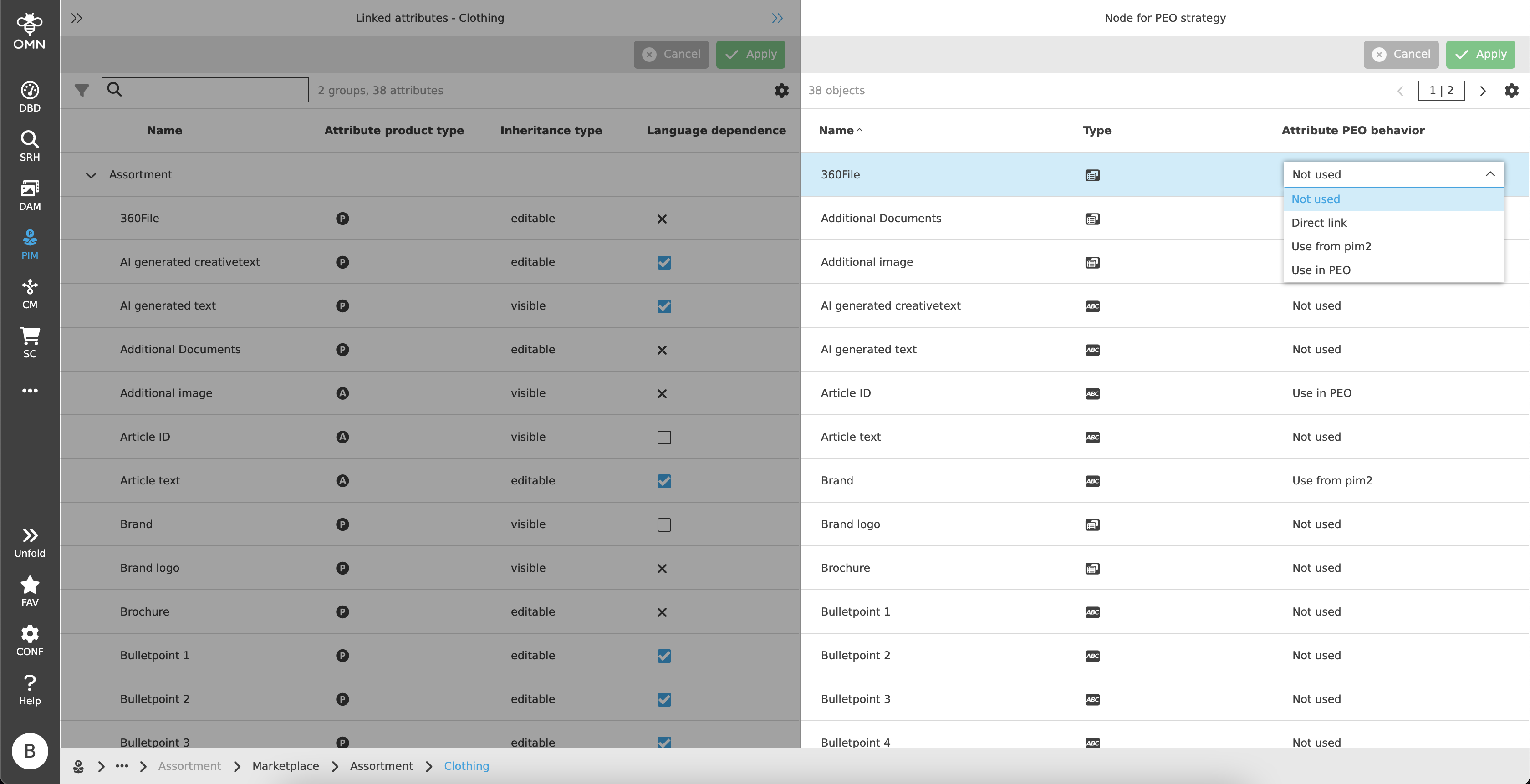
Not used
-
means that the attribute is not used within the created PEO(s).
-
-
Direct link
-
means that a product value is inherited and displayed for the attributes in the PEO View; changes to the product affect the values in PEO and vice versa
-
-
Use from PIM2
-
means that a product value (article/variant) is used in PEO and there is no option to set an own PEO value
-
-
Use in PEO
-
the default value comes from a product, but can be overwritten with an own PEO value (which does not affect the product); the inheritance symbol is available and allows switching between product and PEO values
-
-