Attribute Mapping
Purpose of the Attribute Mapping
The Attribute Mapping serves to assign or map source attributes to OMN attributes.
Introduction
Attribute Mapping allows source attributes to be assigned to specific OMN attributes. This can be done using a simple 1:1 mapping directly in the table or via a transformation function.
Furthermore, an OMN attribute can be maintained on multiple nodes, levels, and/or in multiple languages simultaneously.
A value preview always shows the current value of an attribute from the mapping file (see Import Profile).
Prerequisites and relations to other modules
The Attribute Mapping is the default view of the Mapping Editor.
For successful mapping, depending on the setting in Import Profile, a Key Attribute Mapping and a Classification Path Mapping must be performed.
How to use
The Attribute Mapping view is always located in the center view of the Mapping Editor and is selected using the content switcher in the status bar.
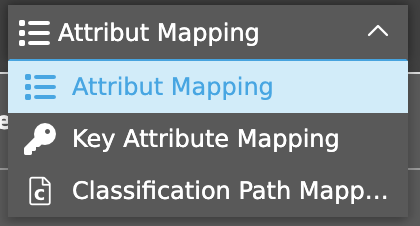
Attribute Mapping enables quick 1:1 mapping, i.e., OMN attribute to source attribute.
Toolbar
The toolbar contains various functions, which are described in more detail in the following chapters.
Map and Transform
With the “Map and Transform” function, a user can, for example, add combinations of multiple source attributes to the mapping.
This means that users can not only perform simple 1:1 mappings (OMN attribute to source attribute), but also more complex transformations.
Reset Mapping
If the “Map and Transform” function has been executed and an attribute has been selected, the “Reset Mapping” function is displayed.
If this is executed, a message is displayed asking the user if he wants to perform the action.
After confirmation, the entry is deleted from the source attribute column and thus the transformation is deleted. The language or additional levels are retained.
Delete Mapping
In addition to the “Reset Mapping” function, users have the option of using the “Delete Mapping” function.
This deletes all content in a row and any rows added subsequently (languages or levels) are also removed.
Add language
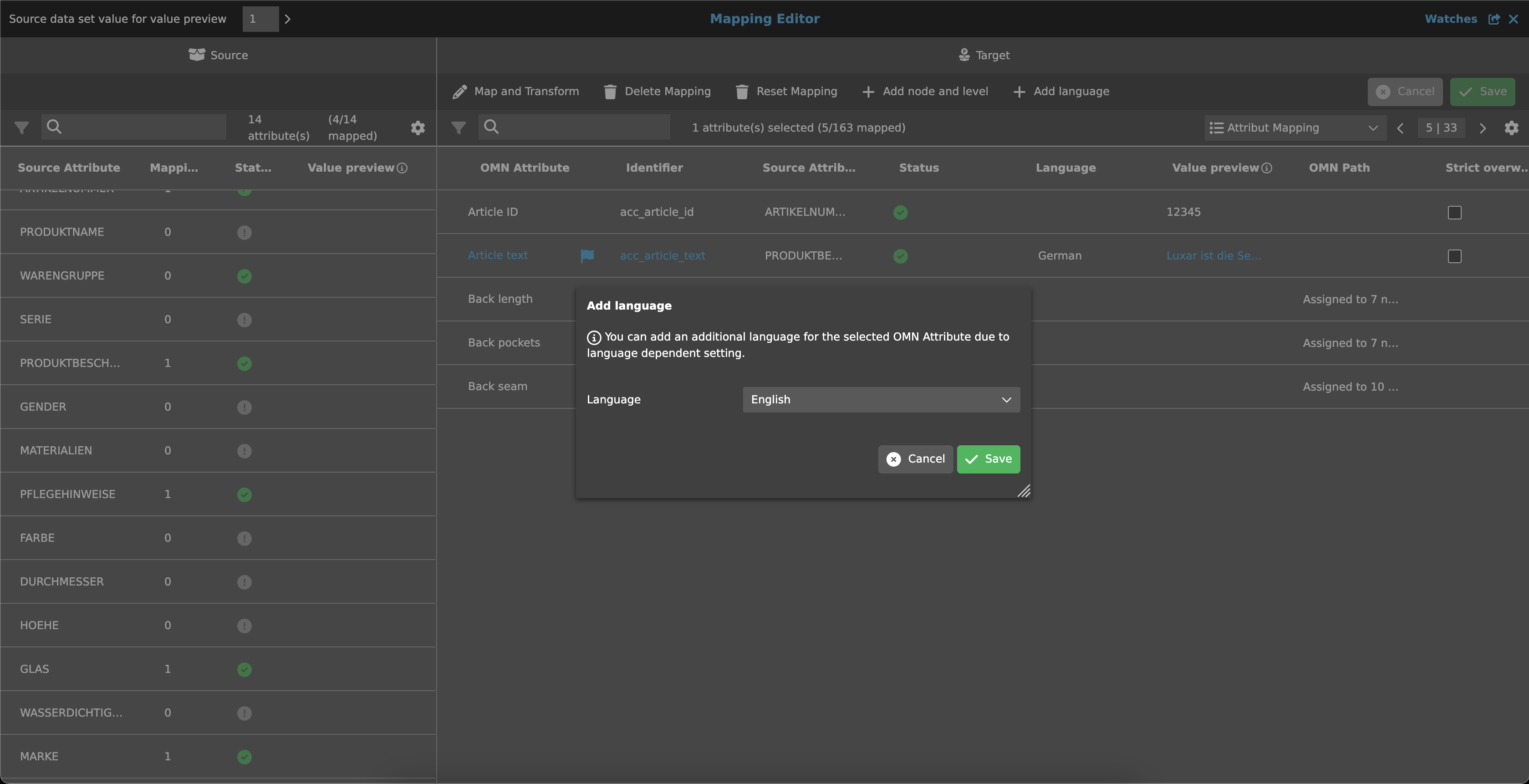
If an attribute is language-dependent and multiple languages are available, the “Add Language” function can be used to add the selected OMN attribute again so that the attribute can be imported into at least one additional language later.
The following mapping then applies specifically to this language.
The function appears as soon as a language-dependent attribute has been selected. After executing the function, a dialog opens in which the desired language can be selected via a dropdown.
| Only the available or not yet selected languages are displayed. |
After selecting and saving, the OMN attribute is displayed as an additional row and the selected language is already selected in the language column.
Add node and level
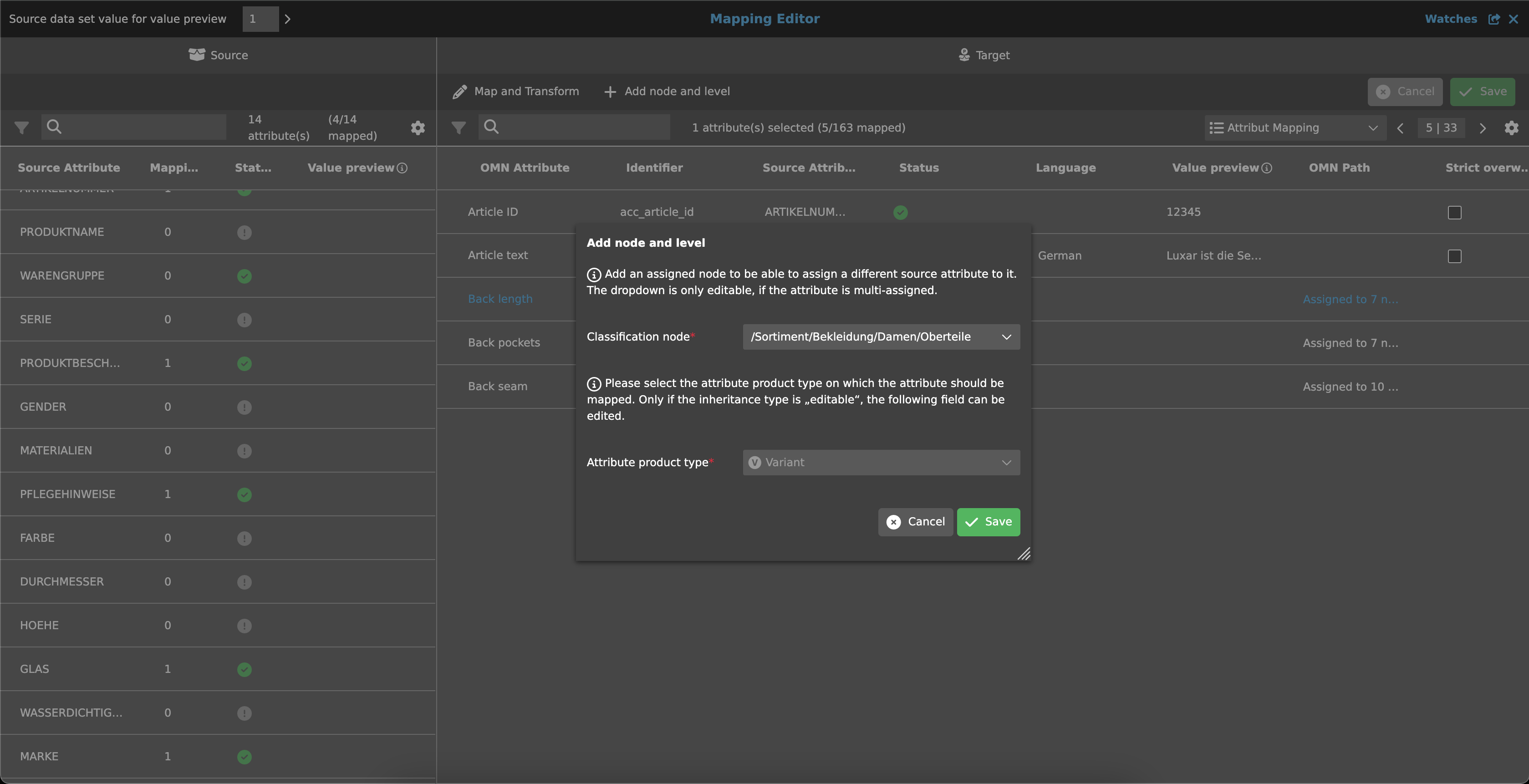
The “Add node and level” function is displayed as soon as an OMN attribute is assigned multiple times and/or an OMN attribute can be maintained on multiple levels (product, article, variant).
If the function is not executed, the mapping applies to all nodes and levels.
If the mapping is to be performed differently for nodes and/or levels, an additional row can be added below the selected OMN attribute.
Once the function is executed, a dialog opens with two areas—one for the classification path and one for the product type.
Using the classification node, another assigned node can be added to add another source attribute to this node.
A dropdown is available to the user for this purpose, which displays the available nodes.
|
This field can only be edited if the attribute is assigned multiple times. If this is not the case, the field is pre-filled. However, for language-dependent attributes, this is only possible if a language has been assigned to it. |
In addition to the classification node, the attribute product type can also be selected from a dropdown.
Provided that the OMN attribute is configured accordingly, the user can select the desired level (product, article or variant) and thus vary the source attribute for different levels.
|
The field can only be edited if the inheritance type in PIM for this OMN attribute is “editable”. Otherwise, the field is pre-filled and cannot be edited. |
After saving, a new row is added under the selected OMN attribute. This is grouped with the attribute and nested under the parent object, as the additional information (e.g., language) remains the same.
Statusbar
The statusbar includes a quick filter, an object counter, a content switcher and settings.
Quick filter & Object counter
A quick filter is available to users to reduce OMN attributes and simplify the search for specific attributes.
One or more values can be entered here to find the desired attribute.
Next to the quick filter is an “Object Counter,” which displays the number of OMN attributes and the assigned values.
Canvas
The canvas displays a table with an overview of all OMN attributes (attributes from the PIM data model) and the assigned source attributes.
The table contains the following columns:
| Column | Description | ||
|---|---|---|---|
OMN Attribute |
Attributes from the OMN data model; the default sort order is ASC. |
||
Icon column |
|
||
Identifier |
Identifier of the OMN attribute |
||
Source Attribute |
|
||
Status |
|
||
Language |
If an attribute is language-dependent, a dropdown can be used to select the language in which the attribute is to be imported later. |
||
OMN Path |
In the case of attributes that are assigned to multiple nodes (multi-assigned), the mapping applies to all nodes. |
||
Strict overwrite |
If the checkbox is active, an empty source value is imported into the OMN attribute. |
||
Type |
As in PIM, the types are represented as symbols. |
||
Value preview |
An info icon is located next to the title, which displays the following tooltip: |


.png)
|
If an attribute does not match the defined Classification Path Mapping (because it is not used in the classification path data model), the corresponding attribute row is displayed as disabled. In this case, no source attribute can be selected and the function Map and Transform is not available to the user. |

Currently, the columns “Status”, “Strict overwrite” and “Type” are filterable, and almost all columns are sortable.