Logging in to OMN
General structure of the login page
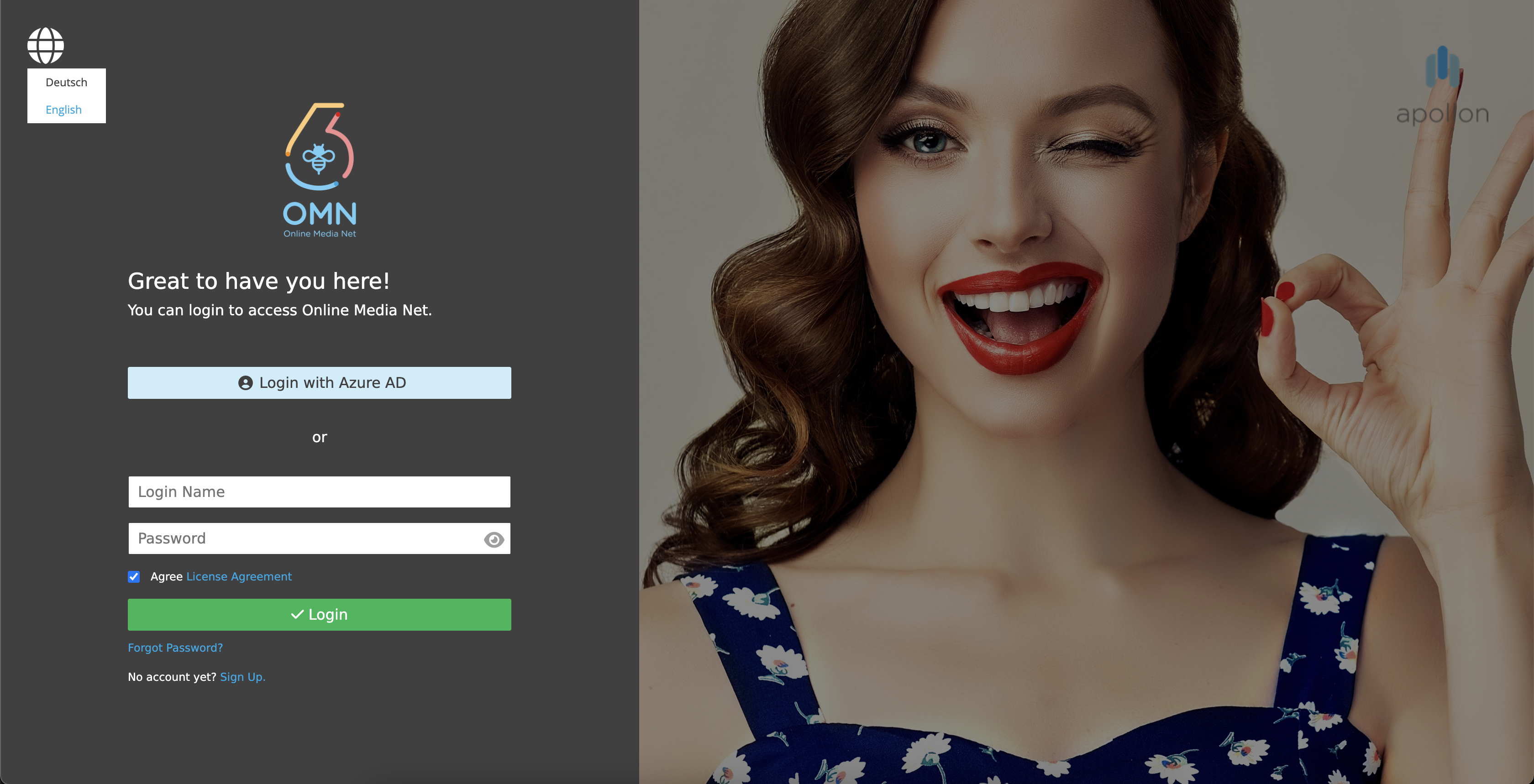
The OMN Login page is structured in two main parts, a login area on the left side and a custom area on the right side.

The user-defined area has a background image. An image from OMN is provided by default, but it can also be replaced with a company-specific one.
Optionally, a logo can be placed in the top right corner.

The login area has a language switcher in the top left corner. Currently "English" and "German" are available.
In the center of that area, there is the OMN logo, a welcome message and the specific login options, which will be described in more detail in the next chapters.
OMN in general supports two login options for users:
IDP Login
The IDP (Identity Provider) login refers to the process of authenticating a user via an external service that manages identities.
The user can log in with an account from an external identity provider, e.g. Azure AD.
This login approach needs to be configured in Keycloak backend depending on the requirements of the customers.
Also see IDP Login Configuration for more details.
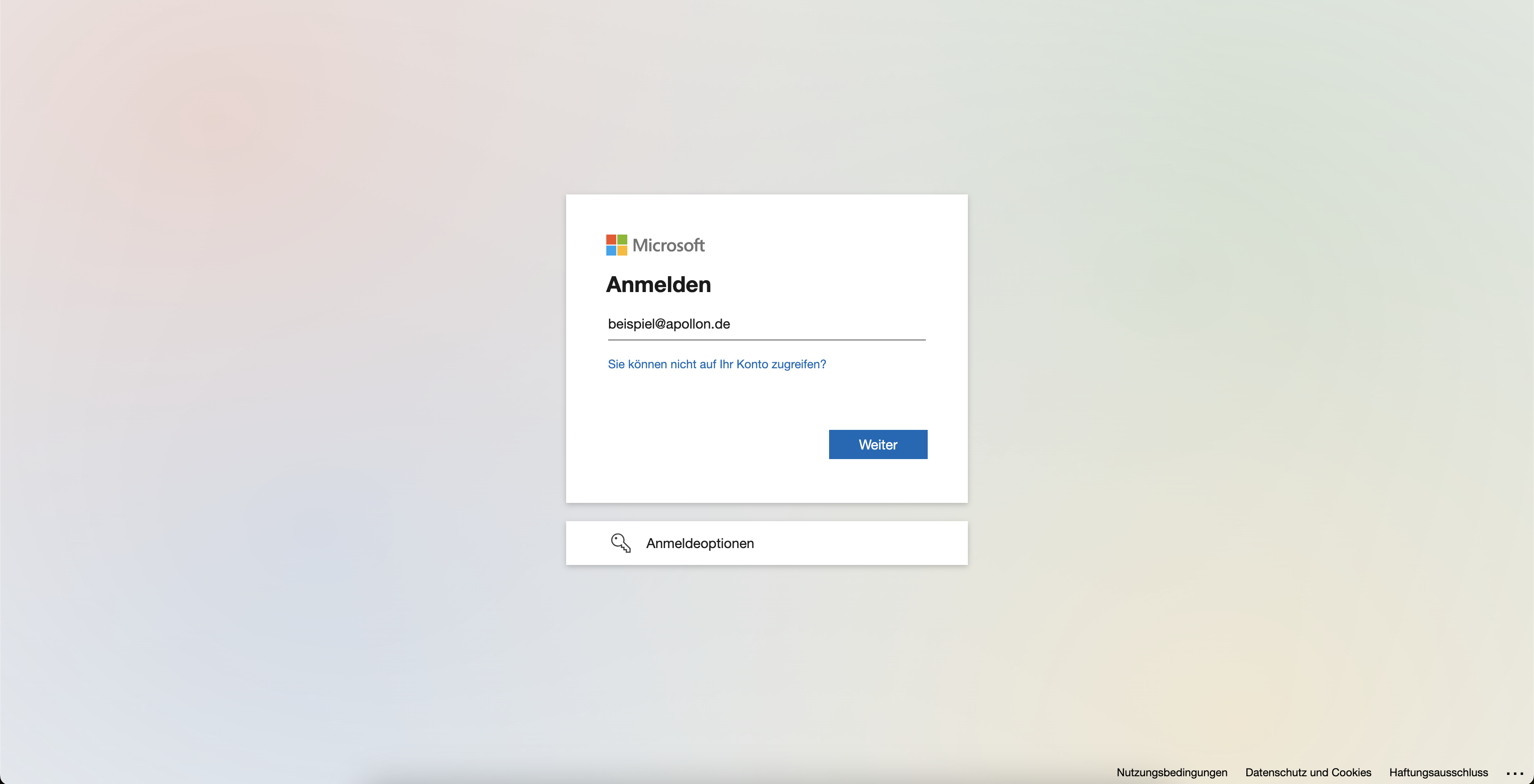
To sign in, the user needs to click on the desired login method (e.g. "Login with Azure AD). The user is then redirected to an external login page (e.g. Microsoft Login) where he can log in with the corresponding login data.
After successfully logging in, the user is redirected to the OMN start page.
The user automatically receives the OMN role assigned in the Keycloak backend, which is assigned to the mapped group.
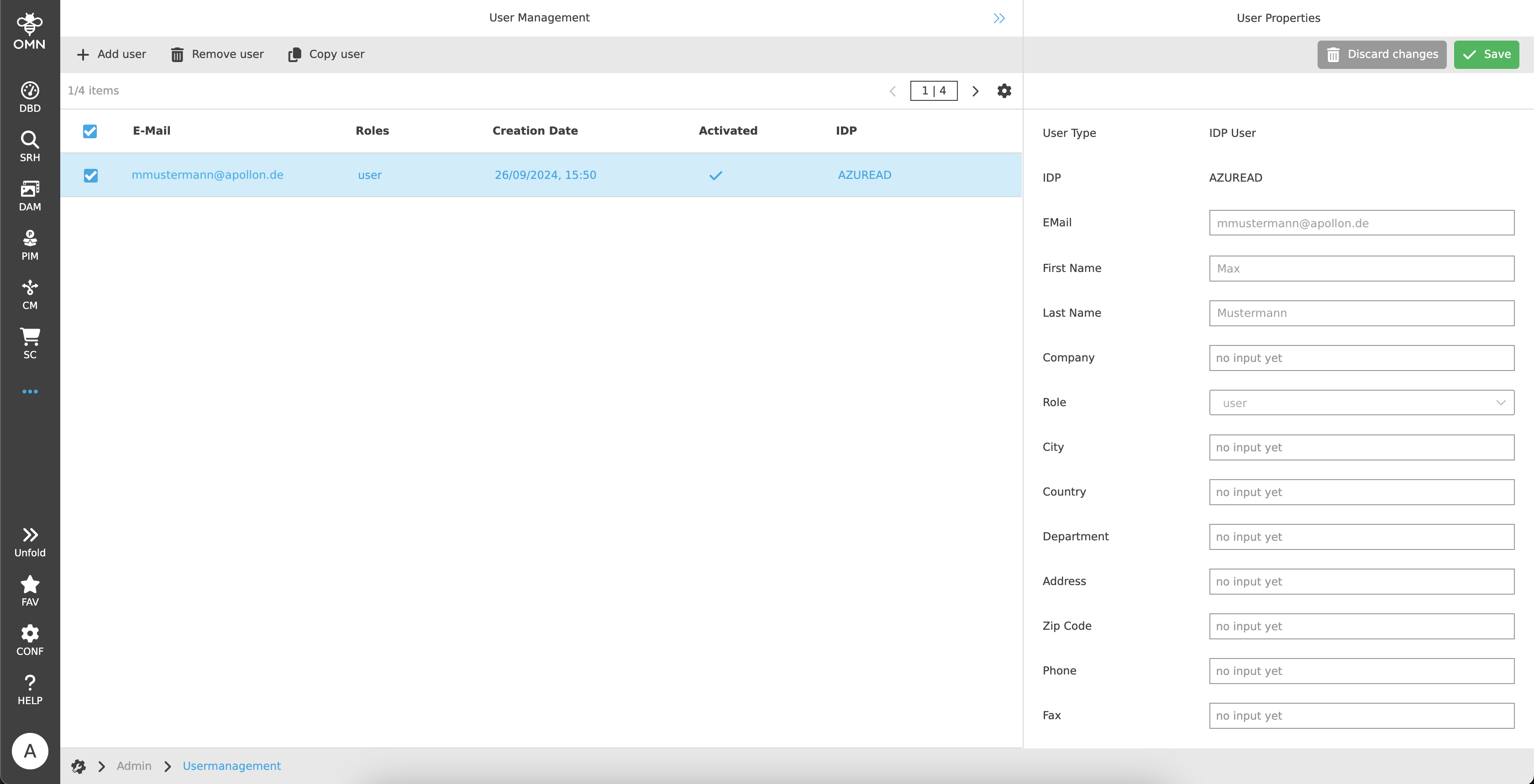
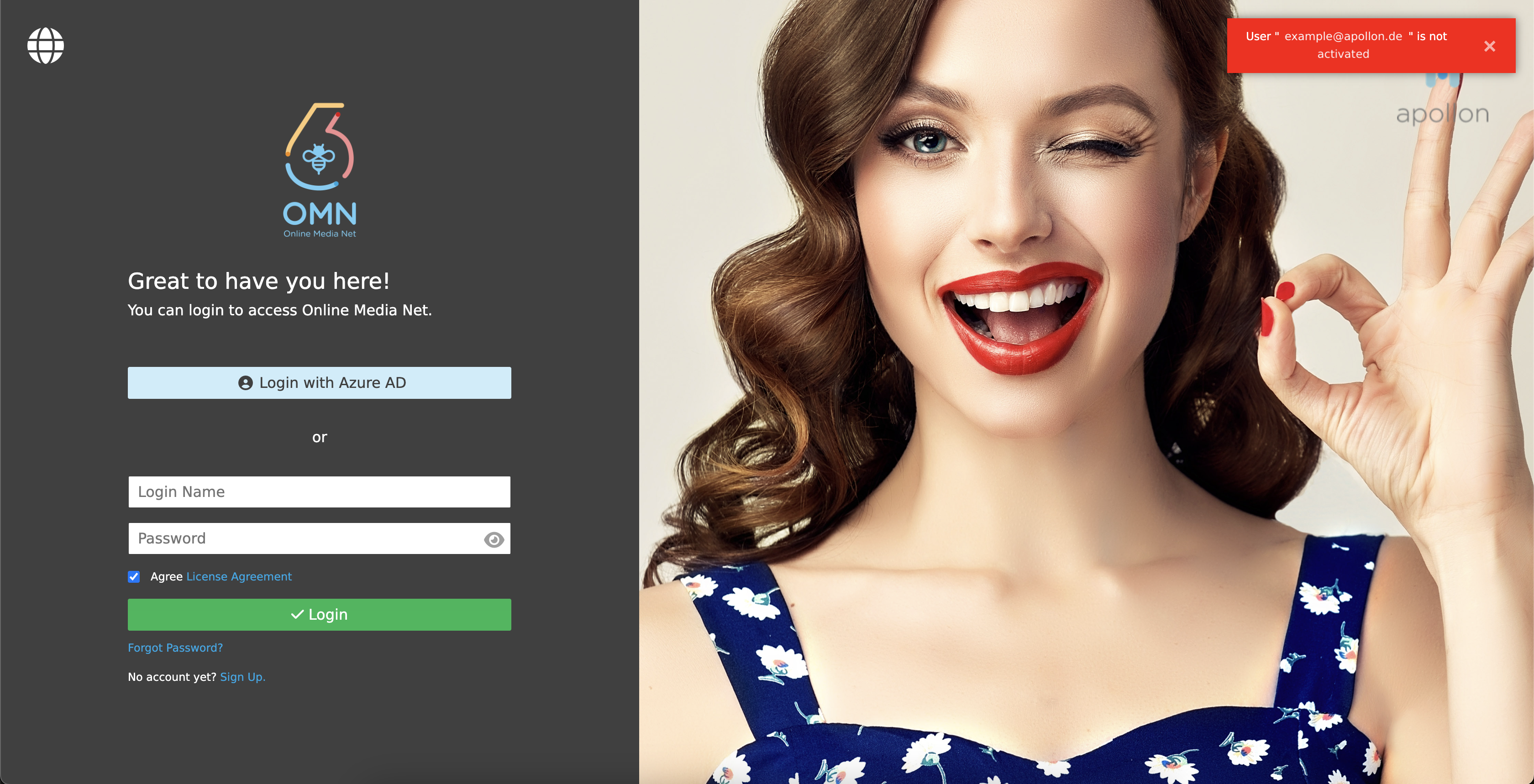
If the user has not yet been activated in OMN, an error message is displayed.
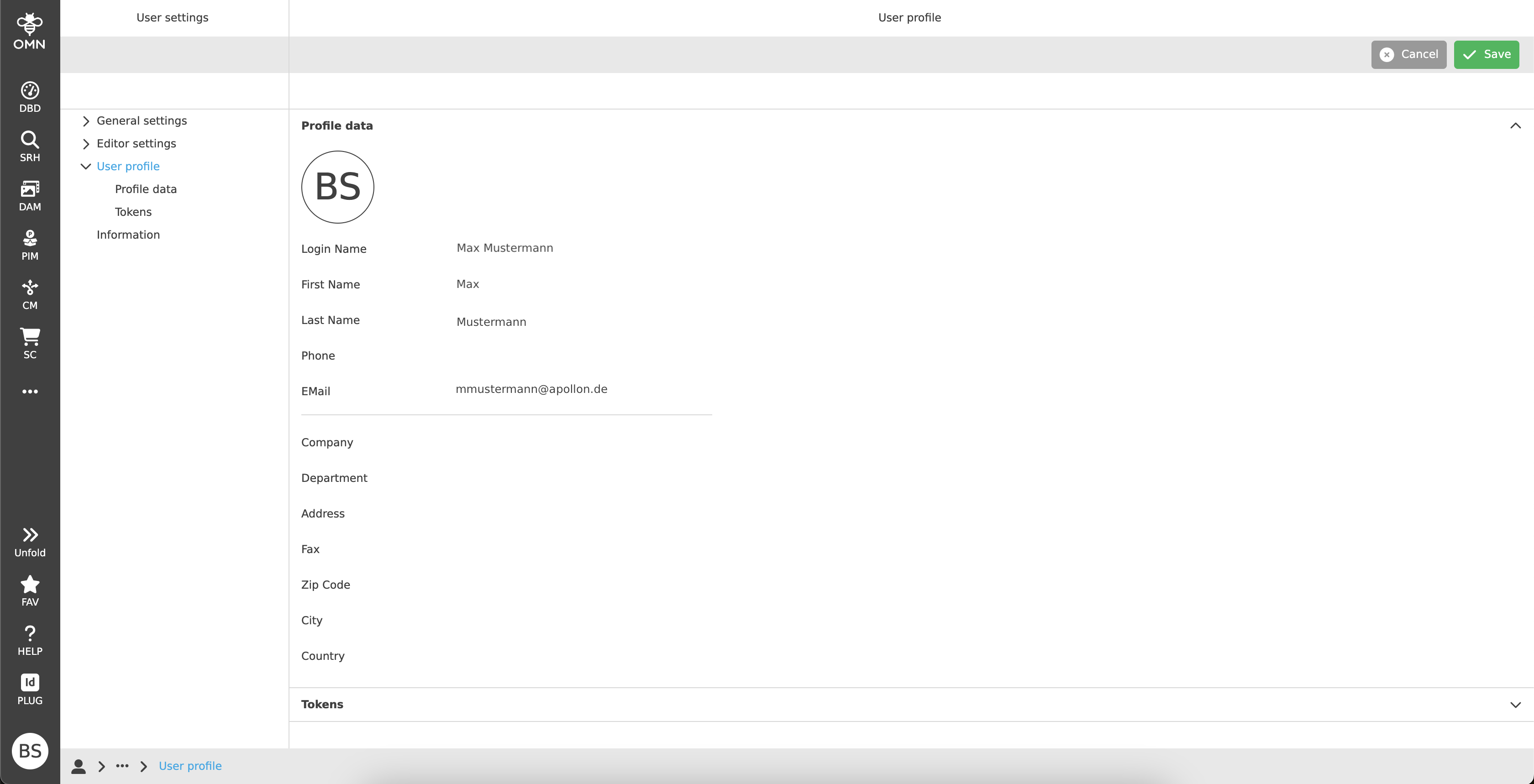
There are only two restrictions: No user data can be changed in the profile, as this comes from externally, and it is not possible to perform OMN multi-factor authentication, as this is determined by the external service.
OMN Login
The OMN login is the standard login for OMN.
The user logs in with a username and password stored in the OMN database.
It provides the following features:
-
Login with username and password
-
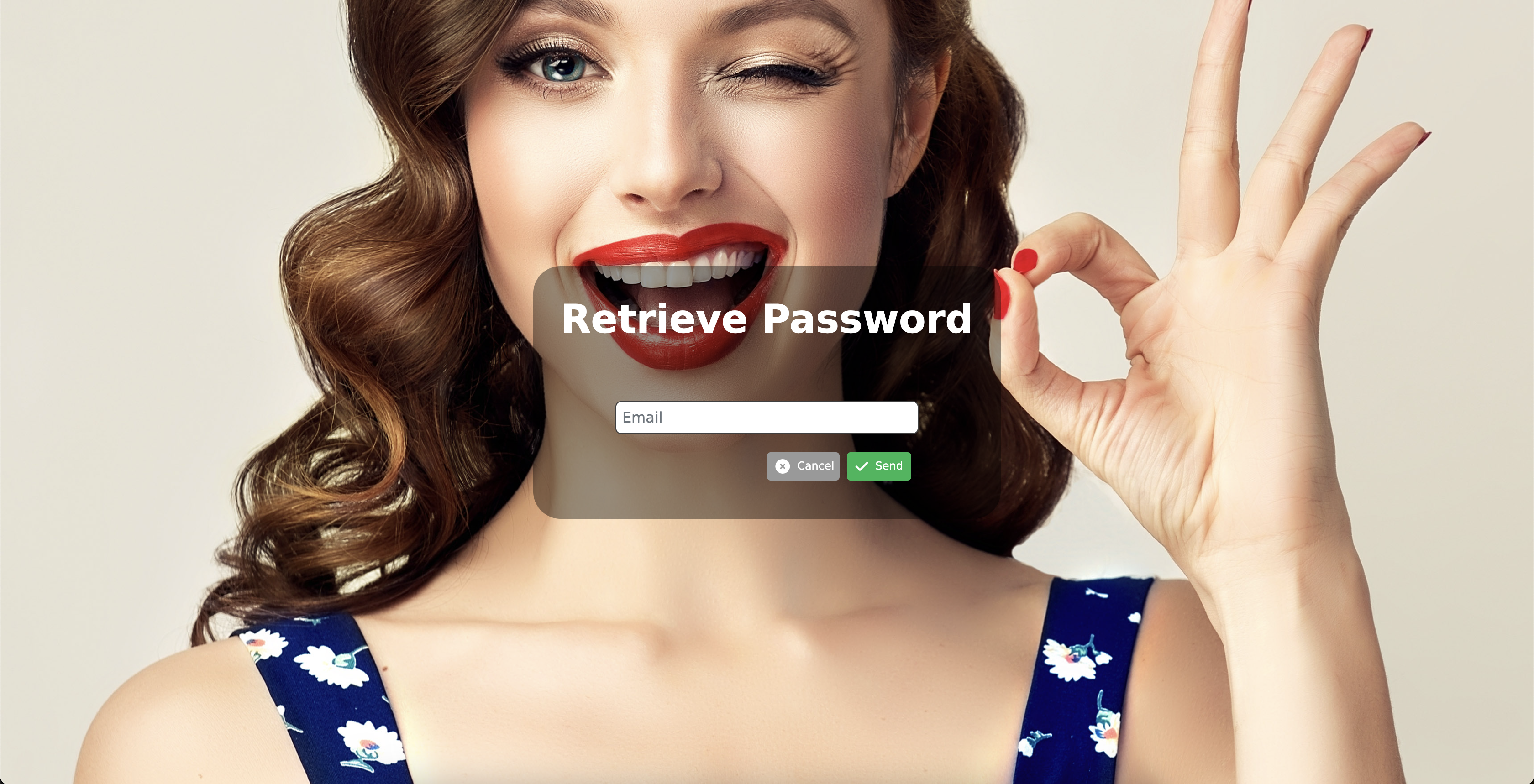
Reset password
-
License agreement
-
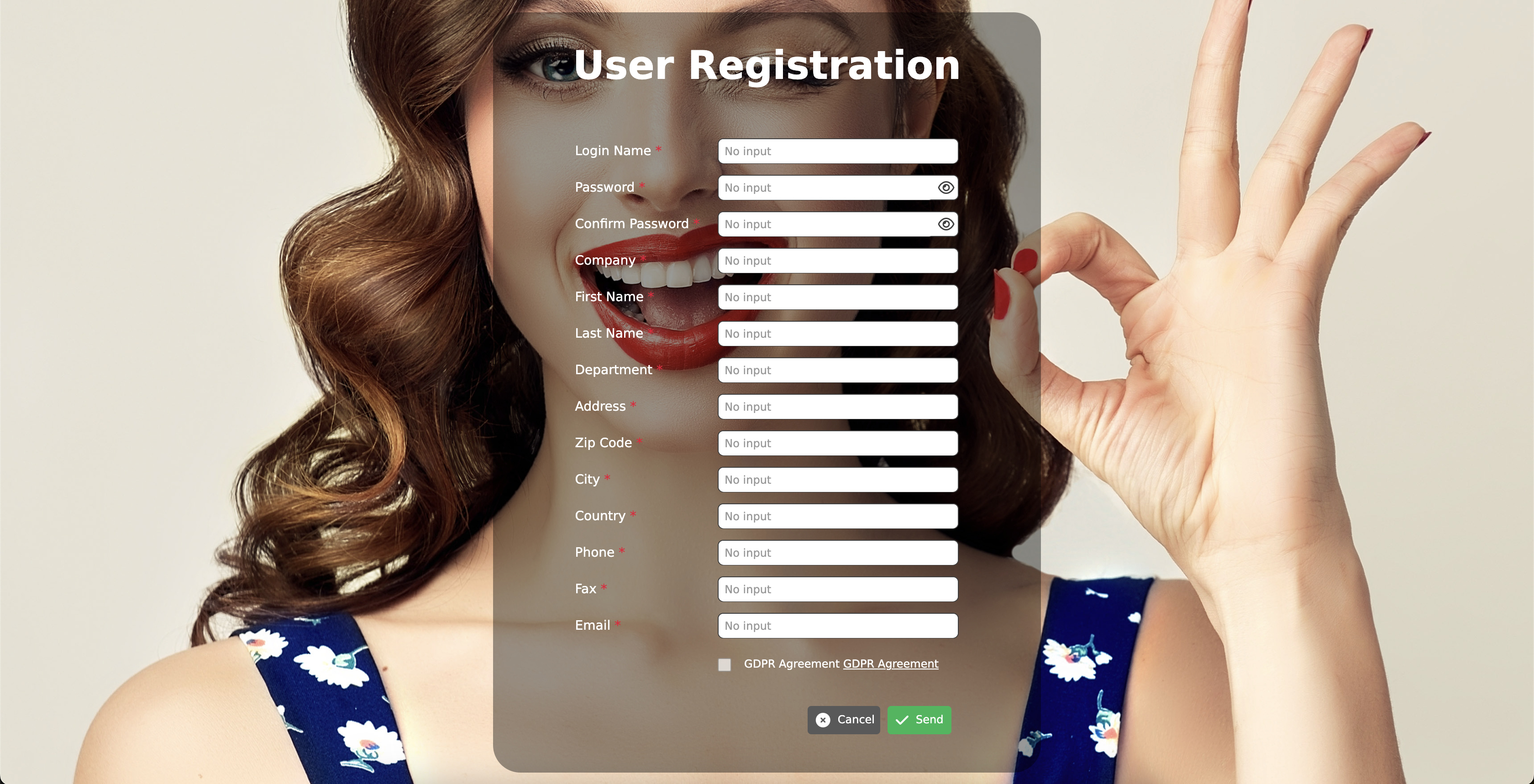
User registration

Username and password are mandatory fields and must be entered to log in.
If the user has forgotten his password, he can request a new one by clicking on "Forgot password" underneath the password field.
Optionally, a license agreement field has to be confirmed.
In this case, the user needs to click on the link to open the license agreement page, read through the agreement, then close it and confirm it using the checkbox.
The checkbox will only be clickable, as soon as the page was opened.
Only then can the login be completed.

If the checkbox is not confirmed, the “ Login” button cannot be used.
An error message is displayed if an incorrect user name or password has been entered.

If a user doesn’t have an account yet, he can click on the "User Registration" (No account yet? Sign Up.) link.
He will be redirected to the registration page, enter some user information and send a request to the administrator.
If the user has entered all needed specifications for login correctly, he will be redirected to the start page after clicking on the green "Login" button.
Multi-factor authentication
The OMN login also supports Multi-Factor Authentication (MFA), if activated.
In this case, entering a username and password is not sufficient and the user is not redirected to the start page. Instead, a second authentication method is used to verify the user.
There are two options to use:
-
Authentication via Authentication App
-
Authentication via Security Key
Which verification method can be used depends on the settings in the user settings:
-
If more than one MFA method is enabled, the user can choose one of them to validate.

-
Otherwise, the user will be validated with the only enabled MFA method.
It is also possible to have multiple authenticator apps or security keys configured for each MFA method.
The user can choose with which of them to validate.

After choosing the desired verification method, the user needs to
-
enter a one-time code provided by the corresponding authentication app

-
use the saved security key passwordless device (e.g. YubiKey). The instructions are given by the browser.

Not every security key is supported by all browsers and operating systems.