Questions & Answers about Modules
All about Web-to-Print
Why are Web-to-Print Preparing frame elements not displayed in the preview?
Empty frame elements are displayed in the Preparing Module preview when the following steps are performed:
-
Create an InDesign file containing frame elements.
Frame elements exist because they can handle transparency, but text frame elements cannot. -
Upload the file to OMN
-
Open the InDesign file in the Preparing module
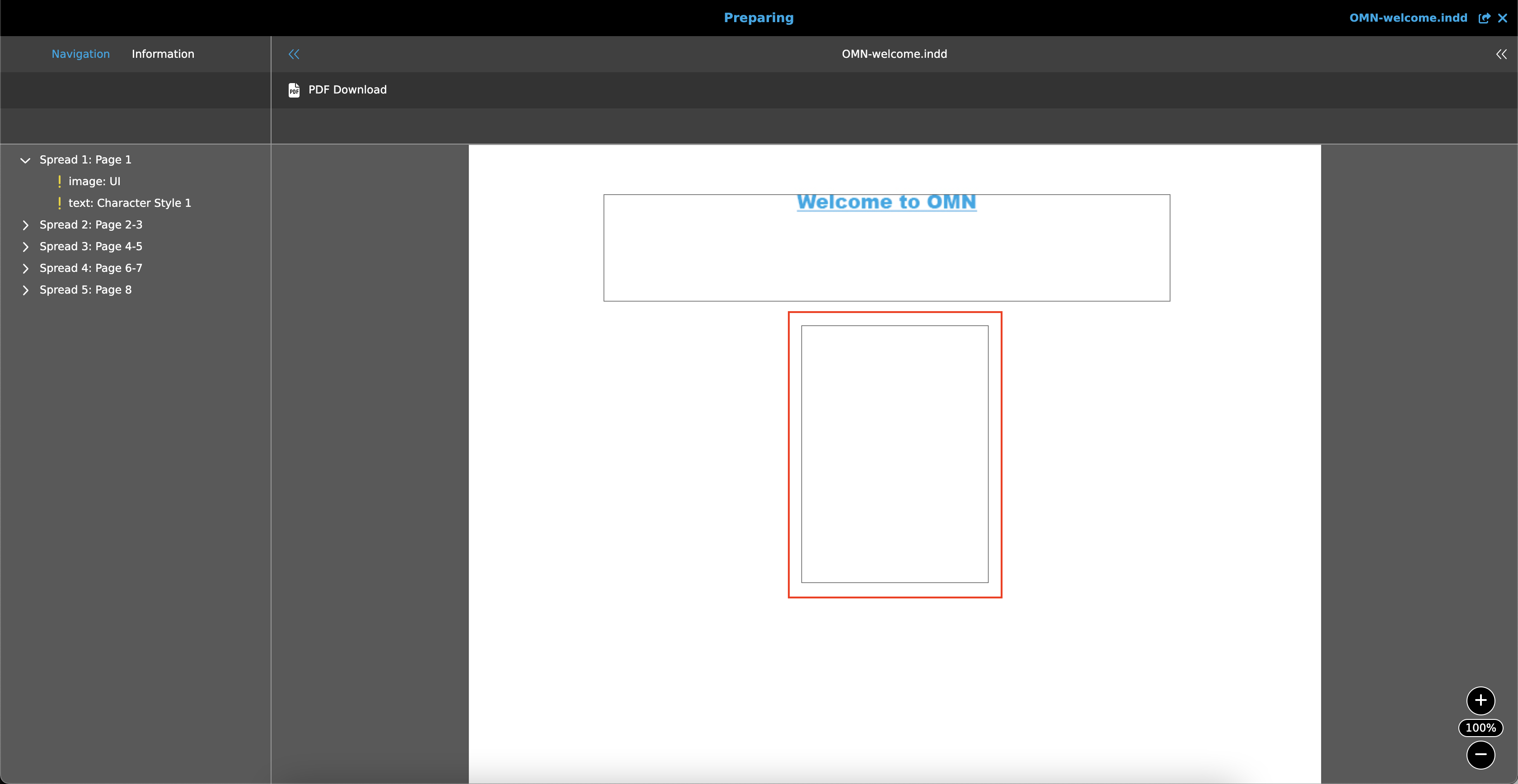
The expectation is that the frame element boxes will be displayed as an InDesign file as below:
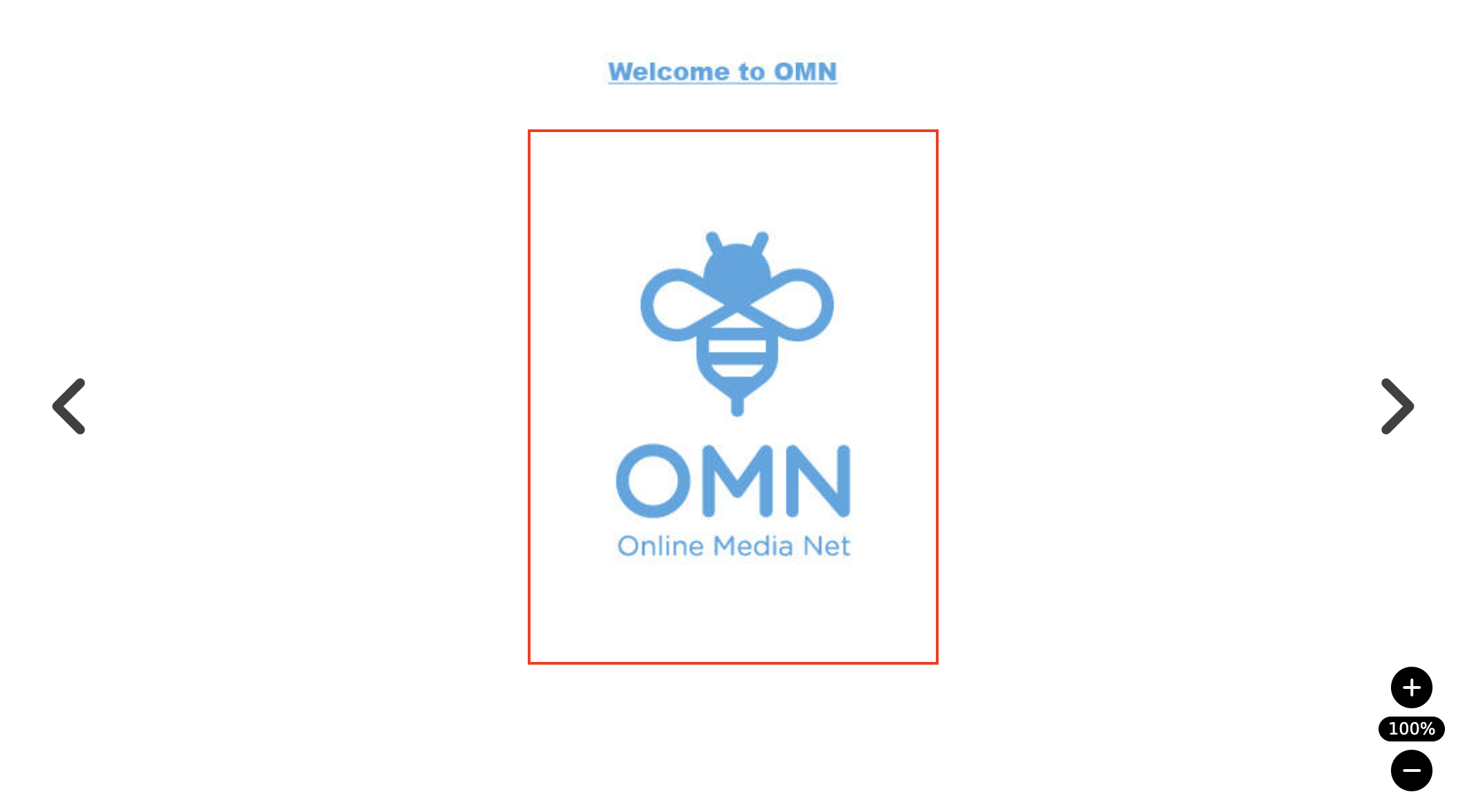
However, OMN does not support such color filled frames.
Therefore, it is suggested to use the tagging feature of InDesign. This means that the designer should tag the frames that are to be edited later in Preparing.
To do this, select the frame and press the autotag button inside the Tags panel or open the context menu and select "Tag frame" or "Autotag".
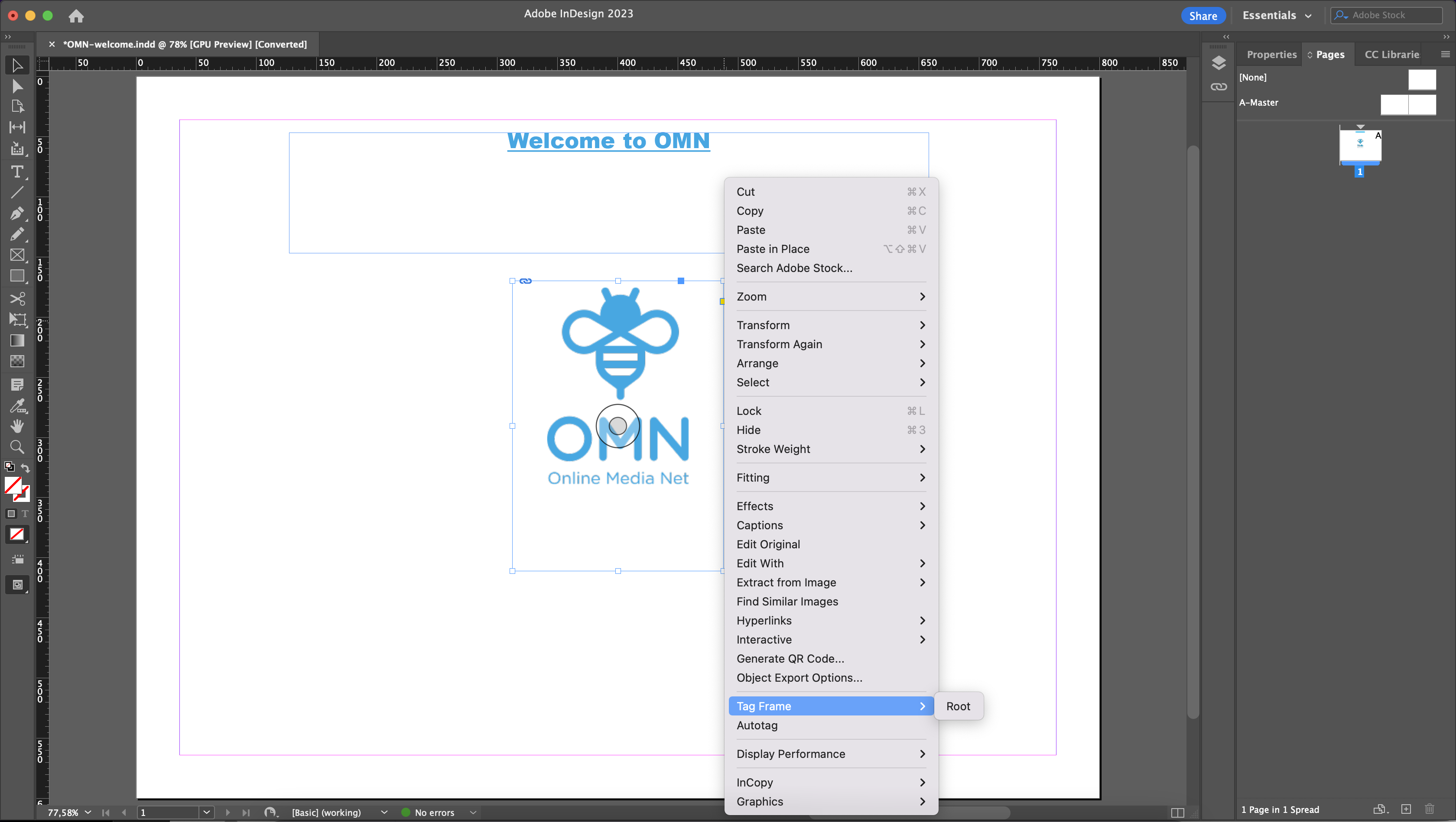
This way OMN imports only tagged frames and other frames remain intact.
All about Shopping Cart
What is a Shopping Cart for?
The shopping cart is one of the main functions of DAM with regard to downloading files.
You have the option of compiling a collection of different files and assigning different download settings to them.
You can then have these files made available to you as a download link by e-mail.
What is a default Shopping Cart?
All files that are dragged onto the Shopping Cart icon in the sidebar via DnD are automatically placed in the default shopping cart.
The icon in the sidebar always displays a badge with the number of files within the default shopping cart.
The default shopping cart can be defined with the function "Set as active" and is always displayed with the note "(Standard)".
All about Annotation Tool
Why is my PDF not shown in Annotation Tool?
The Annotation Tool uses an external library to display PDF files. You can find out which formats are supported here.
All about Keywords
How to enable ACL for Keywords
-
Add the "Keyword ACLs" function into the FSNavigation
-
secondary functions of FSTable for CenterView
-
Multidropdown "Functions" of FSNavigation for LeftView
-
-
To Enable the visibility of ACL for keyword you need to activate "Keyword" in the Security - Permissions Tab
All about 3D Viewer
How can I upload a 3D file to OMN?
In order to upload a 3D file to OMN, it must first be made capable so that it can be recognized by OMN. This is done in the following steps:
-
Create a folder and name it after Asset Name
-
Add a file with a 3D model, a file with geometry (e.g. scene.bin) and a folder/file with textures
-
Adding a template ".omn-compound-meta.json" file
-
Adding one or more assets with preview of the 3D model
-
Adding the name of the 3D model file and its preview file(s) in the ".omn-compound-meta.json" template
-
Converting the folder in a zip archive without compression
-
Manually change the file extension from .zip to .3d
The following template can be used to create the JSON file:
{
"previews": [
{
"name": "Preview 1",
"file": "example_preview_1.png"
},
{
"name": "Preview 2",
"file": "example_preview_2.png"
}
],
"3DModelFile": "example.gltf"
}
Now the 3D file, like other file formats, can be uploaded to OMN using the upload function.