Classification View plugin
The ClassificationView plug-in provides you an interface to work with the product assortment. There are a lot of different functions within ClassificationView and its pages and here is the guide how to configure it.
Create Classification View plug-in configuration instance
-
In the left view expand "Mandators" → "<Mandator name>" → "Page plug-ins" → "ClassificationView"
-
Set a "Configuration identifier" in the corresponding field and click the "Create new configuration" button
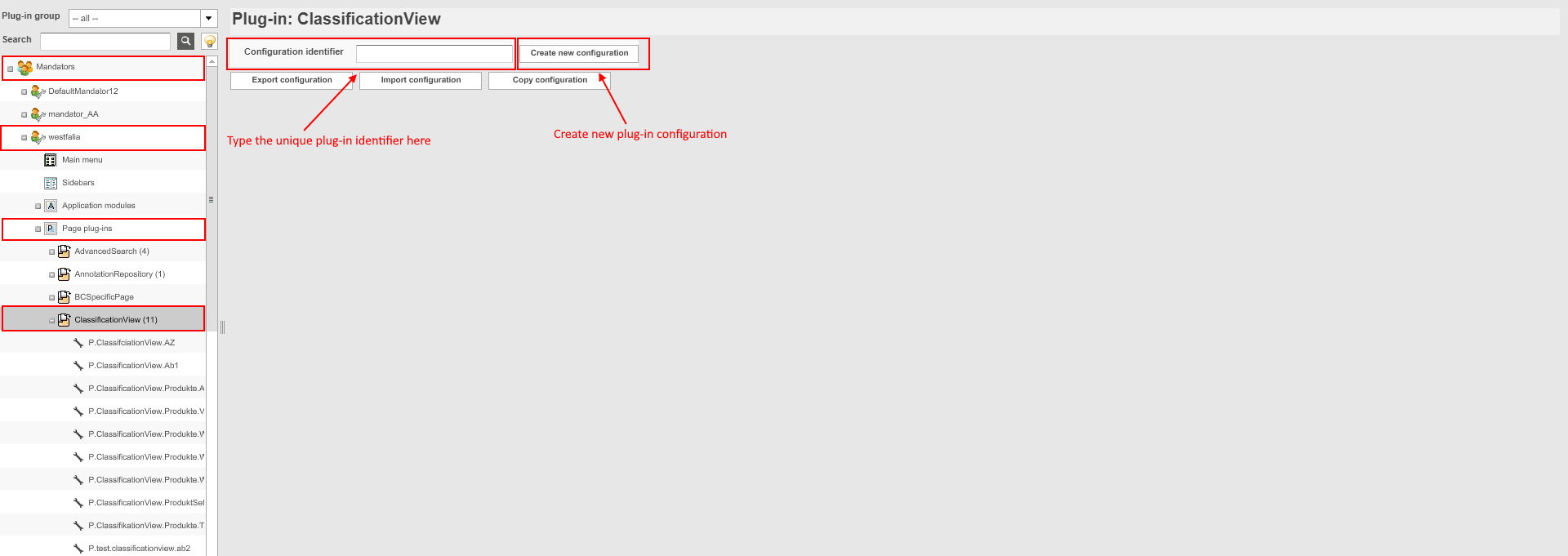
| It is possible to create several ClassificationView configurations. |
Beside creating a configuration, the export, import, and copy of an ClassificationView configuration can be started from the creation page.
Overview of ClassificationView configuration tabs
Here you can find the short overview of the configuration possibilities of ClassificationView page plug-in:

| Tab | Description | Notice |
|---|---|---|
General configuration |
For configuration of the general ClassificationView plug-in’s settings |
|
Functions configuration |
For assigning functions for all parts of ClassificationView pages |
|
Tabs configuration |
For setting the access rights for each ClassificationView page (Configuration, Classification, Template, Management) |
This tab’s settings have influence only on the old client. |
Product listing |
For defining additional PIM2 attributes (including indexed fields from PIM2 application module configuration) to be displayed in product listing (center view of Classification and Management pages) as separate columns |
|
Column configuration |
For defining how the table for unclassified products view will look like |
|
Assets configuration |
For configuring the content views for linked assets view on Management page |
|
Reference configuration |
||
Templates |
For configuring the appearance of the shown information of the product in 'Raw data of product' with the help of html templates. |
see "Templates tab" |
Functional attributes configuration |
For defining additional information / help text which will be shown when user creates a functional attribute on Configuration page of ClassificationView |
|
Icon assignment |
For assigning an icon for the plug-in |
'General configuration' tab
This configuration tab contains more or less general settings that are usually applied to all ClassificationView pages.
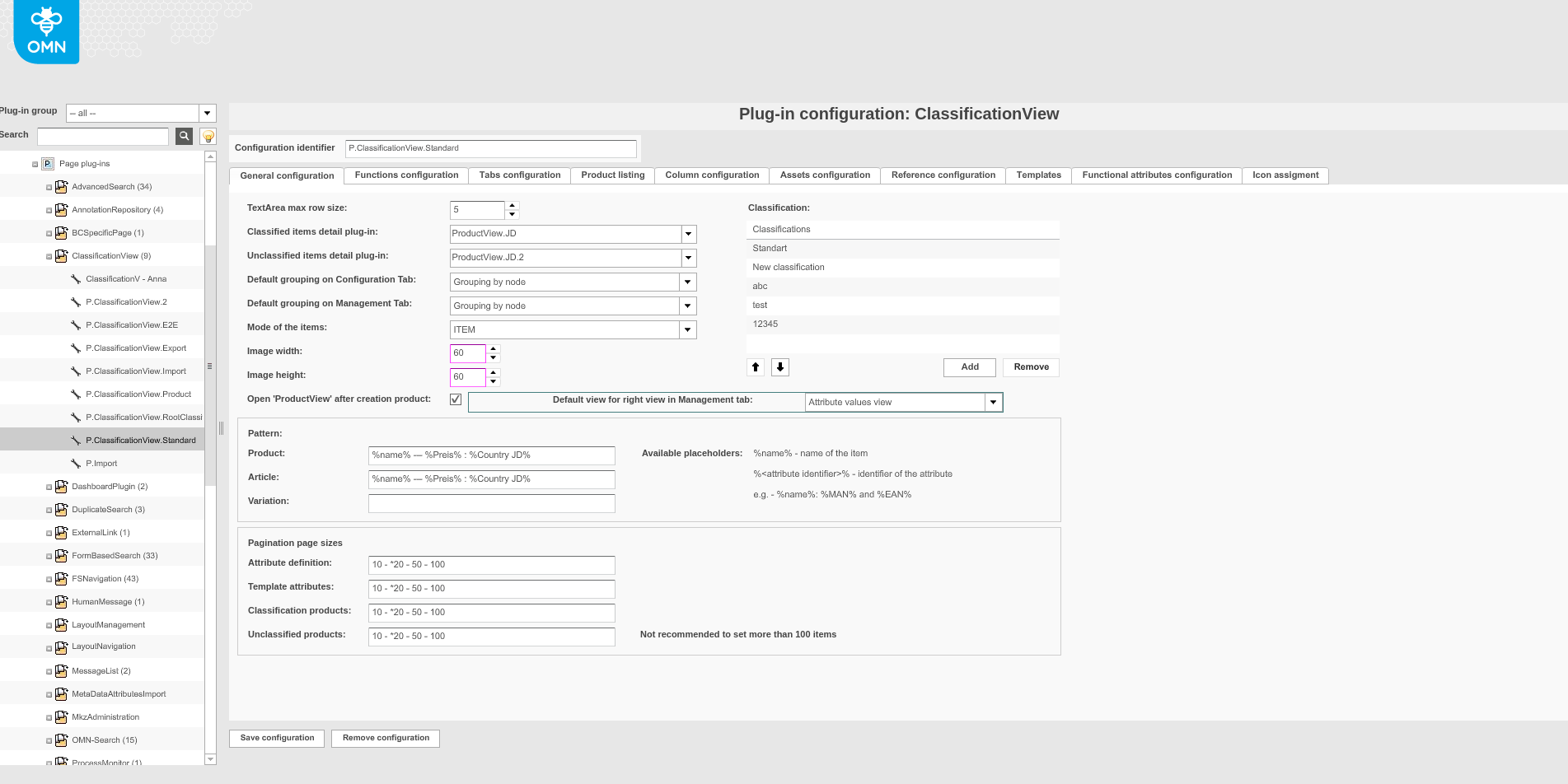
| Option | Description | Notice |
|---|---|---|
TextArea max row size |
Allows specifying maximum amount of lines for string fields with dynamic height |
Option is no longer supported for HTML5 frontend |
Classified items detail plug-in |
This option allows you to select the configuration of ProductView function plug-in that should be opened for created classified products (center view of Classification page) |
see "Configure opening ProductView after creating of product" |
Unclassified items detail plug-in |
This option allows you to select the configuration of ProductView function plug-in that should be opened for created unclassified products (right view of Classification page) |
see "Configure opening ProductView after creating of product" |
Default grouping on Configuration Tab |
You can choose the parameter by which the attributes will be grouped in the center view of Configuration page |
The grouping parameter can be changed on the HTML5 client by the user |
Default grouping on Management Tab |
You can choose the parameter by which the attributes will be grouped in the right view of Management page |
The grouping parameter can be changed on the HTML5 client by the user |
Mode of the items |
Option is not supported in HTML5 frontend yet |
|
Image width |
This option allows you to define the width of the images in ClassificationView. Maximum value is 130px, minimum value is 60px. |
Option is no longer supported for HTML5 frontend |
Image height |
This option allows you to define the height of the images in ClassificationView. Maximum value is 130px, minimum value is 60px. |
Option is no longer supported for HTML5 frontend |
Open 'ProductView' after creation product |
>>Activate the checkbox if ProductView editor should be opened after a new product (classified and unclassified) is created |
see "Configure opening ProductView after creating of product" |
Classification |
This setting allows you choosing the root classification nodes that need to be shown on the client (left view of all ClassificationView pages) |
New nodes can be created on Configuration page on the frontend client. They will be automatically added here. |
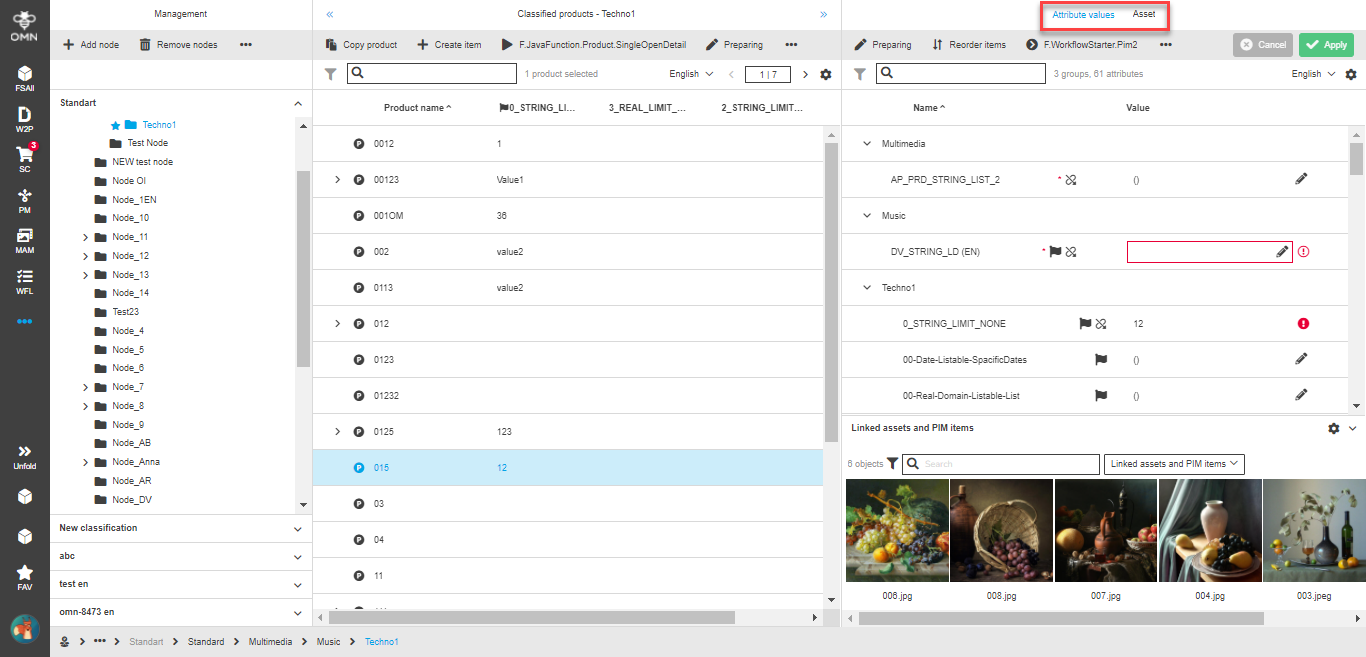
Default view for right view in Management tab |
This setting allows you to define which view (Attribute values or Asset) should be opened by default when the Management page is opened on frontend |
By default, 'Attribute values' view is selected. Here is the affected place:
|
Pattern |
||
Pagination page sizes |
These options allow you to define the page sizes for different pages of ClassificationView. |
For HTML5 frontend only the value marked with * is taken. It is entered as the size of the page by default, but can be changed by the user. |
Configure 'Open ProductView after creating of product' option
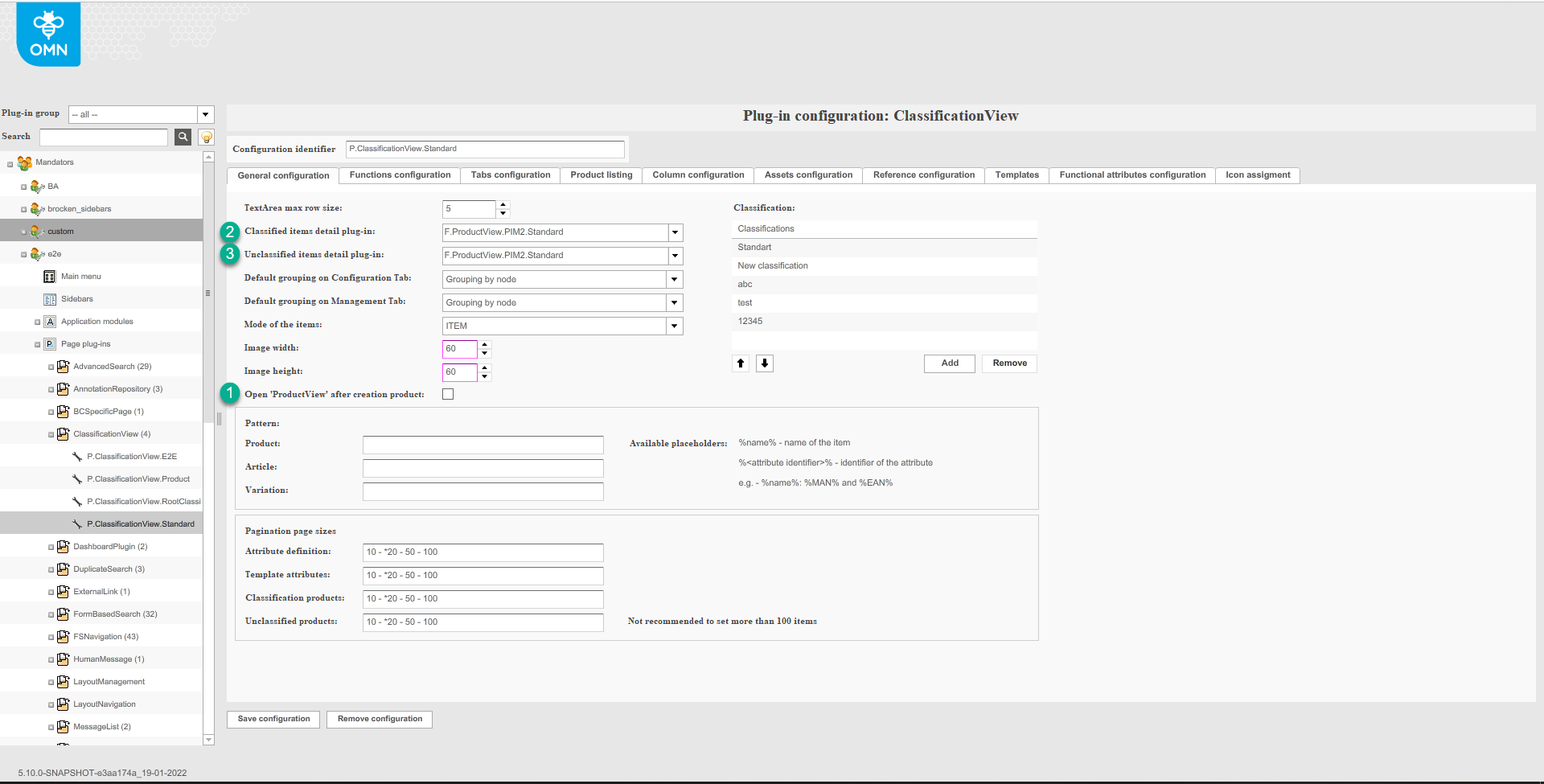
There is a possibility to configure specific ProductView function to be opened when a new product is created. There are 3 options in configuration that should be defined:
-
Checkbox 'Open 'ProductView' after creation product' → should be activated
-
Dropdown 'Classified items detail plug-in' → specific ProductView configuration should be selected.This ProductView will be opened when the user creates a product within classification.
-
Dropdown 'Unclassified items detail plug-in' → specific ProductView configuration should be selected.This ProductView will be opened when the user creates a new unclassified product.
It is possible to assign the ProductView to a classification node on the client.
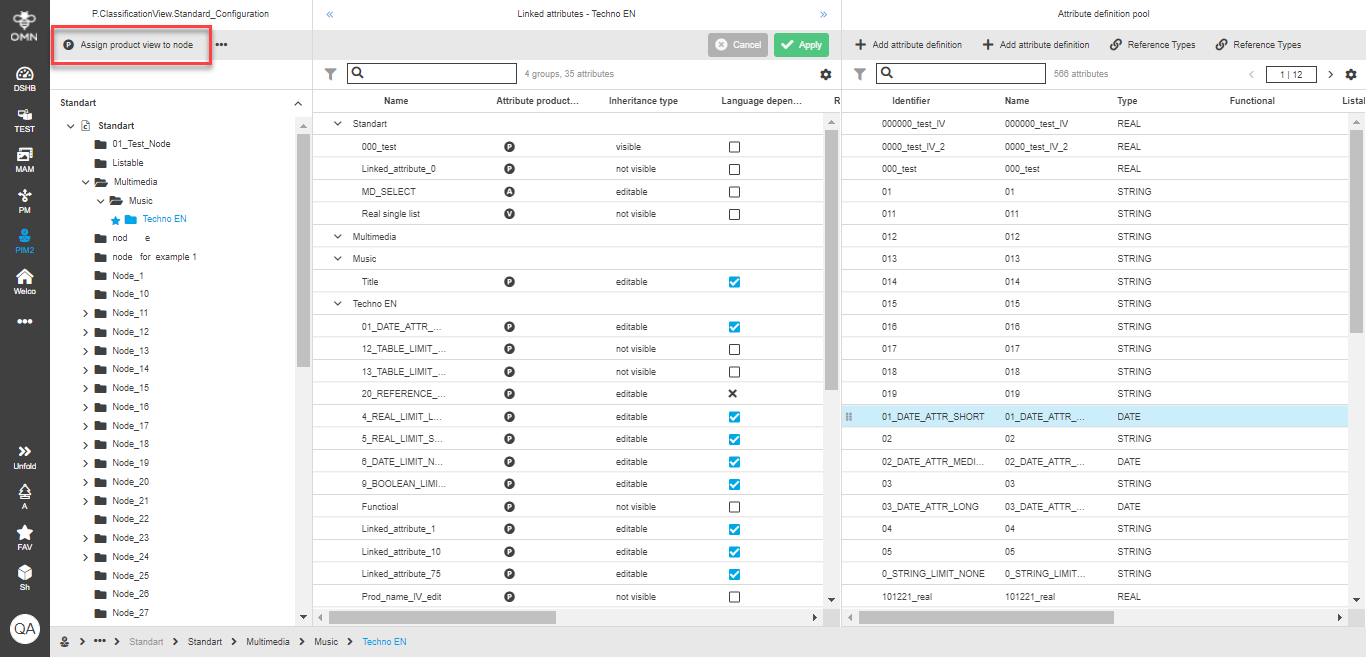 This setting will overwrite the one done in Configuration Client.
|
'Functions configuration' tab
This configuration tab gives the possibility to configure functions for almost all views related to the pages of ClassificationView.
Below there is a list of configuration sub-tabs with the mapping to a view on HTML5 client.
| Name of the tab | HTML5 related view |
|---|---|
Node view |
Configuration page, left view
|
Classification tree view |
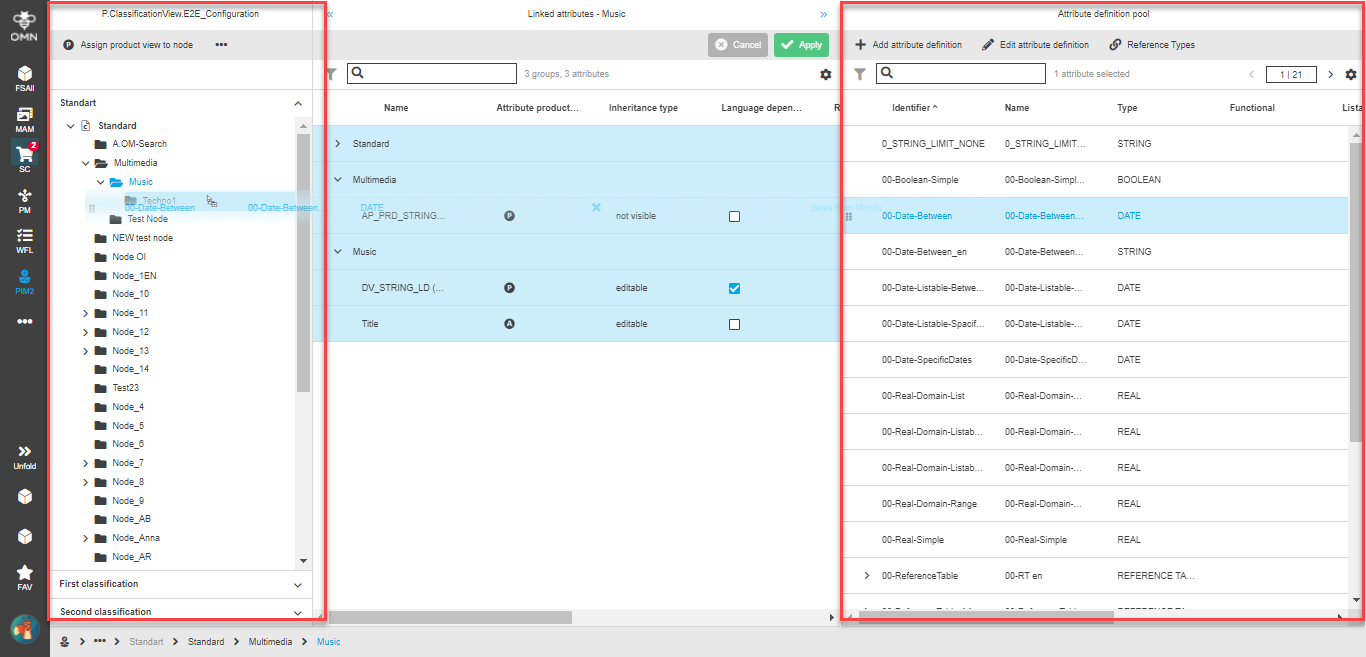
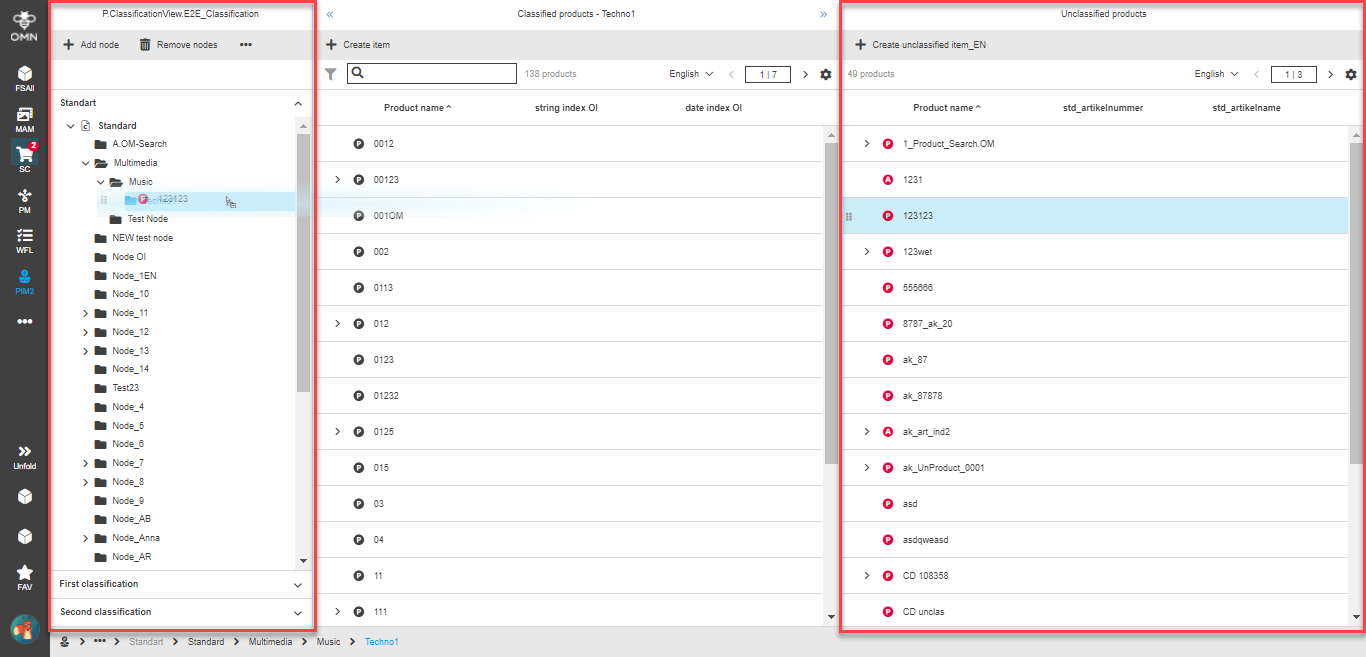
Configuration page, drag’n’drop to the nodes in the left view
Classification page, drag’n’drop to the nodes in the left view
see details in 'Classification tree view' functions configuration |
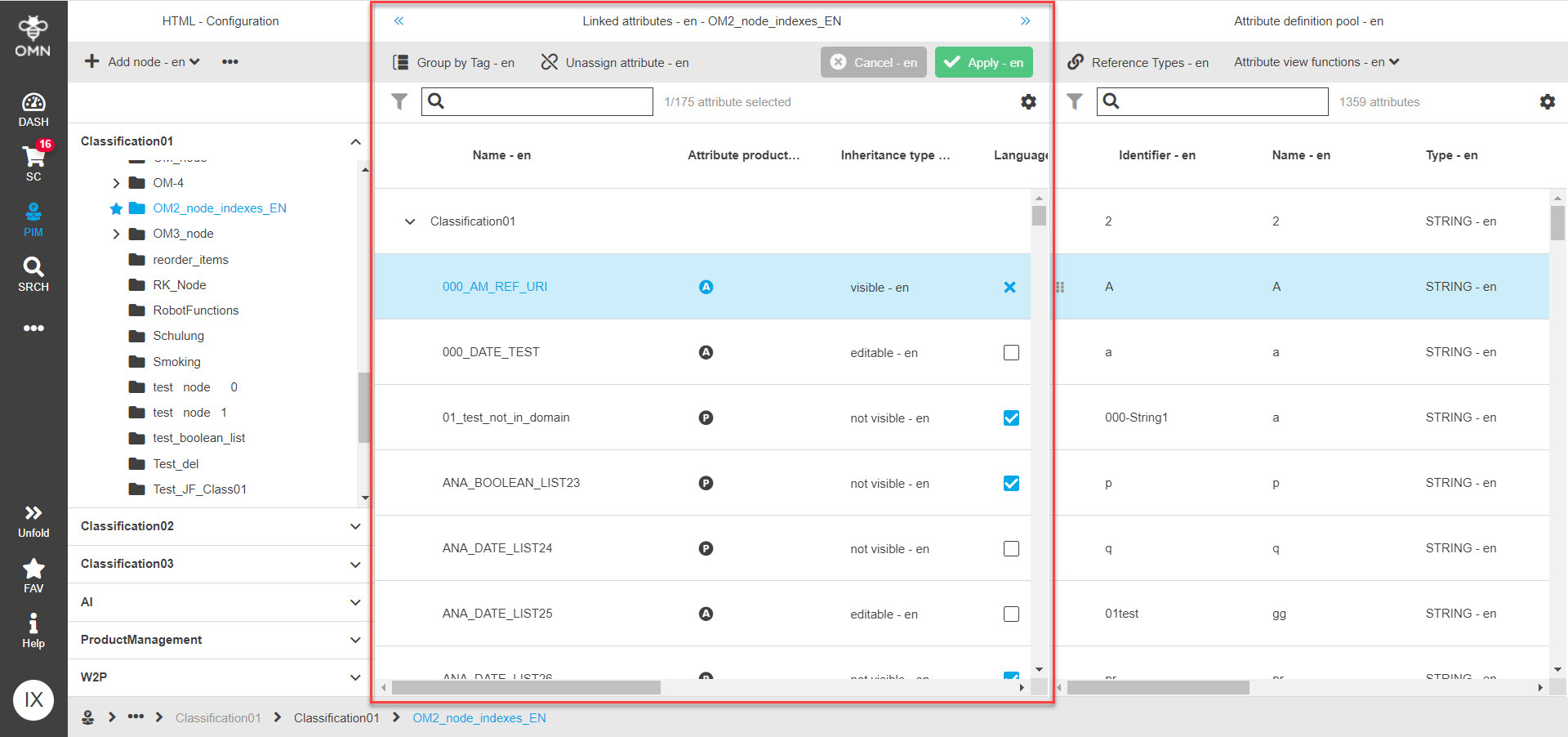
Linked attribute view |
Configuration page, center view
|
Attribute view |
Configuration page, right view
|
Classified product view |
Classification page, center view
|
Unclassified product view |
Classification page, right view
|
Management view |
Management page, right view - 'Attribute values' tab
|
Create product dialog |
Classification page, 'Create item' and 'Create unclassified item' windows
see details in 'Create product dialog' functions configuration |
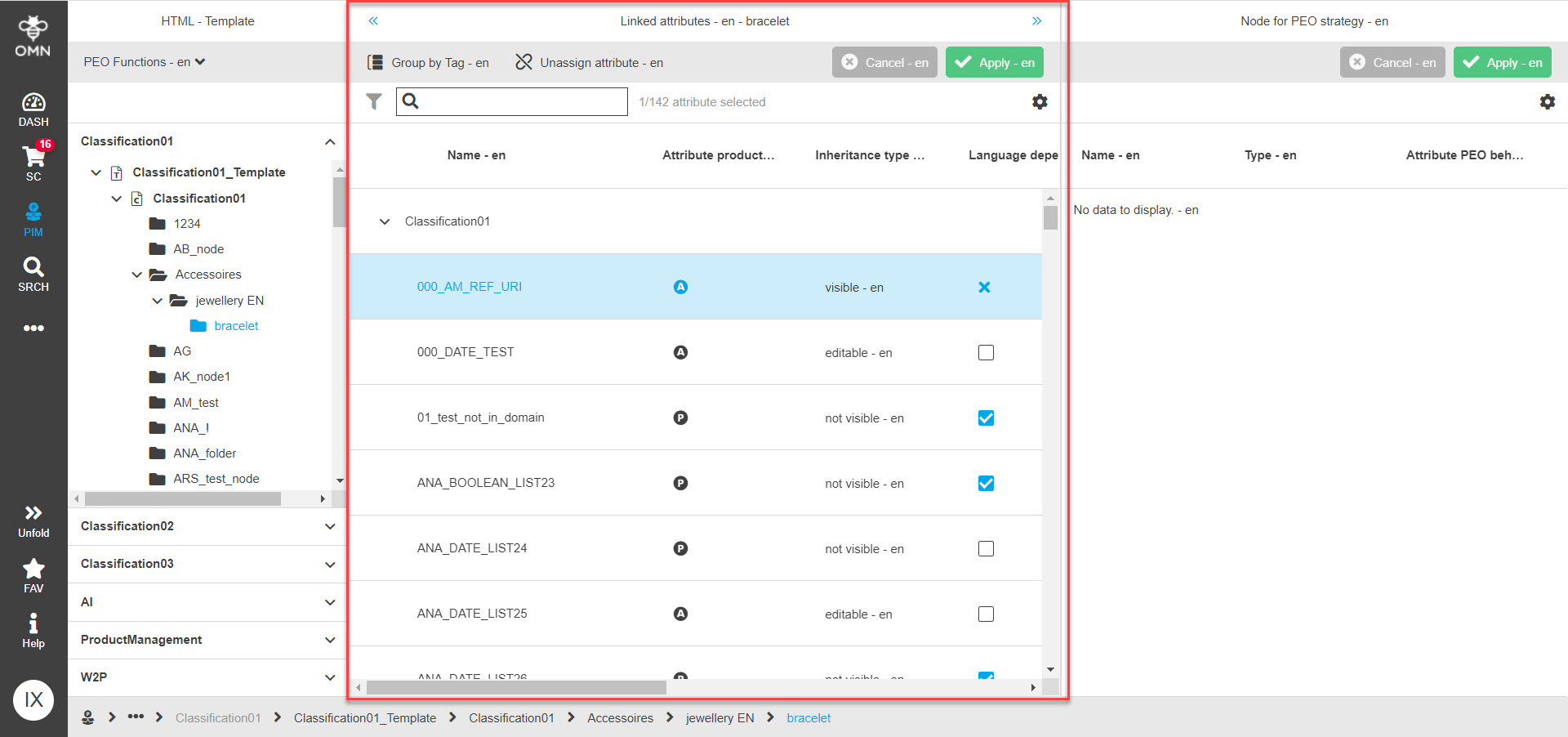
PEO Template view |
Template page, left view. Requires configuration of PEOView
|
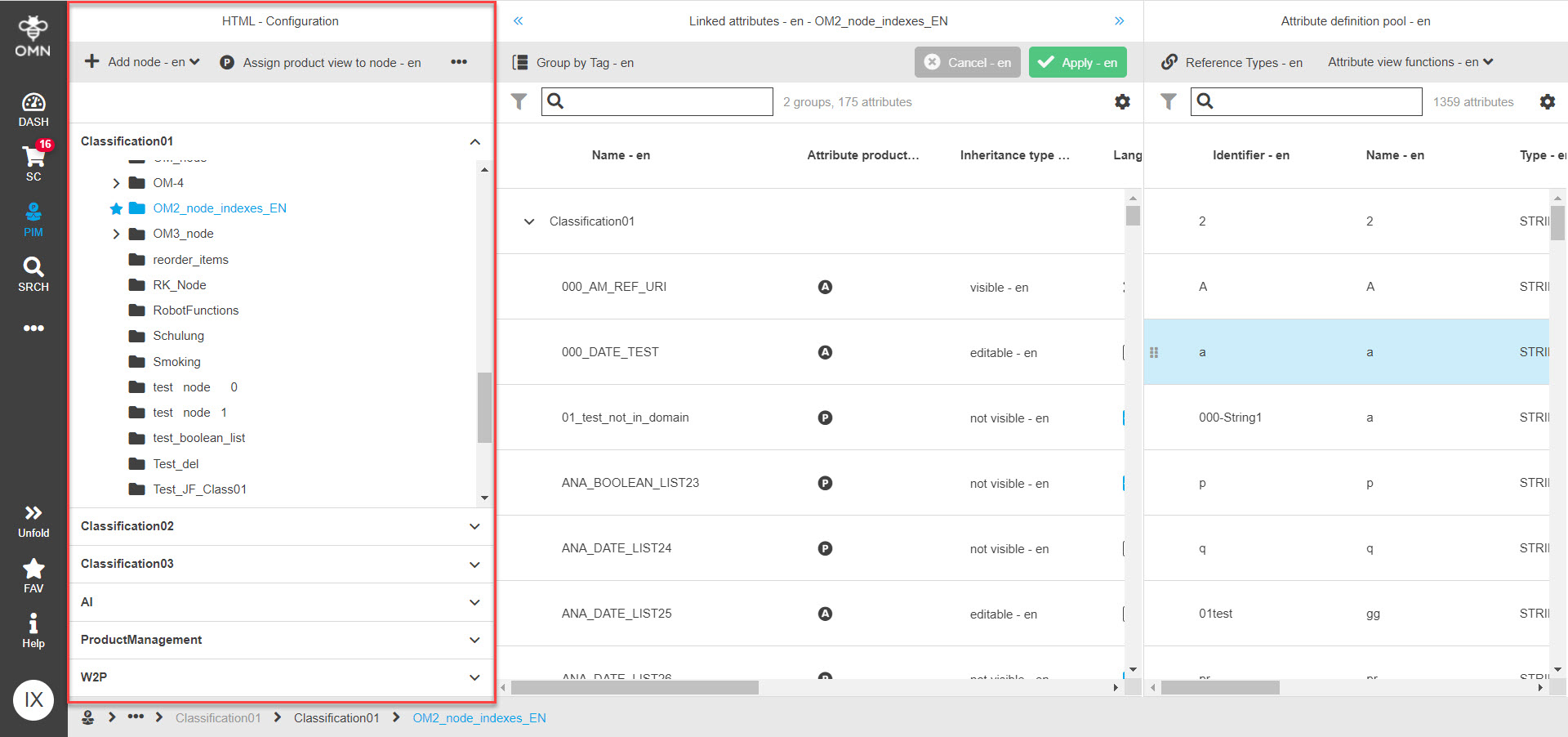
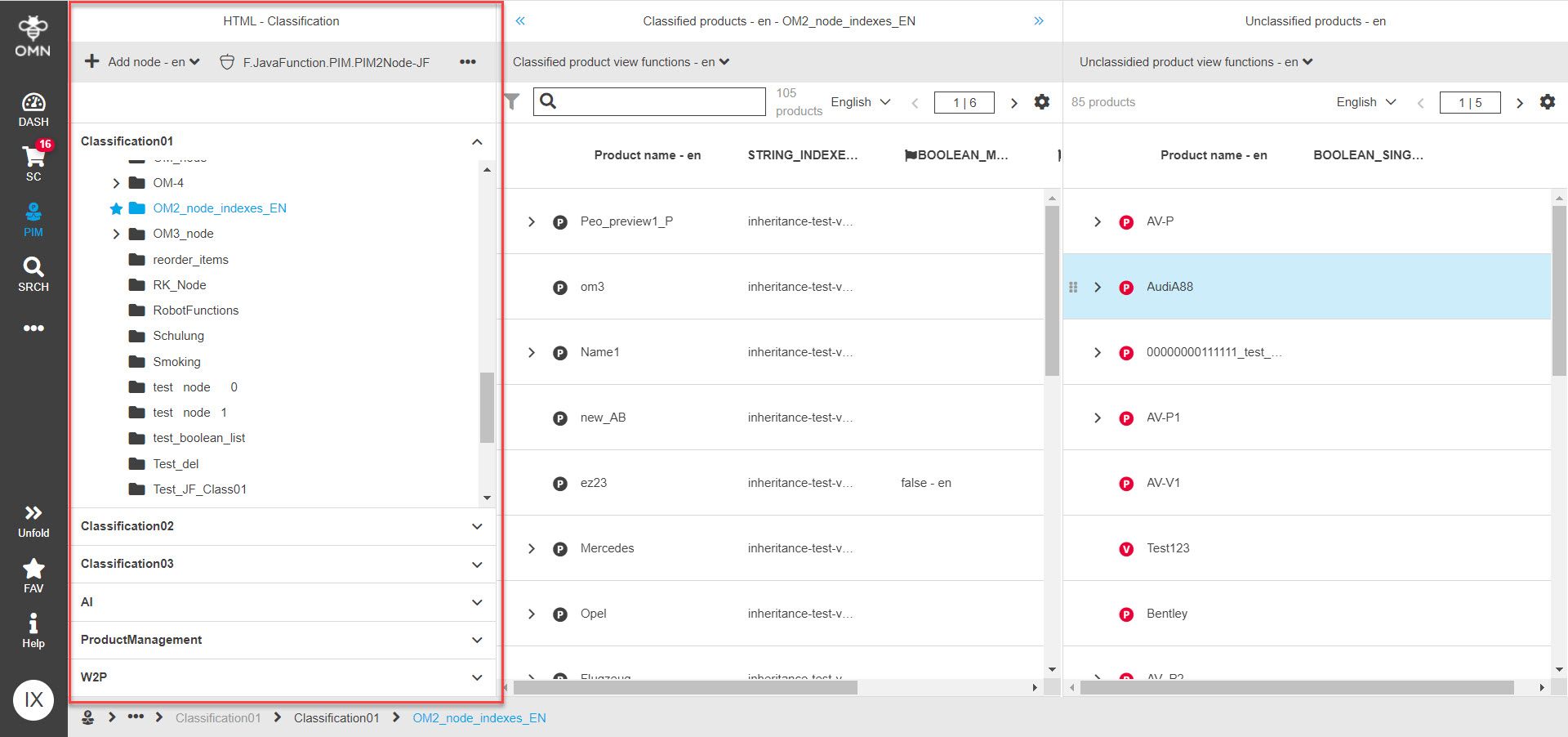
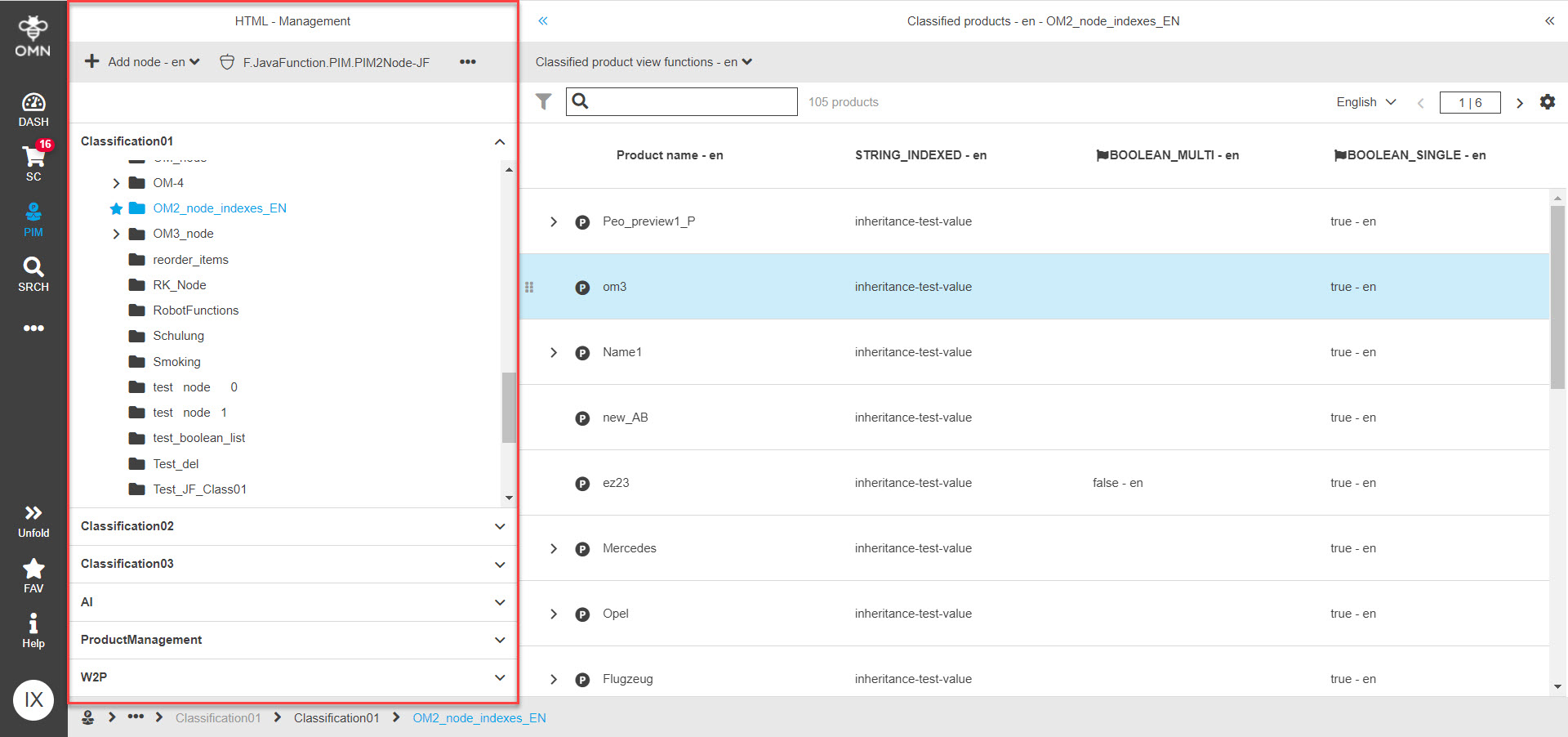
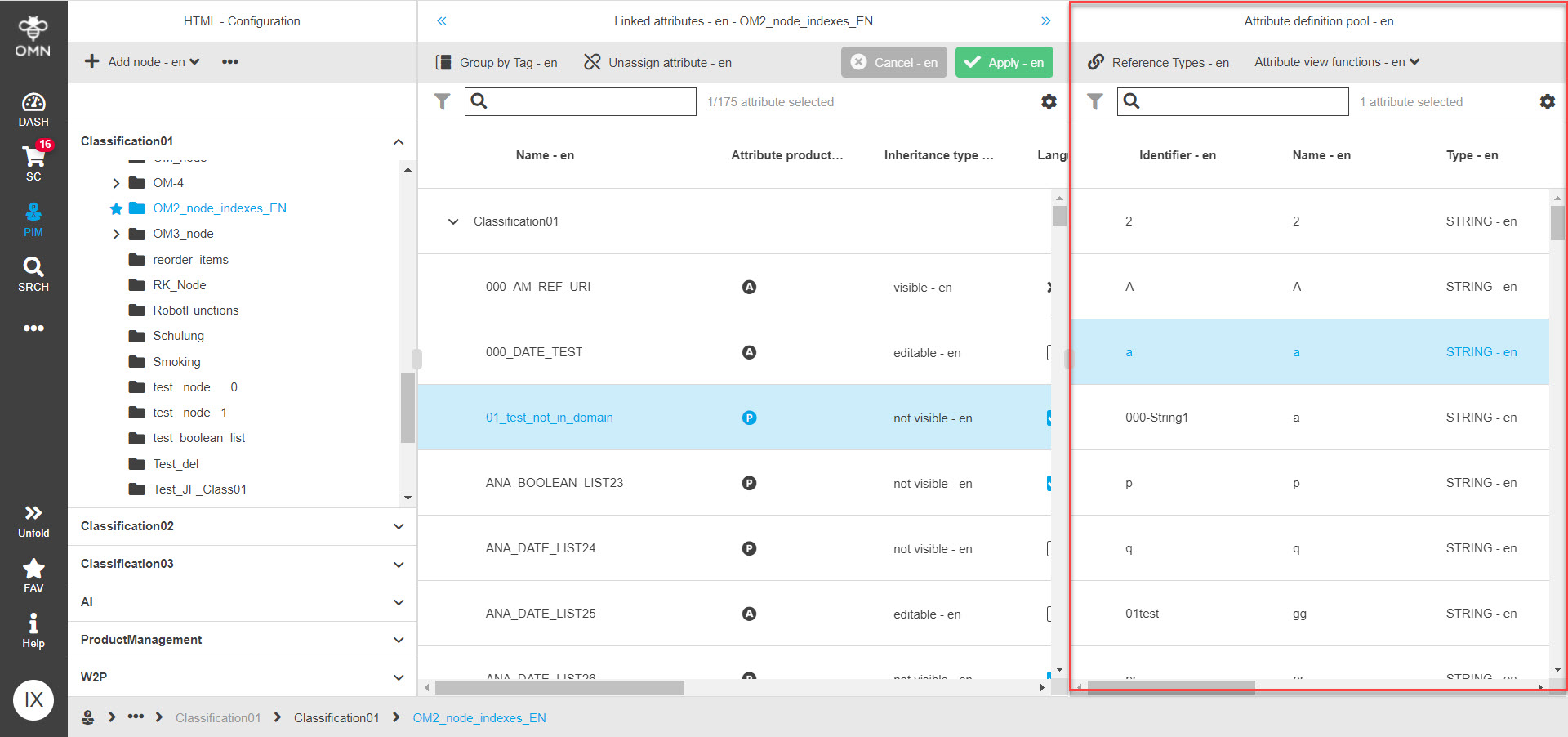
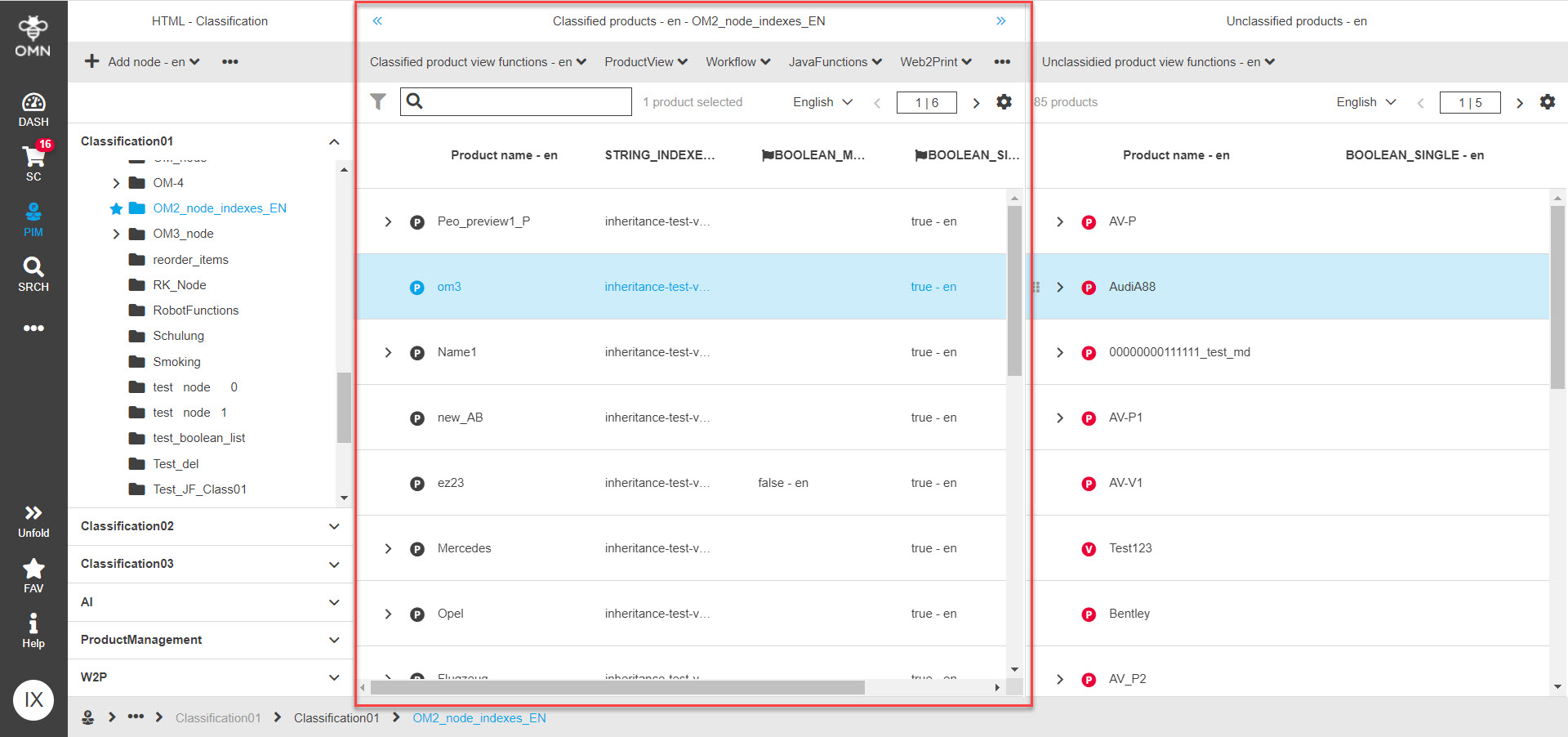


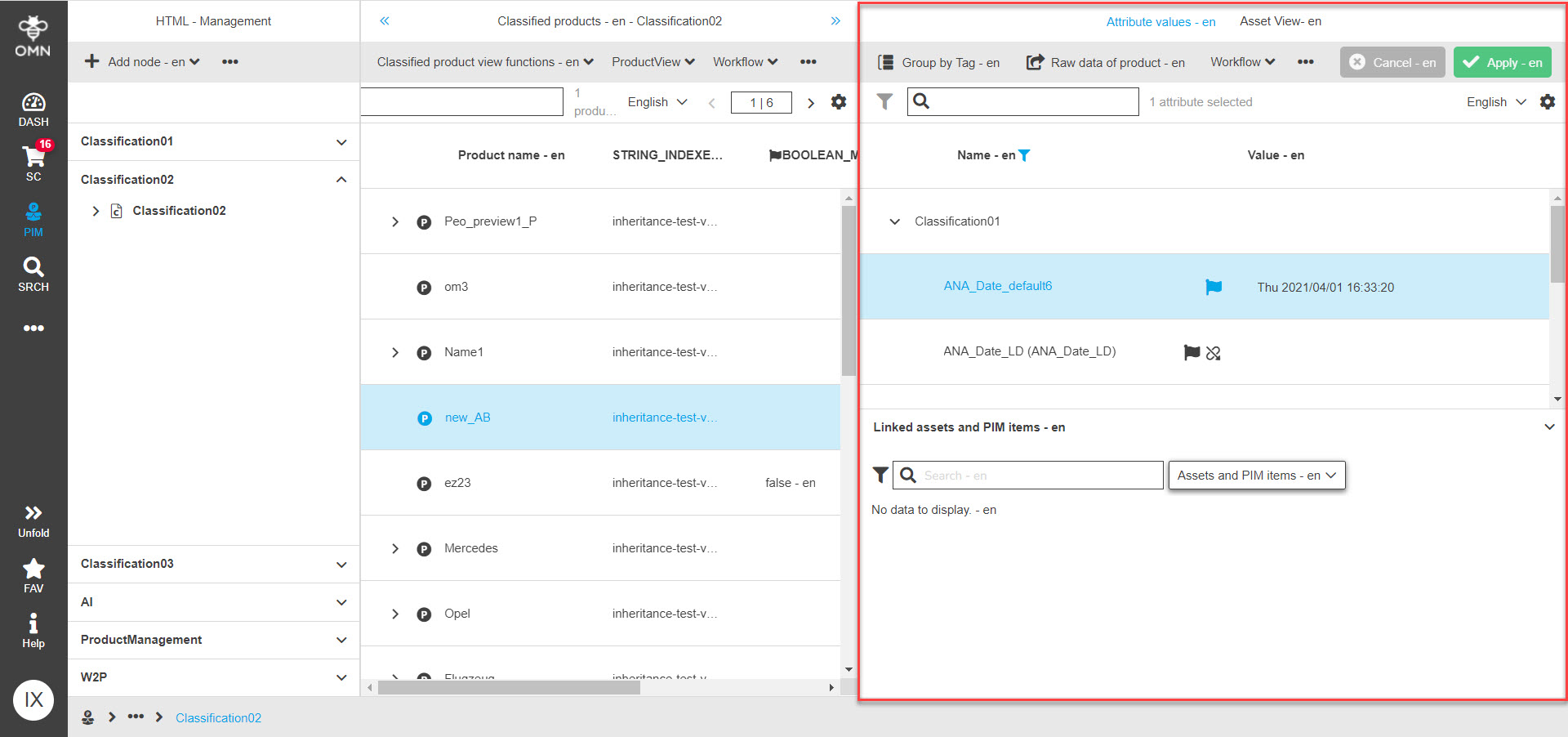
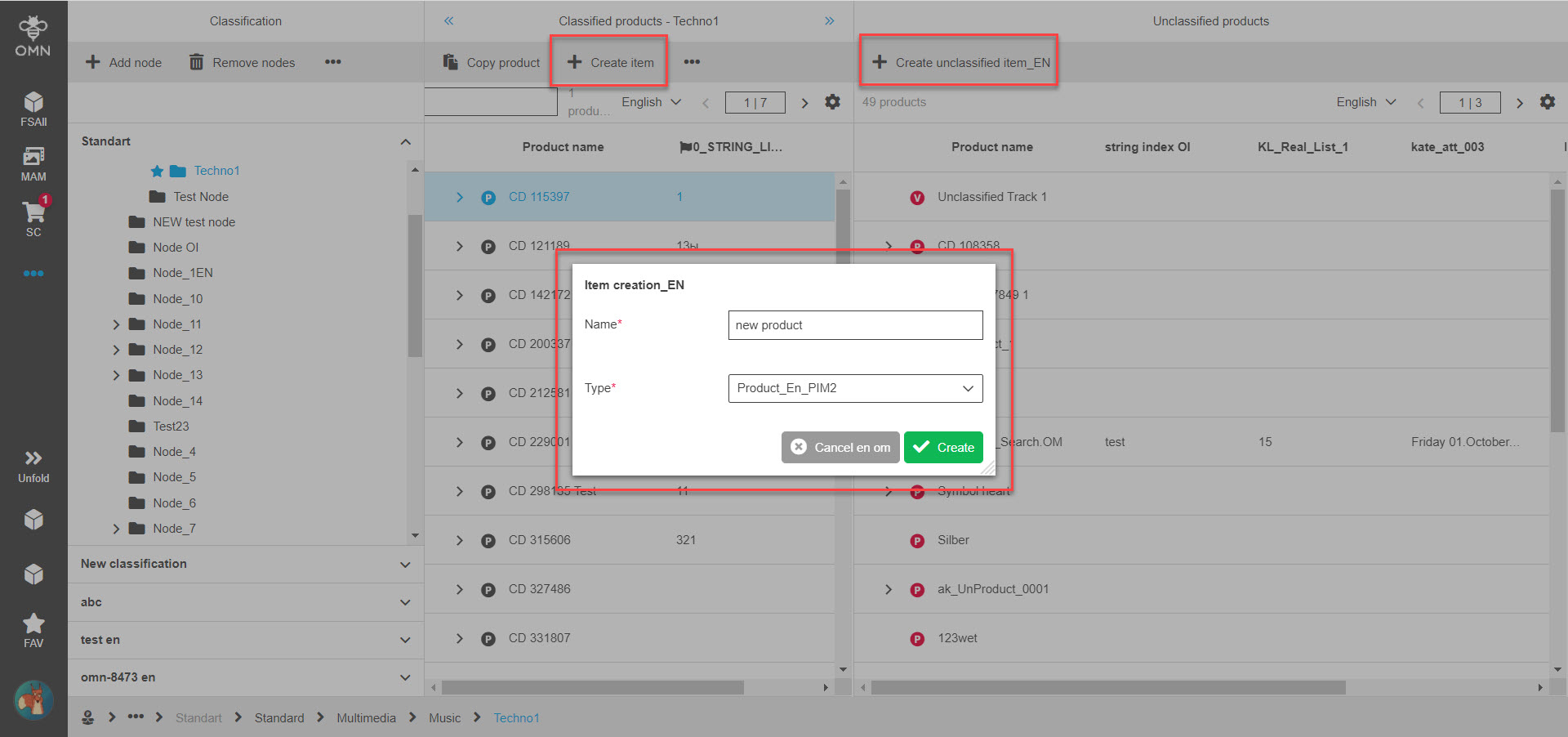
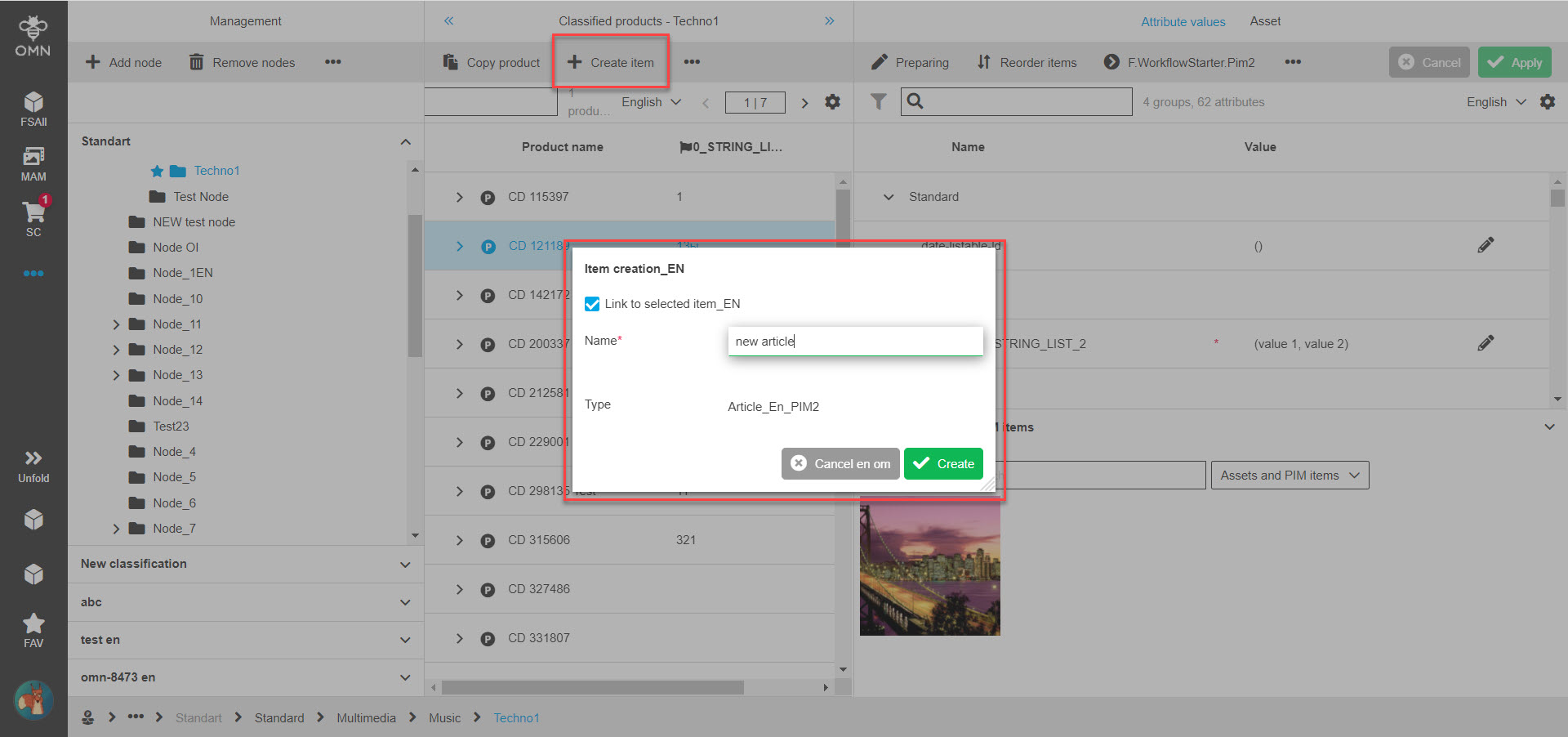
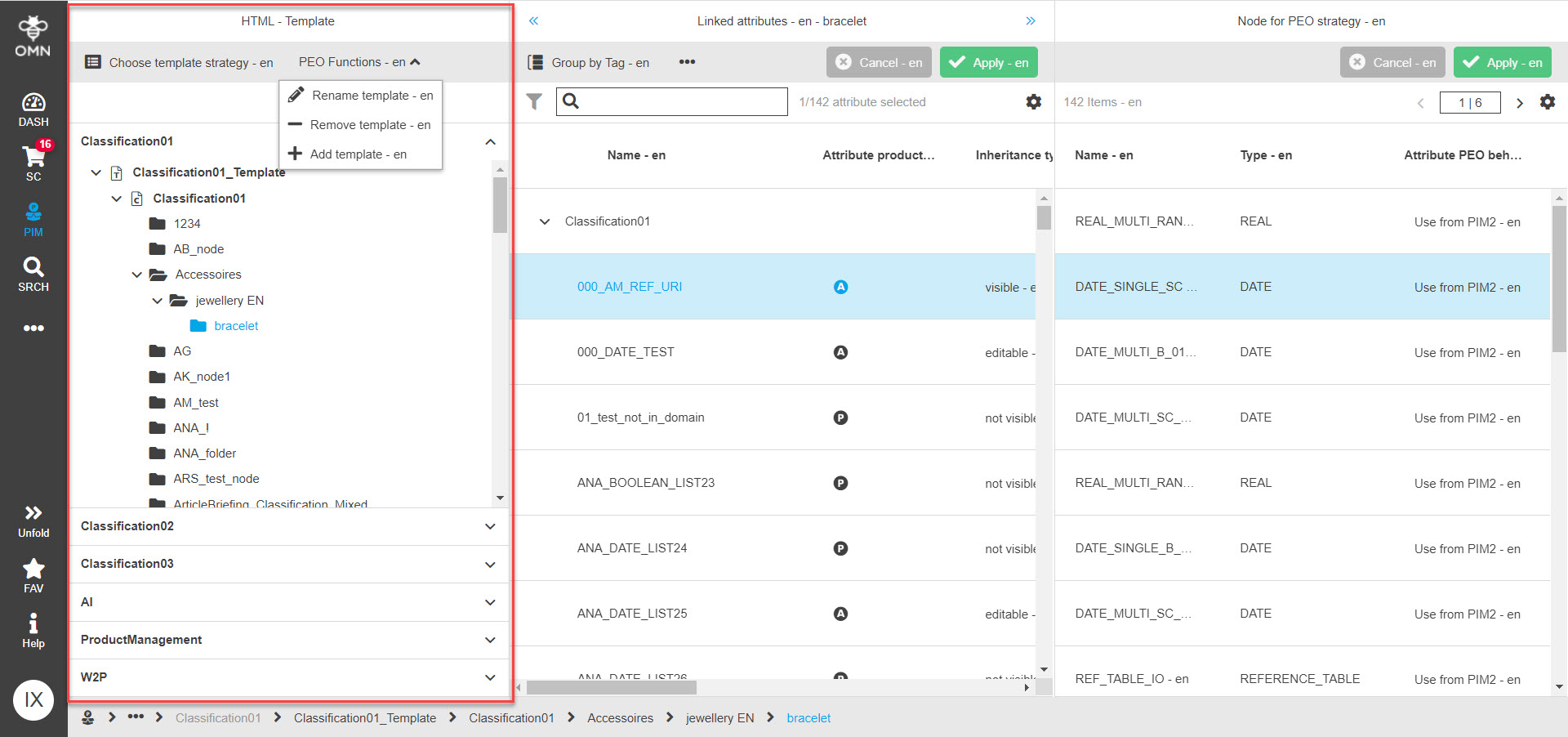
Details on the general functions' configuration flow can be found on the following page.
'Classification tree view' functions configuration
This tab allows you to configure functions that should be used during drag’n’drop action to the nodes in the left view. This tab includes 2 configurable functions:
-
Link products to node → relates to Classification page → allows linking products to the classification nodes in the left view
-
Create attribute → relates to Configuration page → allows assigning attributes for the classification nodes in the left view
'Create product dialog' functions configuration
In this tab you should define the functions for 'Create item' functionality. For example, if you allow the user creating products, articles and variations, you need to configure 3 functions:
-
Create product
-
Create article
-
Create variation
The configured functions influence the available items in the 'Item creation' dialog on the frontend:
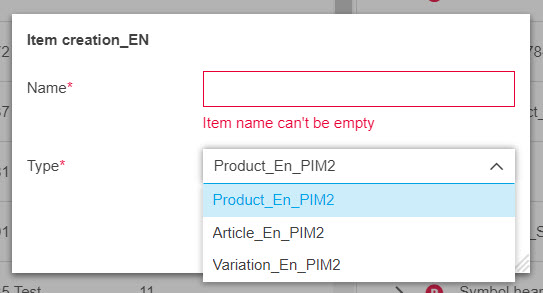
Other functions available in configuration for this tab are not yet supported on the HTML5 frontend client.
'Tabs configuration' tab
The main purpose of this configuration tab is to restrict the access to different parts of ClassificationView plug-in.
| This configuration has influence only on the old client. To set the access rights for ClassificationView pages, you should set the permissions in 'Security' settings on base of sidebar items. Details can be found on the following page. |
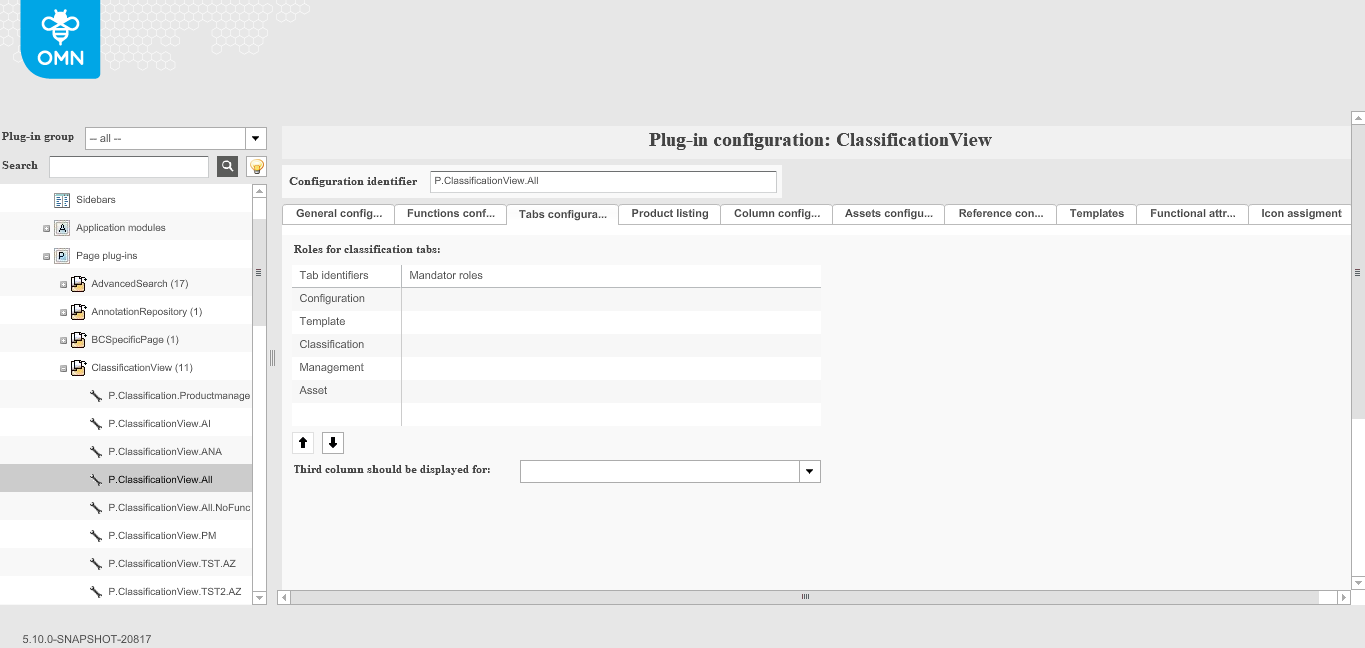
This is how the configuration looks like:
| Option | Description | Notice |
|---|---|---|
Roles for configuration tabs |
This table includes all ClassificationView tabs. In the second column you should choose relevant mandator roles for each tab on the client. |
When no role is selected, the tab is accessible by all users |
Third column should be displayed for |
With this option, you can set which users are allowed to see the third column (=right panel) of all ClassificationView tabs. Selection is also done on base of mandator roles |
When no role is selected, the panel is accessible by all users |
'Product listing' tab
This configuration tab allows you to use indexed fields and other PIM2 attributes in the tables with classified products on Classification and Management pages.
Indexed fields should be configured in the PIM2 application module beforehand (more details about configuration you can check on this page).
This is how configuration tab looks like:
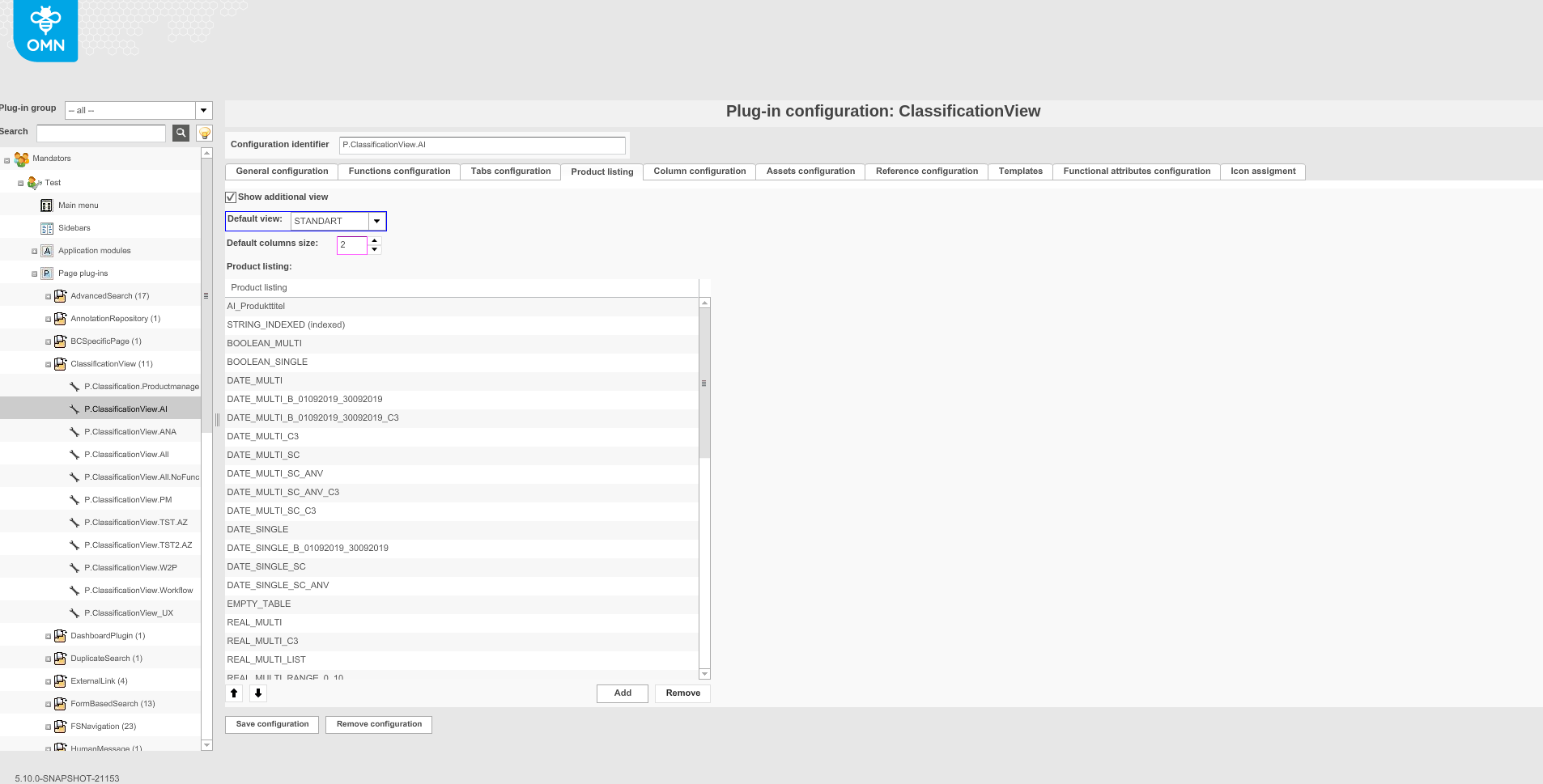
| Option | Description | Notice |
|---|---|---|
Show additional view |
>> To activate the possibility to add attributes as columns to the table on Classification and Management pages |
|
Default view |
You can choose which mode of the table should be opened by default: standart → simple view with only 'Product name' column; extended → the view with all enabled attributes |
This setting has influence only on the old client |
Default columns size |
The number in this option indicates how many extra columns (with configured attributes) will be displayed by default. Later on, this can be changed on the frontend client |
The first attributes from 'Product listing' table are taken as columns by default. |
Product listing |
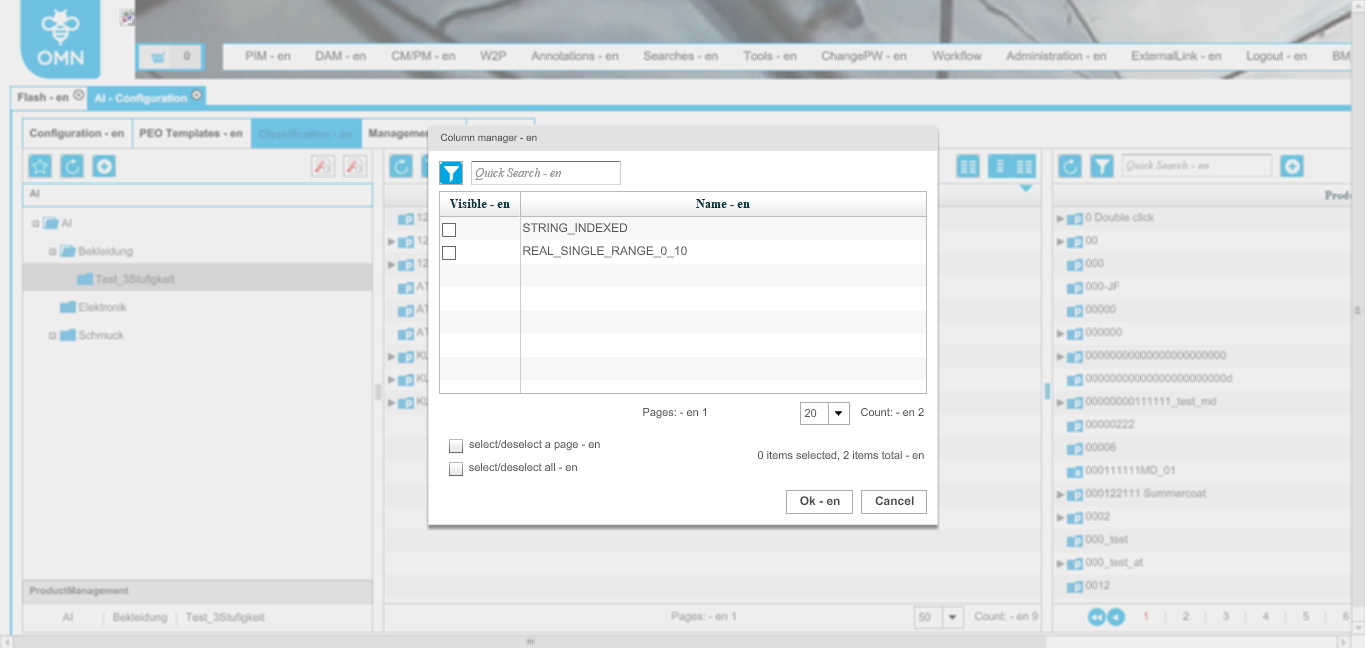
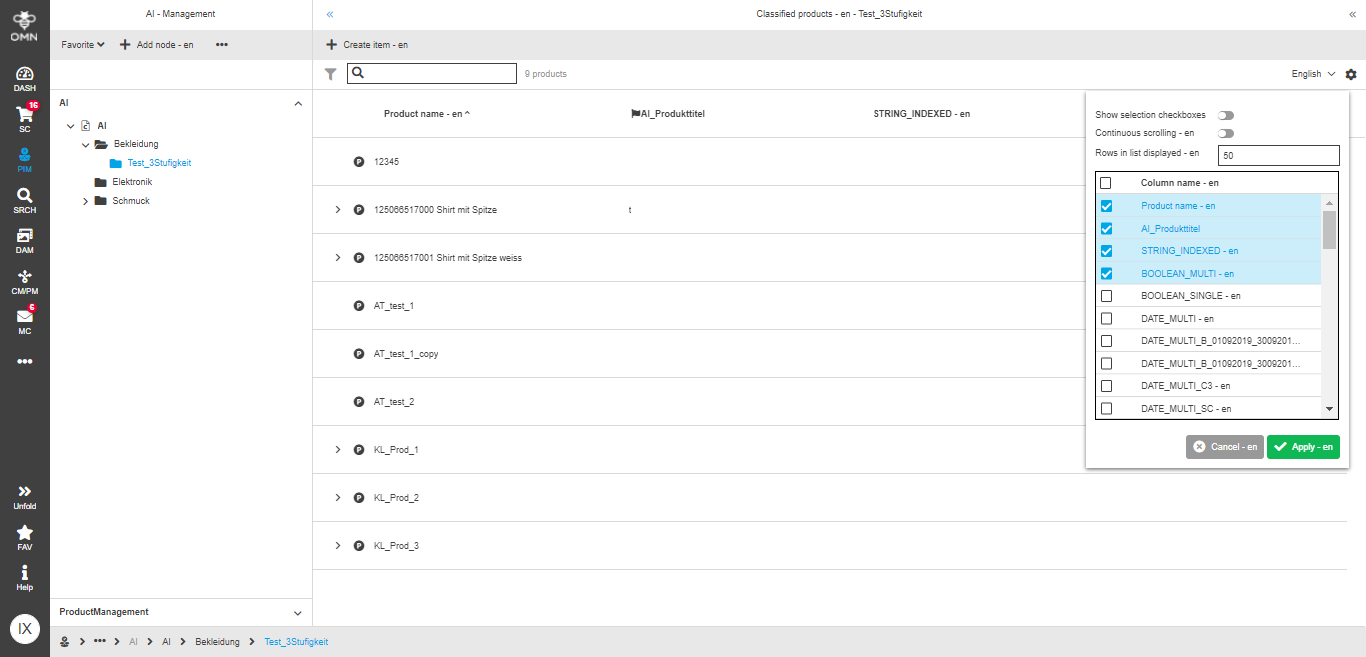
Here the additional attributes are added. You can select them from the list of existing fields (all PIM2 attributes + indexed fields). On the frontend client all enabled fields will be available in the list of visible columns on both Classification and Management pages. Only columns for 'default columns size' are selected as visible by default. |
Old client has only indexed fields available in the list of columns.
HTML5 client has all enabled attributes available in the list of visible columns.
|
'Column configuration' tab
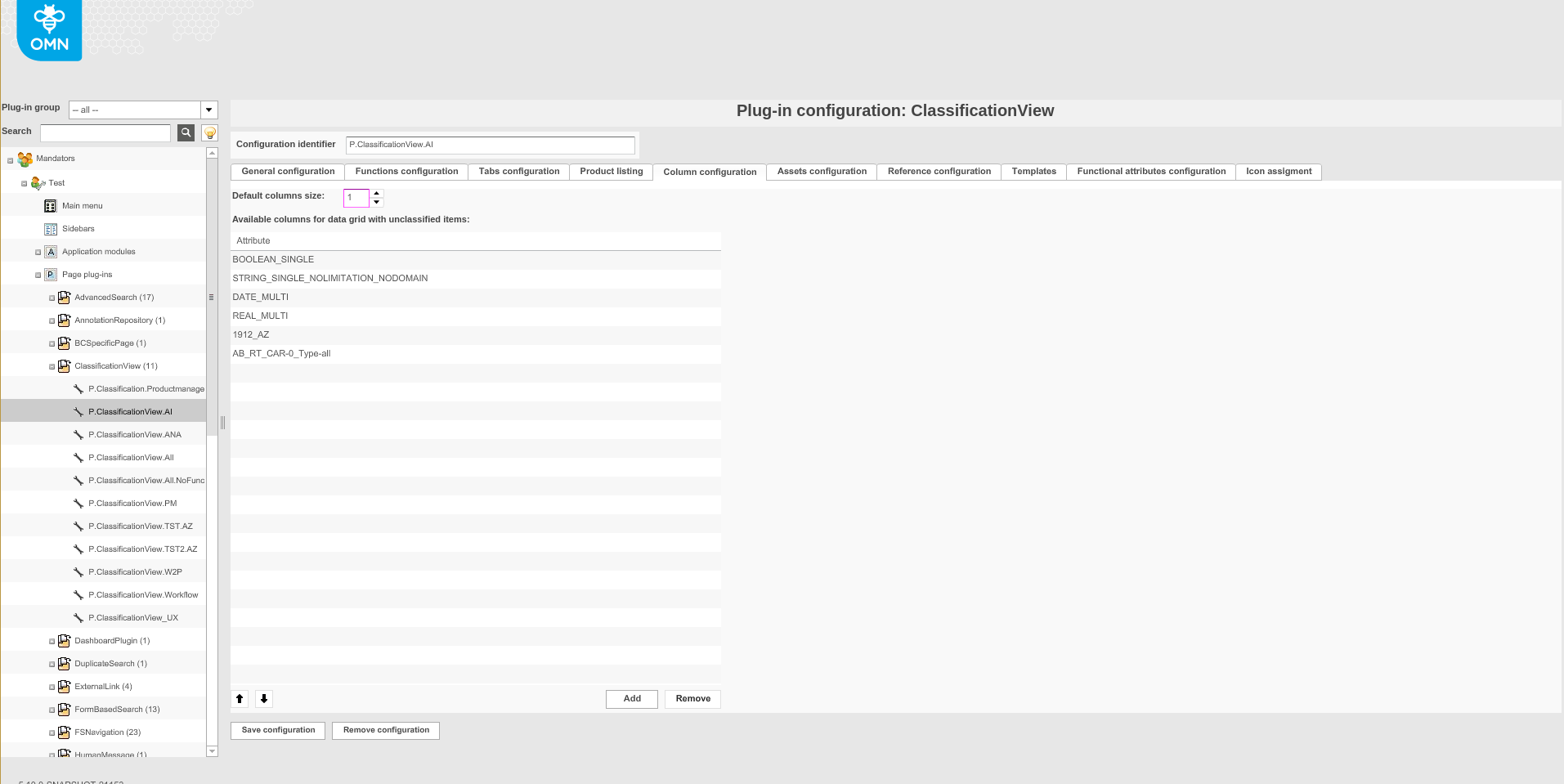
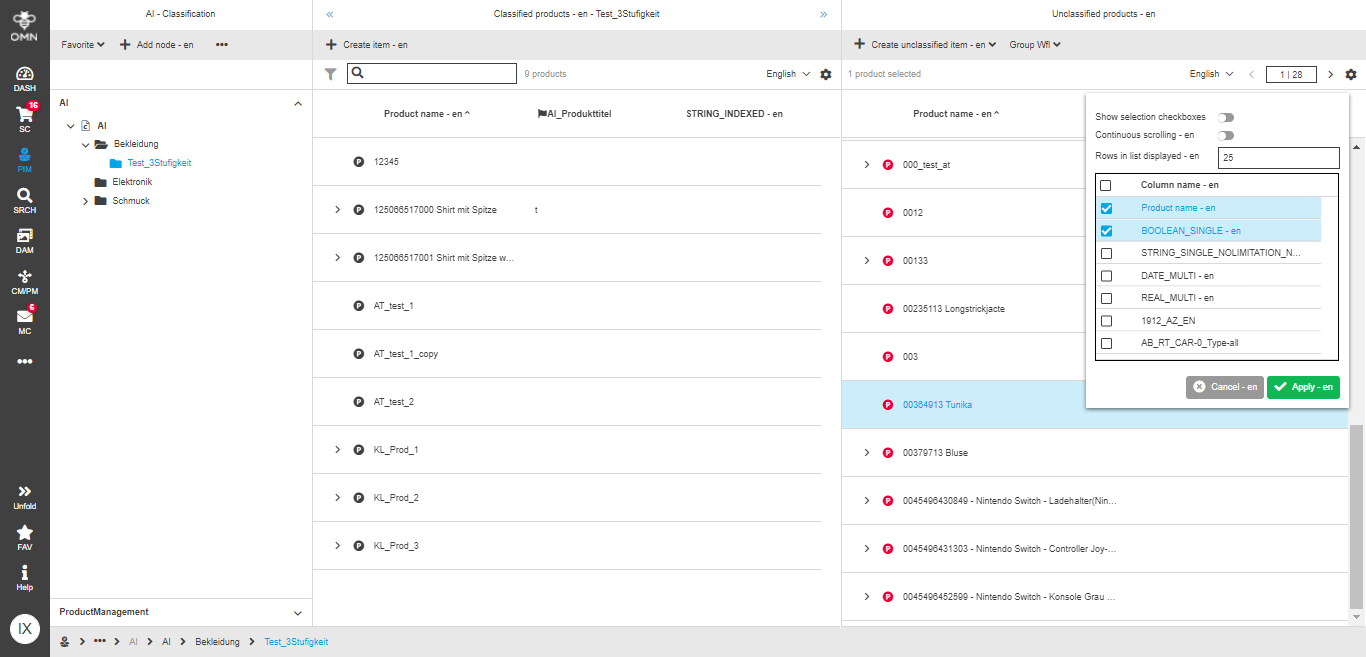
In this tab you can define how the table for unclassified products view will look like on the frontend client in the right view of Classification page.
This is how the configuration looks like:
| Option | Description | Notice |
|---|---|---|
Default columns size |
The number in this option indicates how many extra columns (with configured attributes) will be displayed by default. Later on, this can be changed on the frontend client |
When the number is set to 0, only 'Product name' column is visible in the table by default, other columns can be added in the visible columns setting. The first attributes from 'Available columns for data grid with unclassified items' table are taken as columns by default. |
Available columns for data grid with unclassified items |
Here the PIM2 attributes can be selected to be shown as additional columns on the frontend client in the right view of Classification page. On the frontend client all enabled fields will be available in the list of visible columns on both Classification and Management pages. Only columns for 'default columns size' are selected as visible by default:
|
'Assets configuration' tab
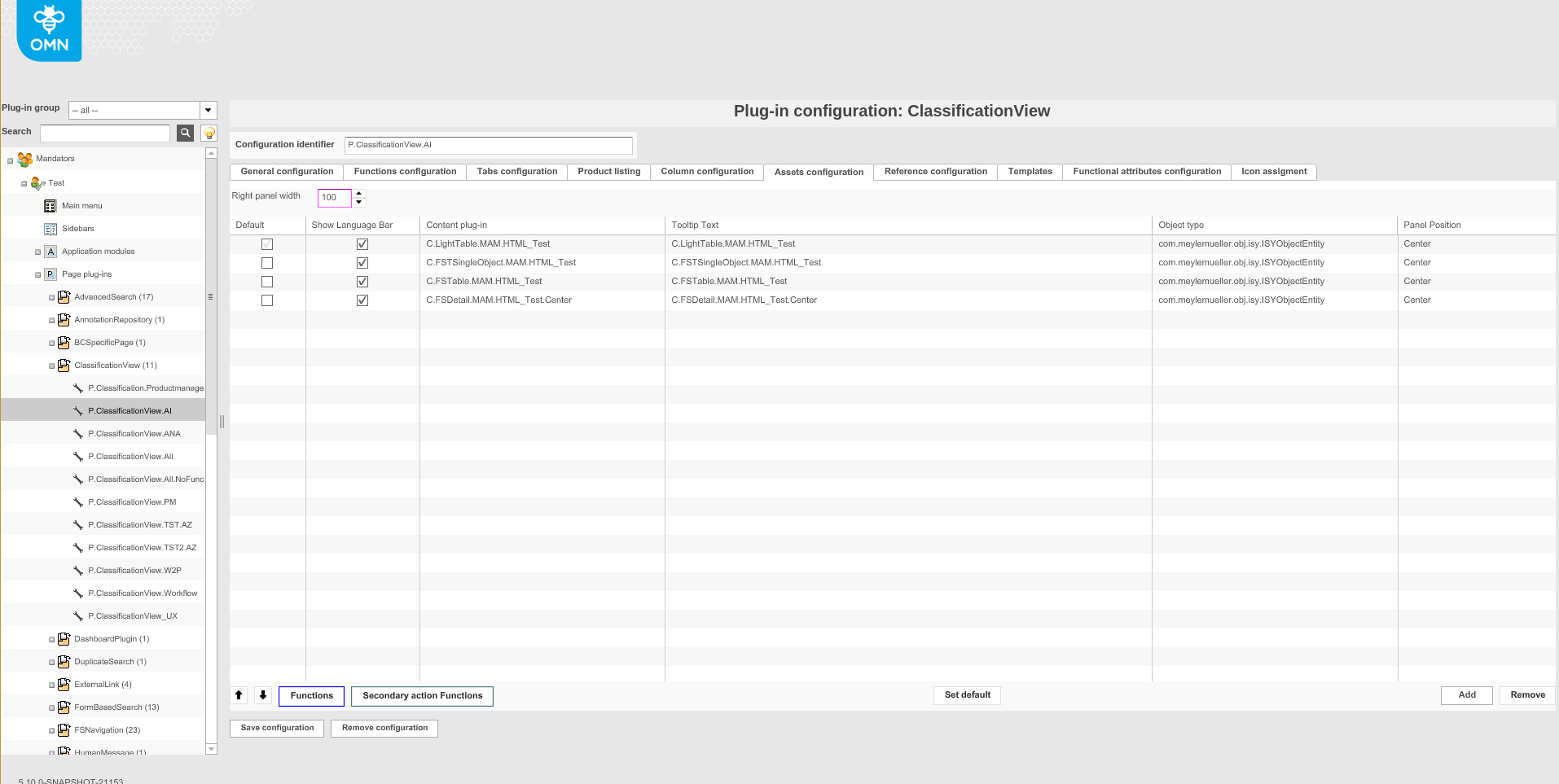
This tab provides you with the possibility to configure content views for linked assets view (right view of Management page). In addition to content views you can configure required functions for each view.
This is how the configuration looks like:
| Option | Description | Notice |
|---|---|---|
Right panel width |
Here you can set the value for the width of the right view. Value should be entered in pixels |
This setting has influence only on the old client |
Adding content views |
In this table you should add needed content plugins to be displayed in the linked assets view on the frontend |
For description of the adding content views' process you can check the following page |
Adding functions to content views |
There is also the possibility to add functions for each added content view - for both old and HTML5 frontend clients |
For description of the adding functions to content views' process you can check the following page |
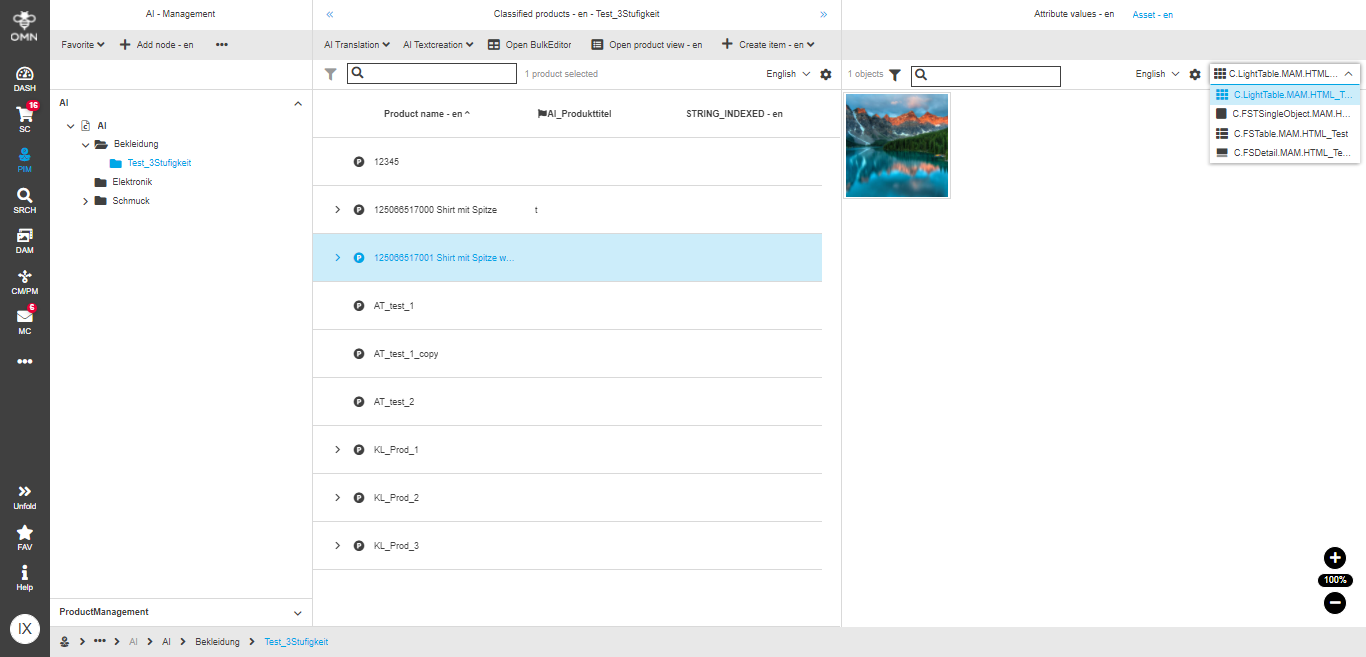
Here is the example of how the frontend client can look like with the provided configuration example:
'Reference configuration' tab
Currently, this configuration tab is not supported in HTML5 client, but it will be supported in future.
'Functional attributes configuration' tab
Help text for functional script
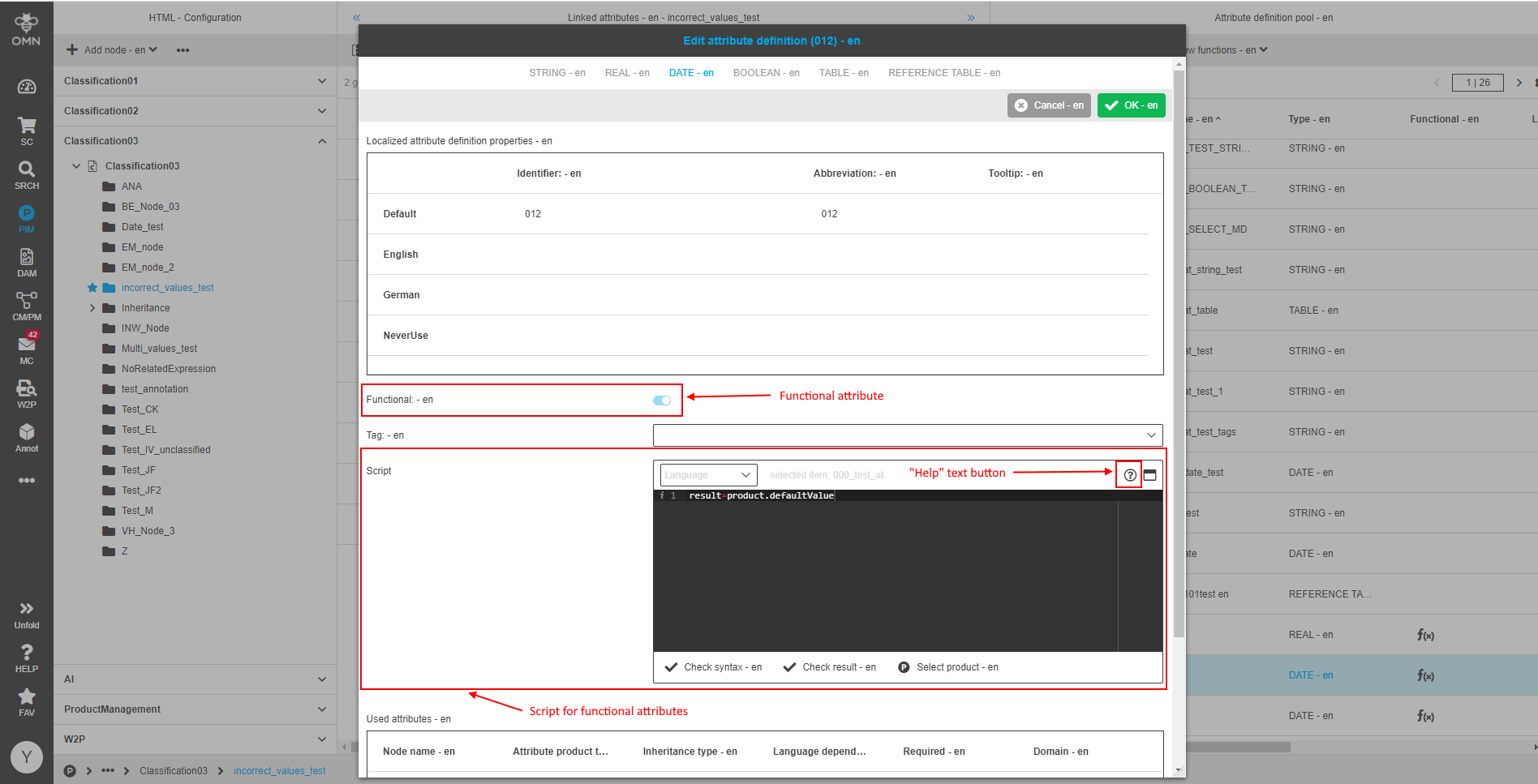
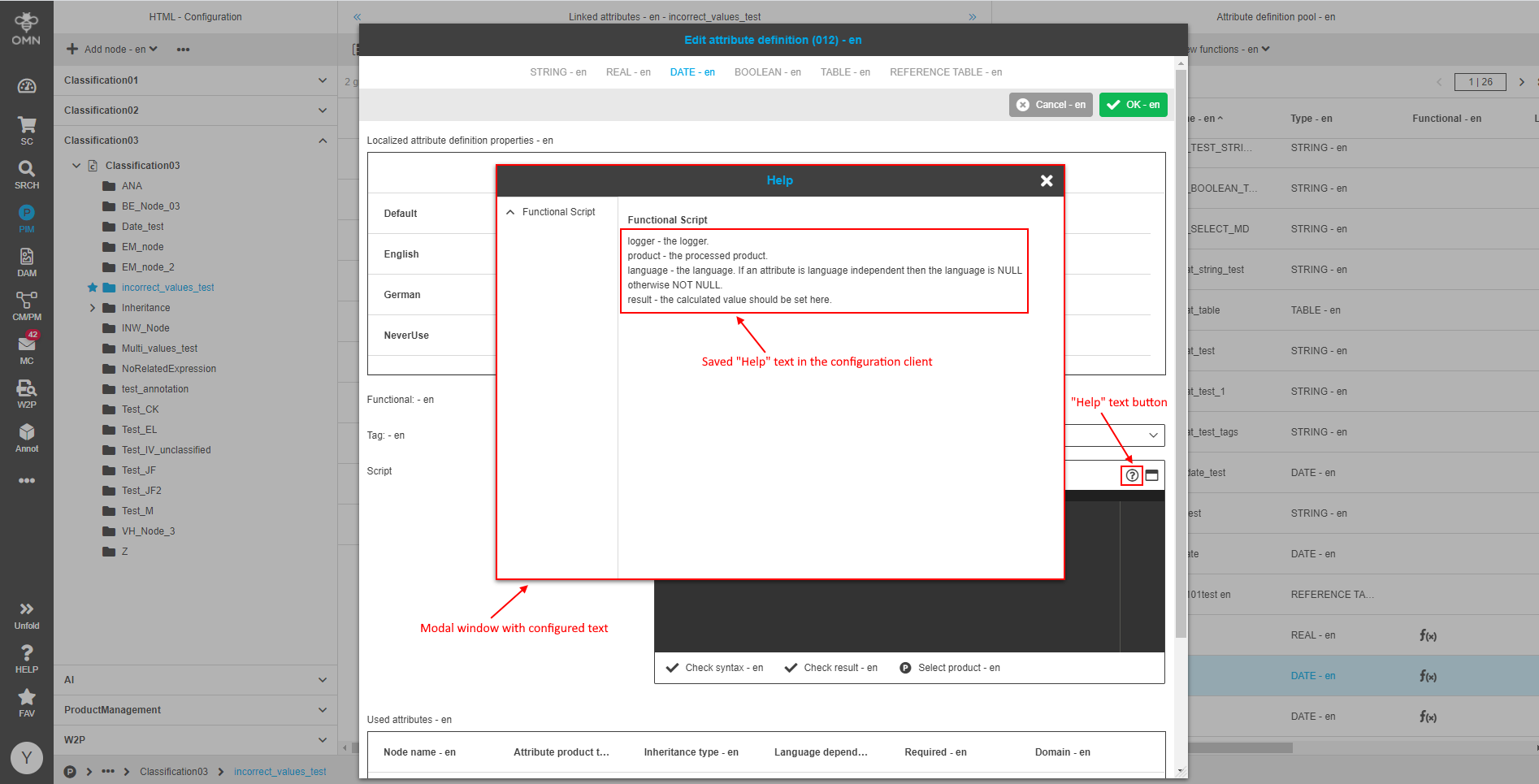
Type a text which will be used as a "Help" text for functional attributes script. This text has a default value:
logger - the logger.
product - the processed product.
language - the language. If an attribute is language independent then the language is NULL otherwise NOT NULL.
result - the calculated value should be set here.
If value for help text was not saved earlier or had a NULL value then default text will be shown in text area.
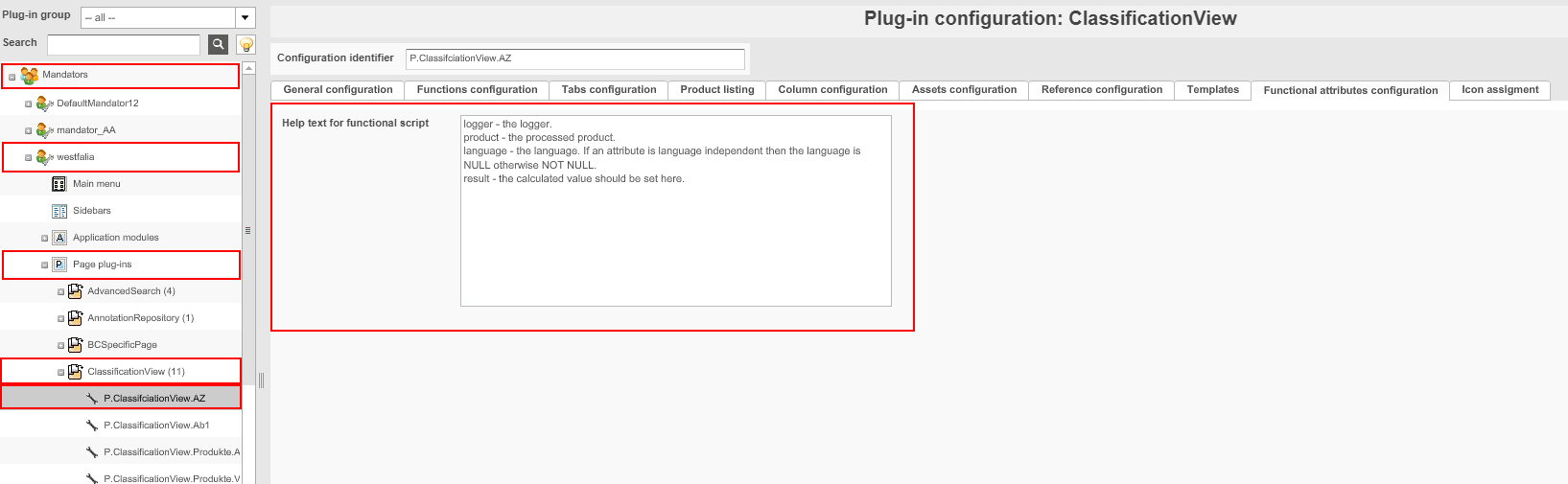
On the client side configured help text can be shown on the "Add/Edit Attribute Definition" dialog if attribute definition is functional attribute.
'Icon assignment' tab
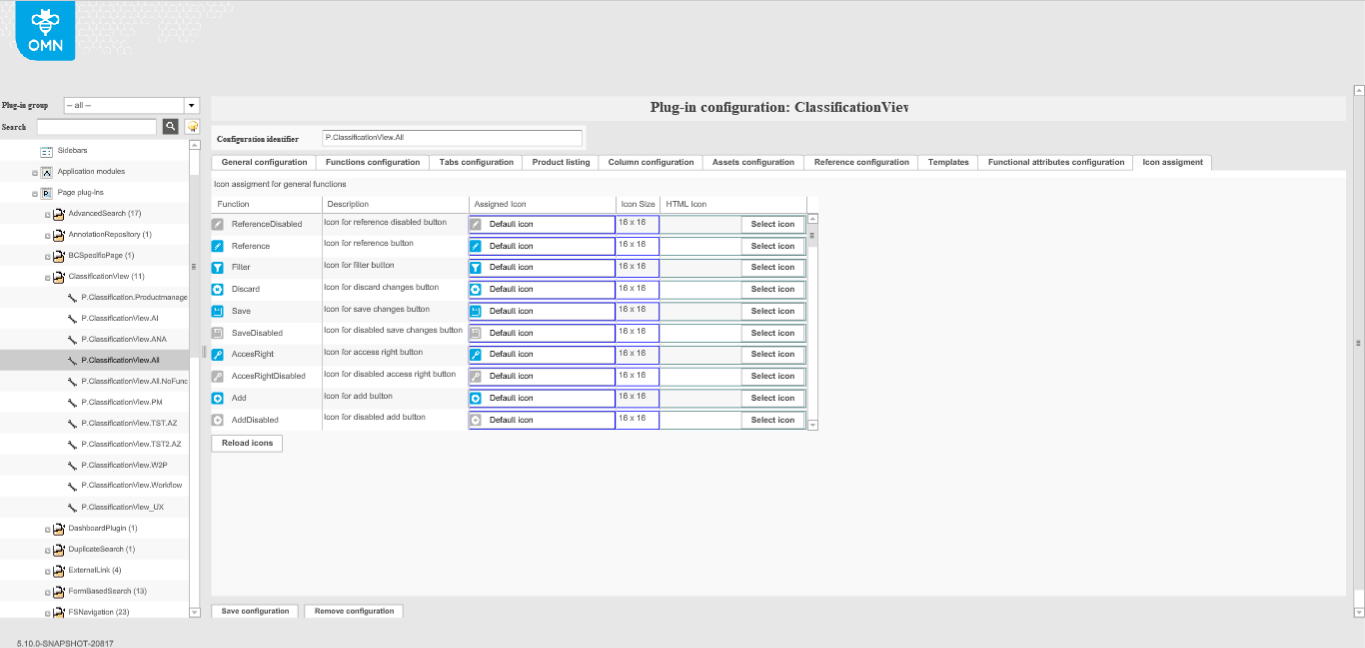
The purpose of this configuration tab is to assign special icons for main functions of the ClassificationView.
This is how configuration looks like:
| Currently, it is possible to assign custom icons only for the old client. |
Common details on the process of assigning custom icons can be found here.
| Option | Description | Notice |
|---|---|---|
'Function' column |
Here the name of the function is displayed. Corresponding function will have the assigned icon displayed on the frontend client |
Function names are not editable |
'Description' column |
Here helpful description of the function is displayed |
Description texts are not editable |
'Assigned Icon' column |
Allows to choose an icon for the old client for a specific function. Each function has its own default icon pre-selected |
This icon is applicable only for the old client |
'Icon Size' column |
The size of chosen icon is displayed here |
Size values are not editable |
'HTML Icon' column |
Allows to choose an icon for HTML5 client for a specific function |
This configuration is not working yet |
'Reload icons' button |