Working with Shortcuts
Within OMN, working with shortcuts is supported. For example, folders can be created or renamed faster and without a separate click on a function, or arrow keys can be used to navigate through folders or assets.
All available shortcuts can be found on the global help page. This is located at the bottom of the sidebar. Clicking on the corresponding help icon opens a dialog where all shortcuts are listed alphabetically.
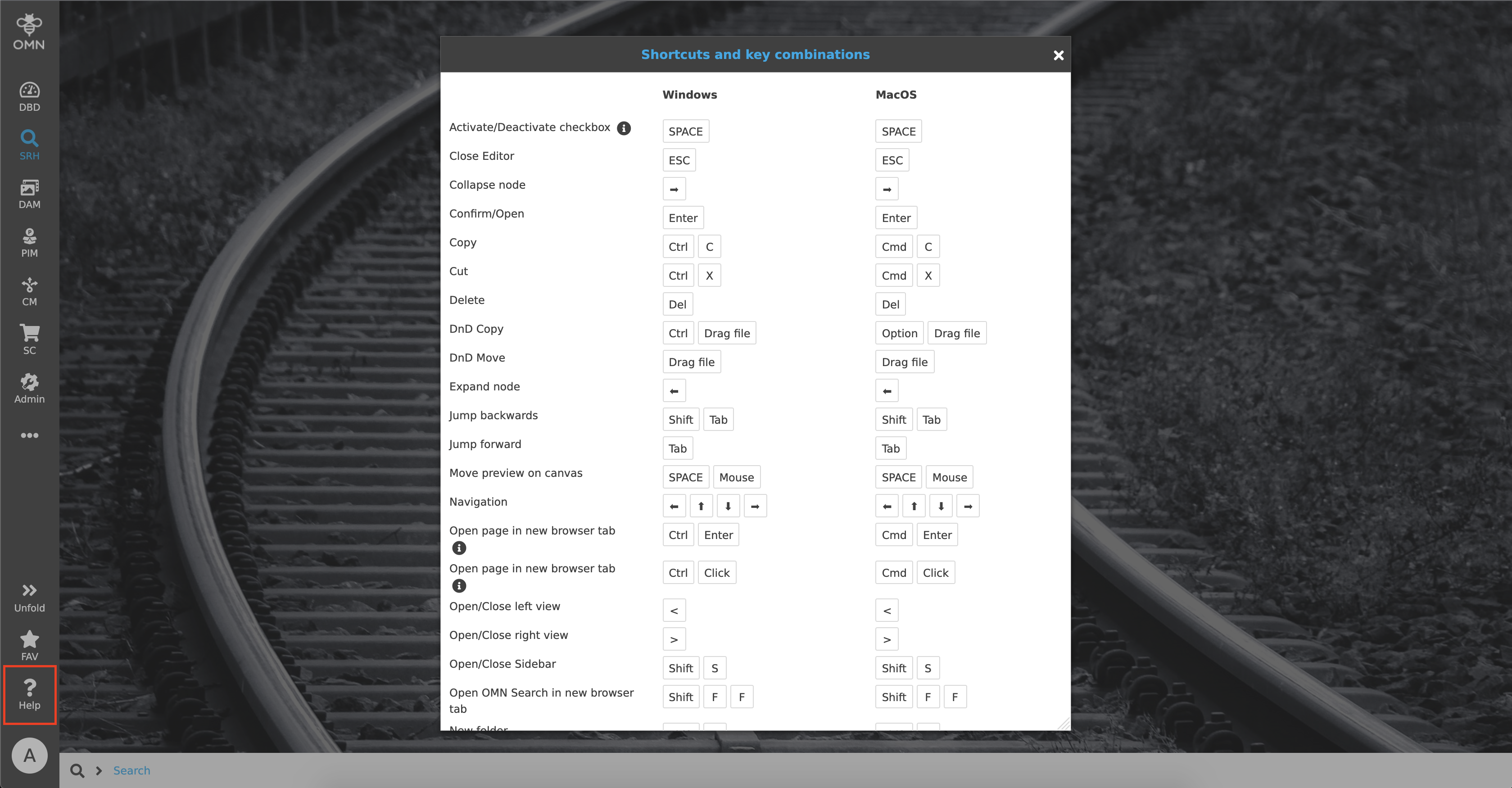
Keyboard Shortcuts Overview
The following tables list all available keyboard shortcuts in OMN, grouped by area. Each table shows the corresponding key combination for Windows and macOS.
General
| Action | Windows | macOS |
|---|---|---|
Activate/Deactivate checkbox |
Space |
Space |
Close Editor |
Esc |
Esc |
Collapse node |
← |
← |
Confirm/Open |
Enter |
Enter |
Copy |
Ctrl + C |
Cmd + C |
Cut |
Ctrl + X |
Cmd + X |
Delete |
Del |
Del |
DnD Copy |
Ctrl + Drag file |
Cmd + Drag file |
DnD Move |
Drag file |
Drag file |
Expand node |
→ |
→ |
Jump backwards |
Shift + Tab |
Shift + Tab |
Jump forward |
Tab |
Tab |
Move preview on canvas |
Space + Mouse |
Space + Mouse |
Navigation |
← ↑ ↓ → |
← ↑ ↓ → |
New folder |
Shift + N |
Shift + N |
OMN Search |
F + F |
F + F |
Open Editor in new browser tab |
Shift + Ctrl + Click on function |
Shift + Cmd + Click on function |
Open OMN Search in new browser tab |
Shift + F + F |
Shift + F + F |
Open page in new browser tab |
Ctrl + Enter |
Cmd + Enter |
Open page in new browser tab |
Ctrl + Click |
Cmd + Click |
Open/Close left view |
< |
< |
Open/Close right view |
> |
> |
Open/Close Sidebar |
Shift + S |
Shift + S |
Paste |
Ctrl + V |
Cmd + V |
Rename |
F2 |
F2 |
Rotation left |
L |
L |
Rotation right |
R |
R |
Scroll down |
Page Down |
Page Down |
Scroll to the end |
End |
End |
Scroll to the top |
Home |
Home |
Scroll up |
Page Up |
Page Up |
Select |
Ctrl + Click |
Cmd + Click |
Select all |
Ctrl + A |
Cmd + A |
Select from - to |
Shift + Click |
Shift + Click |
Zoom in 10% steps |
Ctrl + Mouse wheel |
Cmd + Mouse wheel |
PEO Specials
| Action | Windows | macOS |
|---|---|---|
Create PEO |
Alt + Drag PEO |
Shift + Option + Drag PEO |
DnD Copy |
Ctrl + Drag PEO |
Cmd + Drag PEO |
DnD Move |
Shift + Drag PEO |
Shift + Drag PEO |
Bulk Editor Specials
| Action | Windows | macOS |
|---|---|---|
Check/Uncheck checkbox (Boolean) |
Space |
Space |
Close Bulk Editor |
Esc |
Esc |
Copy value |
Ctrl + C |
Cmd + C |
Cut value |
Ctrl + X |
Cmd + X |
Discard value and close cell editor |
Esc |
Esc |
Download table as .csv |
Ctrl + S |
Cmd + S |
Keep value and close cell editor |
Enter |
Enter |
Navigate in table |
← ↑ ↓ → |
← ↑ ↓ → |
Navigate to the cell above |
Shift + Enter |
Shift + Enter |
Navigate to the cell below |
Enter |
Enter |
Navigate to the left cell |
Shift + Tab |
Shift + Tab |
Navigate to the right cell |
Tab |
Tab |
Paste value |
Ctrl + V |
Cmd + V |
Remove value(s) in selected cell/zone |
Del |
Del |
Select all cells |
Ctrl + A |
Cmd + A |
Select zone |
Shift + ← ↑ ↓ → |
Shift + ← ↑ ↓ → |
Select zone from selected cell to clicked cell |
Shift + Mouse |
Shift + Mouse |
Start editing the currently selected cell |
F2 |
F2 |