Working with OMN Search
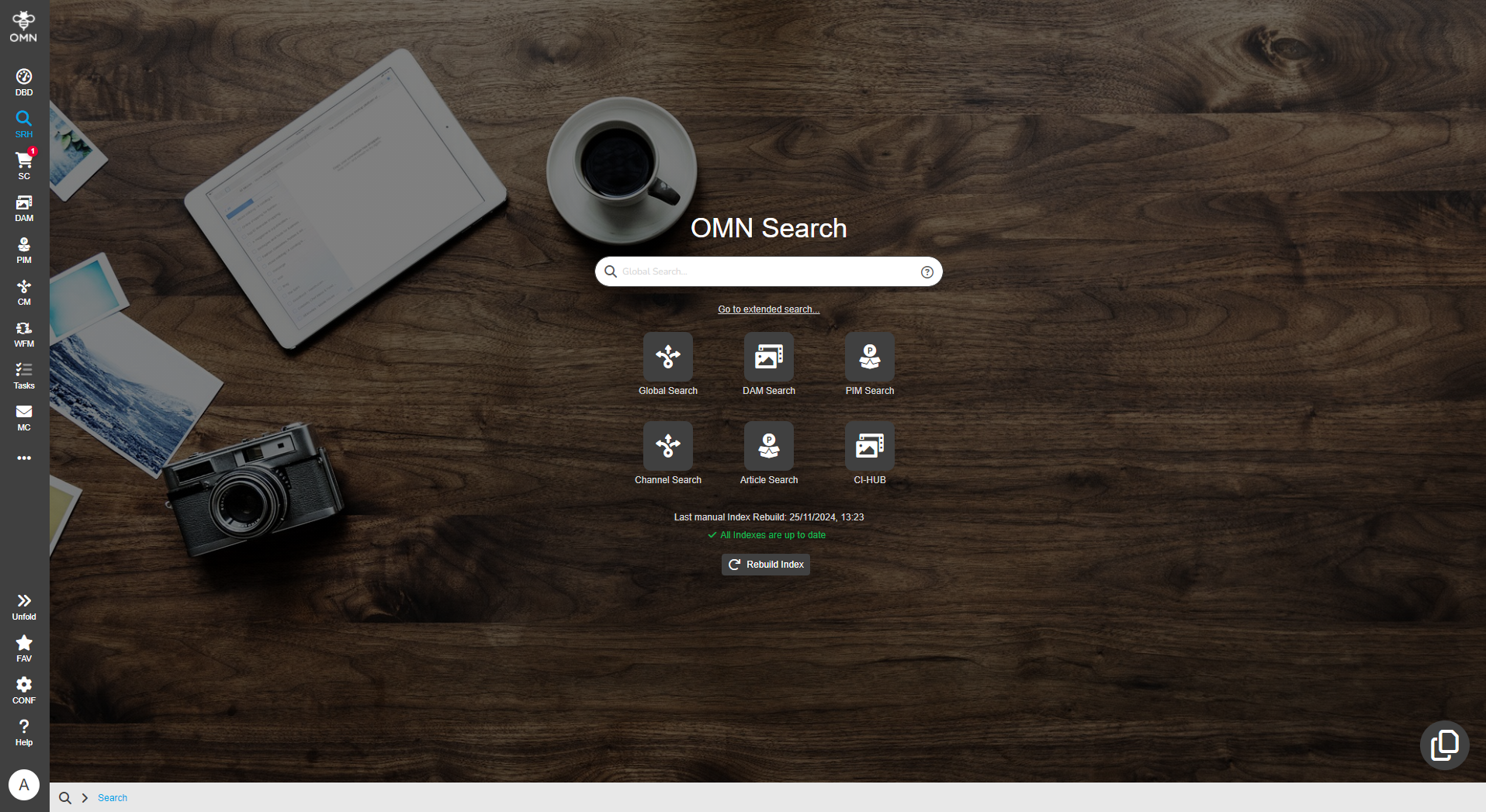
OMN offers a fast and comprehensive search to quickly find files, products and channels in OMN.
You can access the search via the sidebar menu or via the following shortcuts:
-
ff - opens the search in the same browser window
-
SHIFT + ff - opens the search in a new browser window
OMN uses “Elasticsearch” as its search engine, which can process huge amounts of data in real time and provide search results in just a few milliseconds.
The main advantage is that “Elasticsearch” searches an index instead of the direct text in a database, which leads to fast search results.
Independently of this, database-based searches, e.g. for complex searches, can also be configured and executed in OMN.
In general, OMN distinguishes between the following search types:
-
Quick search
Free search for a keyword in the entire OMN search index -
Expert search (Advanced search)
Search for specific attributes and attribute values (e.g. all files that were created yesterday) -
Form-based search
Search based on a predefined form -
Facet search, also called “after-search” navigation
the search result is additionally filtered using so-called facets -
Saved search (search page)
Search query saved by the user, the result is reloaded when it is executed again -
Duplicate search
Search for duplicates
The object types managed in OMN (assets, products and channels) can be found using the various searches.
General working with the various search types is described in more detail in the following chapters.
Quick search
Using the quick search, it is possible to search globally for all data stored in OMN based on the search terms entered.
The search searches all fields that have been defined by the administrator for the search index.
When the Accelerator is delivered, almost all data fields contained in the standard system can also be searched.
Enter search criteria
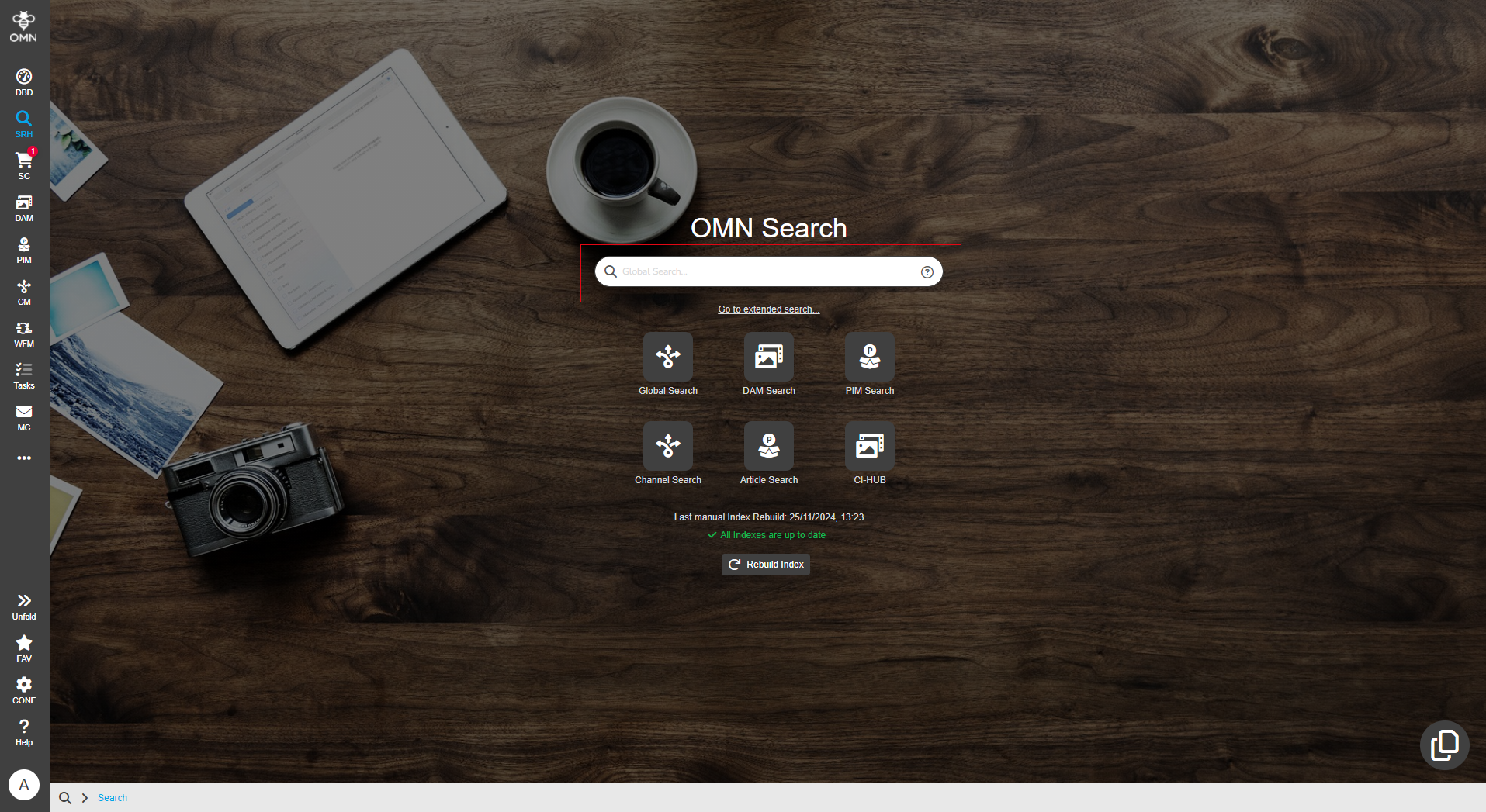
You can enter the search criteria you want to search for in the search slot.
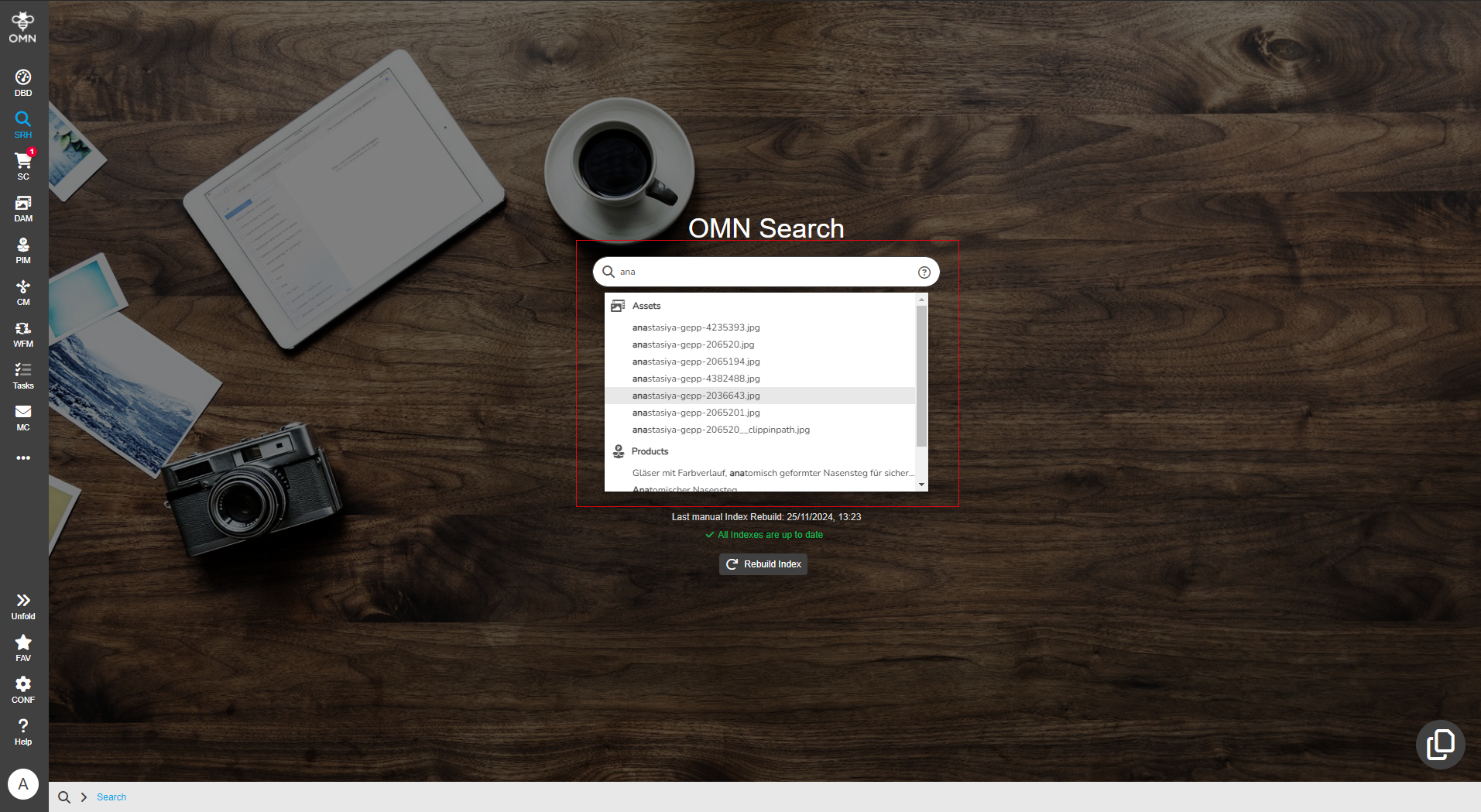
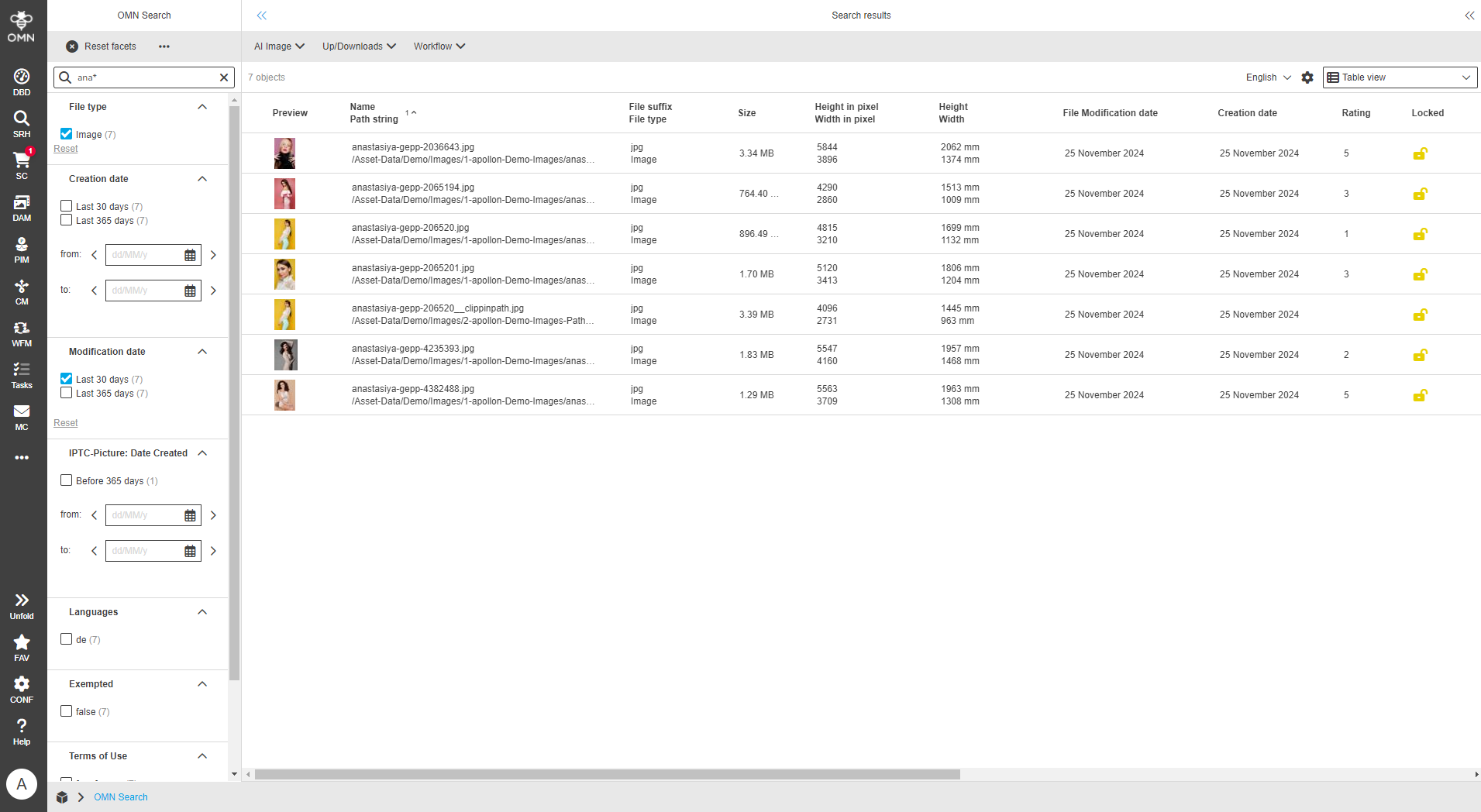
In the example shown, the search term “ana” is entered.
After entering at least 3 characters, the search displays the corresponding search suggestions, also known as suggestions, if a match is found for the search term. A search term found is highlighted in bold.
Furthermore, the suggestions are grouped according to the object types files, products and channels in order to better understand for which type, e.g. file, the hit was recognized.
You can also enter several search terms and work with so-called logic operators (and/or).
The following example searches for objects that begin with the search term “ana” and contain the search term “gepp”.
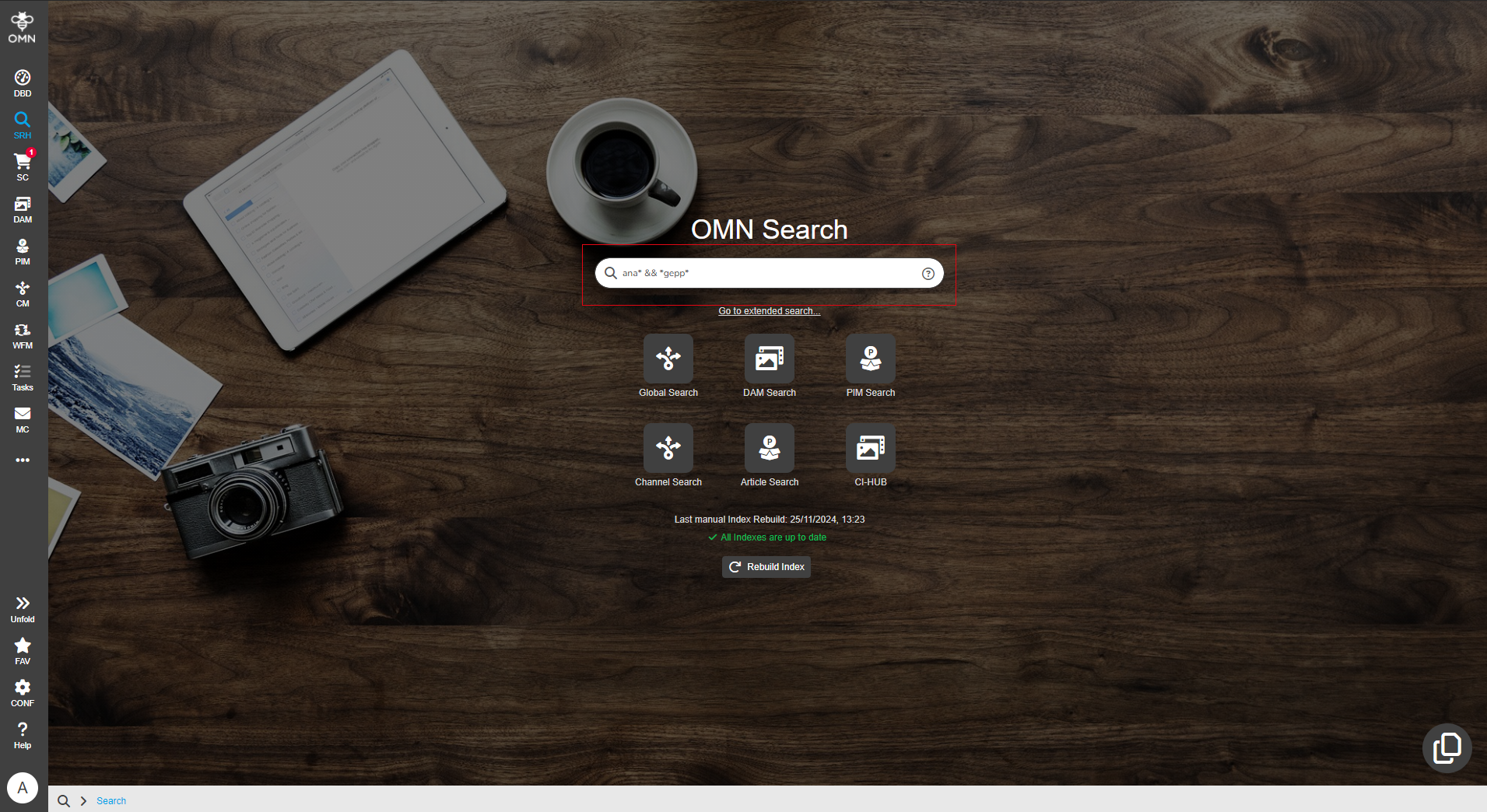
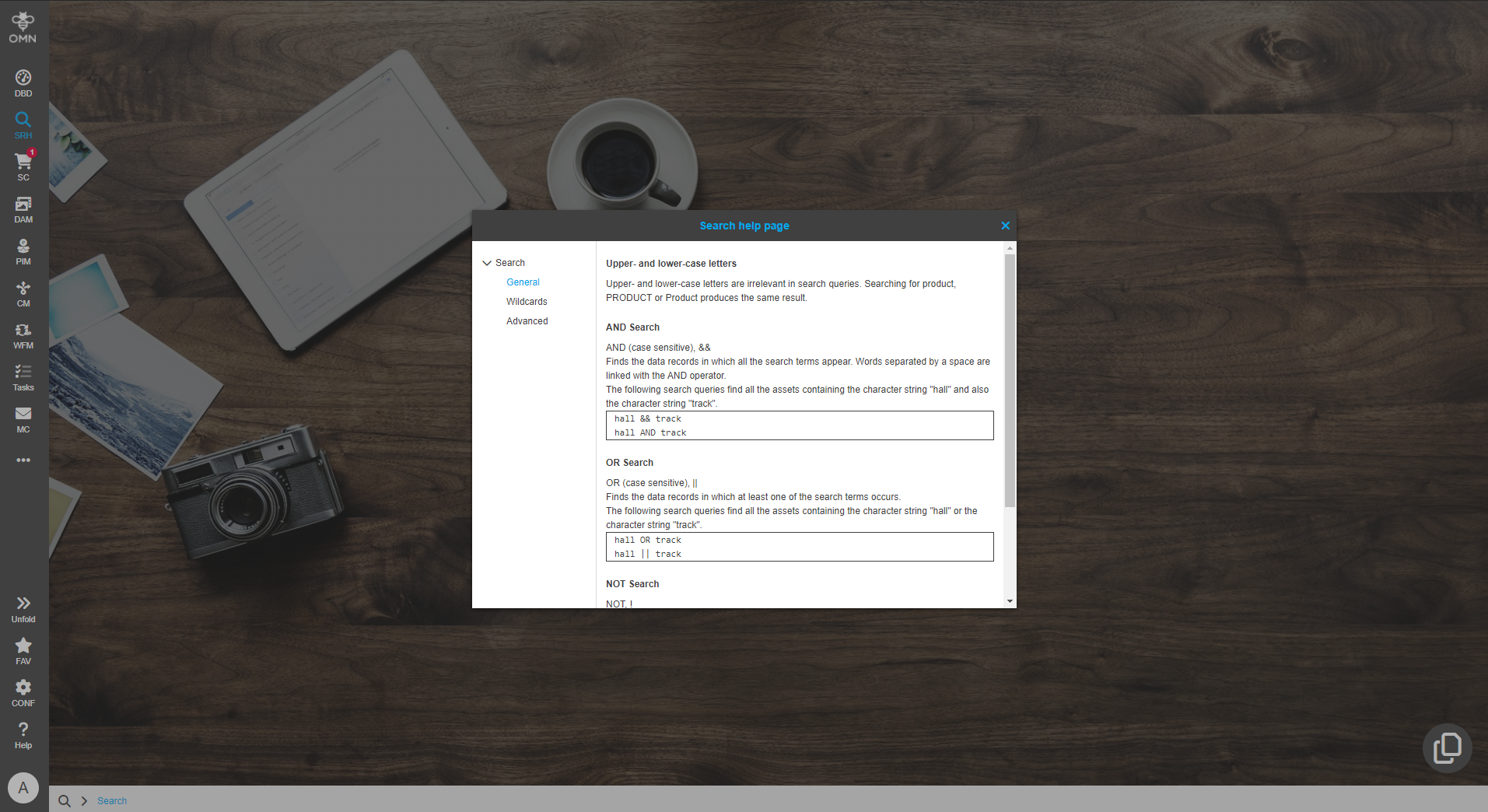
| If you click on the question mark symbol in the search slot, a help page with explanations of the search syntax and many examples will be displayed. It explains the use of certain operators, e.g. the use of the wildcard operator (*). |
Execute search
To start a search, you can either enter your search terms by clicking on the magnifying glass  in the search slot or by clicking on the Enter key. In either case, all object types (assets, products and channels) are searched for globally.
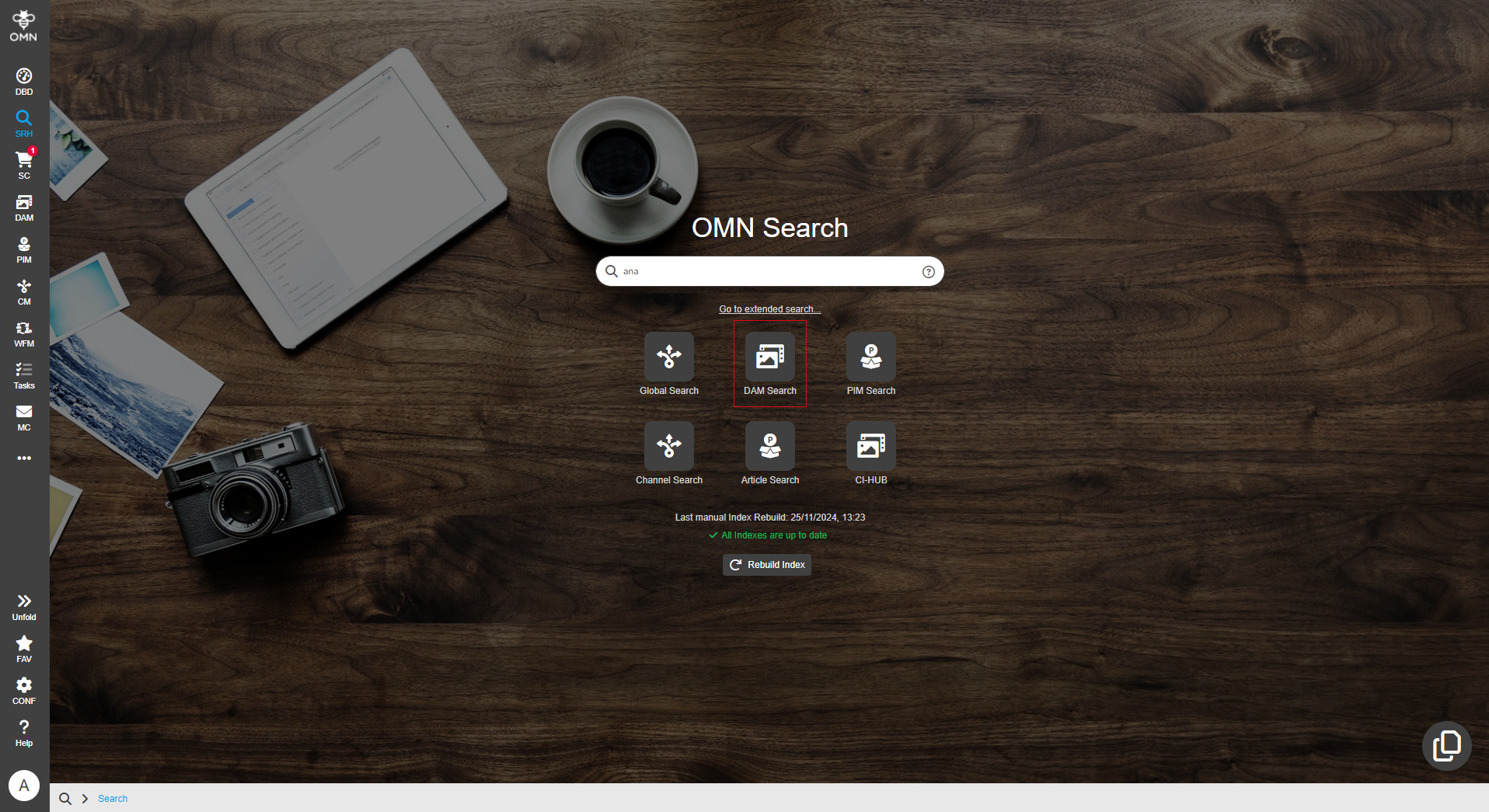
If you would like to narrow down your search further before executing it and only search for a specific object type, e.g. files or products, you can click on a tile below the search slot.
In the example shown, the search is carried out according to the search terms entered and by clicking on the “DAM search” tile only for the DAM module, i.e. only for assets.
If you only want to search for products, for example, you can select the “PIM search” tile instead.
Clicking on a tile starts the search directly.
The page then switches to the search results page. The search result is displayed in the same browser window.
Display of search results
On the search results page, the hits found for the search terms you entered are displayed in the canvas.
You can switch between different view visualizations (table view, light table view, etc.), depending on whether you prefer to view image details or meta information.
You can select one or more entries in the canvas to display further information in the detailed view.
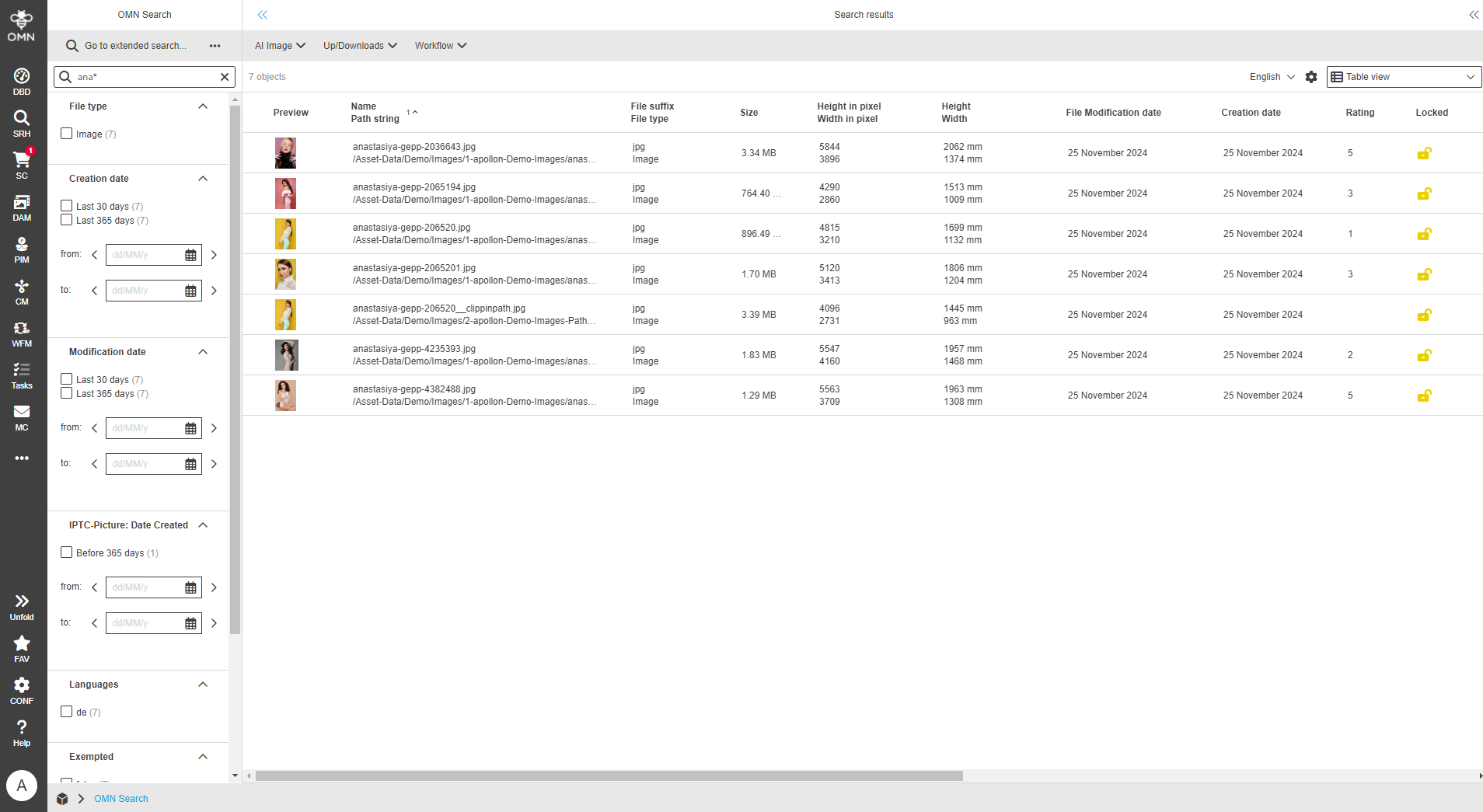
On the search results page, you have the option of continuing to work with the search results in order to further refine and thus narrow down the number of hits.
The following options are available to you for this purpose:
-
Refine your search result using so-called facets, which are displayed in the left view (see section Facet search)
-
Refine your search result by combining it with the Expert search (Advanced search)
-
Refine your search result by using column filters in the table view.
The use of filters is explained in more detail here: Filtering and Sorting
Facet search
The facet search, also known as facet navigation, makes it possible to narrow down search results using facets/filters. Metadata from the results is used to apply suitable filters.
Instead of entering a single search term, several filters can be used simultaneously, making the search more flexible and precise.
In contrast to the classic search, the faceted search allows filters to be added or removed at any time.
Independent categories are used to incrementally build a Boolean query to search the entire database.
In the example shown, all files in the system are searched for and further refined in the search result using two facets (files of the type image that were created in the last 24 hours).
Expert search (Advanced search)
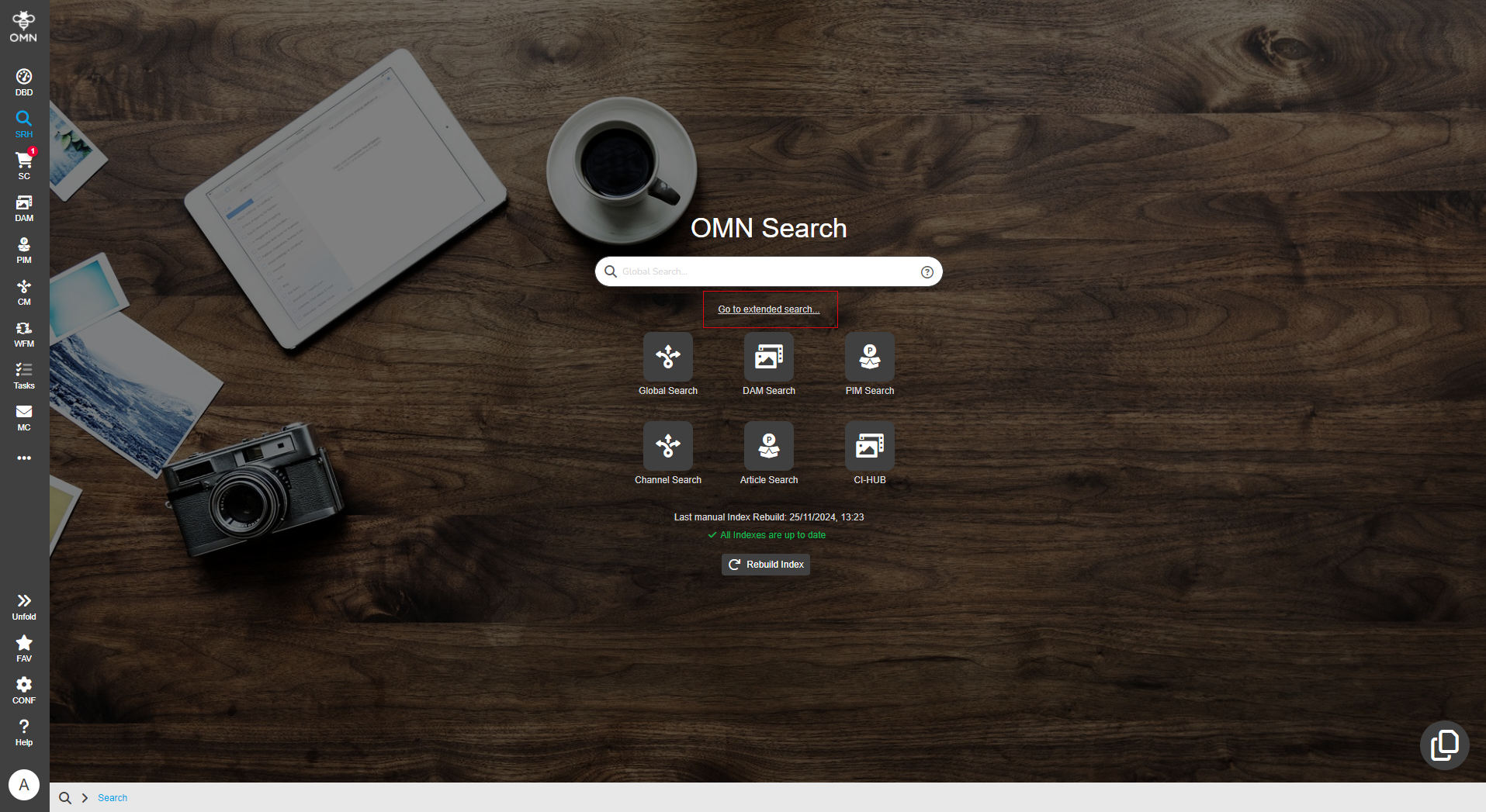
The expert search can be accessed by clicking on the “Advanced search” menu item on the global search page.
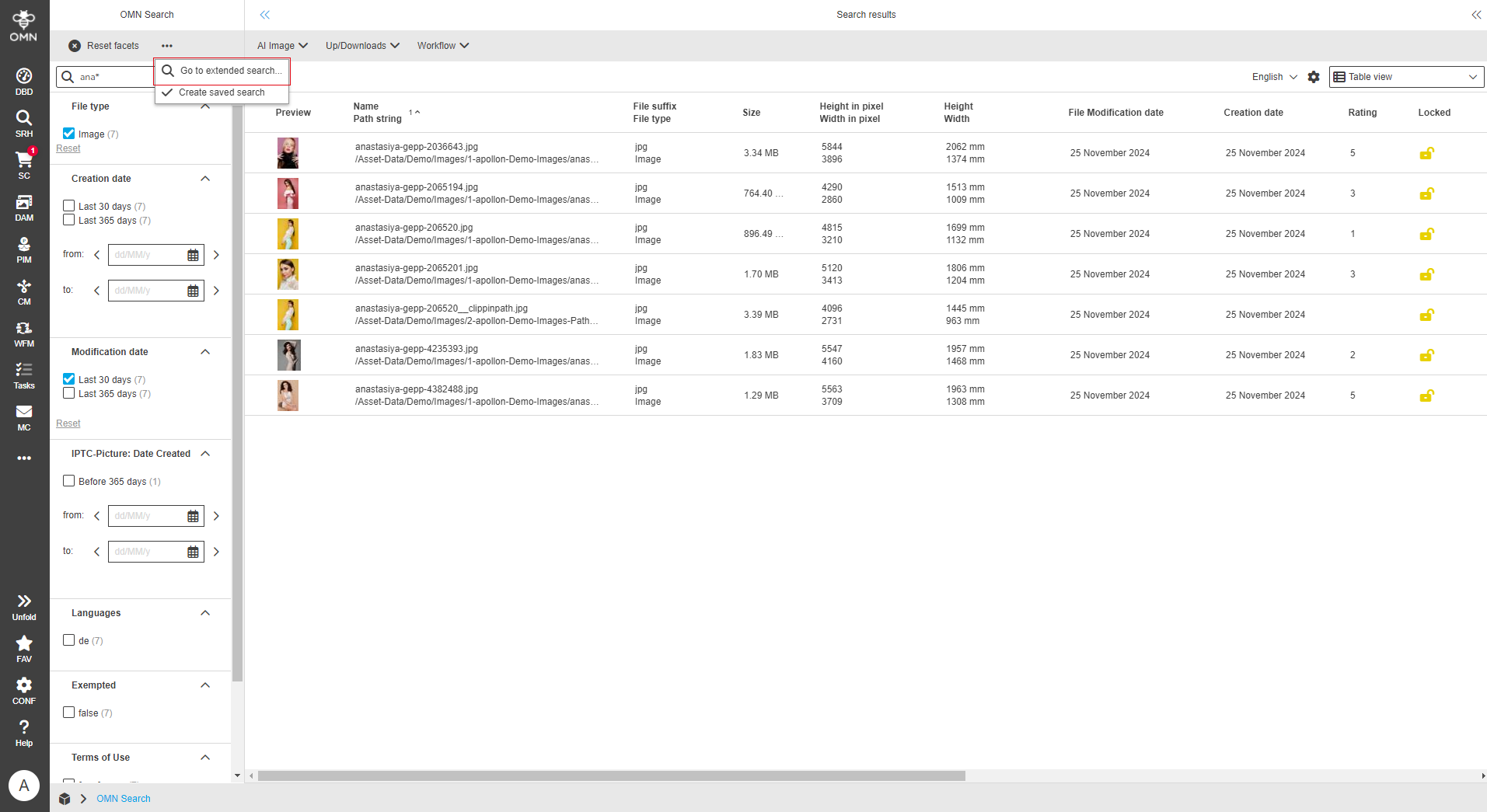
The advanced search can also be carried out from the search results page after a search has already been carried out.
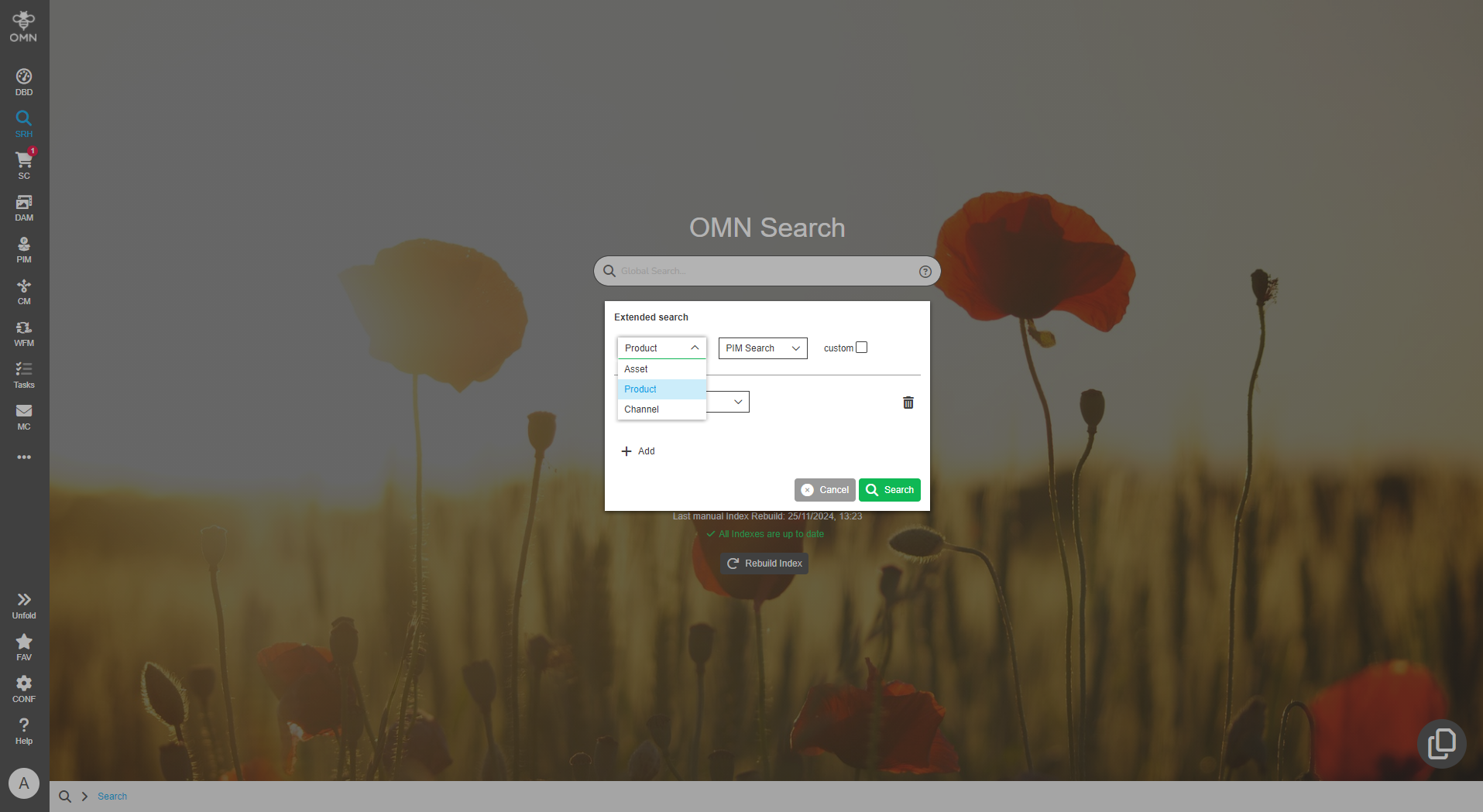
A separate dialog window opens in which you can first select the desired object type you want to search for.
You can choose between File (Asset), Product and Channel.
Once you have selected the type, a further selection appears in which you can choose from various preconfigured searches.
The following preconfigured expert searches currently exist in the Accelerator:
-
For files
-
DAM search - general attribute-based asset search for freely selectable asset attributes
-
CI HUB - special asset search for asset attributes that are supported by CI HUB or used by CI HUB
-
FB DAM search - general form-based asset search with attributes specified by a form
-
FB CI HUB - special form-based asset search with attributes specified by a form that are supported by CI HUB or used by CI HUB
-
-
For products
-
PIM search - general attribute-based product search for freely selectable product attributes
-
Article search - special article search for article attributes, which does not return products but only articles
-
FB PIM search - general form-based product search with predefined attributes
-
FB Article Search - special form-based article search with predefined attributes
-
-
For channels
-
Channel search - general attribute-based channel search for freely selectable channel attributes
-
FB channel search - general form-based channel search with predefined channel attributes
-
The individual searches differ primarily according to two basic criteria:
-
Type of advanced search: attribute-based or form-based
-
Availability of possible search parameters and operators within a search
-
Example: the preconfigured advanced search “DAM search” offers more or different search attributes than the CI HUB search
-
Attribute-based search
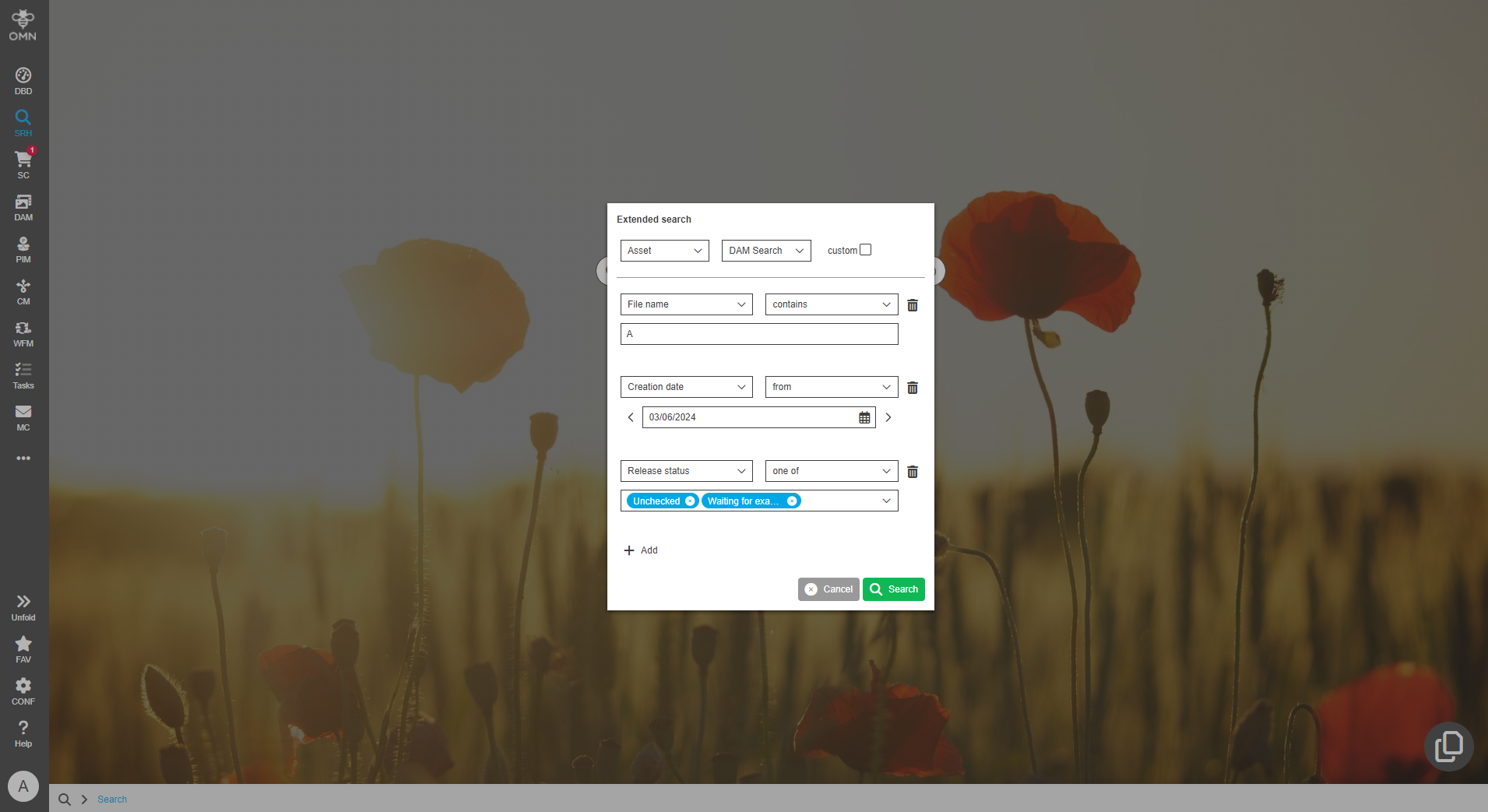
With an attribute-based search, the user defines the search attributes, the operator and the search value themselves. Attributes can also be combined.
Example of an attribute-based search: Search all files whose file name begins with A, were created from 3.6.24 onwards and have the release status “Unchecked” or “Waiting for examination”.
You can use the attribute-based search to define the search for objects in detail using all the properties of an object type available in the search.
The attribute-based search is structured in such a way that you can generally search for different fields with different operators, which you can combine yourself. Two selection fields and an input field are available in the input screen for this purpose.
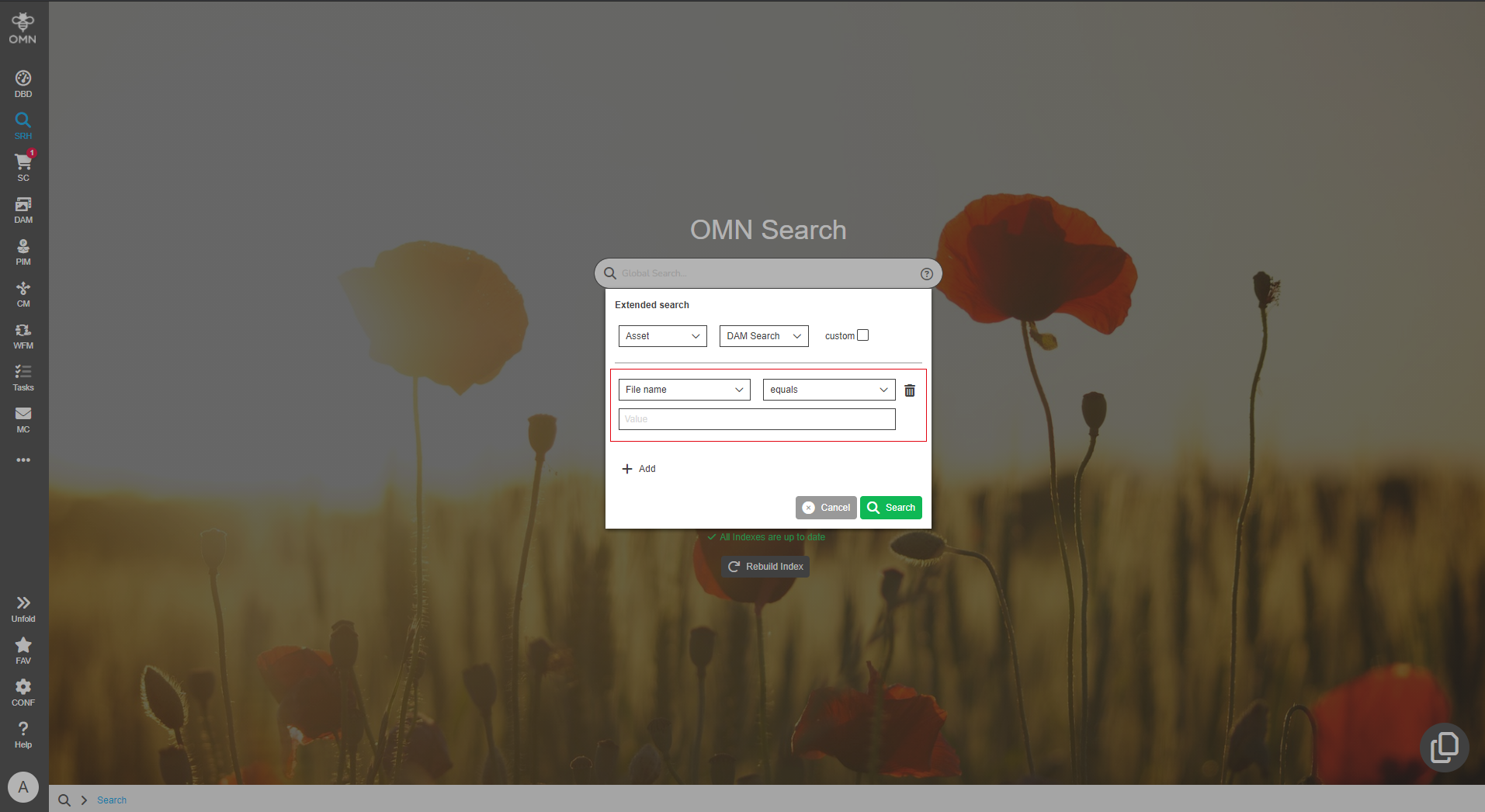
By clicking on the drop-down field on the left, a search criterion can be selected from all available properties, e.g. the file name or the creation date.
In the right-hand drop-down field, the supported search operators are offered according to the previously selected search criterion, which can be used to further specify the search.
Depending on the search criterion, you can then select from a pre-filled selection list or enter your own value in the input field below.
For dates, OMN provides a calendar module  which can be used to select the desired date.
You can remove a search entry again using the trash can button  .
.
Several search criteria can be combined using the “+” button  .
.
You can combine any number of search criteria (AND combination).
The search is carried out using the “Search” button  .
.
The page is then refreshed and the search result is displayed in the same browser window.
As described in the previous section, you can then refine your search result at any time or save the executed search - see section Save search.
| Due to the complexity of the search, it may take longer for the search result to be delivered if there are 20 or more search criteria. |
| Search results are generally limited to a maximum of 2,000 entries per search process. |
Form-based search
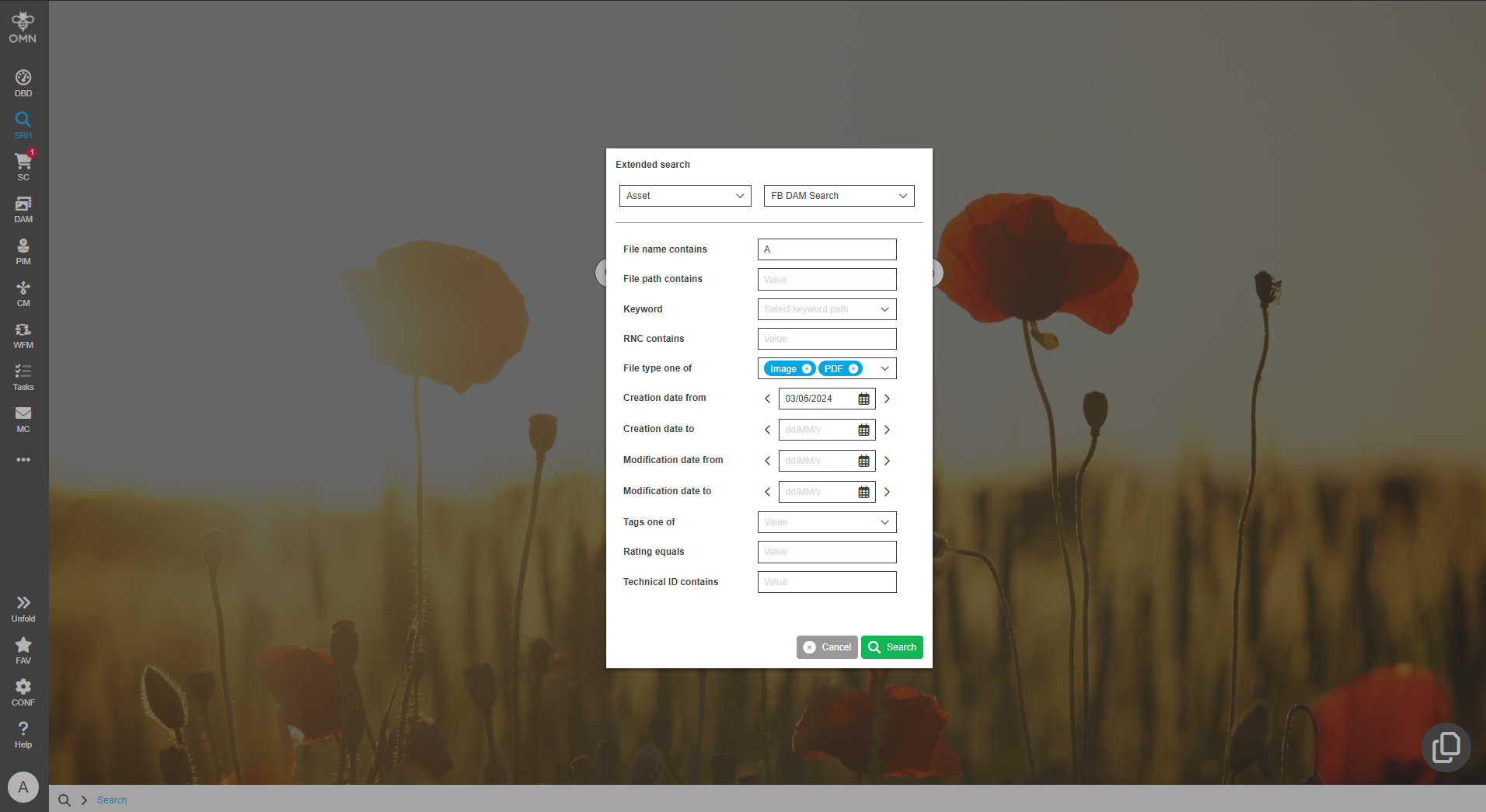
In a form-based search, the search attributes and operators are predefined by the search form, you only define the search value.
Example of a form-based search: Search all files whose file name contains A and which were created from 3.6.24 onwards.
The form-based search is based on the same principles as the article-based search, with the difference that no search attributes and operators can be selected here - see section Attribute-based search.
Save search
For searches with several search criteria that you use frequently, it is a good idea to save the settings you have made for recurring searches.
Searches can be saved using the “Create saved search” toolbar function on the search results page by entering a name.
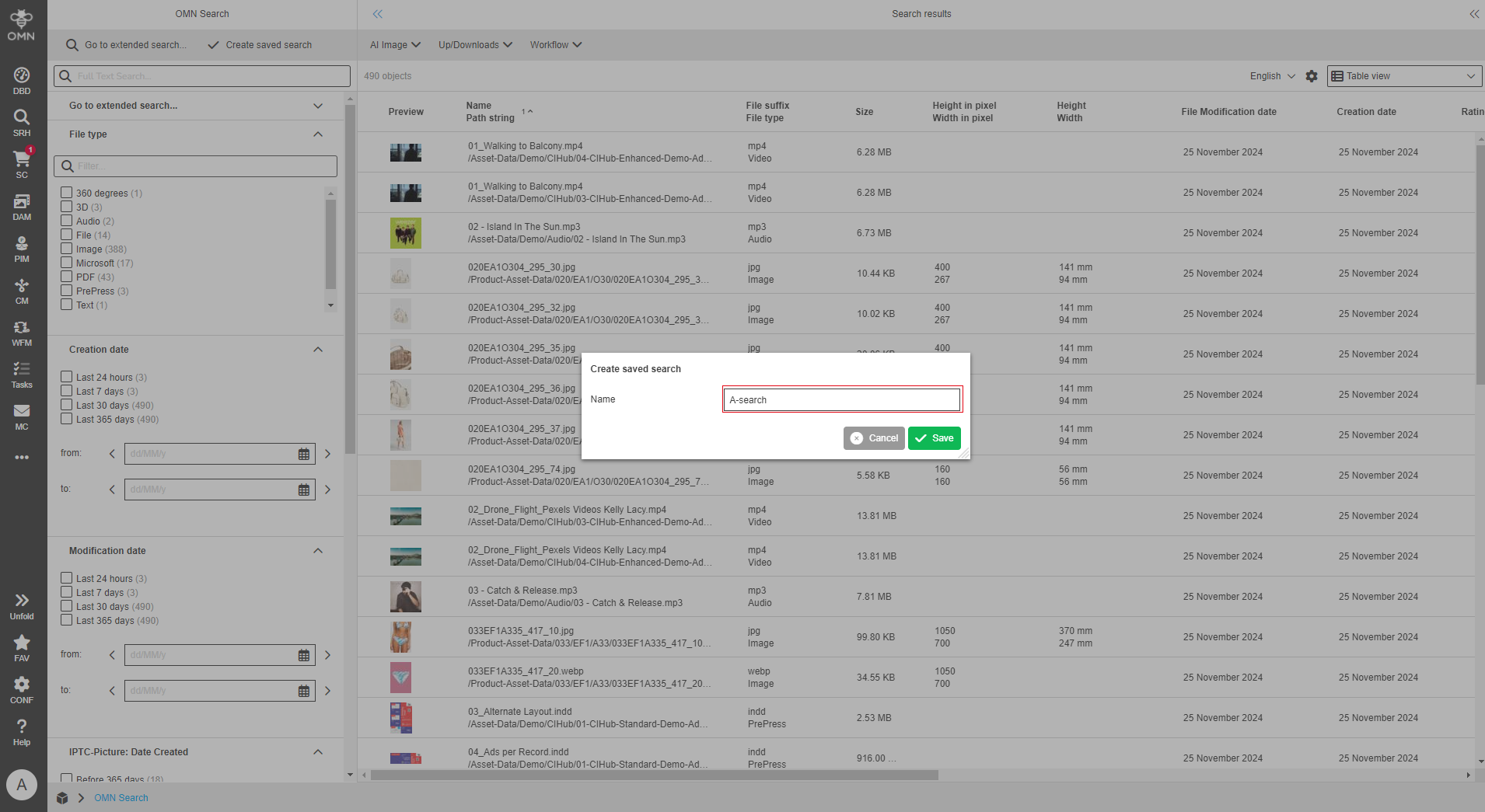
| At best, the name of the saved search is short and concise. |
The saved searches are displayed in two places:
-
On the global search page: in the form of search tiles below the search slot
-
On the search results page: in the Left View, as a list in the “Saved searches” accordion
Saved search (search page)
The saved searches can be accessed on the search page via the “Saved searches” tile.
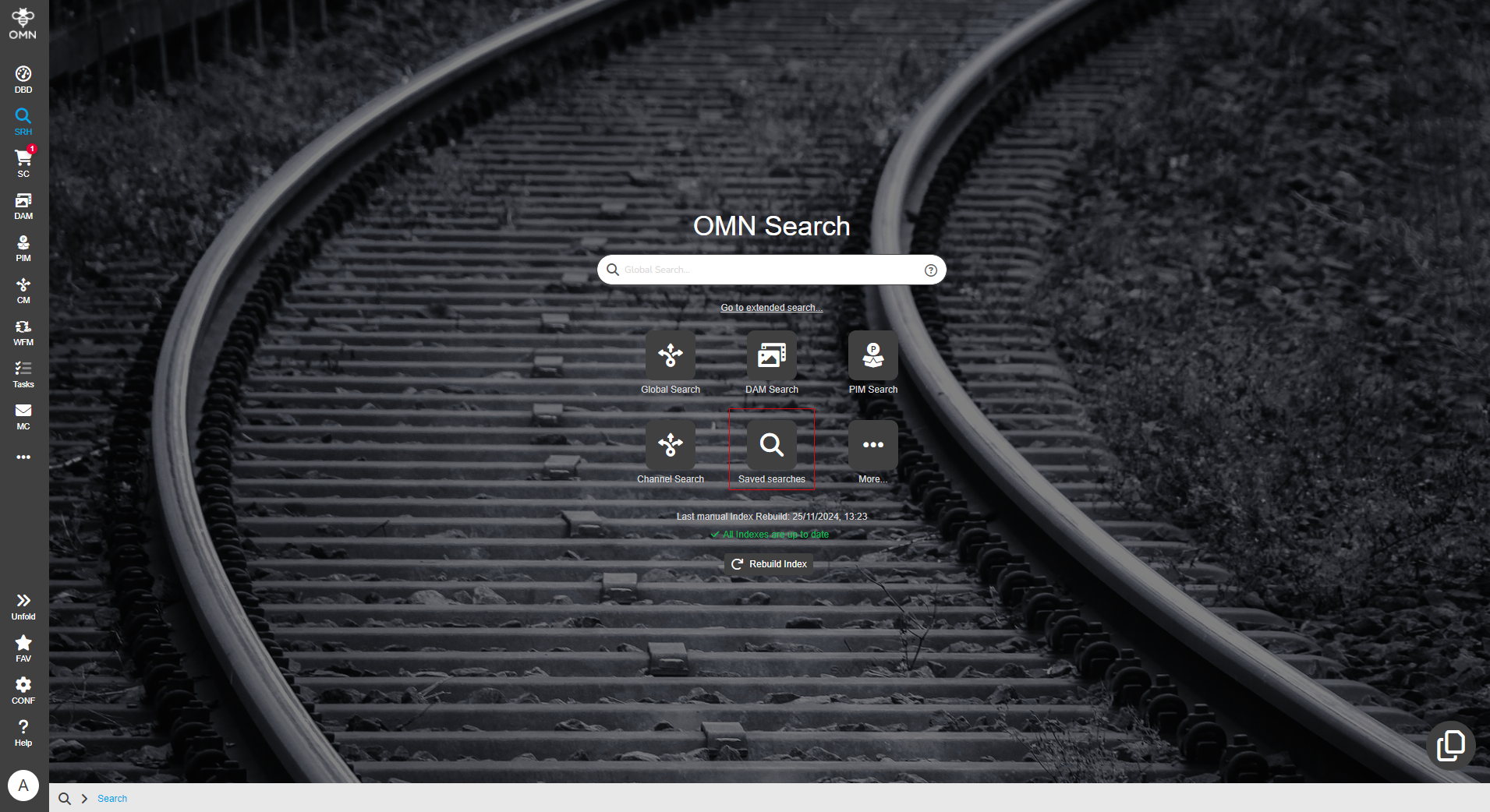
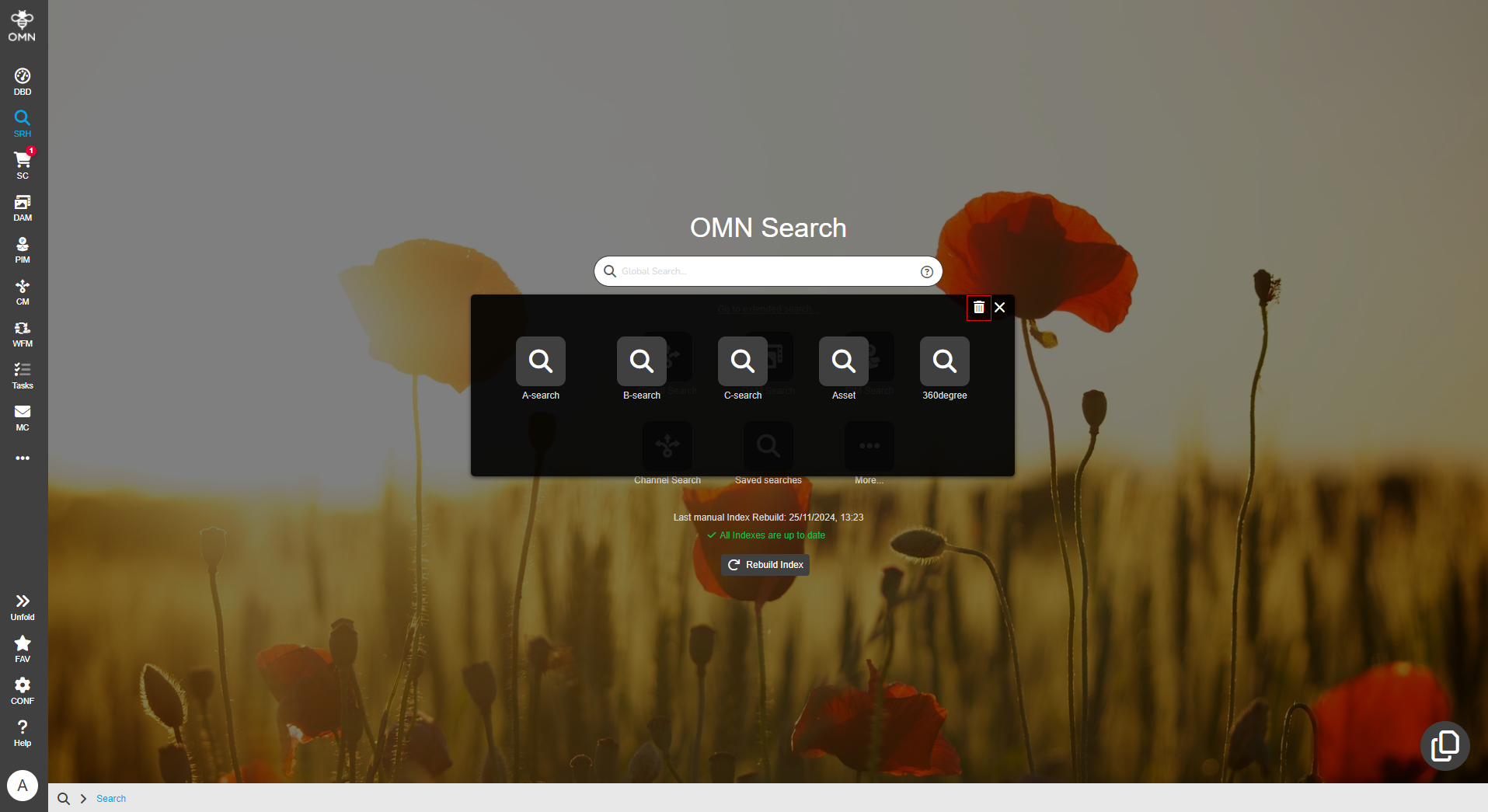
Click on the tile to open a window with all saved searches.
If you click on a saved search, OMN switches directly to the search results page and shows you all the results based on the search criteria you entered.
If you want to delete a saved search, you can do this easily using the trash can button.
Saved search (search results page)
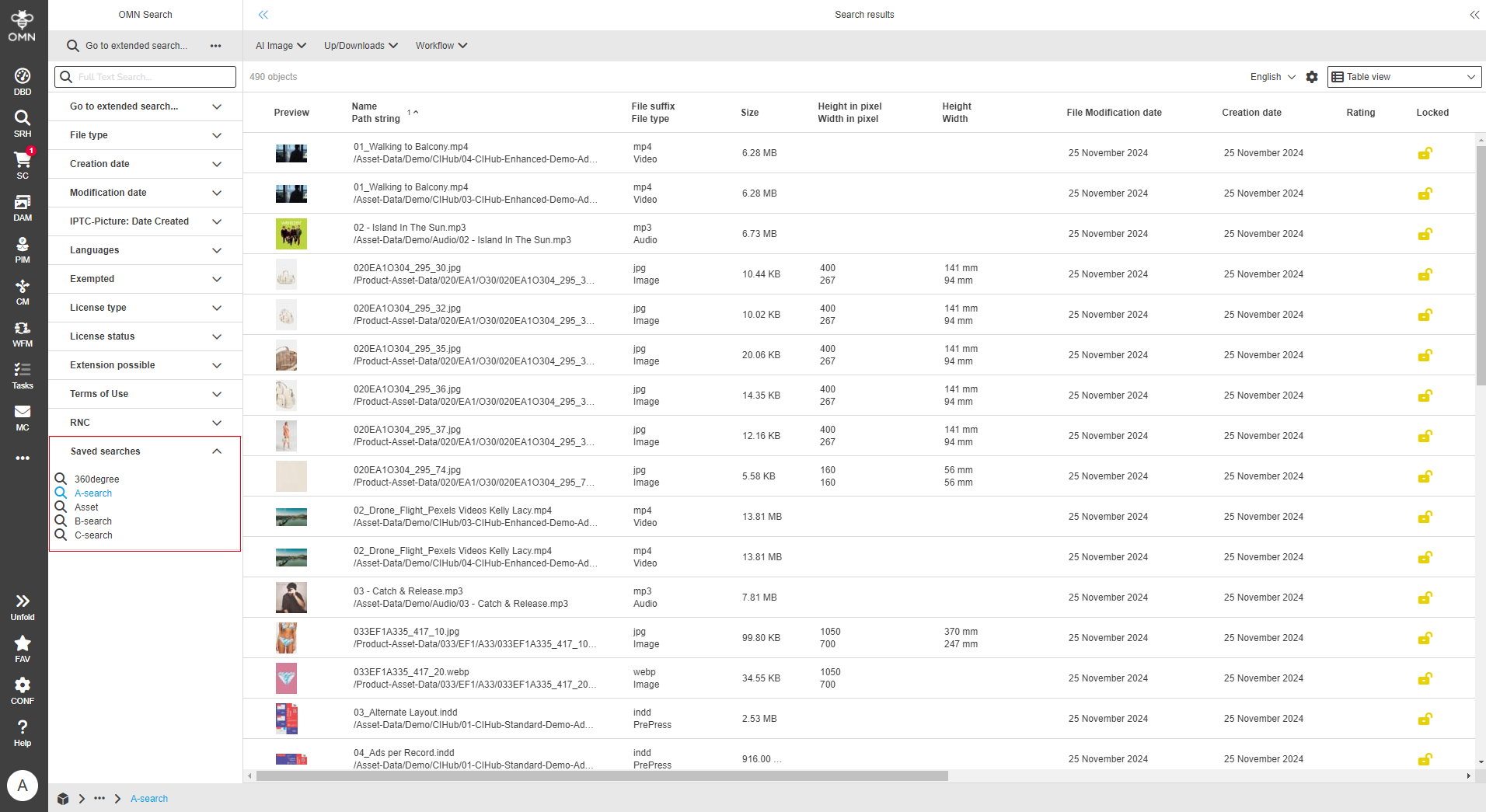
On the search results page, saved searches are displayed in the “Saved searches” accordion on the left side.
Click on one of the saved searches to execute it directly. All results based on the saved search criteria are displayed.
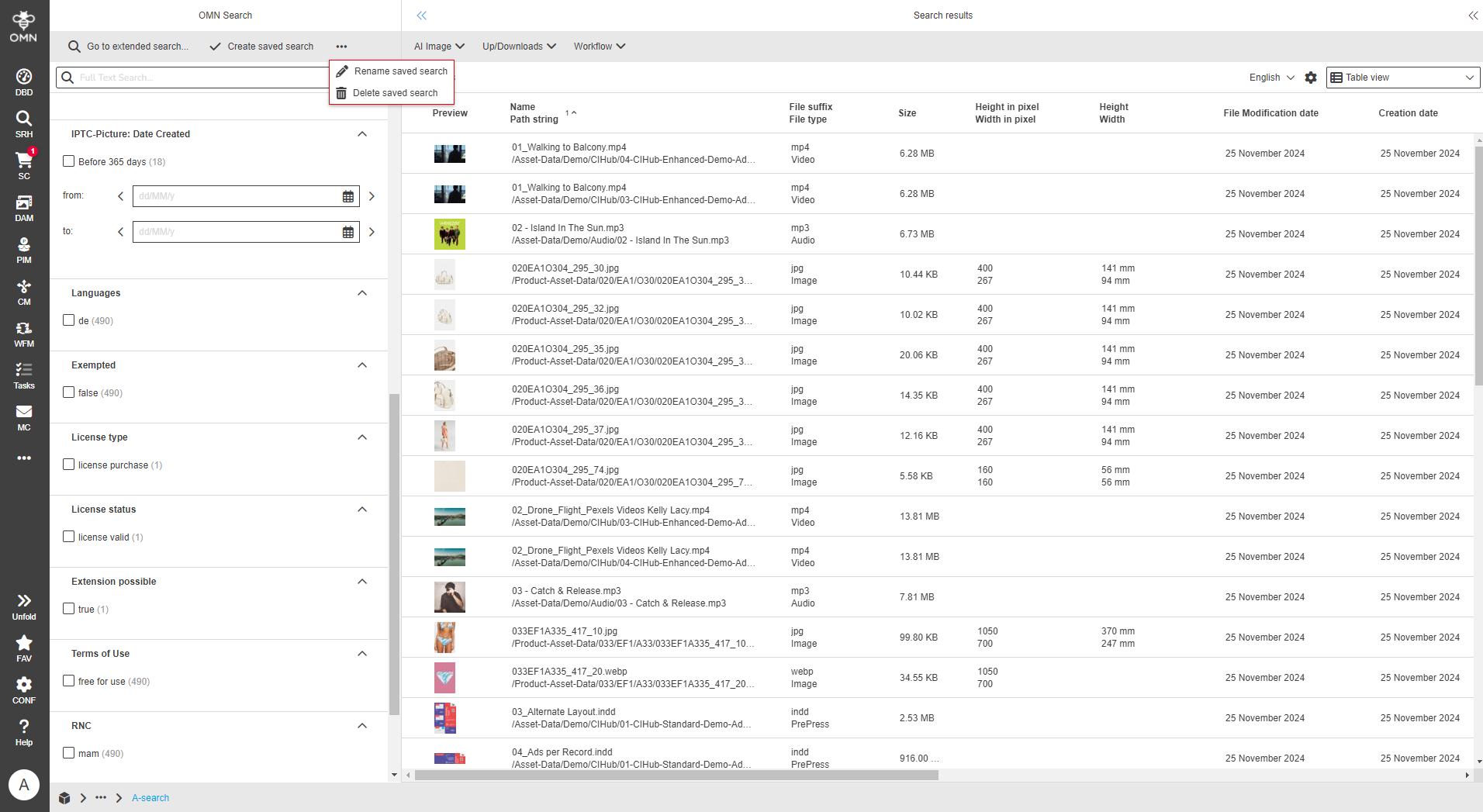
Two additional functions are available for saved searches.
You can use the “Rename saved search” function to change the name of the search at any time and the “Delete saved search” function to delete a saved search.
The name of a saved search may only be used once. This is checked both when a saved search is created and when it is renamed.
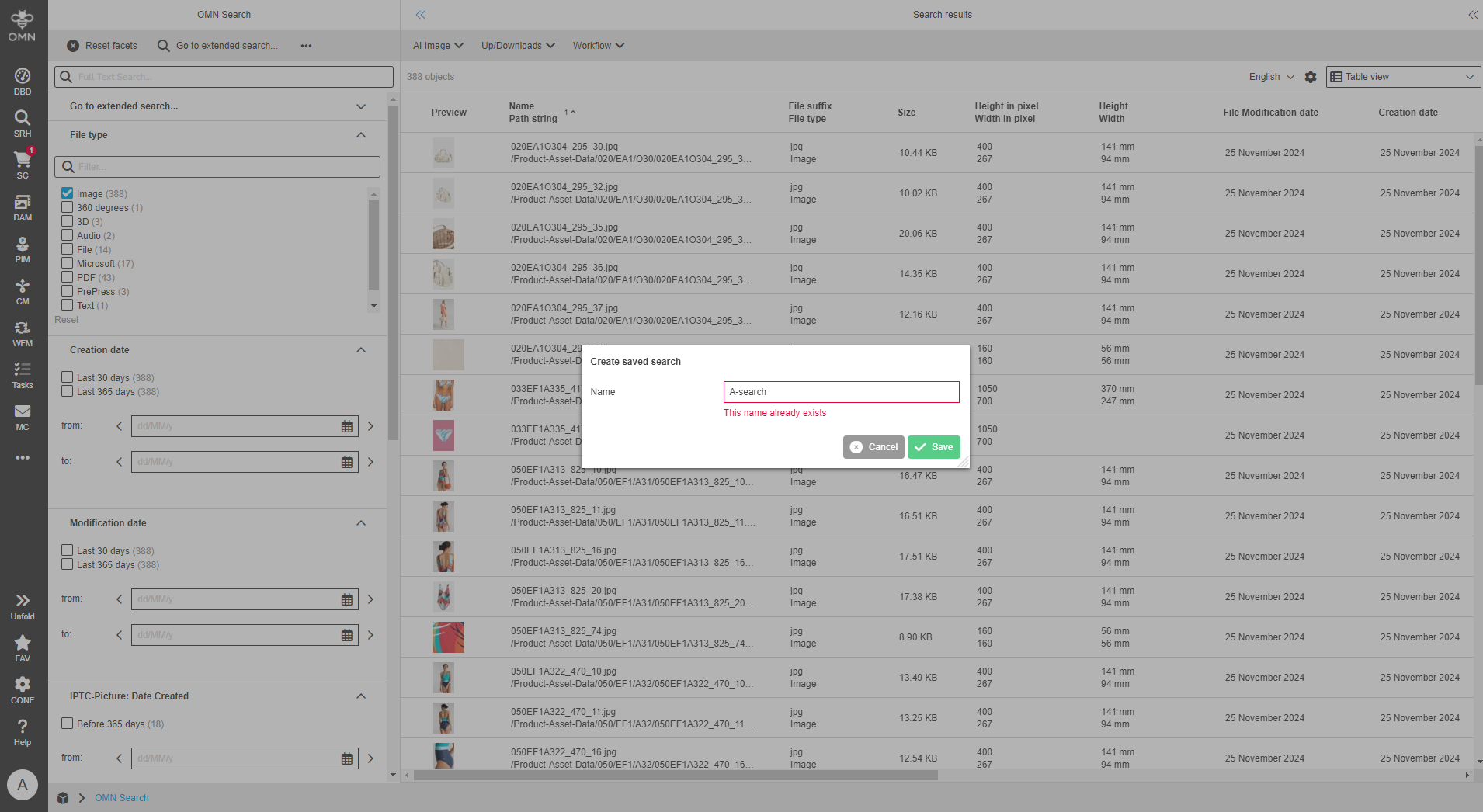
|
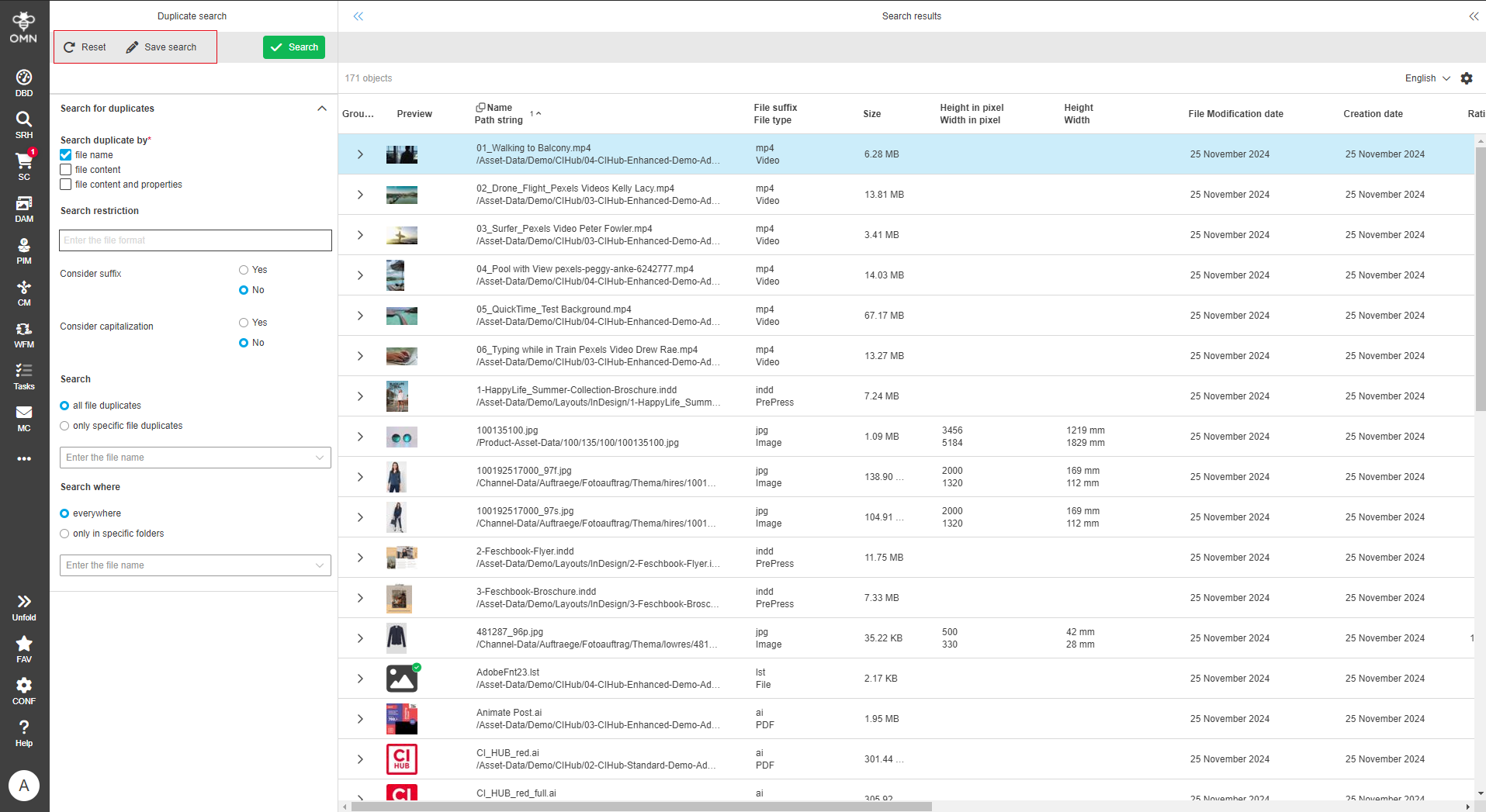
Duplicate search
The duplicate search can find file duplicates globally or for a specific file.
It can be opened on the global search page via the “Duplicate search” button at the bottom right of the screen.
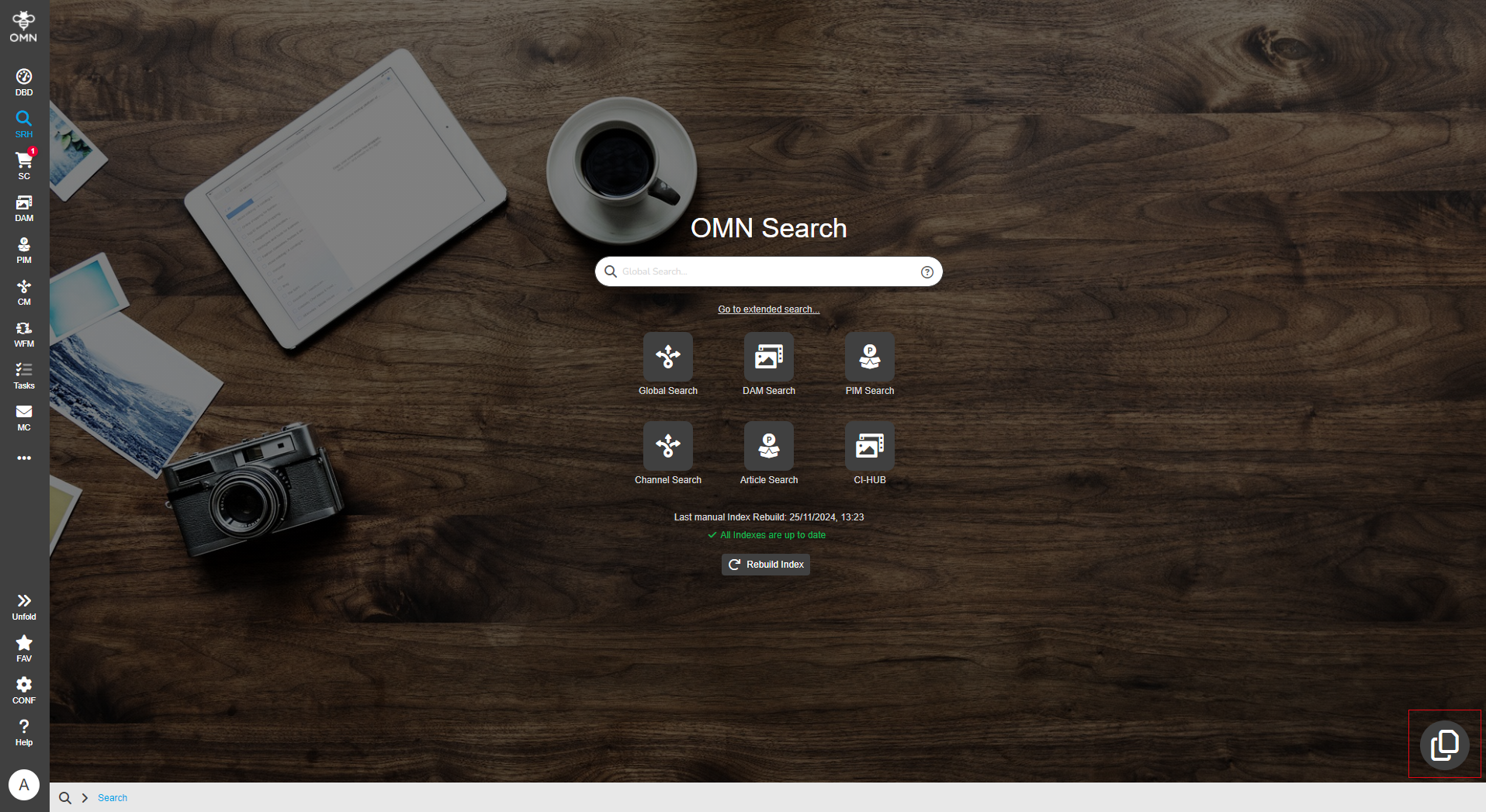
If you want to search for a specific file, simply enter a search parameter in the search field and click on the duplicate search button at the bottom right. For a global search, you can use the “Duplicate search” button directly.
The duplicates found are displayed grouped by name by default. You can tell that the grouping is by “Name” by the small “Grouping” symbol in front of the column name.
An arrow in the “Grouping” column indicates that the search result is grouped and contains additional elements. To display all results, you can expand this arrow.
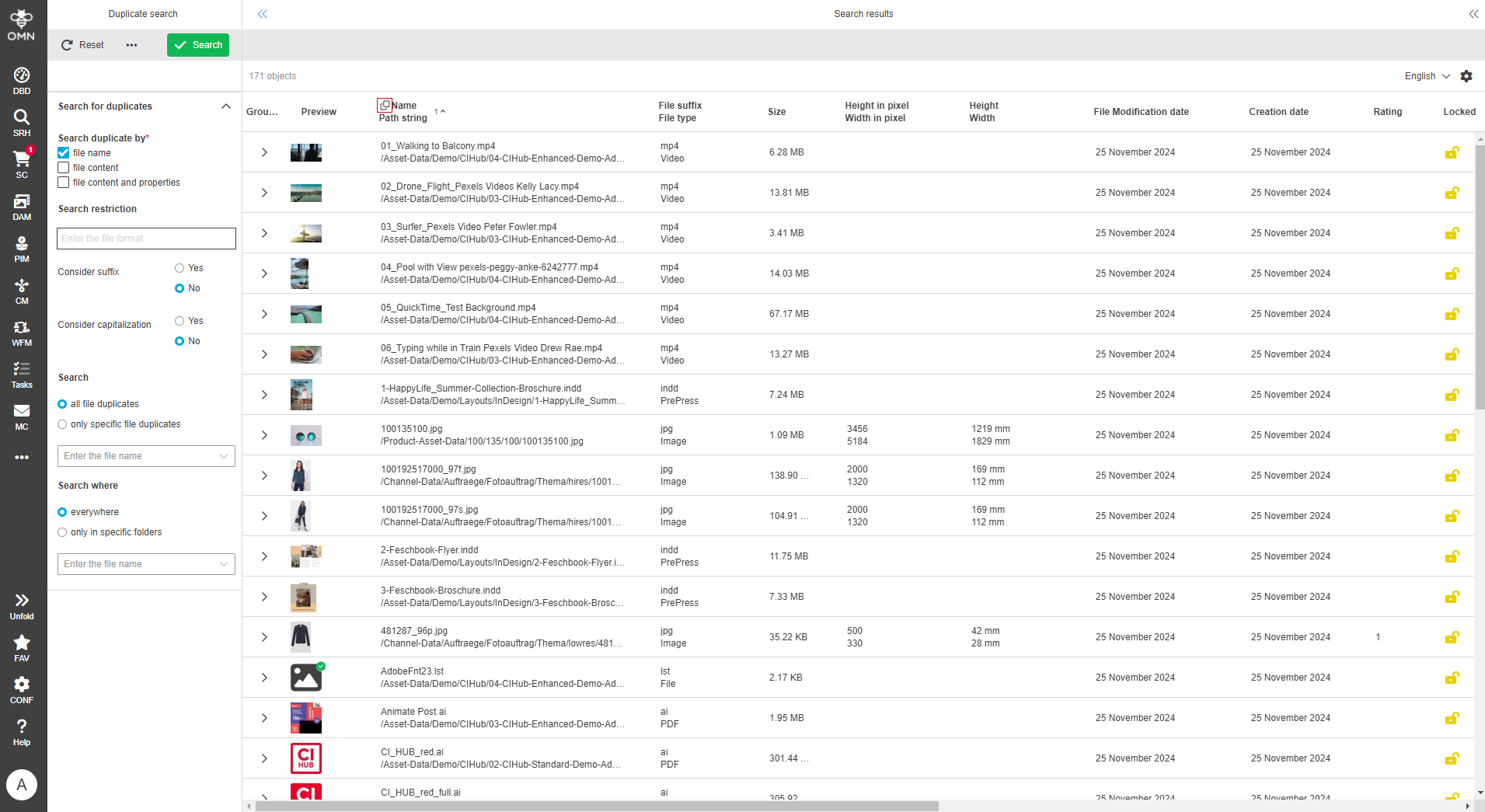
The grouping can be deactivated via the settings or changed to other column attributes.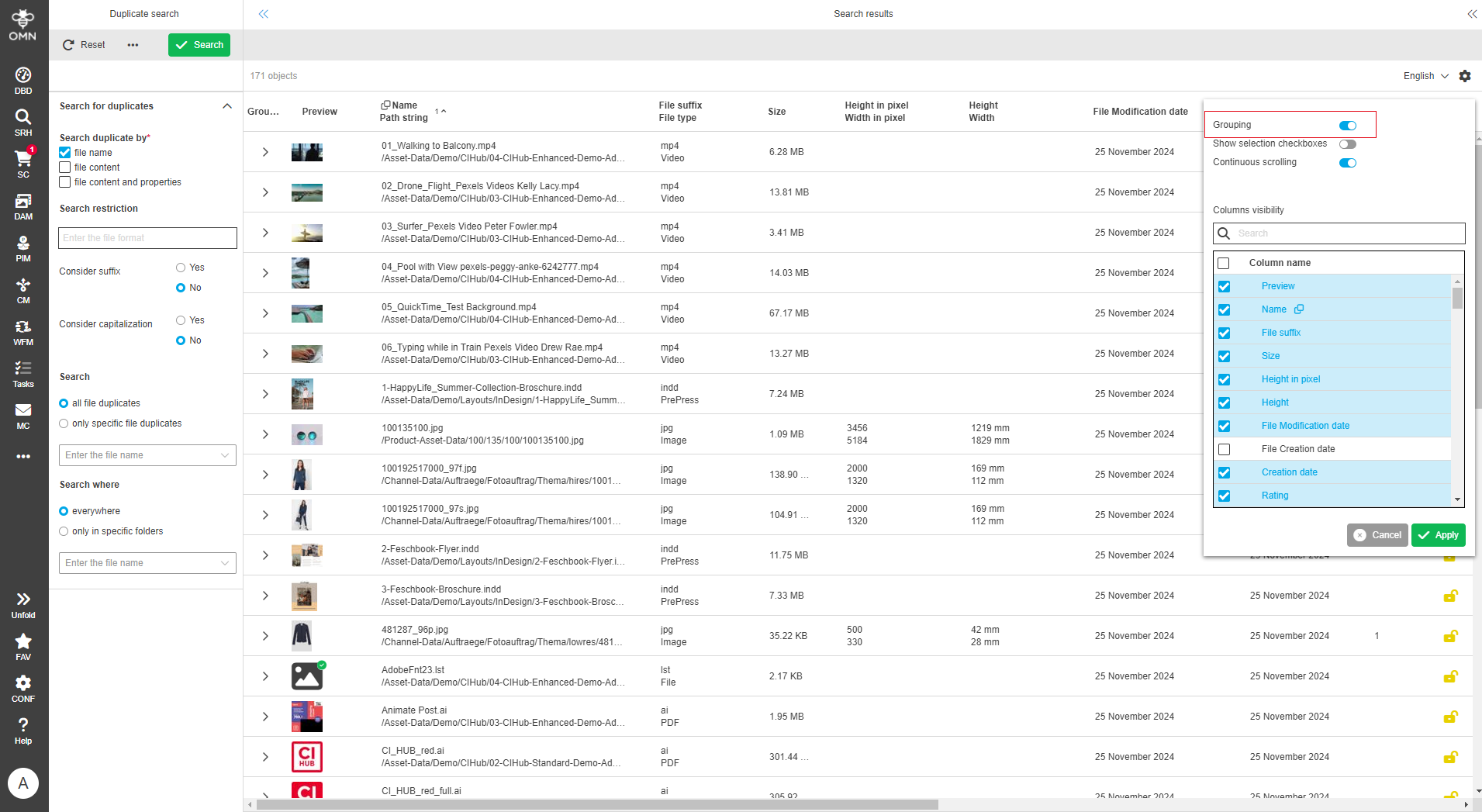
|
The criteria for the duplicate search can be further refined in the left area:
-
Search duplicate by
Allows you to search according to various criteria. Multiple selection is possible. The following criteria can be selected:-
File name
Searches for duplicates based on identical file names. -
File content
Searches for duplicates with the same content data (pixel image content) -
File content and properties
Searches for duplicates with the same content data and file metadata (file properties, e.g. modification date)
-
-
Search restriction
Enables the restriction to a specific file type, e.g. only JPGs. -
Consider suffix
Specifies whether the suffix (file extension) is included in the file name, e.g. Dublette.jpg or only Dublette. -
Consider capitalization
Determines whether the spelling is taken into account, e.g. Dublette.jpg and DUBLETTE.jpg.The search criteria “Note suffix” and “Case sensitive” only appear if “File name” is selected as the filter. -
Search
-
all file duplicates
Specifies whether all duplicates are to be searched for without restriction. -
only specific file duplicates
Specifies which files are to be searched for duplicates. The files are selected via a dropdown. Several entries can also be selected there.
-
-
Search where
-
everywhere
Specifies whether to search for duplicates in all folders. -
only in specific folders
Specifies the folders in which to search for duplicates. The folders are selected via a dropdown. Several entries can also be selected there.At least two letters must be entered for entries to be displayed in the dropdown, as this is a search field.
-
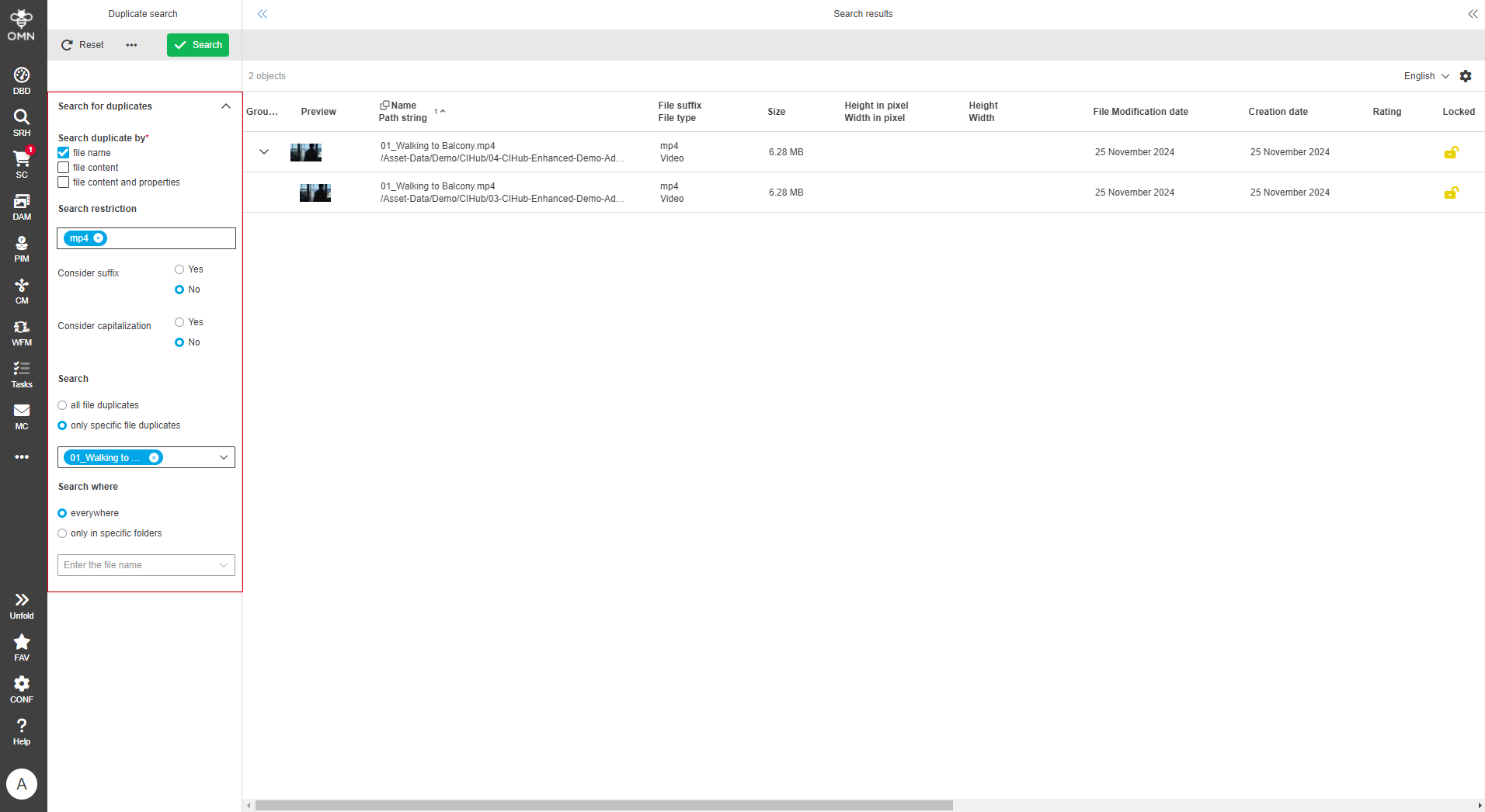
After adjusting the duplicate search and clicking on “Search”, the results are displayed in the content area.
Each duplicate found forms a grouping entry. The first file is always displayed as a kind of preview for the group. To see the remaining duplicates, the group must be opened.
The duplicates found are then displayed indented.
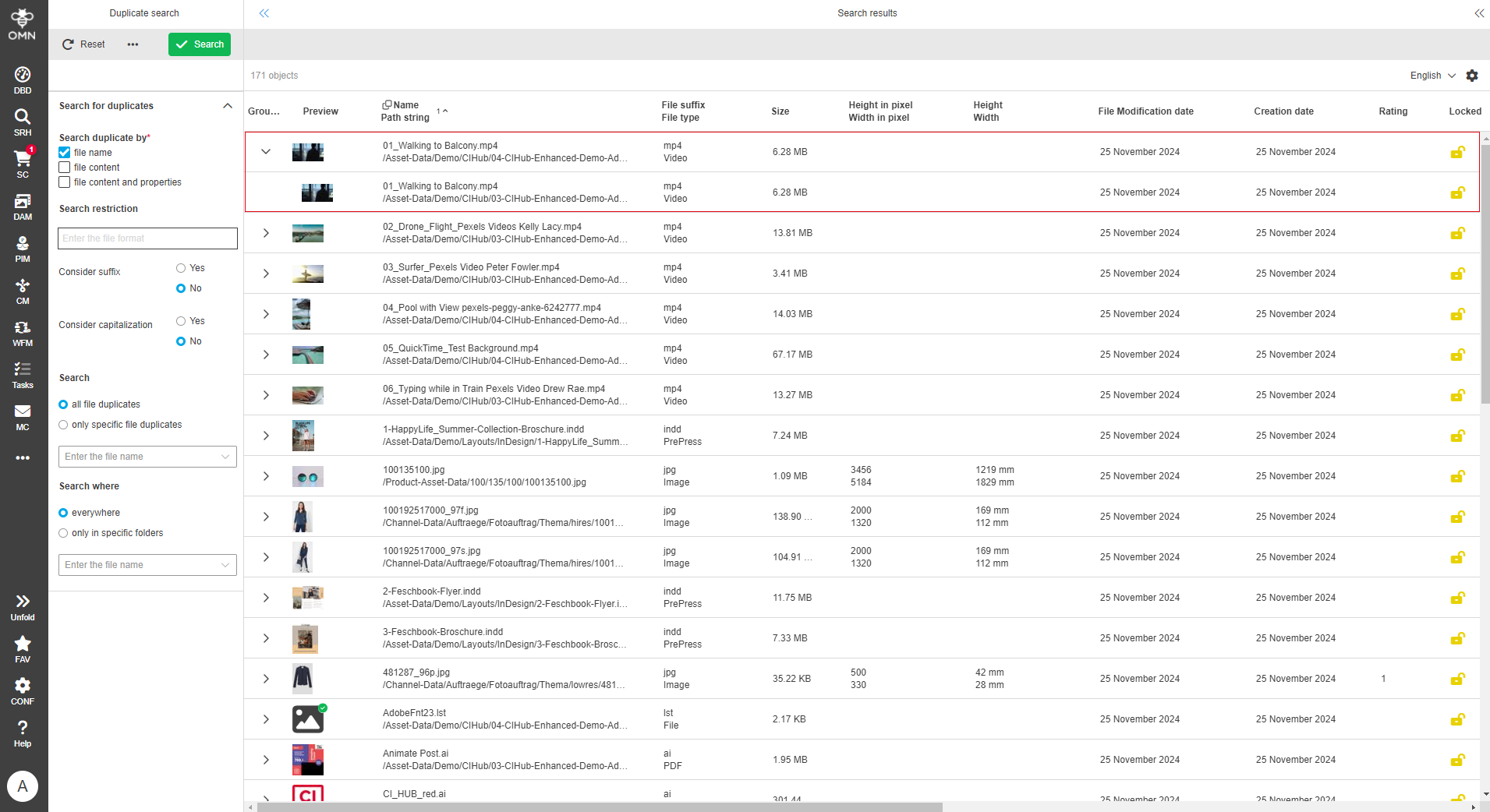
The “Reset” button can be used to reset the search criteria to the default settings, whereupon the page is automatically reloaded.
Like other searches, duplicate searches can be saved - see section Save search.