WFM (Workflow Management)
The Workflow Management (WFM) module supports the automation of business and technical processes within OMN. With the help of task lists and workflow overviews, the user can get a better overview of projects and pending tasks. Workflow Management connects the modules CM (Channel Management), DAM and PIM and controls the processes between the three modules. The workflow management system shortens work times and provides process transparency.
The workflow management module is based on the standardized workflow solution Camunda. This makes it possible to interact with other systems implemented in the company, thus achieving cross-system working. Camunda is based on the BPMN standard, which enables a graphical representation of the processes in the OMN.
There are multiple powerful views and boards to view/manage the upcoming tasks, on operator or team leader role.
Users can use customized processes or just start using the build-in standalone tasks to manage simple upcoming tasks.
For more information, visit apollon | WFM.
Workflow views
In addition to the integration of various functions for creating or forwarding workflows in various modules, the Workflow Management consists of different modules that will be described in the following.
Statuslist
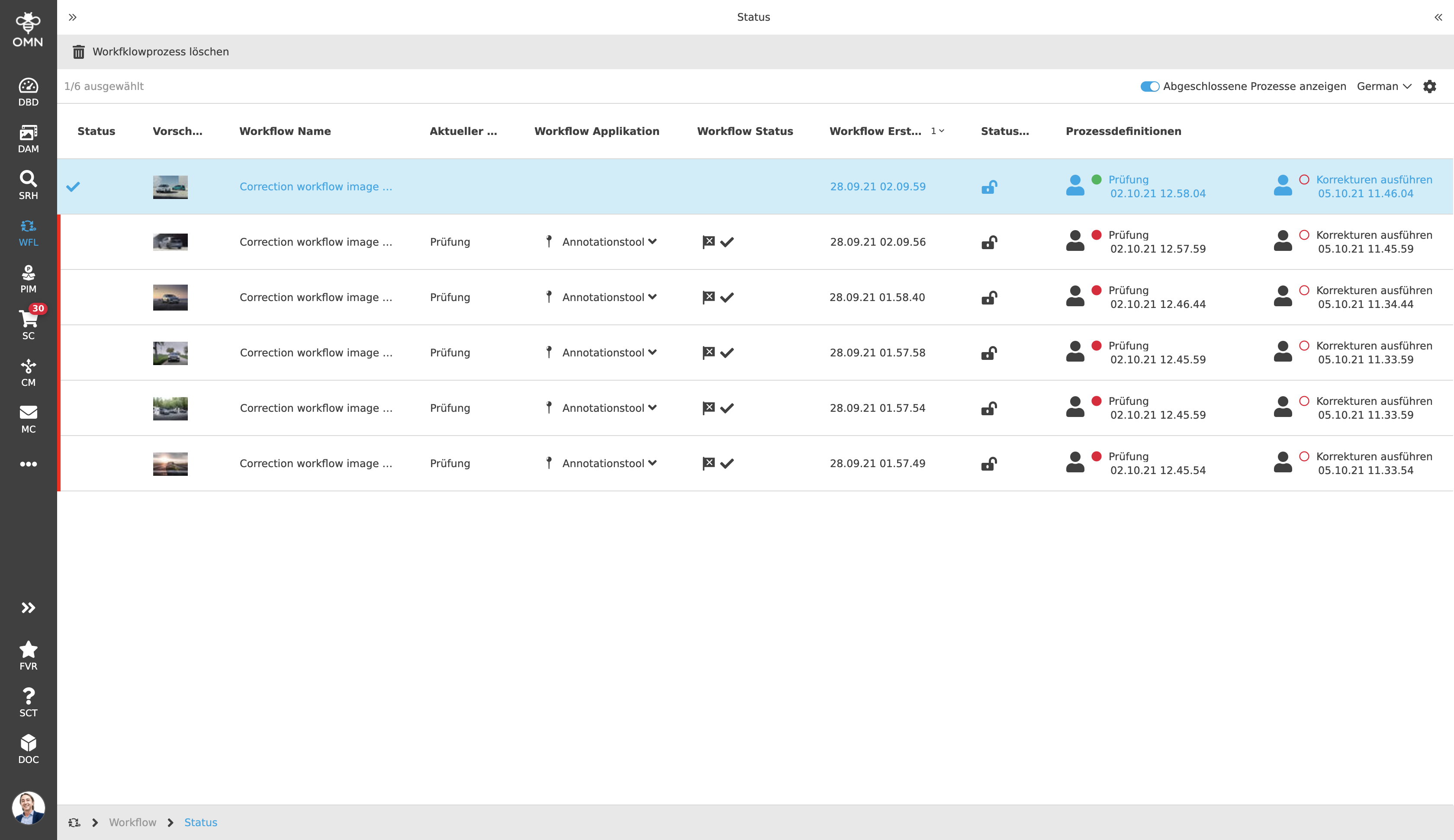
OMN provides a status list to the user(s). It is used by team leaders or planning responsibility users to track the state of the whole production.
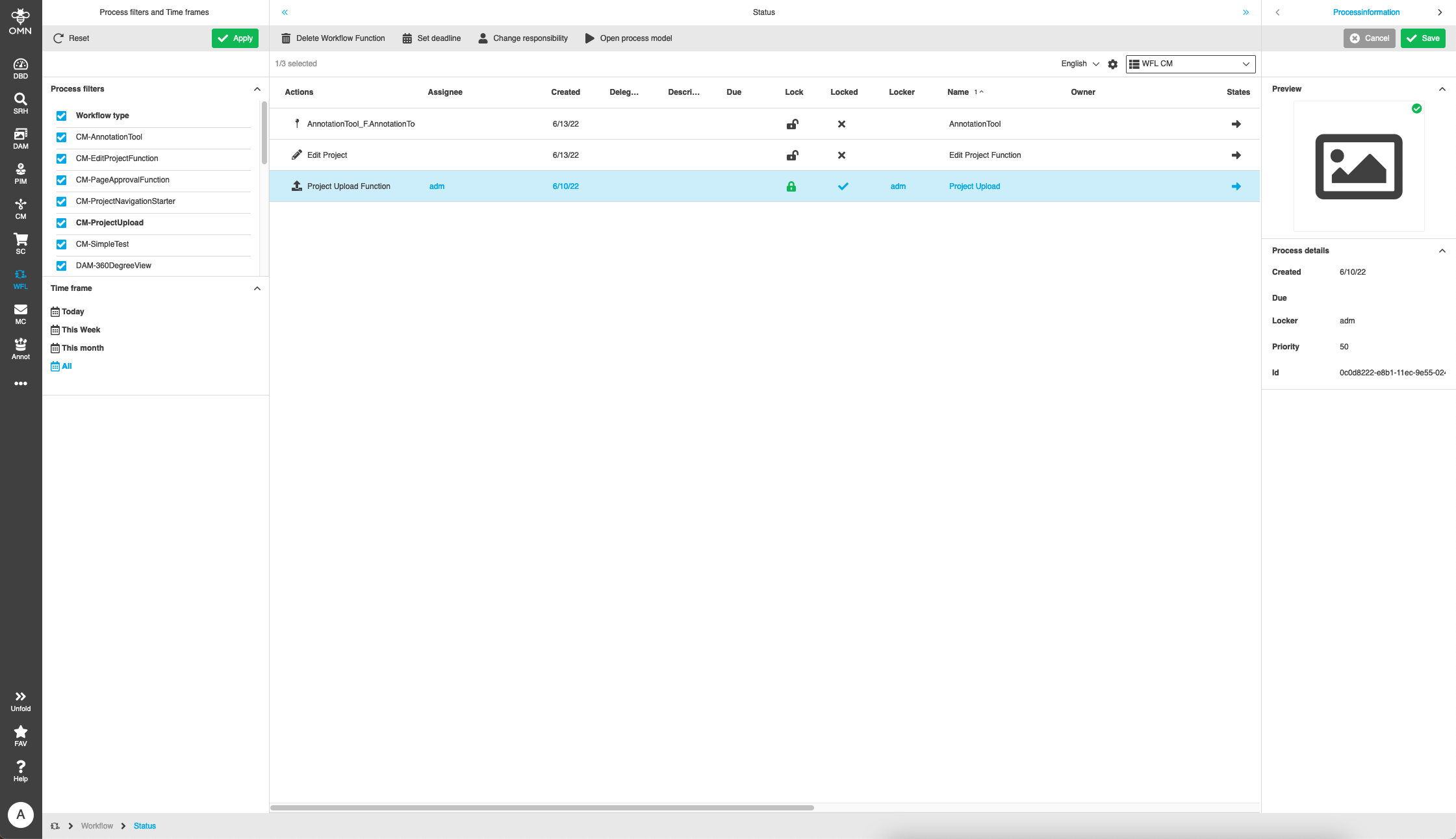
Every running process instance can be shown and does not depend on deadlines or assignments of the tasks. Some administrator functions are available to manage the existing processes like reassign responsibility, set deadline or a delete function. The assignment, deadline and current state of the process are visualized in a table column for each process.
Tasklist
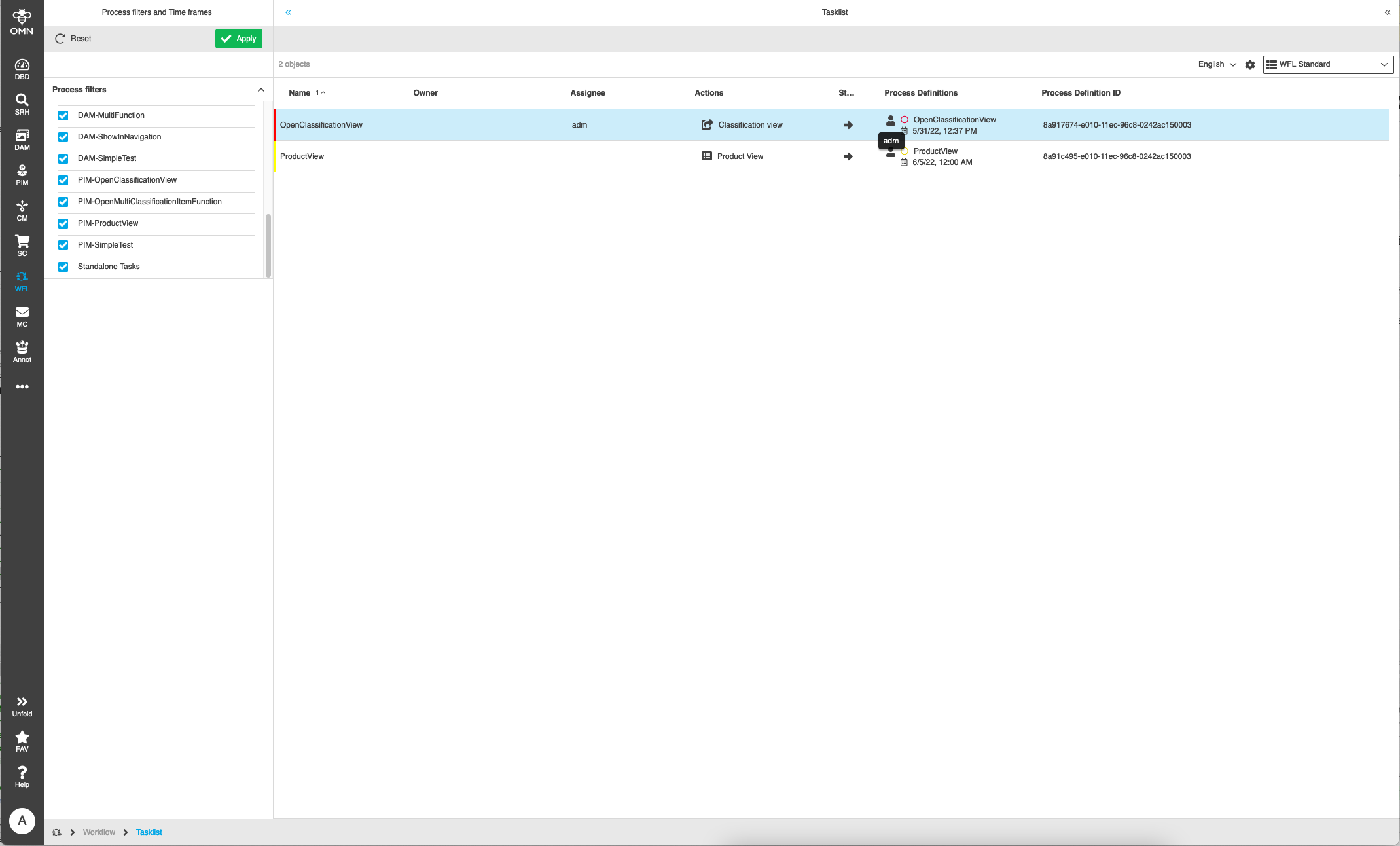
Next to the Statuslist OMN provides a Tasklist to the user, so that the user can easily access all tasks for which he/she is responsible for.
Task assignments can be done in the user interface onto selected task(s) by the
user. Furthermore, it can be predefined and assigned automatically by workflow definition.
The assigned responsibility user/role is visualized to the user by an icon and can
additionally be checked on hover over the icon (within a tooltip).
It is possible to assign multiple candidates to a task. Combinations of users
and roles can be used as well. If a user starts working on an unassigned task, the
user will be assigned for the task by OMN.
Additionally, a task can be locked to show foreign responsibility users that the
work was already started.
Standalone Tasks
Since OMN has the well-known Camunda process engine integrated to the user interface, OMN is able to provide definition independent standard standalone tasks which can be used to track objects or as reminder.
A user can create tasks for his or her team or in her or his own tasklist. From the task itself the user can access the related object within already known tools such as Annotation Tool or Product View.
Process definitions
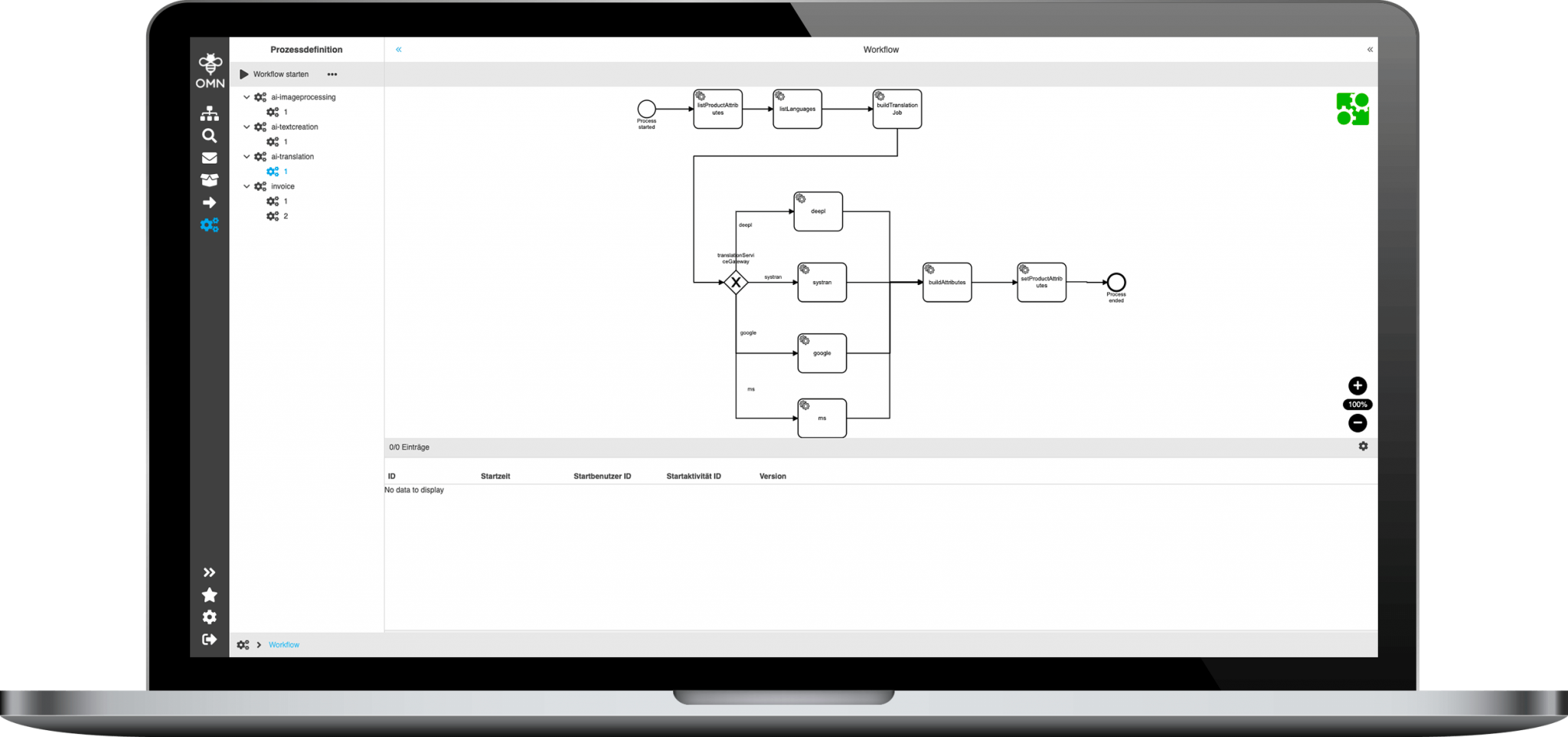
Due to the Camunda process engine that is integrated to the user interface, OMN is able to provide even complex and automized tasks to the user to work with the OMN stored data.
The graphical definition of the process is visualized within OMN by a BPMN (Business Process Model and Notation).
Left and right panel
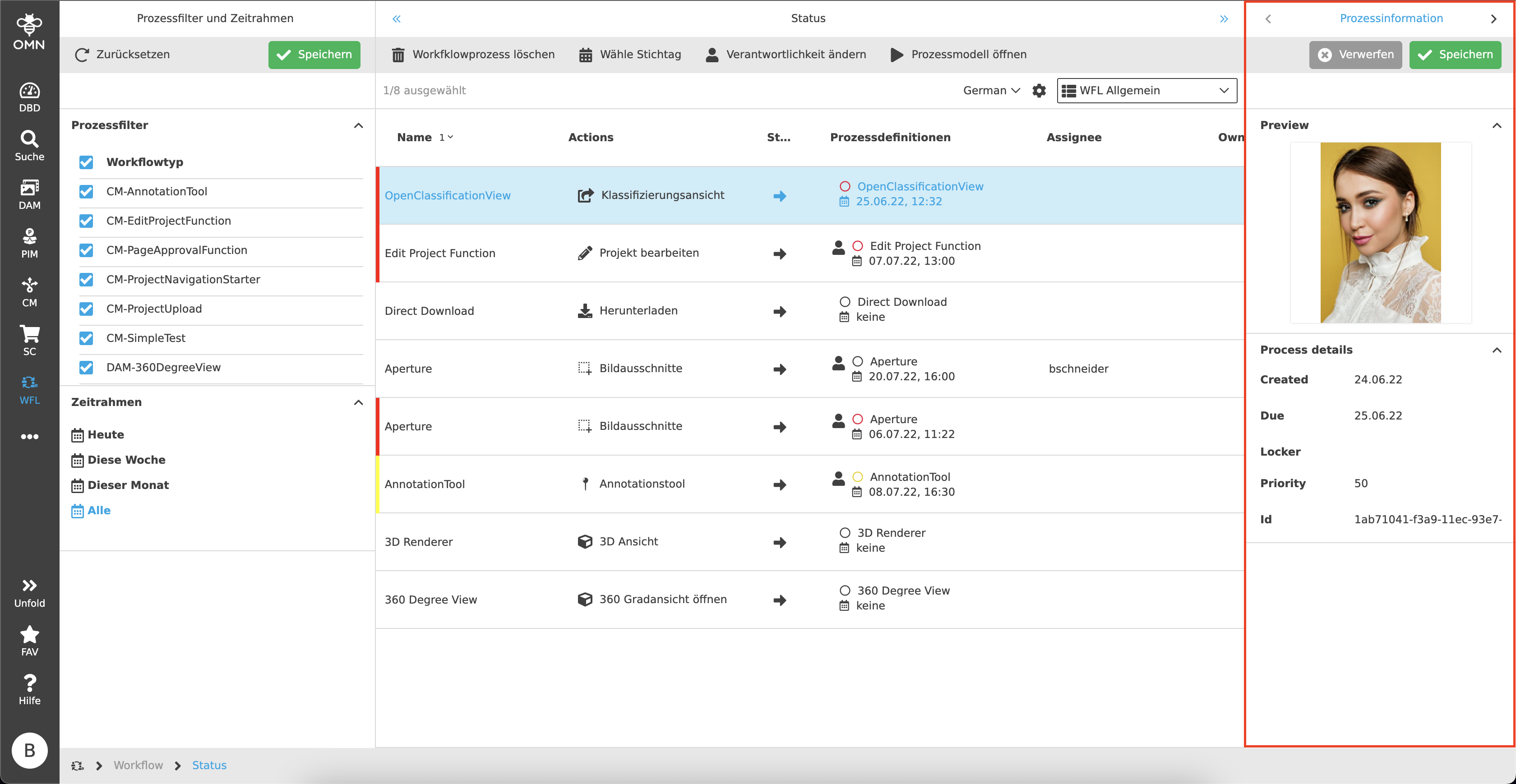
Both views can have a left and a right panel.
Left panel
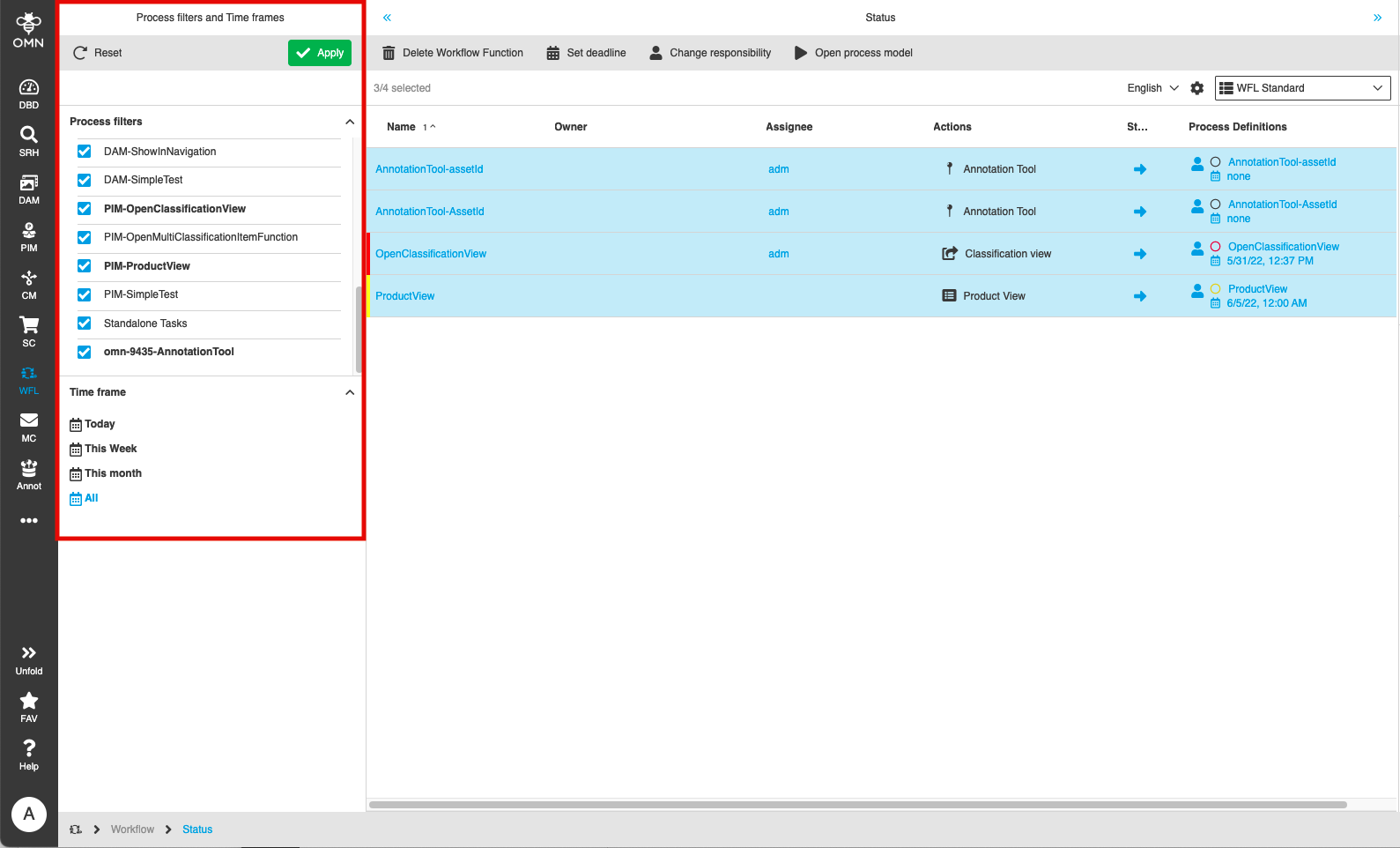
In the Workflow views (Workflow Status, Workflow Tasklist and Project Workflow Status) on the left view there are two different accordions available to support the user with filtering for specific workflows.
Process filters
The process filter accordion is used to restrict the result in the center view to
only match the selected workflow definitions. Therefore, the user needs to select
the workflow definitions by a checkbox. There is the possibility to select
single/specific ones, select all together by a click on the first checkbox or
reset the made settings to the default state by click on the corresponding
toolbar function.
OMN can provide multiple process definitions for different use cases.
| It’s as well possible to create own workflow views for a specific list of workflow definitions. |
If the user selects an entry on the center view, the matching type will be shown in bold.
Time frame
By using the timeframe filter the user has an easy-to-access possibility to see
urgent and time-sensitive tasks without checking their deadline for each row one
by one. The user only needs to activate the entry by click on the checkbox to
specify which timeframe should be filtered.
Tasks without a deadline are visualized independently of the timeframe filters.
The timeframe can be deactivated if there are no deadlines used for the processes.
Further functionalities and possibilities
Next to the Workflow views there are further functionalities and possibilities that can be used directly out of the Workflow context or out of other modules of OMN. These will be described in the following.
Workflow widgets
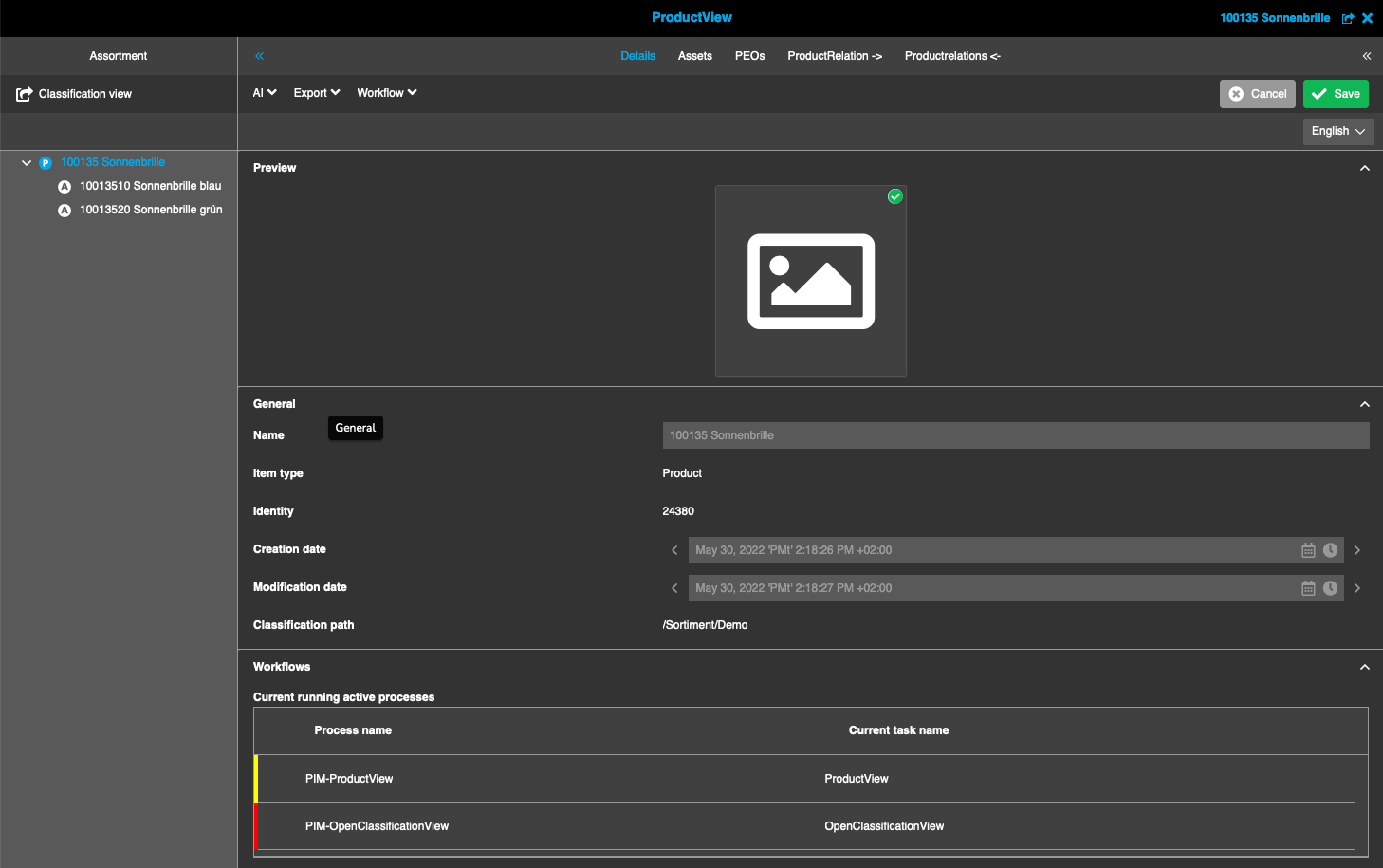
In detail view of all workflow related modules (PIM, DAM, CM) the user can access workflow widgets.
Workflow widgets allow the user to check the state of object related processes and tasks. The widget contains information about the process, the active task of the process and the deadline.
The user can switch from the widget directly to the task list for a selected entry and can use the workflow functions and task tools.
Process model
As already described above it is possible to visualize processes by a graphical
BPMN process.
This BPMN process can not only be displayed via a separate view, but also via
a so-called process model directly from the tasklist or the workflow widget.
To do this, the user must first select the desired ongoing workflow and then click on the "Open process model" function in the toolbar. The BPMN process model is then displayed in a dialogue window and shows the current task highlighted. This serves the purpose of better orientation.
The user has the option to zoom into the model using the zoom element.
Human Function Editor
With human functions a user has the possibility to open editors directly out of the workflow context. To do that, the user can directly click on the corresponding function inside the "Actions" column of the table in center view.
Inside the opened editor, such as the Annotationtool, he or she has the possibility of forwarding Camunda workflow transitions directly inside editors with the help of a simple click on the transition function in the toolbar.
Tasks in Flatplan
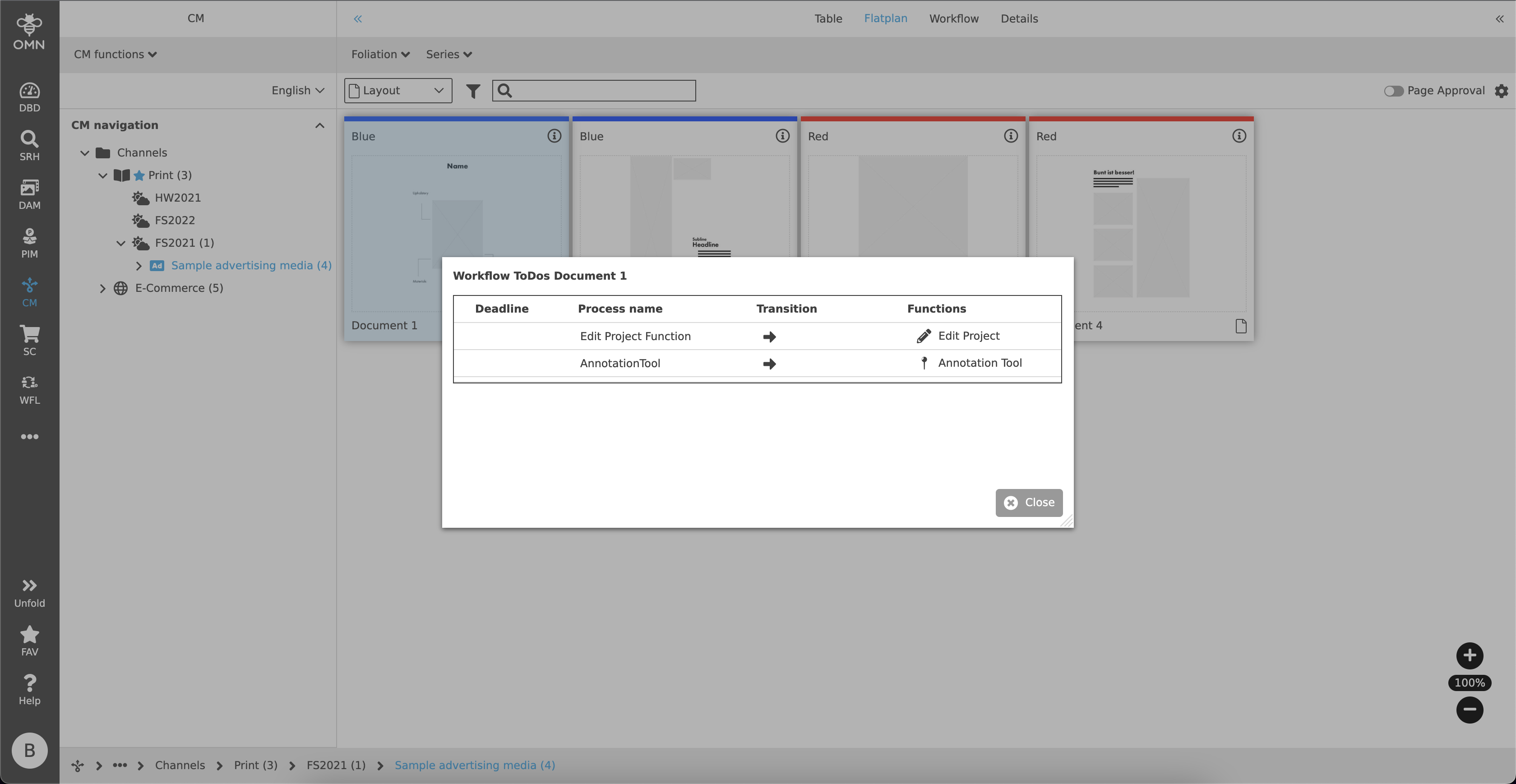
In Project Flatplan View it is also possible to check Workflow ToDos. Is there for example a sub-project for which a workflow is active, a user can see that in Flatplan with the help of a task icon.
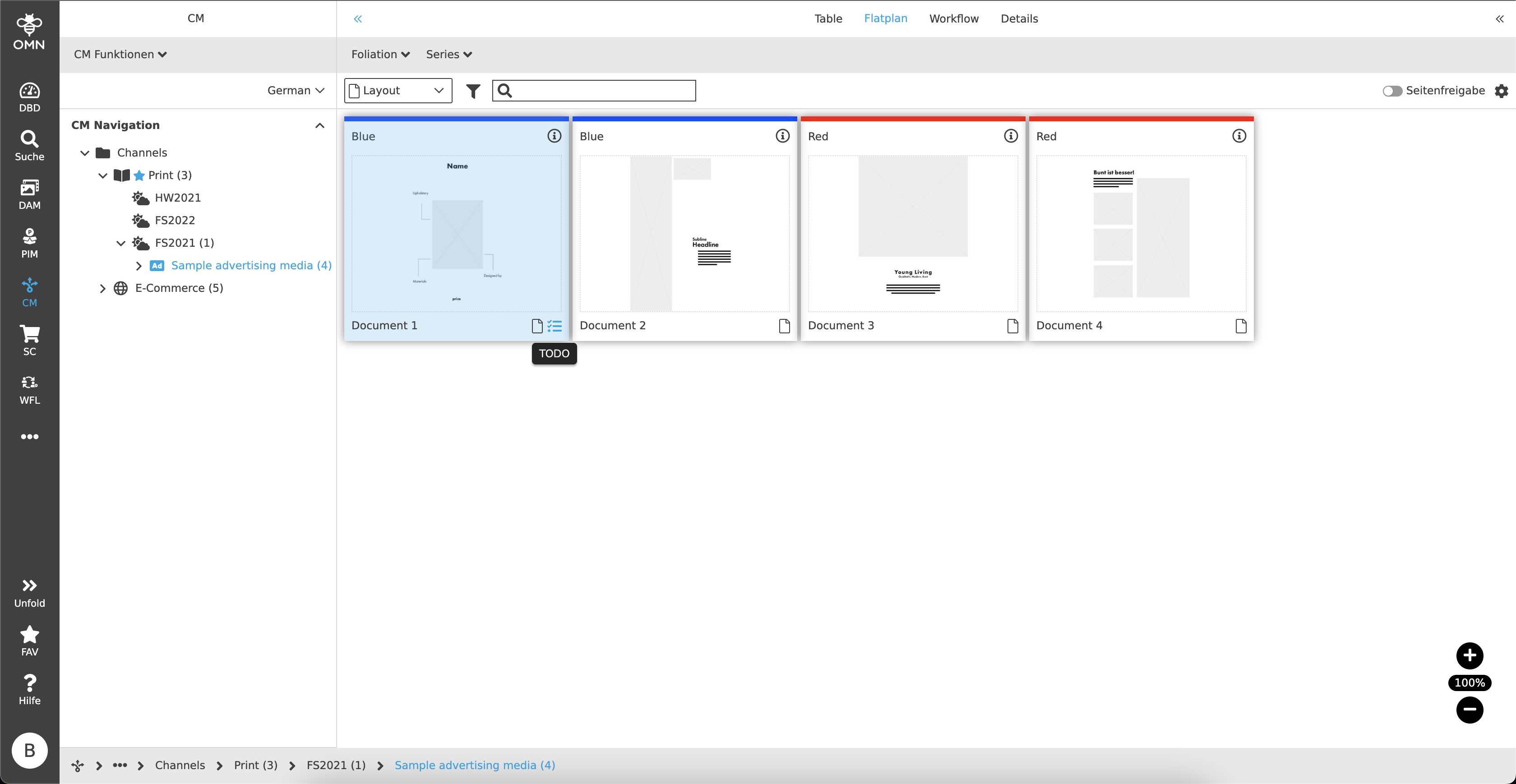
On click on this icon a dialogue will be opened which shows the active Workflow ToDos for the selected tile. A table is shown and displays the deadline if available, the process name, the transition, the functions and the visual display of the workflow status.