OMN local open functions
Purpose of the plugin
The local OMN Open function allows a file or directory to be opened locally on the current working computer directly from the OMN web client.
Introduction
In the normal workflow with OMN, OMN users are limited in their ability to edit files that are available in the web version of OMN but physically stored on resources on the network.
To solve this problem, OMN provides a solution that allows standard Windows or MacOS tools such as Explorer or Finder to open a file or directory located on a remote resource directly from the browser-based OMN web client via links of a specific type, allowing editing operations to be performed locally using the installed software on the current working computer.
The OMN product offers two UI functions:
-
Open asset in the file manager
Open a directory with the required files in Windows Explorer or Mac Finder in order to continue working with the files at this point. -
Open asset in local default application
Open an asset managed by OMN in a locally installed application on the user’s computer to further process the asset locally using the standard file management functions of the operating system, such as Windows Explorer and Mac Finder.
Prerequisites and relationships to other modules
To be able to open files and directories locally in a file manager or in a default application, the functions must be included in at least one of the following views:
-
In DAM
-
FS Navigation
-
Asset View
-
Annotation-Tool
-
-
In WFL
-
Workflow human function
-
-
In PIM
-
Product View
-
-
In Search
-
Advanced Search
-
Form-based Search
-
-
In CM
-
Project Folder View
-
Project Asset View
-
| In the Light table view, the functions can be integrated both as toolbar functions and as asset functions. |
In order to be able to use the functions, some preconditions must be fulfilled in addition to the integration of the functions in OMN:
How to use
Open asset in the file manager
Depending on the configuration (toolbar function, asset function, human function), the 'Open asset in file manager' function may look different in the UI.
The use of the function is therefore explained below using a specific example.
Toolbar function
If the 'Open asset in file manager' function is configured as a toolbar function in one of the views mentioned, it can be executed by clicking on the function in the toolbar.
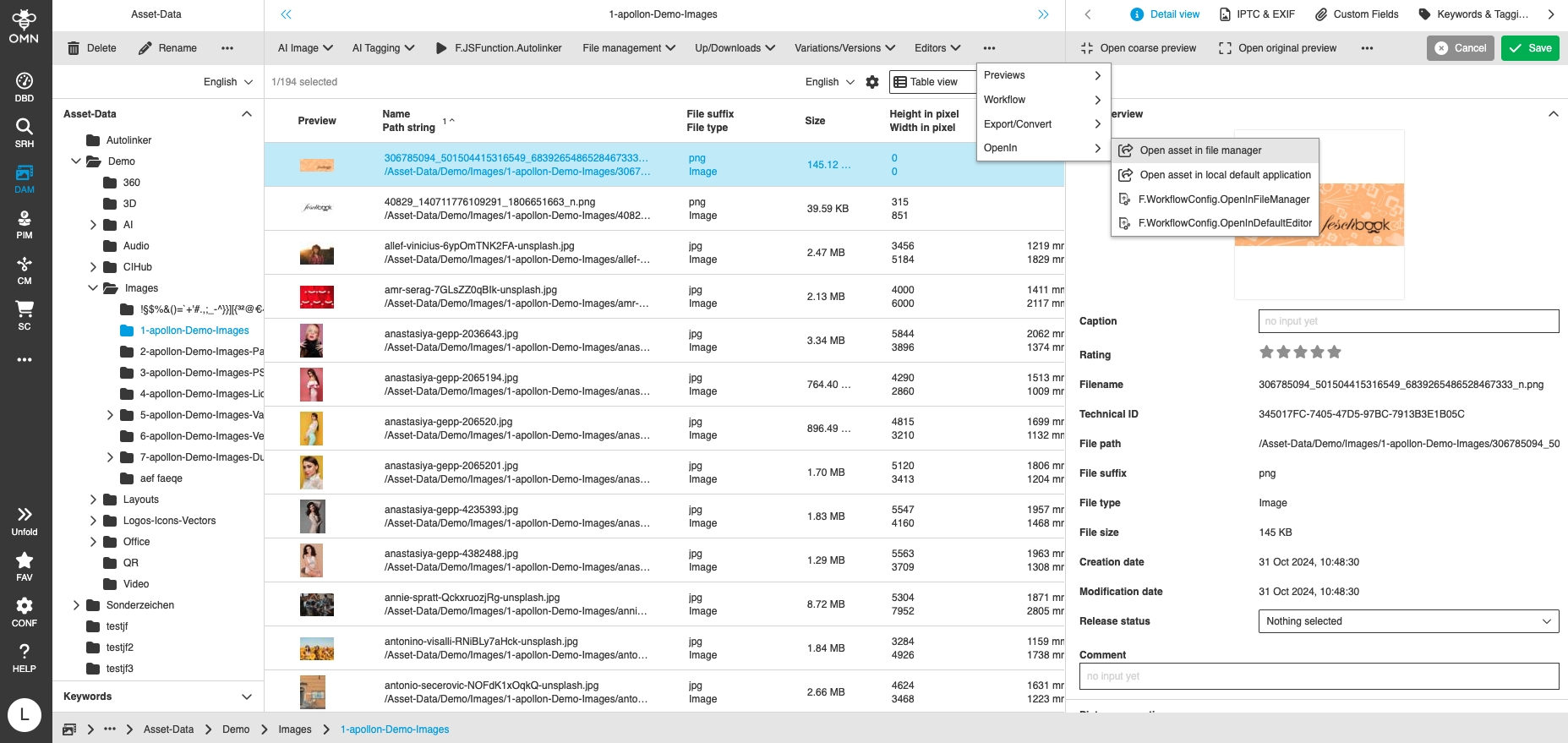
| Toolbar functions can also be organized in groups; accordingly, the function can also be available in a dropdown in the toolbar. |
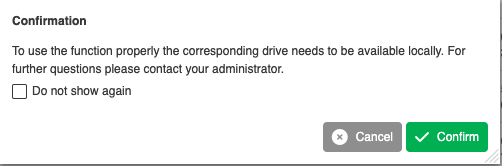
After the function has been executed, a confirmation window is displayed, indicating that the corresponding drive must be available locally in order to use the function (see Installation Guide).
If desired, this window can be hidden during further executions within the current session.
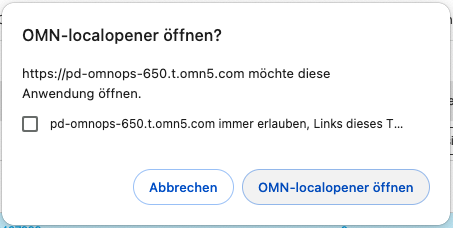
Depending on the settings of the personal operating system/browser used, an additional confirmation window may be displayed.
This can also usually be hidden permanently.
The selected files and/or directories are then displayed in the file manager (Finder on iOS, Explorer on Windows).
A separate file manager instance is opened for each selected object.
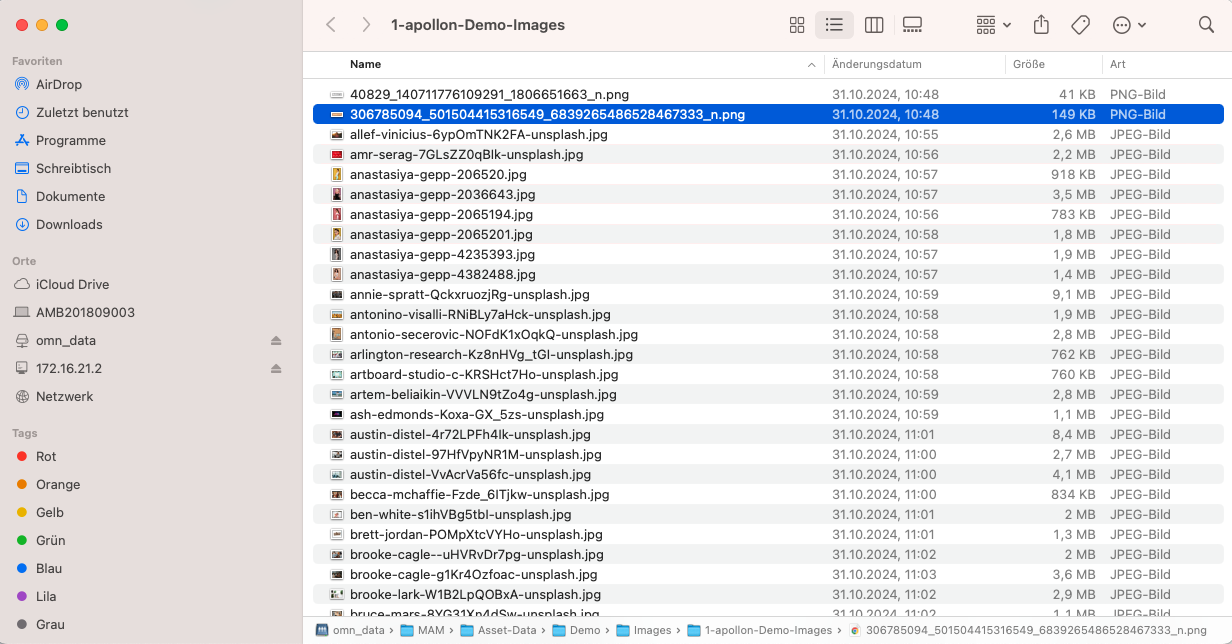
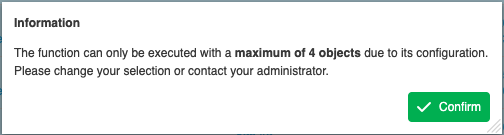
The configuration can be used to specify how many objects can be selected at once.
The default value is a maximum of 5 objects to be selected.
It is possible to set up to 10 objects for selection.
If more objects are selected than allowed, the following information is displayed:
|
Keywords cannot be opened with the function because keywords reflect virtual file structures that are not represented in a file system. As a result, the function is not available when keywords are selected. With mixed selection (keywords selected together with files and directories) only the valid objects are opened. |
Asset function
The function "Open asset in file manager" can be integrated in the light table as a so-called asset function in addition to the toolbar function.
Asset functions can be displayed in the canvas on the asset tile.
If these do not appear, the asset function can be displayed using the statusbar settings.
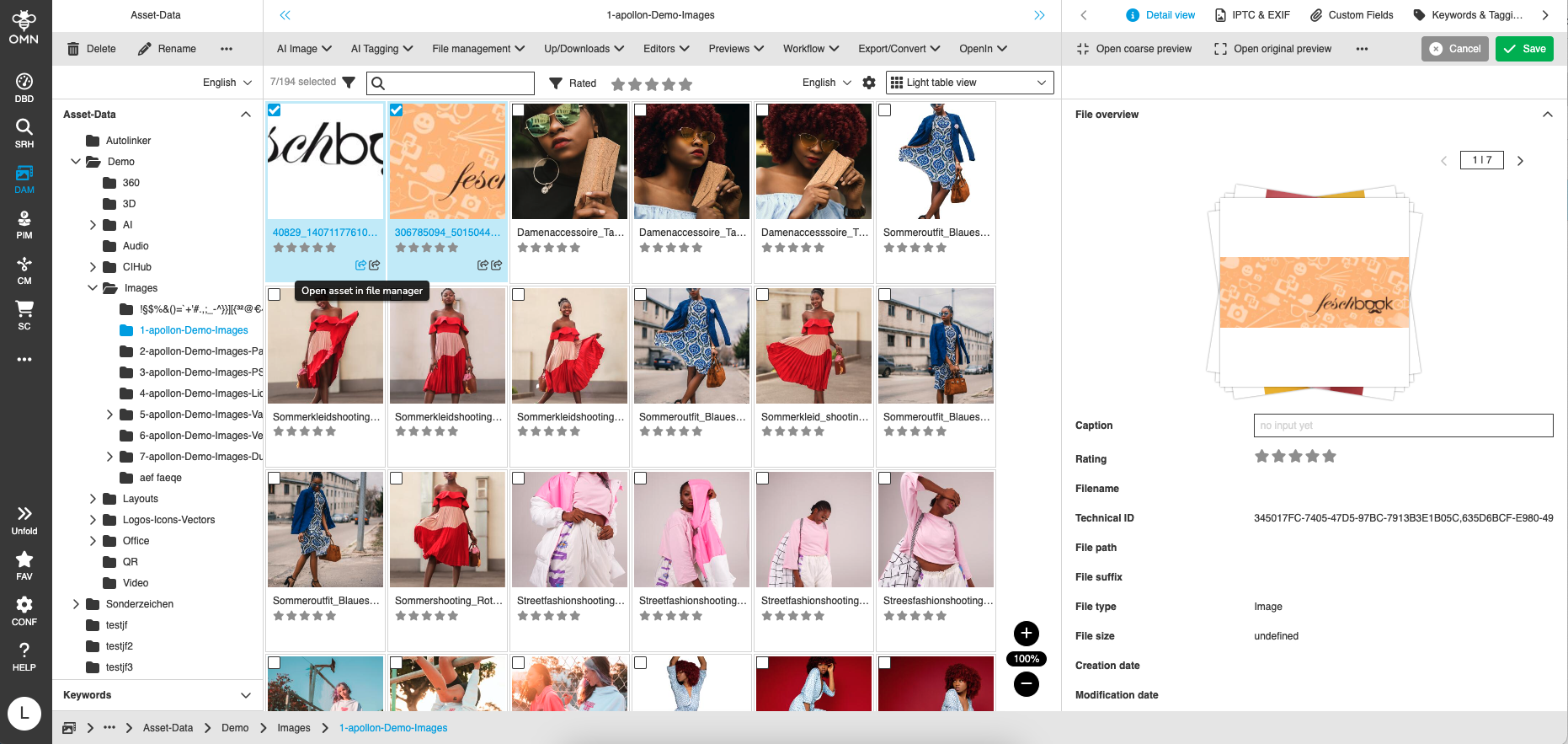
After executing the function, the same windows are displayed as those shown with the toolbar function.
Human function
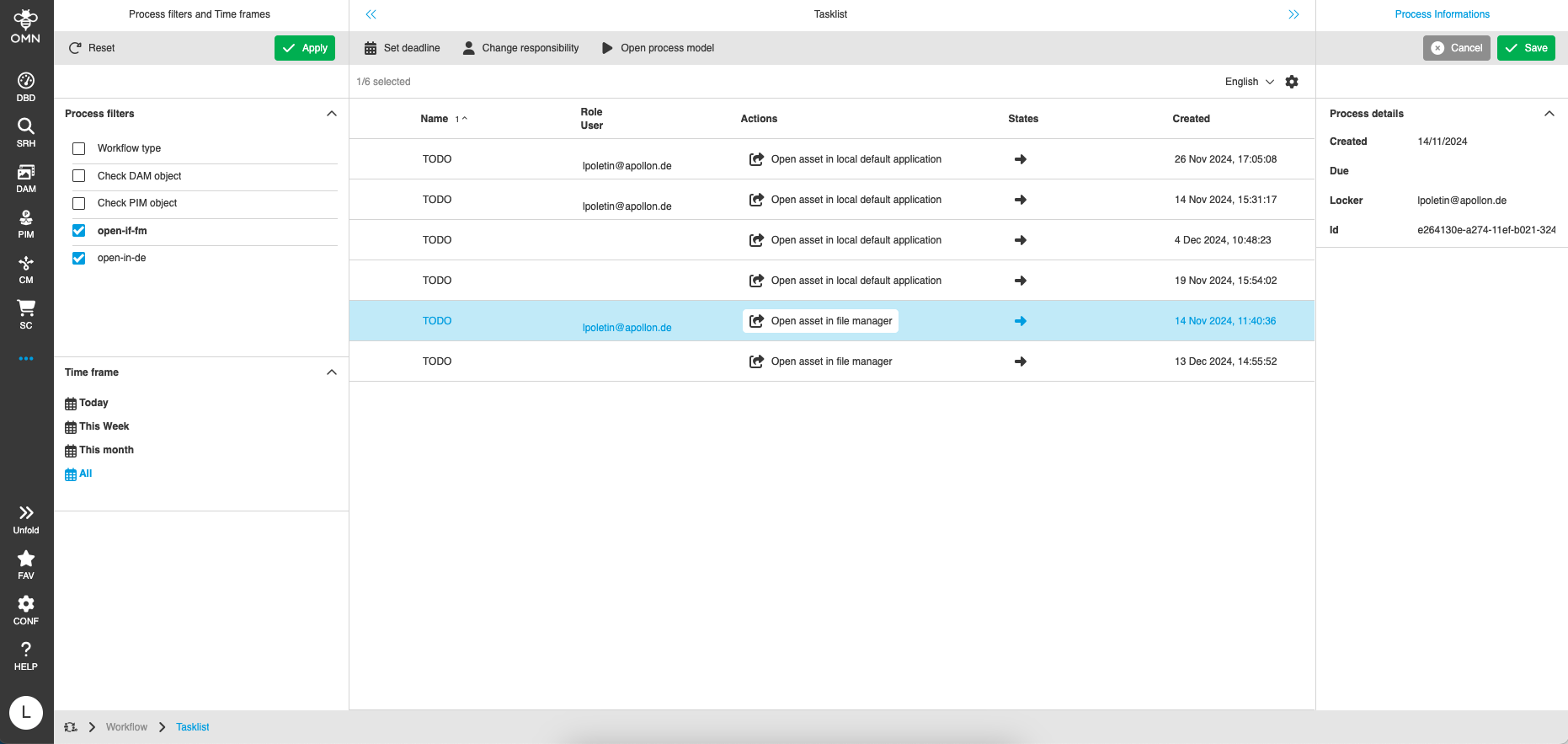
In the context of processes, the function "Open asset in file manager" can also be integrated directly into a specific process step as a so-called human function.
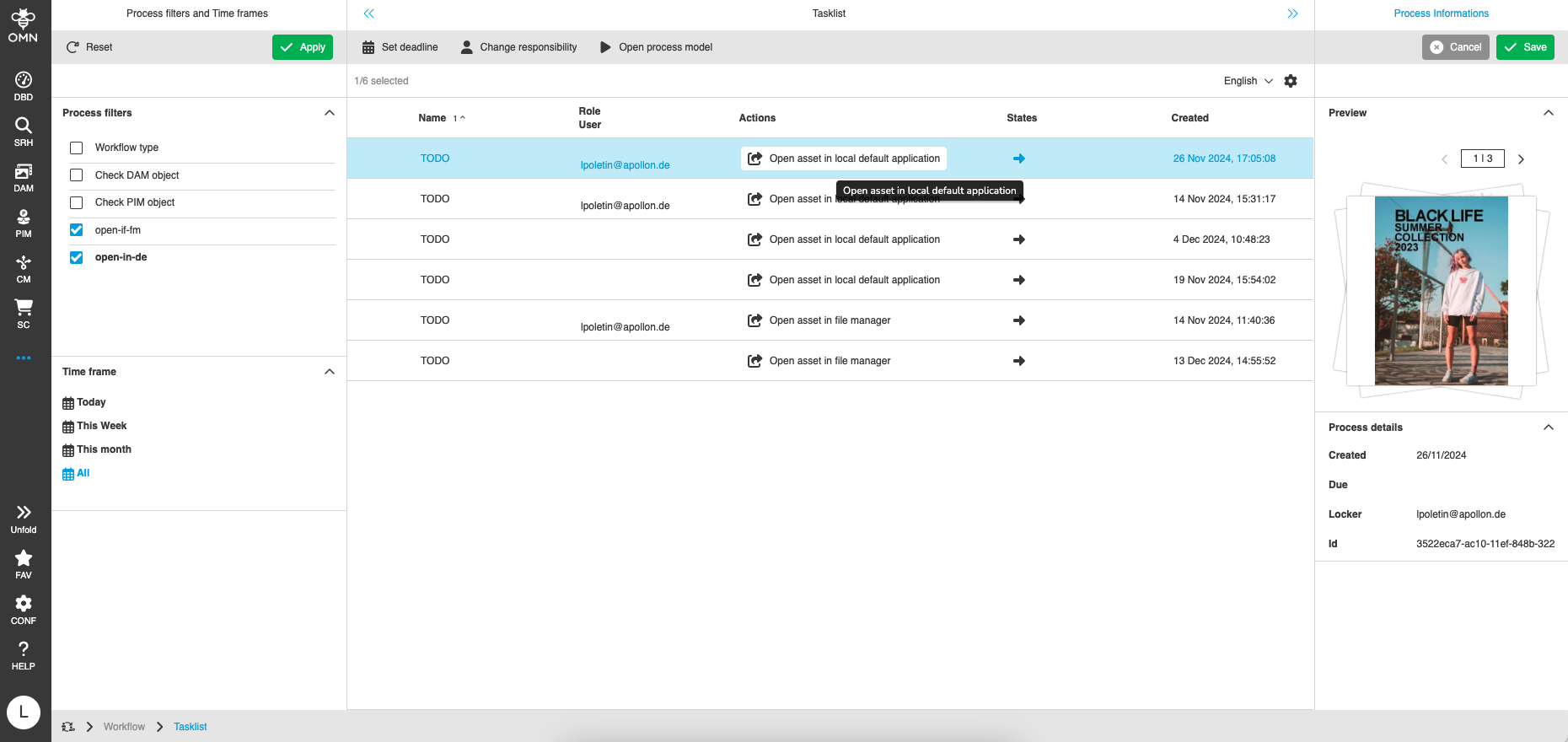
Depending on the configuration, such a human function can be displayed in a process in the workflow status list, in the workflow task list and in the channel workflow view.
The image shows how a human function can be executed.
Open asset in local default application
The function "Open asset in local default application" can look different in the interface depending on the configuration (toolbar function, asset function, human function).
Therefore, the use of the function is explained below using a specific example.
Toolbar function
If the "Open asset in local default application" function is configured as a toolbar function in one of the views mentioned, it can be executed by clicking on the function in the toolbar.
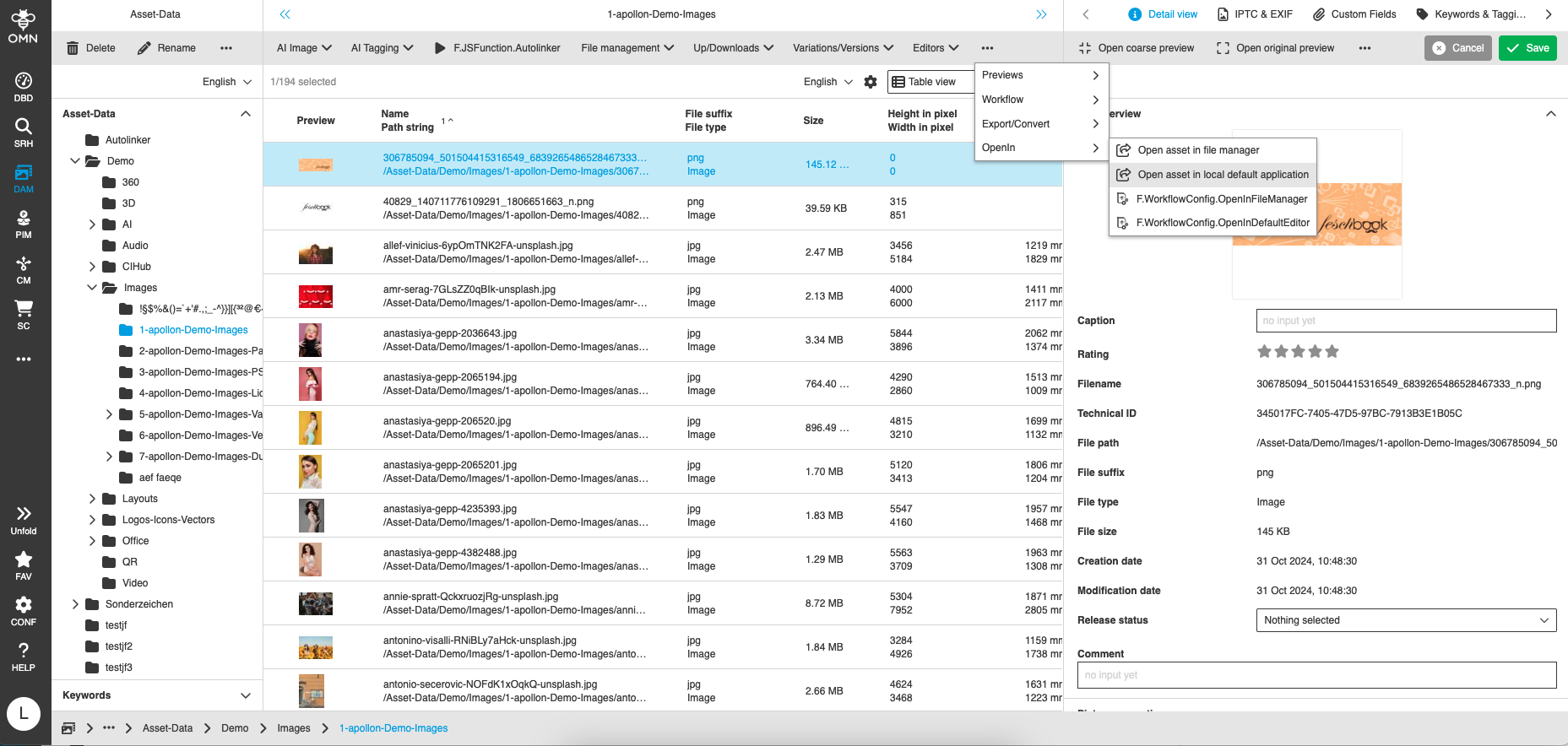
| Toolbar functions can also be organized in groups, accordingly the function can also be available in a dropdown. |
After the function has been executed, a confirmation window is displayed, indicating that the corresponding drive must be available locally in order to use the function (see Installation Guide).
If desired, this window can be hidden during further executions within the current session.
Depending on the settings of the personal operating system/browser used, an additional confirmation window may be displayed.
This can also usually be hidden permanently.
The selected files are then opened in the locally defined standard application.
The behavior of how the files are displayed (e.g. in one or more application instances) depends on the application.
The configuration can be used to specify how many objects can be selected at once.
The default value is a maximum of 5 objects to be selected.
It is possible to set up to 10 objects for selection.
If more objects are selected than allowed, the following information is displayed:
|
Keywords cannot be opened with the function because keywords reflect virtual file structures that are not represented in a file system.
As a conclusion, the function is not available when keywords are selected. With mixed selection (keywords selected together with files and directories) only the valid objects are opened. |
Asset function
The function "Open asset in local default application" can be integrated in the light table as a so-called asset function in addition to the toolbar function.
Asset functions can be displayed in the canvas on the asset tile.
If these do not appear, the asset function can be displayed using the statusbar settings.
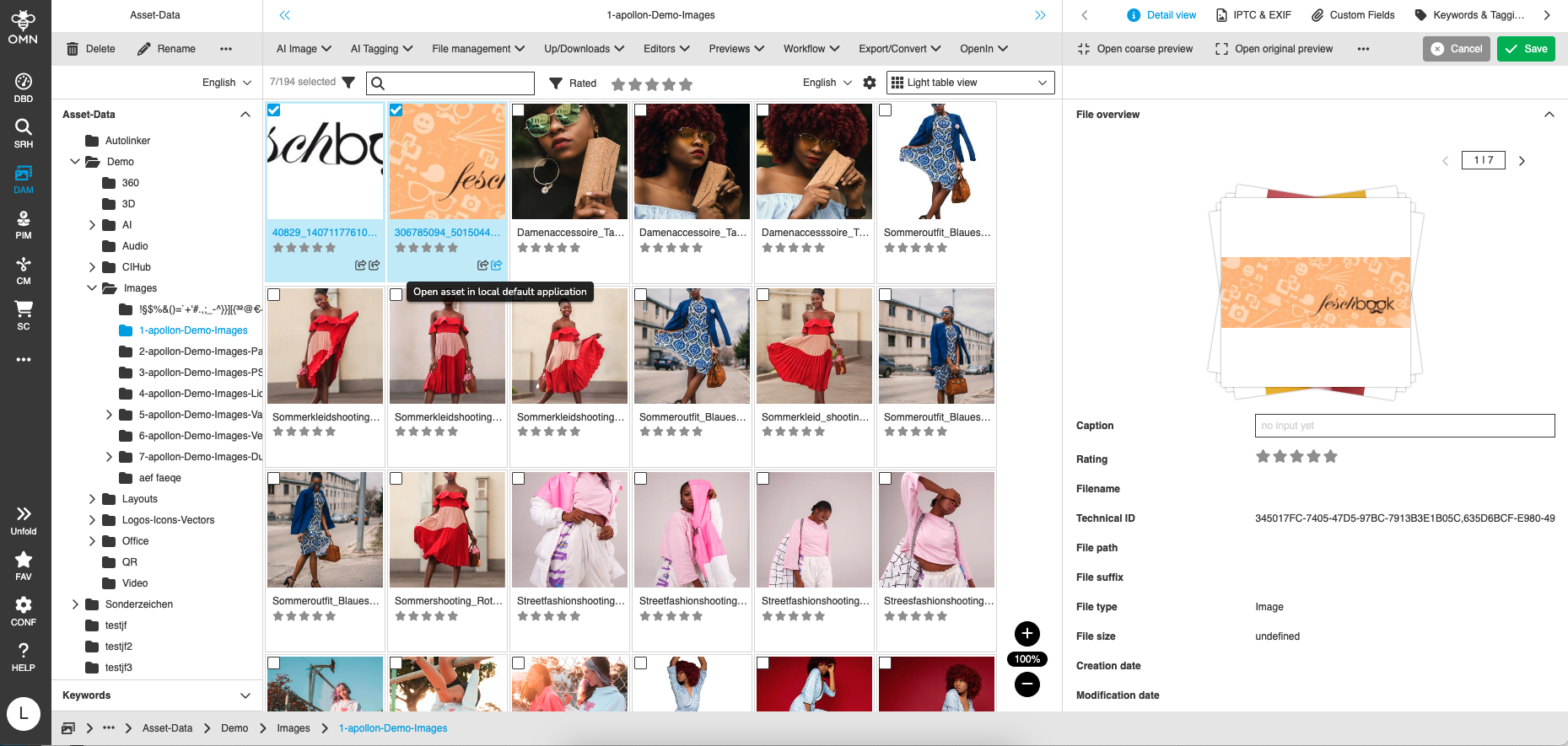
After executing the function, the same windows are displayed as those shown with the toolbar function.
Human function
In the context of processes, the function "Open asset in local default application" can also be integrated directly into a specific process step as a so-called human function.
Depending on the configuration, such a human function can be displayed in a process in the workflow status list, in the workflow task list and in the channel workflow view.
The image shows how a human function can be executed.