Back End Configuration
Function Plug-In Configuration
Open new OMN Config Client and go to Modules\Function plugins\Workflow Configuration.
Create a new Workflow Configuration plugin instance, by selecting the plugin type Workflow Configuration and clicking on 'Create plugin instance'. Enter the workflow name in the Configuration identifier field and click on 'Create plugin instance'.
A new plugin instance should be created and configuration is opened in the first tab.
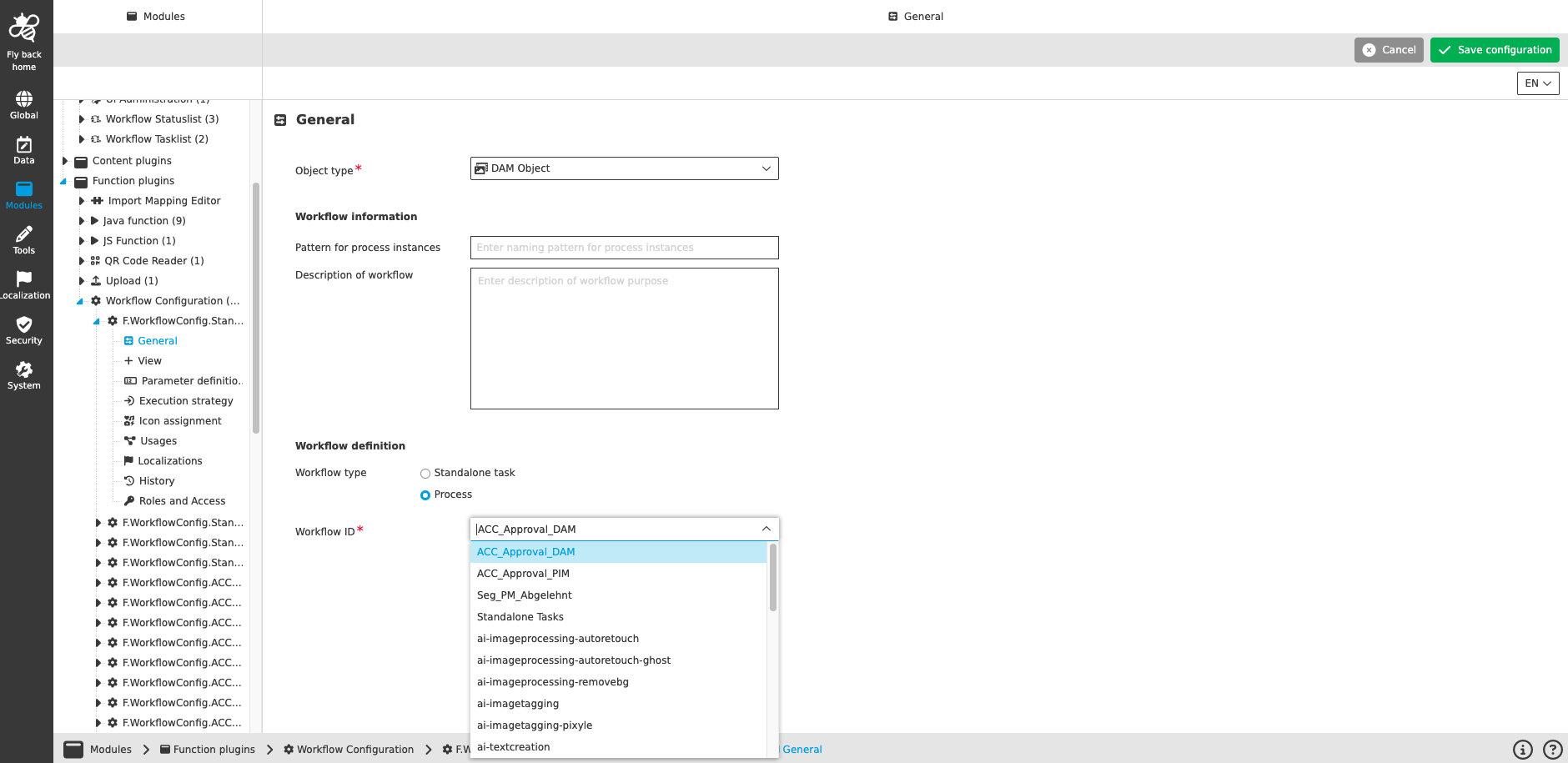
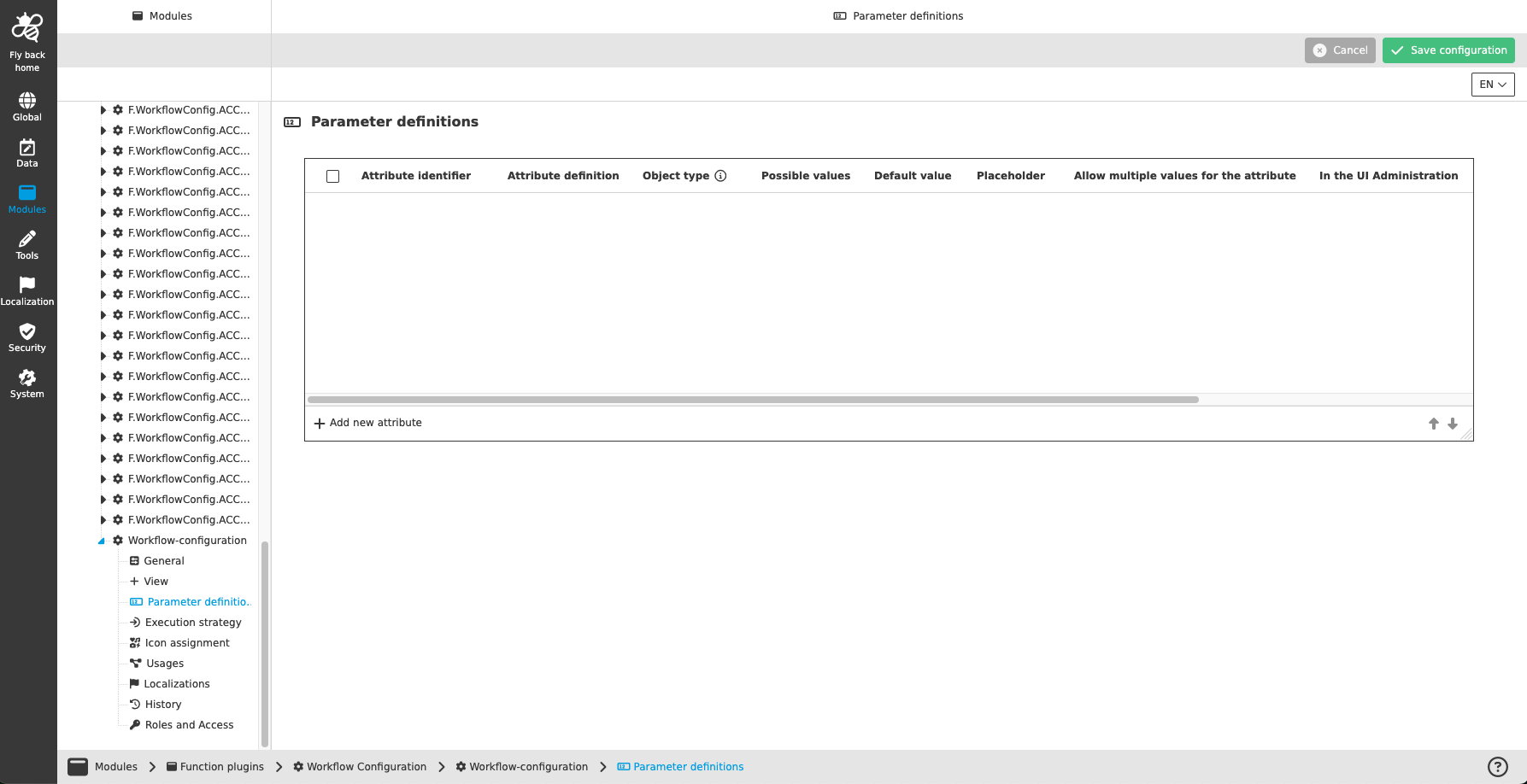
For more information about each configuration option, please check: Workflow Configuration
Page Plug-In Configuration
| The following steps vary depending on the purpose of the workflow that is being configured. This example shows how a workflow for MAM tasks should be configured. |
FSNavigation
Go to Mandators\<mandatorName>\Page plug-ins\FSNavigation\P.FSNavigation.ACC.MAM.
On the new display, go to Navigation nodes\Assets and click on the first item of the Content Views table.
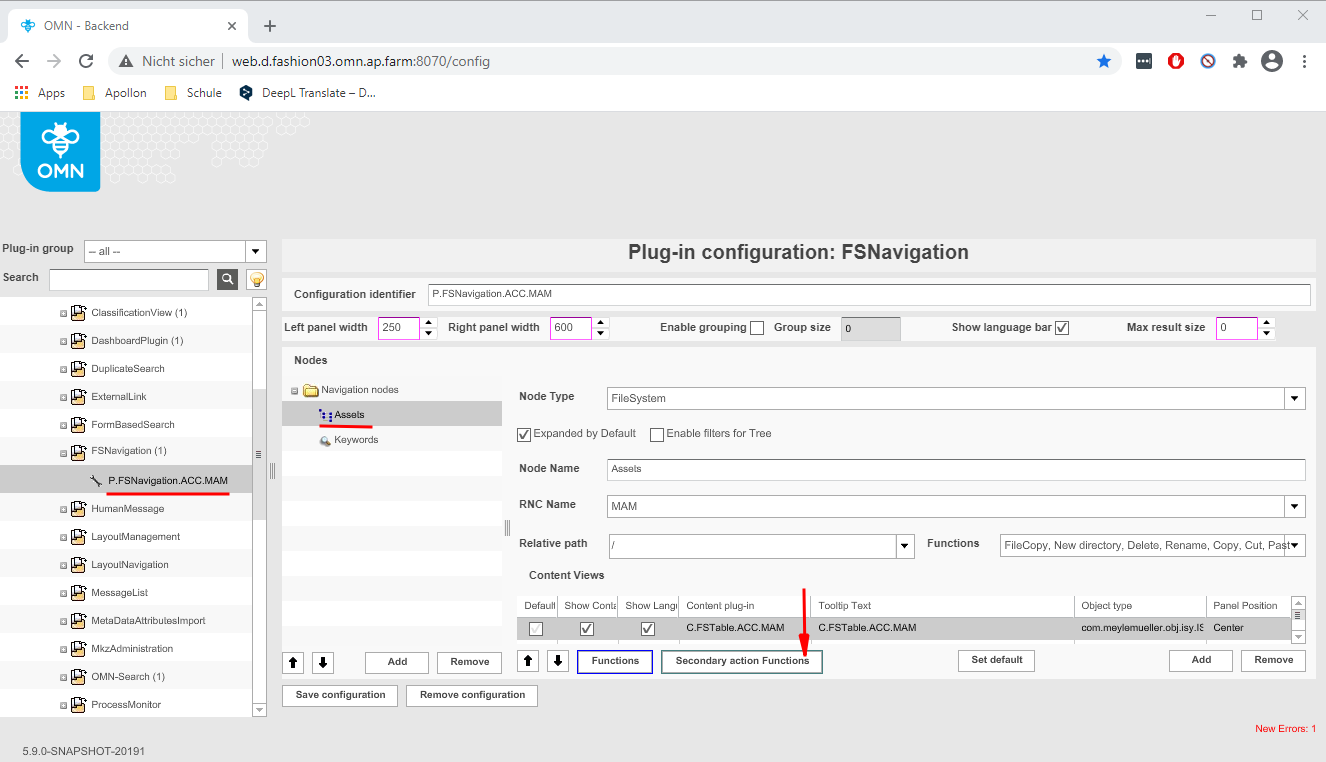
Click on the button "Secondary action Functions". A new window should pop up, and your workflow configuration should be on a list on the right side of the window.
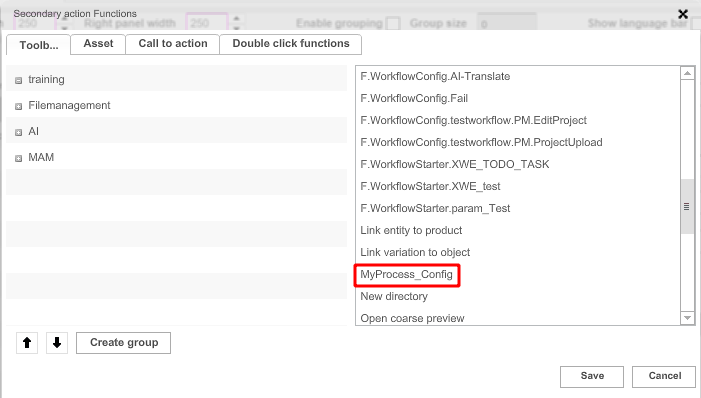
Click on your workflow configuration name and drag it to the left side of the display.
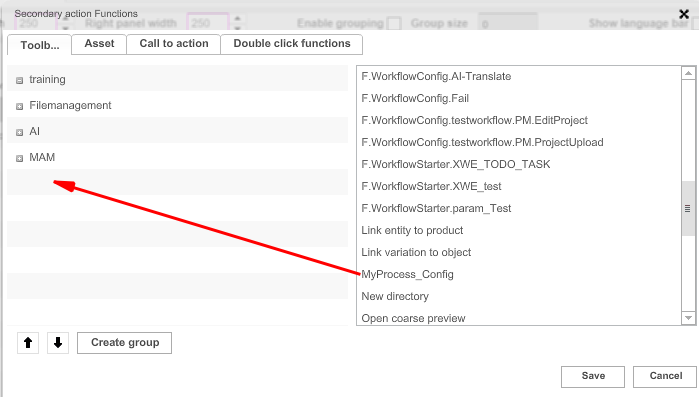
Click on the button “Save” inside the window, then save the whole configuration by clicking on “Save configuration” in the bottom left side of the display.
Workflow Statuslist and Workflow Tasklist
Open new OMN Config Client and go to Modules\Page plugins\Workflow Statuslist.
Open the plugin instance in the configuration tab 'Enabled Workflows'. The Workflow ID should be seen in the list and can be activated by checkbox.
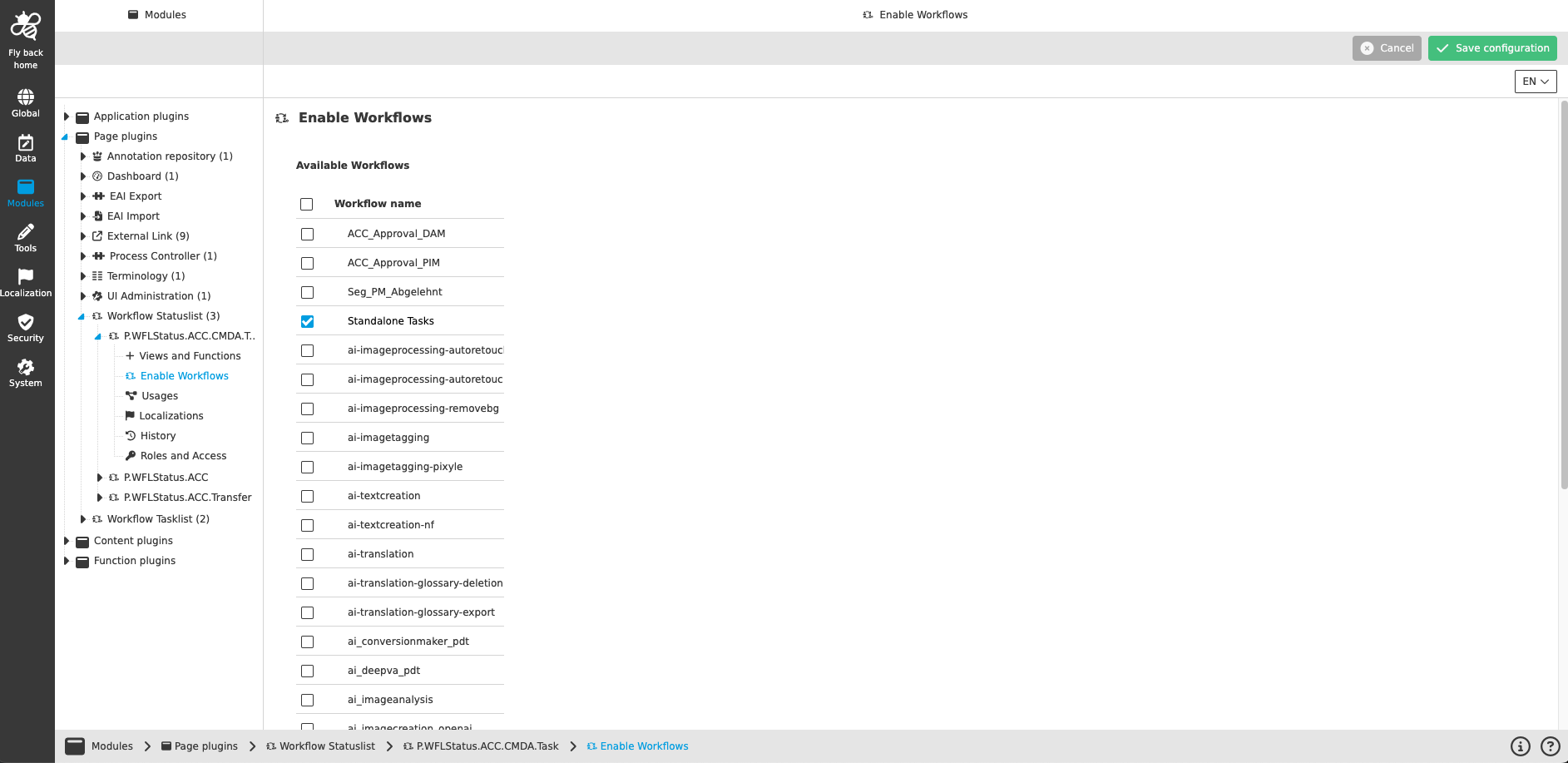
For more information about each configuration option, please check: Workflow Statuslist Page Plugin
Open new OMN Config Client and go to Modules\Page plugins\Workflow Tasklist.
Open the plugin instance in the configuration tab 'Enabled Workflows'. The Workflow ID should be seen in the list and can be activated by checkbox.
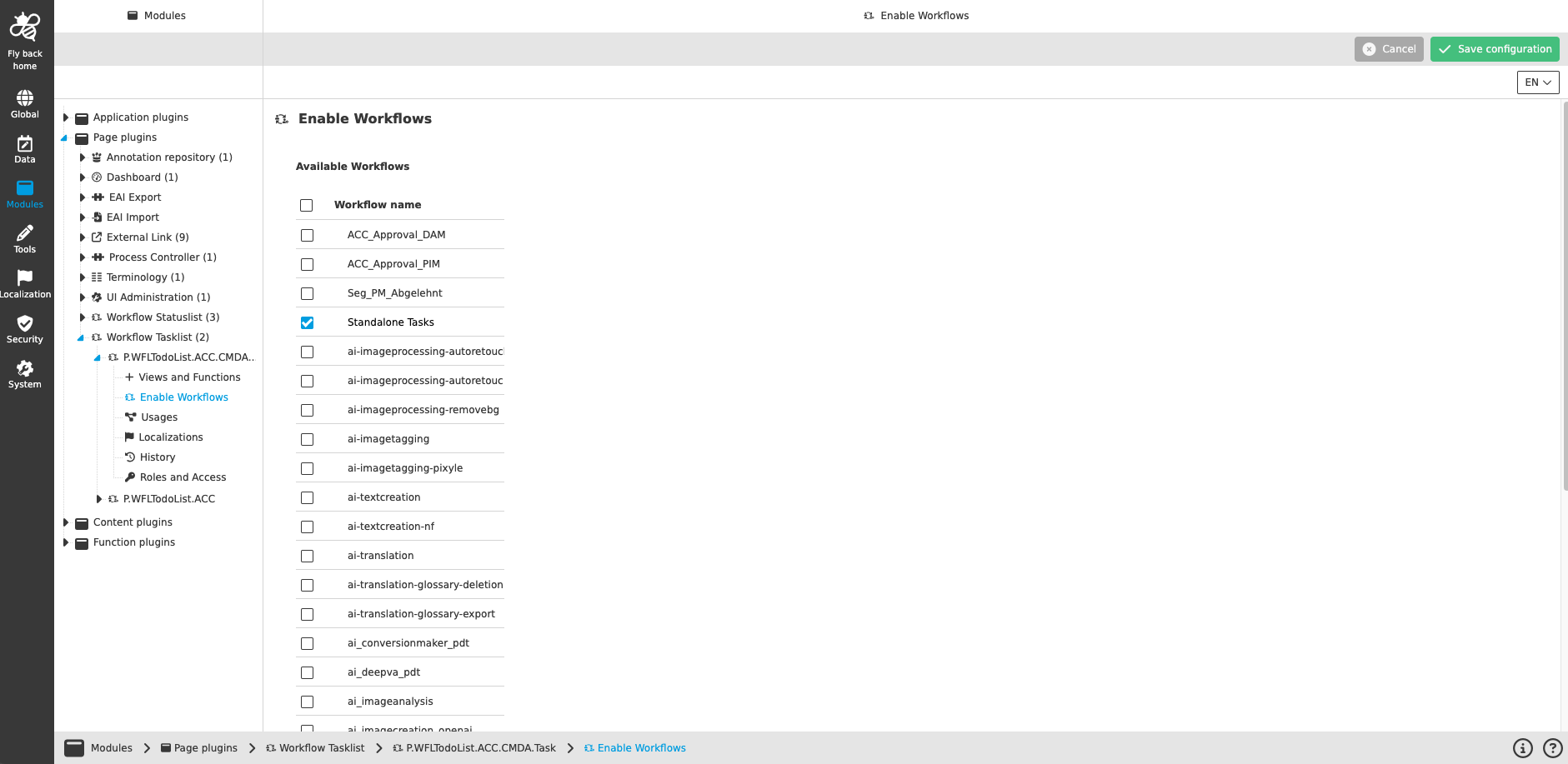
For more information about each configuration option, please check: Workflow Statuslist Page Plugin