DocEdit Configuration-Guide
Expand Mandators → <mandator name> → Function plug-ins and select DocEdit. Enter an identifier and submit the configuration.
The Function Plug-in „DocEdit“ consists of several tabs in which you configure the DocEdit module. Some tabs and parameters exist already for further versions of DocEdit and give an overview about planned next steps. But it means as well that changing these parameters right now has no influence to current version of DocEdit or even causes problems. So, some parameters have a hint whether it is recommended to use this parameter now already.
Mode: Set this value to “Individualization” to edit InDesign documents in your asset management system.
General
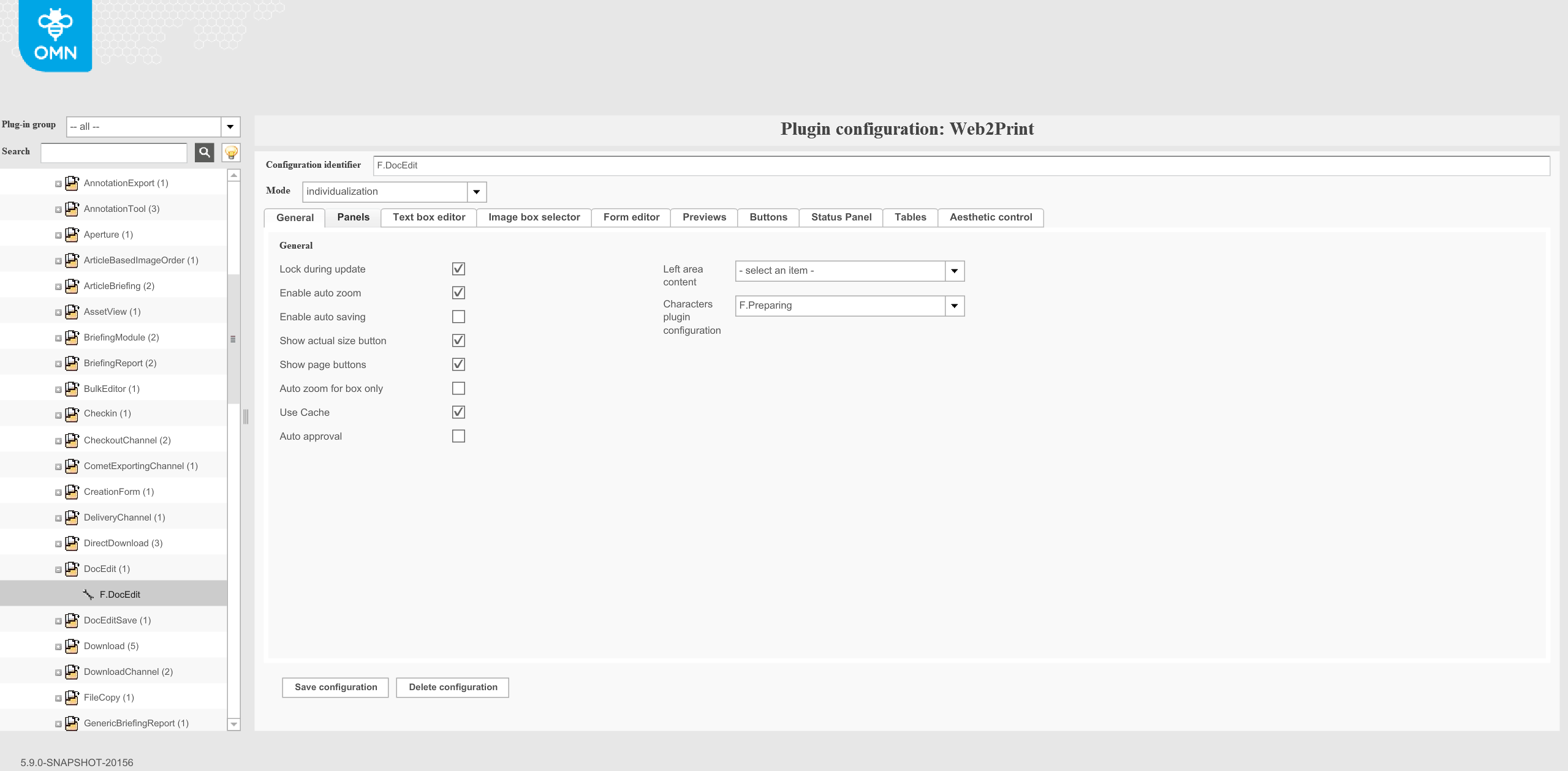
Lock during update: Enables or disables a spinning wheel during a server-side rendering process. User tests have shown that it helps the user a lot to see when the system is busy in the background. So enabling this functionality is highly recommended.
This option works only in old client. It does not work in HTML5 client.
Enable auto zoom: Enables or disables the auto zoom to selected boxes. Every time when the user selects a box the spread editor zooms to the selected box. It is recommended to activate this functionality, so the user can see the details of the current box.
Enable auto saving: This parameter is not supported in old client and HTML5 client.
Show actual size button: This parameter is not supported in old client and HTML5 client.
Show page buttons: This option shows buttons below spread editor. These buttons allow navigating between pages on spread. The HTML5 client doesn’t use this option and the function is broken in the old client: only one button is shown.
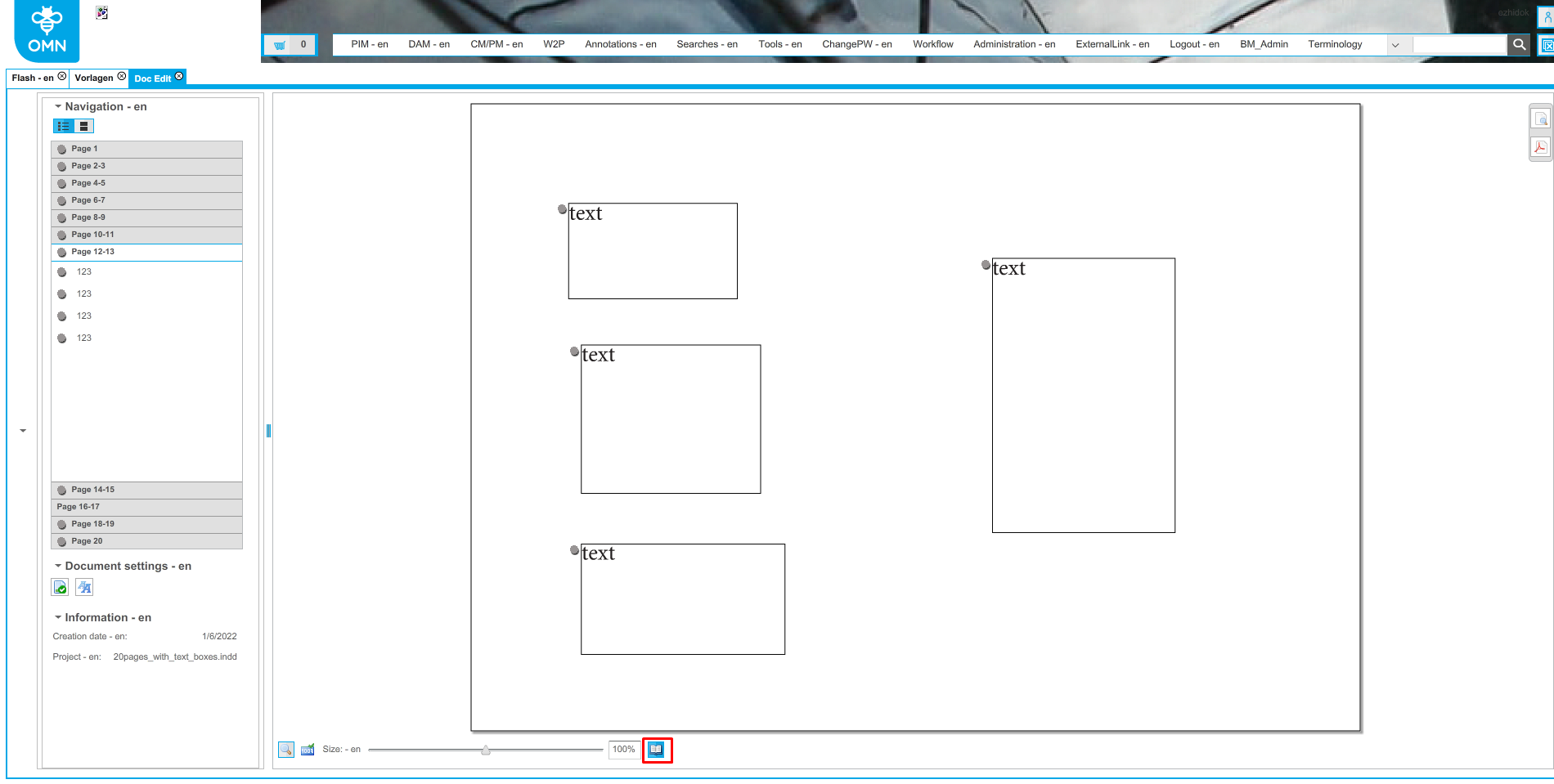
Auto zoom for box only: This parameter is not supported in old client and HTML5 client.
Use Cache: caches previews of DocEdit documents
Auto approval: not used in HTML
Left area content: not used in HTML
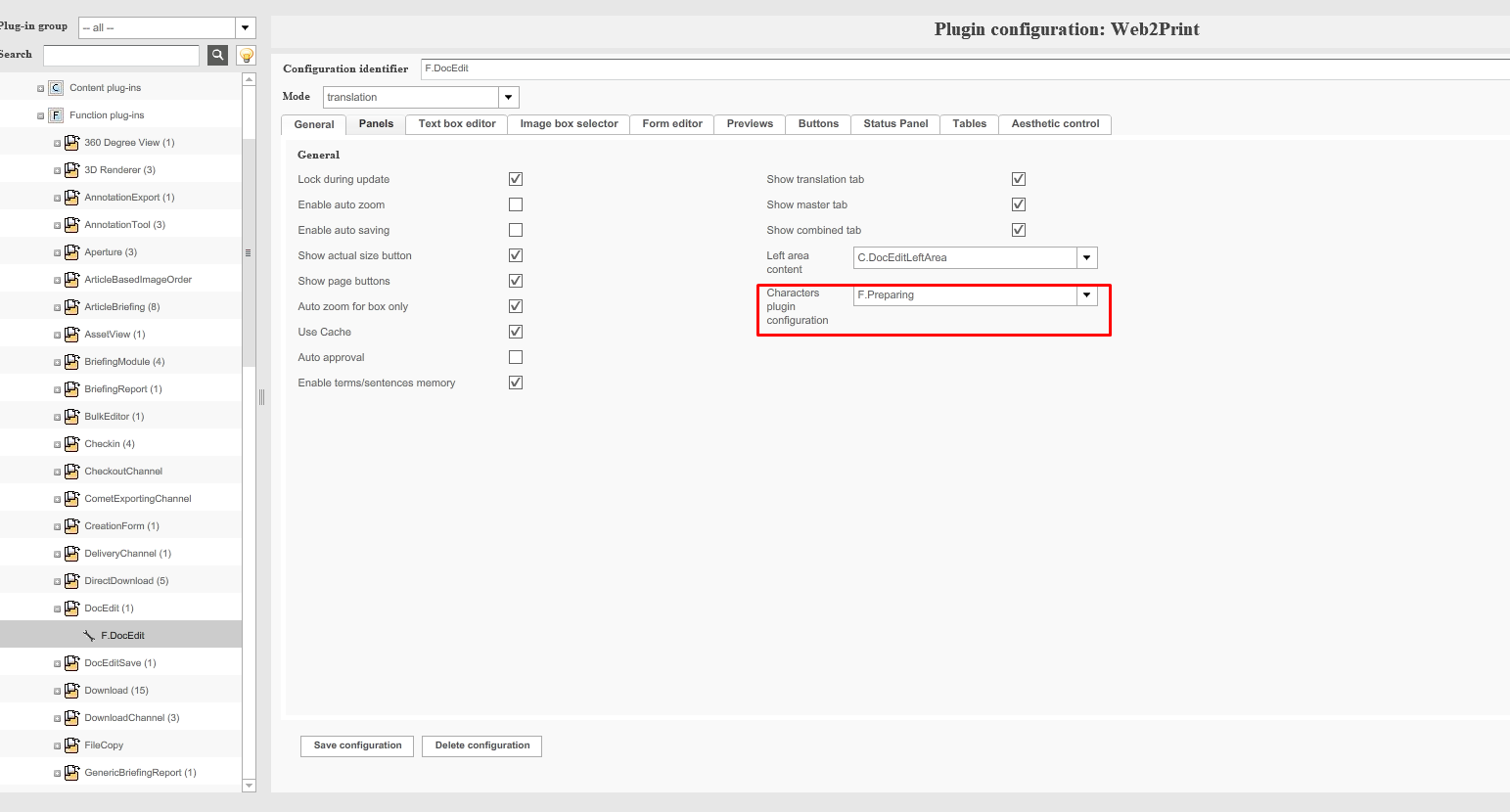
Characters plugin configuration: defines Preparing plugin configuration that is used for getting list of special characters
Text box editor
| not sure if this tab has an effect on HTML5 and needs to be rechecked |
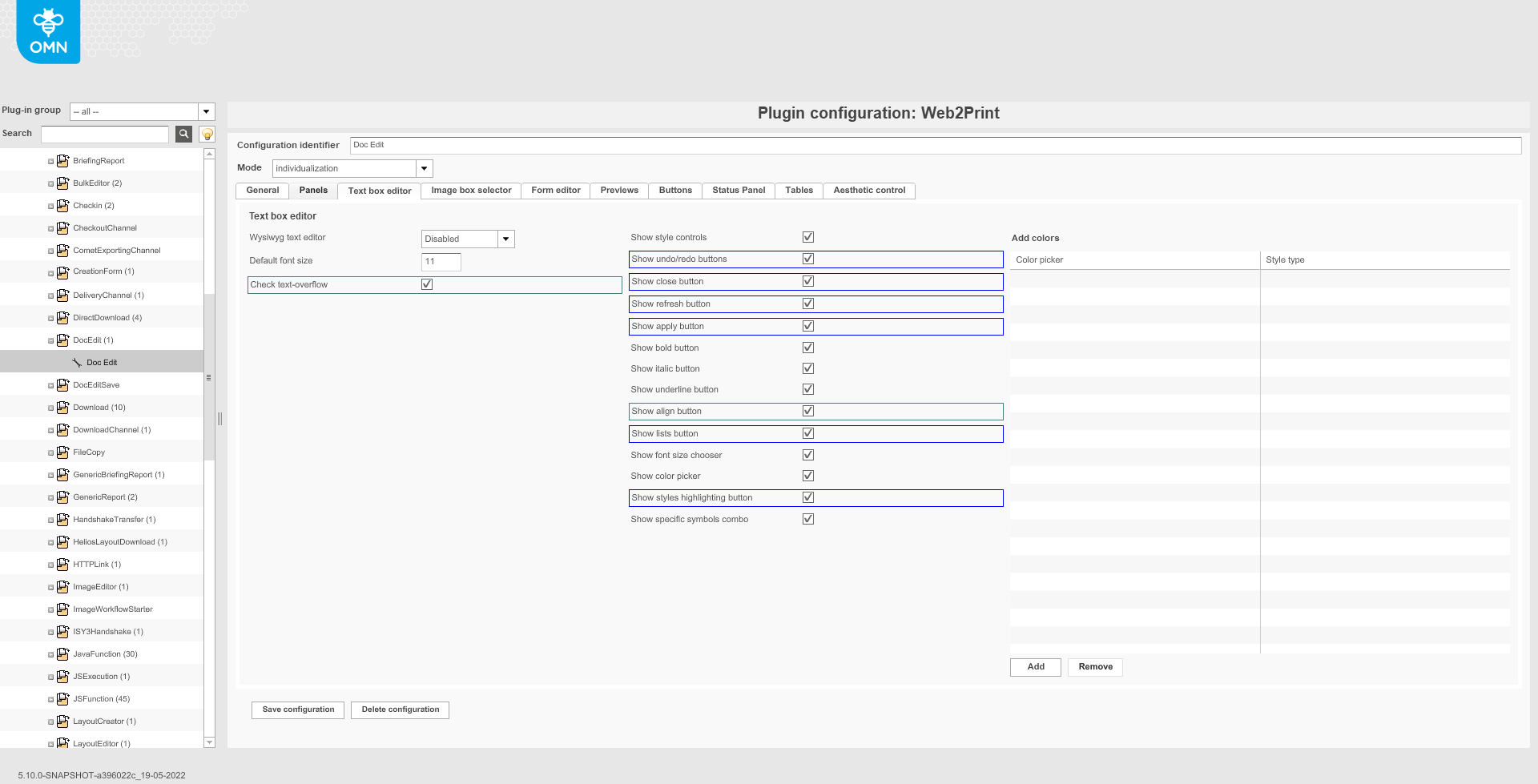
Note: These options define default settings for a text editor in the DocEdit for all documents. These options can be overridden for each individual document in the Preparing.
Wysiwyg text editor: This option is specific for the old client. The HTML5 client always uses Wysiwyg mode.
Default font size: This is not used on HTML client.
Show text-overflow: This option is HTML client specific. Defines if a separate function "Check text-overflow" is available in the toolbar of text box editor in the frontend. The function allows you to check if there is an entered text overflowing the text box borders before saving.
Show style controls: Defines whether styles are shown or not.
Show undo/redo buttons: This option works only for old client. In HTML5 client, the undo/redo buttons are always shown.
Show close button: This option works only for old client. In HTML5 client, the close button is always shown.
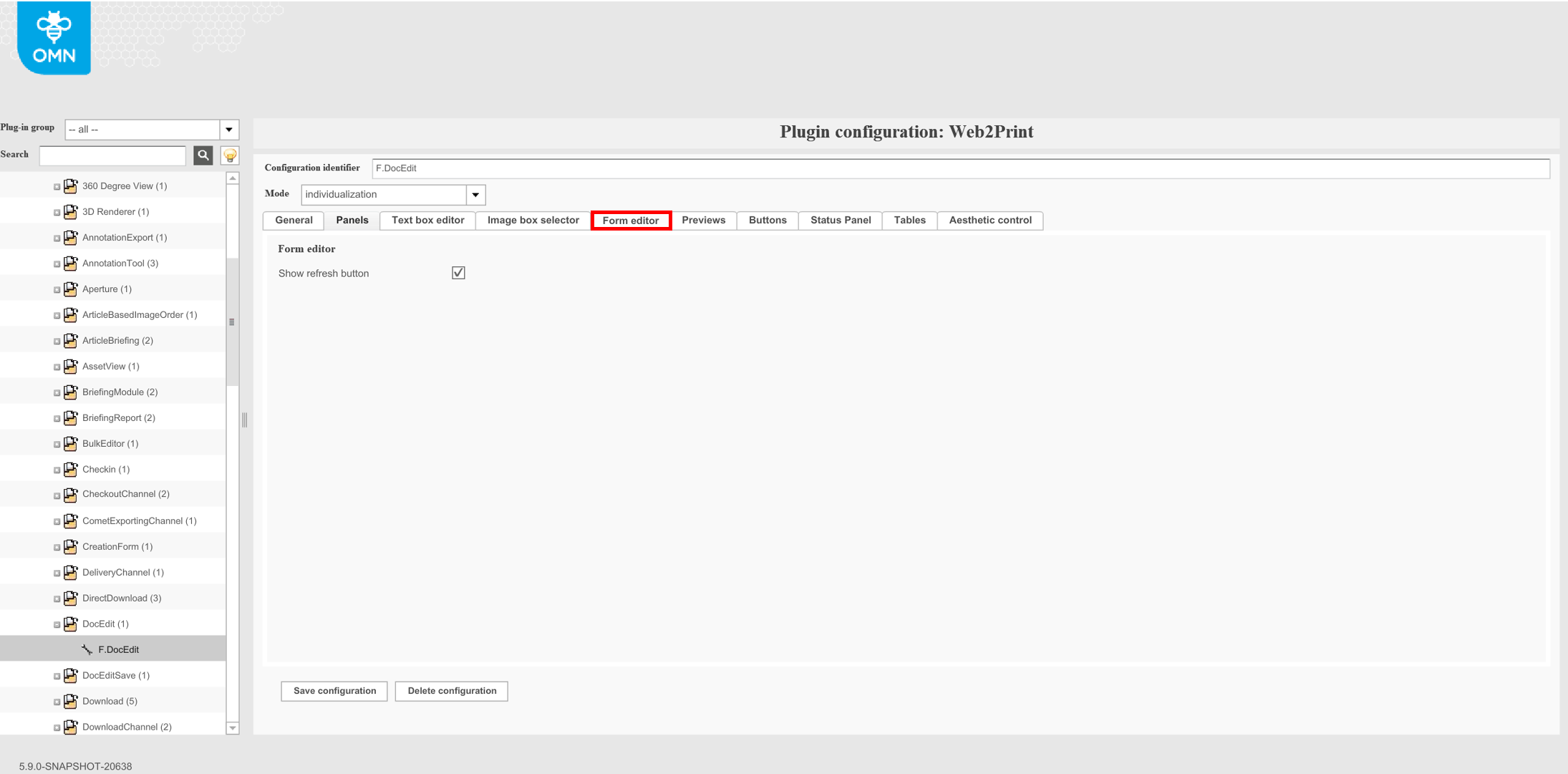
Show refresh button: This option works only for old client. In HTML5 client, the refresh button is always shown.
Show apply button: This option works only for old client. In HTML5 client, the apply button is always shown.
Show bold button: Enable or disable the bold button in the frontend.
Show italic button: Enable or disable the italic button in the frontend.
Show underline button: Enable or disable the underline button in the frontend.
Show align button: Enable or disable the text alignment chooser in the frontend. It has influence only on HTML5 client.
Show lists button: This works only for old client. It does not work in HTML5 client.
Show font size chooser: Defines whether the font size chooser is shown.
Show color picker: Defines whether the colour picker is shown.
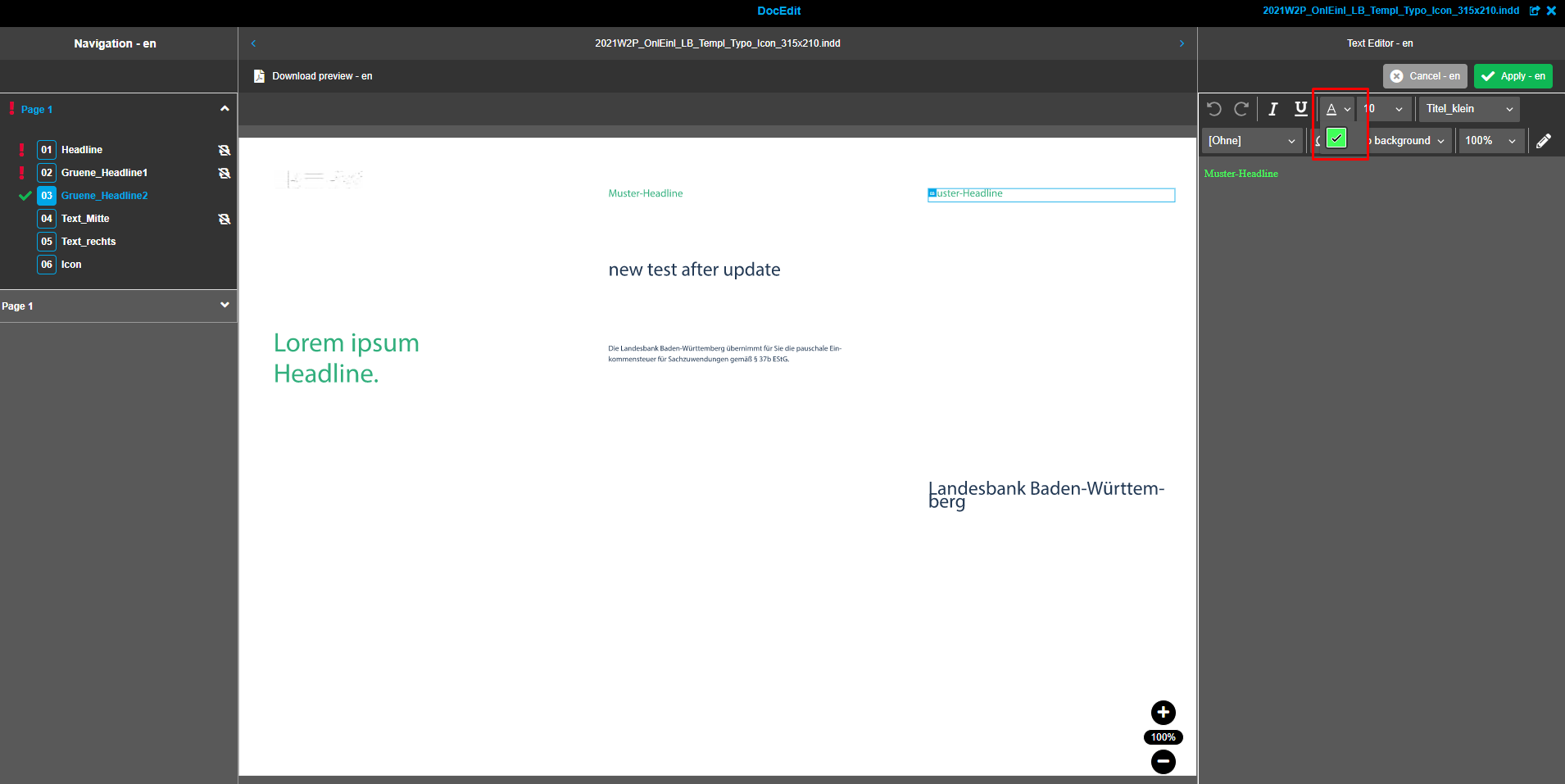
Show styles highlighting button: This works only for old client. It does not work in HTML5 client.
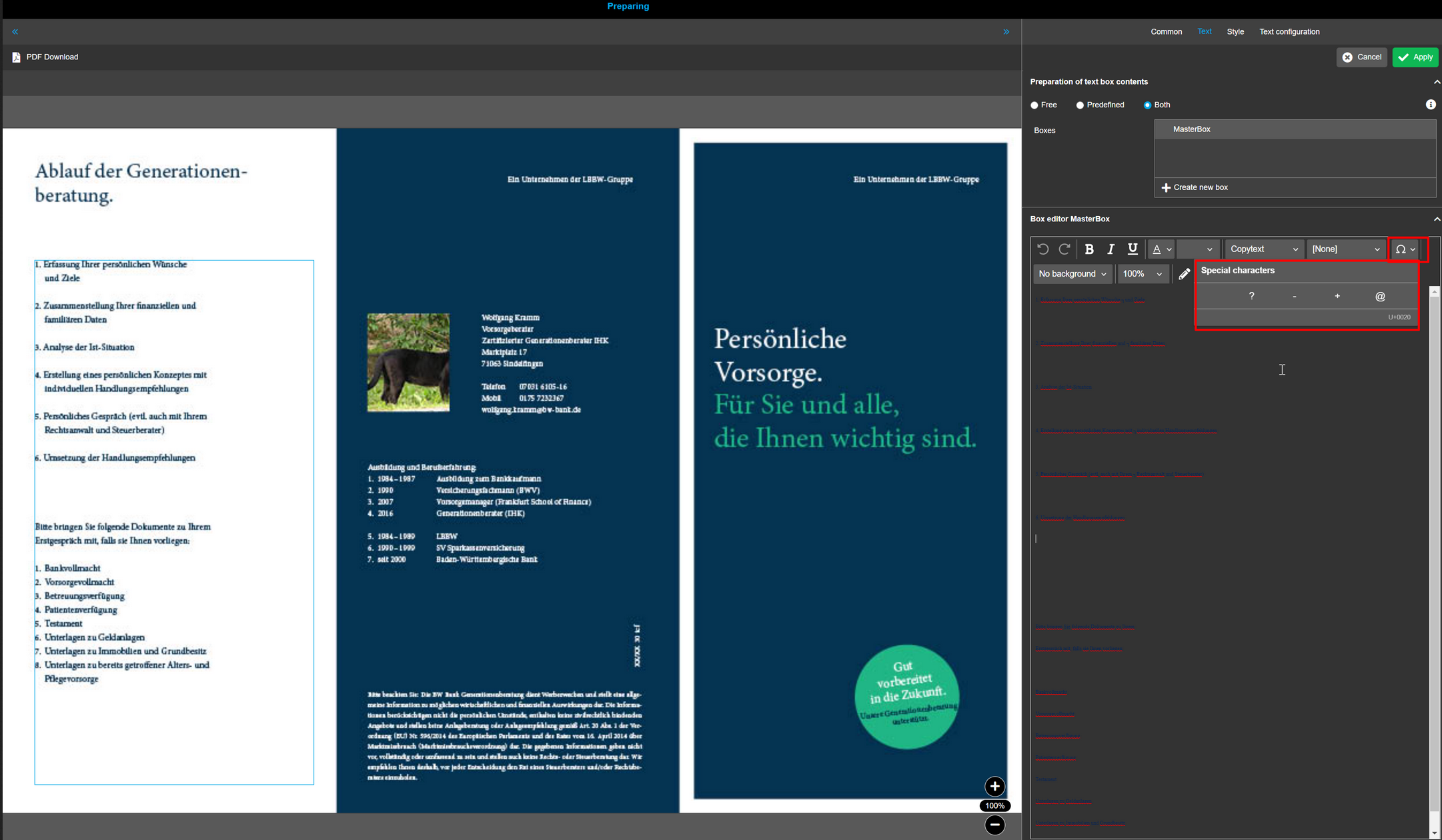
Show specific symbols combo: When activated, the symbols can be inserted into the text.
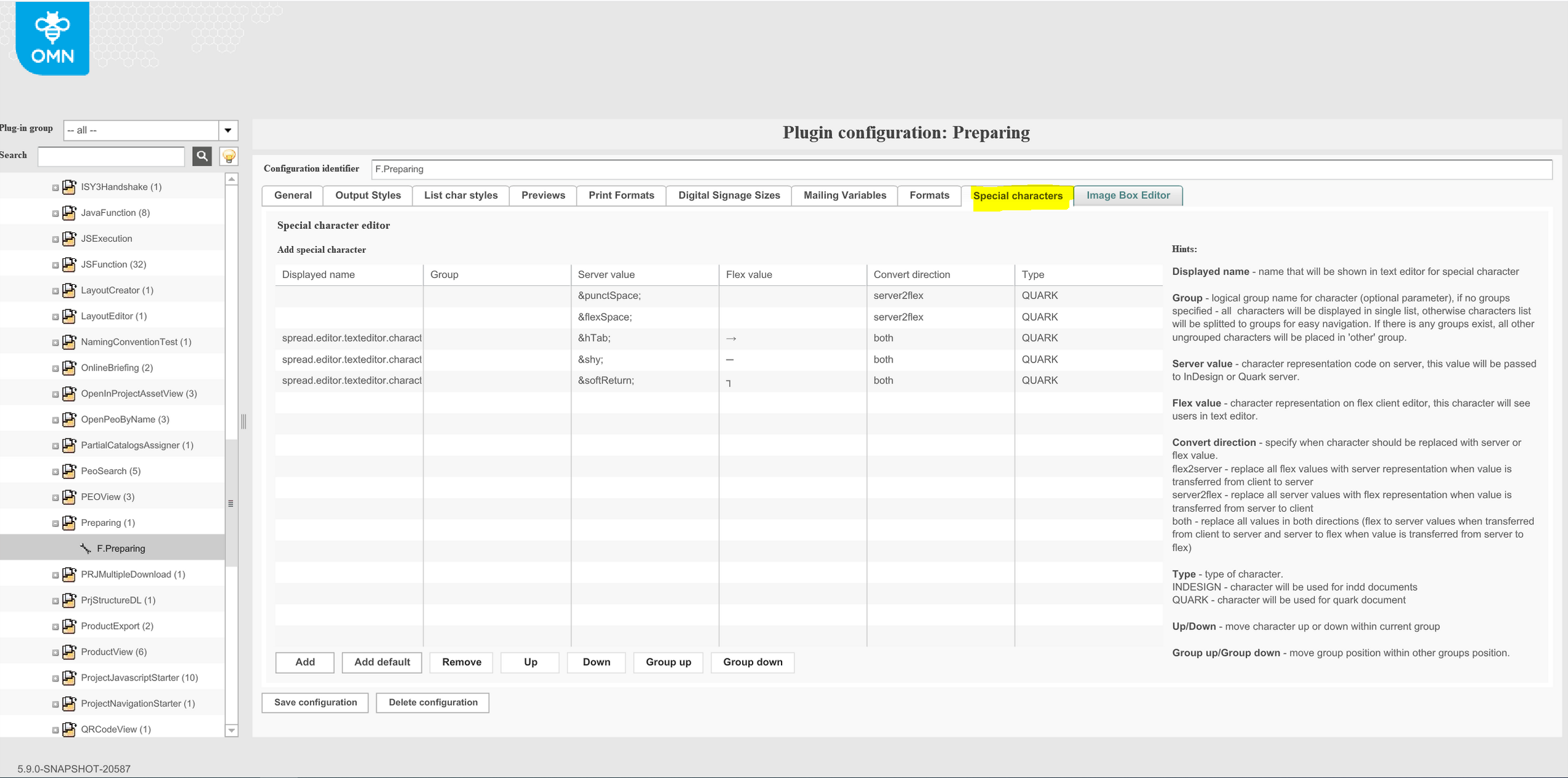
See configuration of "Special characters" in the Preparing documentation: Preparing Configuration-Guide
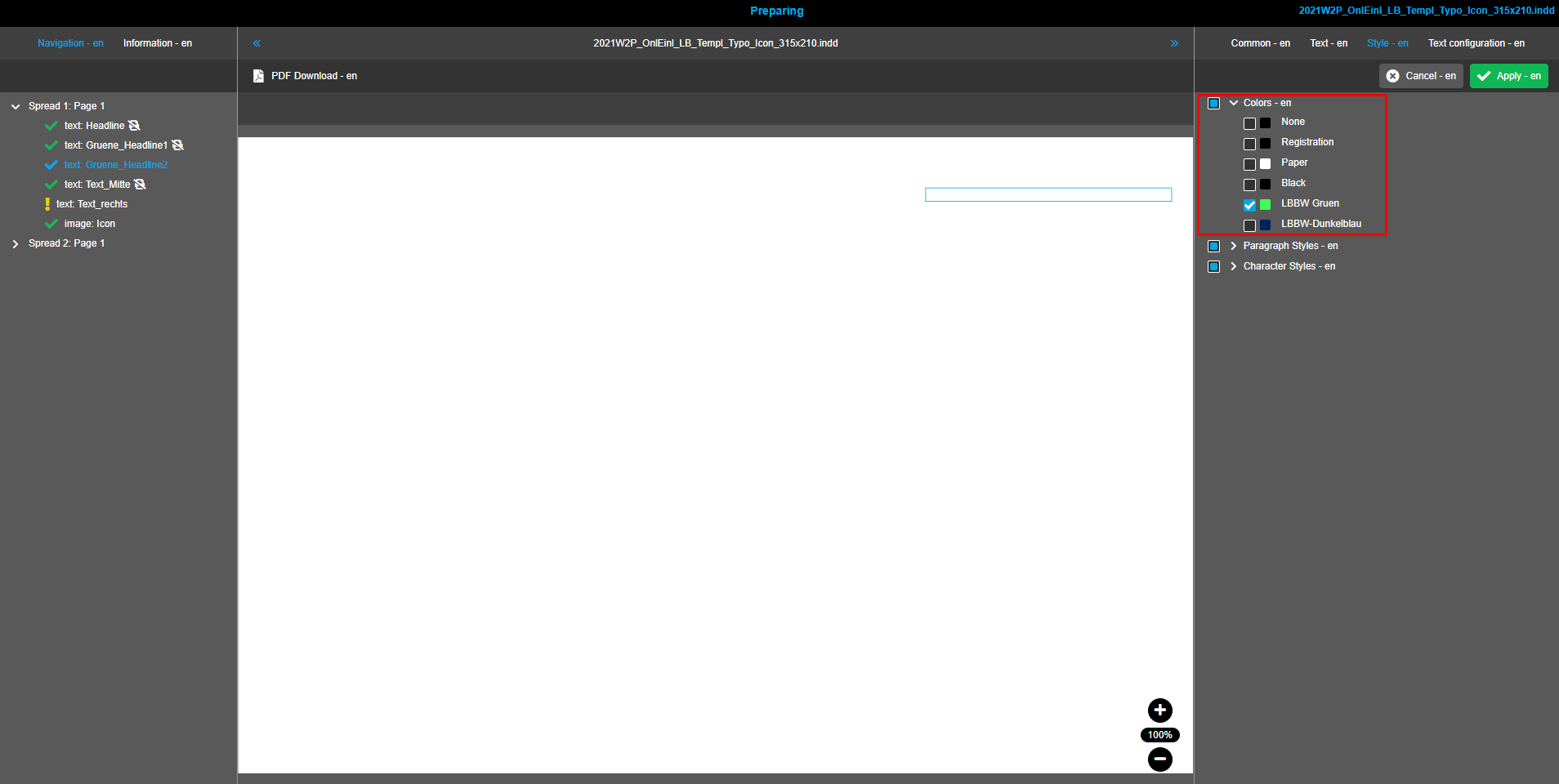
"Add colors"-Table: This works only for old client. It does not work in HTML5 client.
Image box selector
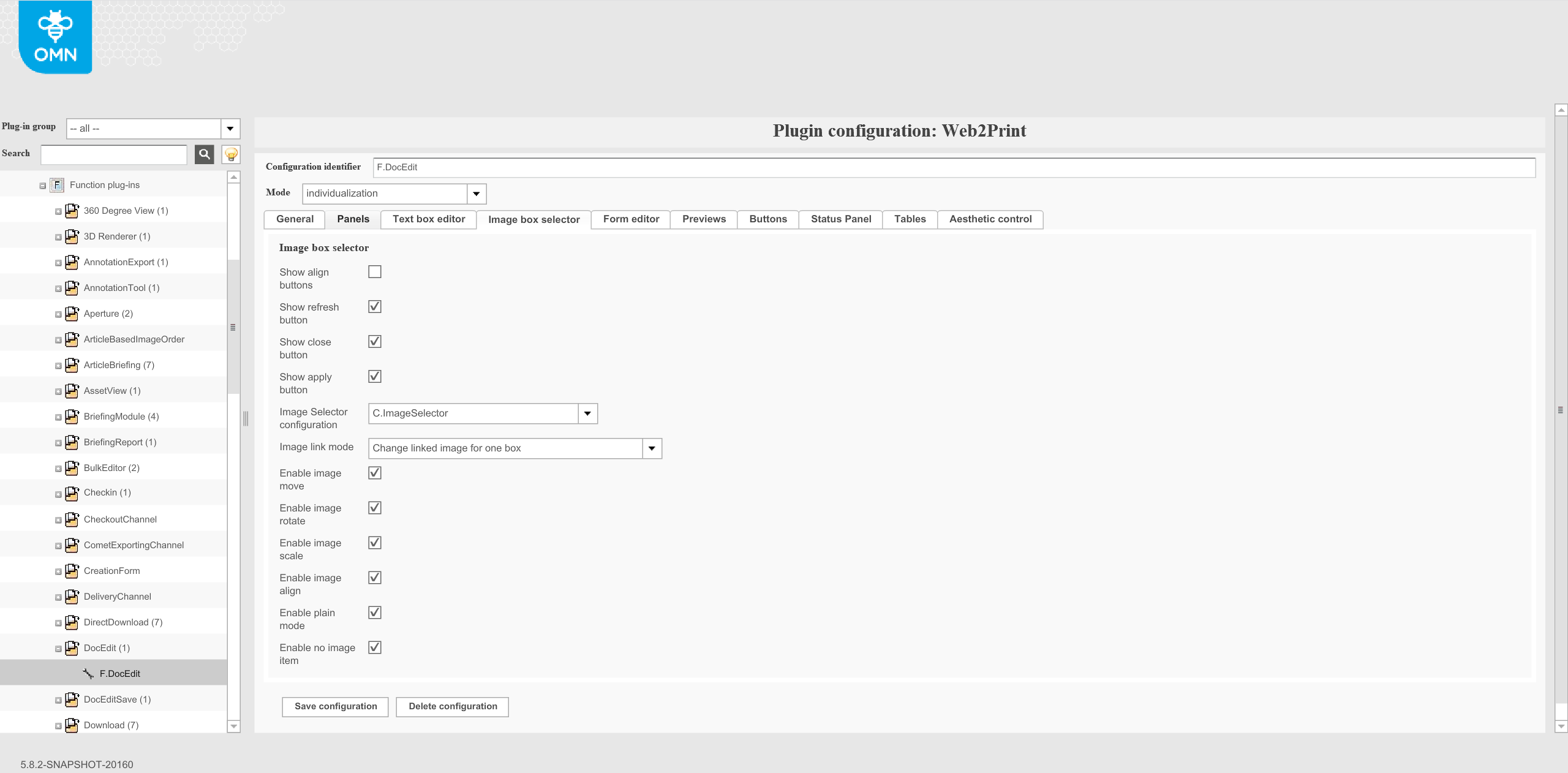
Show align buttons: This function does not work on HTML5 client and not on old client.
Show refresh button: This function is no longer supported for HTML5.
Show close button: This function is no longer supported for HTML5.
Show apply button: This function is no longer supported for HTML5.
Image Selector configuration:
-
Here the chosen ImageSelector can be specified (which will be shown in the right panel) by identifier of the Image Selector Plug-in Configuration.
-
See also the following links for more information:
-
ImageSelector (Is not working at the moment)
-
Image link mode: This function is no longer supported for HTML5.
Enable image move: Enables the move function in the front-end.
Enable image rotate: Enables the rotate function in the front-end.
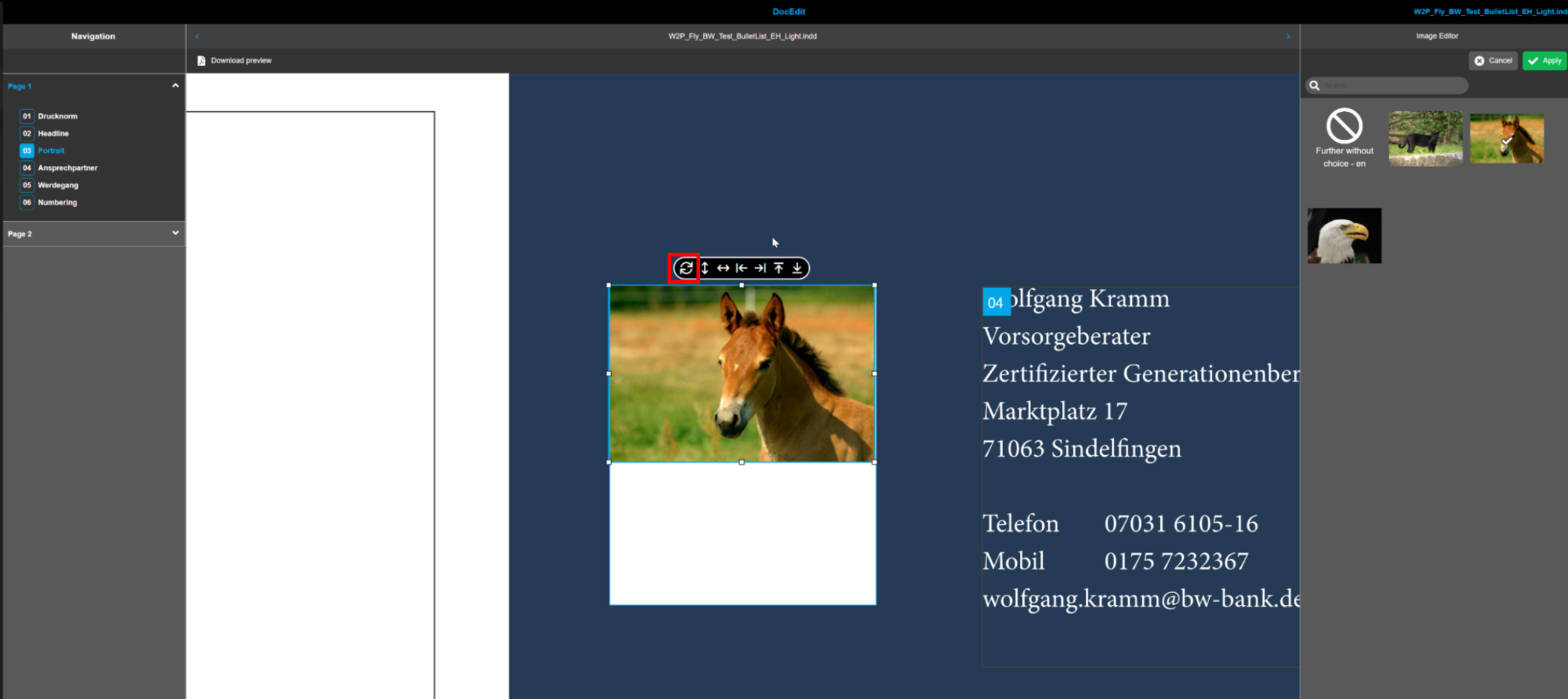
Enable image scale: Enables the scale function in the front-end.
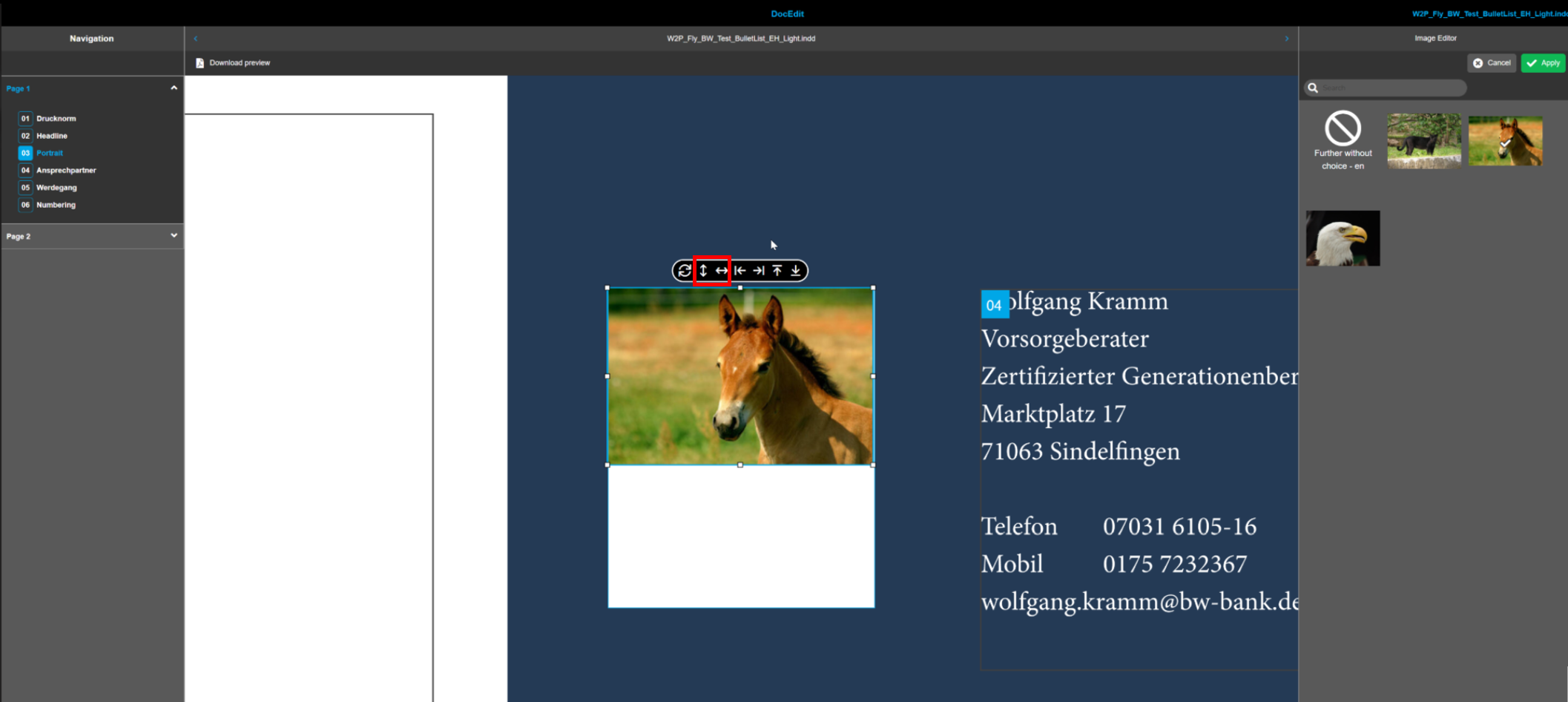
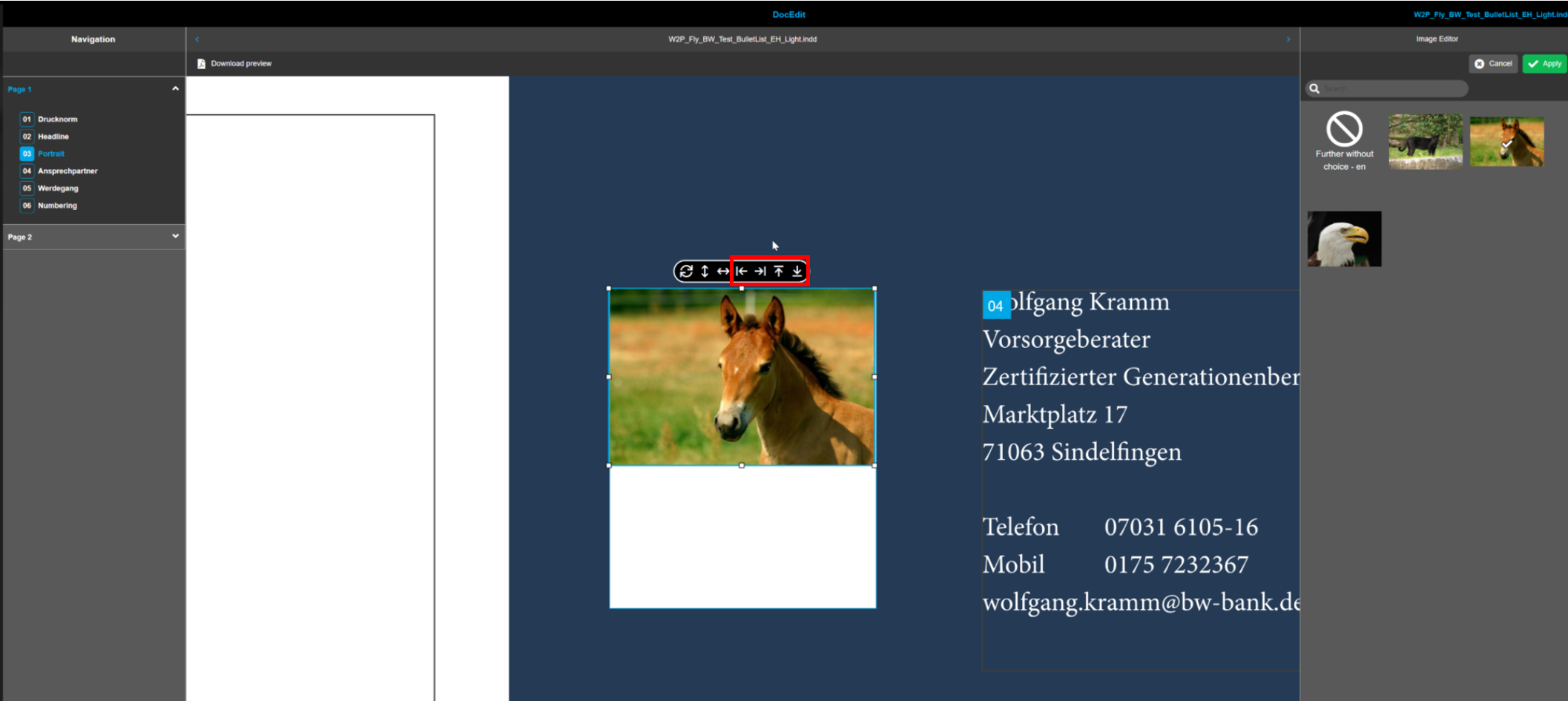
Enable image align: Enables the align function in the front-end.
Enable plain mode:
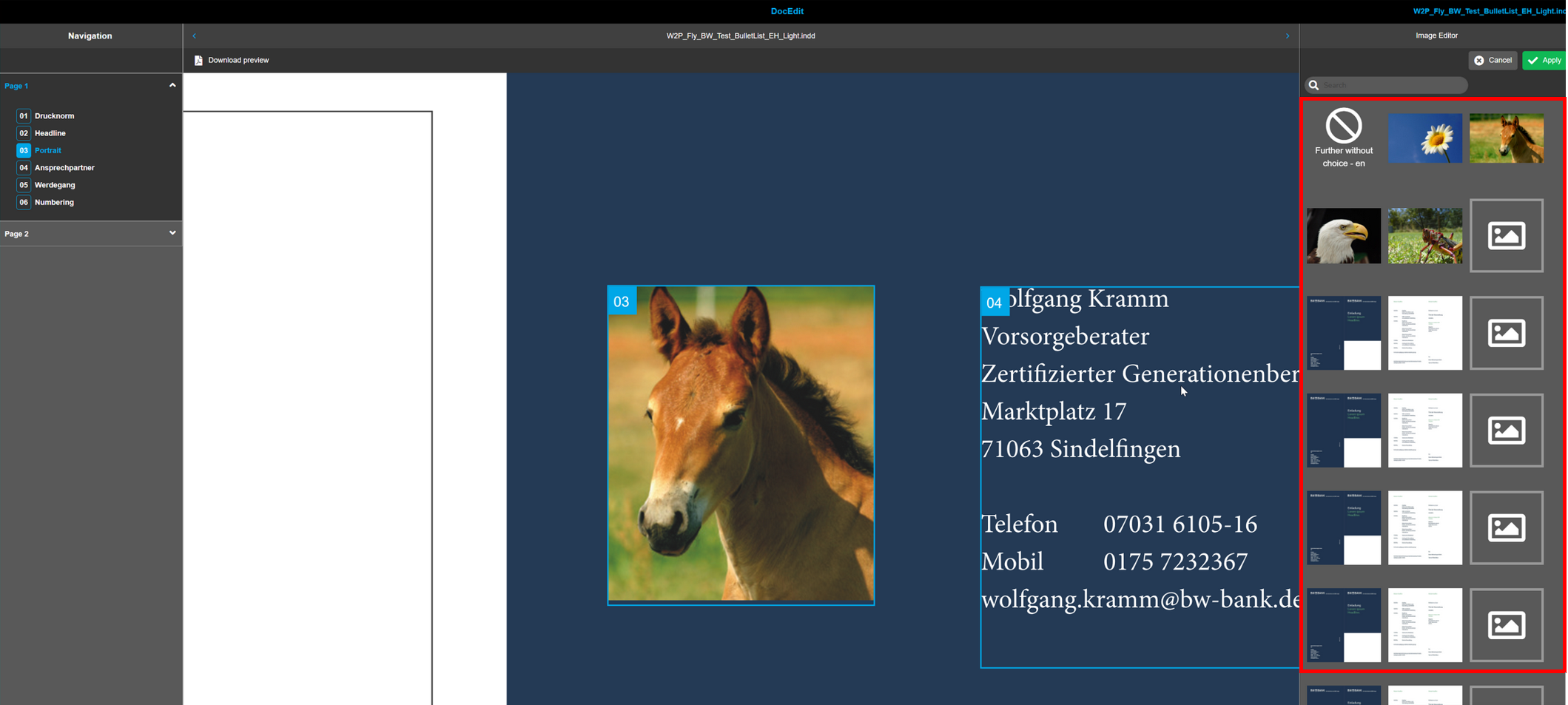
When activated, all assets are shown without folder
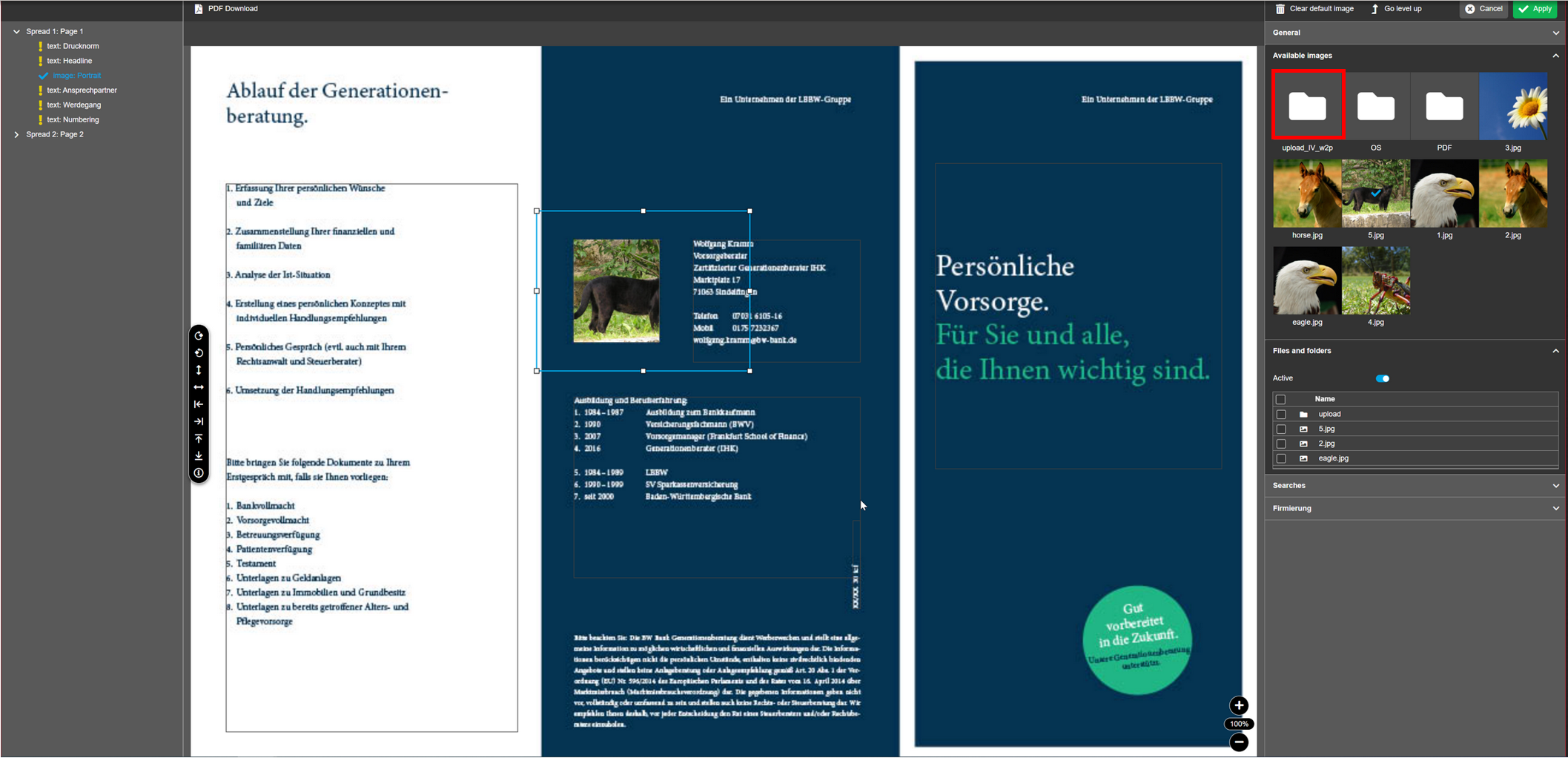
When deactivated, assets are shown inside folders
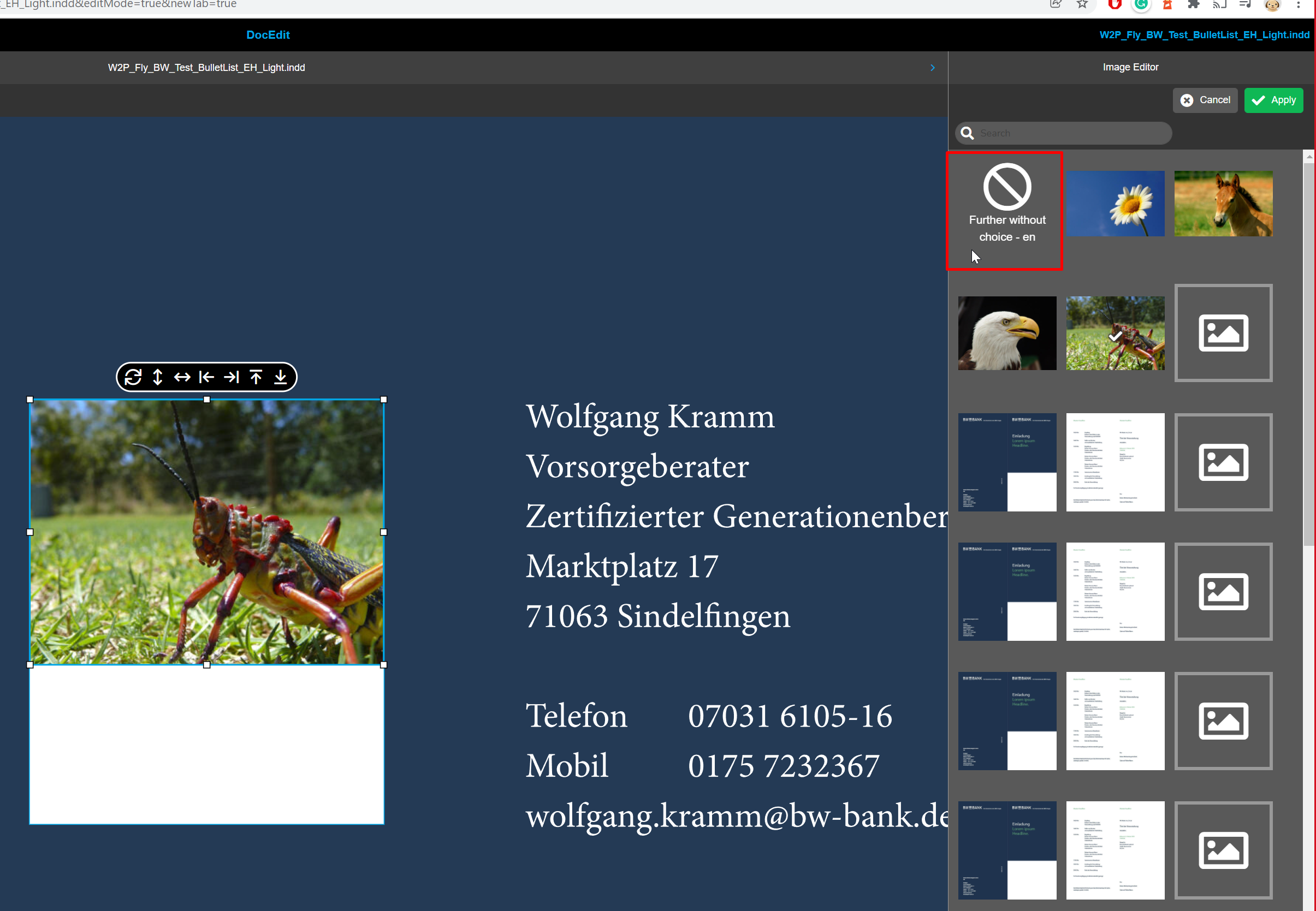
Enable no image item: Enables item that deselects selected image
Previews
All previews necessary for the individualized layouts are configured here.
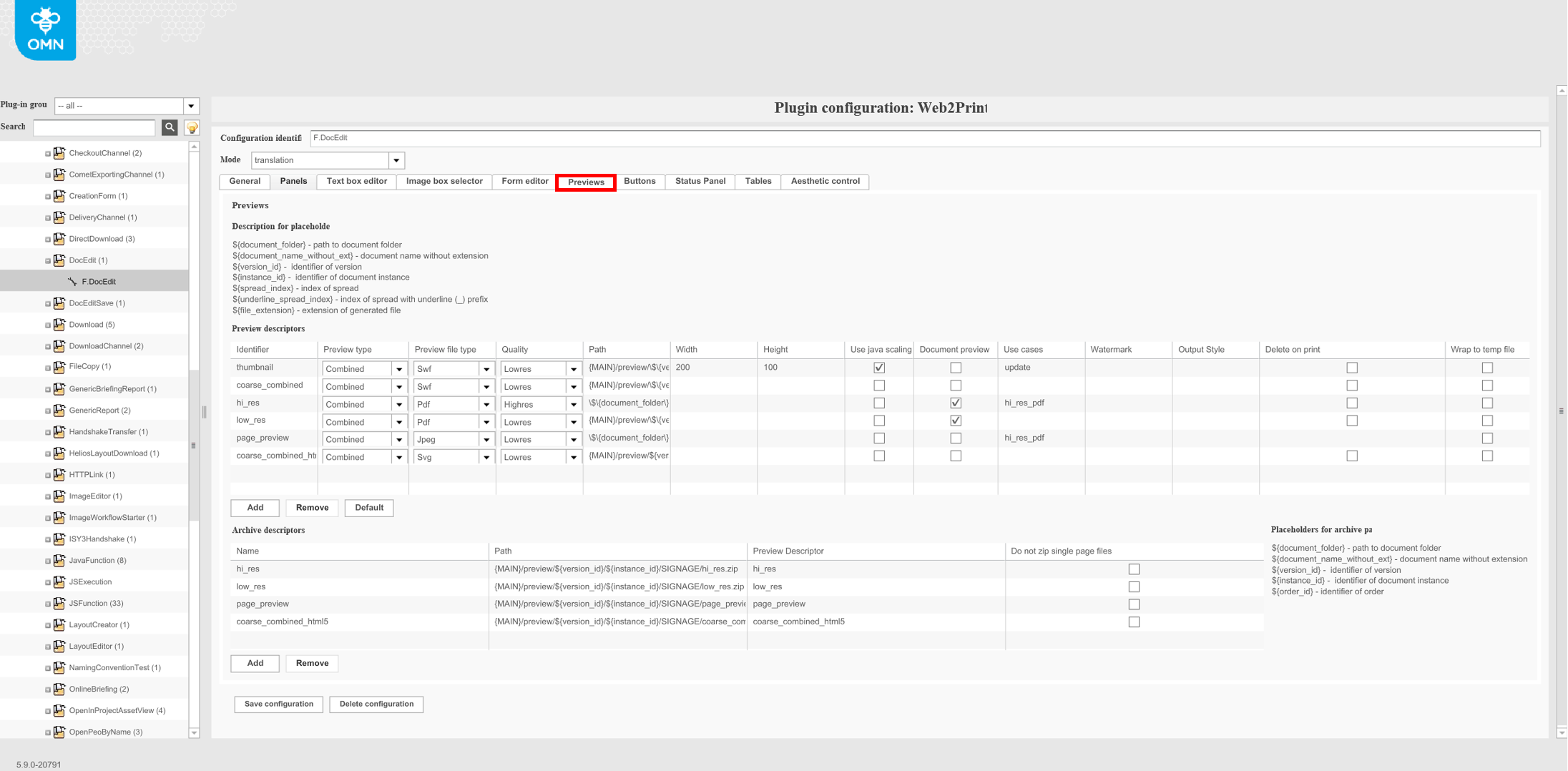
Mode: The "Mode" defines the behavior of DocEdit in some cases.
-
individualization: mode is specialized to individualization of the layout.
-
translation: mode is specified for the translator’s activity. This mode is not supported in the HTML client
"Preview descriptors"-Table: With the help of the preview descriptors the created previews for the different use-cases can be specified. Because of the complexity of this configuration it is recommended to use the default configuration as default and only slightly adjust it if this is required. Normally there is no need to change the default settings. The button “Default” creates default preview descriptors.
Identifier: unique name for preview descriptor
Preview type: "Preview type" of preview descriptor defines behavior of the preview generation. It is available for translation mode only.
-
Master: defines the preview not including the changes that was done in DocEdit. It means that preview is equal to preview of prepared document in the Preparing.
-
Transformed: defines the preview including the changes of DocEdit only. Prepared values of boxes in Preparing are not rendered on the preview.
-
Combined: defines the preview including the changes of DocEdit and Preparing so that DocEdit changes overwrite Preparing changes.
Preview file type: "Preview file type" of preview descriptor defines the file type of the preview.
In the column "Preview file type" the new attribute "generic" was added. If "generic" is used as a preview file type the system will check the ordered output types and use them to resolve ${file_extension} placeholder in the path. → As result *.pdf, *.jpg or *.png files will be created
Formats
-
SVG: is used for RAP-based HTML previews
-
SWF: is used for flash based previews in old client implementation
-
Jpeg: JPG-Format (Format was not introduced with digital signage feature and already supported earlier)
-
PNG: Format was introduced by digital signage
-
PDF: defines file type according to the own name
-
Generic: "Generic" means that file type is defined during preview generation automatically dependent on digital signage settings. This type is supported for 'hi_res' and 'low_res' preview descriptors only.
-
Previews are always created by quark server
Generation of Formats
-
PDF, JPG, PNG ⇒ are generated by Quarkserver
-
SVG, SWF ⇒ are generated by separate Java tool (source is pdf generated from Quark/Indesign)
Quality: This option sets the quality of images for the Quark API. By different commands there is the possibility to differ LowRes PDF and HighRes PDF, LowRes JPEG and LowRes PNG by the attribute Quality in the OMN Backend
Options
-
Hires: generates HiRes File
-
Lowres: generates Lowres File
Generation
-
Quark API has option quality to set the quality of images
Path: path of preview file
Width: Defines the size (in this case the width) of the downloaded preview. Size option is only used for generation of PNG / JPG size option for PDF is not part of this setting (two different places to configure sizes)
Height: Defines the size (in this case the height) of the downloaded preview. Size option is only used for generation of PNG / JPG size option for PDF is not part of this setting (two different places to configure sizes)
Use java scaling:
-
Option is used only for images and can be used for small previews, because quark server has scaling problems - preview will be scaled by this option
-
if preview should be <200 px Quark Server has problem to render this preview.
-
In this case Quark server will create standard preview, store it to a temp folder and scaling is done in a post process
-
-
Option is not used for digital signage functionality
Document preview:
-
Responsible for generation of pdf with all pages
-
Enable "PDF contain all pages" in download function of doc edit
-
Option is not used for digital signage
Use cases: Initial idea of this configuration: set triggers, when preview will be generated. Triggers are coming from hardcoded list
-
Check-in
-
Update
-
Hires pdf
-
Open client (when doc edit is opened)
Watermark: Text from this field is shown on the document (on canvas + on download file). Watermarking function of MAM is not used (own implementation for web2print). Watermark is calculated, after the pdf has been generated
Output Style: is used to specify custom output style (preset) which will be used for PDF preview generation.
Delete on print: The config client option doesn’t influence checkbox visibility on the client side. It is related to preview descriptors that are used for the generation of the preview and means that boxes, marked as 'delete on print', will not be presented on the preview.
Wrap to temp file:
-
Function is only related to quark Server
-
Option was added to solve problem on Quark environment
-
Quark was not able to place quark document two times (overrides/ caching-Problem)
"Archive descriptors"-Table
Name: unique name for preview descriptor
Path: path of archive file
Preview Descriptor: Identifier: descriptor for previews /unique identifier
Do not zip single page files: With this configuration possibility in the Archive descriptor you can choose, that one-page documents will be provided as image file, not as ZIP file (multiple page documents are always provided in one ZIP file automatically)
Buttons
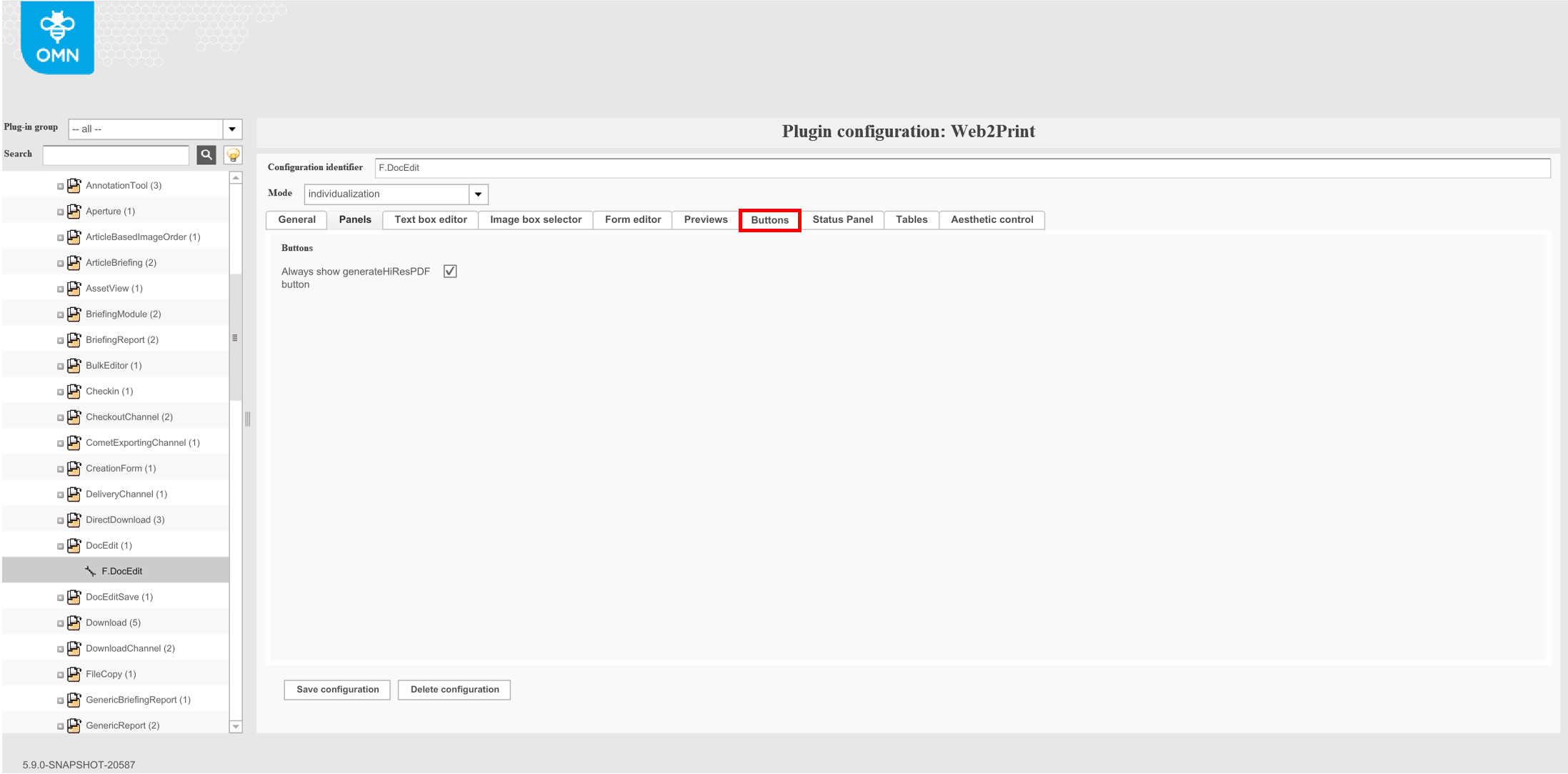
Always show generateHiResPDF button: Activate the checkbox if 'Generate HiRes PDF' button shall always be available. Otherwise, the button only shows when a document has the status “Finished”. (works only for old client)
Status Panel
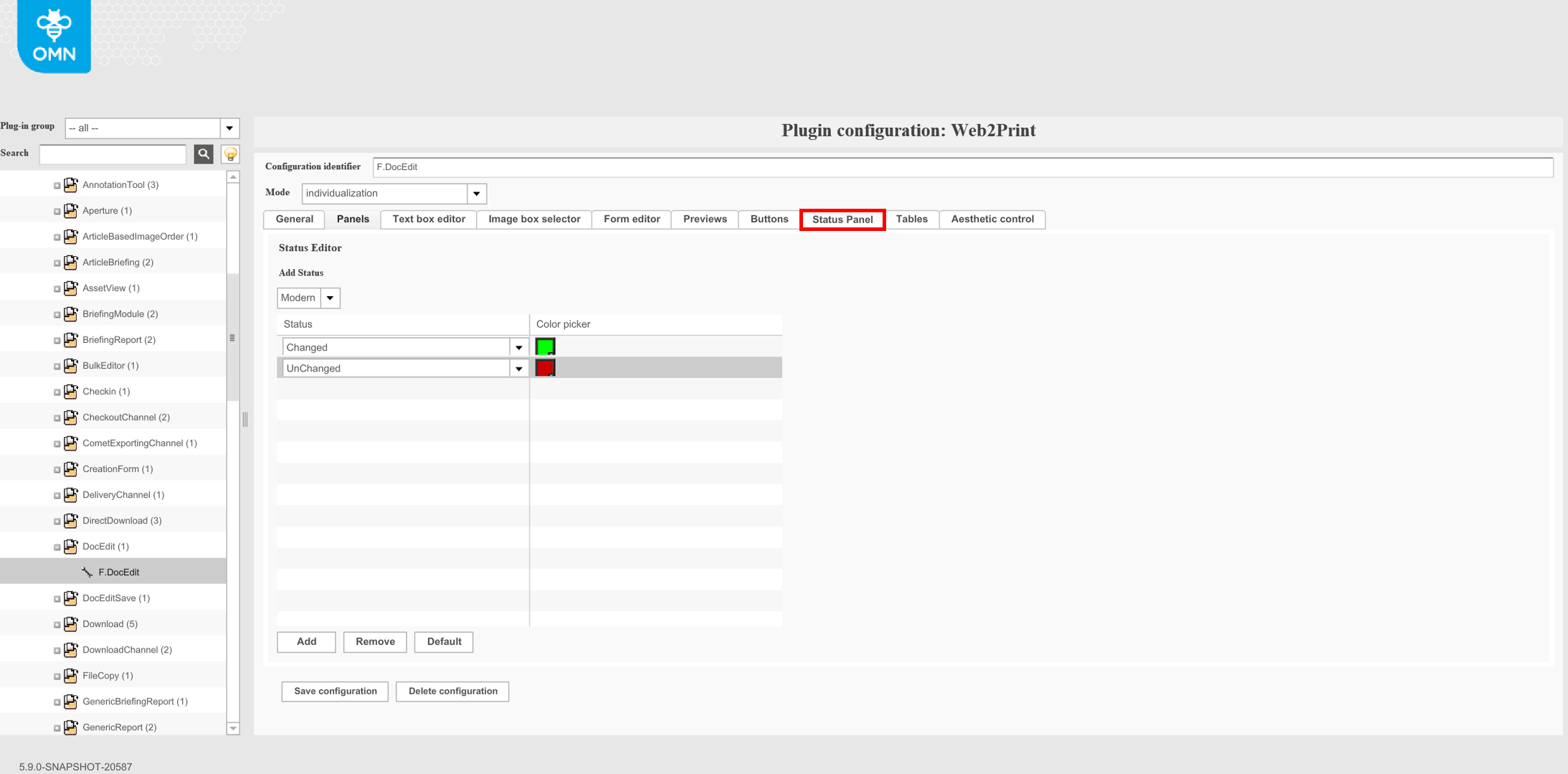
Add Status: There exist three ways of showing the clickable areas in the Frontend: Modern, Classic and Classic 2. Modern is highly recommended, Classic and Classic 2 will still be available but not supported in further versions anymore. (works only for old client)
Status colors: With the help of the colour pickers the used colours for not changed elements and changed elements can be defined. Just choose the same colour for changed and unchanged elements if you do not want to show this difference to the user.
Tables
| All settings of this tab are not supported in HTML5 client. |
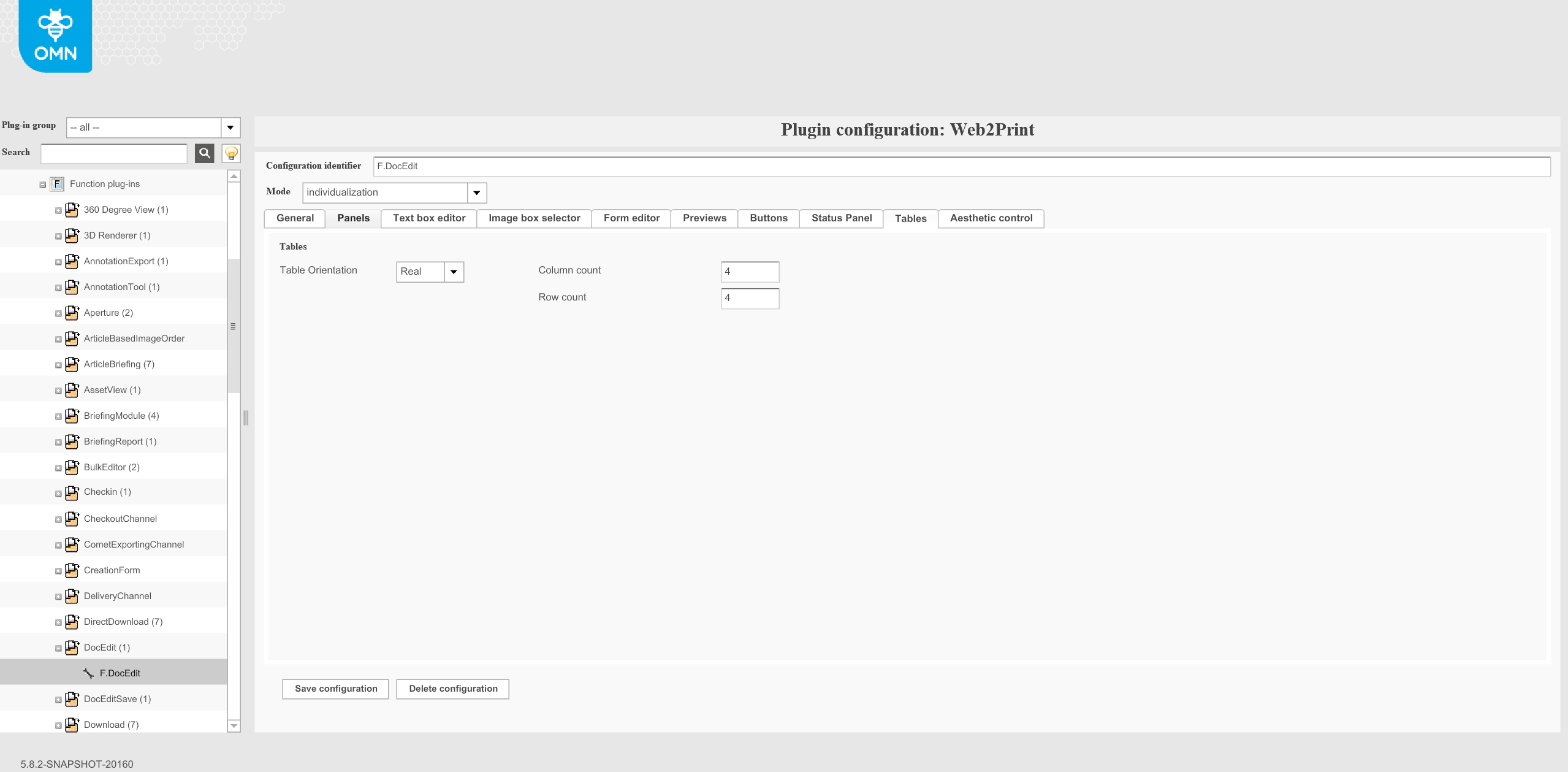
Table Orientation: Defines whether and how tables are displayed in table editor. “Vertical” shows table cells column orientated and “Horizontal” shows table cells rows orientated. “Real” shows table as is.
Column count/Row count: You can define if one editor for the table is used or if cells shall be edited separately. For example, you configure 5 columns, 3 rows. If you have a table where number of columns is less or equals 5 columns, number of rows is less or equals 3, you will get different frames for each cell. If the table is larger (more than 5 columns or 3 rows), there will be one editor for the whole table.
Aesthetic control
ToDo: Small description of what this tab is all about
Advertising space
Activate Aesthetic control
Advertising space expression
Name of advertising space
Permitted logo classes
Minimal font size (pt)
Maximum font size (pt)
Minimum brand mark height (mm)
Maximum brand mark height (mm)
Permissible color variants
Number of colours required
Permissible orientations
Width (mm)
Height (mm)
Position x (mm)
Position y (mm)
Overloads
Color change possible
Allowed colors
Convertible colors
Filtering of unsuitable company classes