Classification View
Purpose of the plugin
In the Classification View, unclassified products, articles or variants can be created and assigned to a PIM classification node.
Introduction
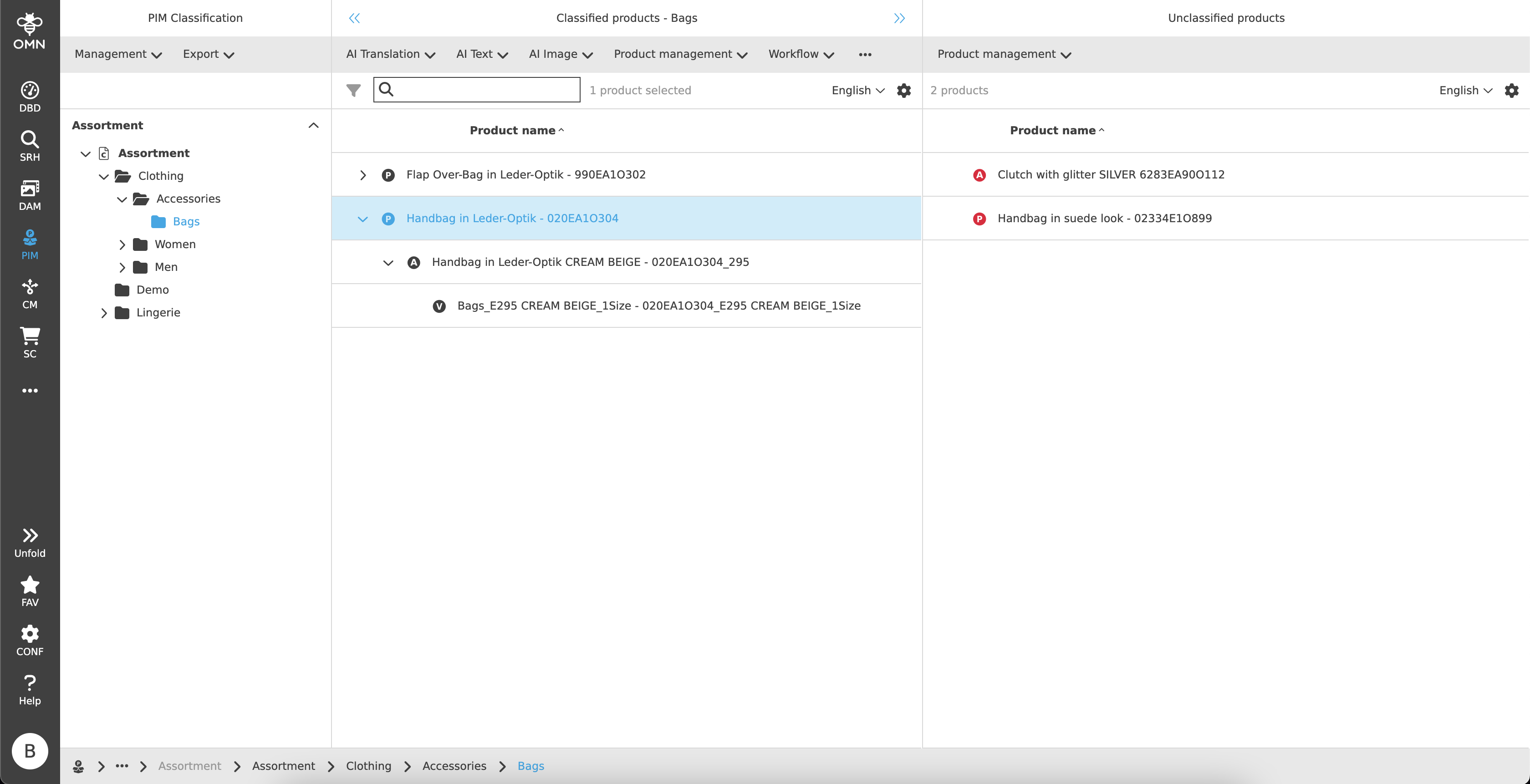
The classification view allows users to classify products from the pool of unclassified products using drag and drop. New classified and unclassified products, articles and variants can be created and the classification of already classified products can be removed by using the corresponding toolbar function.
Prerequisites and relations to other modules
The Classification View can be used to access editors which, among other things, make it easier to edit attributes.
The Bulk Editor, for example, makes it easier to maintain mass data, while the product view allows various additional options, such as metadata translation, to be used.
In addition, various AI functionalities (e.g. text translation or generation) or workflow functions can be started.
How to use
Like most plugins, the Classification View consists of a left, center and right view.
-
Left View
Navigation area, display of classifications and underlying nodes -
Center View
Display of the classified products, articles and variants of a node -
Right View
Display of all unclassified products, articles and variants
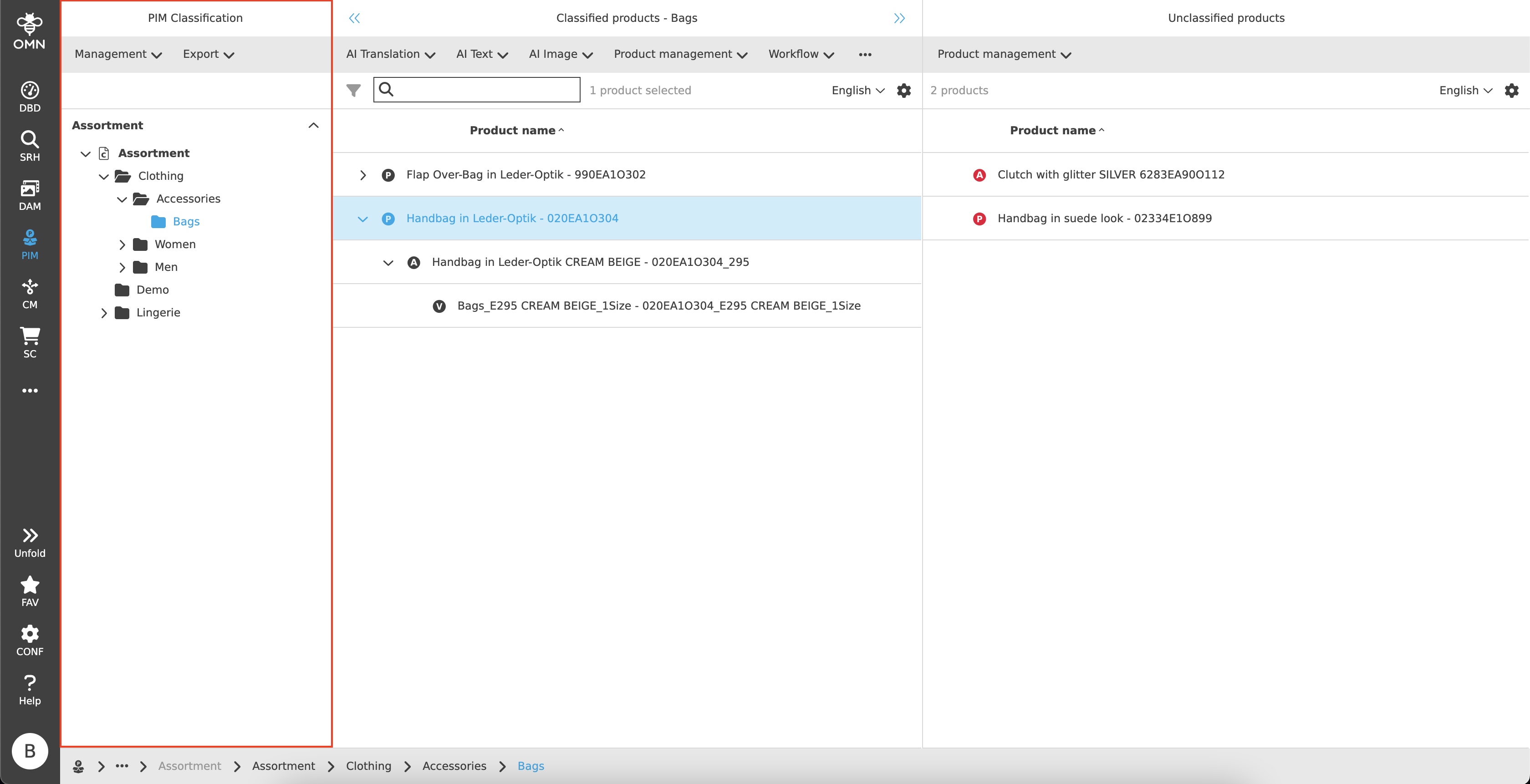
Left View
The classifications are visible in the left view. These contain folders with various nodes that can be localized.
Center View
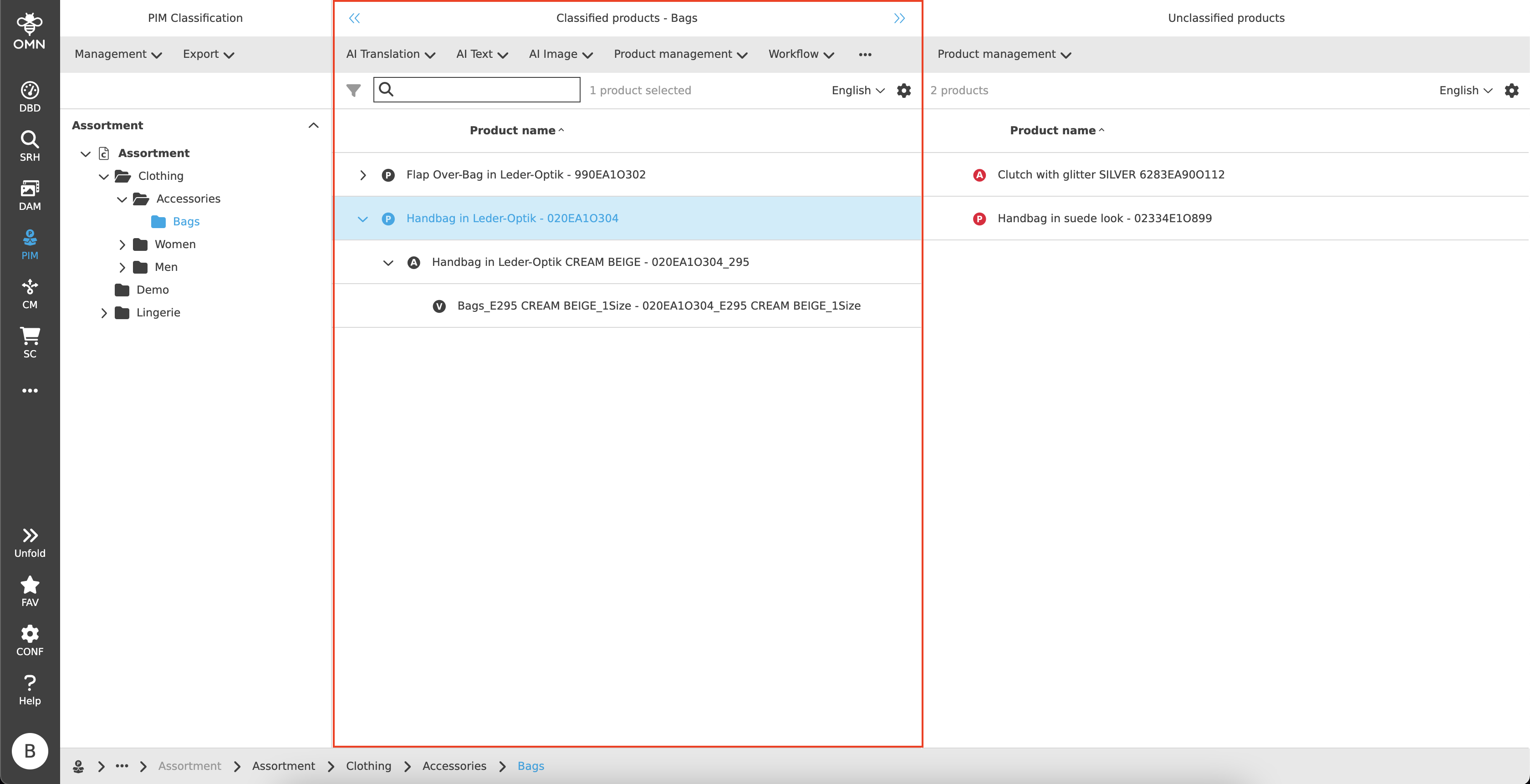
In the center view, classified products are displayed with their articles and variants in a hierarchical and group-like display. These can be expanded and collapsed as required.
| Additional columns can be available in the table by configuration, so the user can see the most important information about the corresponding product, article or variant, e.g. product life cycle information. |
Toolbar & Functions
Various functions and editors can be executed or opened using the toolbar. All functions are configurable, examples include:
-
Open the Product View
-
Open the Bulk Editor
-
Use of various AI services (e.g. text generation, automatic translations, …)
-
Functions for product management (e.g. product creation, editing or deleting products, unclassifying products)
-
Export functions
Statusbar
The statusbar contains a quick search function, an option to change the language and settings.
Quick Search & Object Counter
A quick search function is available to users to reduce content and simplify the search for specific products.
One or more values can be entered here to find the desired product.
Next to the quick search is an "object counter", which displays the number of products. Articles and variants are only included in the count when a selection is made.
Canvas
The canvas area is structured like a table and contains hierarchical product groupings consisting of products, articles and variants. These are each marked with their own symbol (P, A, V) and grouped together.
Products form the parent element, followed by the articles and finally the variants.
By default, the products are displayed, articles and variants remain collapsed.
It is possible to filter and/or sort columns.
Right View
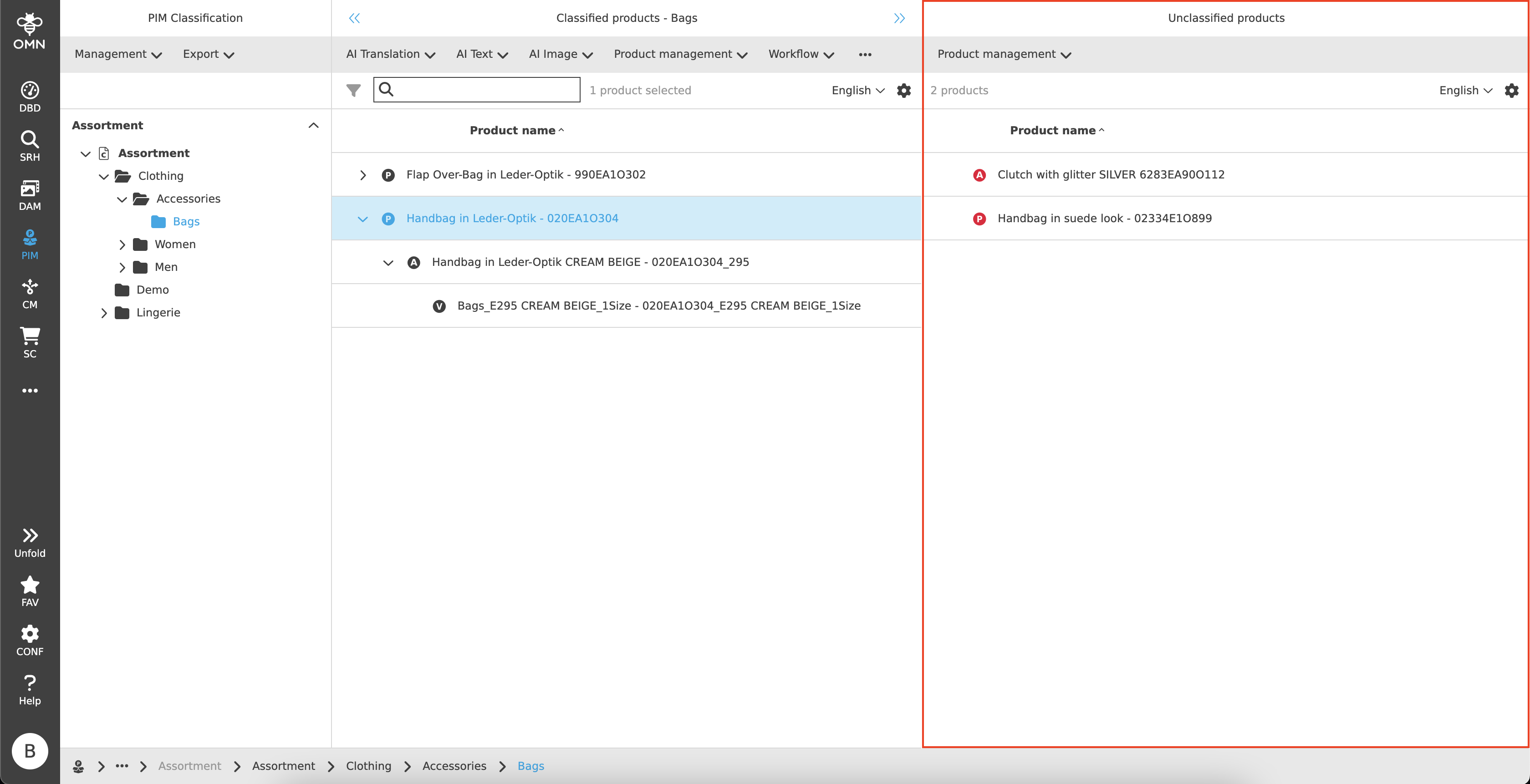
All unclassified products are shown in the right view.
These can either be imports from an ERP system without information of the correct classification, newly created products without classification or products with a broken link to the classification.
Toolbar & Functions
The toolbar offers the configuration of various functions. These are, for example:
-
Product management (create unclassified product, rename or delete products)
-
AI functions
-
Export
Canvas
The canvas area is structured like a table and, if available, also contains hierarchical product groupings consisting of products, articles and variants. These are each marked with their own symbol (P, A, V) and grouped together.
| Unclassified products, articles and variants are displayed with a red symbol (instead of black). |
| Additional columns can be available in the table by configuration, so the user can see the most important information about the corresponding unclassified product, article, or variant. It is possible to filter and/or sort columns. |
Classification is possible using drag and drop. To do this, the user must drag the unclassified product to the desired classification node in the left view. Related articles and variants are automatically classified as well.
If an article or variant does not have a parent product, there are two ways to classify it:
-
DnD on the node
A dialog for creating a product is displayed. This is created after assigning a unique name and articles or variants are automatically linked. -
DnD on a product in the Center View
A dialog with two possible DnD actions appears: "Link item as reference" or "Link item to product as child".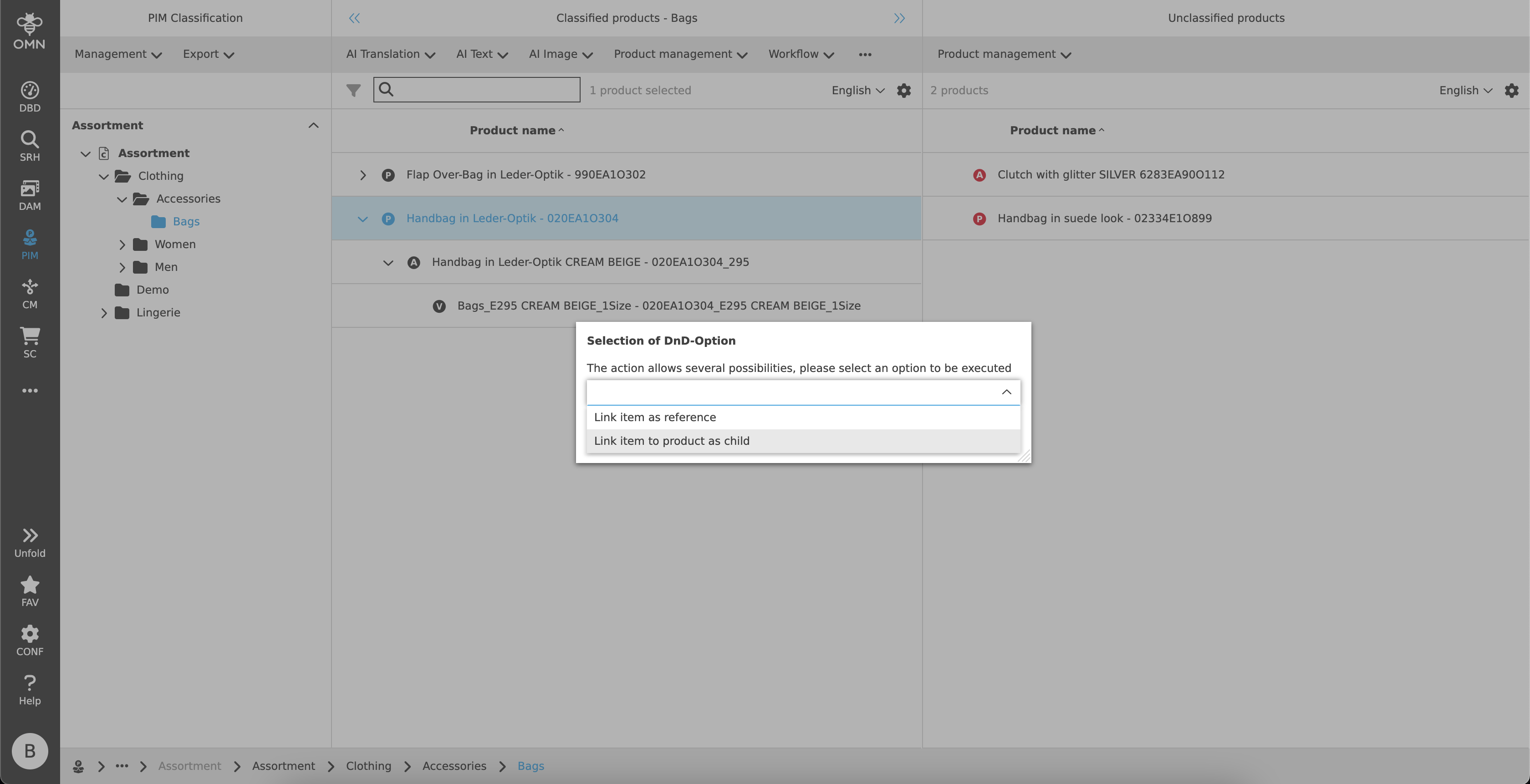
| The direct link between classification and element must always be the "Product" level. It is not permitted to link items or variants without a product to the classifications. It is also possible to do product-to-product references by dropping an unclassified product onto a classified product in the center view. |