Camunda Process Deployment to OMN
Deployment Using the Camunda Modeler
In order to deploy a Model, open the file with the modeler, press the deployment button on the right side of the toolbar
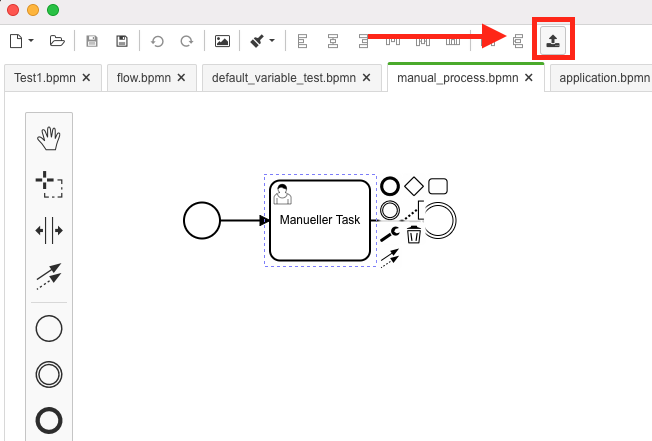
In the upcoming popup, at least the name of the deployment and the URL configuration of the Camunda instance have to be filled in.
Authentication is optional and not necessary in our default Camunda deployment.
The name should be expressive, to identify it later. It is however not used in the OMN context.
The endpoint URL is usually http(s)://camunda-host:PORT/engine-rest
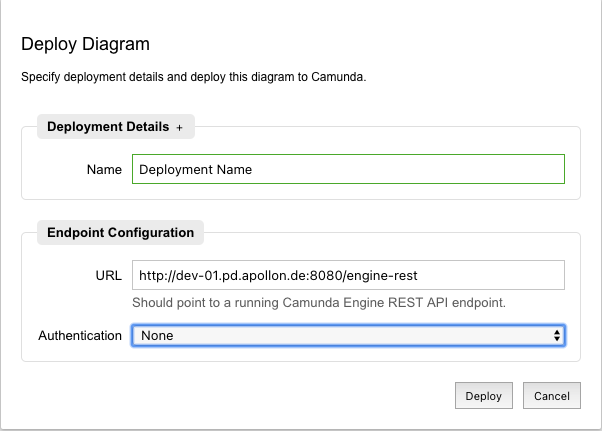
Execute "Deploy" will upload the BPMN to the Camunda engine.
If the model contains any structural errors, like unconnected elements, the deployment will fail and display an error. However, logical issues like script or parameter errors can only be found during runtime execution. Otherwise, the modeler will display a success message in the popup. The popup can be closed.
Checking Deployments in Camunda
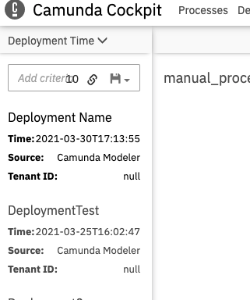
After a successful deployment, it is best to verify the success in Camunda, too.
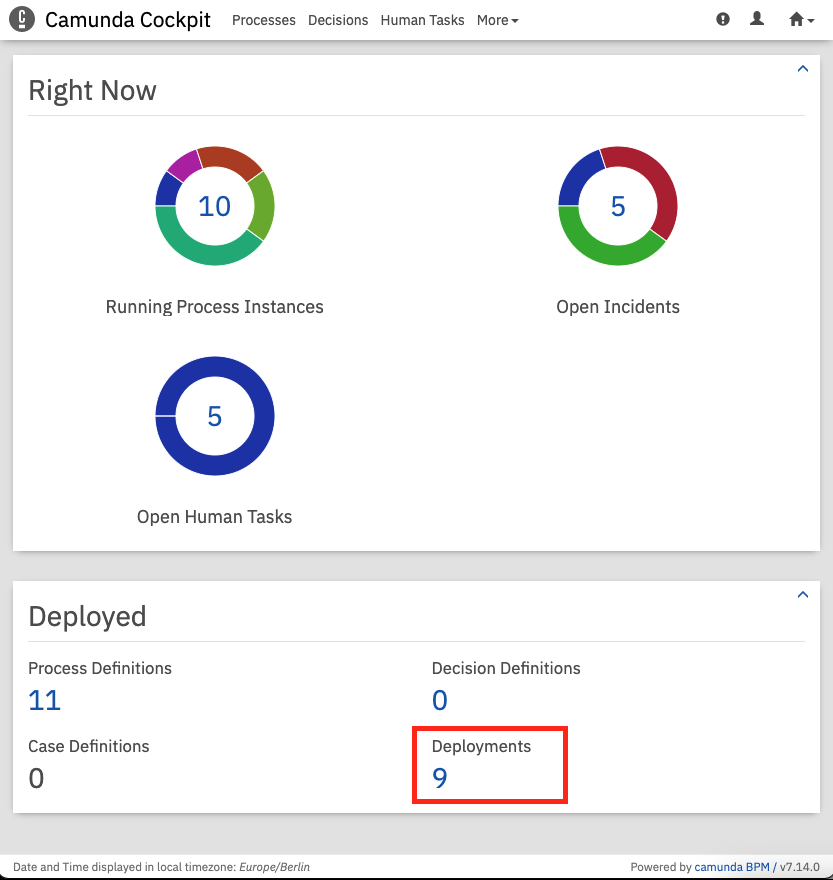
To do this, it is easiest to go to the Camunda Cockpit and click on the number of deployments:
The URL is usually http(s)://camunda-host:PORT/camunda
Note:
Please beware that the deployment of service task delegating to Java code can only be done inside a ProcessApplication where both Java-Code and BPMN model are bundled together (inside a war). This cannot be done using the "modeler deploment".
The current built-in workflow deployments all contain the "complete" OMN Camunda context, which allows the usage of OMN Api, which wouldn’t be accessible by a plain "modeler deployment".