Aperture (Function Plugin)
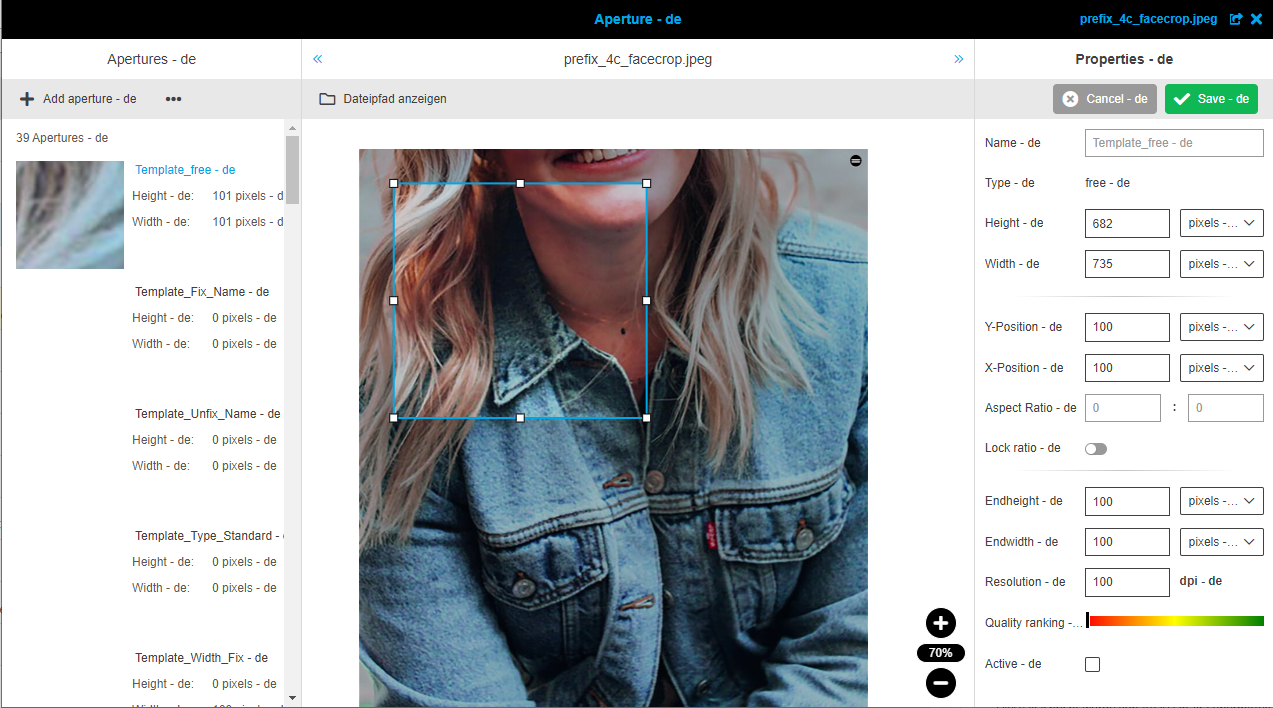
The plug-in allows defining templates for image apertures.
-
Access the plug-in via Mandators → <Mandator name> → Function plug-ins → Aperture
You can use the plug-in as follows:
-
Use as function in FSNavigation
-
Download function
General configuration
Here you can see how the configuration of general settings looks like:
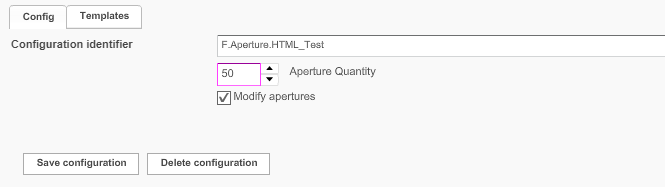
In the table below you can find the descriptions for configuration options.
| Field | Description | Notice |
|---|---|---|
Config |
General configuration of apertures |
|
Templates |
Templates for configuring apertures. |
|
Aperture Quantity |
Maximum number of allowed apertures. |
Default value: 10 Range: 1–100 |
Modify apertures |
>> Activate the checkbox to allow the user to modify apertures. |
Templates for Apertures
In this section you can see how the 'Templates' tab looks like:
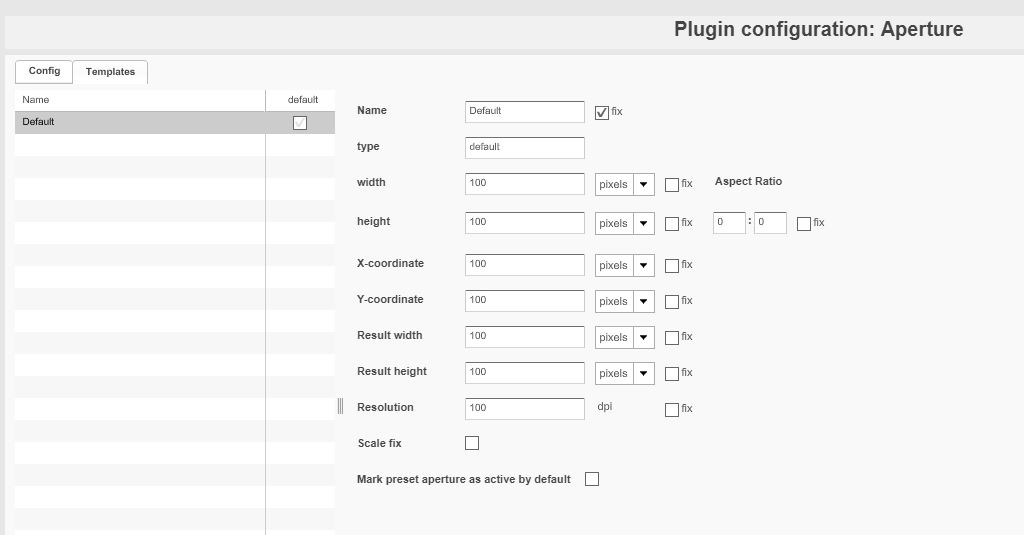
In the table below you can find the description of all parameters that can be configured for each template.
| Field | Description | Notice |
|---|---|---|
List of aperture templates |
The list shows all existing templates for apertures |
|
Name |
For entering a name for the aperture template |
If parameter fix is activated, the name cannot be changed in Frontend |
type |
For defining the type of aperture additionally to the name, e.g. Main View, Detail View. |
Can be used to categorize templates e.g. Templates for web, print etc. |
width |
Width of the aperture can be modified |
All values in pixels, cm or inch (drop-down list) If parameter fix is activated, the width cannot be changed in Frontend |
height |
Height of the aperture can be modified |
All values in pixels, cm or inch (drop-down list) If parameter fix is activated, the height cannot be changed in Frontend |
Aspect Ratio |
Ratio referring to width and height |
If parameter fix is activated, the aspect ratio cannot be changed in Frontend |
X-coordinate/Y-coordinate |
For entering the coordinates for the left corner of the aperture frame. |
All values in pixels, cm or inch (drop-down list) If parameter fix is activated, the X and/or y coordinates cannot be changed in Frontend |
Result width/height |
For entering the values for the size of the resulting aperture. |
All values in pixels, cm or inch (drop-down list) If parameter fix is activated, the result width/height cannot be changed in Frontend |
Resolution |
For entering the resolution for the resulting aperture |
All values in dpi The aperture will get the resolution entered here, independent of the resolution of the picture. If necessary, the resulting pixel amount is adjusted If parameter fix is activated, the resolution cannot be changed in Frontend |
Checkbox fix |
>> Activate the checkbox for any option to disable users to change the option in the frontend |
|
Scale fix |
||
Mark preset aperture as active by default |
the option influences the state of checkbox 'Active' in ApertureTool for preset apertures |
- the option is activated → checkbox (for preset aperture) is active by default in the frontend - the option is deactivated → checkbox (for preset aperture) is not active by default in the frontend |