Adding functions to a content view
Tutorial
Described on the example of Terminology page plugin.
The component for functions configuration is available only when one content view is selected in the table with content views (detailed information can be found here).
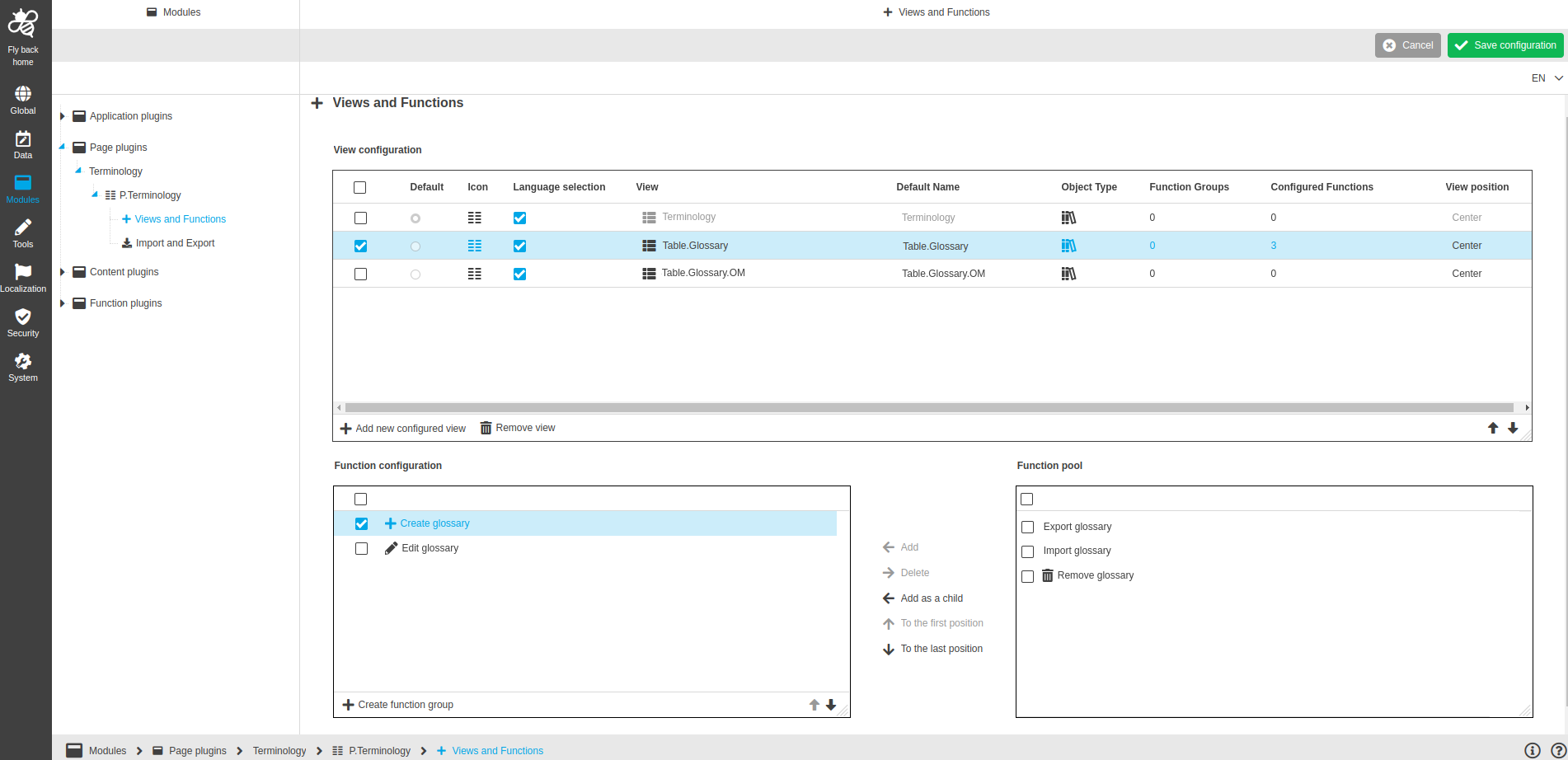
Image 1 Adding functions to a content view (e.g. Terminology plugin)
Functions for configuration:
Function name |
Description |
Note |
Add |
Function adds new function(s) from 'Function pool' to 'Function configuration' |
The function is available if at least one function is selected in the 'Function pool' |
Delete |
Function deletes the added function(s) from the 'Function configuration' |
The function is available if at least one function or function group is selected in the 'Function configuration' |
Add as a child |
Function adds the new function(s) as a child from the 'Function pool' to the added function in the 'Function configuration' |
The function is available if configured function is selected in the 'Function configuration' pool and at least one function is selected in the 'Function pool' |
To the first position |
Function changes its position to the first of the list in the 'Function configuration' pool |
|
To the last position |
Function changes its position to the last of the list in the 'Function configuration' pool |
|
Arrow up |
Function changes its position to one position above in the 'Function configuration' pool |
The function is available in right-bottom corner of 'Function configuration' pool |
Arrow down |
Function changes its position to one position below in the 'Function configuration' pool |
The function is available in right-bottom corner of 'Function configuration' pool |
Create function group |
Function creates function group from the added functions in the 'Function configuration' pool |
The function is available in left-bottom corner of 'Function configuration' pool |
|
The order in 'Function configuration' pool (from top to bottom) has effect on the order of the functions and function groups in the toolbar in UI (from left to right) Relates to the following functions:
|
Add function(s) to a content view
If you want to add functions to a content view, you need to:
-
Select a needed function (or several ones) in the right-side ‘Function pool’.
-
Execute the Add function.
Add function as a nested one
If you want to add a function as a nested one, you need to:
-
Select a needed function in the right-side ‘Function pool’.
-
Select a root item (function or group) in the left-side ‘Function configuration’ pool.
-
Execute Add as a child function.
Remove function(s)
If you want to remove functions for a content view, you need to:
-
Select a needed function (or several ones) in the left-side ‘Function configuration’ pool.
-
Execute the Delete function.
Change the order of the function(s)
If you want to change the order of the added functions, you need to:
-
Select a needed function in the left-side ‘Function configuration’ pool.
-
You can change the function position by using:
-
The functions for configuration, which are located between the 'Function' and 'Function configuration' pools
-
Arrow up and Arrow down - if you want to move the selected function(s) stepwise up or down
-
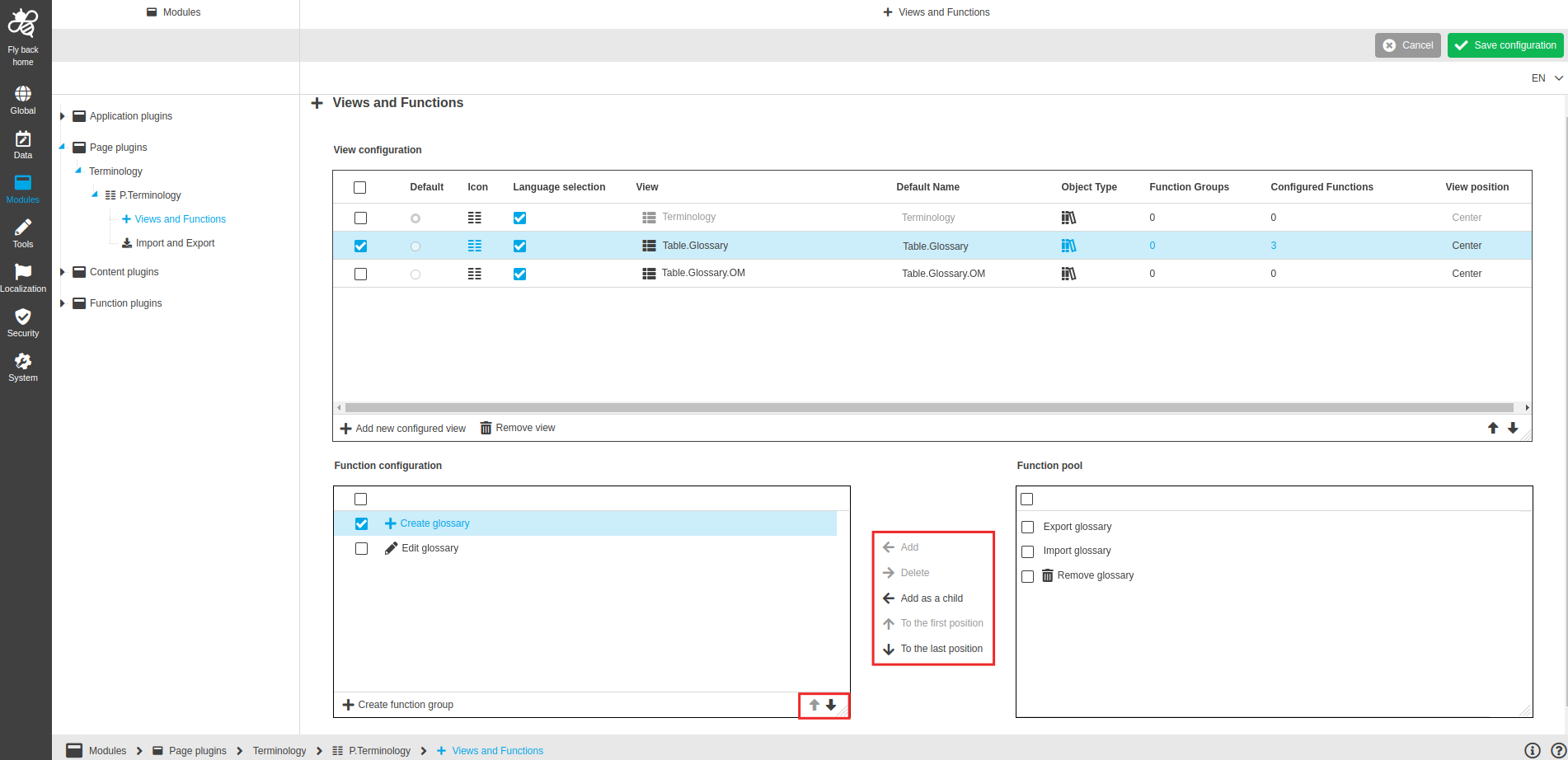
Image 2 Functions for configuration
There are descriptions of each functions in 'Functions for configuration' section.
Create function(s) group
If you want to create function group from the added functions, you need to:
The first option:
-
Click on the 'Create function group' function.
-
Enter a name for the new group in the 'Name for the function group' field.
-
Select the function(s) which should be added in the group.
-
Execute the 'Create function group' function.
The second option:
-
Select the functions which should be grouped together in the 'Function configuration' pool.
-
Click on the 'Create function group' function.
-
Enter a name for the new group in the 'Name for the function group' field.
-
Execute the 'Create function group' function.