UI - PEOView
Background
Product Export Option represents an aggregation of information about products. Since PEOs are used for further publishing in different contexts, the collection of product attributes varies depending on the specific channel where PEOs will be directed. Client-side templates collects necessary attributes to build the form that will be used in the frontend for the Product Export Options (PEOs). In HTML5 implementation such forms will be prepared in FSDetail and used as content views in a newly introduced function plugin - PEOView.
Configuration guide
In HTML5 client PEOs are managed (created/edited/unlinked/removed) through the use of PEOView editor and the related functions. PEOView is configured in the backend as function plugin and is compatible with the new client only. In order to get a working PEOView editor a user needs to configure FSDetail first. Then FSDetails of the corresponding object type (Product Export Option 2) can be added as content views for the editor.
There are four PEO-related plugin configuration functions corresponding to each existing PEOView: Create PEO2, Open PEOView, Unlink PEO2, Remove PEO2. These functions can be configured and used in different combinations in the following places inside OMN:
-
ProductView
-
ProjectProductsView
-
DiverterDataset
-
AdvancedSearch/FromBasedSearch.
| Previously used configuration of PEO editor from Application modules → PIM2 → Templates stays relevant for old client and is marked with the blue border correspondingly. The functions used to manage PEOs in old client are irrelevant for HTML5 client as well. |
How to configure
FSDetail
The configuration of PEO related attributes for HTML5 client is available in FSDetail content plugin.
-
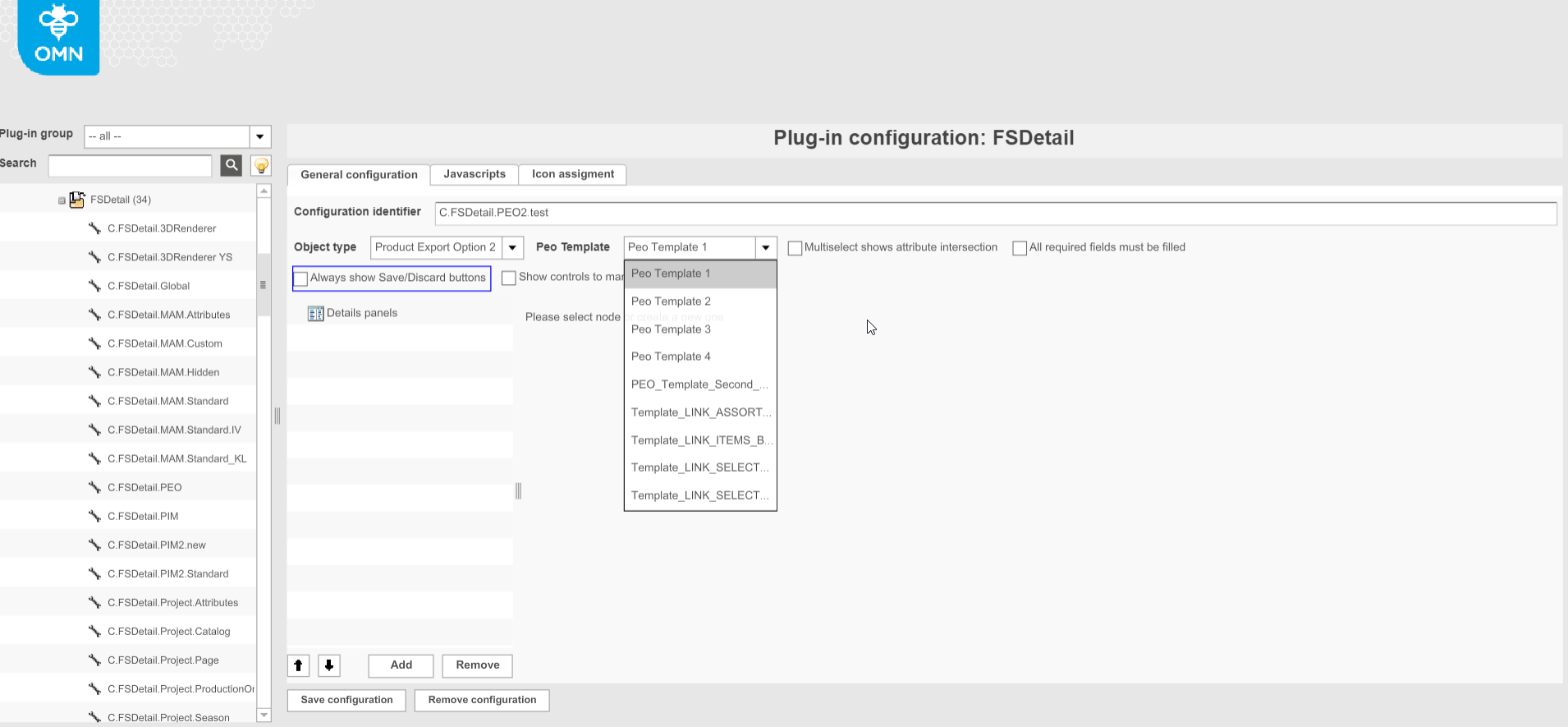
The new object type - Product Export Option2 - is introduced and is available in the dropdown.

-
After the object type is set the user has to select a template which FSDetail will correspond to ("PEO Template" option). The list of the available templates depends on the templates created in Classification View → Templates.
-
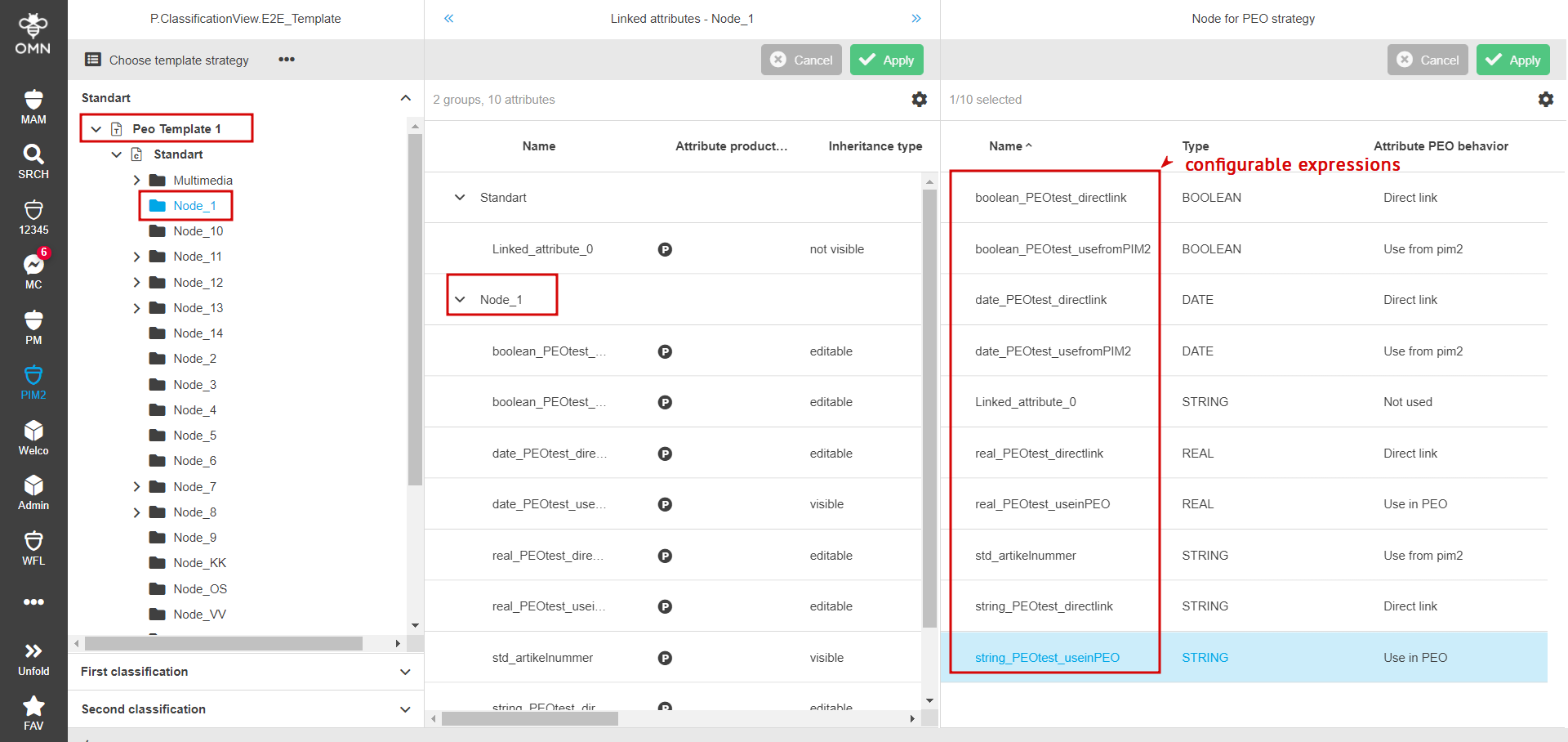
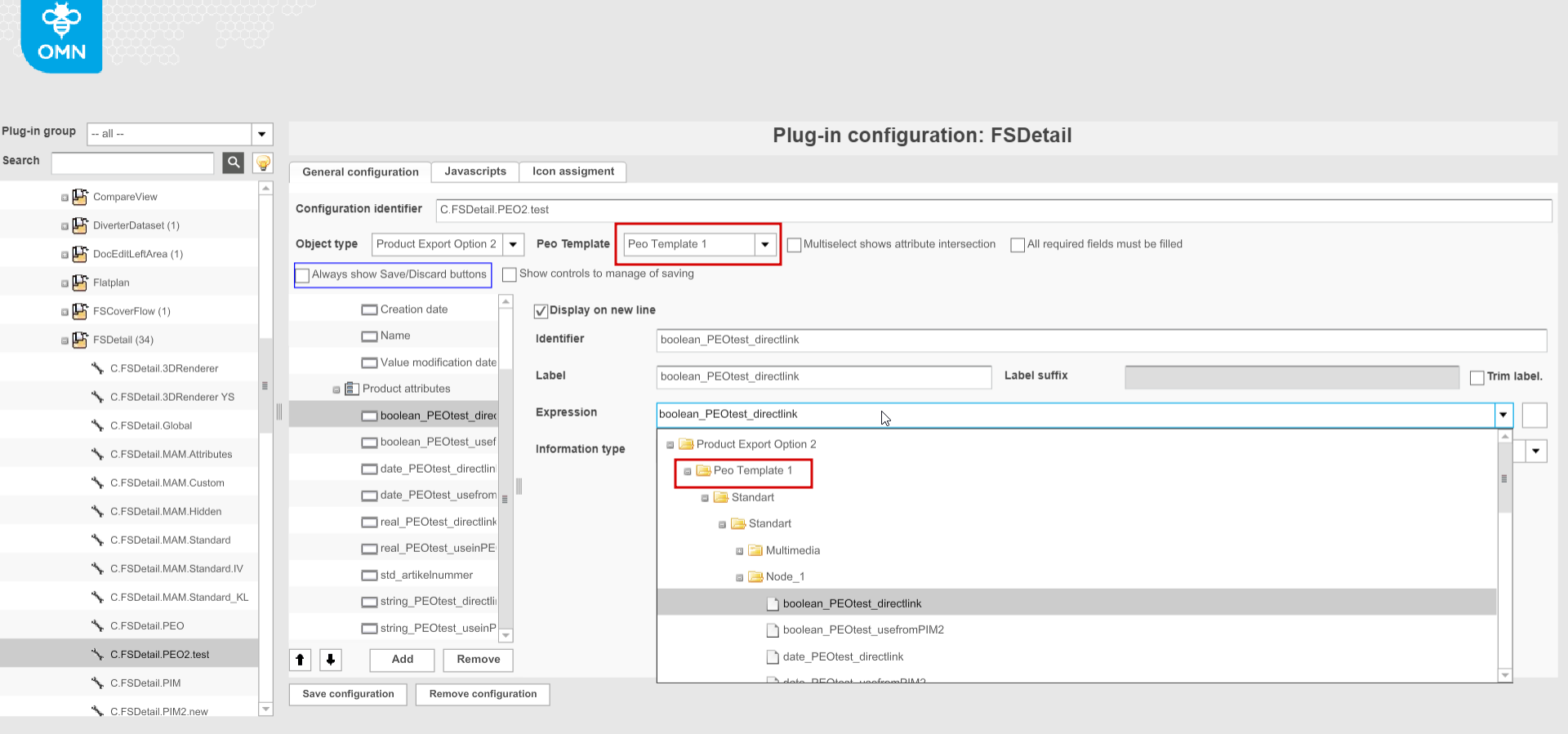
"Expressions" configuration consists of the PEO2 client-side attributes assigned to the specific classification node (the first screen). The range of the expressions available in FSDetail is limited by the selected template.
-
The rest of the configurable parameters are the same as for FSDetails of other object types.
PEOView function plugin
The configuration of PEOView function plugin is completely new and compatible with the new client only. It is marked with the green border in the ConfigClient.
-
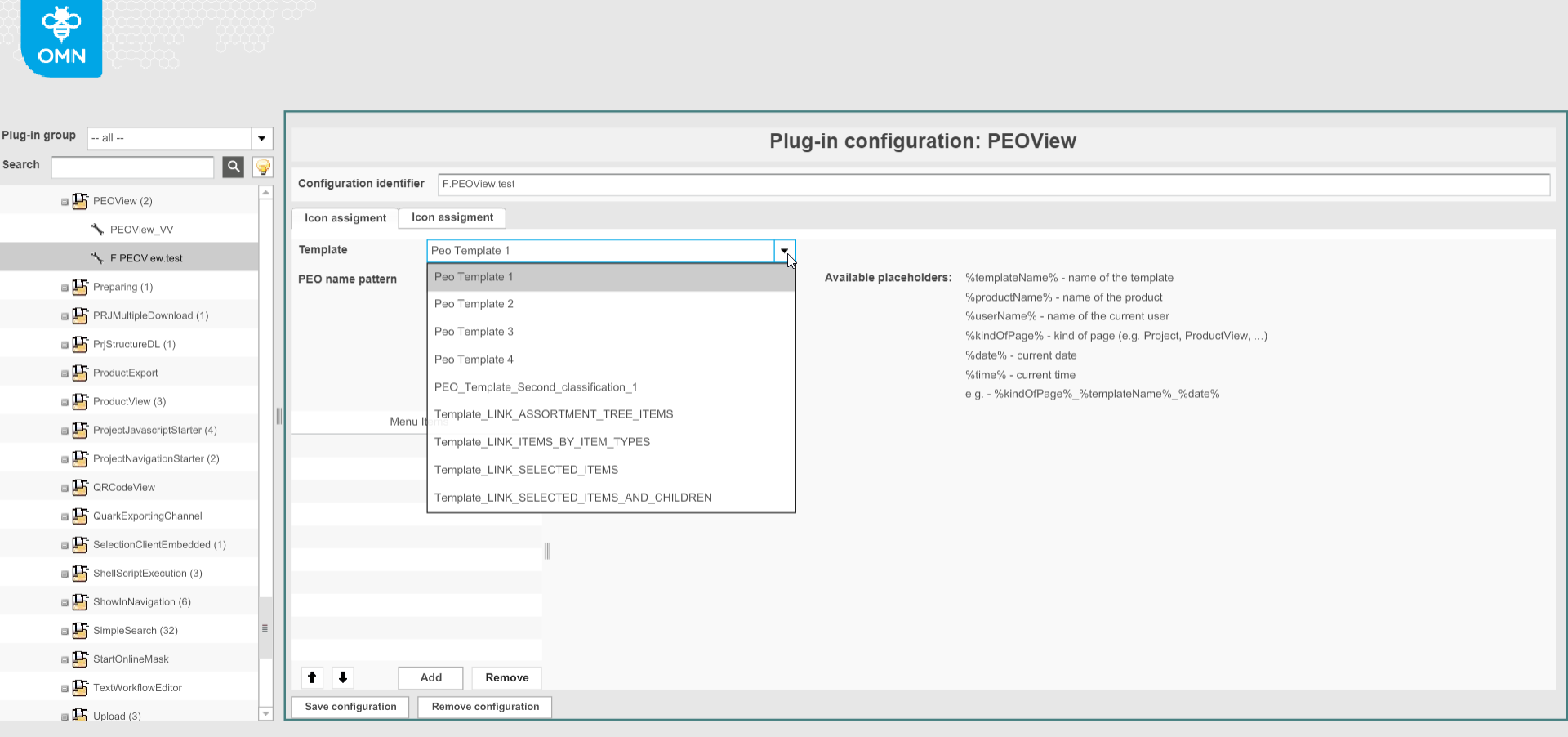
To create a new configuration the user has to select the PEO template on which basis the PEO will be created ("Template" option).
-
Configuration of patterns for PEO names is possible, available placeholders are described ("PEO name pattern" option). If the parameter is configured, PEO name field will be prefilled according to the configured option when creating PEO (if no option is specified the user has to assign own name on the client-side).
-
Configuration of tabs and content views. A tab "Identifier" and "Type" are configurable.
Only "PEO" type is available with the first PEOView version ("Related assets", "Related channels" and "Related products" tabs are supposed in future versions). The user can also select FSDetail from the range of created on the base of the same template as selected in PEOView on the 1st step. Multiple FSDetails can be assigned. 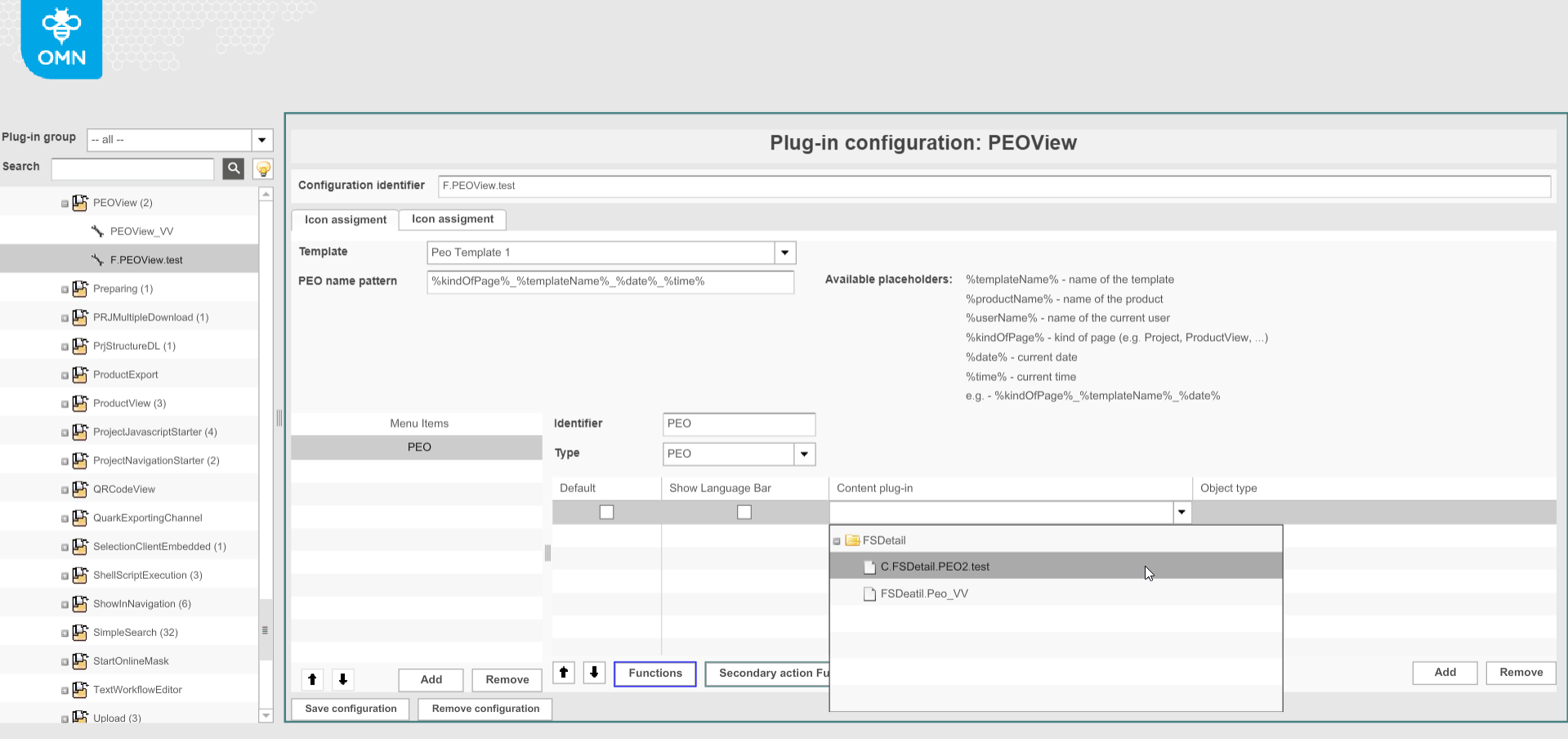
-
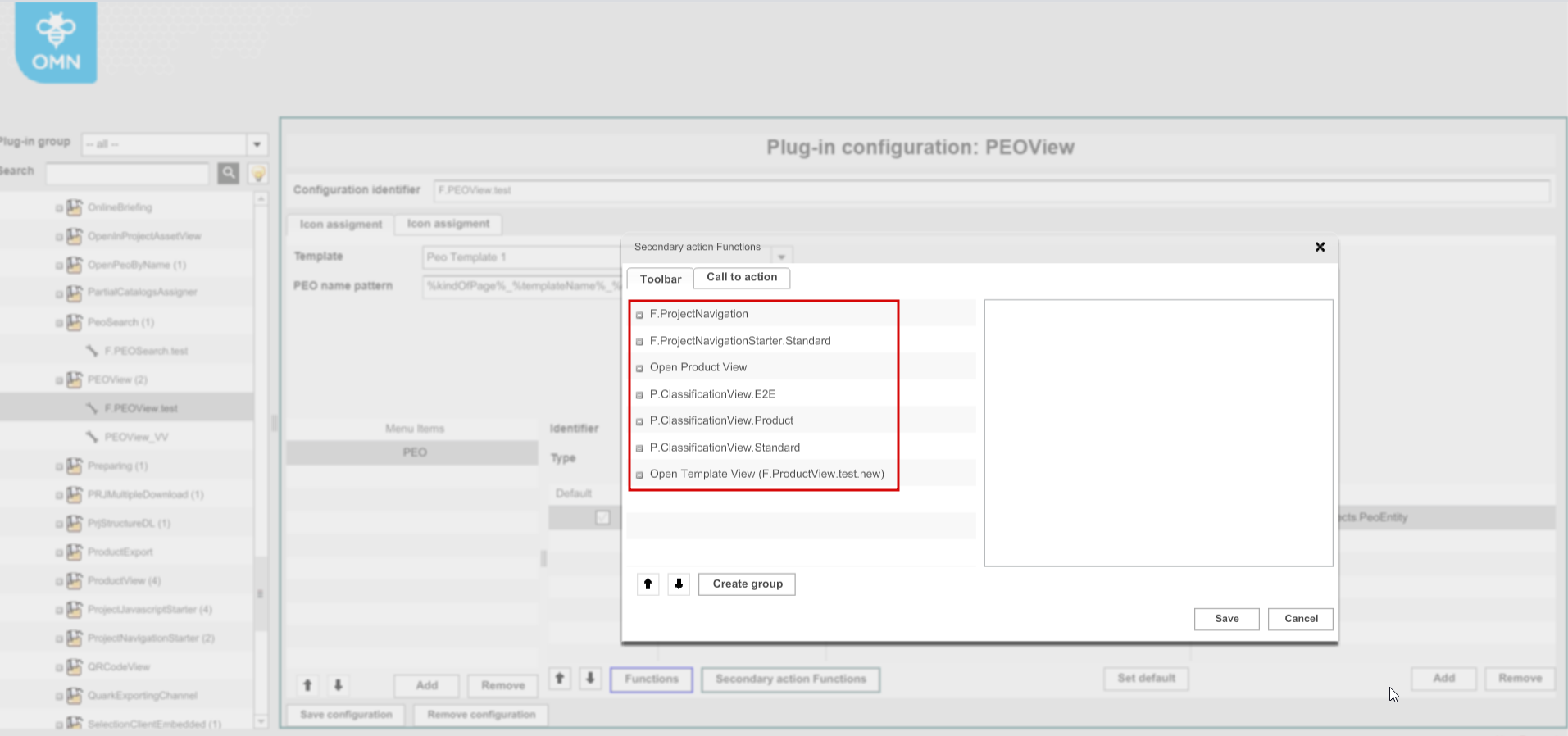
Configuration of functions. The functions to use from PEOView editor can be assigned for a specific content view (FSDetail) as secondary action functions.
-
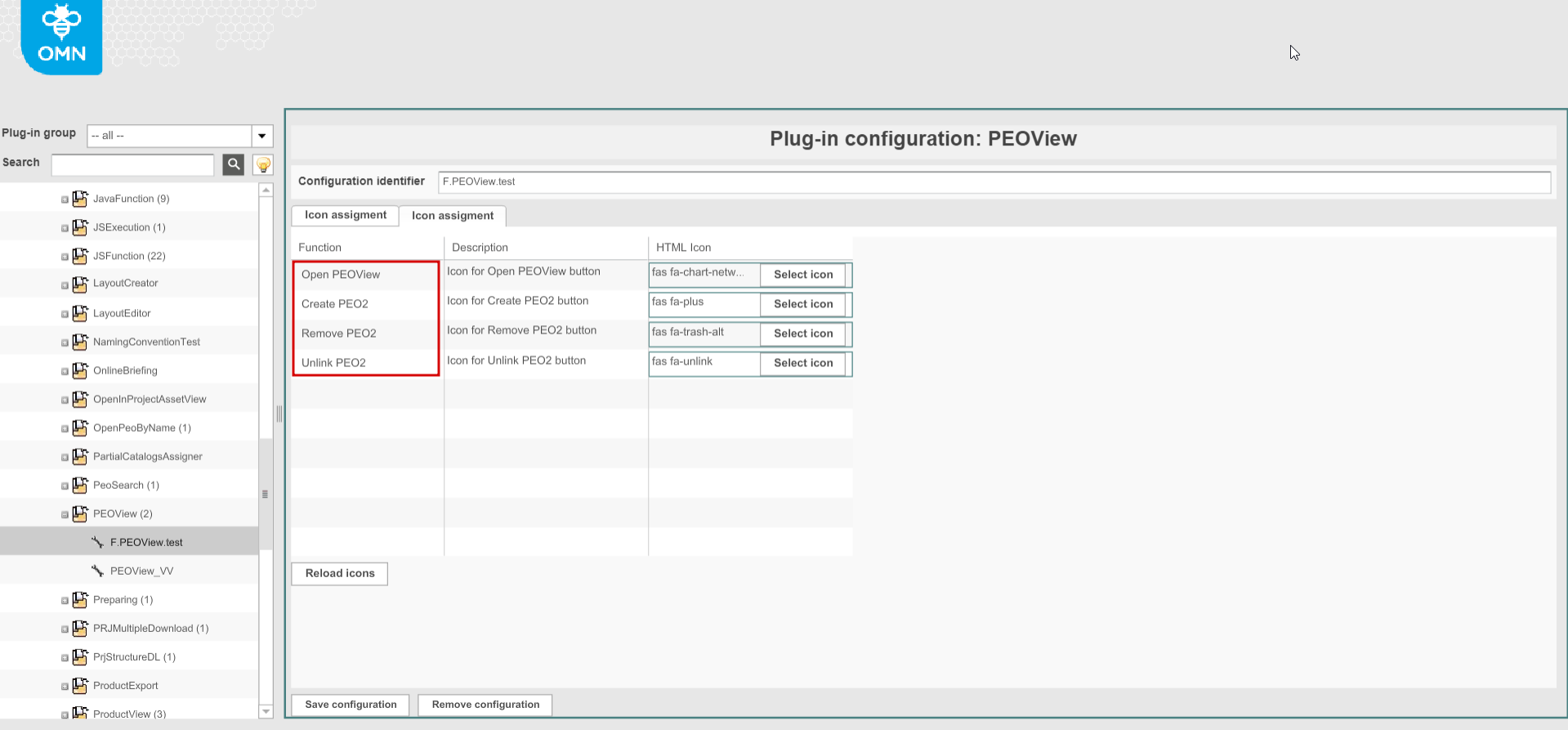
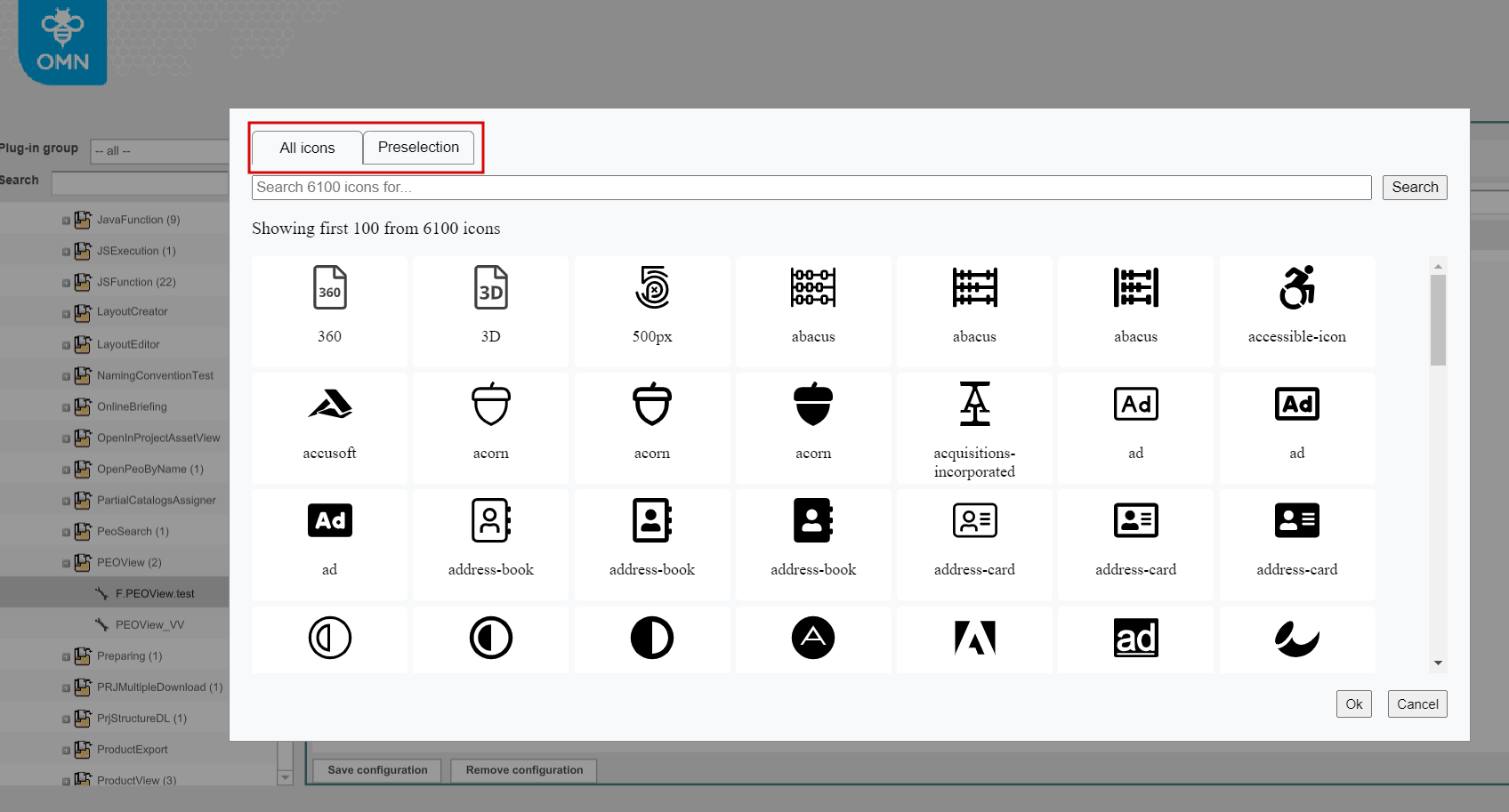
"Icons assignment". The user can assign the icons for each PEO-related function to be shown in the frontend including Create PEO2, Open PEOView, Unlink PEO2, Remove PEO2. Icons can be selected from the list of all fontawesome icons ("All icons" tab) or from the list of predefined icons ("Preselection" tab). If no icon is set the default one will be shown.
HTML5 Client. Configured PEOView contains:
-
the configured functions in the toolbar
-
"last edited" option in the status bar (indicates the date of the last update, date format corresponds mandator settings)
-
formular view with configured expressions (FSDetail)
-
general functionality of editors in OMN
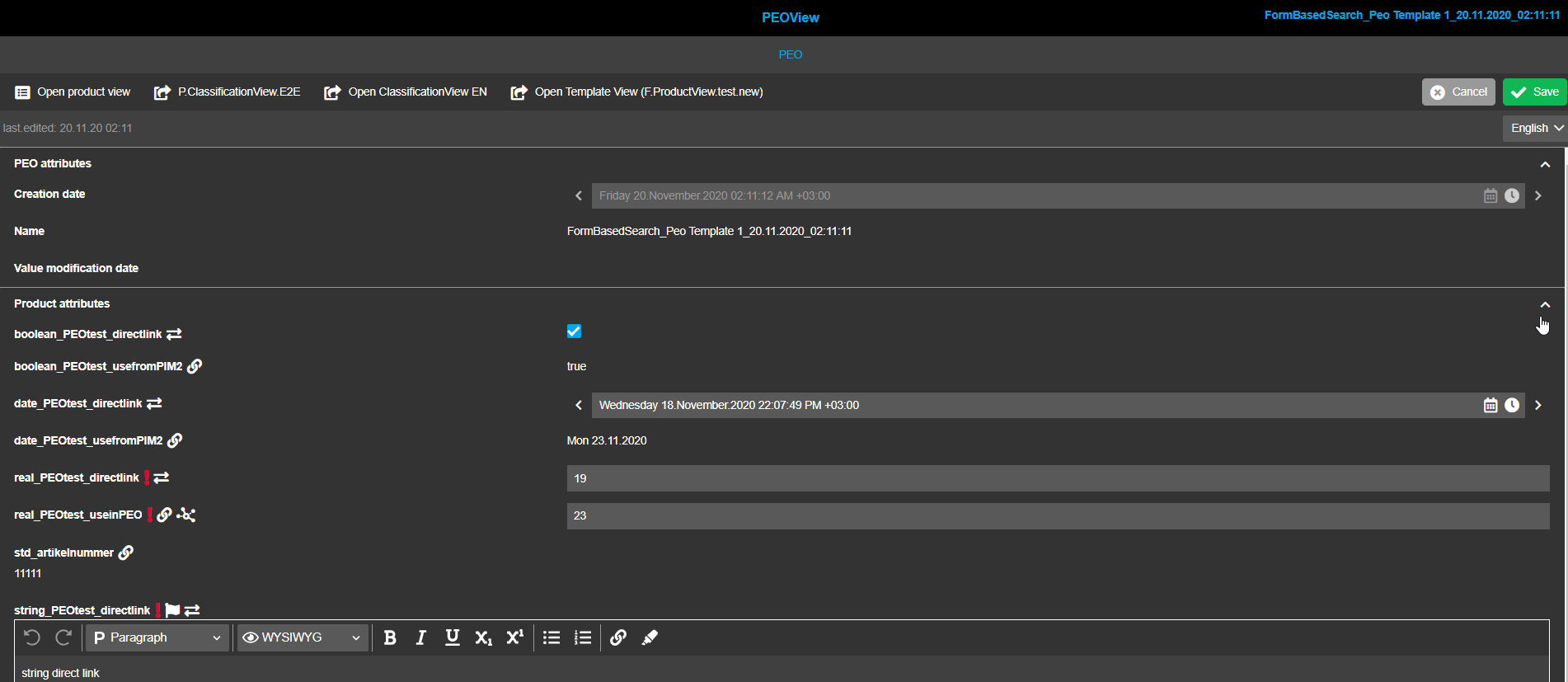
PEOView. Attributes behavior
-
"DirectLink" attribute PEO behavior indicates that the value from product hierarchy (P-A-V) is used, changing the value in PEO updates the value on product level and vice versa
-
"Use from PIM2" means that attributes with such relation are disabled (not editable in PEO) and get values from Product/Article/Variation
-
"Use in PEO". The default value for an attribute with the 'Use in PEO' relation comes from product but then can be overwritten with no influence on product value
-
"Unlink/Link" functionality is available for attributes with "Use in PEO" relation and indicates that own value is set for PEO / value comes from some kind of hierarchy Product/Article/Variation. It represents the clickable icons to switch the values as follows
-
clicking on the link icon the inheritance connection to product will be disconnected and the user can type in a PEO value (overwrite)
-
clicking on the unlink icon the connection to product will be connected (again) and the value from product will be inherited and shown
-
PEOView-related functions configuration
| PEOView-related functions work with PEOs of the corresponding template. In case of selection of multiple PEOs with different templates the functions are not available in the toolbar (Open PEOView, Unlink PEO2, Remove PEO2). Each "Create PEO2" function works without selection but creates PEOs of the corresponding templates as well. |
-
ProductView
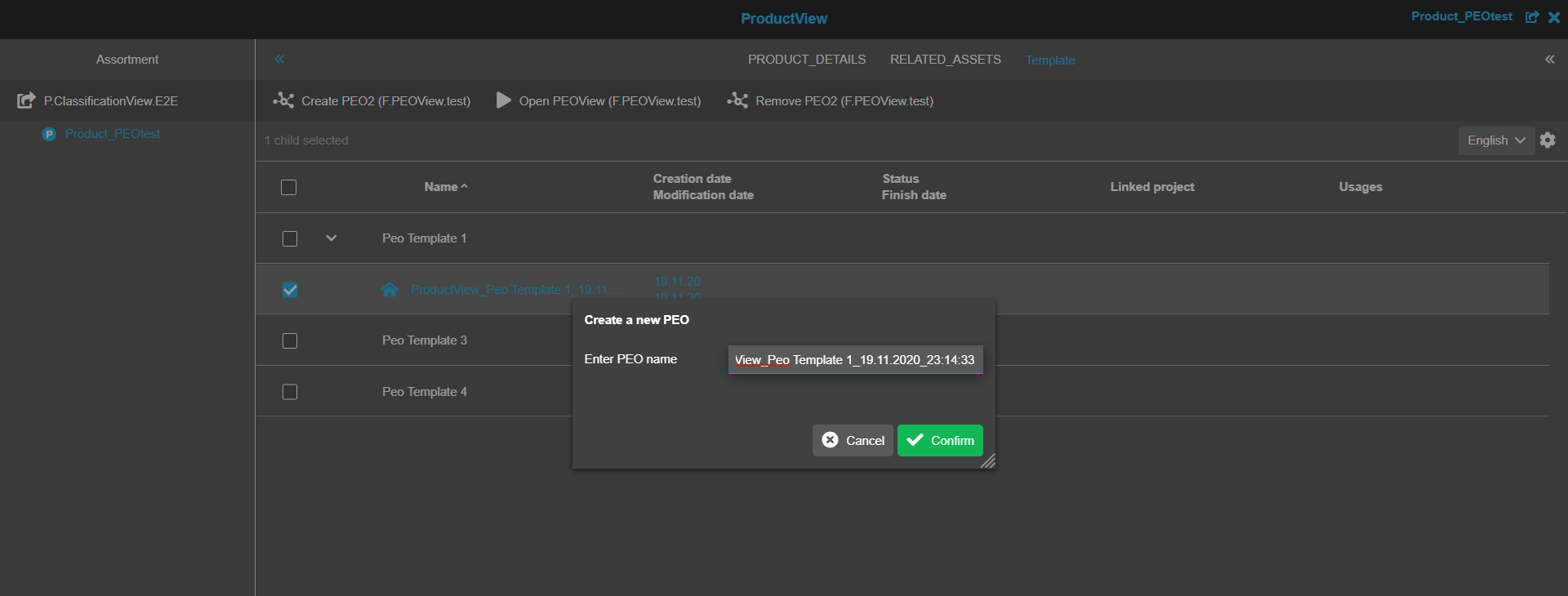
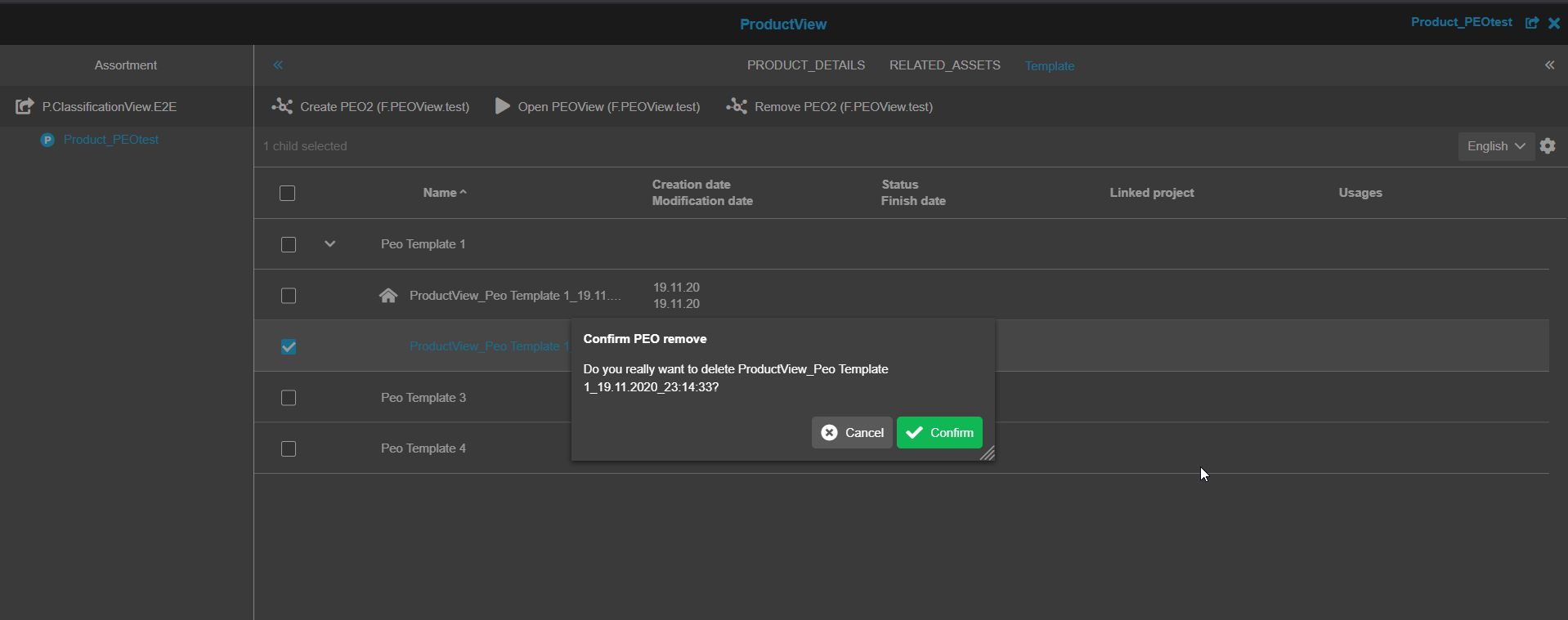
The following PEOView-related functions are configurable in ProductView for the Template tab:
-
Create PEO2
-
Open PEOView
-
Remove PEO2
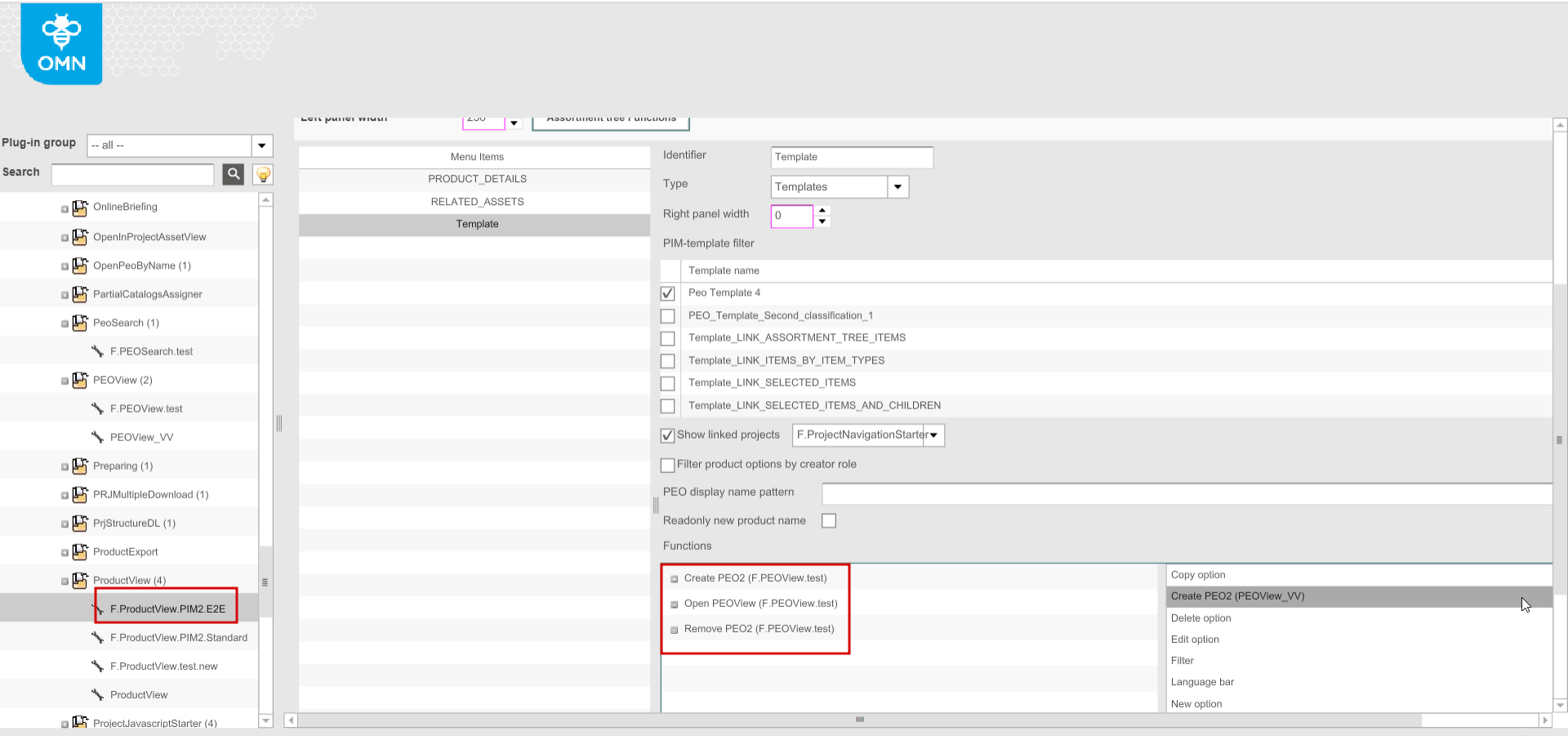
Previously used functions - New option, Edit option, Delete option - are not relevant for the HTML client anymore 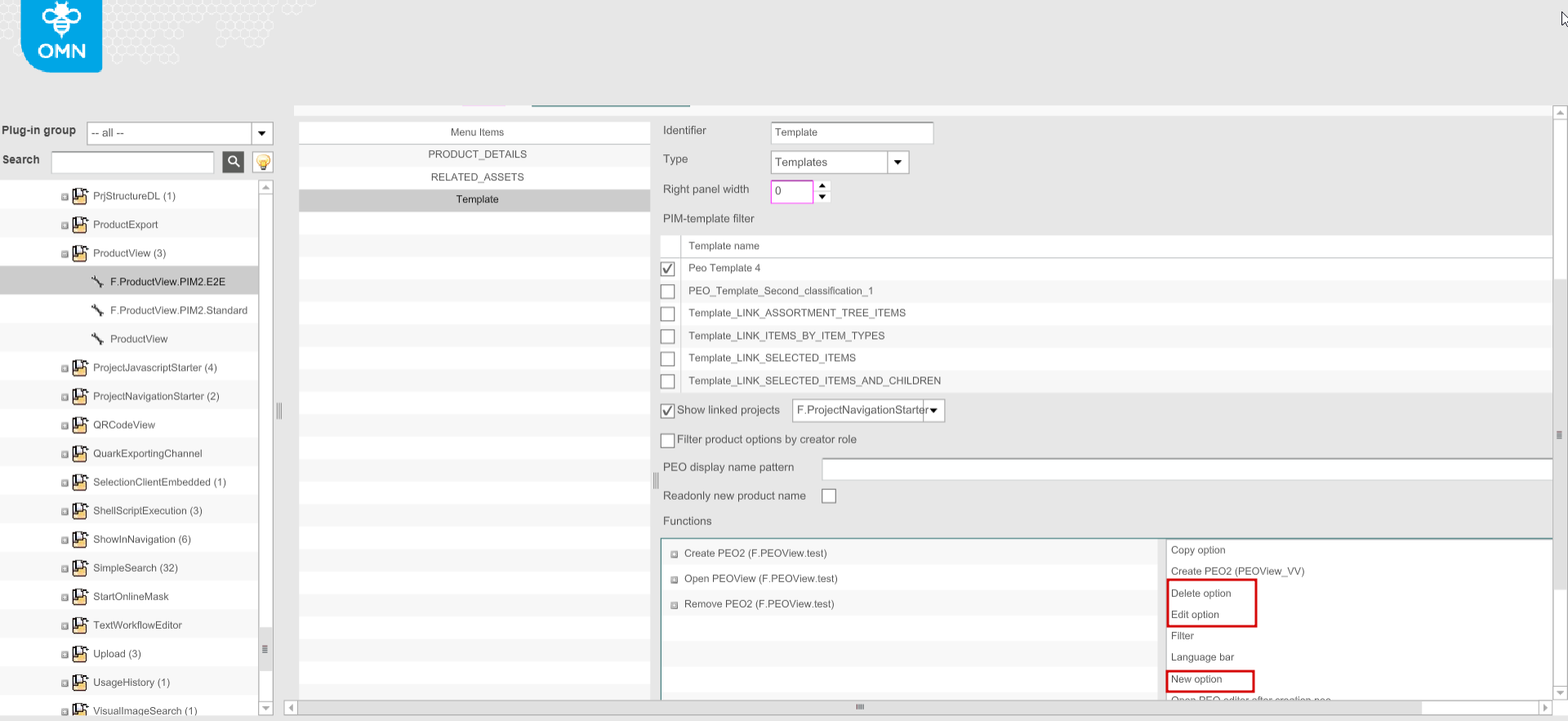
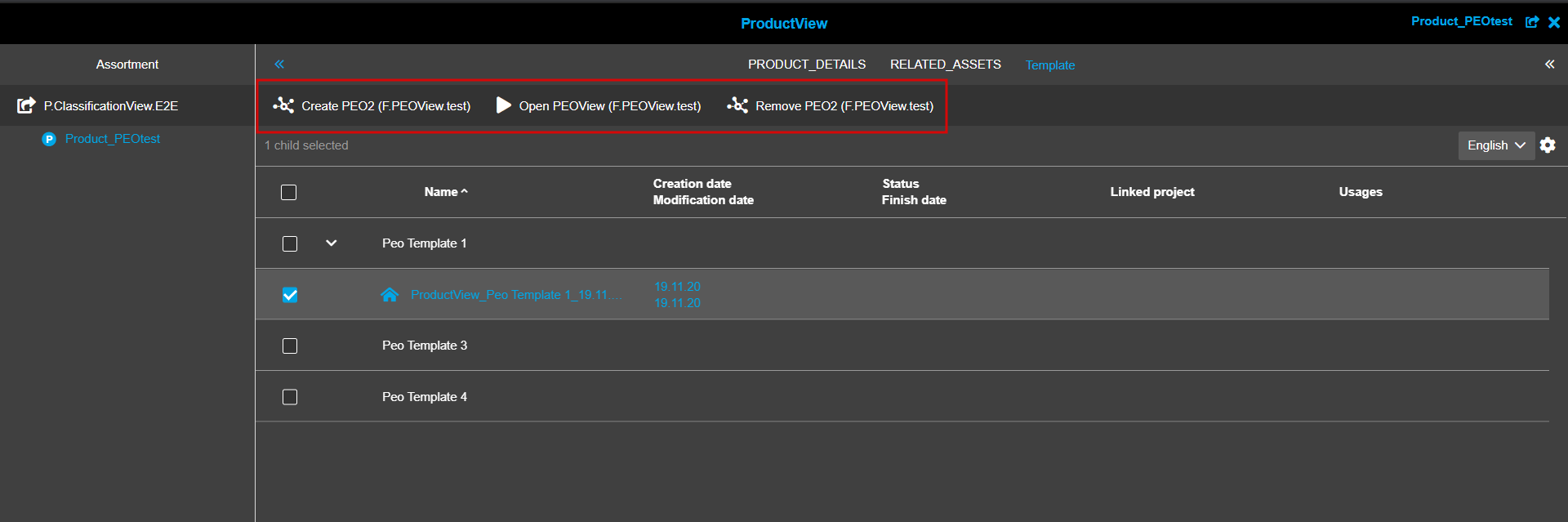
HTML5 Client. The configured functions are shown in the frontend if PEO(s) is (are) selected in the corresponding ProductView ("Create PEO2" function works regardless of the selection).
-
-
ProjectProductsView
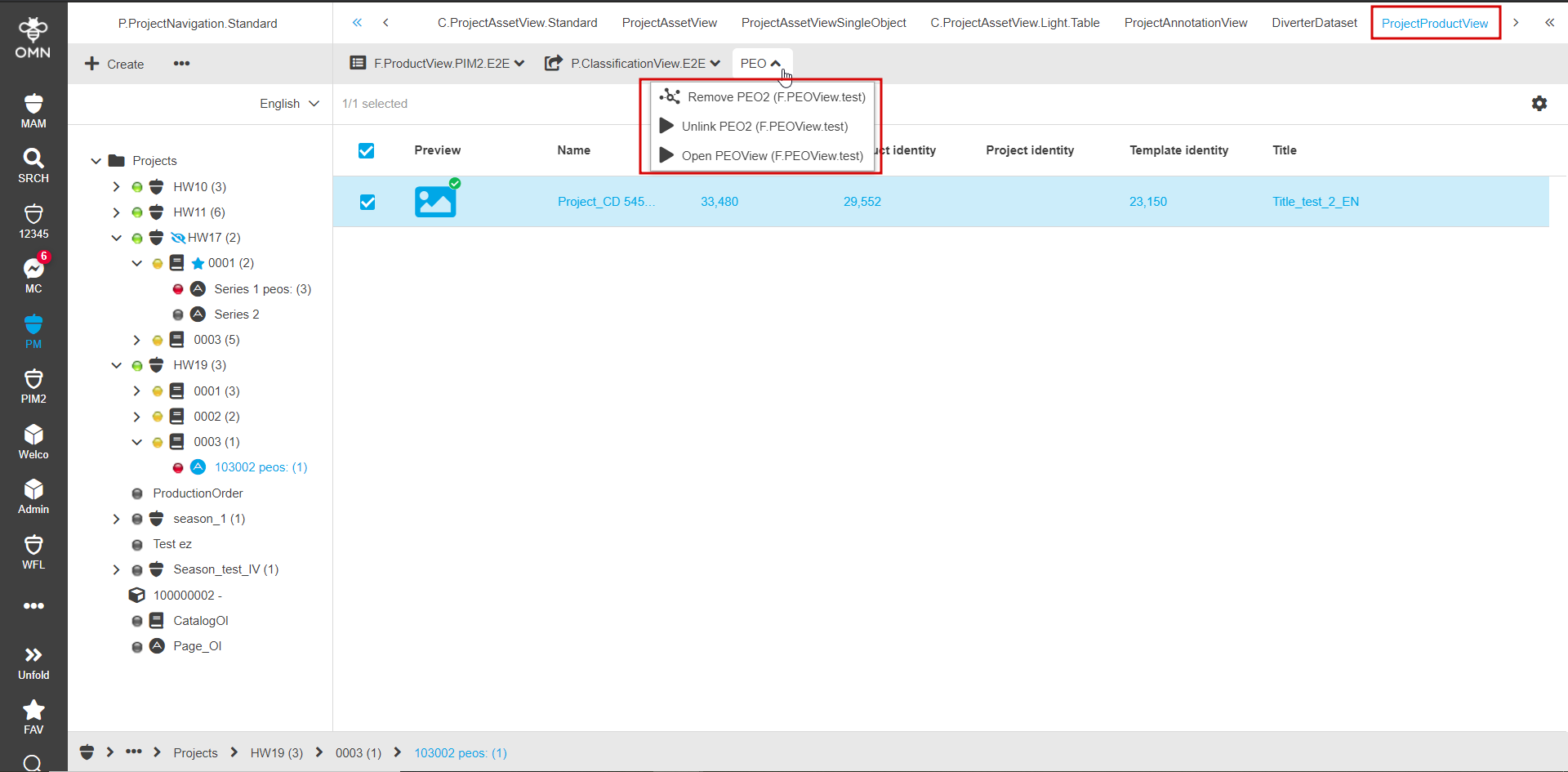
PEOView-related functions are available in the existing functions configuration in ProjectProductsView content plugin. It is possible to configure the following functions:
-
Open PEOView
-
Remove PEO2 (wasn’t available in old client for ProjectProductView)
-
Unlink PEO2
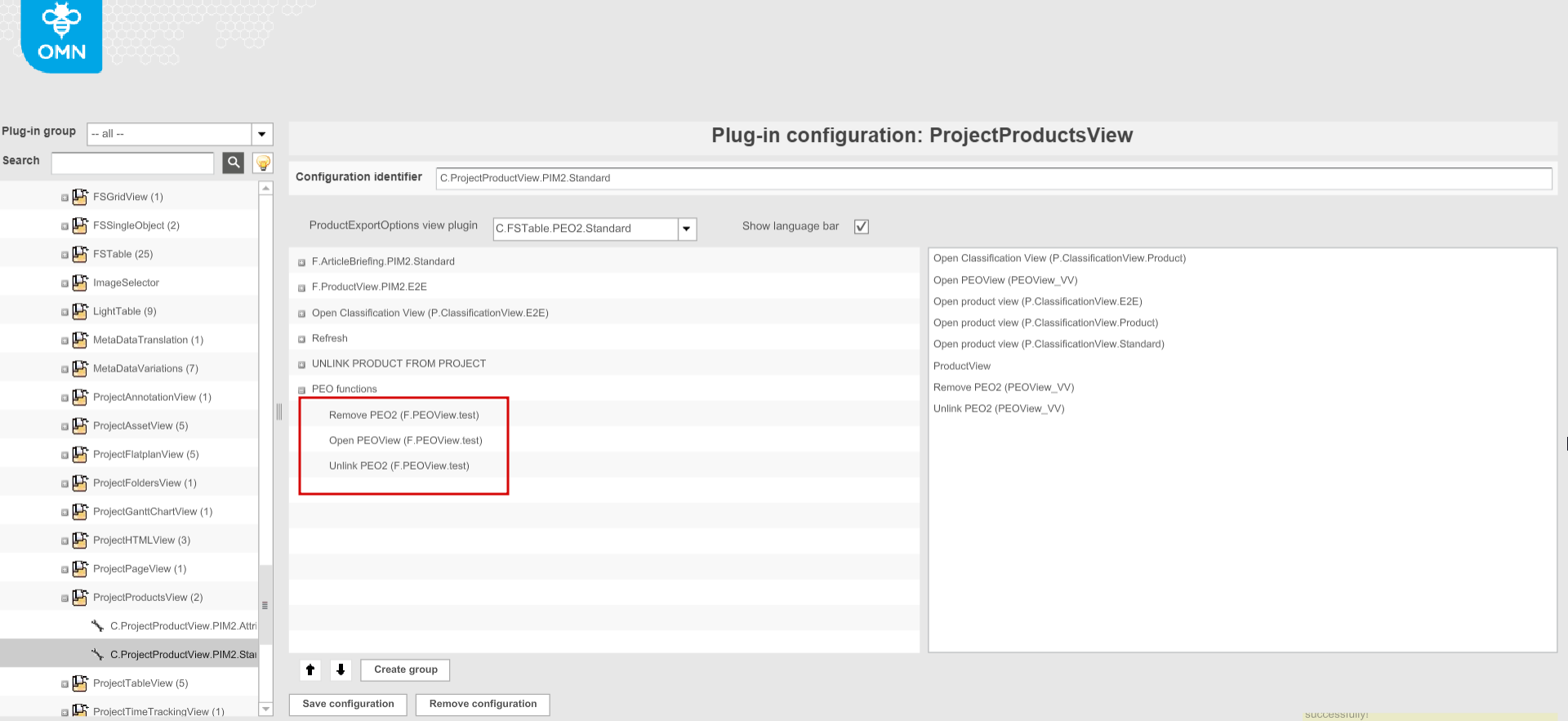
previously used "UNLINK PRODUCT FROM PROJECT" function is not relevant for the HTML5 client anymore. "Unlink PEO2" function can unlink only PEOs of the corresponding template. In case of selection of multiple PEOs with different templates the function is not available in the toolbar. "Unlink PEO2" function breaks the reference to a product but does not remove PEO itself even though it is not available in ProjectProductsView anymore. HTML5 Client. The configured functions are shown in the frontend if PEO(s) is (are) selected in the corresponding ProjectProductsView.
-
-
DiverterDataset
The new configuration tab - Functions - is introduced in the backed. It is possible to configure the following PEOView-related function there:
-
Open PEOView
-
Remove PEO2 (wasn’t available in old client for DiverterDataset)
-
Unlink PEO2 (wasn’t available in old client for DiverterDataset)
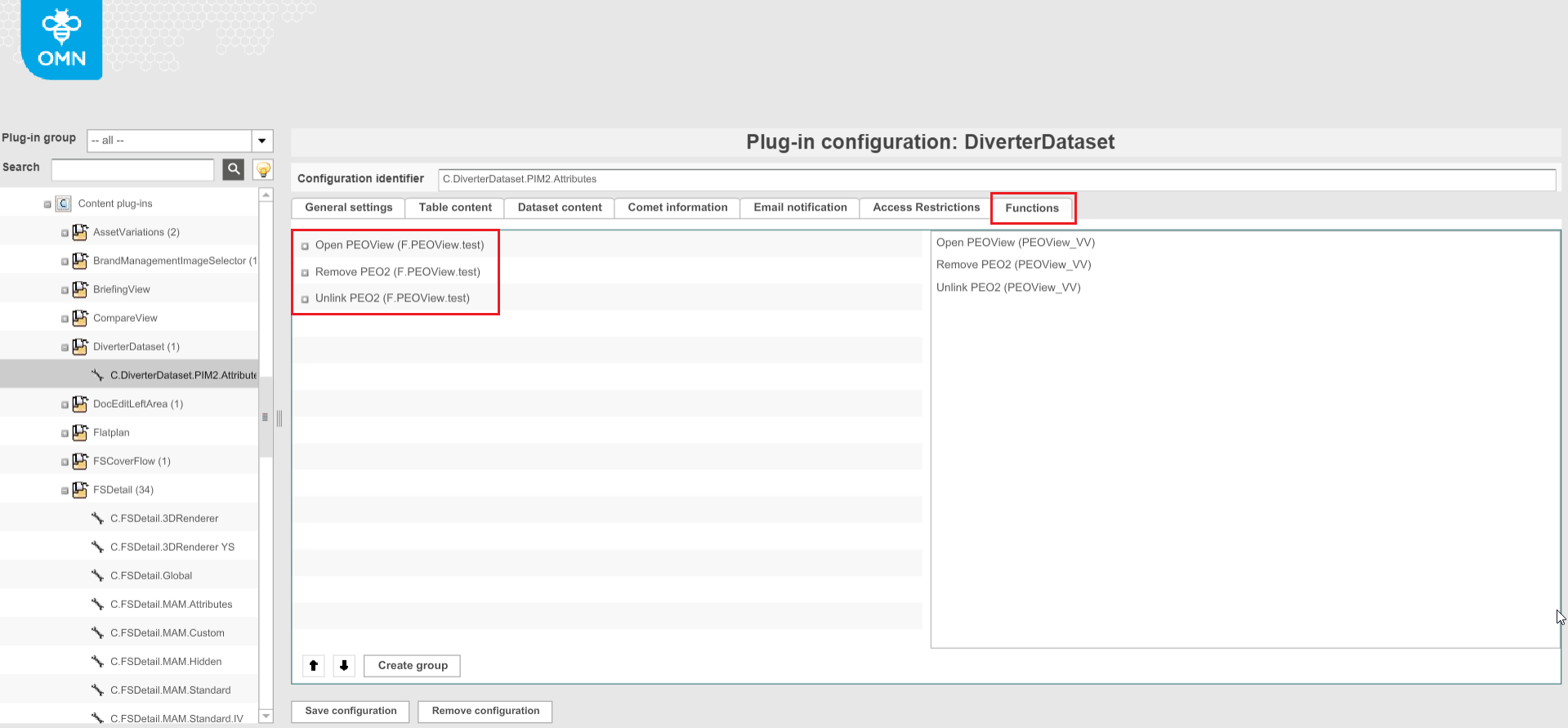
"Edit PEO enabled" option has no relevance to the new HTML5 client anymore and is marked as old client specific (if enabled allows to open PEO editor in old client) 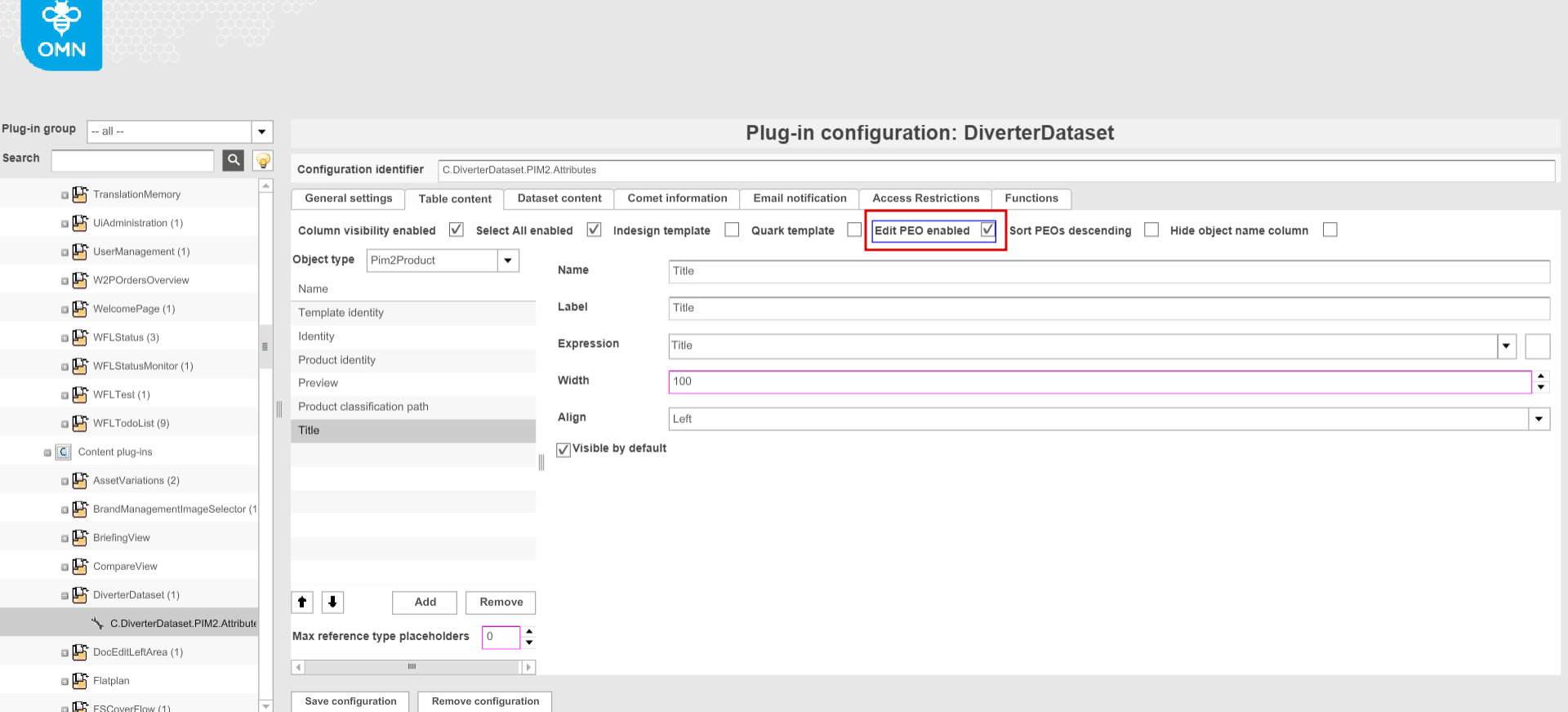
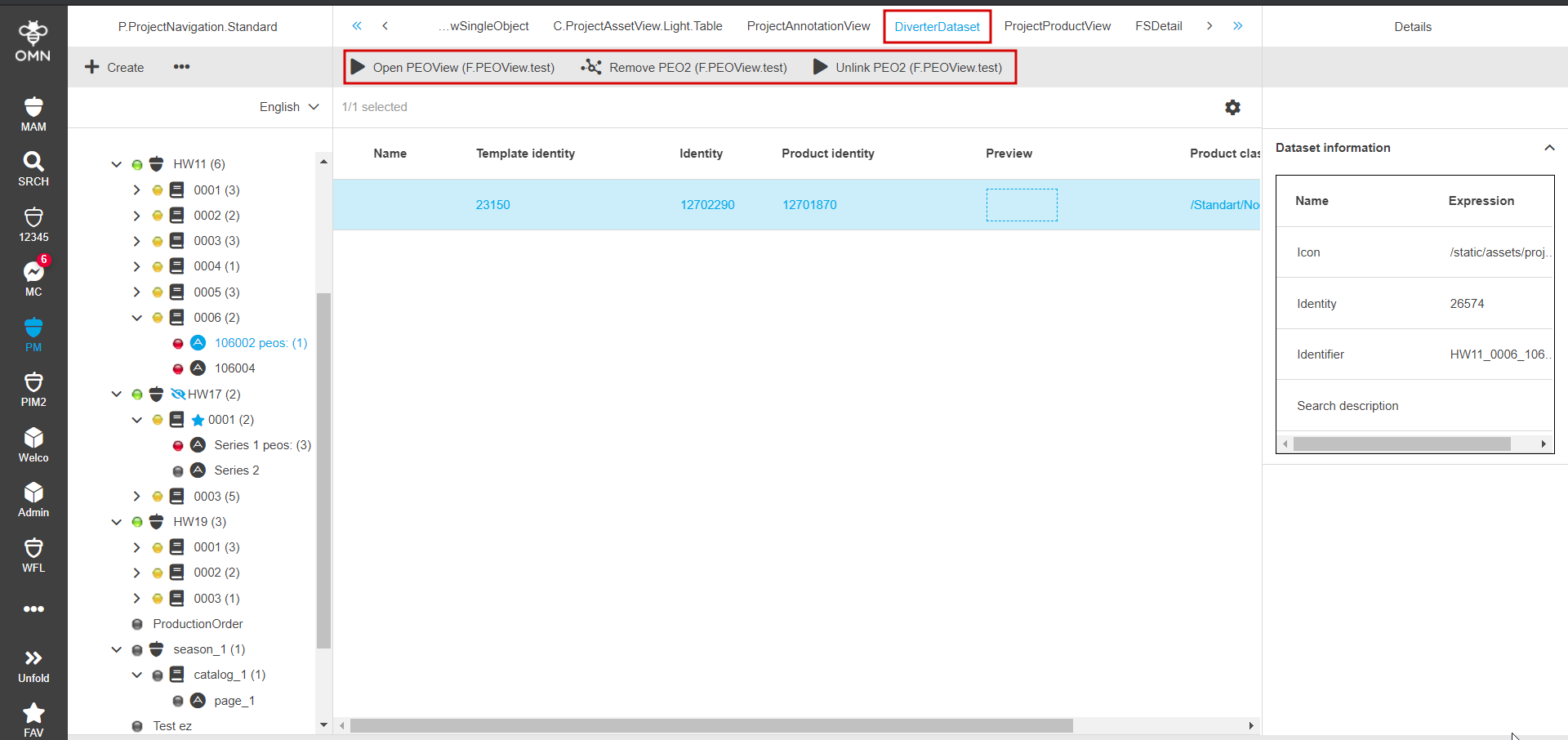
HTML5 Client. The configured functions are shown in the frontend if PEO(s) is (are) selected in the corresponding DiverterDataset view. The behavior is analogous to other places where functions are used.
-
-
AdvancedSearch/FormBasedSearch
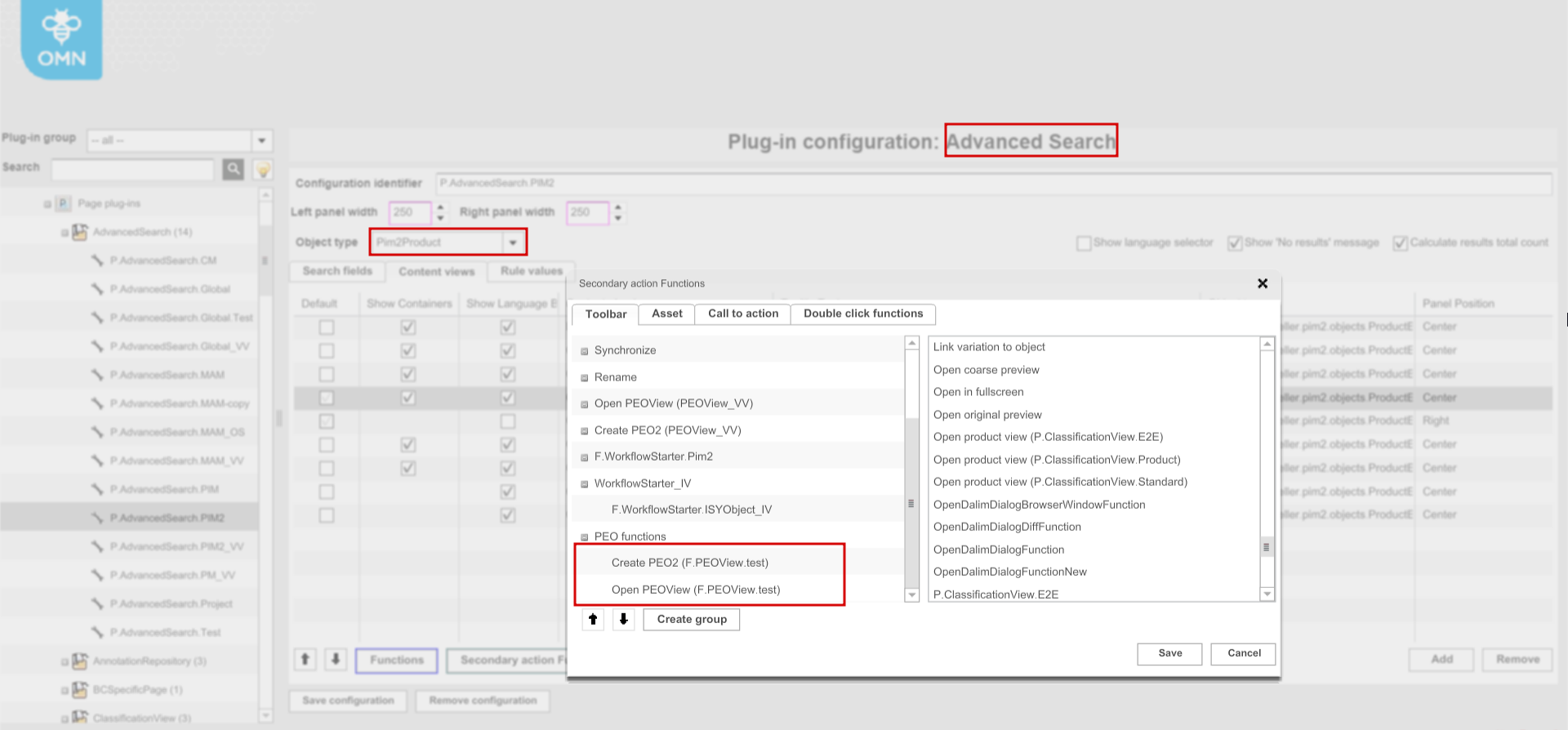
The PEOView-related functions are configurable for both AdvancedSearch and FormBasedSearch of PIM2Product and Global Search types. The following functions are available:
-
Create PEO2
-
Open PEOView
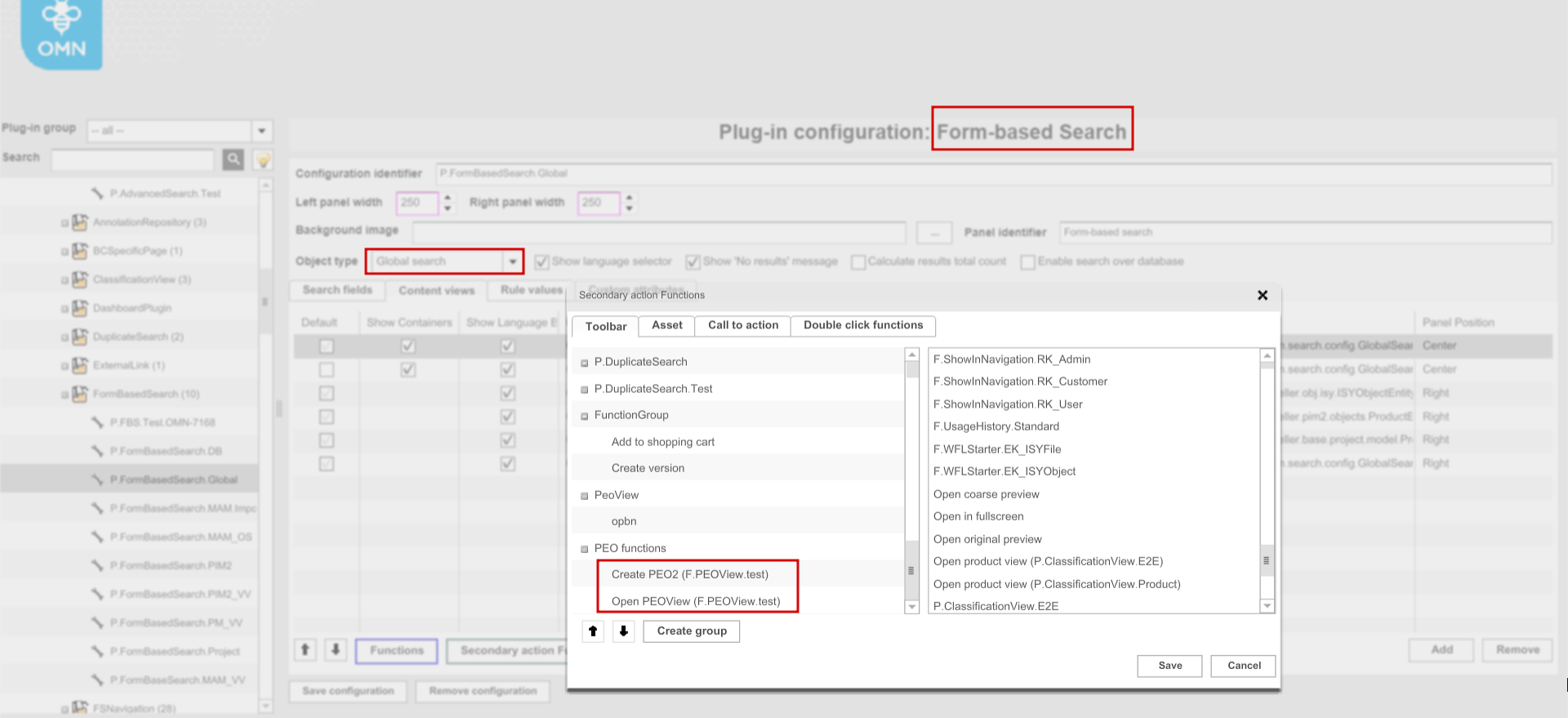
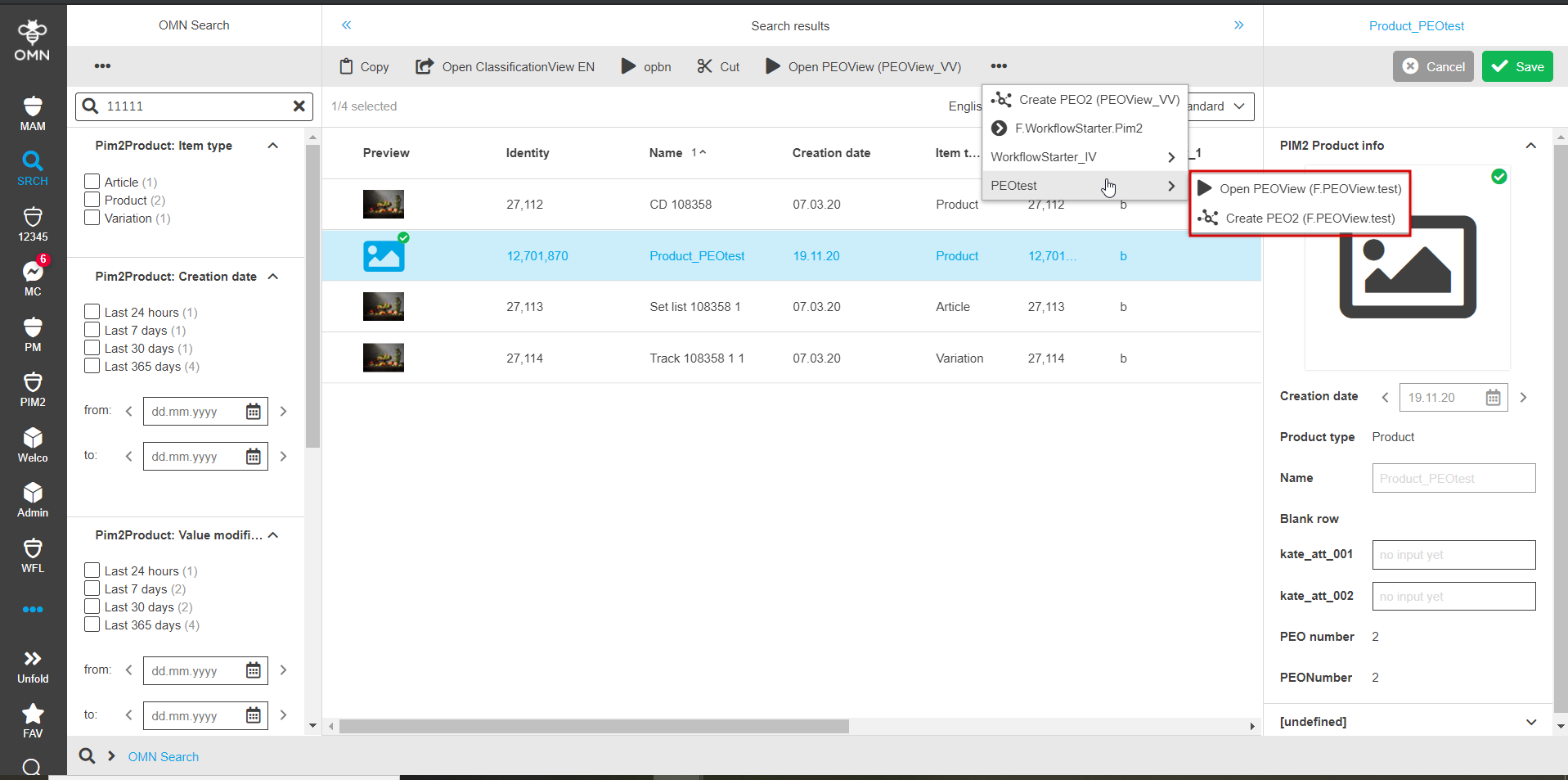
HTML5 Client. If configured the functions are available in the toolbar on the search results page when a product is selected.
the behavior of "Create PEO2" and "Open PEOView" functions in the context of search differs. The product selection (not PEO) is required. to open PEOView The function partially replaces "OpenPEOByName" function used in the old client. "Create PEO2" also works with selection in the search in order to get necessary product context for a new PEO. 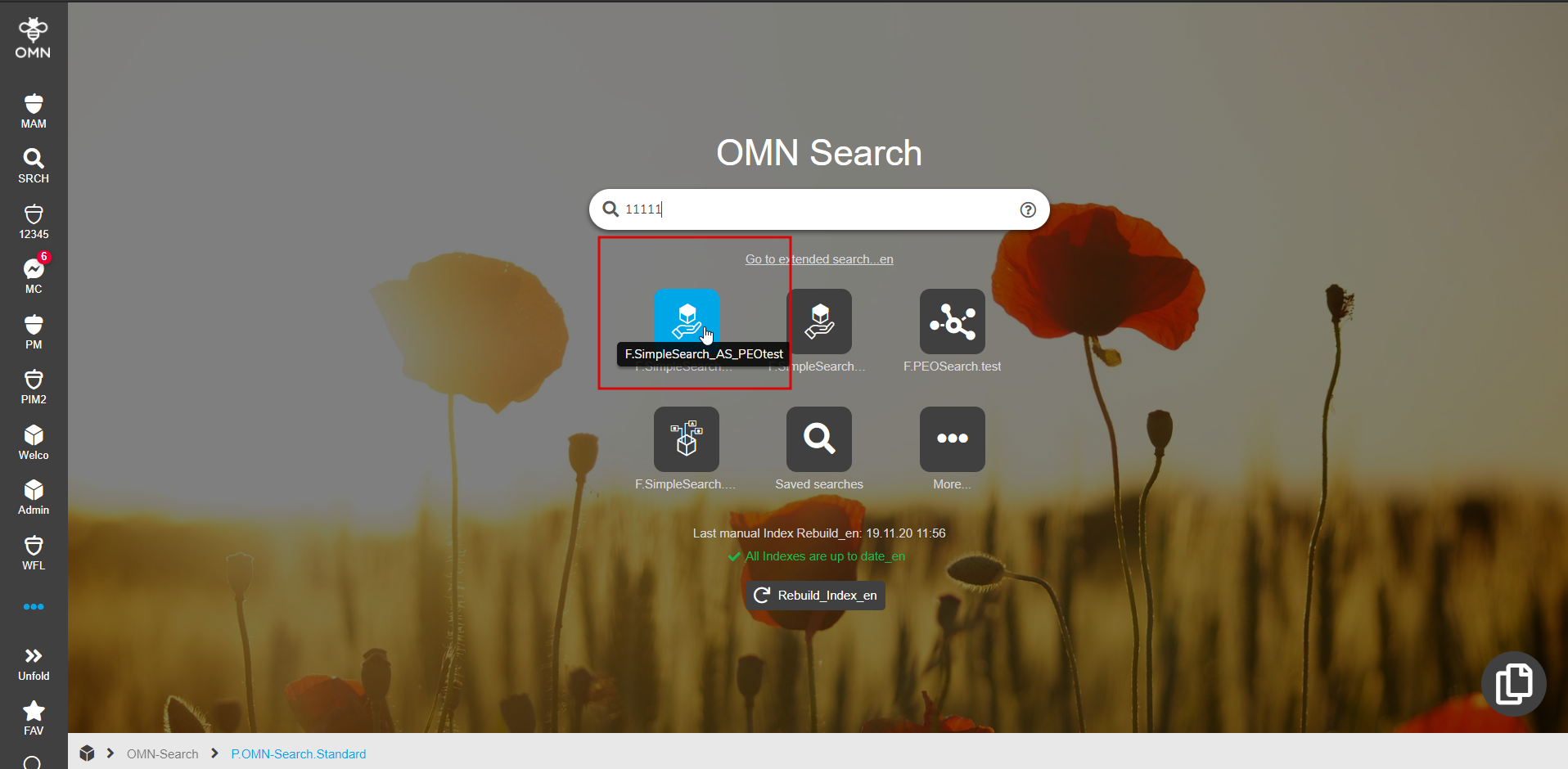
-
-
Usage of CreatePEO2 functions when linking products to projects
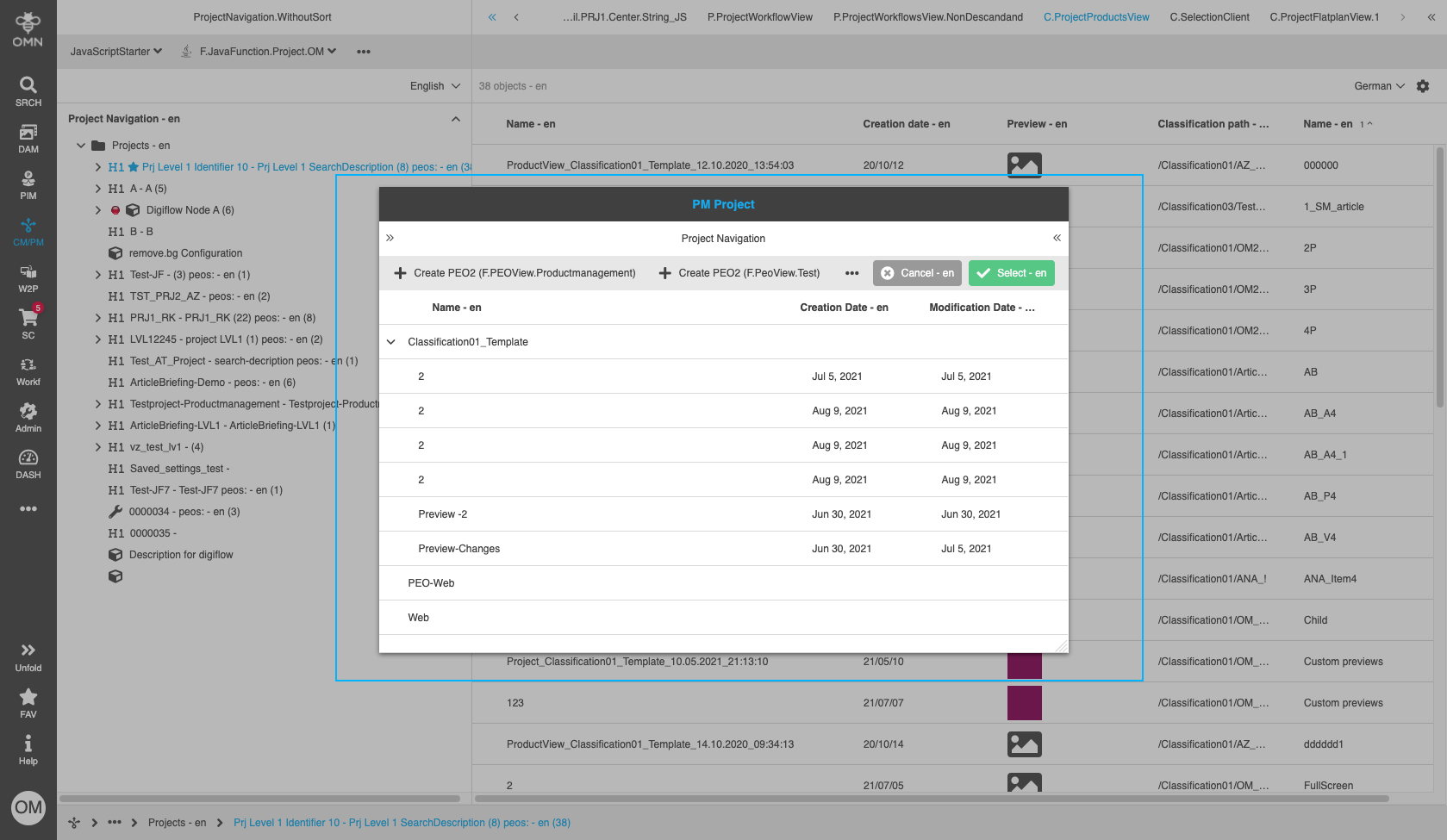
There is one more way to create PEO2 in the frontend - when linking products to projects in Project Navigation. When such linking is performed by DnD the modal window appears:
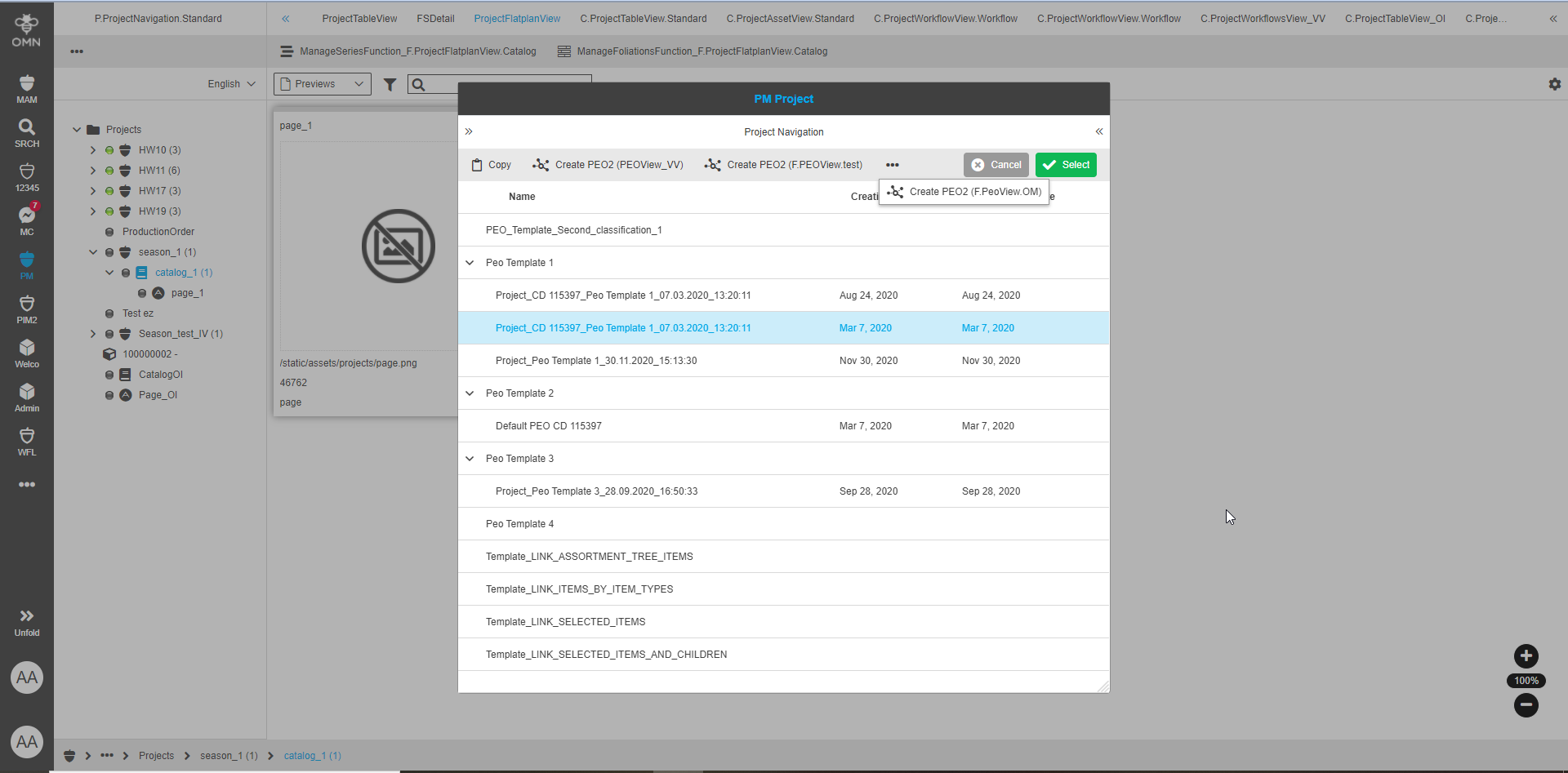
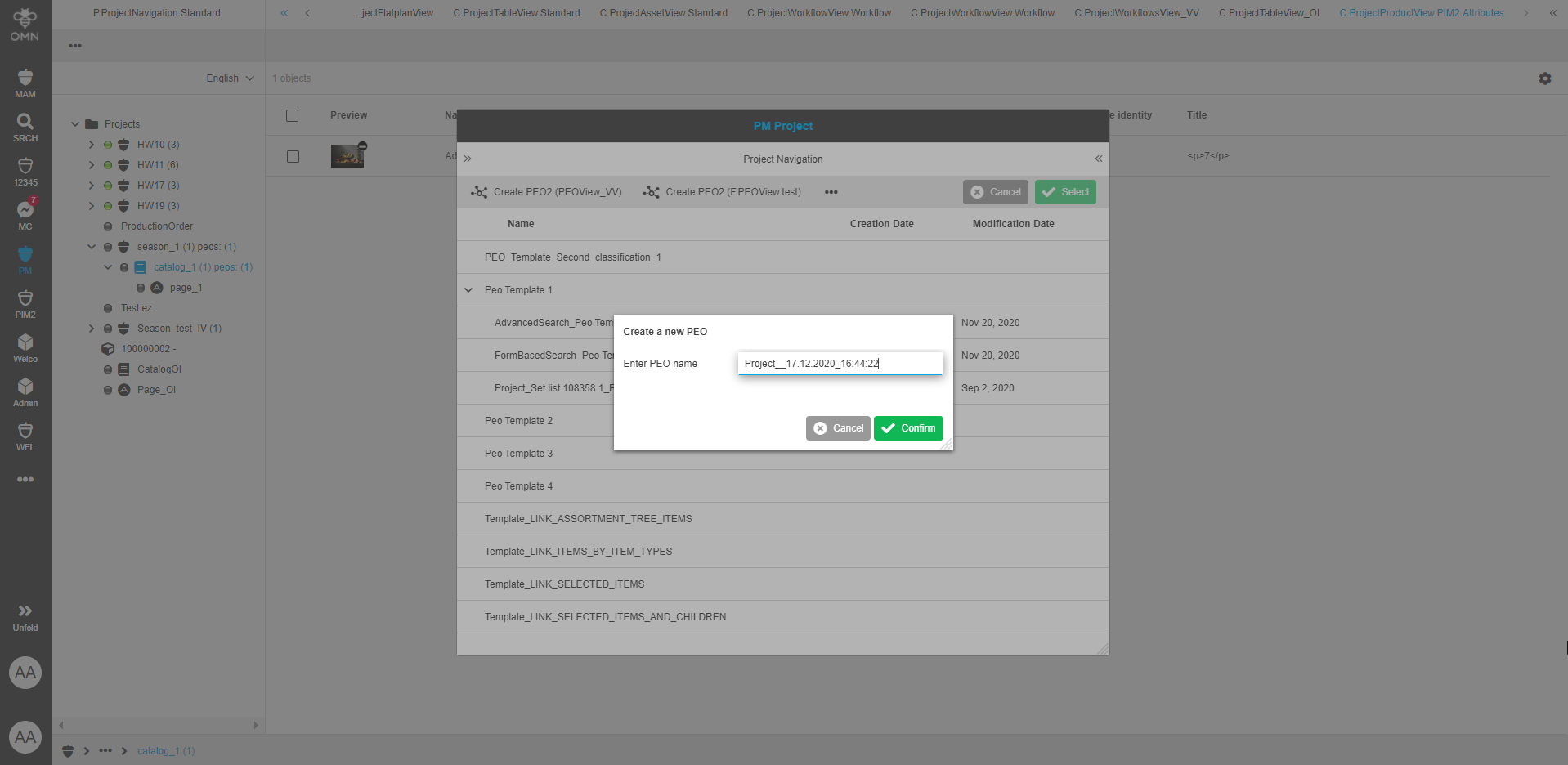
The user can either create a new PEO using CreatePEO2 (PEOView plugin configuration functions) or select/copy existing PEOs listed in the modal and grouped by templates.
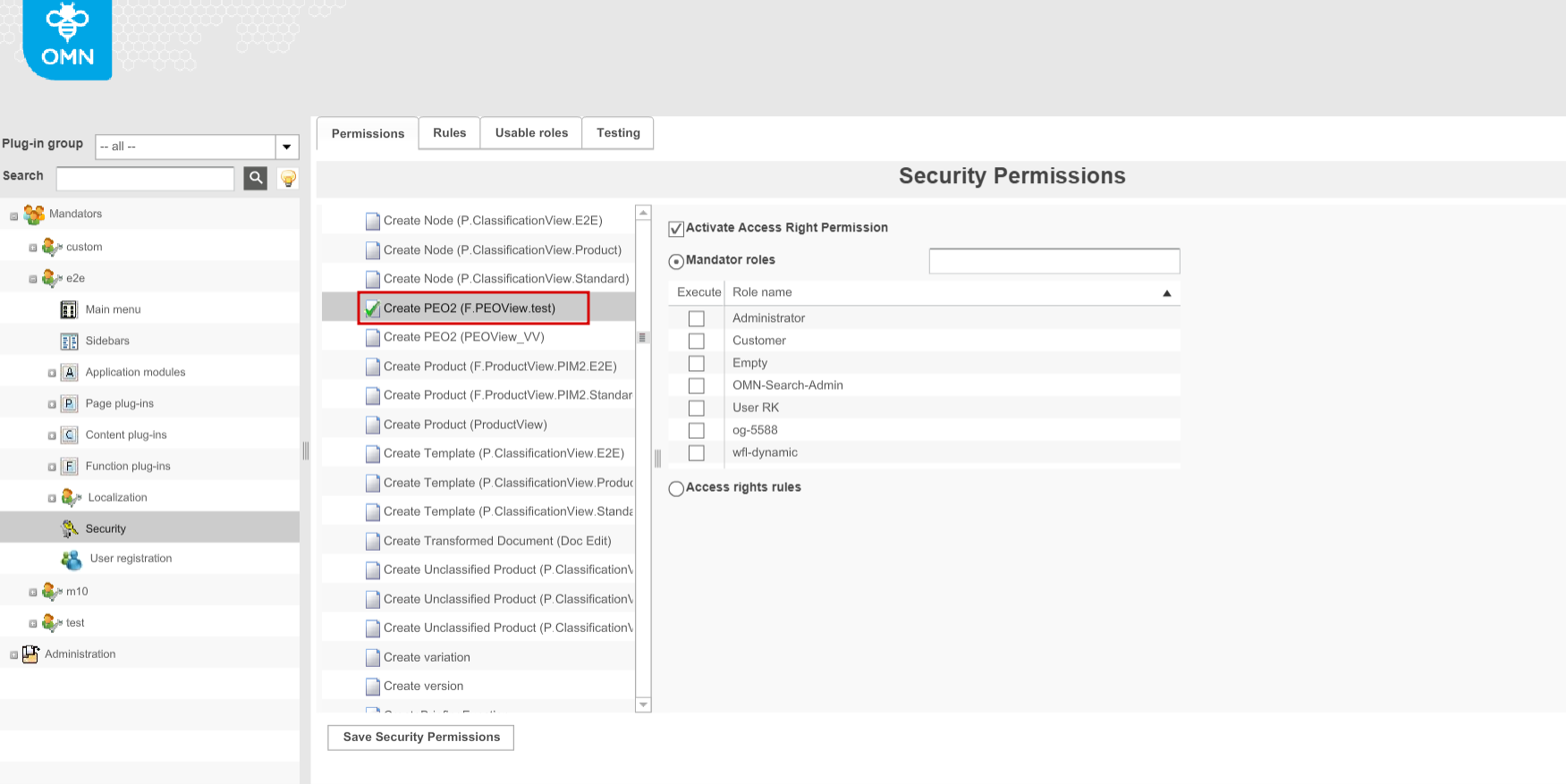
The functions to create a new PEO correspond to the configurations of PEOView and are available in the toolbar regardless of the selection. CreatePEO2 functions display depends on the set access right in Security → Permissions → Functions.
The behavior of the function differs depending on whether single or multiple products are being linked:
-
in case of a single product the user can specify the name of the PEO in the dialog (input field is prefilled with PEO name pattern if configured) and after confirmation the corresponding PEOView editor is opened
-
in case of multiple products PEOs of the template corresponding to the triggered CreatePEO2 function are created for each product without PEOView opening (PEO name pattern is used) and the products are linked to the project
-
PEOView-related functions: configuration of access rights
The availability of PEOView plugin configuration functions depends on access rights set in Security Permissions → Functions configuration. The example with Create PEO2 function is shown in the screen below:
PEOSearch
PEOSearch is essentially a two-step product search which does not imply a traditionally available search results page. At the first step, the search for products is performed by values of an attribute configured in the backend. The second step involves checking whether found products (or articles/variations) have PEOs that match the configured PEOView by the template. The described steps are actually hidden from the user who started PEOSearch and its visible result is the opening of PEOView editor with corresponding PEO(s) in case of successful search or the display of the error toast message when nothing is found.
| In old client when PEOSearch function plugin is configured it appears directly as Quicksearch item in the frontend. PEOSearch uses OpenPEOByName function and opens only single found PEO. Otherwise, an error is shown. In HTML5 implementation it is possible to open multiple PEOs in PEOView if they match the template. |
PEOSearch function plugin configuration. To configure PEOSearch for HTML5 client a user has to specify the following options in plugin backend configuration:
-
Select necessary object type.
"PIM2Product" option should be used -
Specify a configuration identifier
-
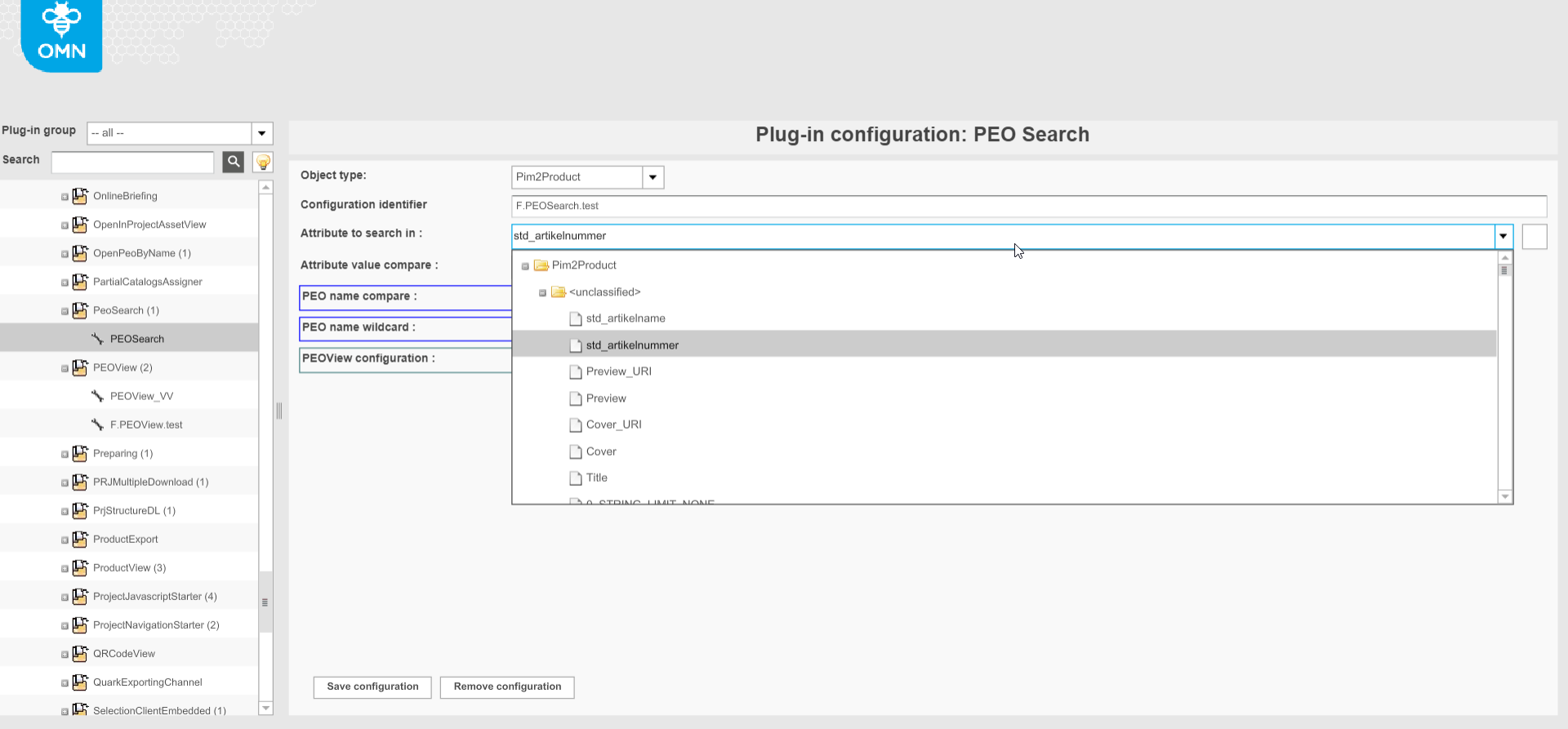
Select a PIM2Product attribute by which value the search should be done ("Attribute to search in" option)
-
Specify a necessary comparator ("Attribute value compare" option).
"Equals" option allows to get the most accurate PEOSearch result. 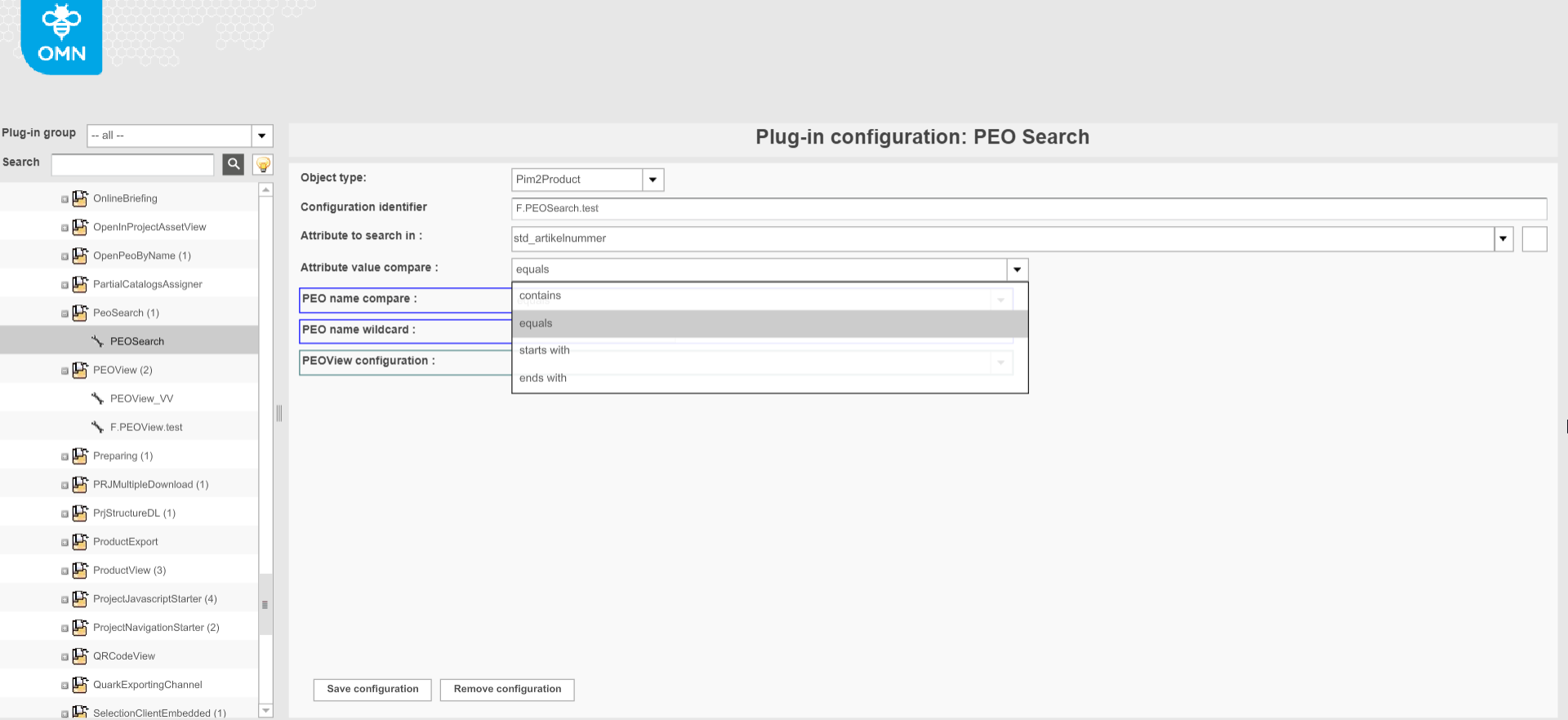
-
Set PEOView configuration (HTML specific). The template from the plugin configuration will be compared with templates of PEOs available for found products. PEOs with relevant templates will be opened in the PEO editor.
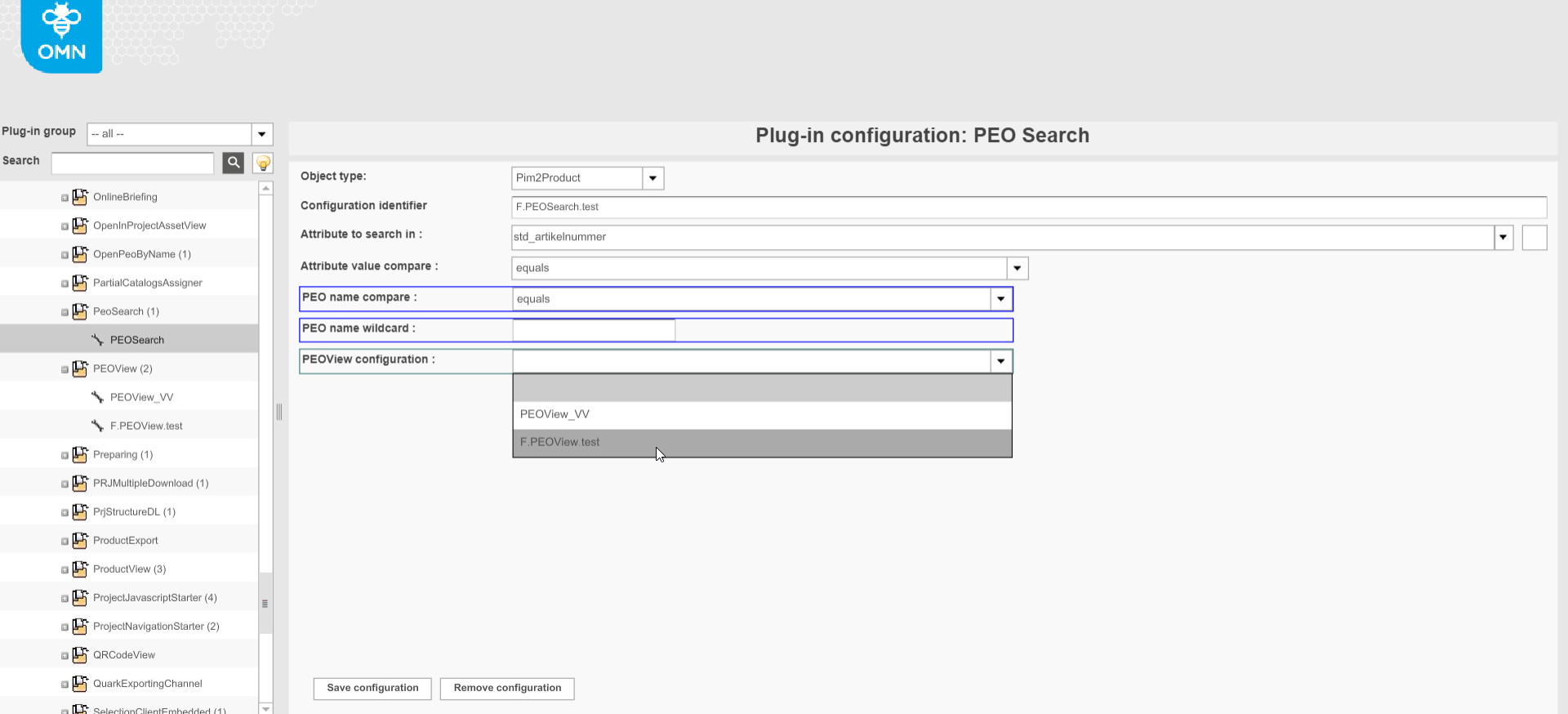
| "PEO name compare" and "PEO name wildcard" are marked with blue border and are irrelevant for HTML5 client. |
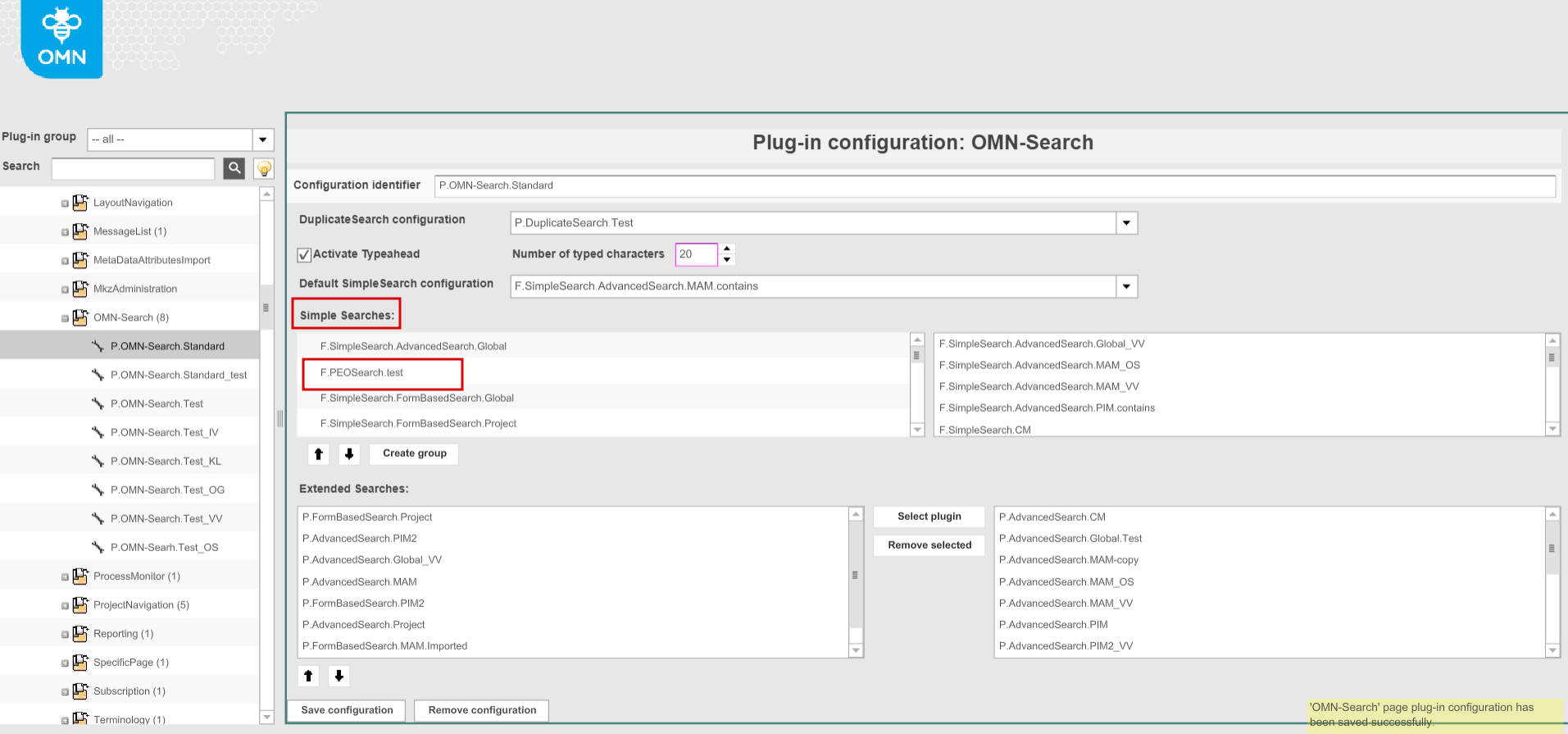
OMN-Search. Configured PEOSearch should be enabled on the OMN-Search page. For this, the user has to add a specific PEOSearch configuration to the Simple Searches in OMN-Search page plugin:
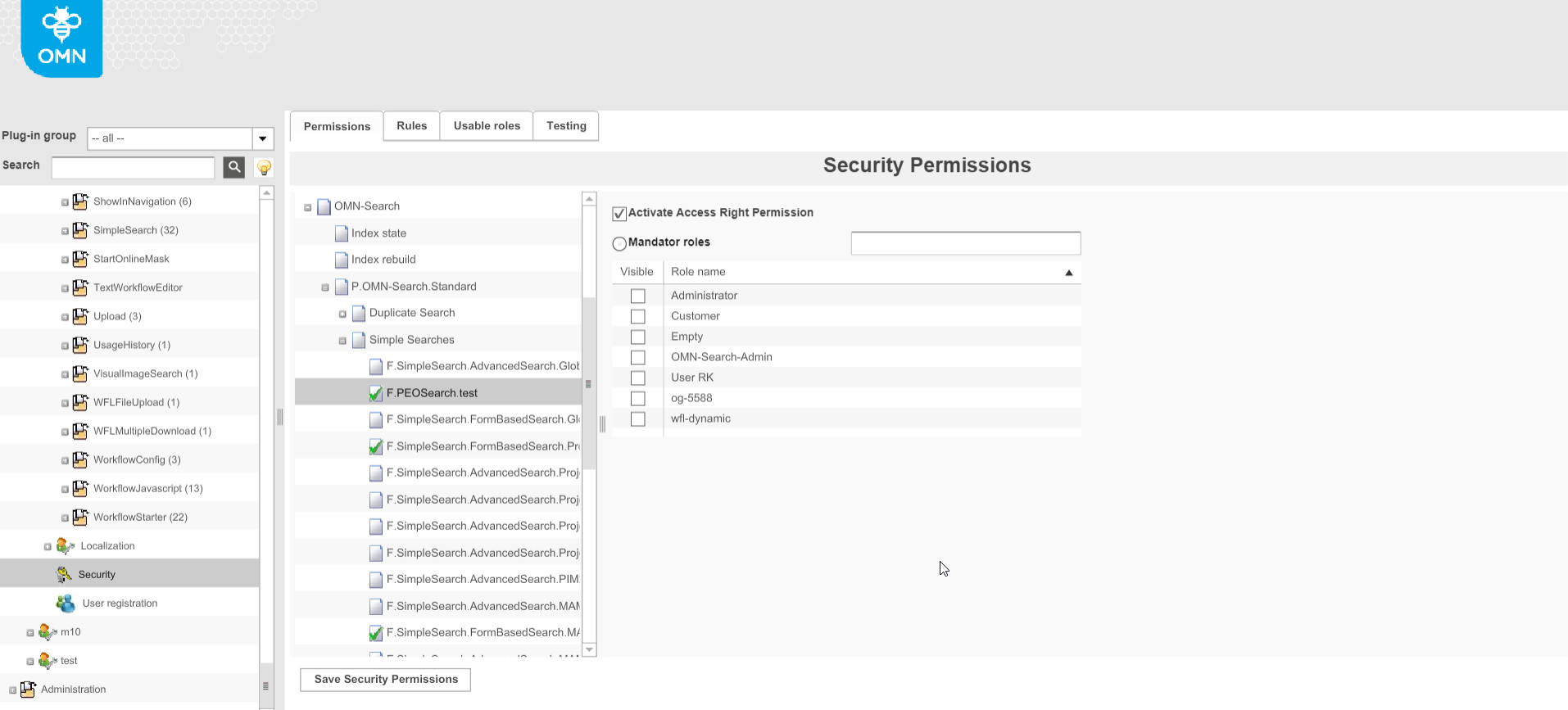
Access rights configuration. If necessary access to a specific PEOSearch can be restricted for specific roles in Security Permissions → OMN-Search → OMN-Search page plugin → Simple Searches
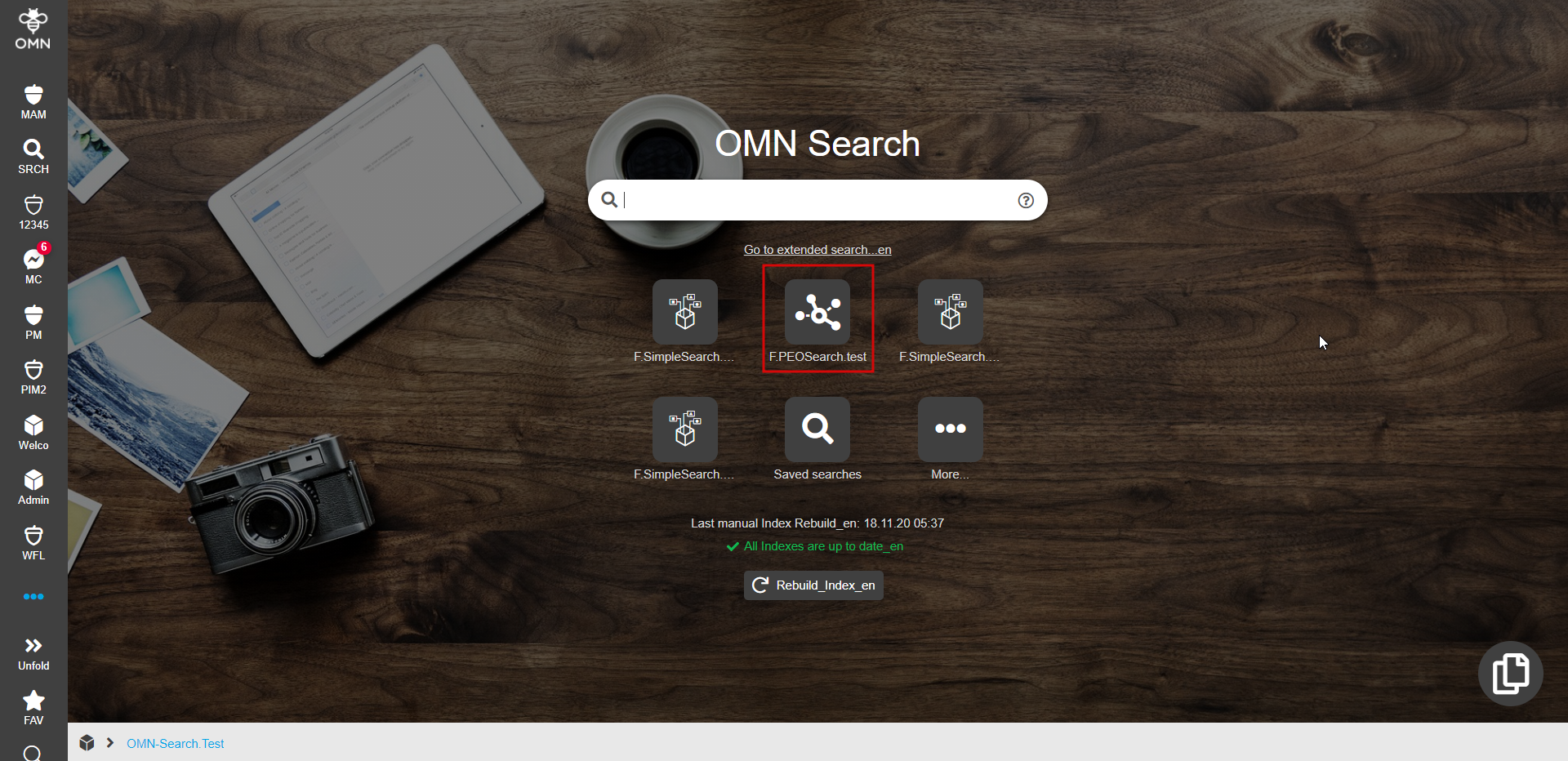
HTML5 Client. If configured correctly PEOSearch is shown as a tile on the OMN-Search page in the frontend (set access rights are considered).
Indication of PEOs availability
-
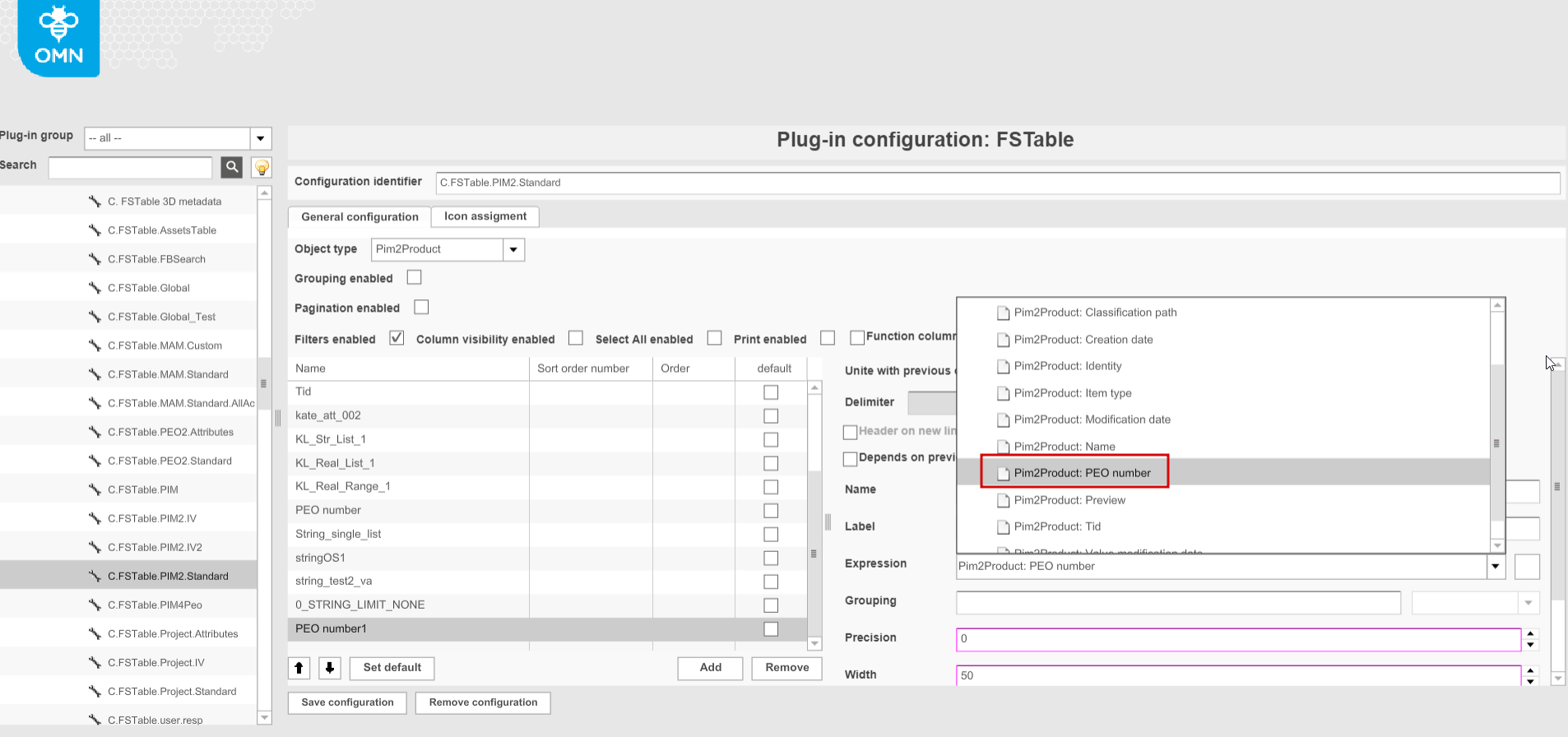
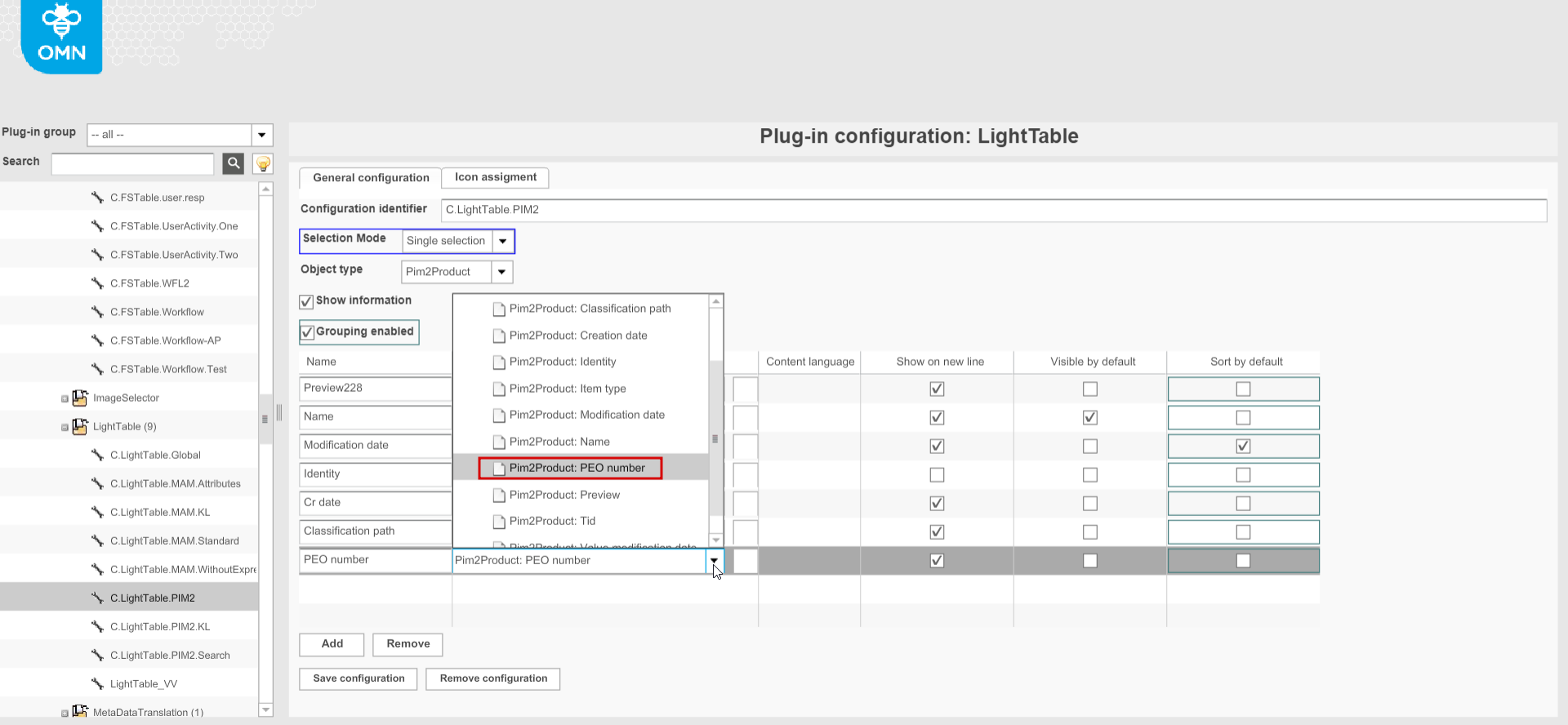
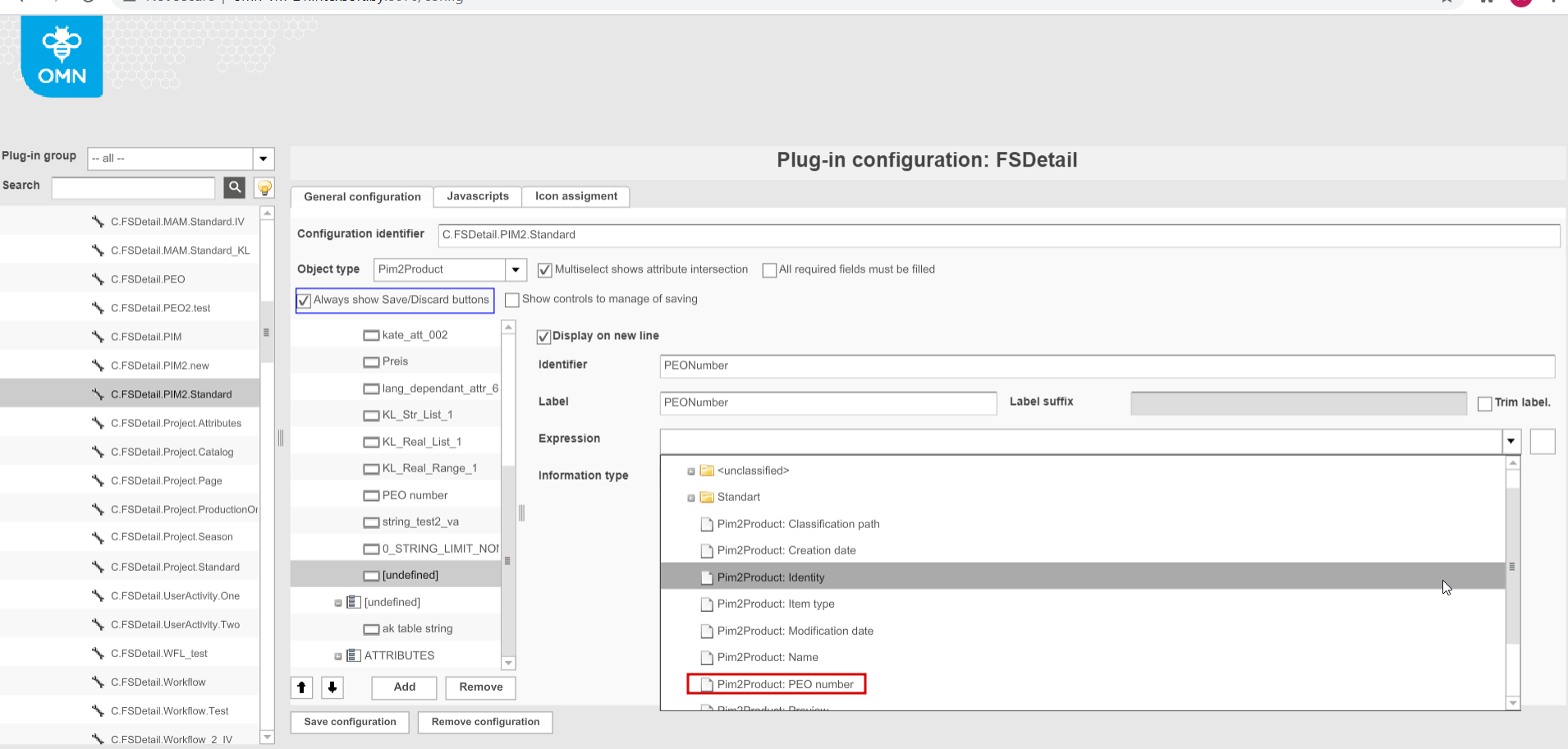
PEONumber expression
The new expression - PEONumber - is introduced and can be configured in FSTable, FSDetail and LightTable of PIM2 object type. The configuration looks like:
-
FSTable
-
LightTable
-
FSDetail
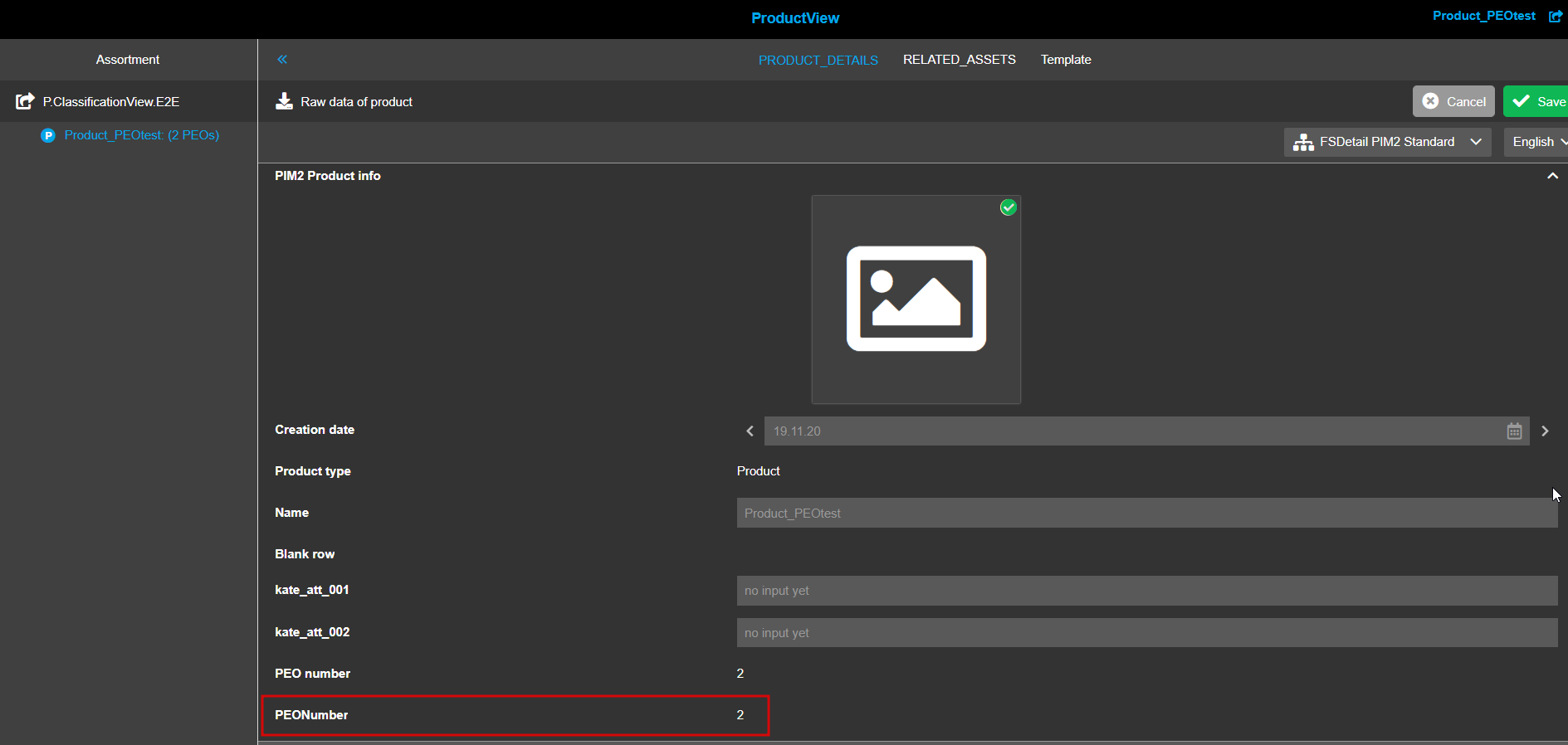
HTML5 Client. If configured for the mentioned content views, the attribute shows how many PEOs the specific selected product has wherever it is configured and used (including search). It is useful indication to see at a glance whether PEOs are available. Filtration and sorting by the PEO number attribute is possible in tables. The examples of usage in FSDetail and FSTable in ProductView are shown below:
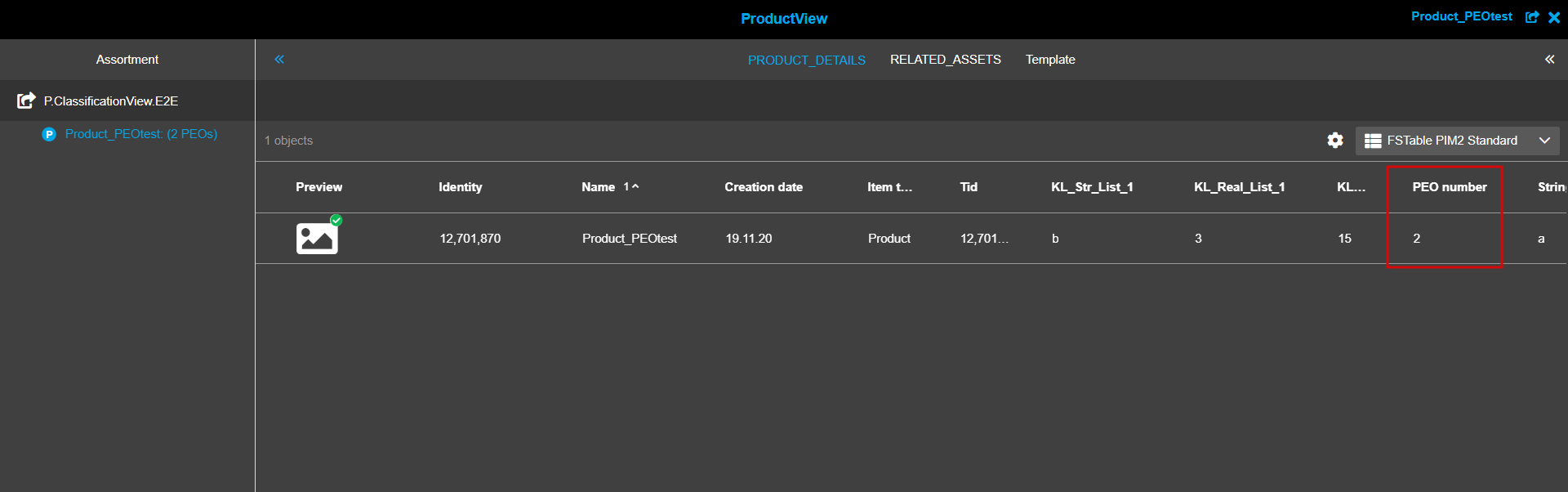
-
-
Indication of PEOs availability in ProductView
If the indication that some item in the Product-Article-Variation hierarchy has PEOs is needed in ProductView, the user can configure an extra placeholder "%peoNumber%" in the configuration of patterns for product names in ProductView function plugin. Such configuration allows to show the number of available PEOs close to the product name.
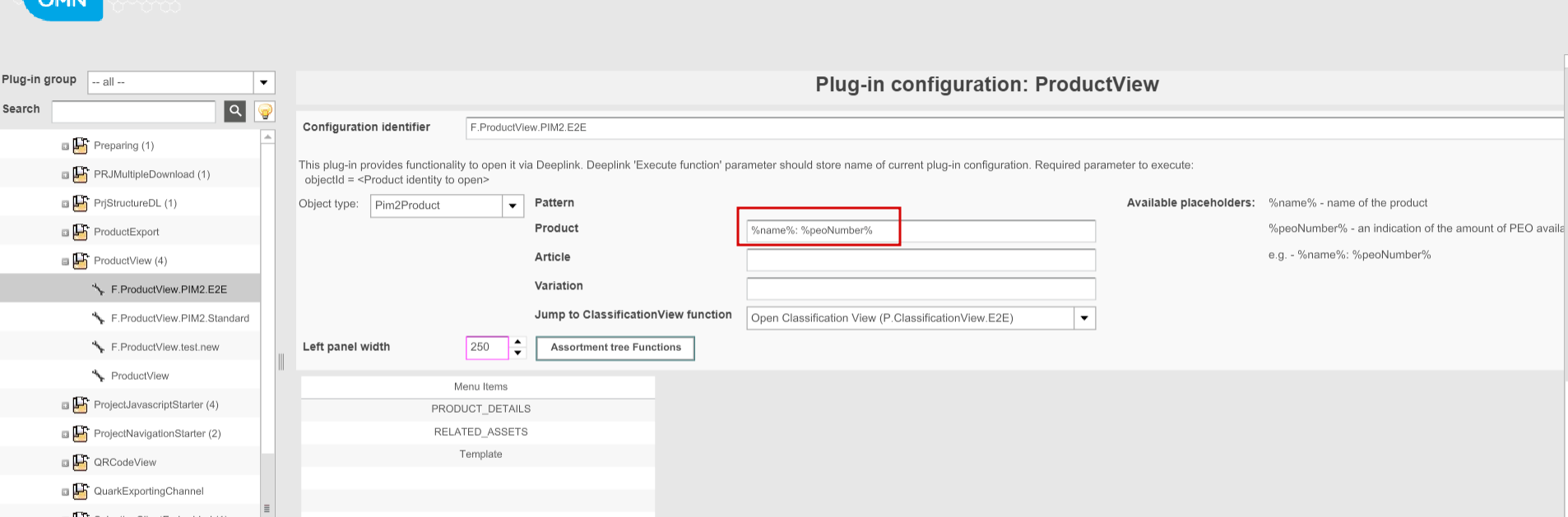
HTML5 Client. If configured the products in hierarchy on the left are shown as follows:
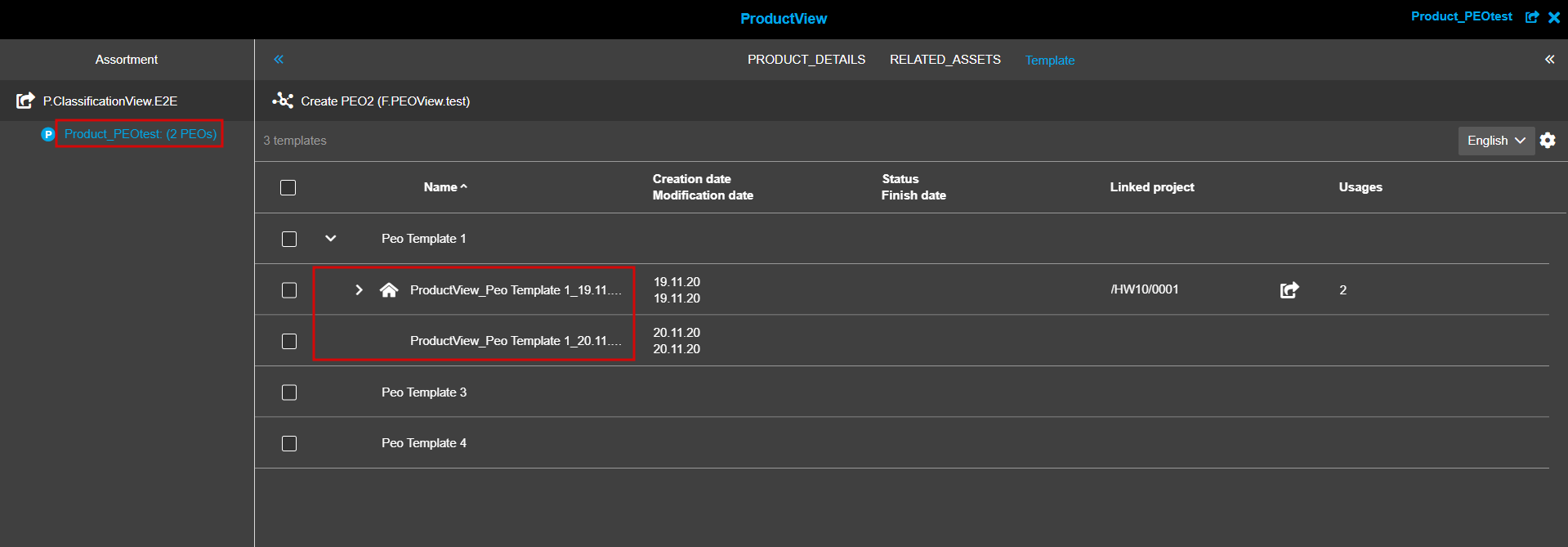
The indication refers only to the object in Product-Article-Variation hierarchy for which the corresponding pattern was configured.
OpenTemplateView function
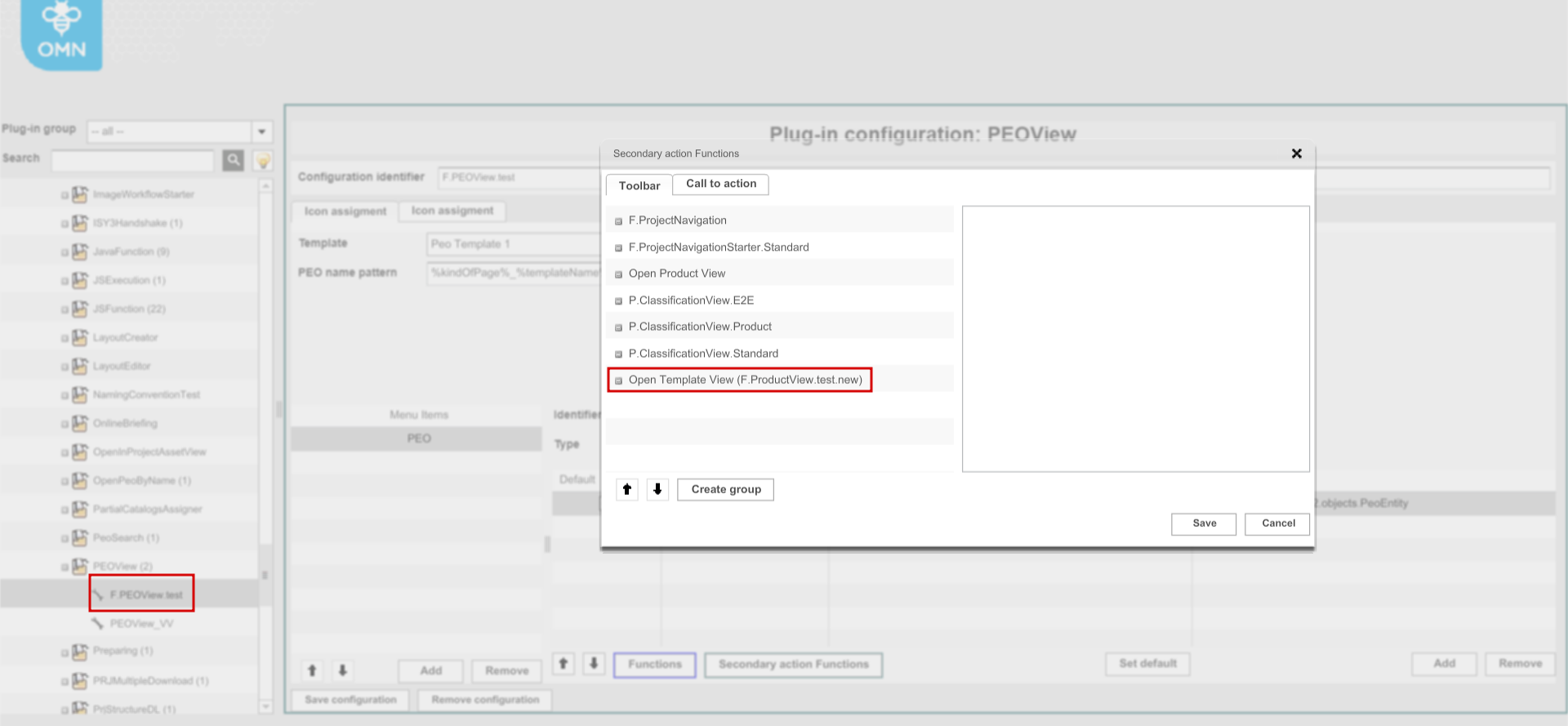
The new ProductView plugin configuration function - OpenTemplateView - is introduced and is configurable as secondary action function in PEOView function plugin. The function allows jumping from PEOView editor directly to ProductView → Template tab. When "Template" view is opened the user can see the corresponding Product/Article/Variation preselected in the tree on the left and the corresponding PEO preselected in the center.
| The function is available with the new configurations of ProductView function plugin only. |
HTML5 Client. If OpenTemplateView function is added in the PEOView configuration it is shown in the toolbar of PEO editor on the client-side:
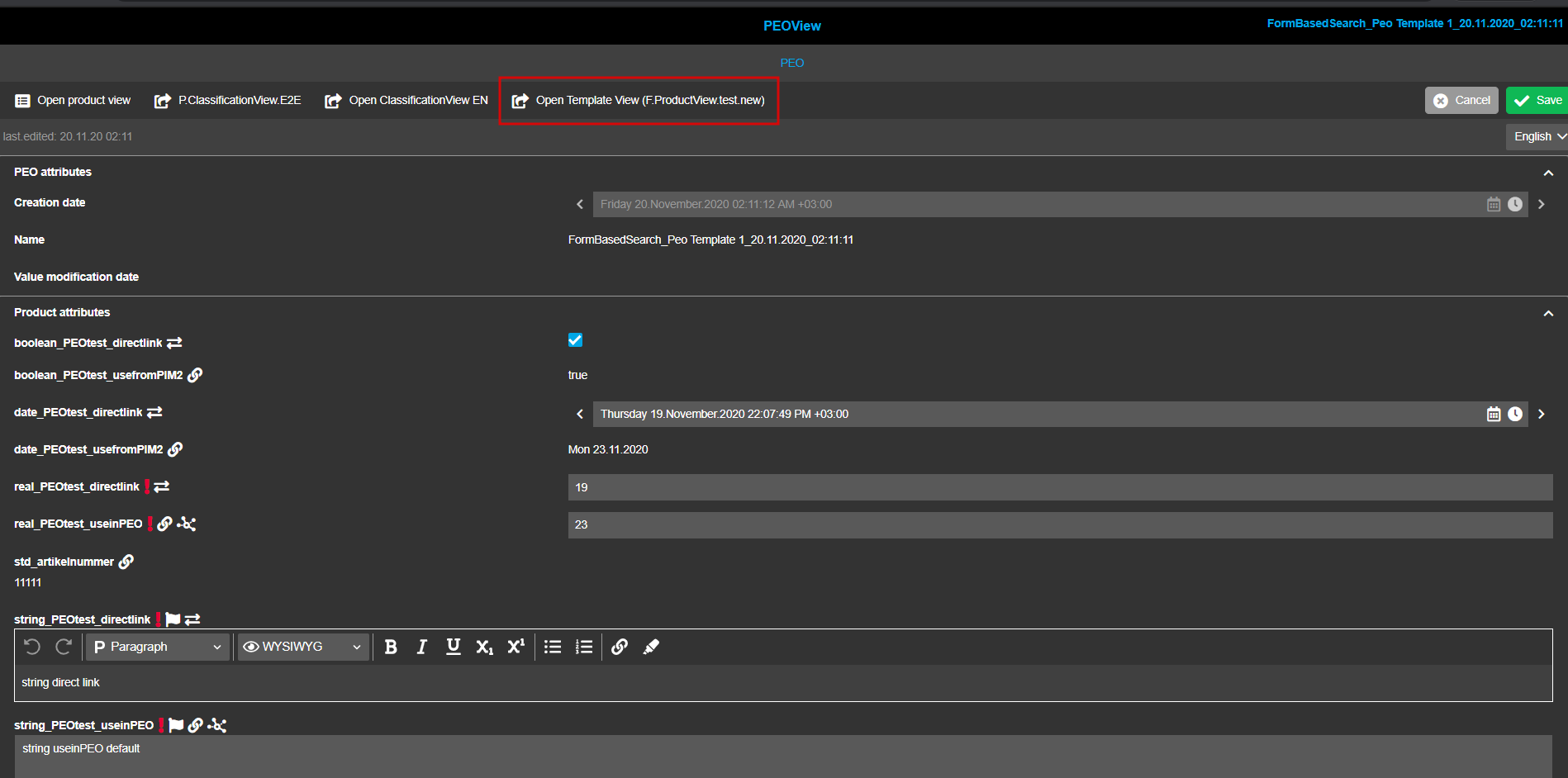
Image slots
Configuration
With HTML5 implementation attributes of "image slot" information type are represented in the frontend as a combination of different widgets that depend on the configuration. To visualize linked assets inside PEOView editor a reference table attribute should be configured in the corresponding FSDetail of "Product Export Option 2" type.
| As a precondition the attribute should be created first in Classification View on the basis of "Reference table" attribute definition where multiple image-related attributes can be assigned to the reference table. As a result, there is no need to configure separate attributes in addition to image slots as it was done previously. |
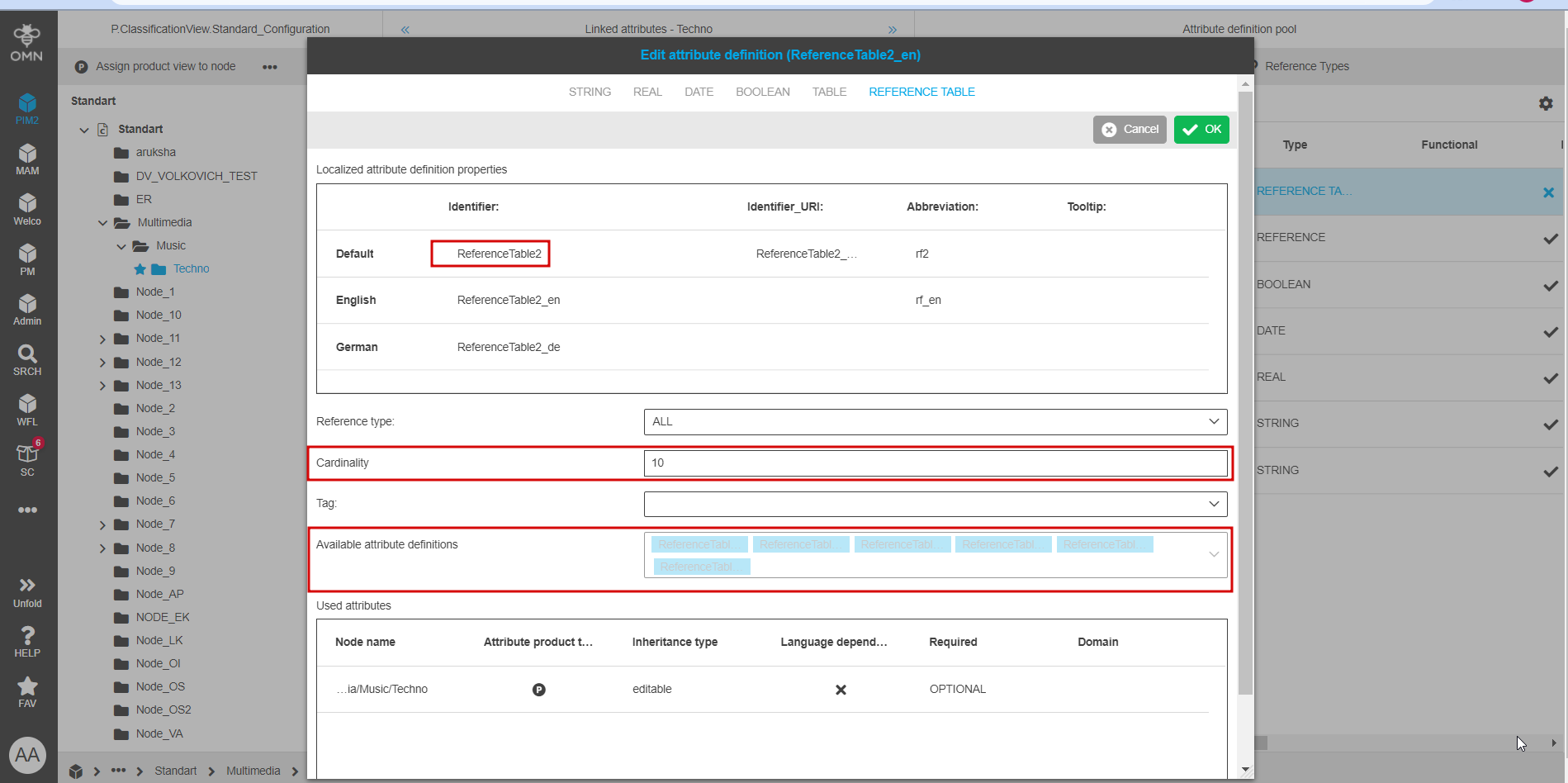
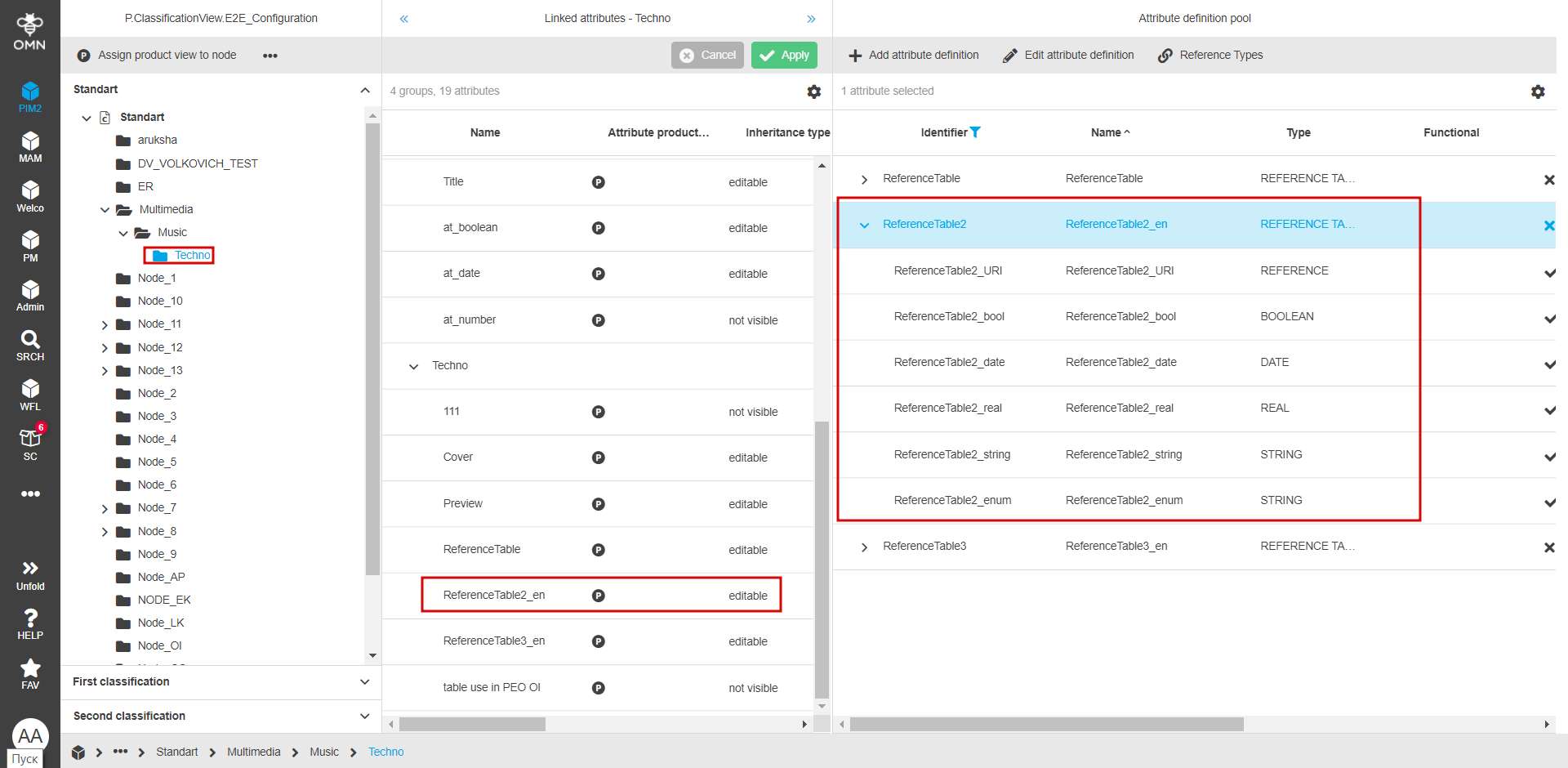
To enable the attribute in the backend go to FSDetail of PEO2 object type that is configured on the base of necessary template. Select the corresponding reference table and then "Image slot" information type (the only possible option). All attributes added in the frontend are shown in the table where the user can assign necessary infotypes for each one. Backend configuration of a "Reference table" attribute looks as follows:
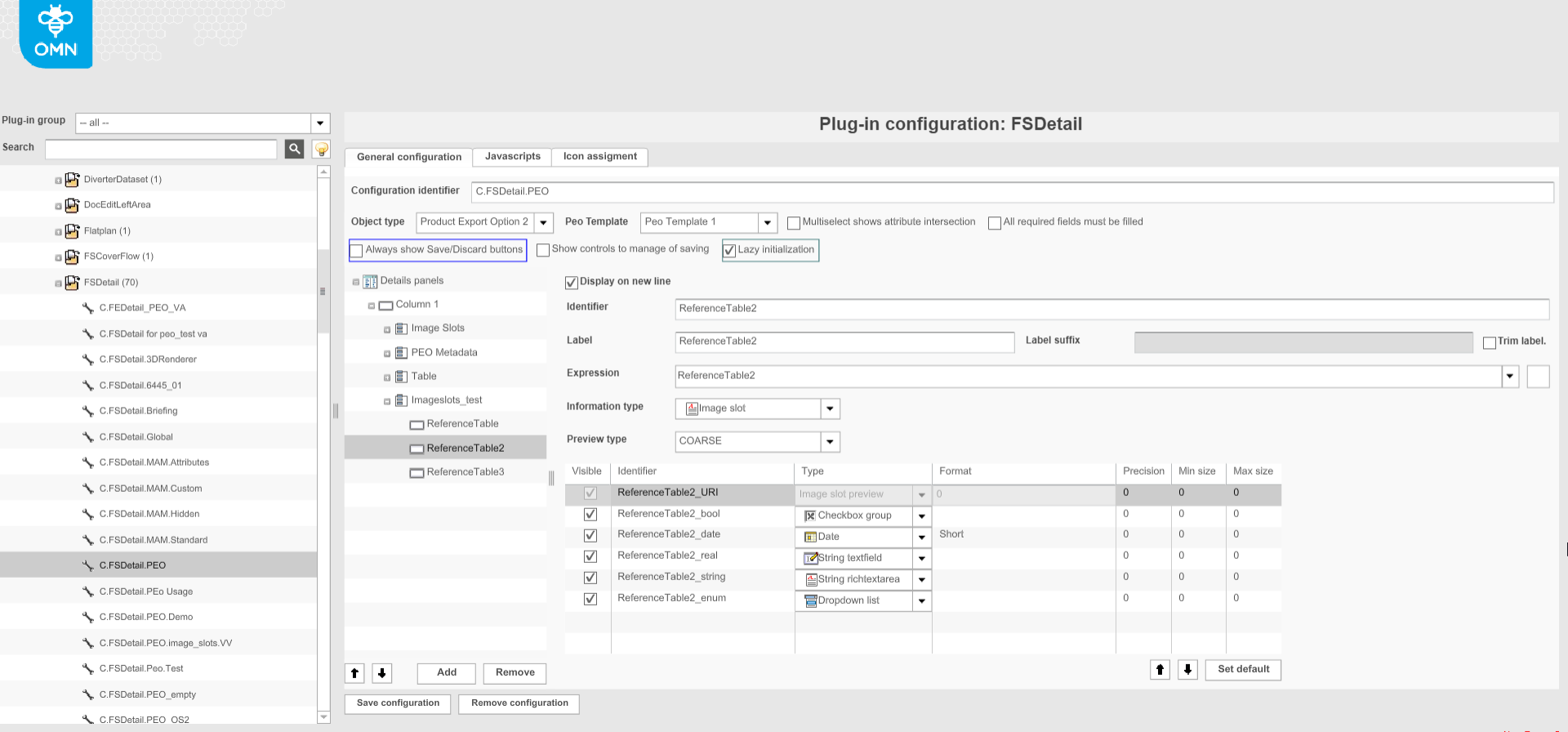
HTML5 client
If a reference table attribute is configured appropriately it is displayed as a tile with a related asset (or just as a placeholder) and other attributes underneath if they are configured. Linked objects are shown with their previews and object name (used previews depend on the preview type configured in FSDetail; custom previews are supported).
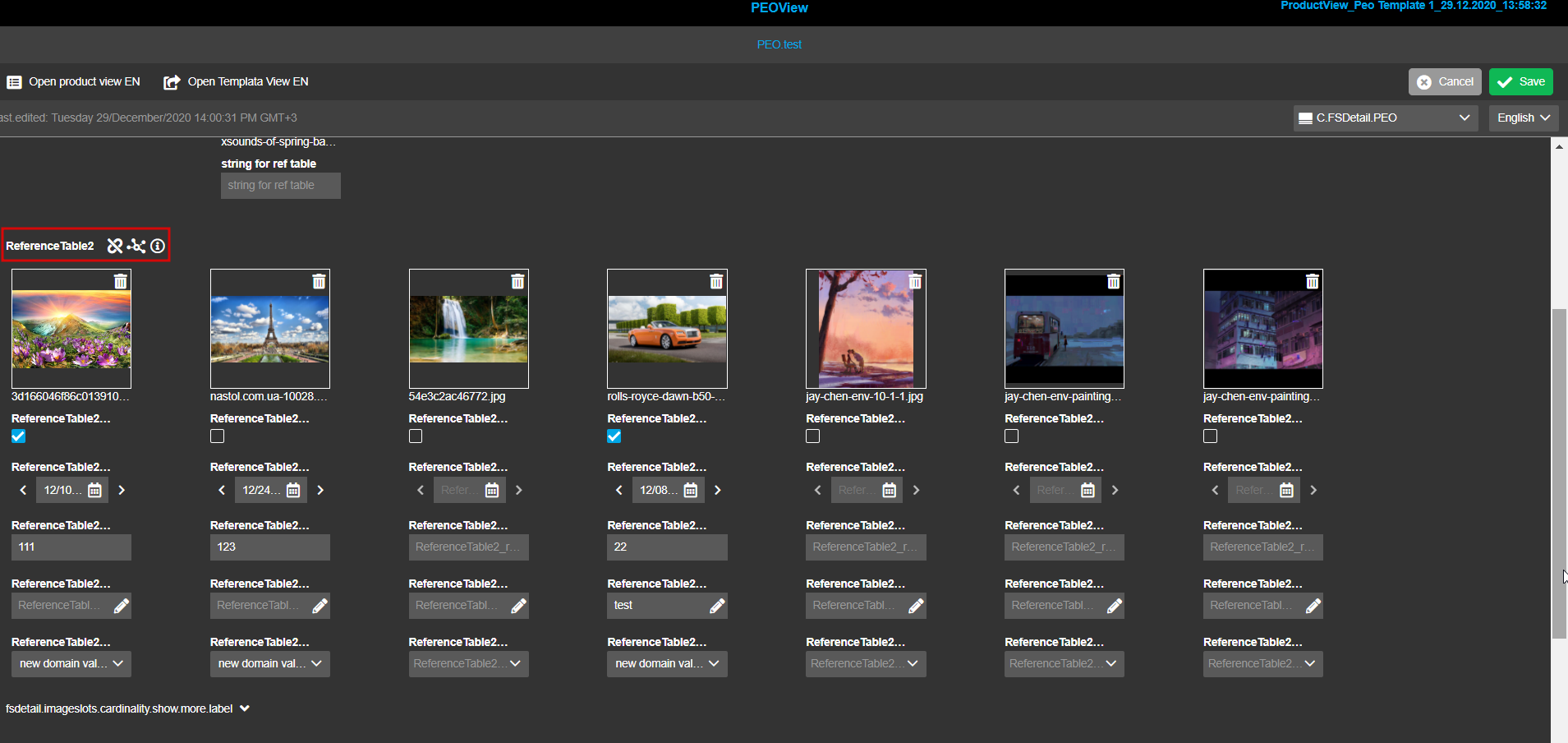
| Inheritance works for reference table in the same way as for other attributes. |
Visualization of different cardinalities
The view of the specific reference table depends on the cardinality set for attribute definition in Classification View → Configuration tab. The new PEOView can handle different cardinalities from 1 to n. (warning)
| previously only attributes with cardinality=1 were configurable in Application modules → PIM2 → Templates. |
In HTML5 the number of available image placeholders /filled image slots corresponds the cardinality (e.g. cardinality = 1 means there is one image slot for each configured reference table attribute, cardinality = 2+ – more than one, etc). If the cardinality exceeds the number of linked assets the additional placeholder zone(s) is shown.
If all available image slots/placeholders don’t fit to one row, "Show more" button appears and expands the next row (and "Show less" behaves vice versa). The information about the cardinality and linked objects is shown on hover over "information" icon close to the attribute name.
There is the special case with unlimited cardinality (nothing set). In such a case the only one dropzone to DnD images is available (all dropped objects are shown below the dropzone).
DnD
The user can add/exchange/copy the objects into the image slots via DnD
-
if the reference table attribute is configured as editable in PEO (attribute PEO behavior='use in PEO'/'Direct link')
-
and the user has access to edit the attribute
DnD behavior inside one PEO:
-
dropping an image to a blank placeholder - it is removed from the initial slot and a new link is created in the target
-
dropping the image to a filled placeholder - exchange between the placeholders is performed
DnD behavior between PEOs and reference table attributes inside one PEO:
-
dropping an image to a blank placeholder - no change in the source, a new link is created in the target
-
dropping the image to a filled placeholder - no change in the source, the image is replaced in the target
DnD is impossible when image slots are not editable in PEO because of set access rights or "Attribute PEO behavior" strategy (they are shown being disabled and cannot be removed/overwritten/filled in via DnD).
| If the amount of assets added by DnD exceeds the cardinality, only allowed number will be attached considering the sequence of the selection |
Image slots functions
The image slots-related functions are configurable as secondary action functions for content views in PEOView backend configuration. The following functions are supported:
-
WorkflowConfig
-
WorkflowStarter
-
Show in navigation
-
OpenOriginalPreview
-
Show path
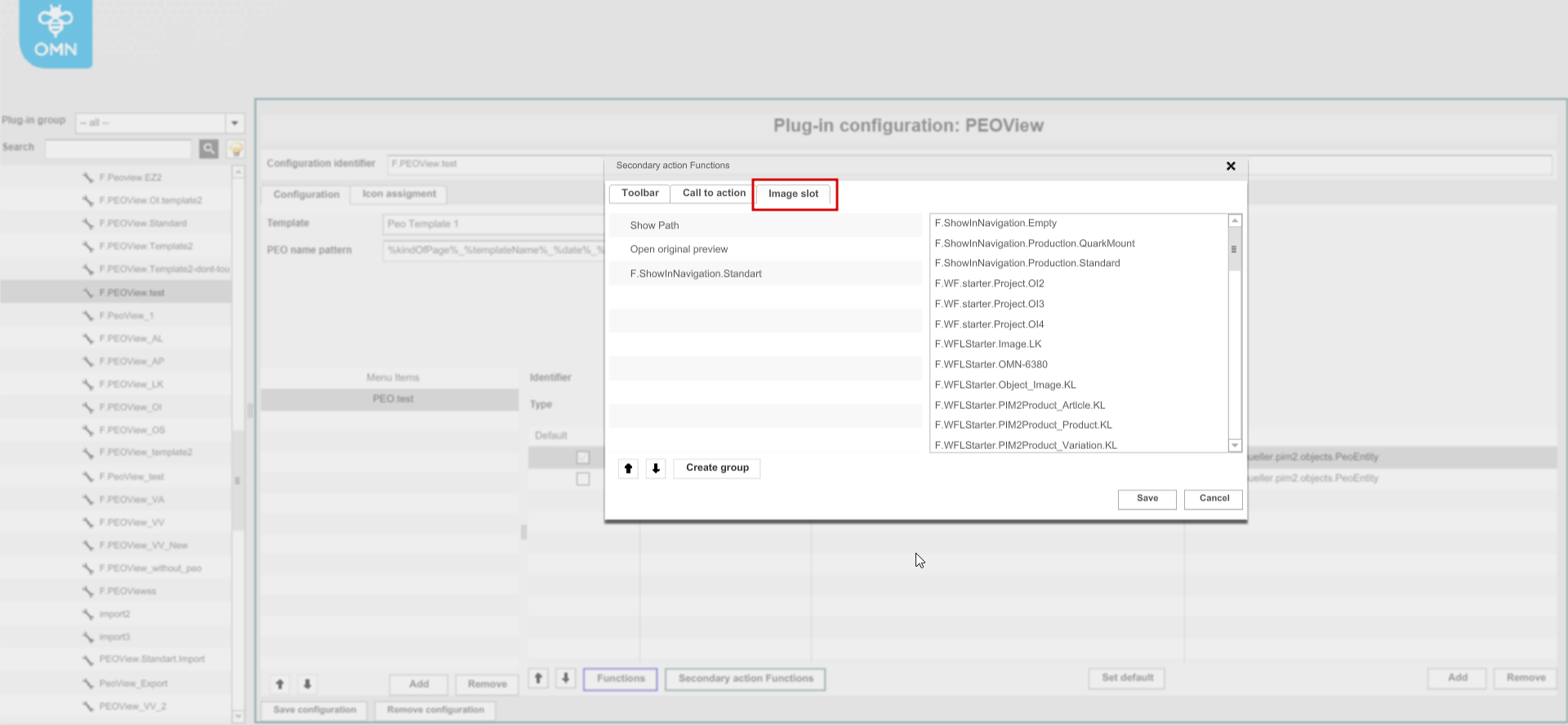
If configured, image slots functions are shown and can be executed directly from the image slots toolbar
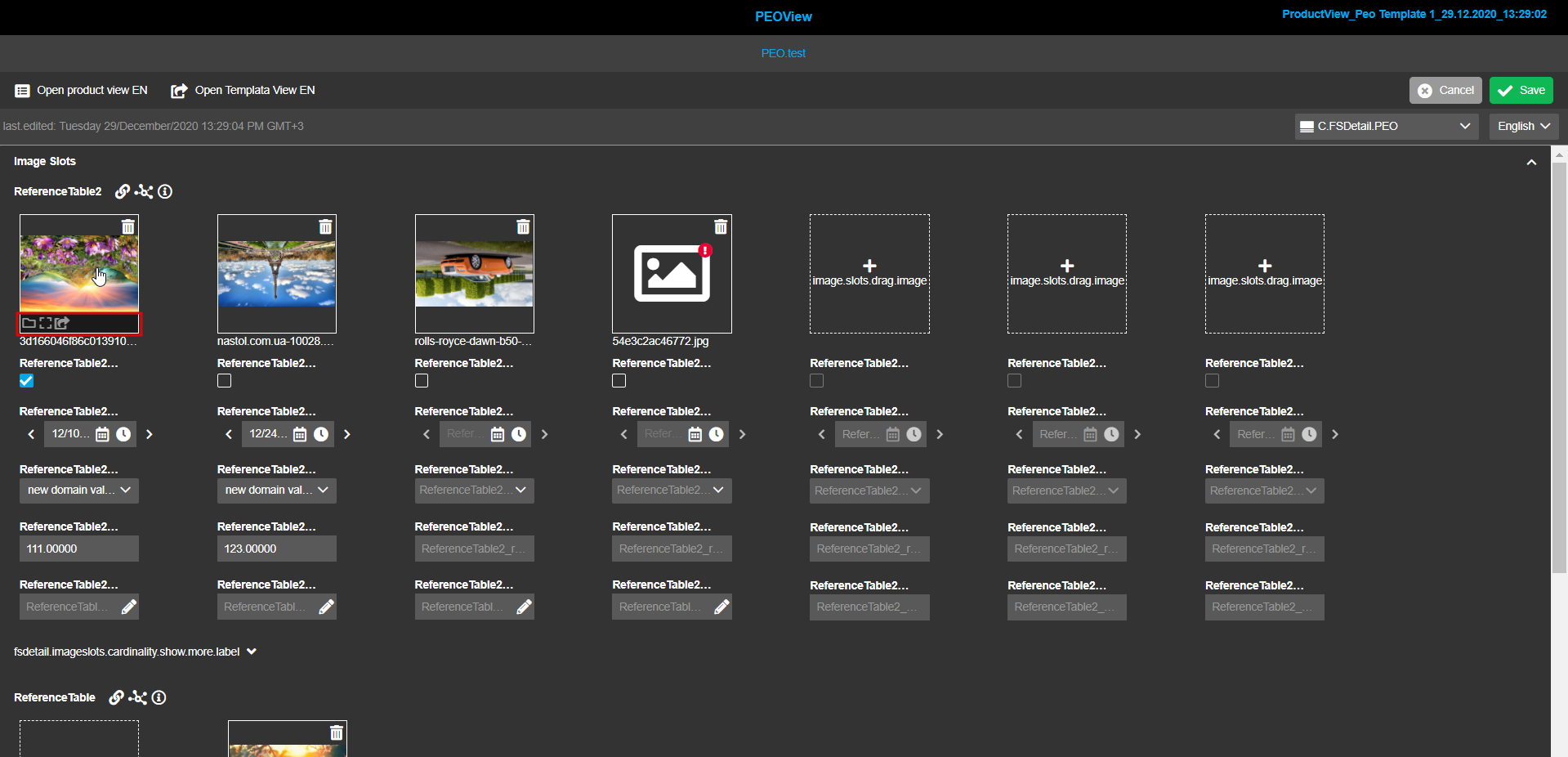
| Assets can be removed from image slots by clicking on "Remove" icon (it is not configurable as the function and is available depending on set access rights for reference table attribute). |
Show path function
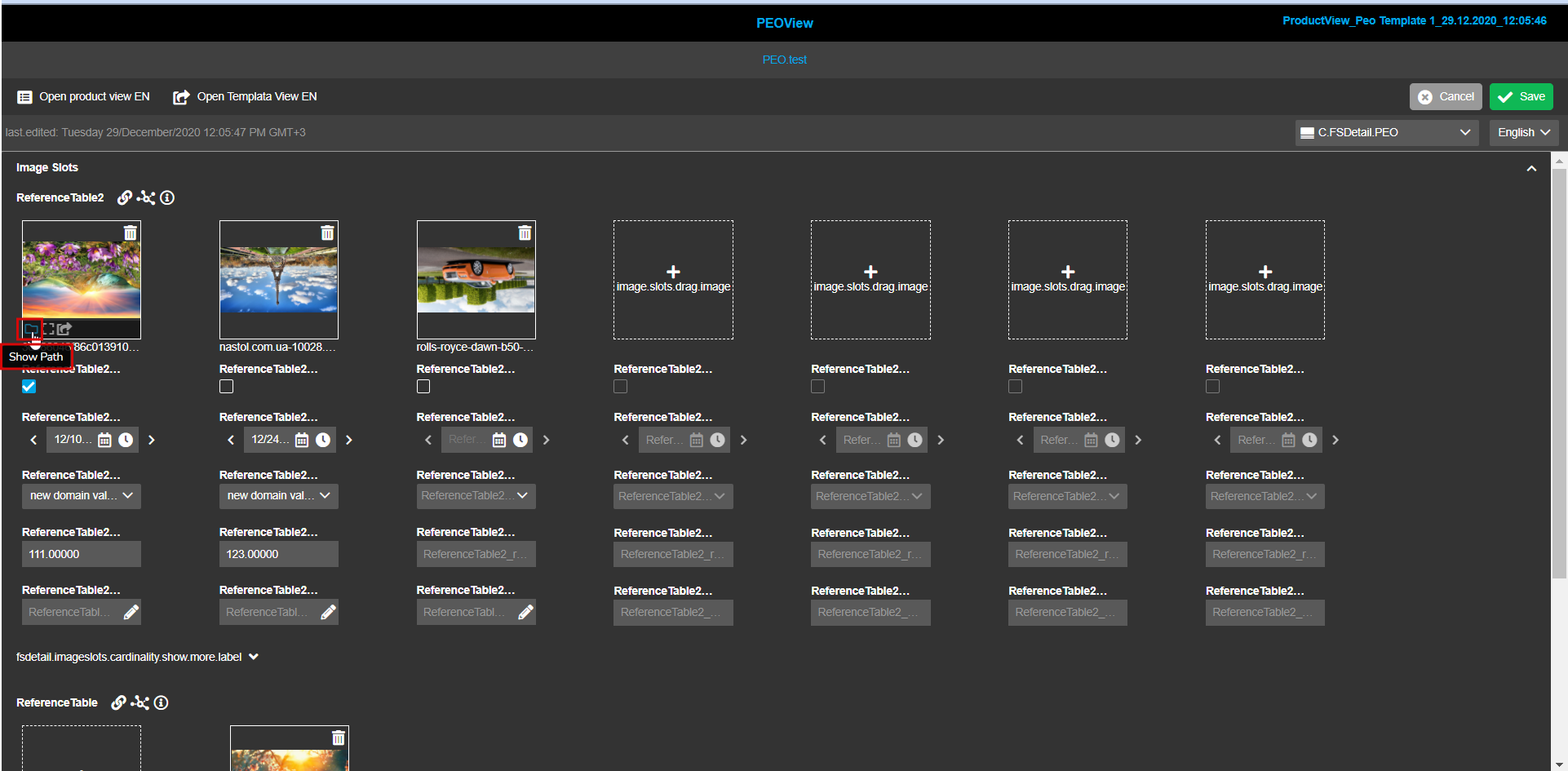
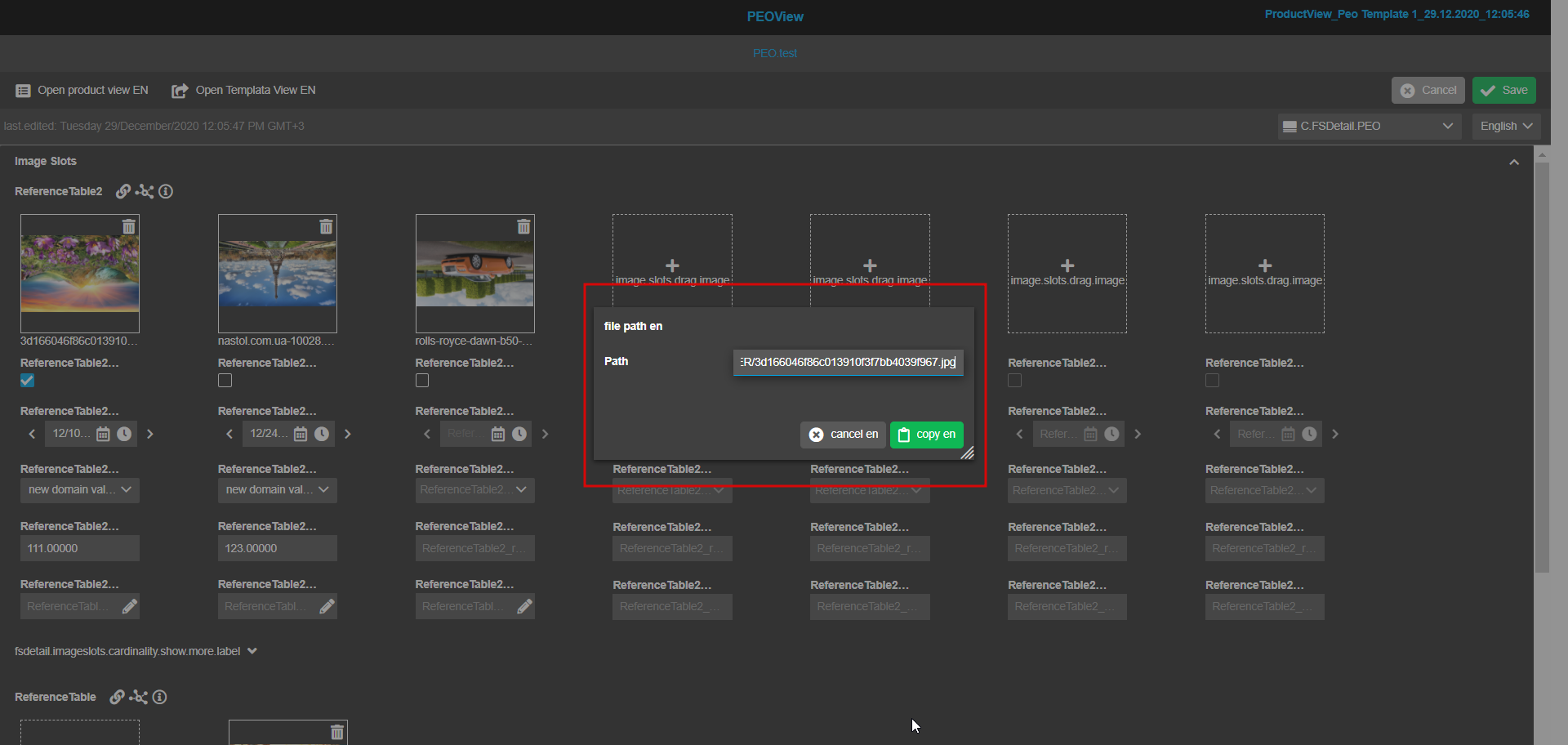
"Show path" function allows viewing and copy the original path of a linked asset which preview is shown in the image slot so that the asset can be found in the navigation easier.
Configuration: The function is configurable in PEOView function plugin for a specific content view as Secondary action function → Image slot function. The display of the function can be restricted in the Security → Permissions → Functions section in the backend (access rights by roles only can be set for the function). The configuration looks like:
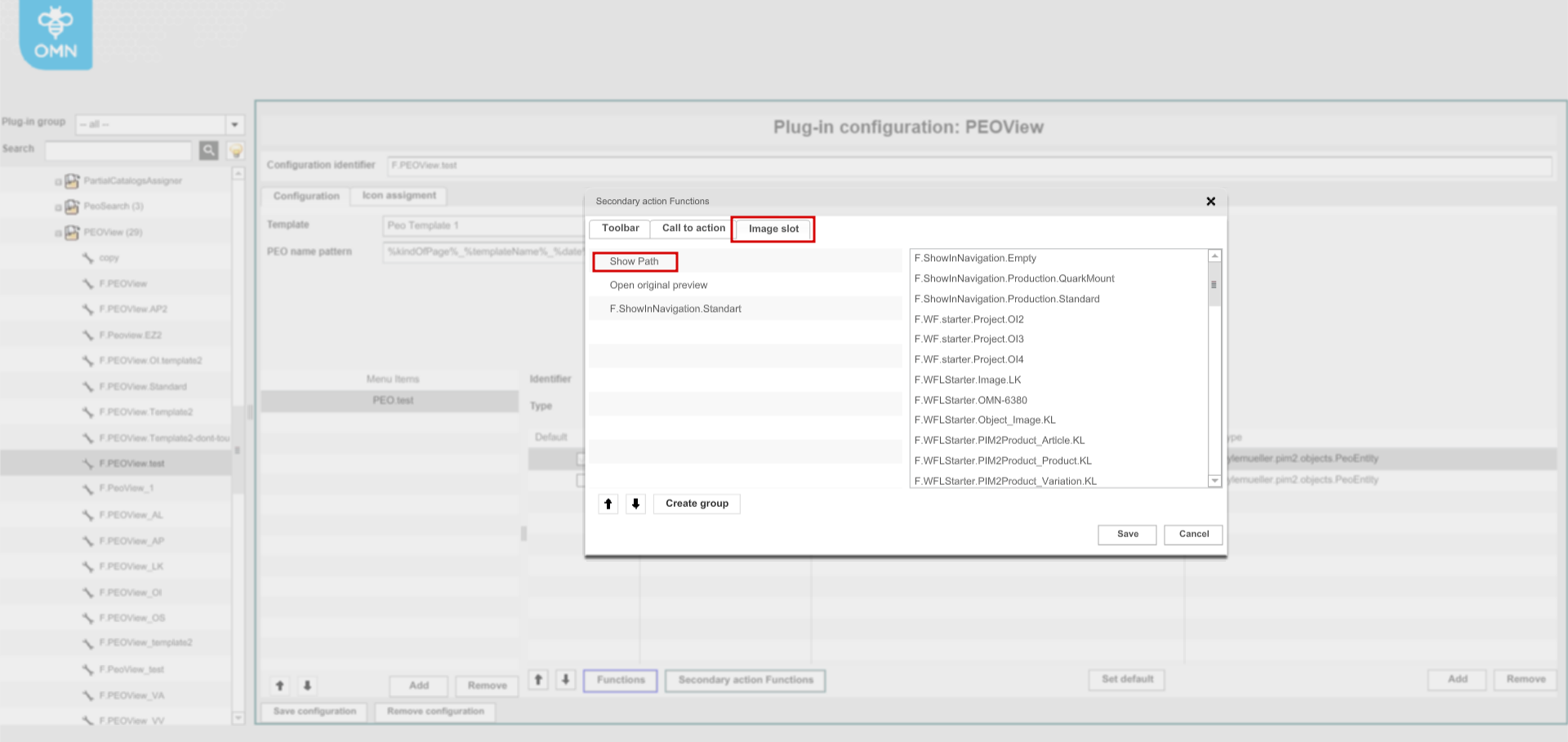
Usage in HTML5 client: If the function is configured and the user has corresponding access rights, "Show path" function is always shown on hover over image slots in the special bar. If the function is triggered the modal window appears and contains the input with a filepath which can be either copied by "Copy" button or simply viewed ("Cancel" button is used to close the modal). "Show path" works in the frontend as follows:
Jump to ProductView function
"Jump to ProductView" function is used to navigate directly to the Product details tab in ProductView from a specific PEO attribute inheriting its value from a PIM2 product so that a user can edit the attribute value at the product level easier. The icon for the function is available for attributes with "Use from PIM2" relation only and is always visible close to the attribute name.
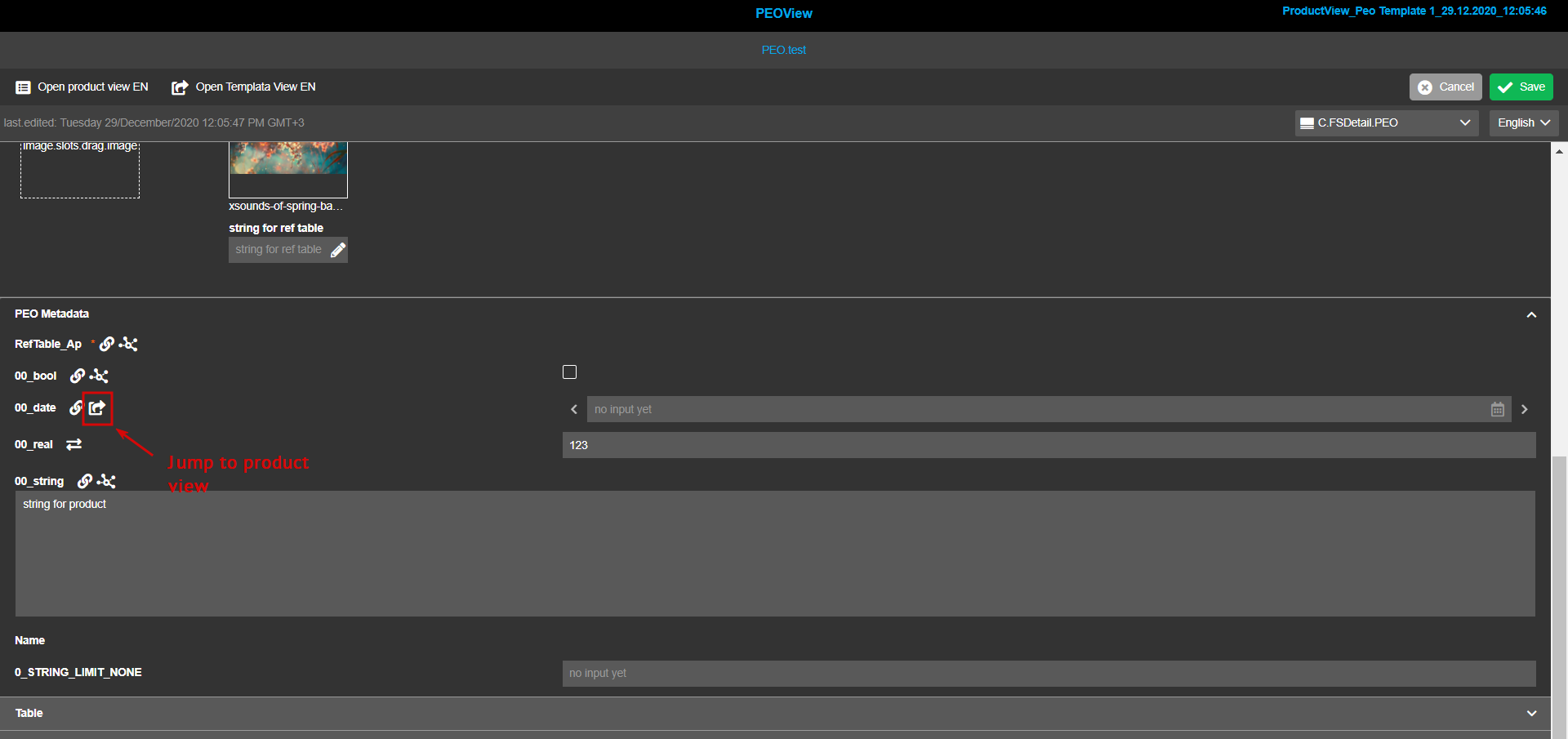
| The function is not configurable and appears if another function - OpenProductview - is added as secondary action function in PEOView configuration. |
Clicking on the icon redirects the user to the ProductDetails tab in ProductView
-
ProductView is opened in a new tab
-
the accordion with the attribute is expanded and page is scrolled down to the attribute
-
changes from ProductView affects the value in PEOView (it is updated there after refresh)
-
if something wrong is with ProductView configuration and the attribute cannot be edited there, the corresponding error messages indicates the issue
The function is used as follows:
Obsolete functionality
Due to the changes made in the configuration of PEO editor the following functionality is not compatible with HTML5 client:
-
"Templates" configuration from Application modules → PIM2 is replaced by the configurations of FSDetail with the new "Product Export Option 2" object type and PEOView function plugin. Marked as old client-specific with the blue border.
-
"OpenPEOByName" function plugin. The functionality is partially covered by "Open PEOView" function working with products in the search context.
Information for migration
Migration was not preformed due to complexity and ambiguity. At the moment, the configuration should be done manually.
To use image slots in HTML 5 client a user has to perform the following configuration:
-
Frontend:
-
Create "Reference table" attribute definition in Classification view → Configuration → Attribute definition pool (frontend)
-
Create the "Reference table" attribute by linking the attribute definition to a classification node via DnD in Classification view → Configuration → center/left view (frontend)
-
Set necessary characteristics for the attribute in Classification view → Templates (frontend) for each available template separately including:
-
"Linked attributes" (center) view:
-
'attribute product type' - defines for which object in Product/Article/Variation the attribute is available
-
'inheritance type' - defines if the attribute is available and editable on the lower levels in Product/Article/Variation hierarchy (not visible - unavailable, visible - available without possibility to set own value, editable - available and changeable)
-
'language dependence'
-
'optional/required/mandatory' option
-
-
"Node for PEO strategy" view
-
'attribute PEO behavior' - defines the behavior of the attribute in PEOs:
-
not used
-
use from PIM2 - uses product value and no own value can be assigned in PEO
-
use in PEO - default value comes from product but can be overwritten with own PEO value
-
direct link - product value is used, changes in PEO are possible and affect the product value as well
-
-
-
-
Use the configured "Reference table" to link objects to a specific product/article/variation (frontend) -optionally
-
-
Config client:
-
Add the corresponding "Reference table" attribute in FSDetail of 'Product Export Option 2' object type
-
Use the configured FSDetail in PEOView function plugin configuration as a content view
-
Afterwards, configured reference table can be used in the frontend to visualize related(linked) images in defined PEOs as described in the Configuration section above.
|
The compatibility of PEOs created in old client with HTML5 PEO functionality is ensured, including:
|
The usage of linking products to channels with or without confirmation PEO dialog
Linking products to a project is used to create PEO objects. This can be done automatically or with the selection of the PEO in the additional modal window.
To link a product to a channel with PEO modal creation, the following should be done:
-
In a config client:
-
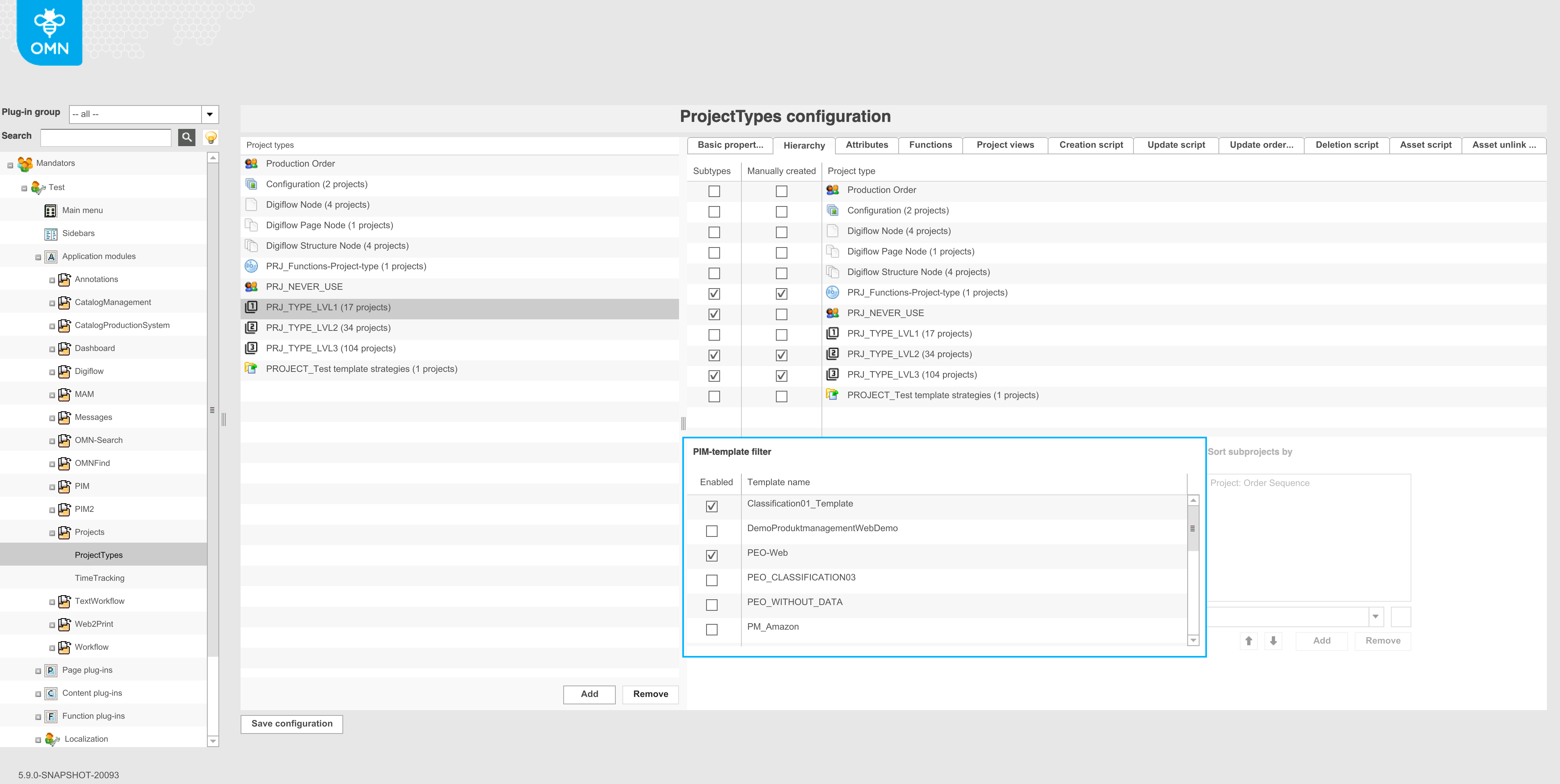
Templates are created and enabled in Application modules → ProjectTypes → Hierarchy → PIM-template filter:
-
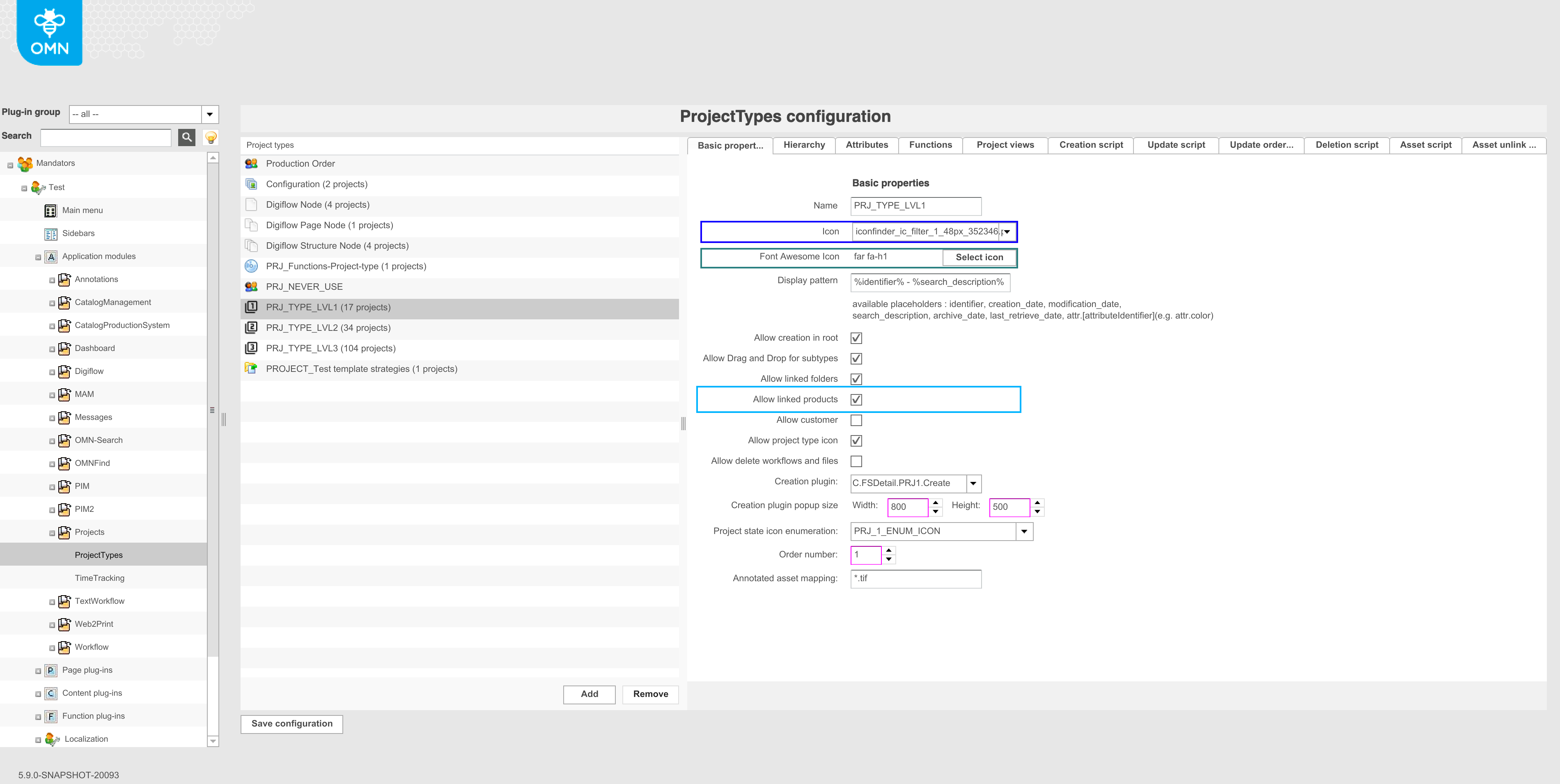
'Allow linked products' is enabled in Application modules → ProjectTypes →Basic properties:
-
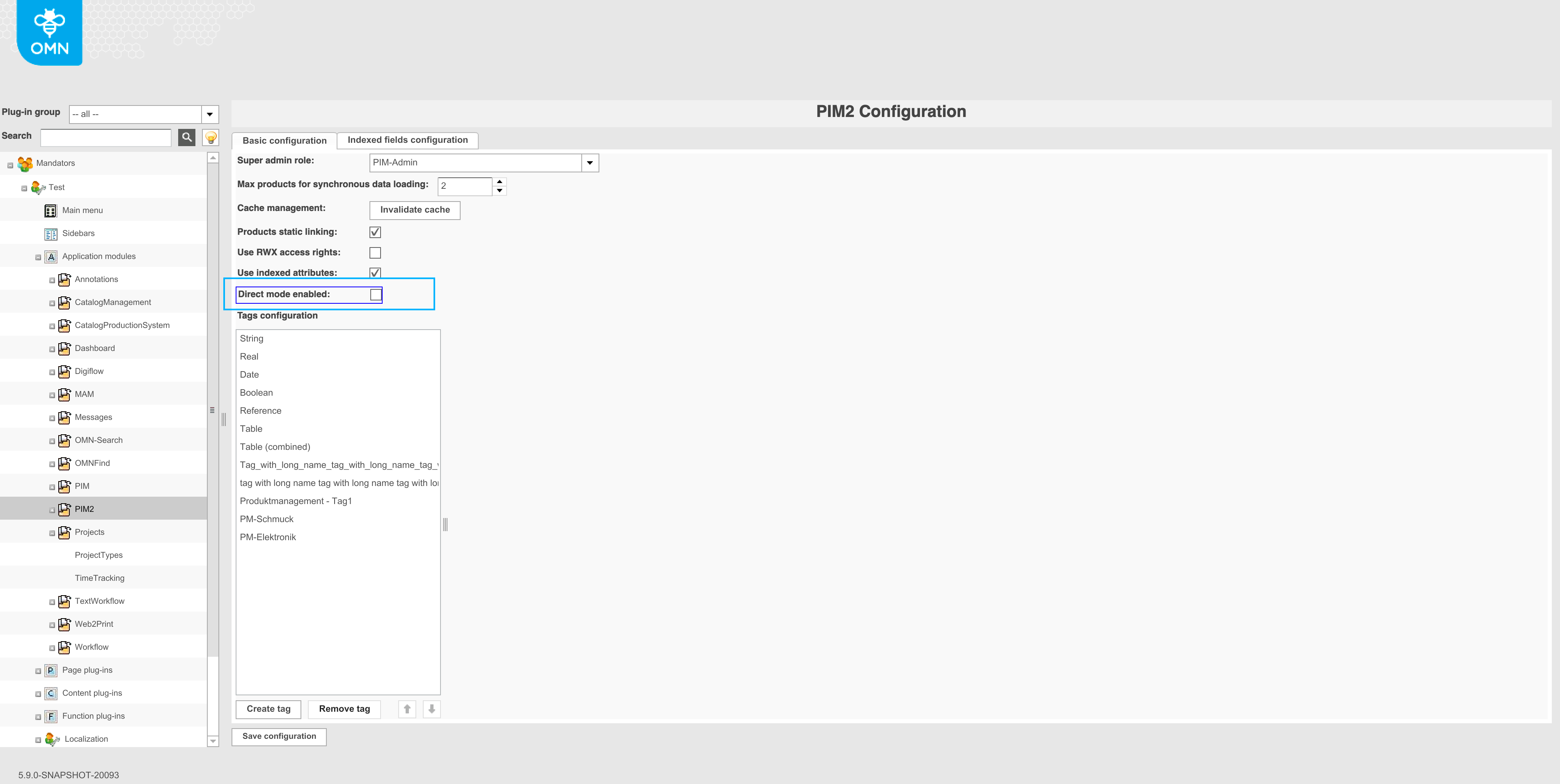
'Direct mode enabled' option is disabled in Application modules → PIM2 → Basic configuration:
-
-
In a html5 client:
-
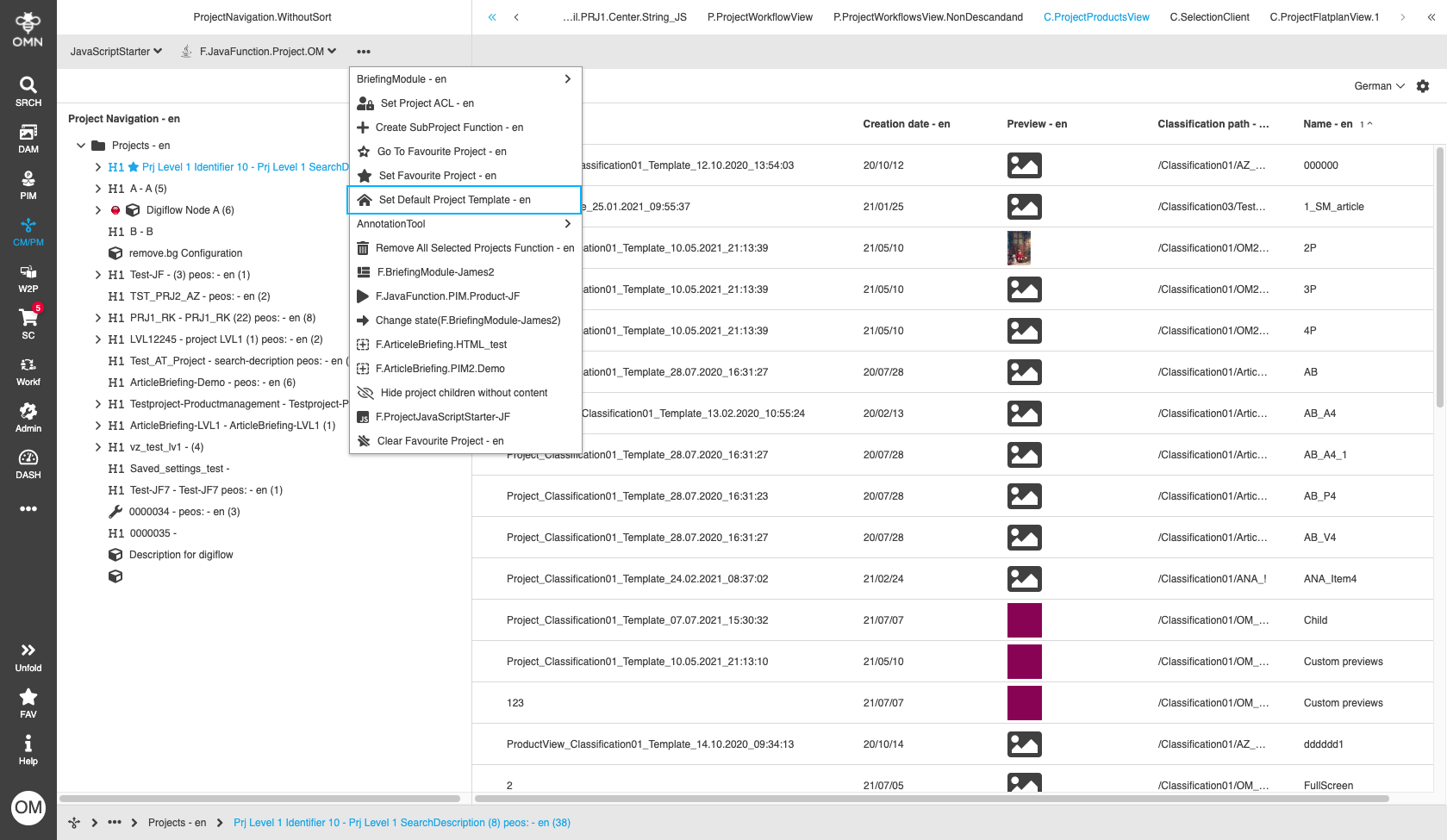
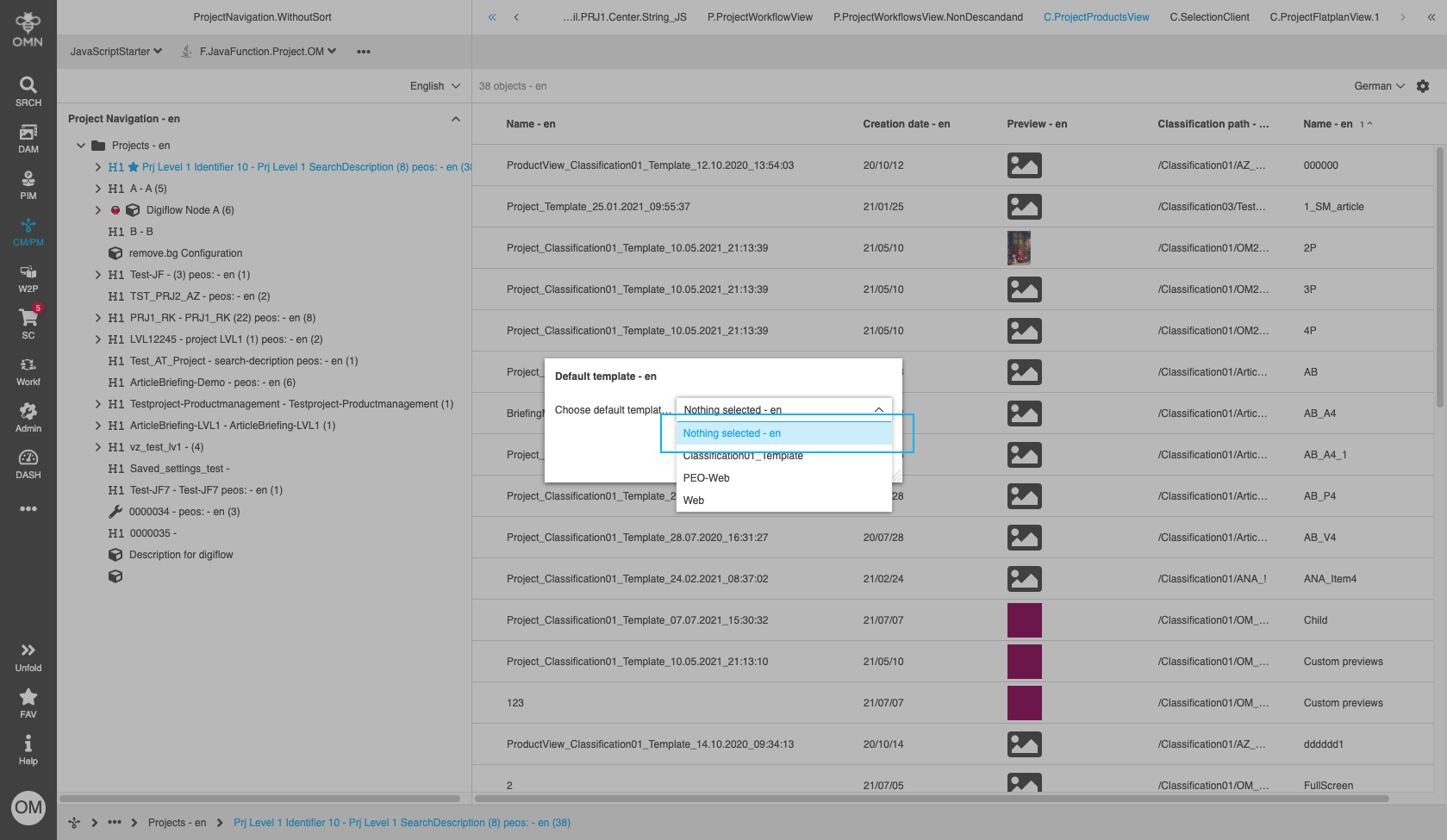
In the 'Set default PEO template'- function of the ProjectNavigation "nothing selected" shall be selected:
-
No default template in ProductView → Templates:
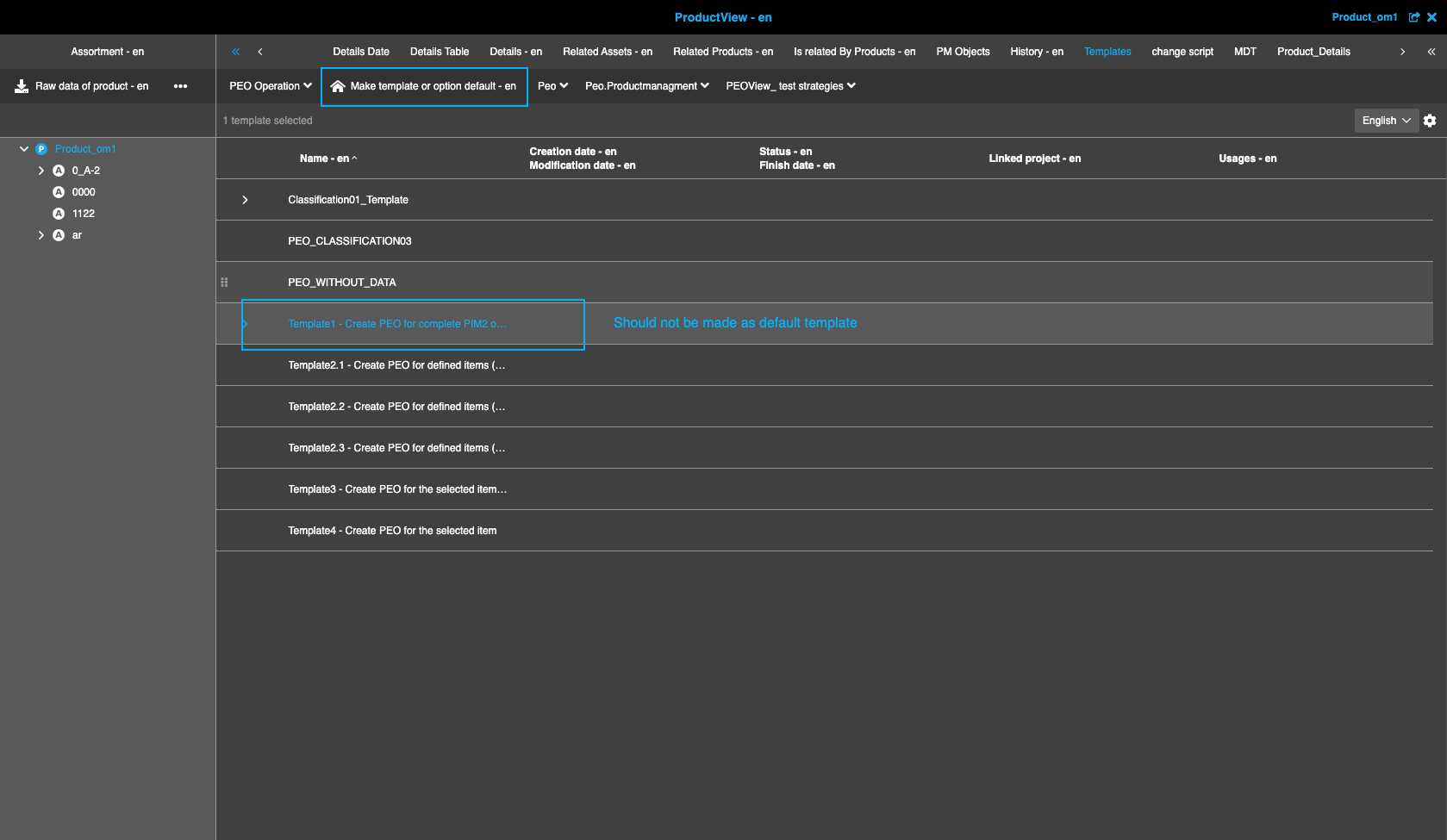
-
DnD a product to a channel → confirmation modal appears
-
To link a product to a channel without PEO modal creation (auto-linking), the following should be done:
-
In a config client:
-
The same configuration as in the case above
-
-
In a html5 client:
-
'Set default PEO template' function is set with a template:
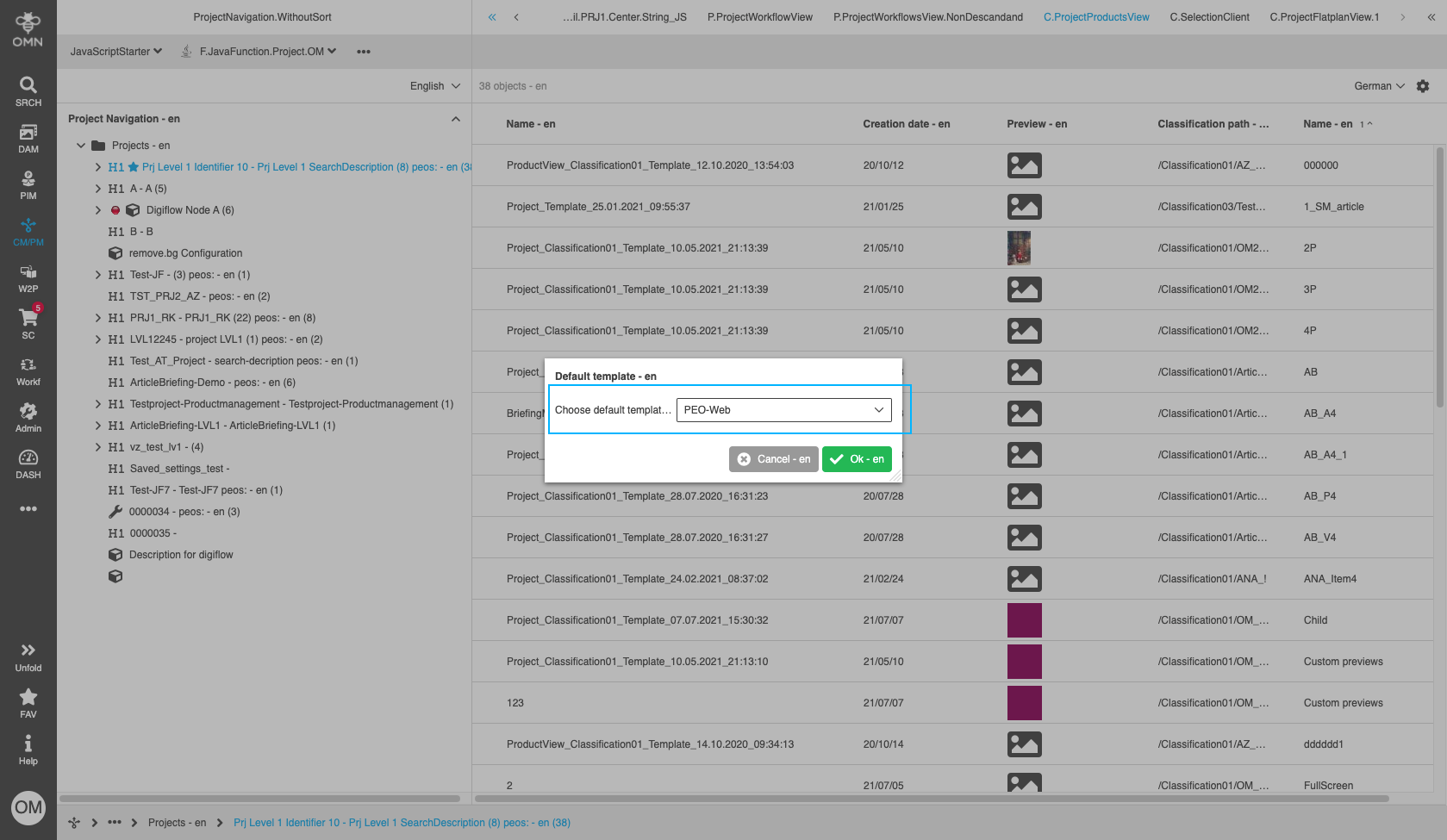
-
OR there is default template in ProductView → Templates:
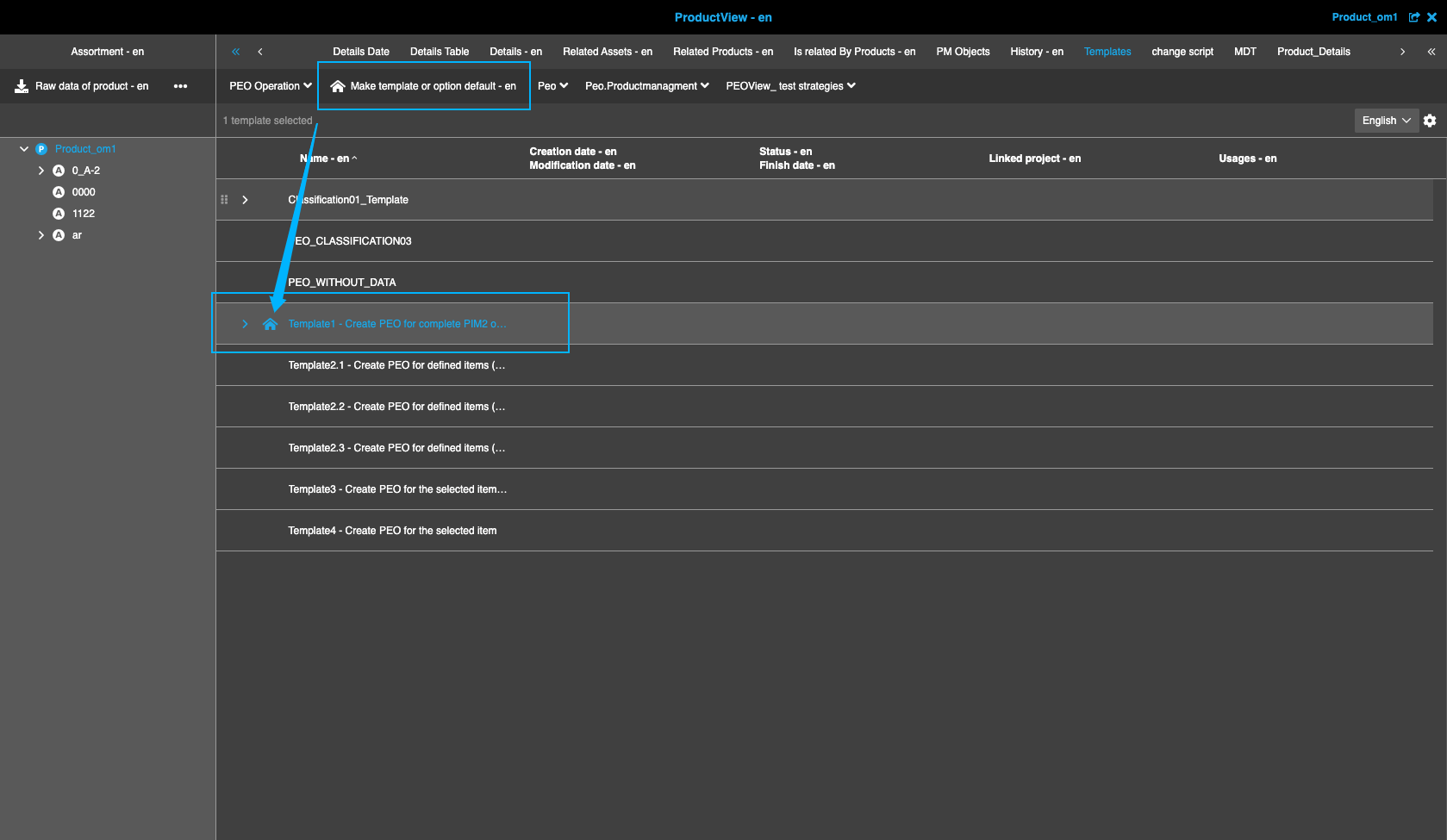
-
OR default template is set to project type and default PEO is set to PIM2 item
-
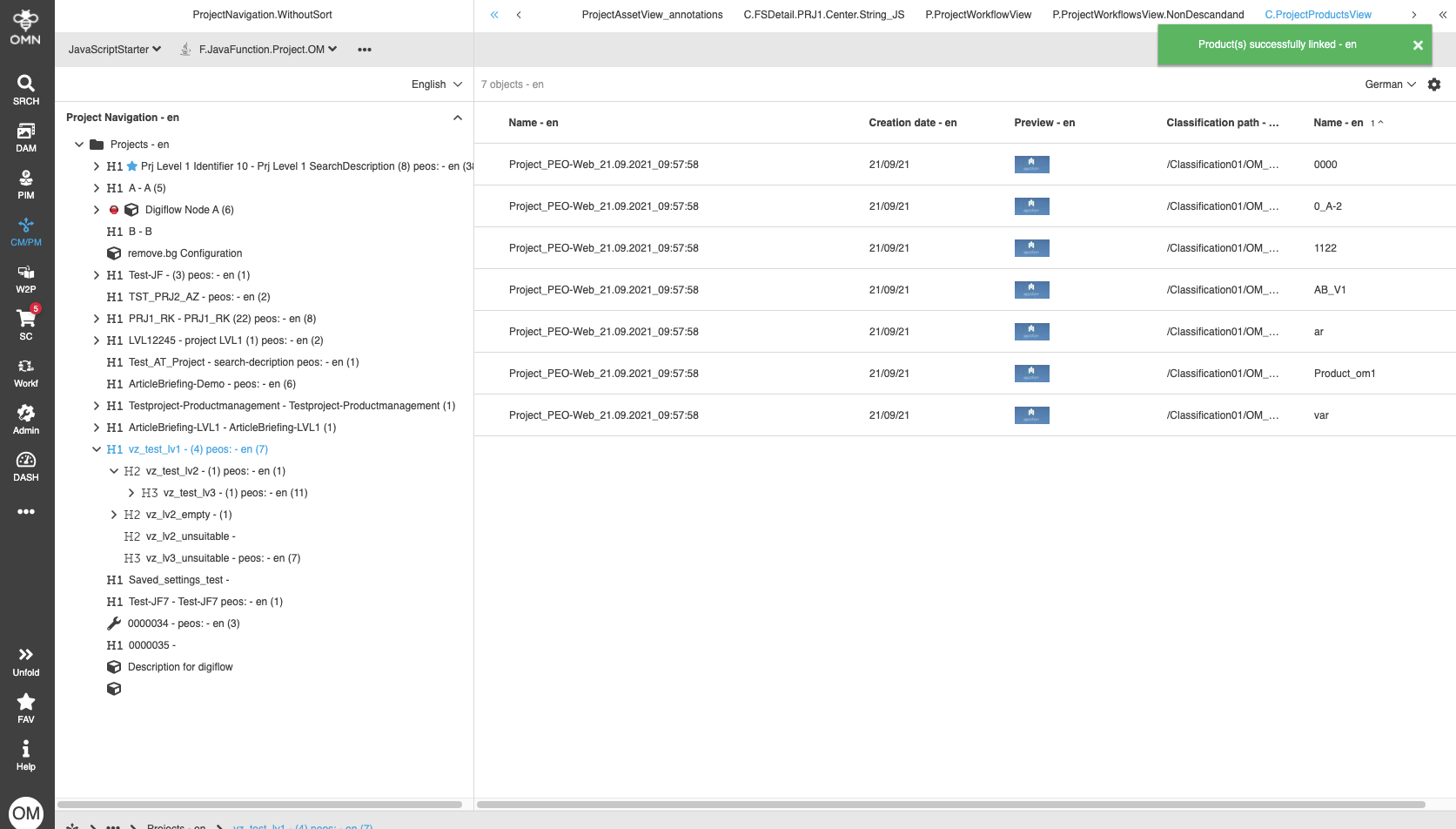
DnD a product to a channel → confirmation modal does not appear, a product is linked automatically
-
| 'Direct mode enabled' option leads to auto-linking even if no default template is set. If this option is enabled, the default template is the first of the templates sorted by name. |