Key Attribute Mapping
Purpose of the Key Attribute Mapping
The Key Attribute Mapping is used to uniquely identify a target product.
Introduction
The Key Attribute Mapping provides attributes that make the assignment to a product unique.
Without Key Attribute Mapping, successful Attribute Mapping cannot be performed.
Depending on the import mode (see Import Profile), certain attributes for identification are already specified or not.
Prerequisites and relations to other modules
The Key Attribute Mapping is part of the Mapping Editor.
It is necessary for a successful Attribute Mapping.
How to use
The Key Attribute Mapping view is always located in the center view of the Mapping Editor and is selected using the content switcher in the status bar.
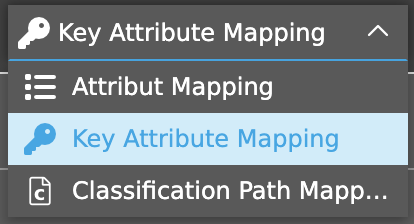
By default, Attribute Mapping is always preselected as the view.
Toolbar
The toolbar contains various functions, which are described in more detail in the following chapters.
Map and Transform
When a table row is selected, the Map and Transform function is displayed in the toolbar.
This allows users to create combinations of multiple source attributes, for example.
This means that users can not only perform simple 1:1 mappings (OMN attribute to source attribute), but also more complex transformations.
Delete Mapping
Once a source attribute has been assigned to an OMN attribute, the “Delete Mapping” function is displayed.
When this function is executed, a message is displayed asking the user whether they want to perform the action.
After confirmation, all source attributes and transformations are removed from the selected OMN attribute.
| In the case of import mode “Update,” the OMN attribute itself is also removed. |
Add OMN Attribute
The “Add OMN Attribute” function only appears in the “Update” import mode (see Import Profile).
Detailed information can be found in the chapters “Import Mode dependencies” or “Update”.
The function is displayed directly in the toolbar without selection.
After the function has been executed, a dialog with a searchable dropdown appears, in which an OMN attribute can be selected for product identification.
In theory, any number of attributes can be used, but they should enable the product to be uniquely identifiable.
| If “TID” is selected as the key attribute, the function disappears because it automatically makes the product unique. |
Statusbar
The statusbar includes a quick filter, an object counter, a content switcher and settings.
Quick filter & Object counter
A quick filter is available to users to reduce OMN attributes and simplify the search for specific attributes.
One or more values can be entered here to find the desired attribute.
Next to the quick filter is an “Object Counter,” which displays the number of OMN attributes and the assigned values.
Canvas
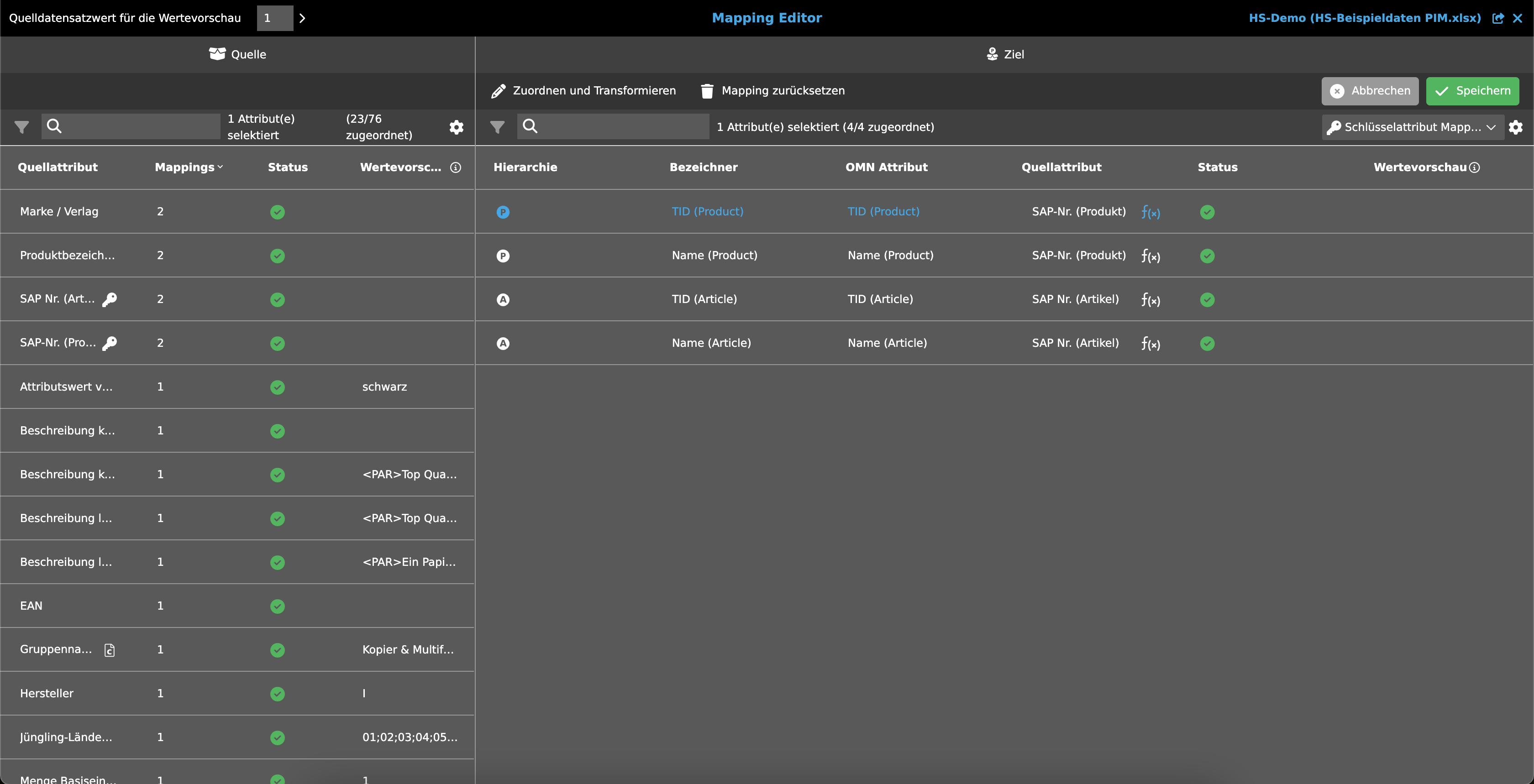
The canvas displays a table with an overview of specific OMN attributes (attributes from the PIM data model) and the assigned source attributes.
The table contains the following columns:
-
Hierarchy
-
The hierarchy column shows the OMN product level, which is uniquely defined by the key attribute mapping.
-
The levels (product, article, variant), if available, are visualized with the corresponding symbols.
-
-
The functionality of this column differs depending on the import mode (update, creation, creation and update, see Import Mode dependencies).
-
-
Identifier
-
Identifier of the OMN attribute.
-
-
OMN Attribute
-
The functionality of this column differs depending on the import mode (update, creation, creation and update, see Import Mode dependencies)
-
As with Attribute Mapping, OMN attributes can be classified multiple times and/or be language-dependent.
-
Language dependency
An icon is displayed next to the attribute if the OMN attribute is language-dependent. -
Multi-classification
An icon is displayed next to the attribute if the OMN attribute has been classified multiple times.
-
-
-
Source Attribute
-
As soon as a user moves the mouse pointer over the field, a searchable dropdown appears.
Clicking on it opens the menu and displays all existing source attributes of the mapping file. -
Only a 1:1 mapping (one source attribute to one OMN attribute) is possible via the dropdown.
For mappings that go beyond this, the Map and Transform function must be used.
In this case, an f(x) symbol is displayed next to the dropdown.
-
-
Status
-
This column shows whether the mapping of the key attributes was successful or not.
-
Green
The source attribute was successfully mapped to the OMN attribute. -
Gray
No source attribute has been mapped to the OMN attribute yet. -
Red
An error occurred during mapping.
-
-
-
Value preview
-
This column shows the specific value preview of the currently selected data record value (selectable in the title bar).
-
Import Mode dependencies
Depending on the import mode set in the Import Profile plugin, different content will be visible in the table.
The following import modes are available:
-
Creation / Creation and Update
Creation of new PIM objects or creation of new PIM objects and updating of existing PIM objects. -
Update
Updating existing PIM objects (product, article, variant).
Creation / Creation and Update
If the import profile has the “Creation” or “Creation and Update” mode, the table specifies certain OMN attributes that must be filled in.
The user cannot change or remove the OMN attributes.
The following attributes must be filled in for each hierarchy level in order to create a new unique OMN product:
-
Name
-
TID
Depending on the target hierarchy configured in the import profile, the table displays either
-
only products,
-
products and articles,
-
or the entire hierarchy with products, articles and variants.
| Each product level may have different criteria that make it unique, which is why all levels are listed in the table and must be mapped to a source attribute. |
Update
In the case of the “Update” import mode, no new products need to be created. This means that the TID is not mandatory as an identification attribute.
For this reason, the table is initially empty when the user opens the Key Attribute Mapping for the first time.
However, at least one key attribute is required to enable the assignment of attributes to the target product.
To do this, the user can use the “Add OMN attribute” function in the toolbar to add the desired number of OMN attributes.
| The selected attribute must be able to uniquely identify a product. |
| The “Hierarchy” column shows the lowest level of the configured target hierarchy. |