3D Viewer
Purpose of the plugin
With the 3D Viewer, 3D objects can be inserted into various scenes and viewed in a 360-degree panoramic view, either perspective or isometric.
Introduction
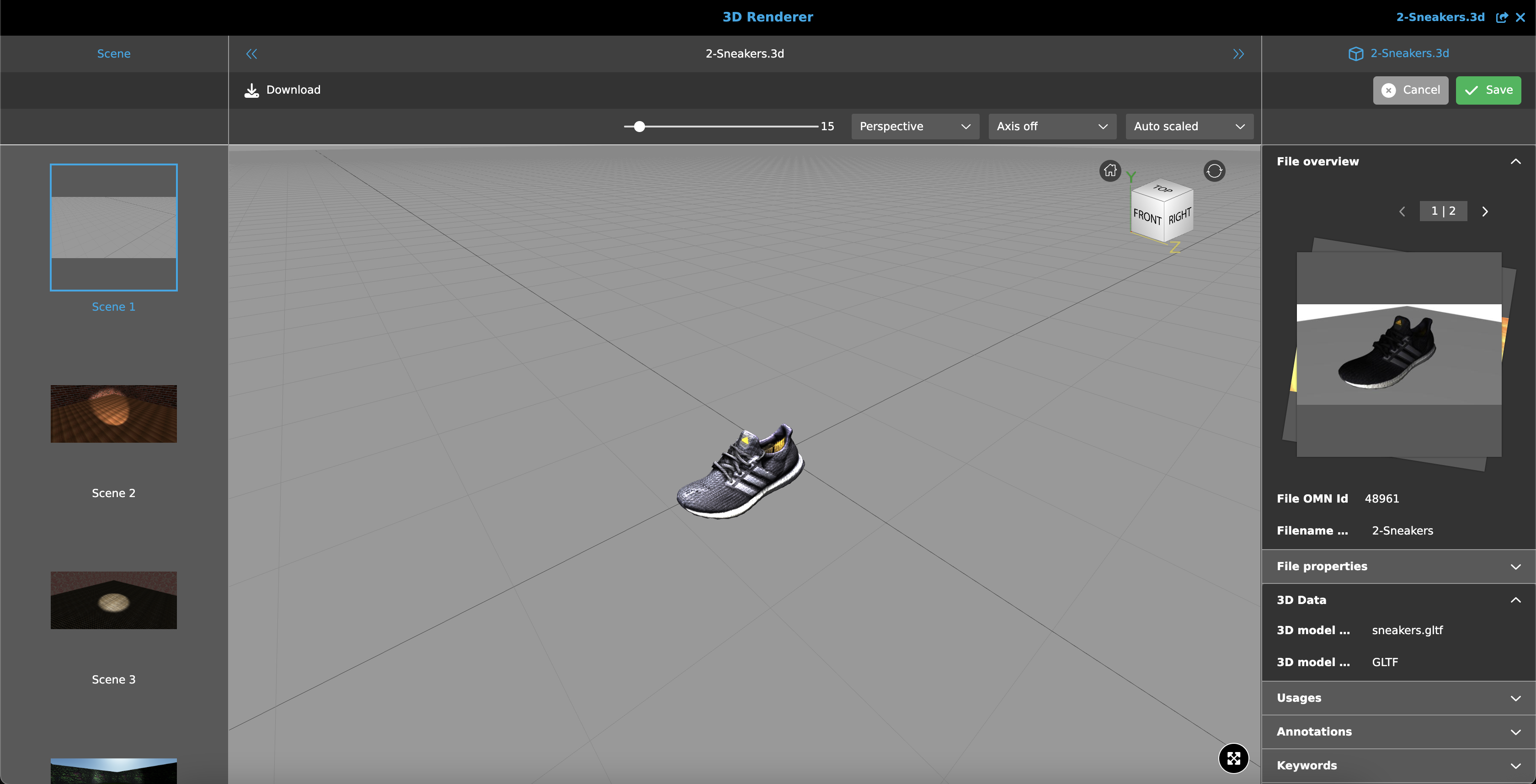
The 3D Viewer is used to render and display 3D assets. The editor makes it possible to display these 3D objects within one of six scenes and thus place them in context.
A large number of file types are supported for which a 3D preview is generated.
The list of file types can be found here: Supported File Formats
Prerequisites and relations to other modules
To be able to use the 3D Viewer, an DAM with 3D files must be available.
If a DAM is available and a 3D file is linked to a product, the editor can also be used in Product View.
How to access
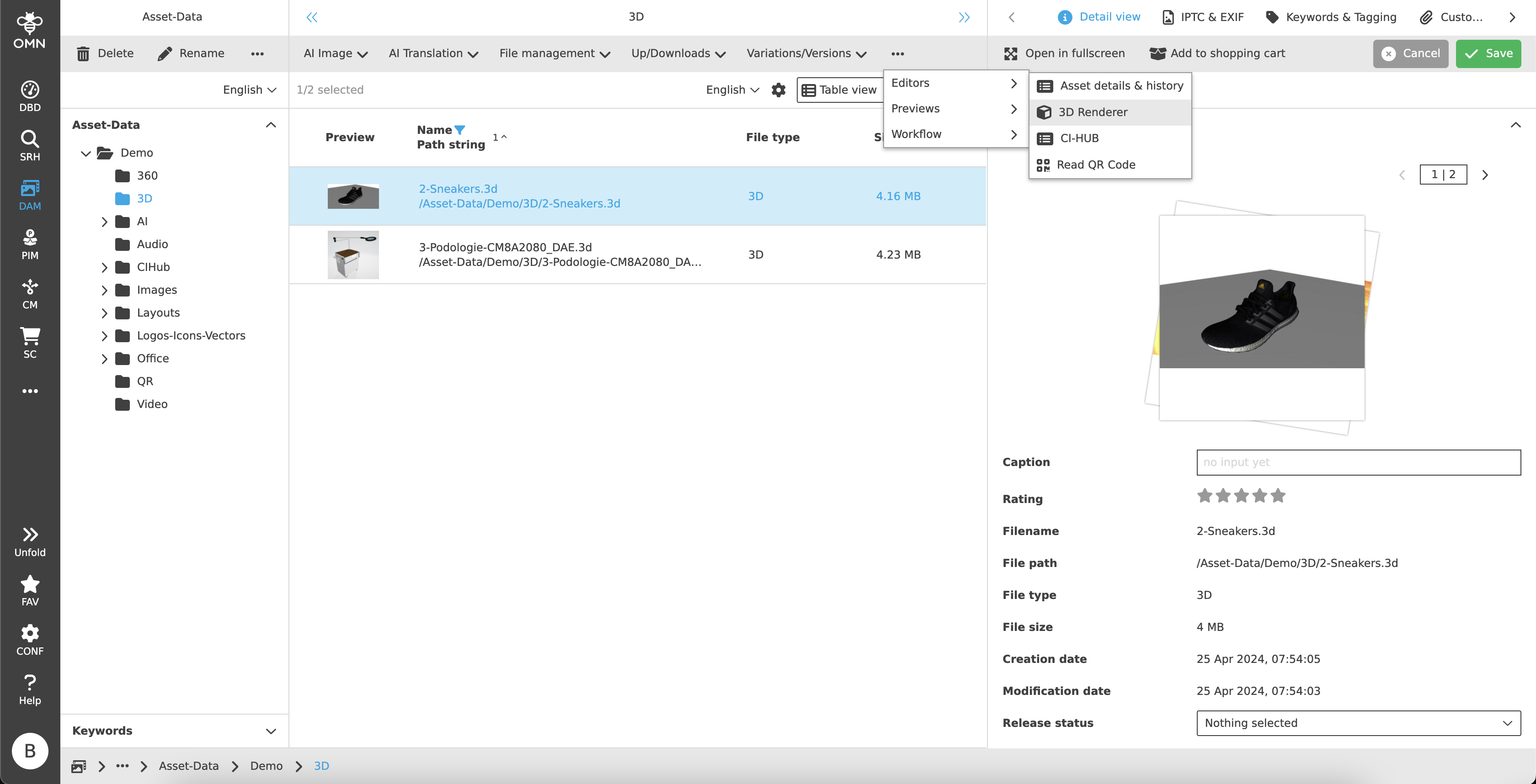
The 3D Viewer can be opened either via the selected asset in DAM, in the search or via the associated product in Product View.
How to use
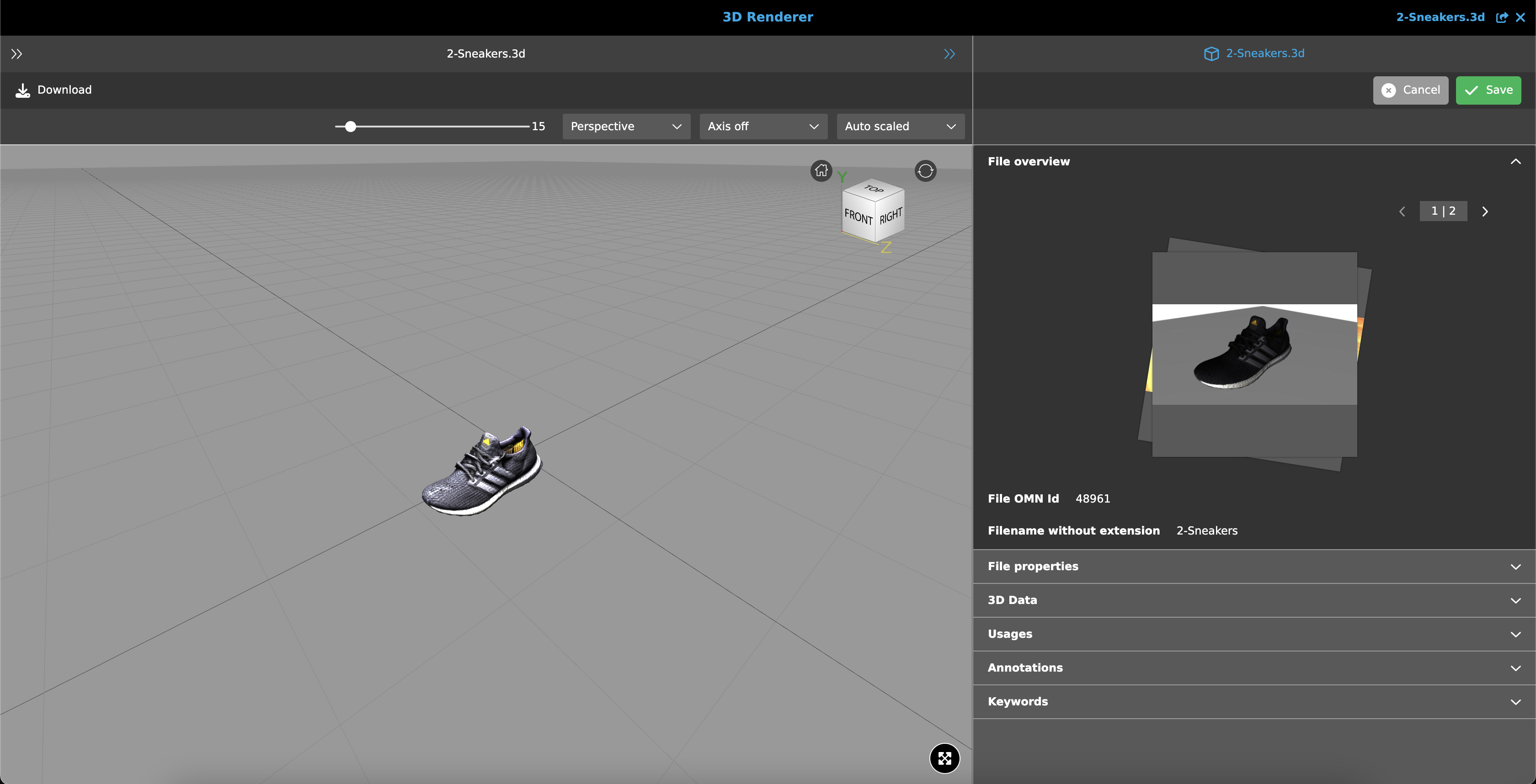
The 3D Viewer consists of 3 areas, which include the following content:
-
Left View
Scene selection -
Center View
Surface in which the asset is rendered and displayed -
Right View
Detailed information on the file
Left View
The "Scene" page on the left shows six different scenes in tile form with a preview in which the object can be placed.
The first tile with a typical, open 3D tool scene is always selected by default.
The remaining scenes are modeled on a room with floors, walls and lights to make the display appear more realistic in the eyes of the viewer.
The selected scene is displayed in the Center View.
Center View
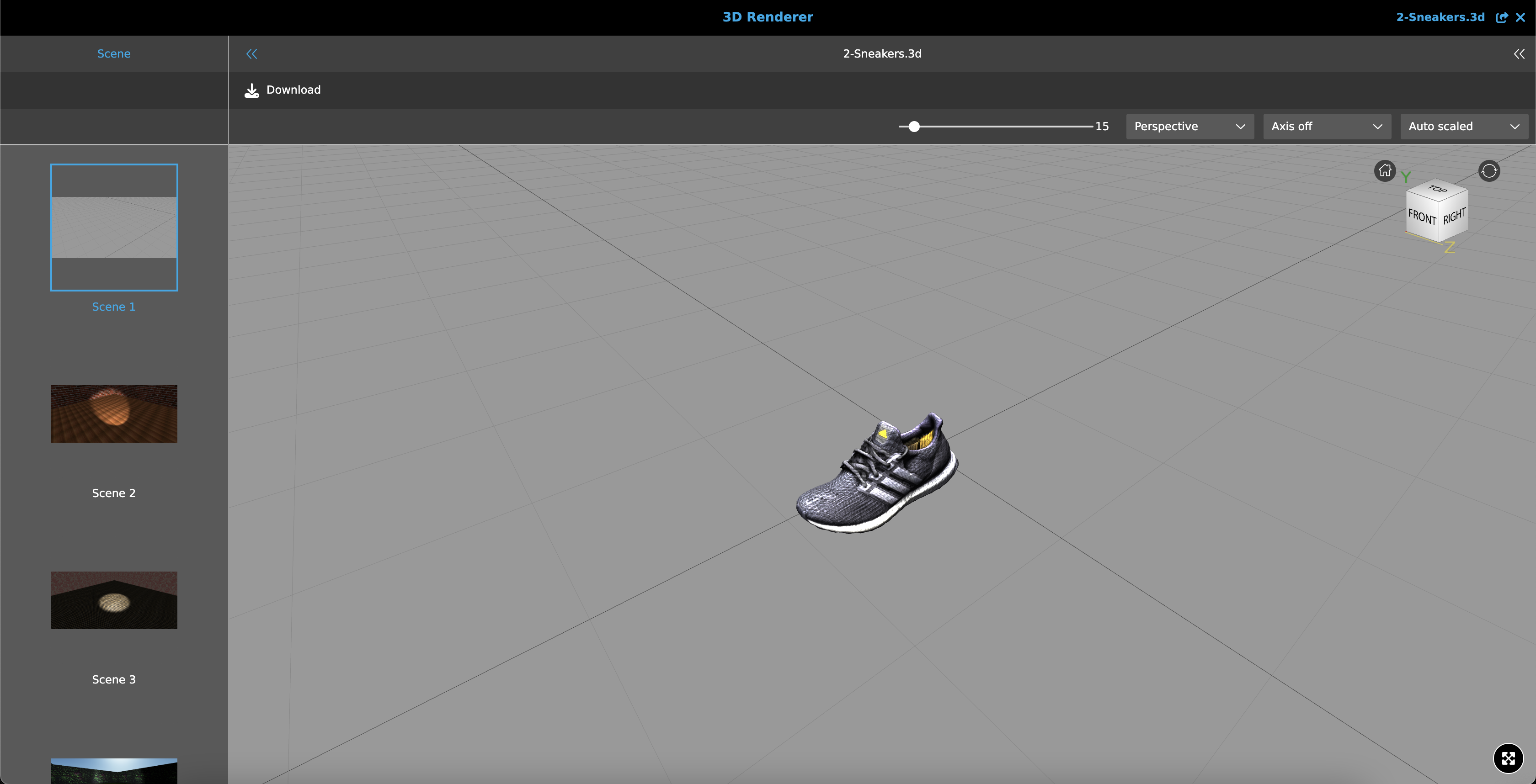
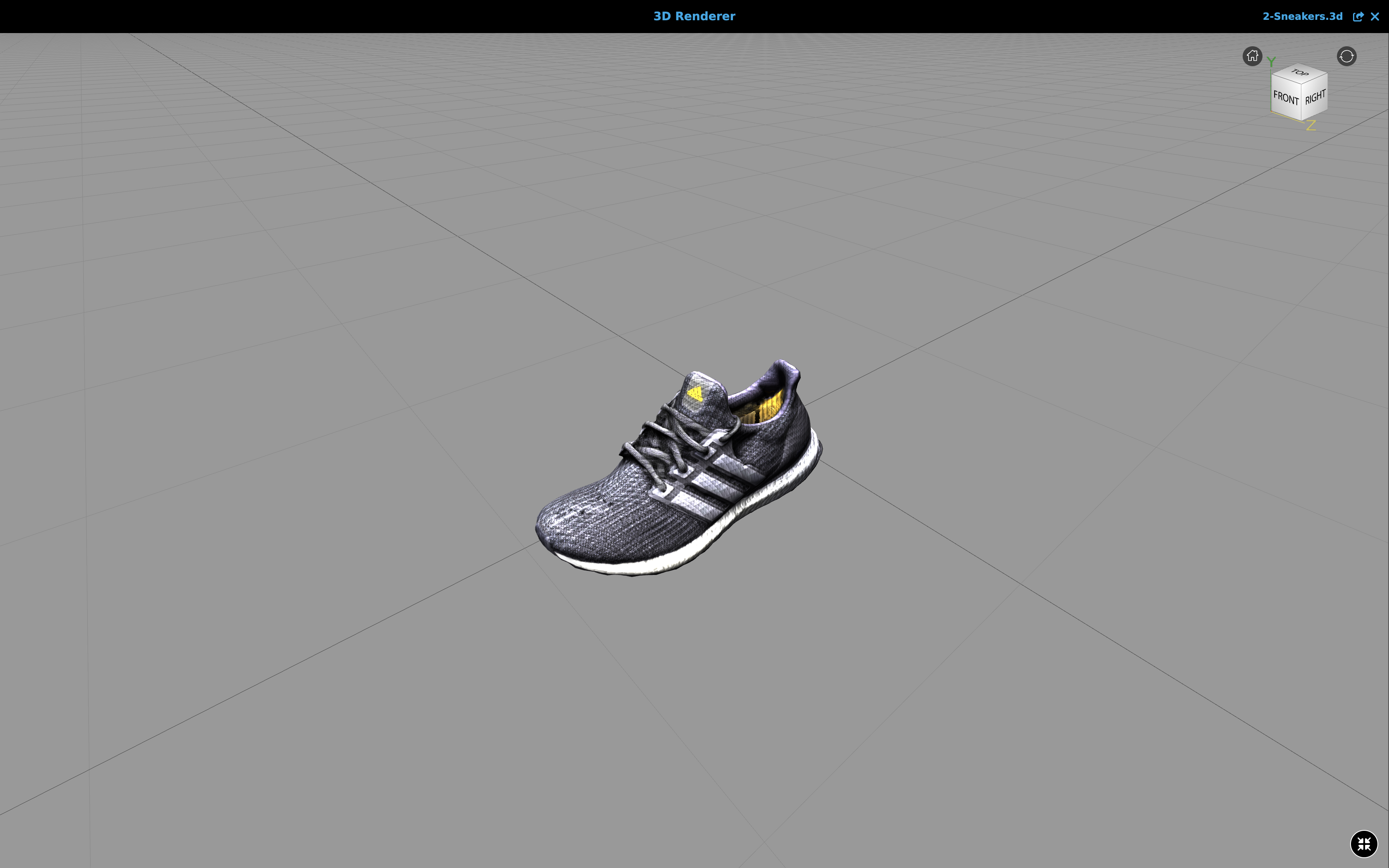
The Center View displays the rendered three-dimensional object in the workspace (canvas) and offers a number of setting options for a better view of the object.
Toolbar
The toolbar contains a "Download" function.
When a 3D object is downloaded, the asset is saved as a .3d file.
This can be converted to a zip file by manually changing the file extension to .zip.
Statusbar
The statusbar contains four setting options. These are (from left to right):
-
Zoom slider
A slider to adjust the zoom for the rendered 3D object. -
View mode
A dropdown for selecting between "perspective" and "isometric".
The default setting is "perspective".A perspective describes the distance ratio of objects in a room in relation to the viewer’s position.
This results in a perspective distortion that conveys a better spatial image of an object.
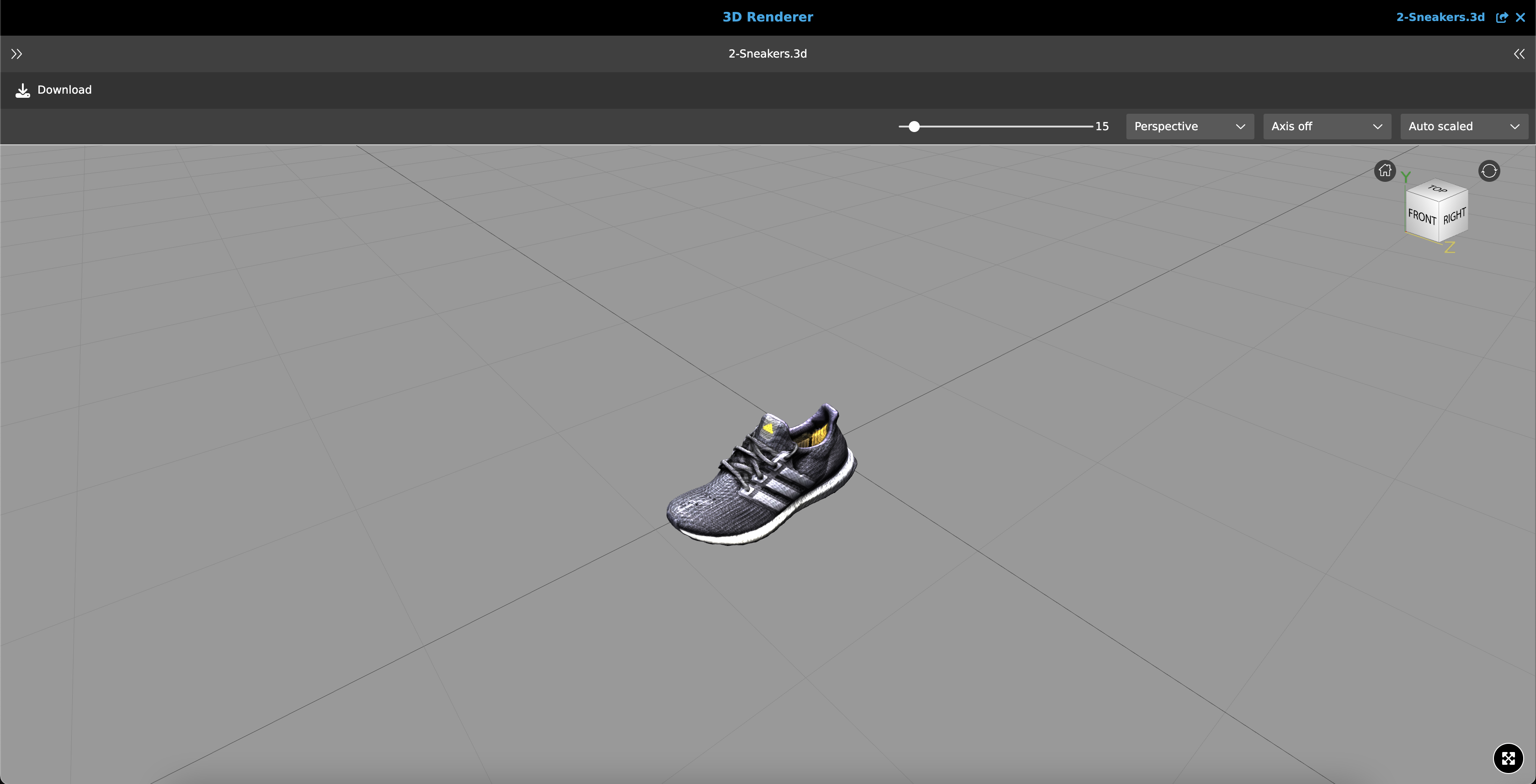
Isometry simplifies the three-dimensional representation by neither scaling nor distorting (length equality).
The axes are always parallel to each other and there is no perspective distortion.
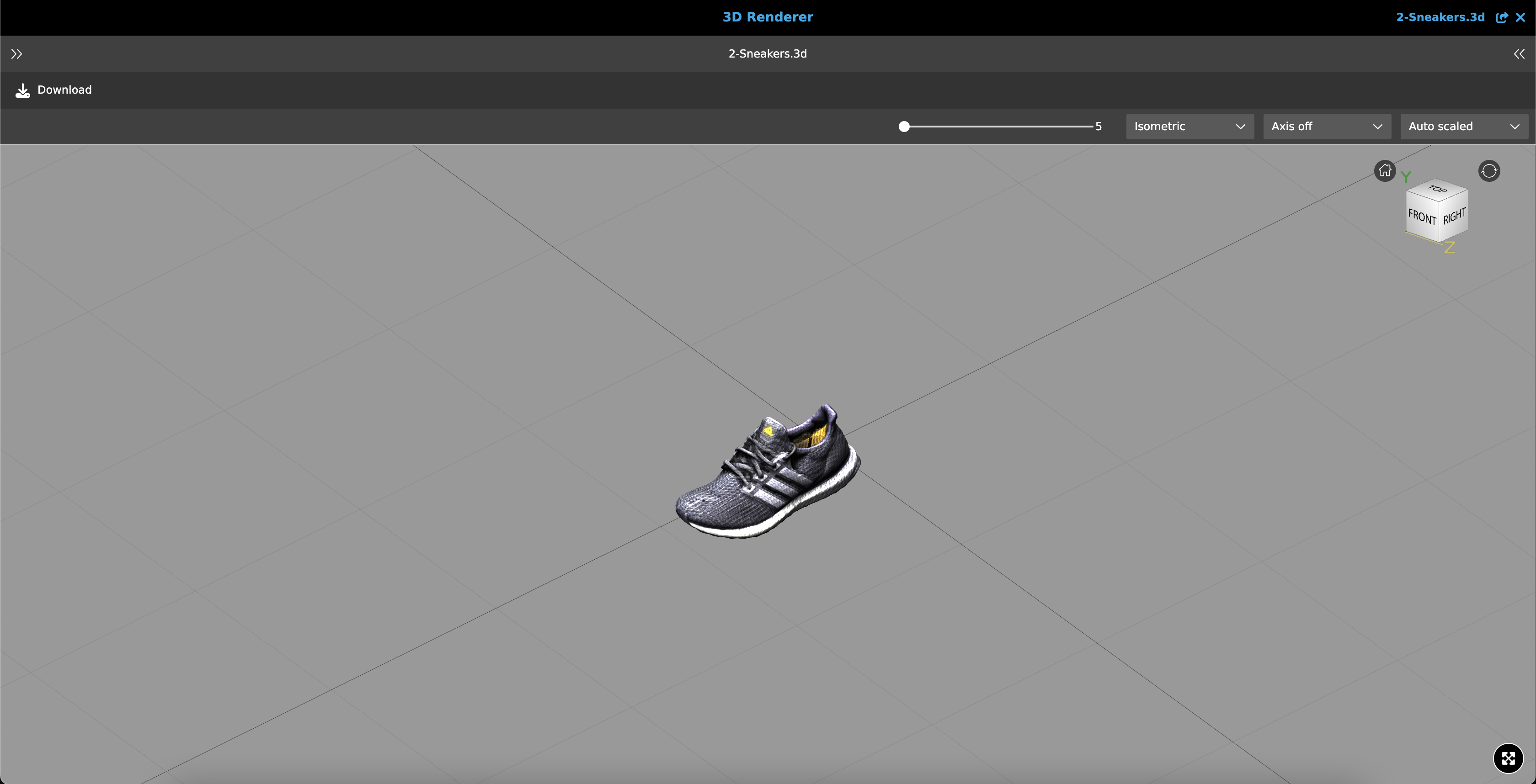
-
Axes
A dropdown for showing and hiding the auxiliary axes (X, Y, Z).
The default setting is "Axis off".Axes active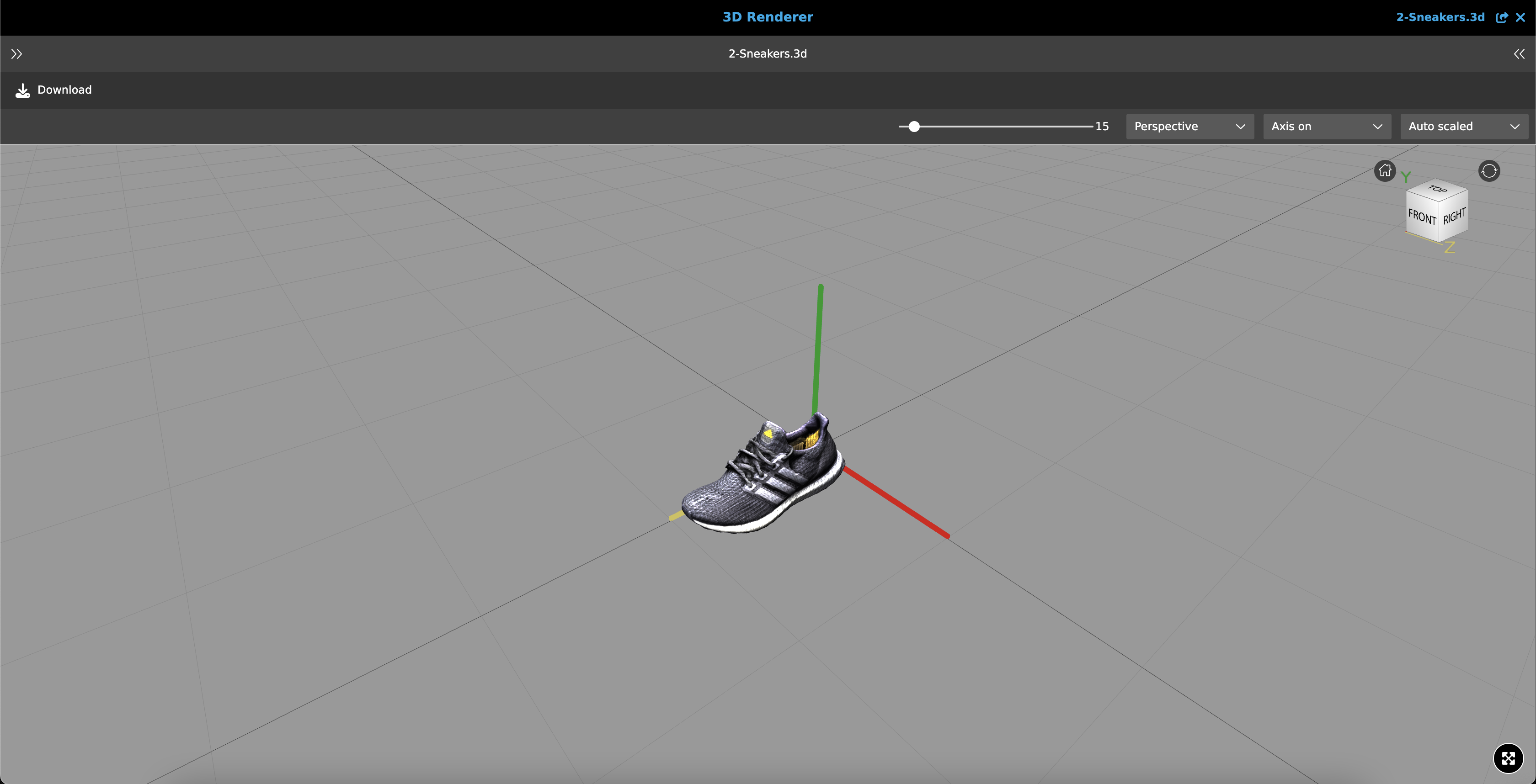
-
Scaling
A dropdown to choose between "Auto scaled" (adjusted size) and "Original" (original size).
The default setting is "Auto scaled".
Canvas
The workspace consists of a scene with a rendered 3D object.
The camera angle can be rotated by left-clicking and holding on the workspace. The camera position can be moved by holding down the right mouse button.
The canvas also offers the following control elements in the top right-hand corner:
-
Reset the camera position to the standard angle
-
Quick selection cube to adjust the camera position (top, left, right, front, back)
-
Rotate the quick selection cube
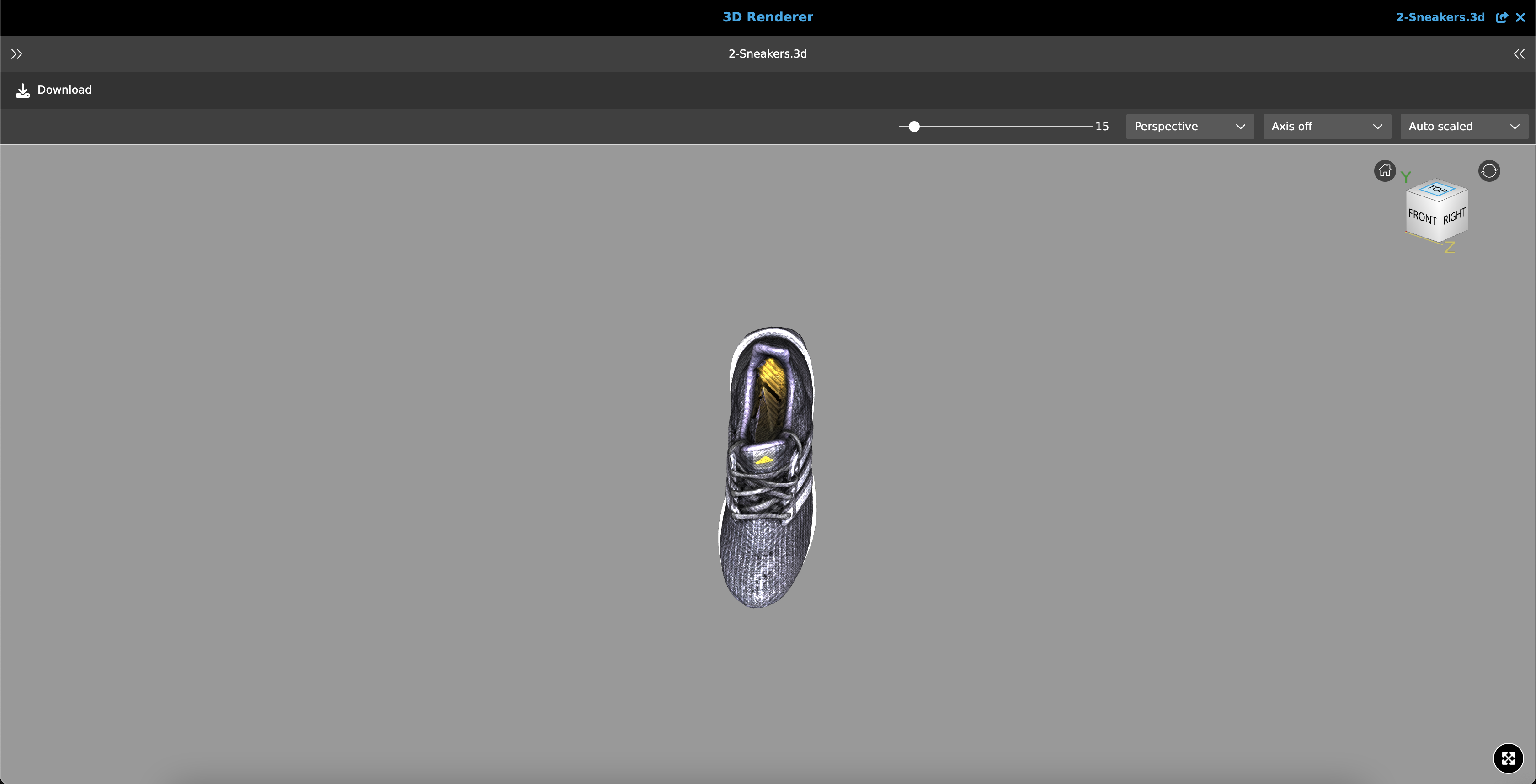
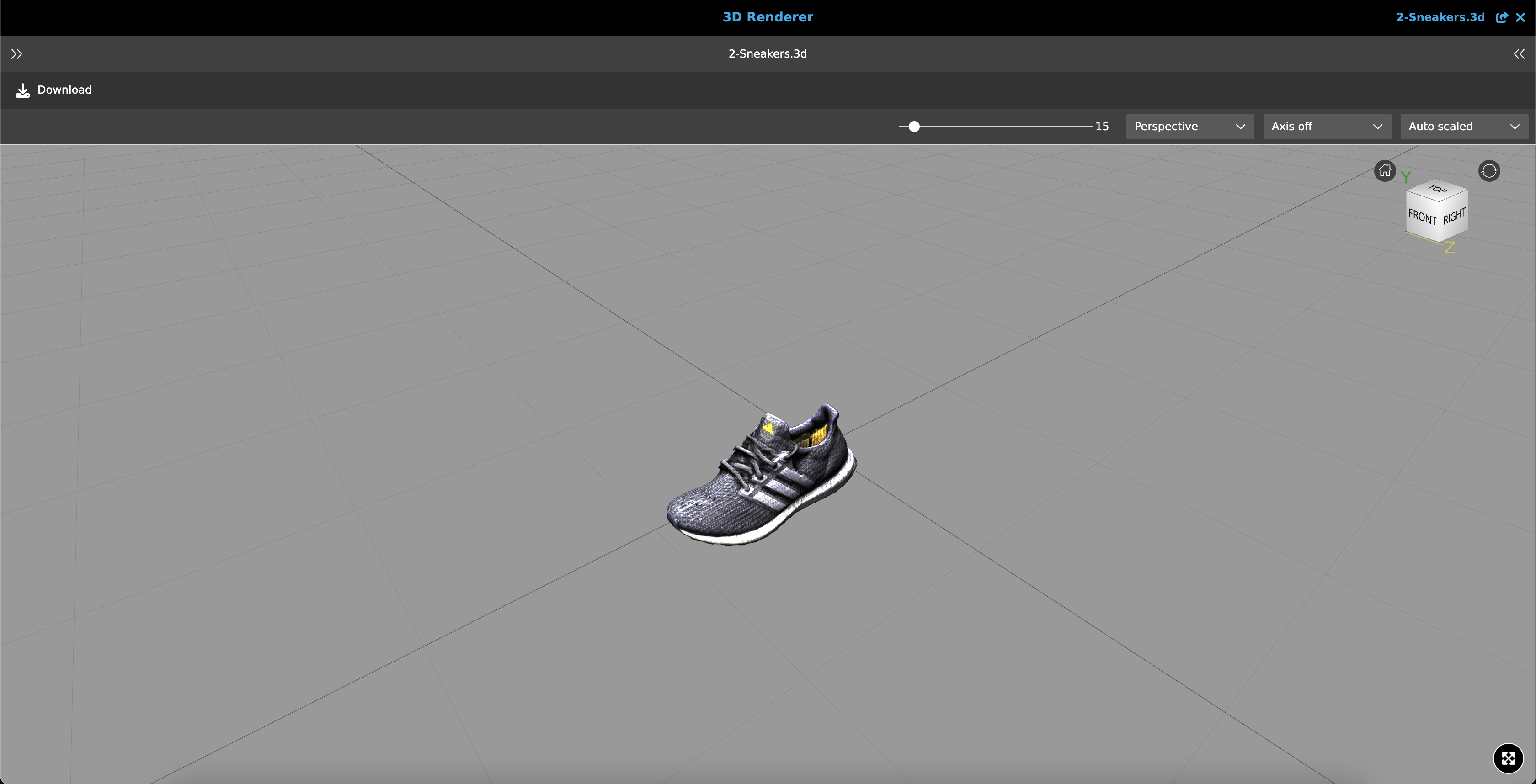
In addition, there is an "Open full screen mode" button in the bottom right corner.
In this mode, only the workspace is visible, all bars and other views disappear.
To close full screen mode, either press the button in the bottom right corner again or press the ESC key.
Supported File Formats
| Format | Suffix | Description |
|---|---|---|
gLTF (Graphics Library Transmission Format oder GL Transmission Format) |
.gltf |
glTF is a file format for 3D scenes and models that uses the JSON standard. |
OBJ (Object File) |
.obj |
The OBJ file format is a simple data format that only represents the 3D geometry. Vertices are saved counterclockwise by default, so that the explicit specification of surface normals is not required. |
FBX (Filmbox) |
.fbx |
FBX is one of the most important 3D exchange formats used by many 3D tools. The format was developed to ensure interoperability between applications for creating digital content. |
COLLADA (COLLAborative Design Activity) |
.dae |
COLLADA is an exchange file format for interactive 3D applications. COLLADA documents that describe digital assets are XML files. |
STL (Stereolithography) |
.stl |
This file format is often used for rapid prototyping, 3D printing and computer-aided manufacturing. STL files only describe the surface geometry of a three-dimensional object without any representation of color, texture or other common CAD model attributes. |
Further information can be found at Detailed information for file formats | 3D formate.