OMN Search
Background
Previously OMN-Search was based on an optional JAR file from OMN product and was only available if it is installed (global search parameters were also only available in the configuration if this optional JAR was installed). It allowed a fuzzy search over the supported object types (Projects, PIM2-Objects, and Objects/Asset) and displayed the found objects together in the global search results page.
Also OMN-Search used configurations from a JSON configuration file to provide the search via a sidebar element. This configuration was stored in a separate file app-config.json independent from the backend. The config file also defined the global search results page and its available functions. In this implementation of Elastic search, it used a once-per-frontend configuration of the functions and FSDetails that should be used in the frontend.
To conform the general OMN concepts OMN-Search Backend configuration was introduced. It enables making configuration settings for the new OMN-Search in the OMN backend instead of a local file so that this can also be done by a non-developer and no additional configuration at other places is needed.
Current OMN-Search can be tailored to the needs of a specific customer and provides various possibilities to search for a specific type of object using Advanced Search/Form-based Search/PEO Search/ Duplicate Search/Simple Searches configured in the backend and combined as needed in OMN-Search page plugin configuration.
Glossary
Term |
Explanation |
Advanced Search |
backend page plugin that
|
Case-sensitive Search |
the search that consider the case of a specified query and treats uppercase and lowercase letters as distinct; the type of search (case-sensitive/case-insensitive) is configurable in the OMN backend |
Custom attributes |
the additional attributes configured in FormBasedSearch page plugin directly and used to search in only in case of database search (not Elastic) |
Duplicate Search |
backend page plugin that allows search for duplicates (assets only) in OMN and is performed via database (not via ElasticSearch) |
Elastic Search |
the search that uses Elastic Search engine |
Expert Search |
the attribute-based search
|
Extended Search |
is the attribute-based Search over Elastic Search engine and not database; means the possibility to perform a sharp search for definable attributes and their combinations and uses configuration of AdvancedSearch/FormBasedSearch page plugins |
Facets |
the attributes from AdvancedSearch/FormBasedSearch configuration that are available on the search results page on the left and used for results filtering
|
Form-Based Search |
backend page plugin that
|
Form-Based Search over Database |
the Form-Based Search that is performed over database(not via ElasticSearch) by custom attributes from plugin configuration; for usage should be activated in the OMN backend |
Global Search |
the search performed in the Elastic Full Text Index across all object types (Asset, Product, Channel) |
Global search results page |
the page which shows found items of different object types on the base of seven common attributes
|
Index Rebuild |
the process of outdated indexes' update. In OMN can be performed both in OMN-Search application plugin configuration in the backend and on the OMN-Search page in the frontend |
OMN-Search Page |
the central search page of OMN in HTML5 client providing the following search possibilities (in different combinations depending on the backend configuration):
|
PEO Search |
backend function plugin that
Both in HTML5 and the old client no search results page is shown, found items are directly shown in PEO editor. |
Quick Search |
in fact, is the name of the component in the frontend
|
Simple Search |
backend function plugin that represents an attribute-based search for objects of a defined type by a defined attribute and uses AdvancedSearch/FormBasedSearch configurations to display search results
|
Type Ahead Search |
the search that supports autosuggestions which means that as a user is typing in the search bar, matches for the search term(s) are found and immediately presented (but is not restricted by security rules, so that found results are not guaranteed); for usage should be activated in the OMN backend |
HTML5 features overview
If OMN-Search is installed and configured appropriately the global OMN-Search page is available in the system. Its content is build on the basis of the new page plugin OMN-Search and includes Quick searches, Duplicate search, PEO Search, Extended Search or different their combinations depending on customers' specificity. Brief overview of the frontend features in HTML5 client can be found below.
DuplicateSearch usage
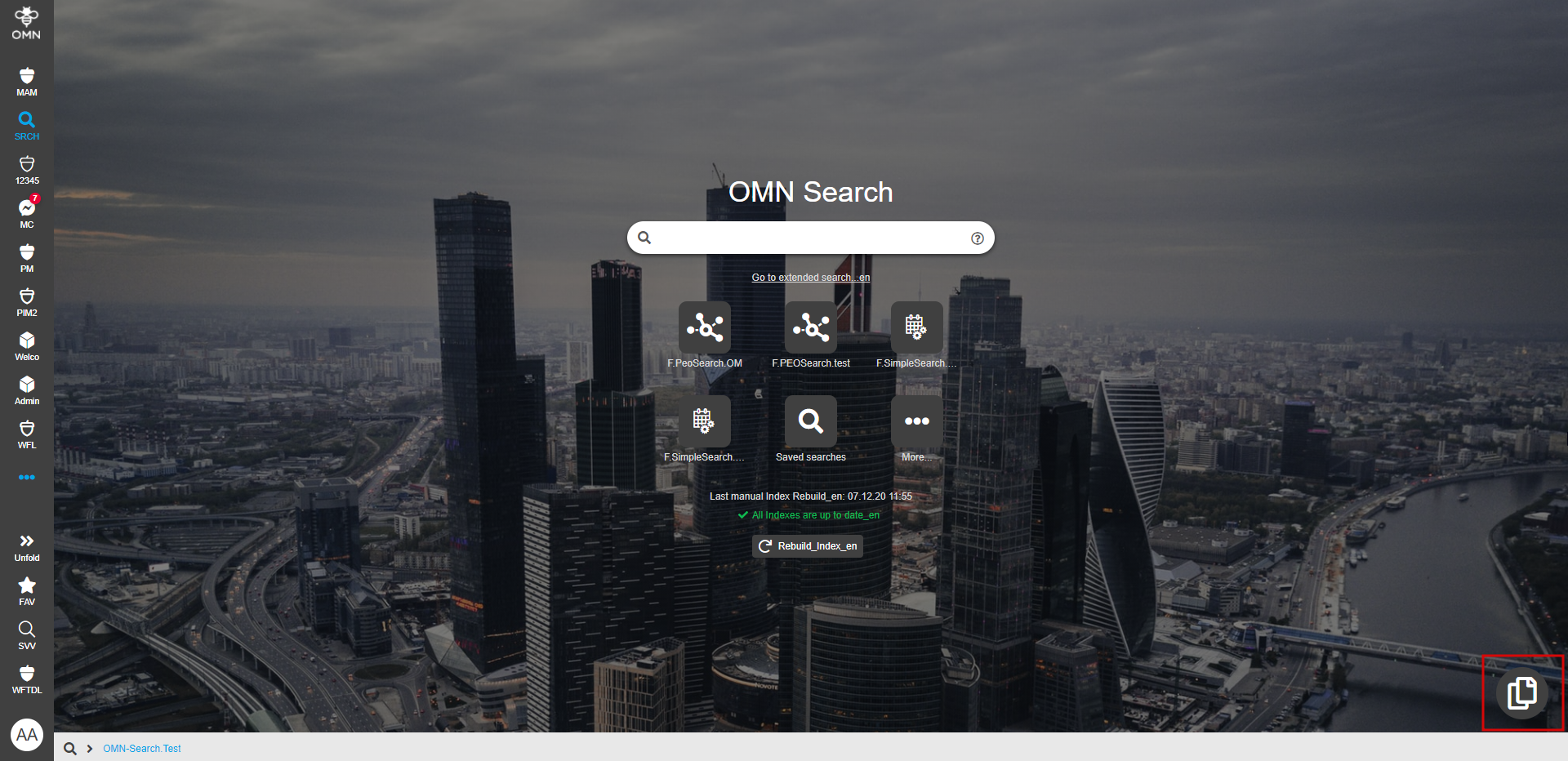
The main goal of DuplicateSearch is going through the OMN system and looking for file-duplicates to get a complete overview of all duplicated objects and work with them further (e.g. remove). DuplicateSearch can be opened both from the sidebar and global OMN-Search page depending on configuration.
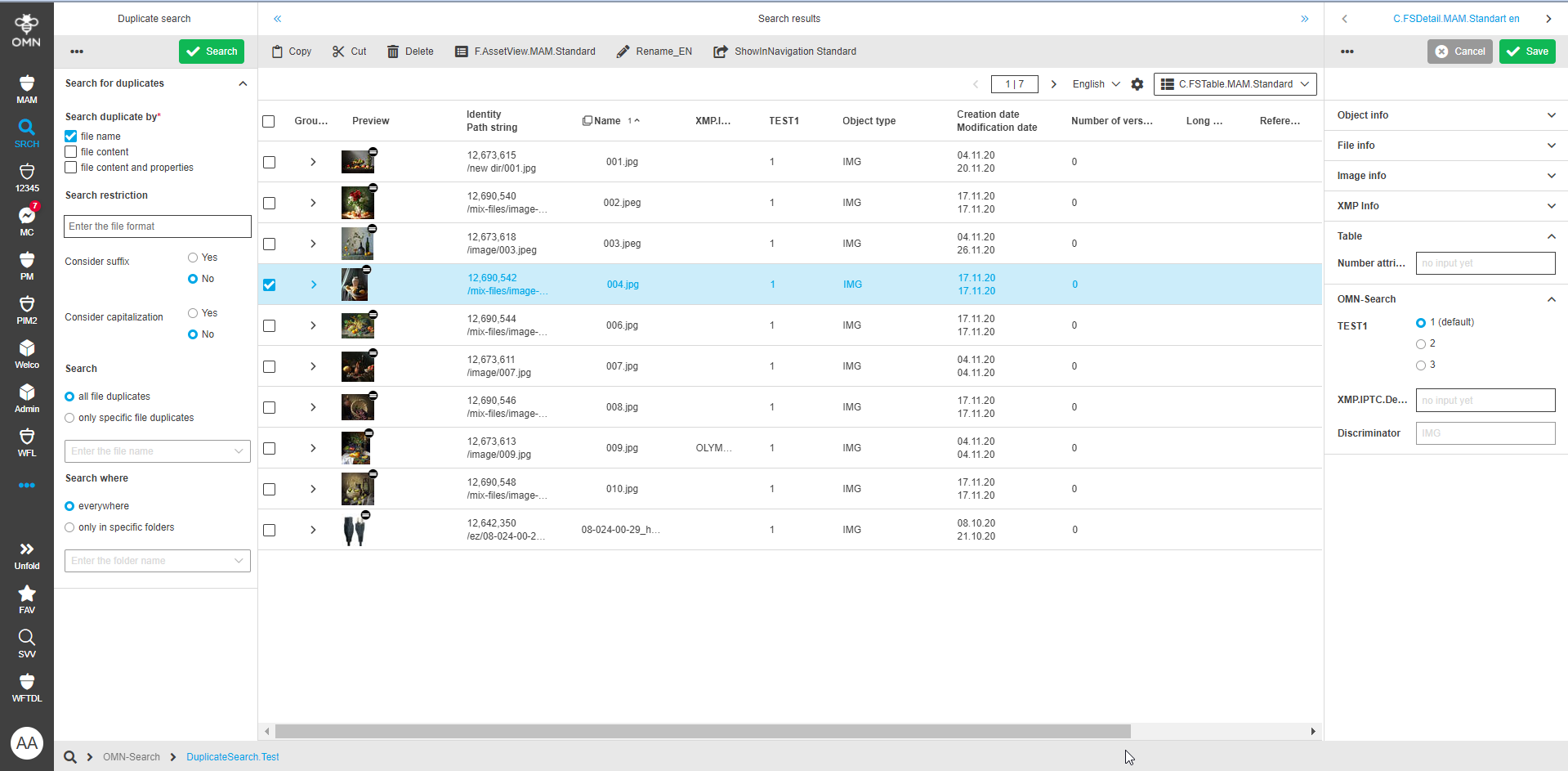
Duplicate search results page contains three areas:
-
Left Area: The width of the area depends on backend configuration. The following options are placed there:
-
Toolbar contains:
-
"Search" button to execute a search for duplicates based on selected parameters (found results are shown in center view)
-
"Reset" button to reset all data to the default state (all fields are cleared, search options - by default)
-
"Save search" button to store specific duplicate searches with defined parameters (if one is saved, it is shown in the "Saved searches" accordion below)
-
"Rename search" button (only shown when a saved search is available and selected, allows to change the name of the selected saved search)
-
"Remove search" button ( only shown when a saved search is available and selected, allows to remove the selected saved search)
-
-
"Search duplicate by" option contains checkboxes, multi-select is possible (mandatory field, min 1 value has to be selected, "file name" is selected per default)
-
search by "filename" → search for duplicates on the base of equal filenames
-
search by "file content" → search for duplicates with the same content data (eg. pixel image content)
-
search by "file content and properties" → search for duplicates with the same content data and file-metadata (file properties like e.g. modification date)
-
-
"Search restrictions" contains some filter options to restrict the search results including:
-
the field to specify the possible file-formats, multiple are possible
-
if "filename" is selected in "Search duplicate by", the extra option appear:
-
"Consider suffix" with radio buttons "Yes" and "No" ("no" option by default) - > if enabled consider file suffix in duplicate search by filename
-
"Consider capitalization" with radio buttons "Yes" and "No" ("no" option by default) - > if enabled consider upper/lower case letters in duplicate search for filename
-
-
-
"Search" with radio buttons:
-
search for "all file duplicates" (default)
-
"only specific file duplicates": if activated, file names/folder names can be selected in the search field below and the Duplicate Search for this selected images/images contained in a selected folder/both is performed
-
-
"Search where" with radio buttons:
-
"everywhere" (by default) - > search in all RNC accessible for a user
-
"only in specific folders": if activated, the user searches for folders by name and see appropriate results in the dropdown, folders to search in can be selected (search includes all files that are located below the selected folder)
-
-
"Saved searches" in alphabetical ascending order if available
-
-
Center Area
Search results are displayed in the center as a table according to FSTable configuration. ContentView Switcher is available in case of multiple configured FSTables (default view from configuration is considered). General settings options (such as select all, sorting, filtration, pagination, etc.) are available. Grouping is also available and works as follows: search option by Filename only → grouping on the base of attribute filename, by file content only → grouping on the base of attribute "Image Data Checksum" ("Without metadata" search option in old client), by file content and metadata combinations → grouping on the base of attribute "Total File Checksum"("With or without metadata" in old client). The default grouping can be changed by a user.
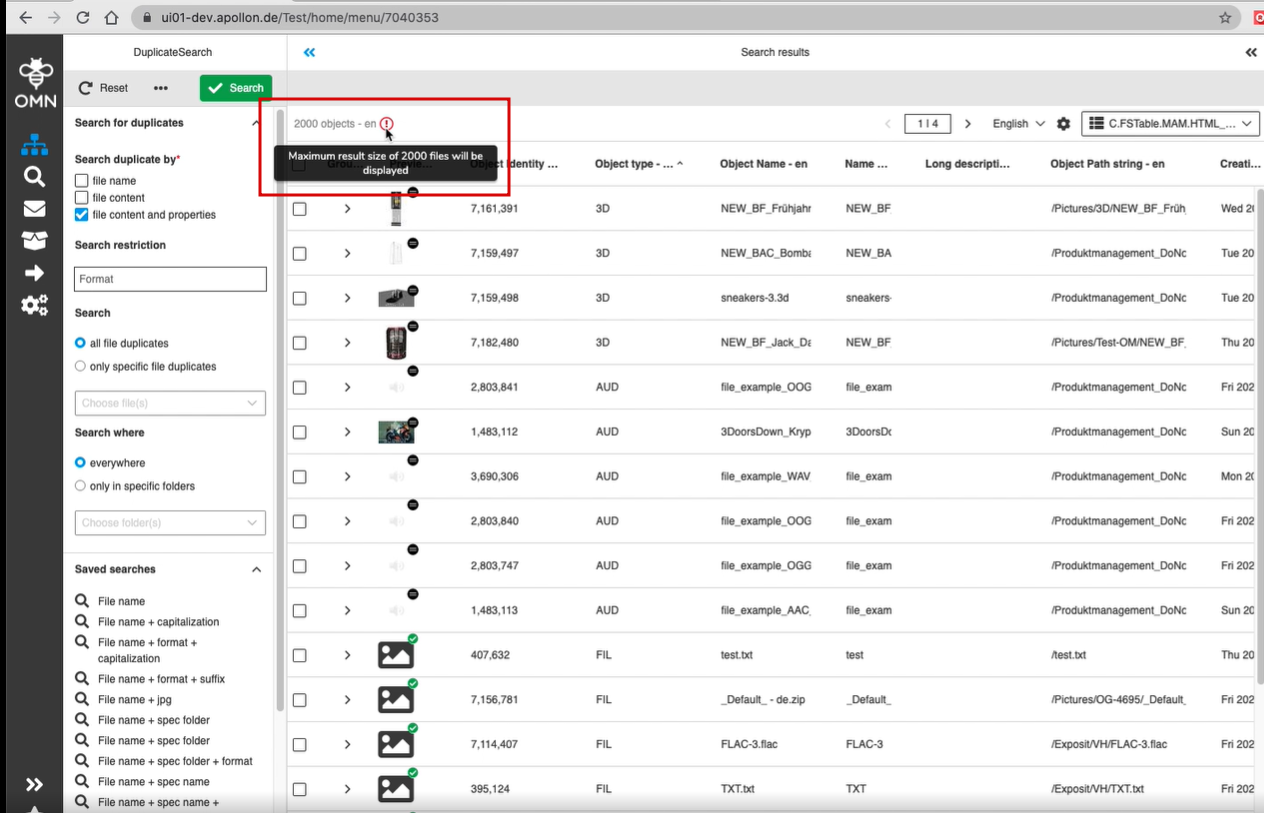
To have correct grouping "Total File Checksum" and "Image Data Checksum" expressions should be configured (otherwise grouping will not work) Currently, "Grouping" option from FSTable configuration is not considered and search results are always grouped in DuplicateSearch. In case of "Calculate results total count" is enabled in the backend, amount of found items is shown even if the table cannot display all objects due to DB limitation (if so the corresponding message with max result size value is shown):
-
Right Area
Display of duplicates' data is supported for further checking and editing of metadata in the right view. Right view is available if FSDetail(s) is (are) configured in the backend (tab navigation is available in case of multiple configured FSDetails, set default view is considered). It appears only if a found item is selected in the center. All information is shown in UI language according to backend localization. The width of the right area depends on DuplicateSearch backend configuration
Any duplicate search can be saved and then used repeatedly. The access to duplicate search can be restricted by access rights.
SimpleSearch usage
In the old client as soon as a Simple Search configuration exists the corresponding search field appears. More than one configuration of this plug-in result in a black arrow inside the field so that the user can choose between the different simple searches (known as quick search as well). In HTML5, in contrast, to use a specific Simple Search in the frontend it should be activated in the OMN-Search page plugin. To run the search the corresponding tile should be clicked (the Simple Search configured as default is started by clicking on "enter" key from the keyboard or "search" icon):
-
if the SimpleSearch has a configured expression, a "sharp" search via ElasticSearch is performed by entered search term in this expression (operators are taken into account)
-
if the SimpleSearch has no configured expression, it searches for the configured type in all indexed fields (e.g. for assets)
-
if there is more than one configured expression, the search by the first one is performed
-
if no search term is specified, the expression is searched globally with *. , otherwise the concrete term is searched in the deposited expression
Search results are visible on the defined AdvancedSearch/FormBasedSearch page. They can be filtered on the left if facets are available (configured). Any simple search can be saved and then used repeatedly. The access to SimpleSearches can be restricted by access rights.
Example of Simple Search usage with Advanced Search of global type (described above):
Extended Search
Extended Search allows searching by multiple combined parameters and by this to get more sharp search results. If it is enabled in OMN Search page plugin, the link "Go to extended search" is displayed below the search bar on the OMN Search page. When the link is triggered the Extended Search modal window appears and the user can:
-
select the type of searched object (Asset/Channel/Product)
-
select a specific configuration of Advanced/FormBased Search which corresponds to the selected object type and which parameters will be used further
-
if Form-based search is selected, attributes are predefined, the user can only enter values. Operators are also predefined and cannot be changed in the frontend.
-
if AdvancedSearch is selected, the user can define the list of parameters by his own clicking on "Add" button to assign multiple ones
-
if case of Advanced Search, the checkbox for enabling "Custom" attributes to search in appear
-
if checked: Global index parameters can be selected further
-
if unchecked: only configured in selected Advanced Search attributes are available
-
-
-
After Extended Search is executed, the search parameters are shown in the left area of the search results page where results can be further limited with available facets. It is possible to start a new search via function in the toolbar. Any extended search can be saved with set attributes and facets and then used repeatedly. The access to extended search (including specific configurations of Advanced/FormBasedSearch and "custom" option) can be restricted by access rights.
The extended search is used in the frontend as follows:
ExtendedSearch - FormBased Search over database
If the option 'Enable search over database' is activated in the backend configuration of FormBasedSearch page plugin the search by custom attributes is possible and the search query is directed to the database instead of elastic search. Custom parameters are supported in the extended search modal window whereas no facets are shown in the left view on the search results page. Multiple values per a custom attribute are not supported.
PEO Search
If configured correctly (see above) PEOSearch is available as a tile on the global OMN-Search page in the frontend (set access rights are considered)..
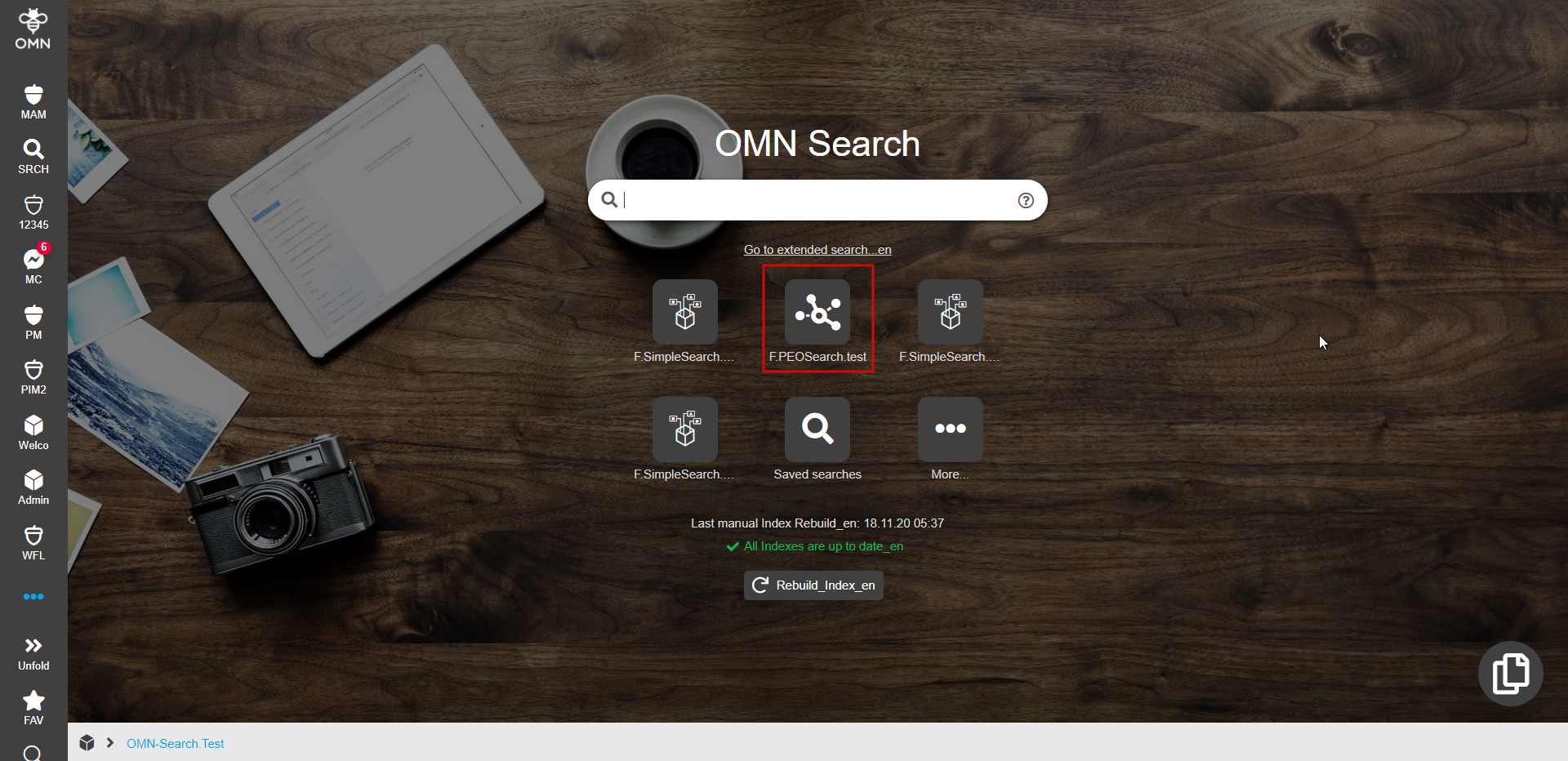
The search is used as follows:
Access rights usage
The following objects are accessible on the client-side depending on access rights configuration:
-
Tile(s) for quick searches (including SimpleSearch/PEOSearch)
-
Link to ExpertSearch
-
Specific Advanced/Form-based Searches in the "Extended Search" modal window
-
"Custom" checkboxes for extended search by all attributes from the index (corresponding to selected type)
-
-
Icon for Duplicate Search
-
"Rebuild indexes" button
-
Index-Overall-State
-
Default Simple Search (if SimpleSearch configured as default, has been restricted by access rights, notifying label sis shown below the search bar)
Other functionality:
-
OMN-Search as a background page plugin: if configured in Mandator details, OMN-Search page plugin is shown as a start page after login:
-
Index state/Index Rebuild. Overall index state and the date of last index update is shown on the OMN-Search page. If some indexes are outdated, Index Rebuild can be performed as follows:
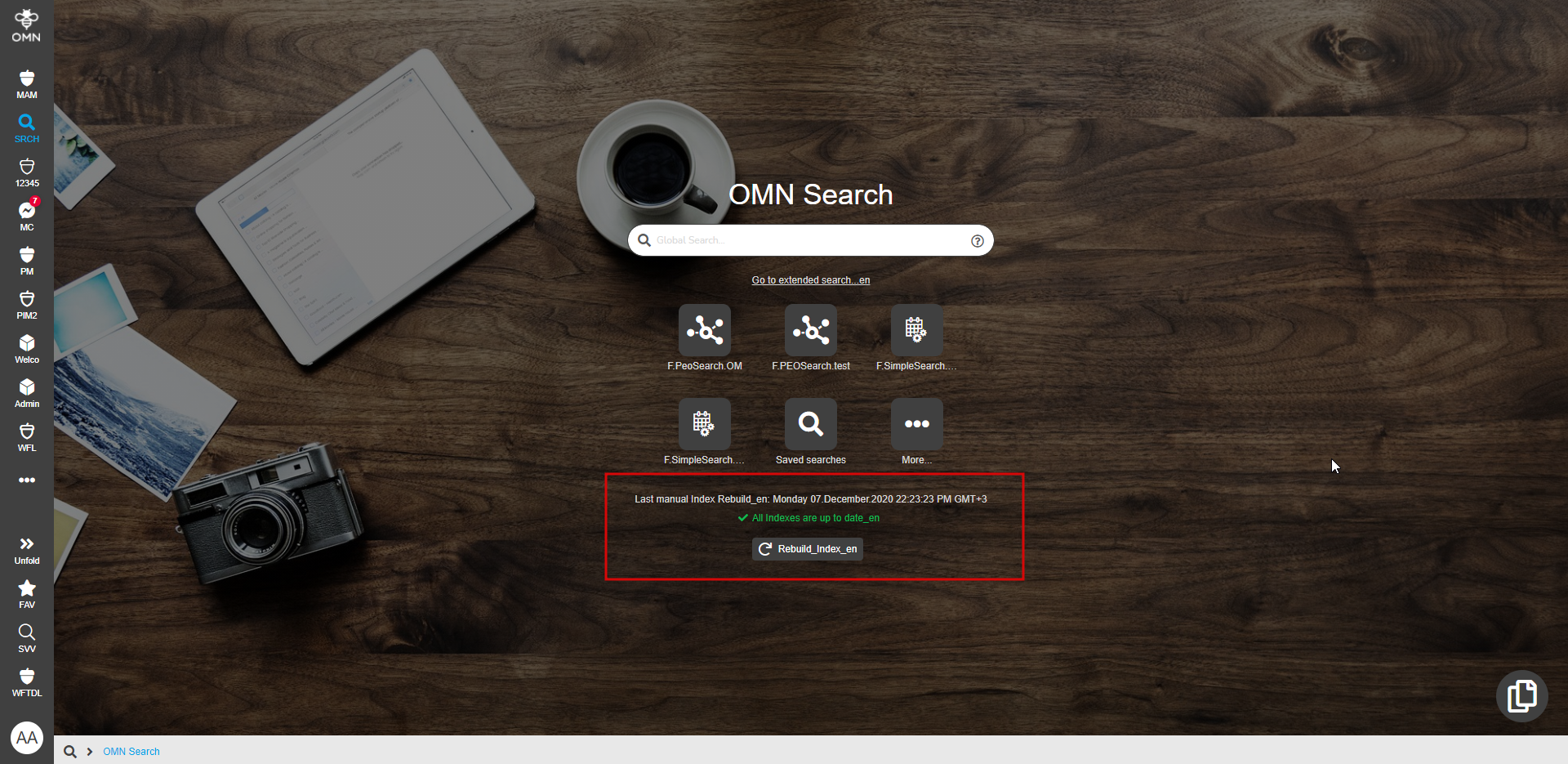
Alternatively rebuild can be done in OMN-Search application plugin. The availability of both options depends on configuration of access rights.
-
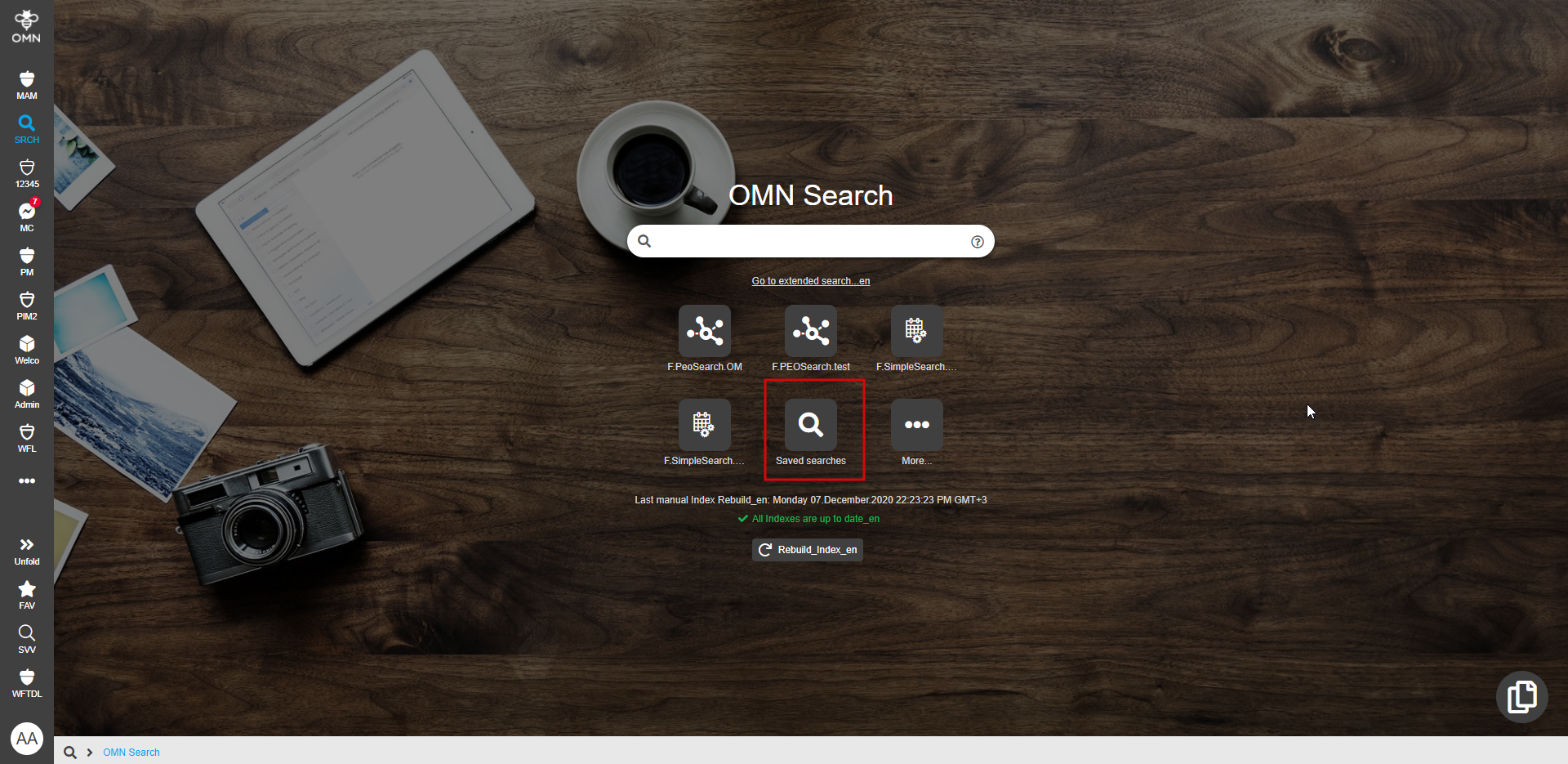
Saved Searches. The display of saved searches cannot be configured: saved searches with a specified names are available both in accordion in the left view on the results page and on the OMN search page as a tile if a search has been stored by the user. When clicking on the saved search on the OMN-Search page, the search results page is opened; when clicking in the left view, the executed parameters are shown and search results are updated correspondingly
-
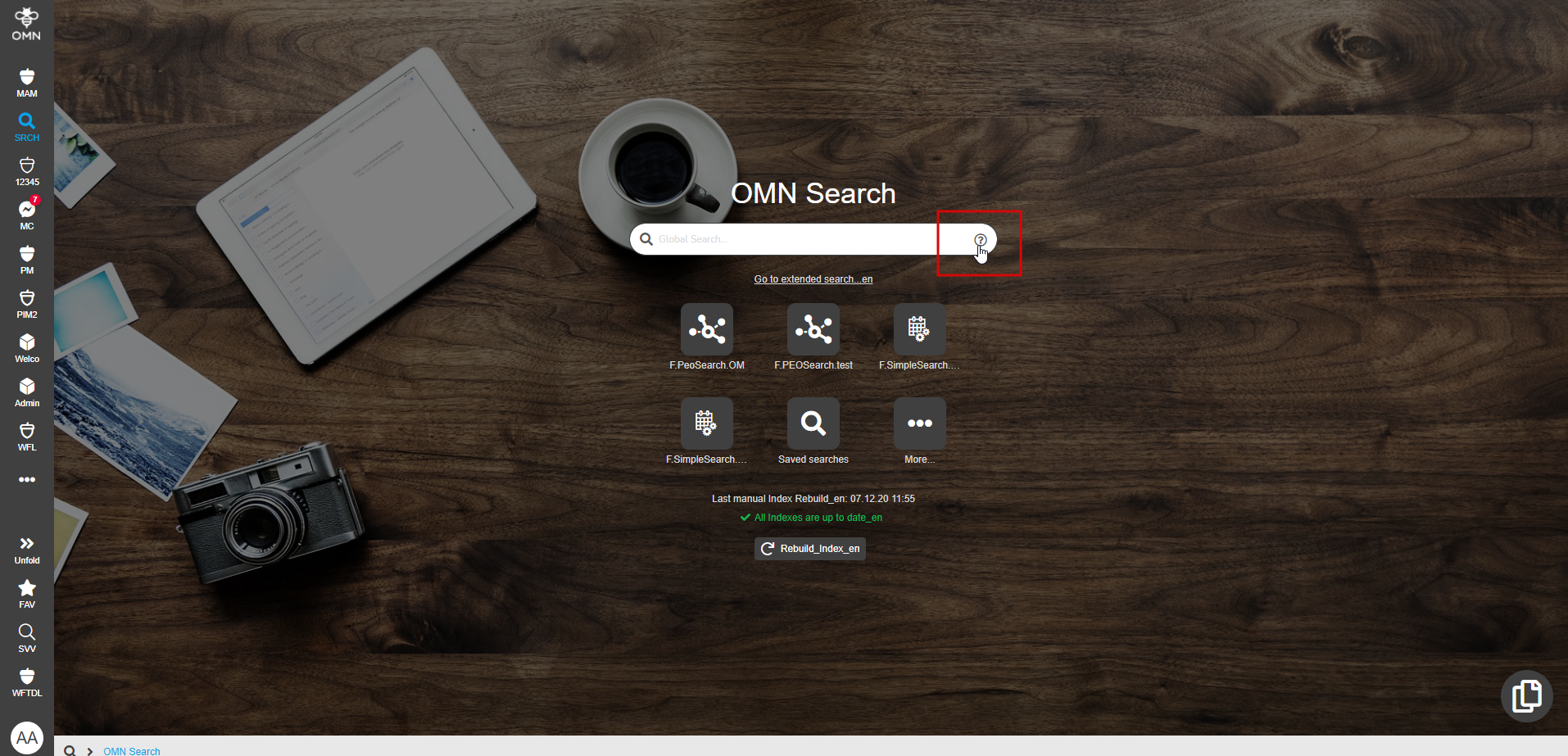
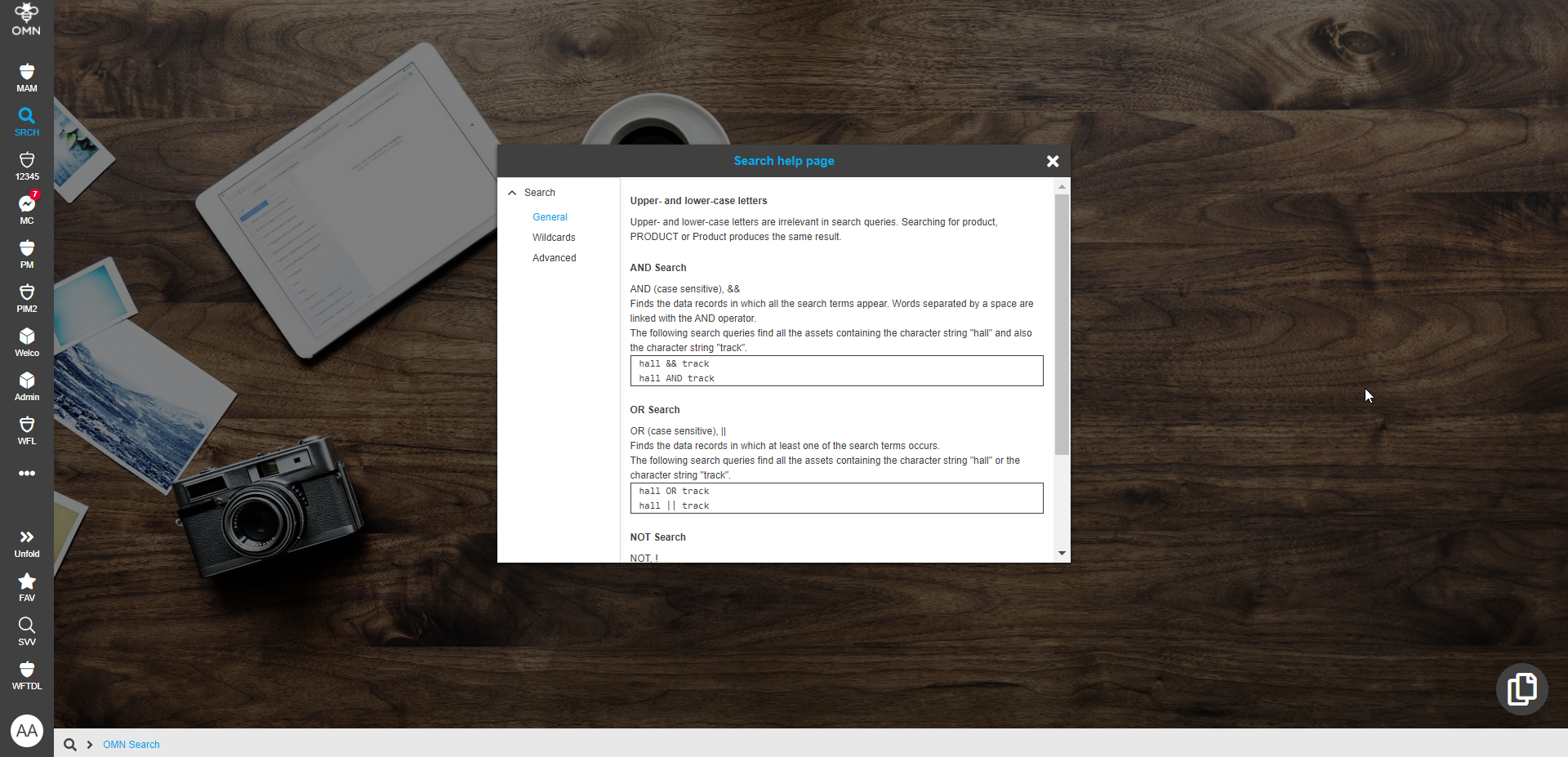
OMN-Search Help Page can be opened by clicking on "?" symbol. The page is static at the moment and contains the information relevaте for OMN-Search.
-
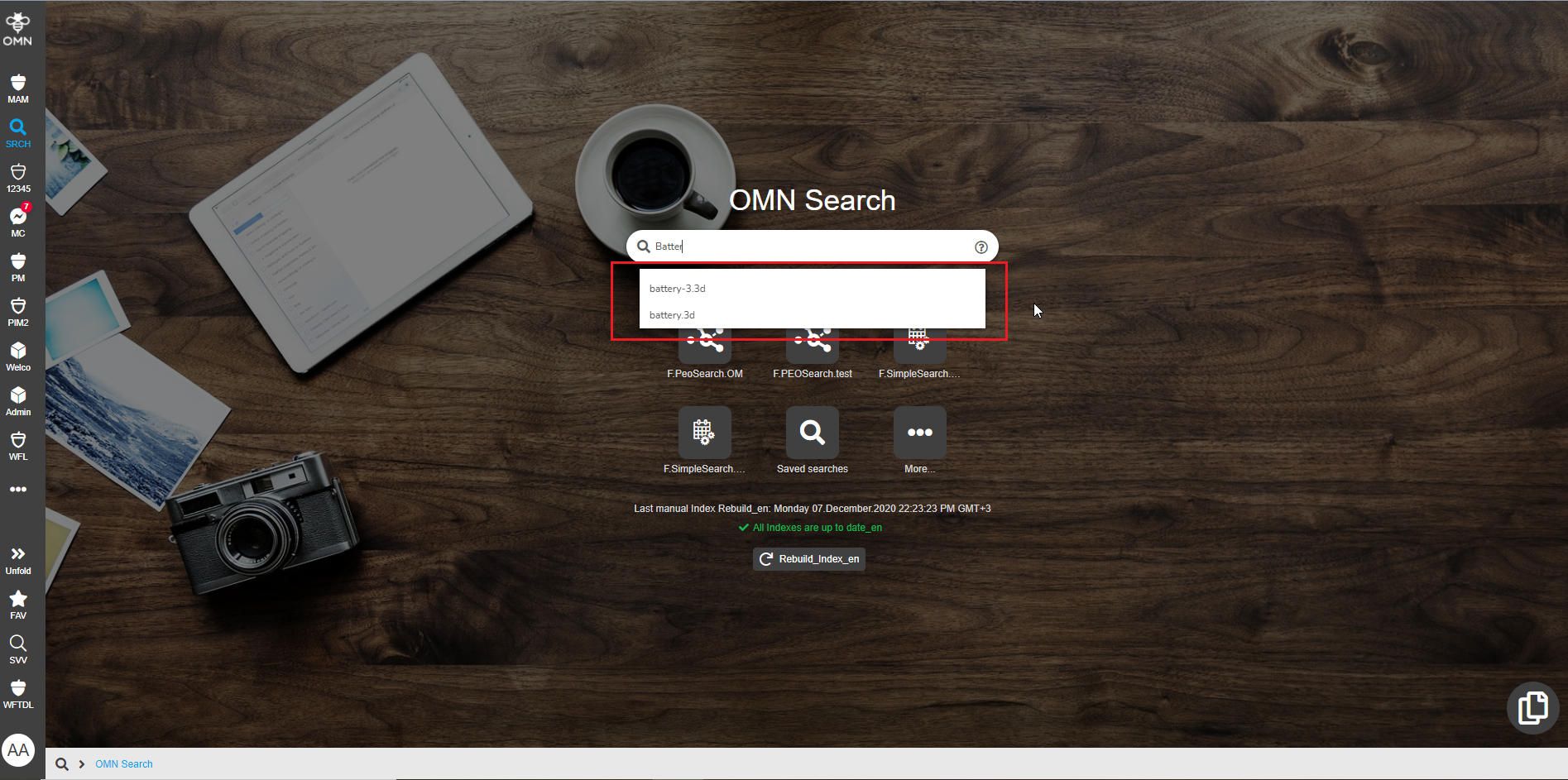
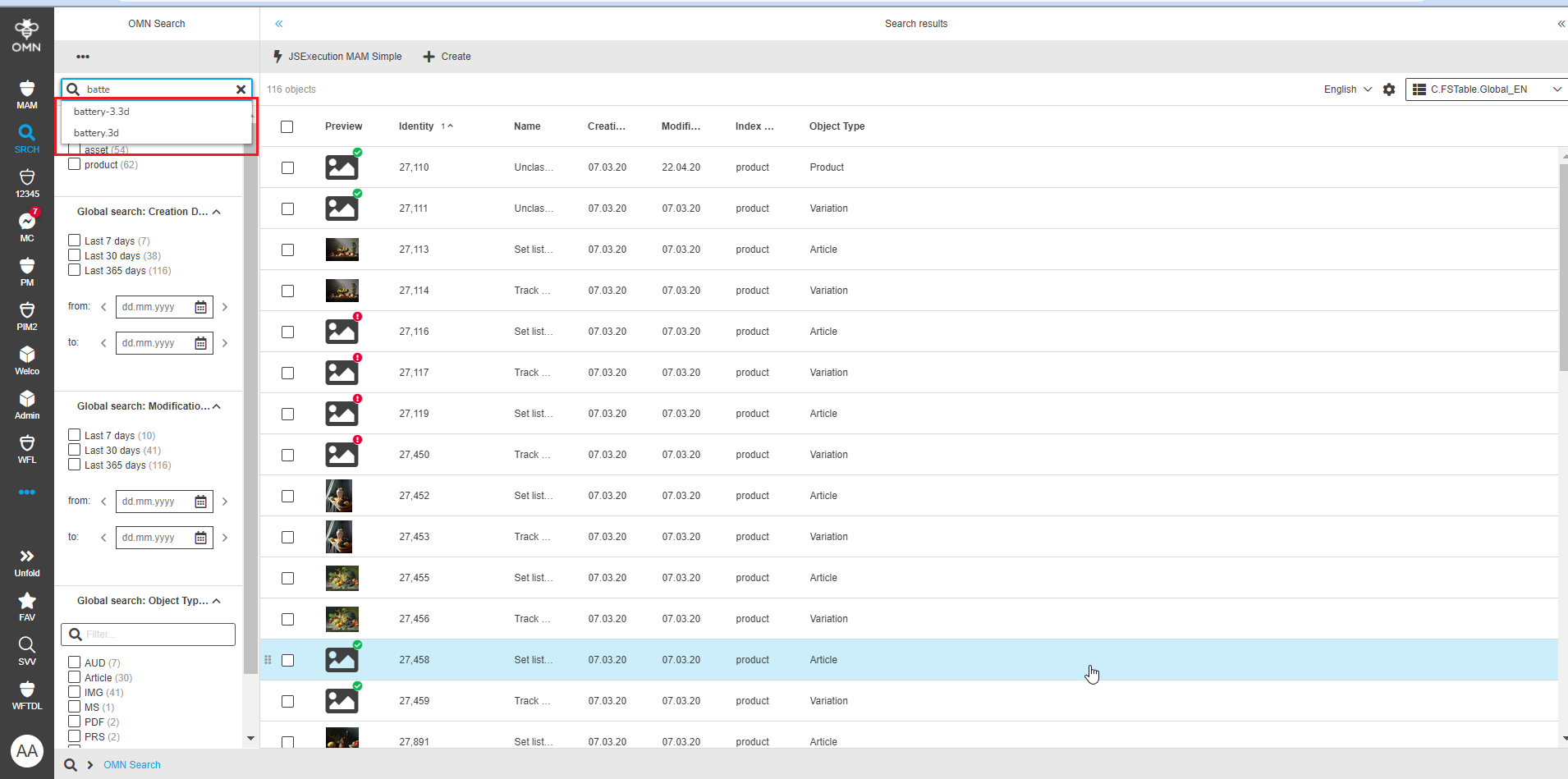
Typeahead usage: if typeahead parameter is enabled in the OMN-Search page plugin configuration, autosuggestions are available for a user wherever he completes the search within OMN. When the user is typing in the search bar the query is being automatically supplemented with the most likely search phrases. The display of the suggestions depends on the number of entered characters and the value set for "Number of typed characters" option in the backend.
-
Case-sensitive and case-insensitive search. Search results depend on the configuration of OMN-Search application plugin: if "Show case-sensitive results" is activated the case of the query is considered, otherwise - no.
-
Shortcut FF to open OMN-Search page still works.