Usage History
Introduction / Purpose of the plugin
The plug-in allows to open an InDesign document asset from a search result or navigation in the OMN DAM module in a special view that can visualize a high-quality page preview of any InDesign document page and lists all assets used in the InDesign document.
The plug-in is an extension of the OMN DAM module.
General functionality
InDesign documents and their document pages can be viewed page-by-page in Online Media Net via the Usage History plug-in, and information about each linked asset can be displayed in tabular form.
This allows you to quickly determine whether all assets used in the document are stored in Online Media Net. The plugin allows access to metadata of the existing assets, e.g. in order to keyword them directly and enables the execution of functions e.g. the download of the assets.
Assets not stored in OMN but used in the document are visualized by a placeholder, but cannot be further viewed or processed in OMN.
Prerequisites
Prerequisite for use is that the documents have been saved with the Online Media Net InDesign extension OMN Page Preview Plugin for InDesign in InDesign, otherwise no information can be read from the documents and previews can be created in Online Media Net for the documents.
Execution
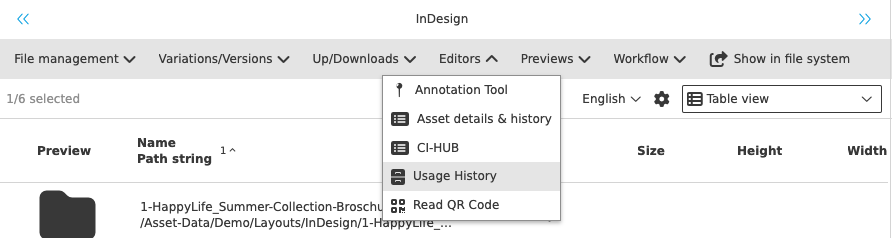
Depending on the system configuration, the function can be called e.g. from a search or navigation on a selected InDesign asset.
By clicking the Usage History function button, the Usage History plug-in opens in a separate editor window.
Structure
The plug-in Usage History is a so-called editor and thus supports different color modes.
All editors have a certain structure. More information can be found under Editors.
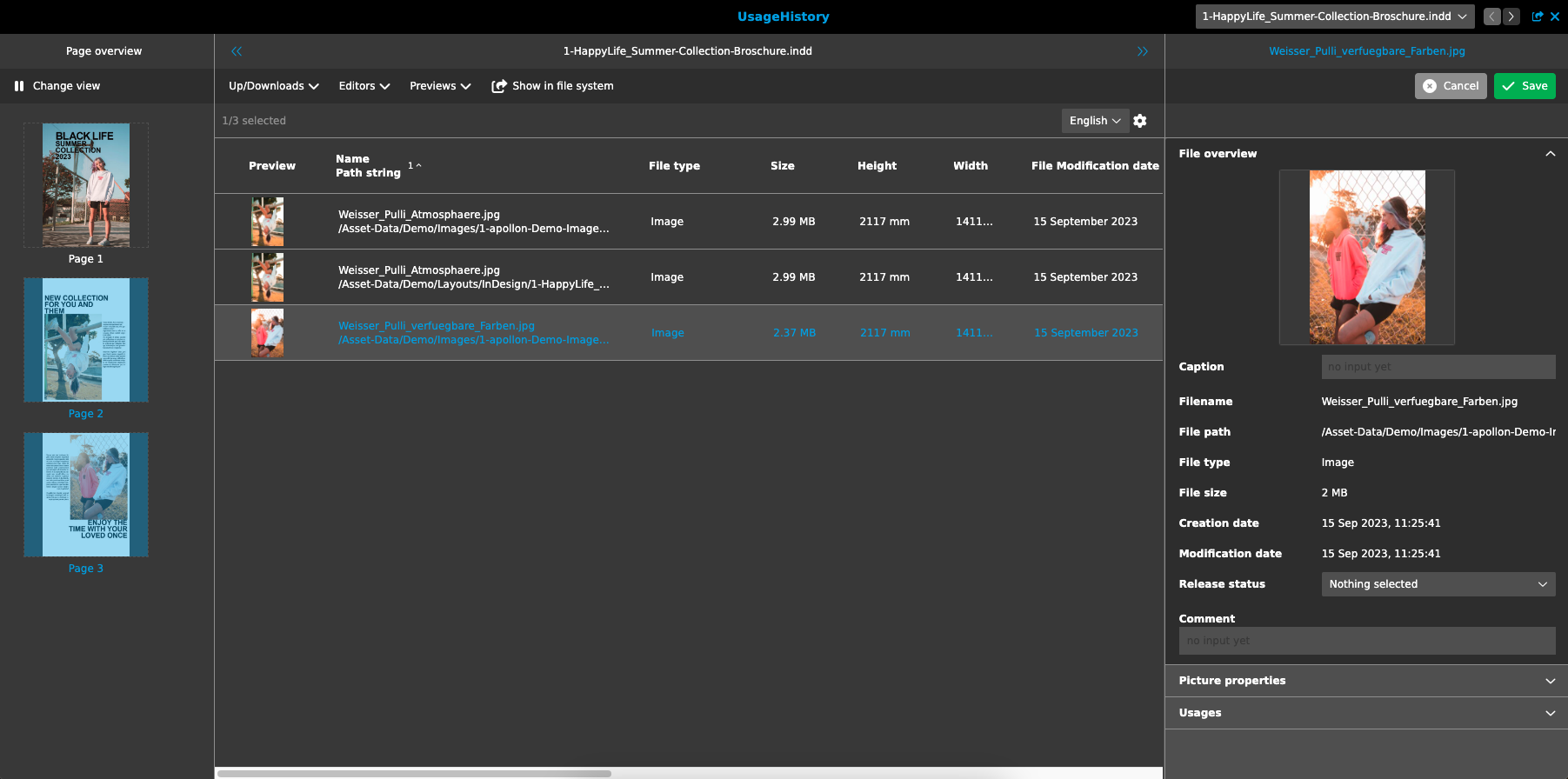
The structure divided into three sections:
-
Left:
-
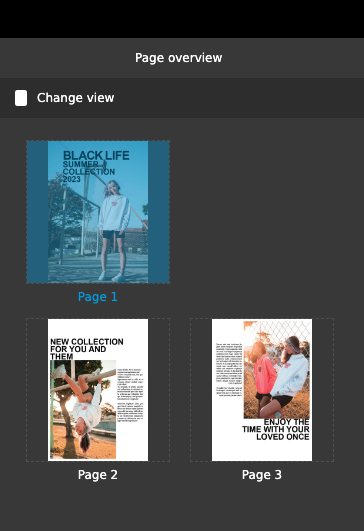
If an InDesign document is opened, the preview of the pages contained in the document can be viewed here. This provides an overview of pages or double pages of a document.
Selecting a page changes the display in the center and on the right. The display can be changed between single- and double-page display.
-
-
Center:
-
Table in which the assets used on a selected document page (from left pane) are displayed with meta information. Assets can be selected and functions can be performed on them using the toolbar.
-
-
Right:
-
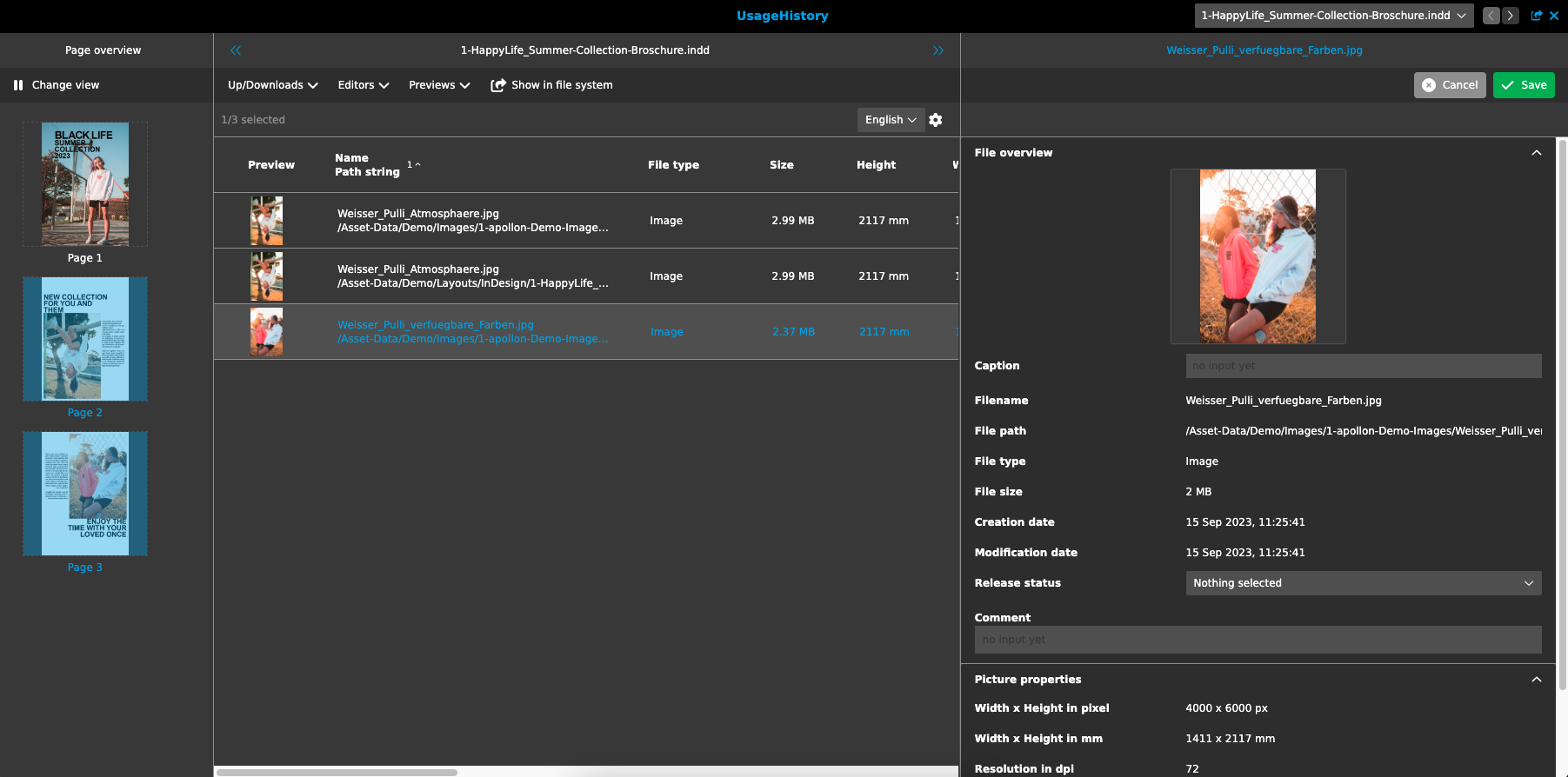
Display of meta information for an asset selected in the table.
-
Document overview
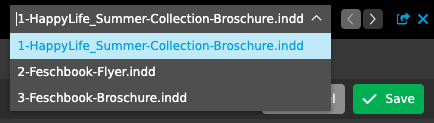
In the navigation bar, all open files are displayed in a dropdown.
These are sorted chronologically, with the newest document or file displayed at the top and the oldest document at the bottom, and allow users to switch between the documents.
Basic functionality for editors can be found at the following link: Editors
Toolbar
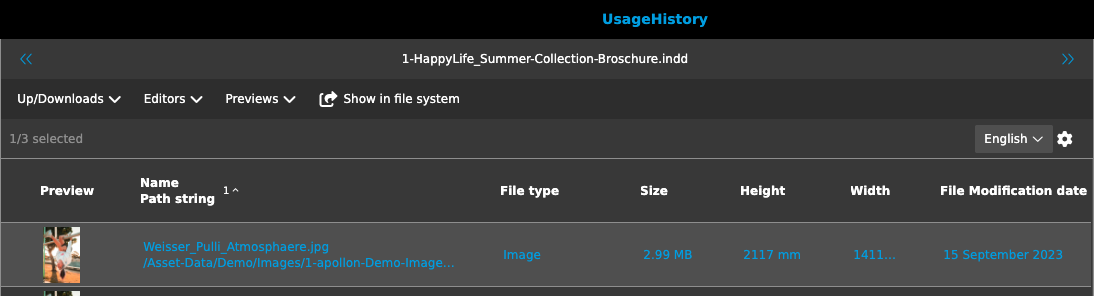
The upper toolbar in the center area above the table contains various functionalities, such as downloading selected files or opening them in the original location.
The display and thus the number of functions in the toolbar depends on the configuration and can vary.
Page overview
In the left column all pages of a document are shown. These are freely selectable. After selecting a page, it is displayed or updated on the workspace in the center.
In the view it is possible to switch between single- and double-page view.
Work area
In the middle area, the media assets used in the selected page are displayed.
If the image is saved in OMN, a preview and additional meta information is displayed in the table. An image can also be displayed multiple times in some circumstances. This is the case if the used file is redundantly stored in OMN in different directories.

|
The logic by which mappings are searched for can be customized by configuration in the system. If the mapping cannot be found in OMN, the visualization is done with the help of a placeholder and the file name. |
Detail view
The detail view displays meta information about an asset selected in the table.
The display can vary depending on the configuration. Also, depending on the user rights, certain fields can be editable or read-only.
In this way, meta information about images used in the document can be captured on a document-by-document basis.
If the image used in the document cannot be found in Online Media Net, the following placeholder is displayed in the detail view.

Other add-ons / related functionalities
The following links contain related information that is recommended reading:
-
The Single Object View can display information about InDesign documents such as image or text boxes:
-
The OMN Page Preview plugin for InDesign allows saving high quality document previews and other meta information that is evaluated in Online Media Net and displayed in the Usage History plug-in: OMN Page Preview Plugin