Editors
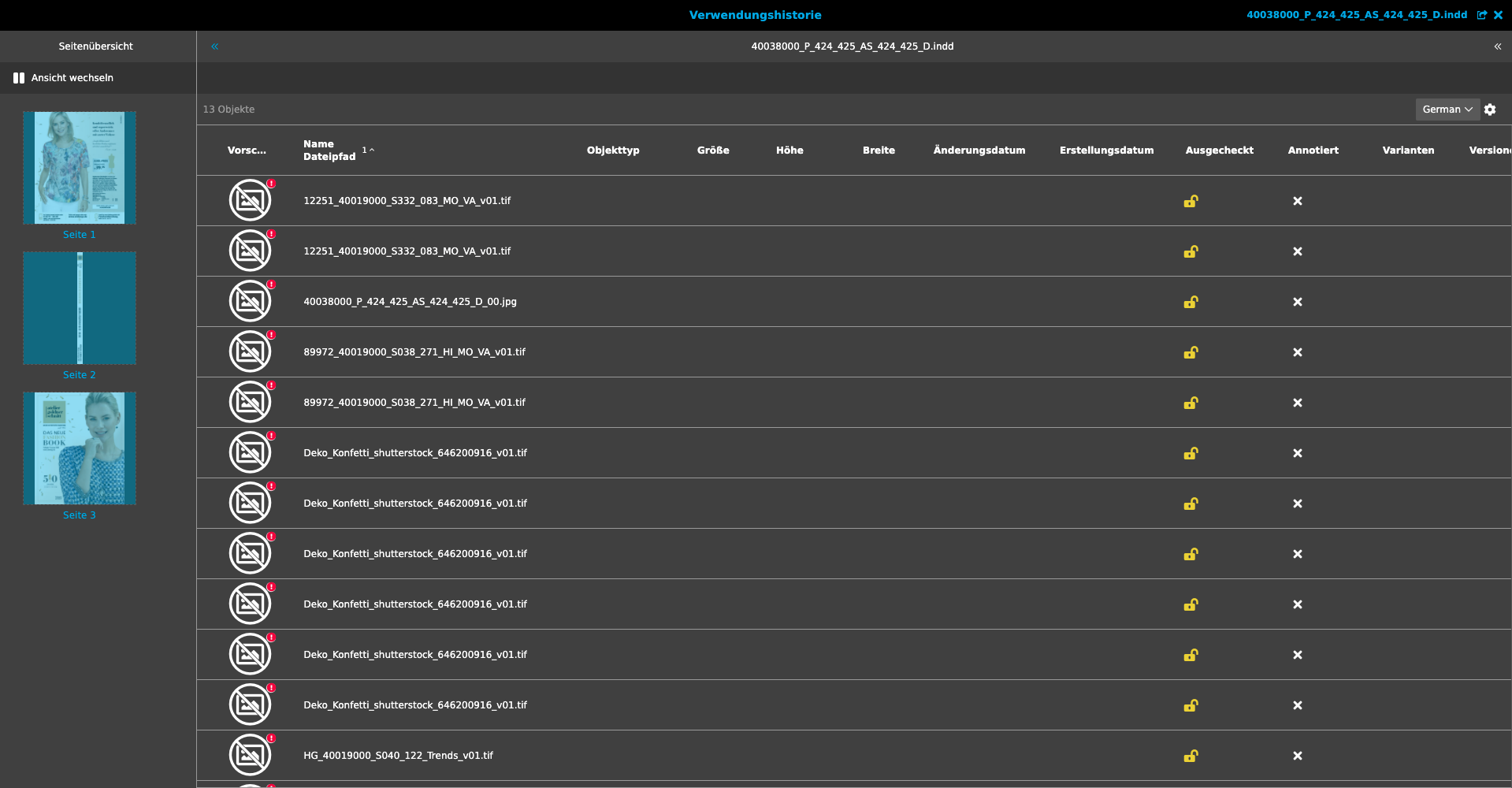
Editors support users in editing files (assets) such as images or maintaining product data. This can involve single or mass data.
Similarities of editors
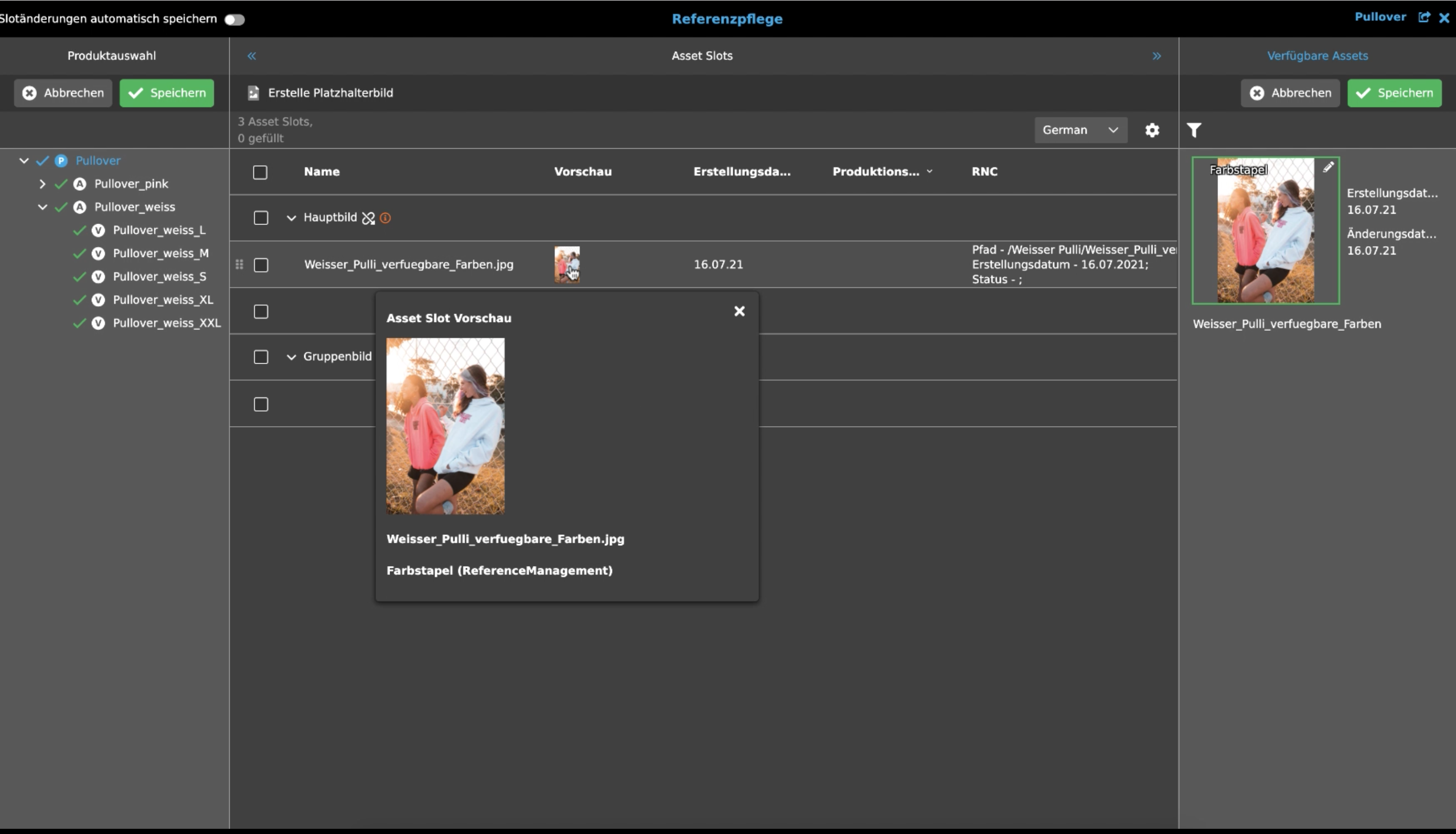
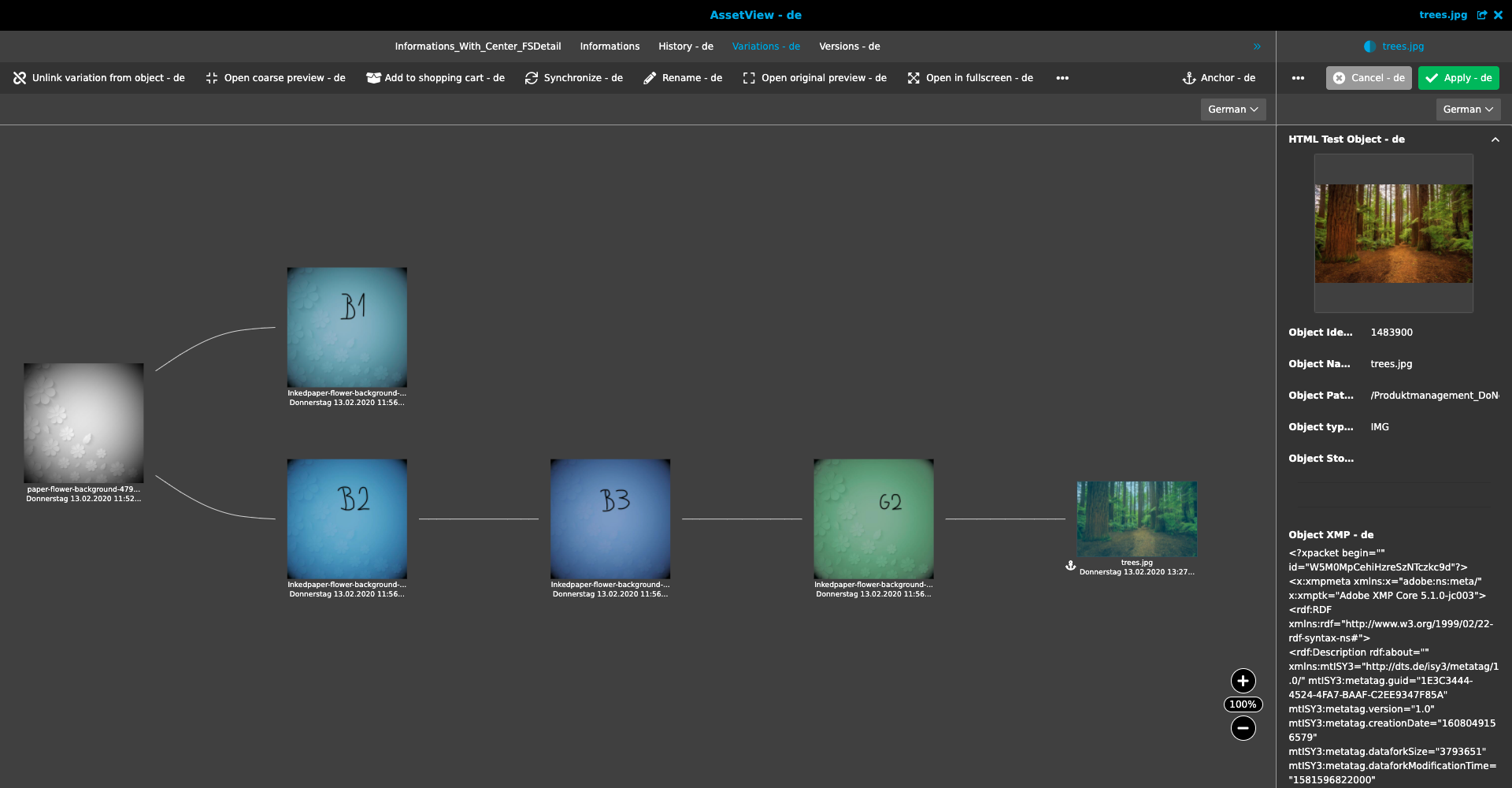
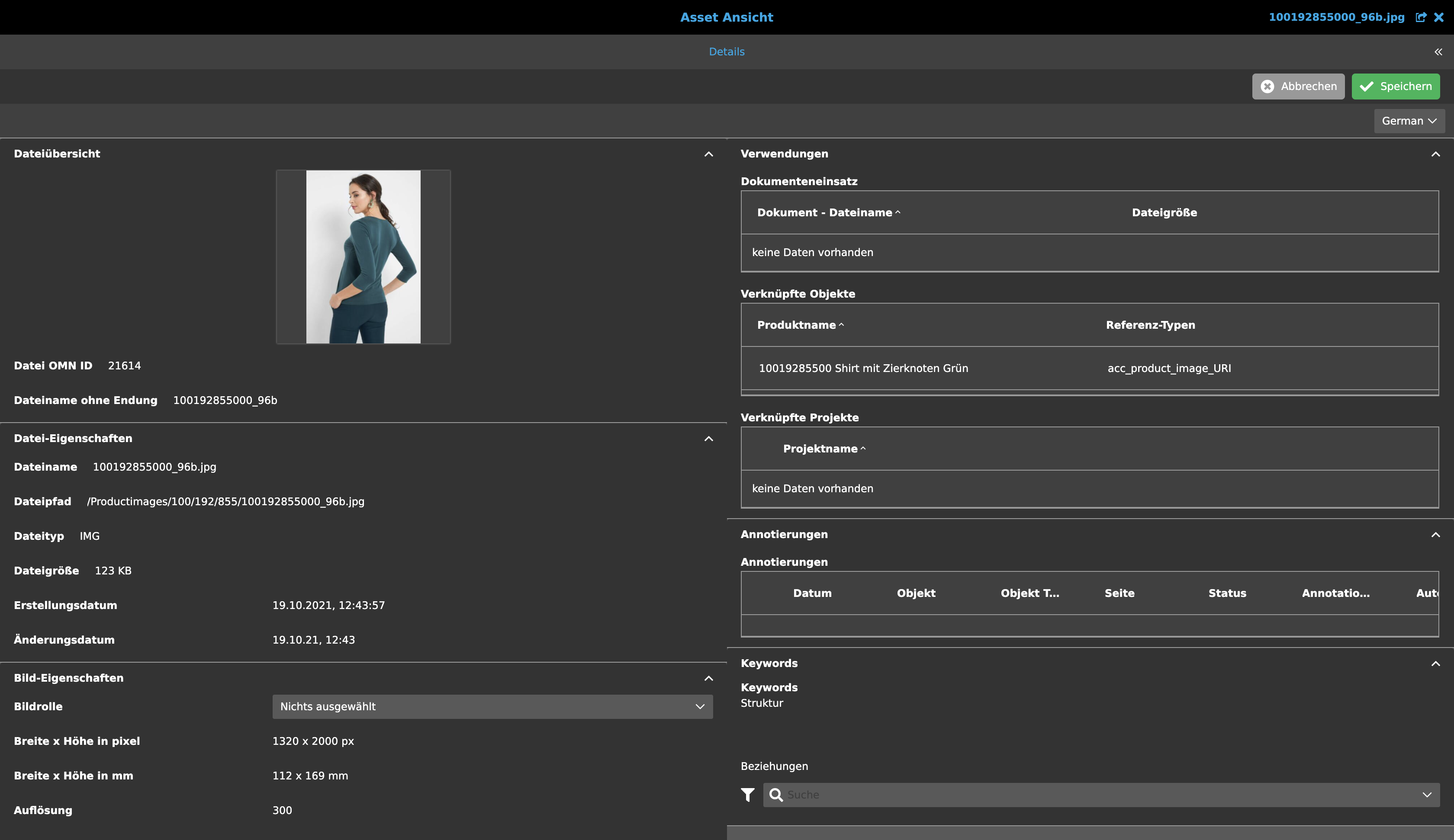
Editors can be very different in their functionalities, but they have a similar basic structure. They usually have a left and/or right panel (Left and Right View), but always a canvas or center (Center View). Single or multiple objects are edited or data is maintained in this.
All selected files or products are displayed in the "Titlebar" of the editor as a dropdown, followed by the buttons "Previous in selection" (arrow symbol on the left) and "Next in selection" (arrow symbol on the right). These buttons can be used to switch between the files/products and then display them in the editor. If changes have been made and not saved and the file is to be swapped using the buttons or the dropdown, a warning message is displayed in the form of a dialog. This safety query serves to prevent data loss. If no changes have been made or saved, the message is not displayed and switching between files using the buttons is immediate, as is switching to the previous/next file in the dropdown.
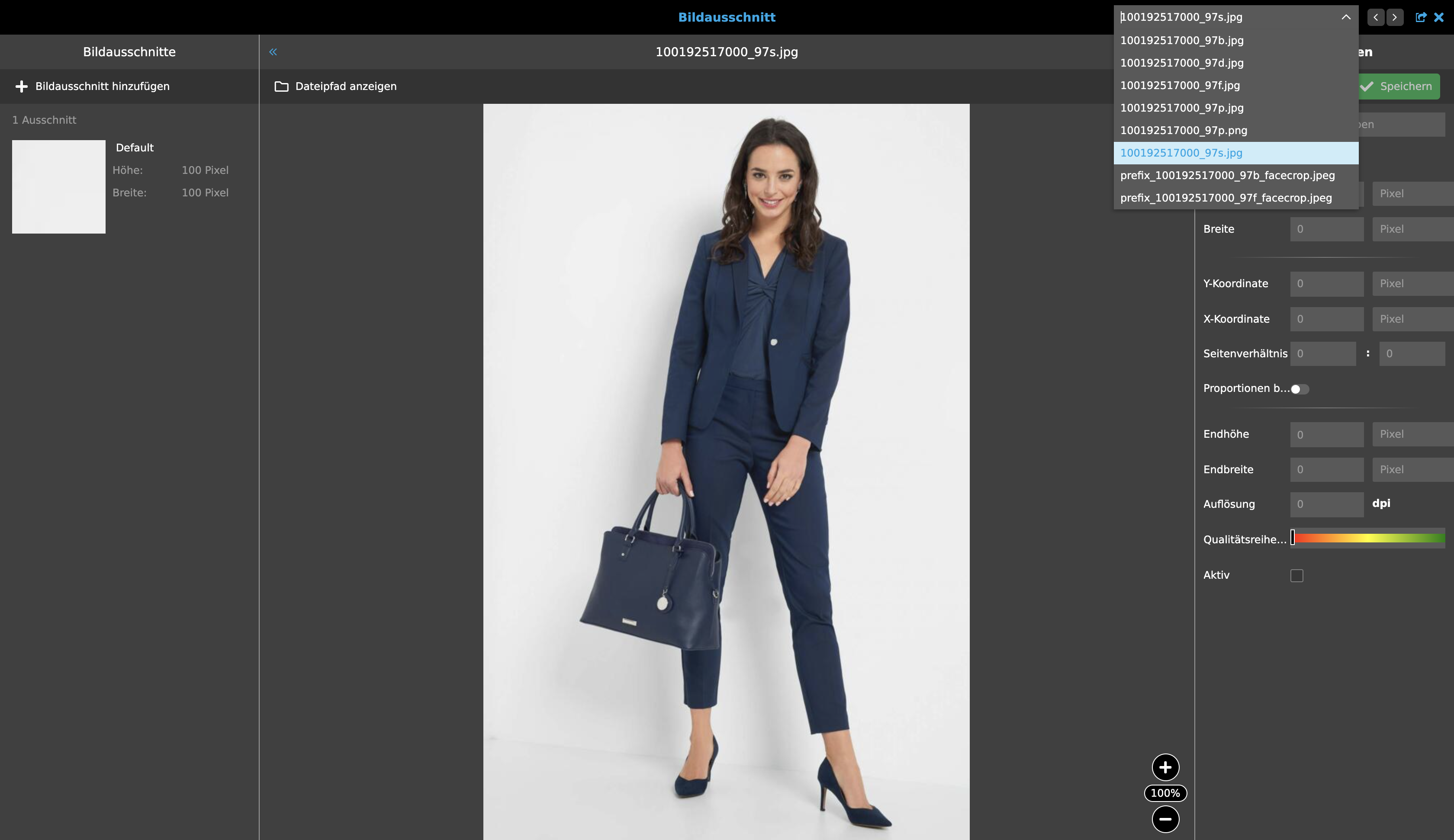
Each editor opens over the entire browser screen, which can then be closed again via the "x" symbol in the upper right corner or by pressing "ESC".
An editor always consists of a title bar and a navigation bar, many editors also have a toolbar and a statusbar (as long as it has functions in it).
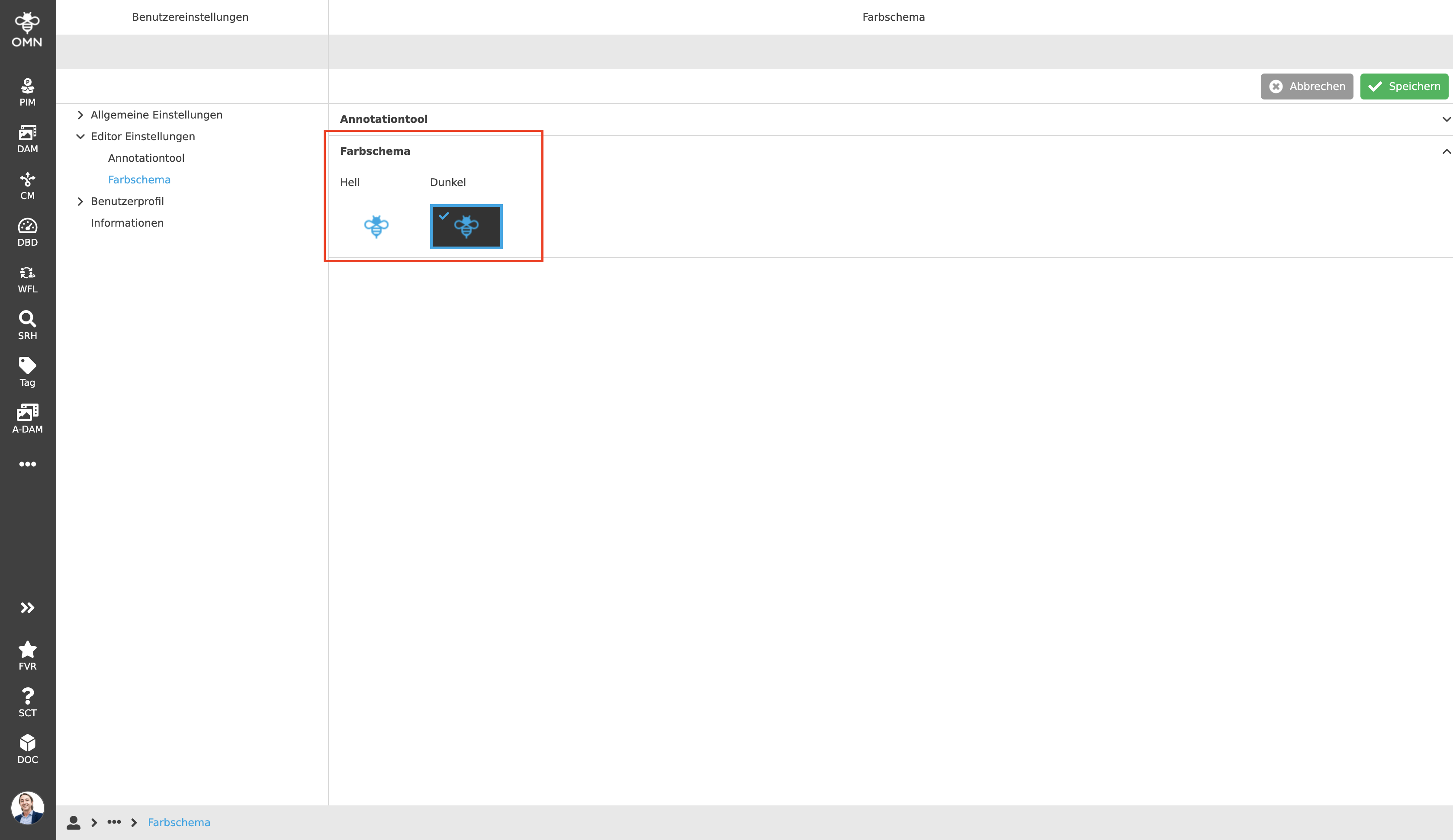
Editors can be opened in a so-called "dark" or "light" mode. This mode is adjusted in the user settings under the heading "Editor settings" and changes the background color of the editor. The default setting is the dark mode, with a dark background and white text.
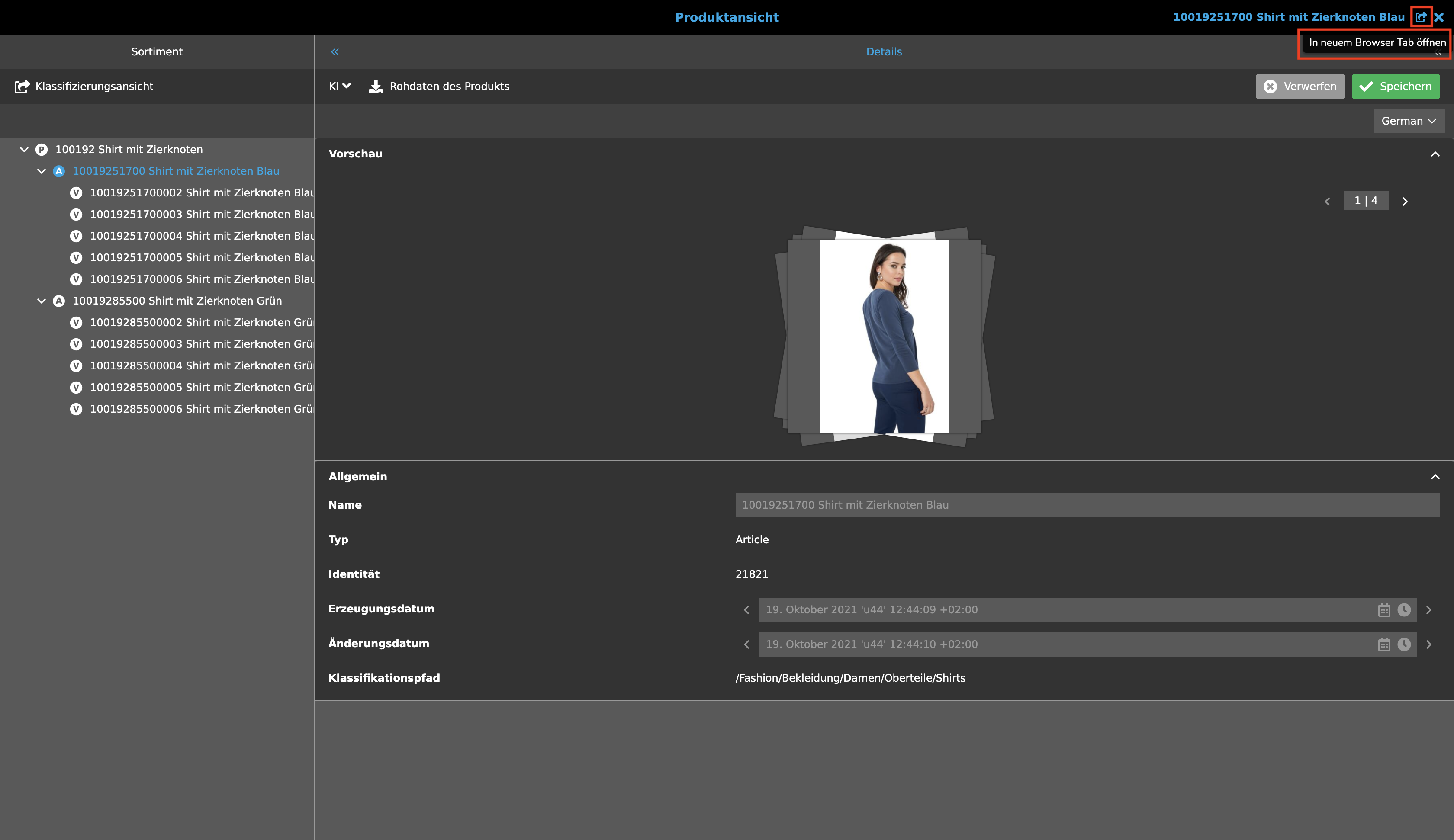
Another handy feature that can be used in any editor is that editors can be opened in another browser tab with a simple click. To do this, click the "arrow" icon (to the left of the "x") in the right corner of the title bar.
This way a user can work in other modules at the same time, while the editor is still open on another tab. Data edited in parallel can be saved and then displayed directly in the editor or in the modules. Only a refresh is necessary for this.
Available editors
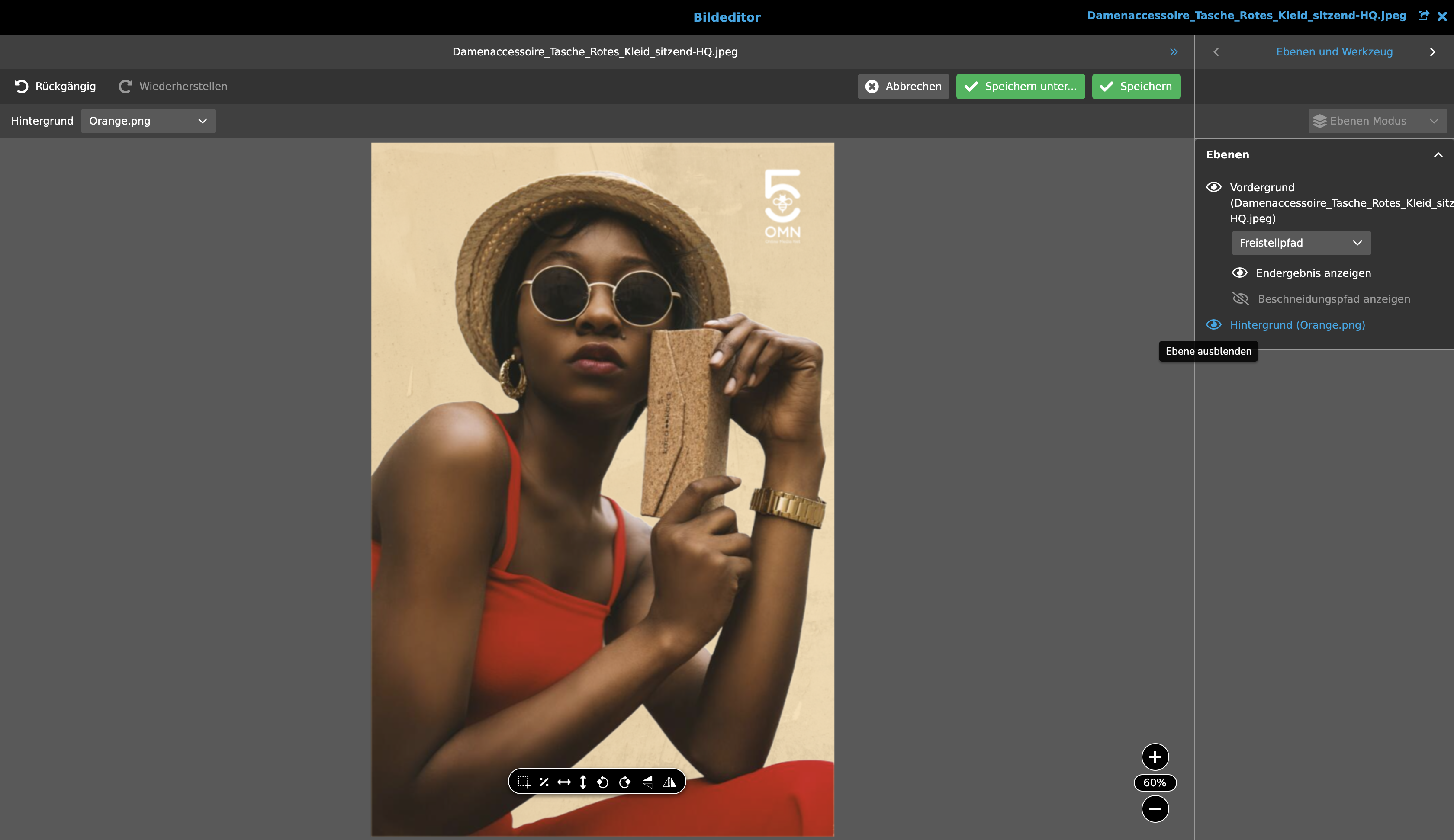
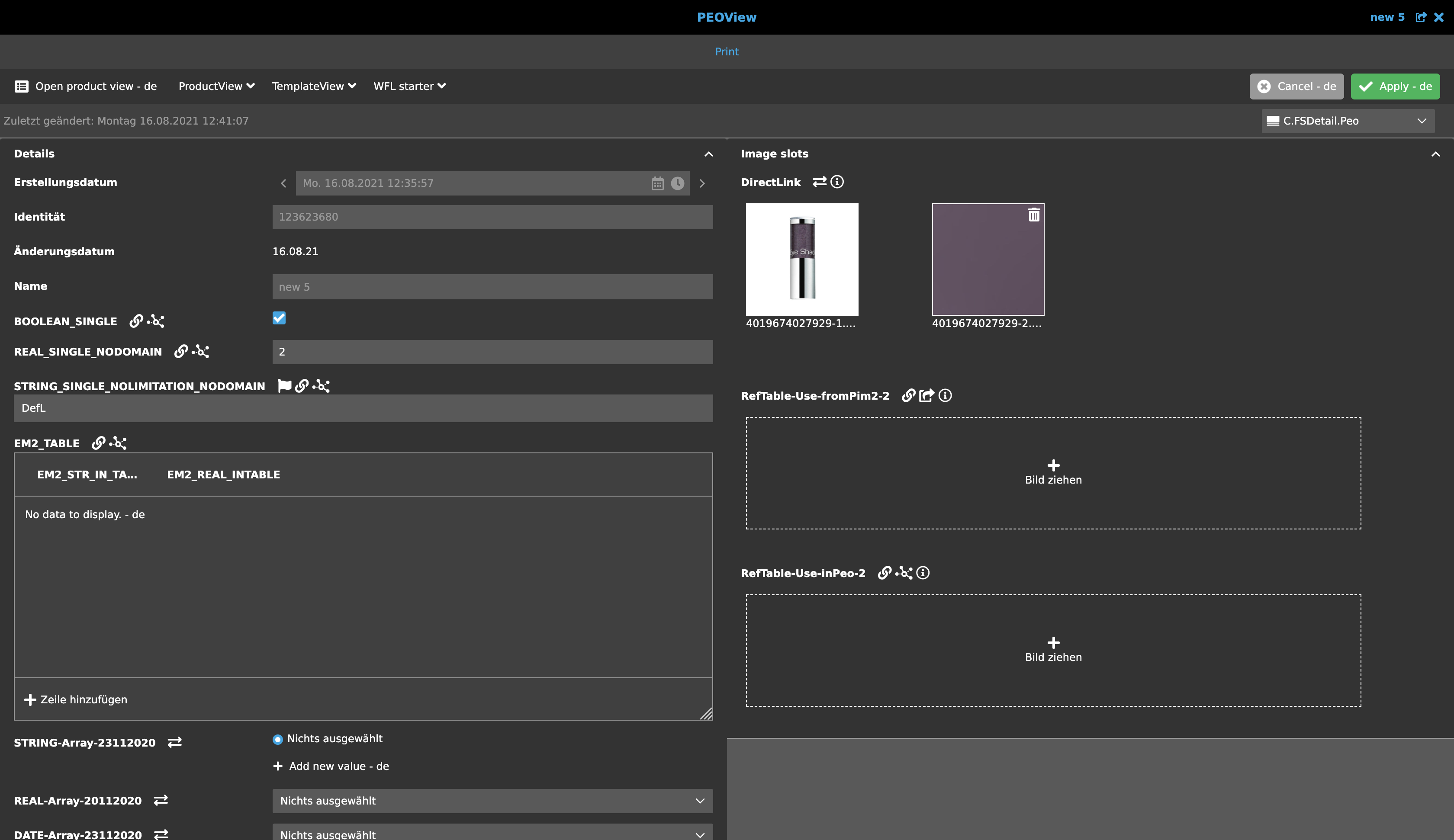
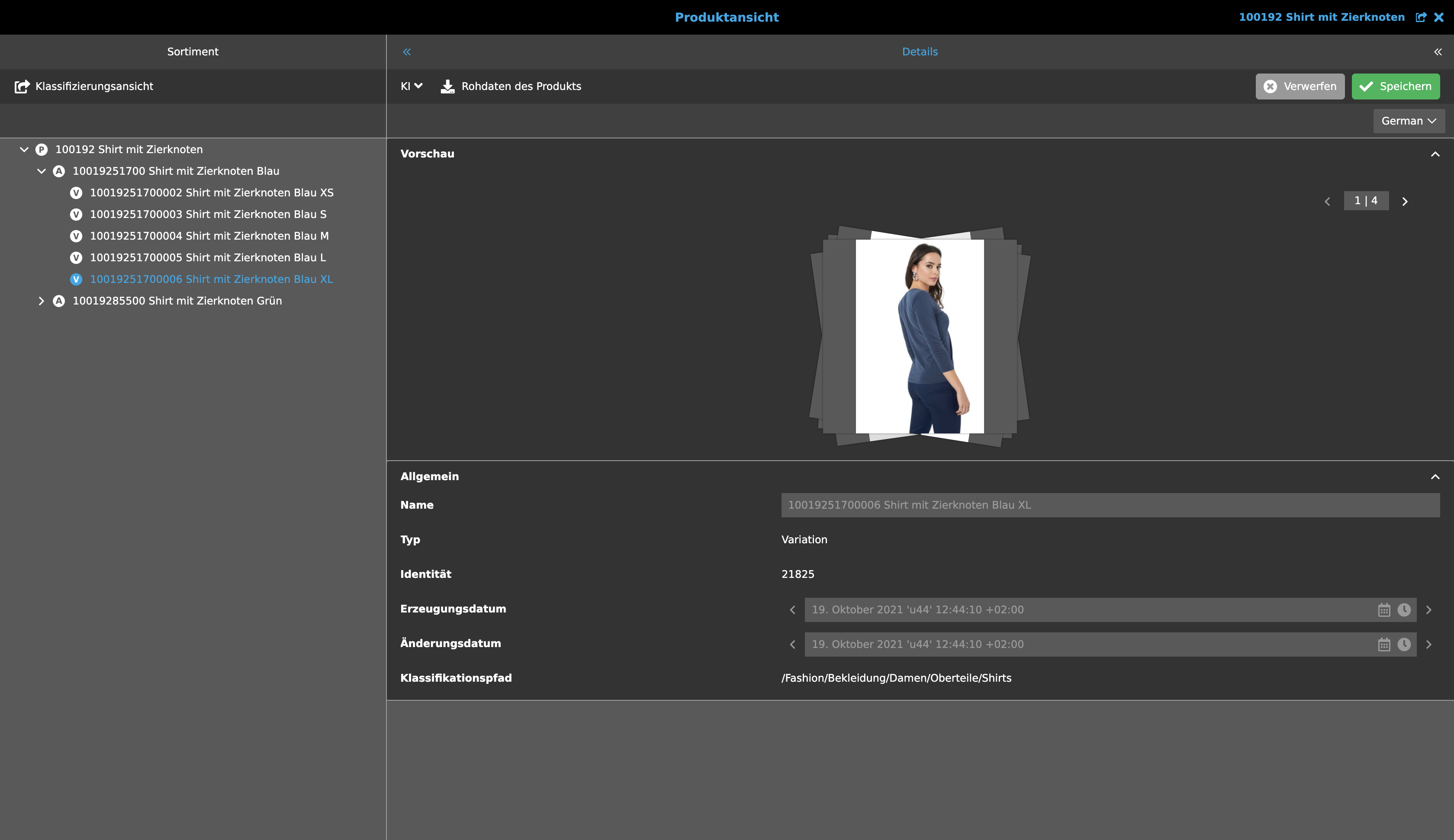
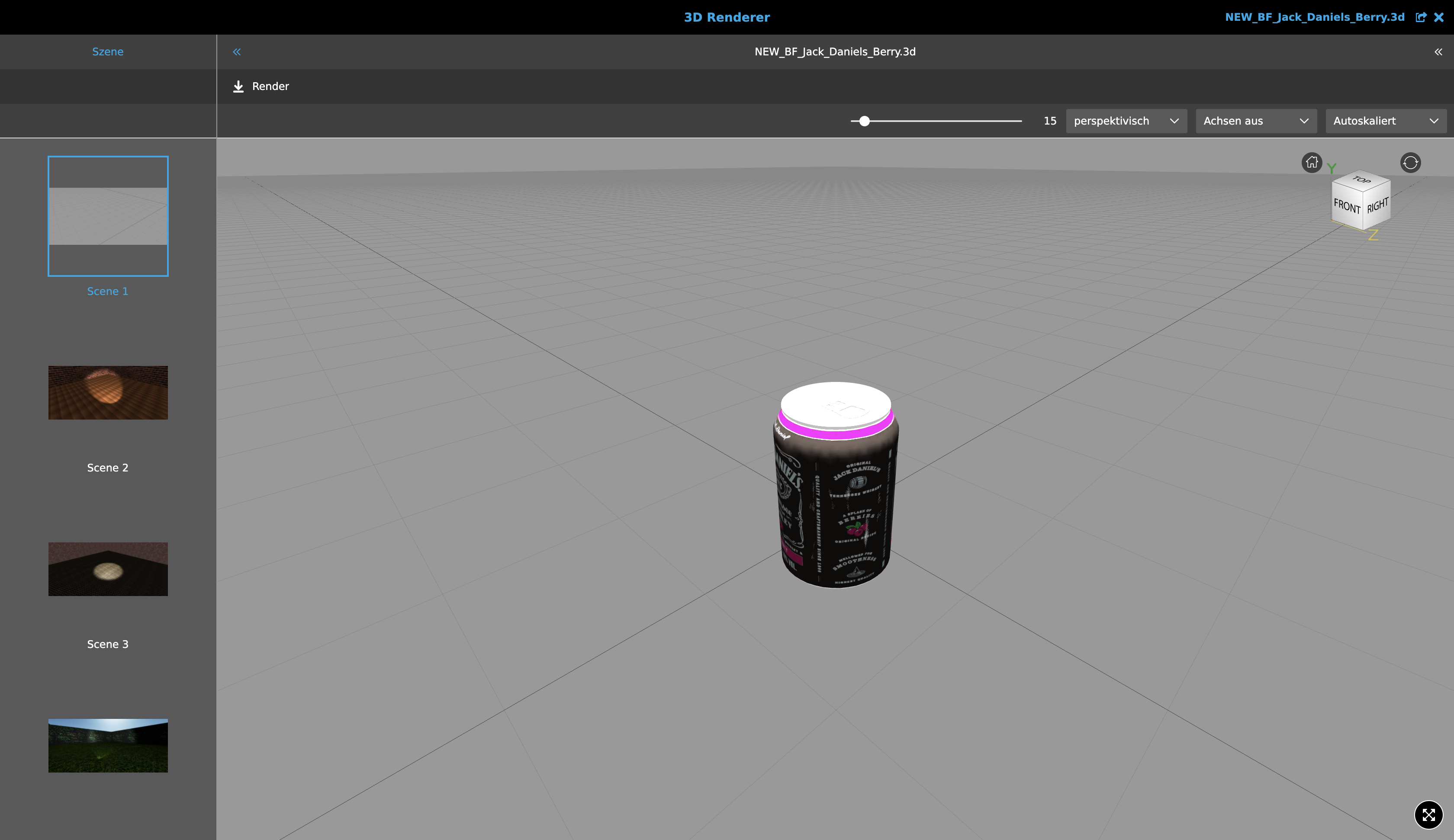
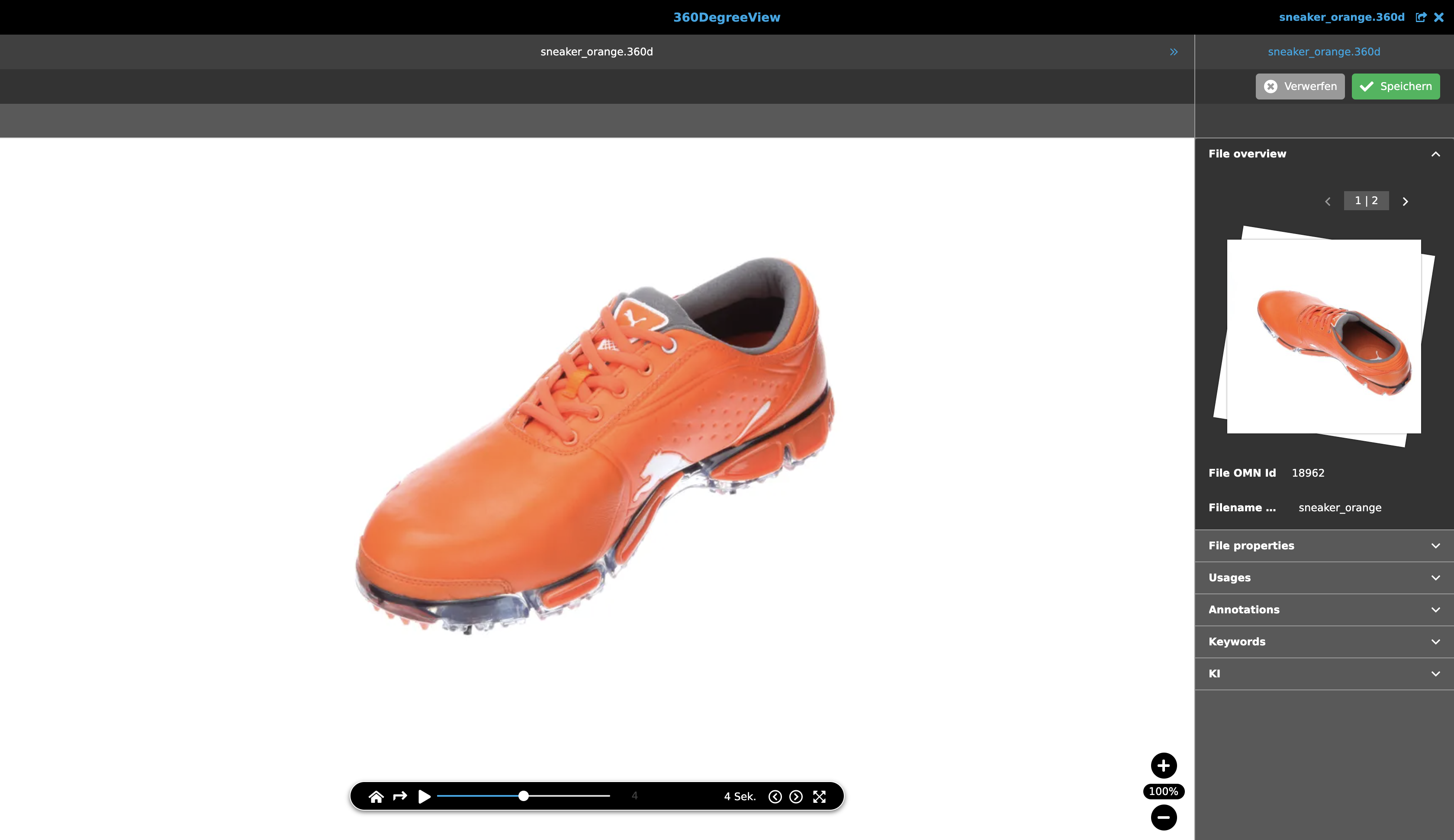
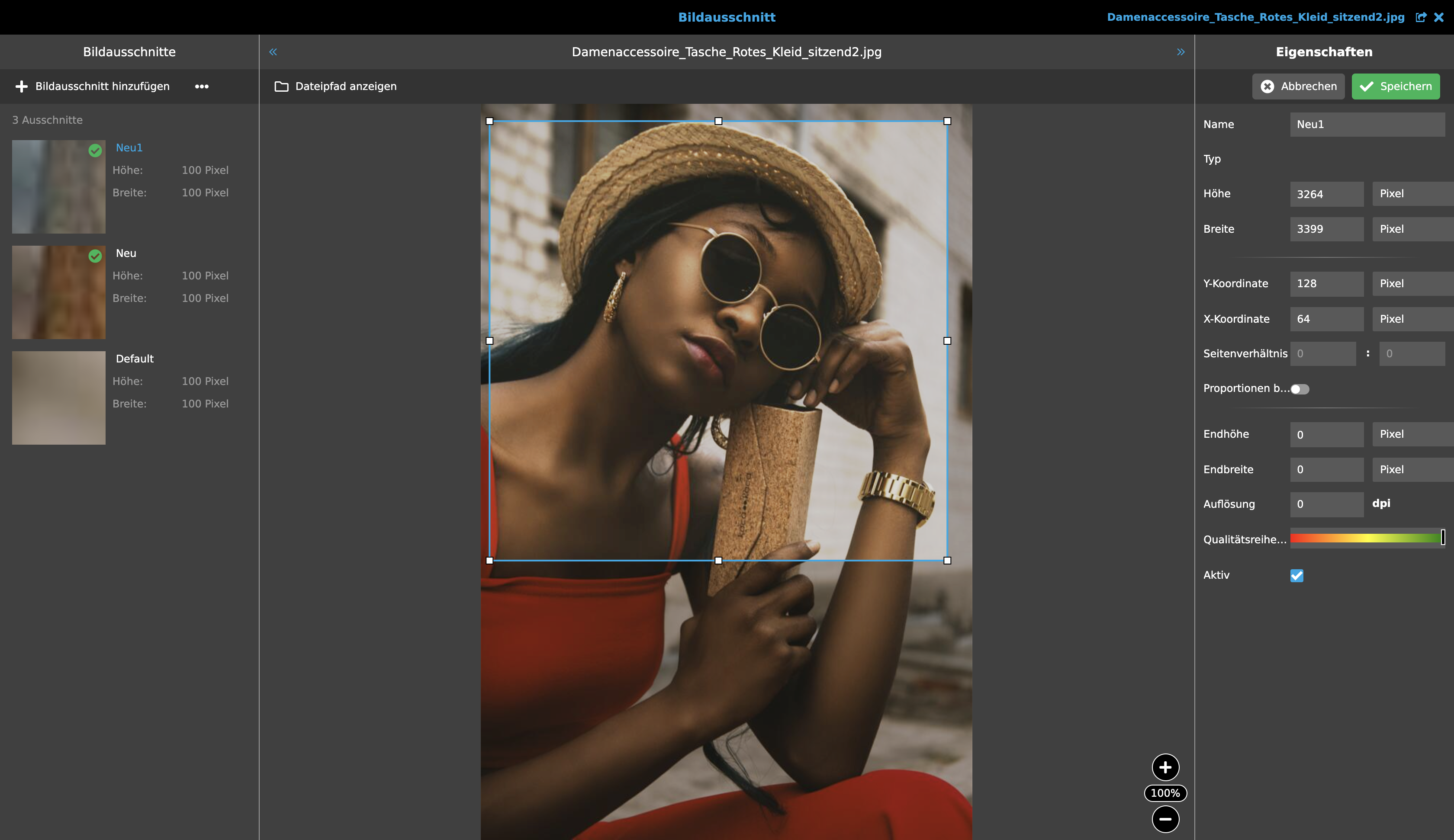
Within OMN, there are various editors that can be used to perform a wide variety of tasks (e.g. editing 3D objects, cropping images or adding comments, or maintaining product data). A list of the editors with a short description can be found under the following points:
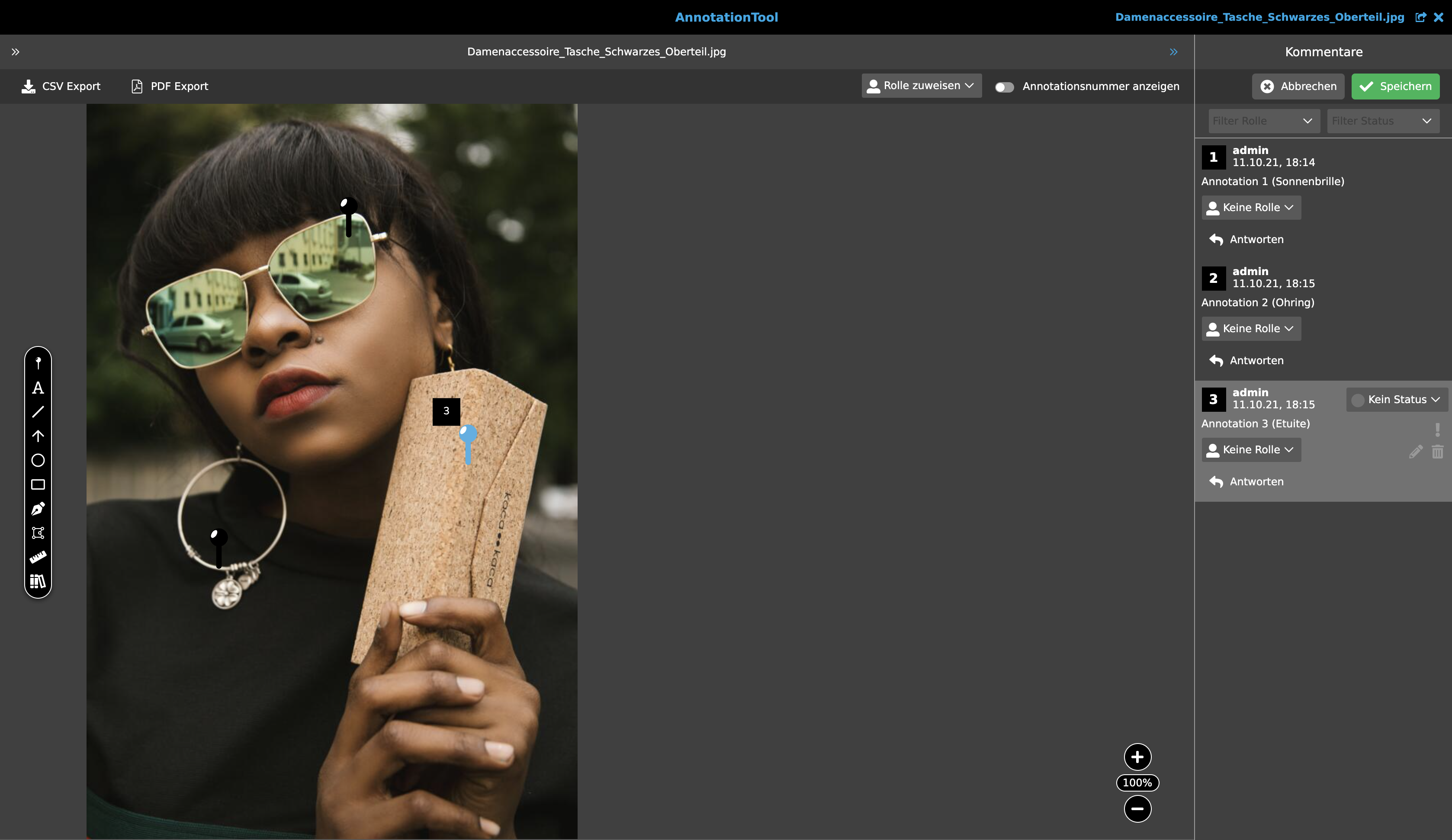
Annotation Tool
The Annotation Tool is suitable for creating annotations (remarks) and comments on assets (such as images, PDFs).
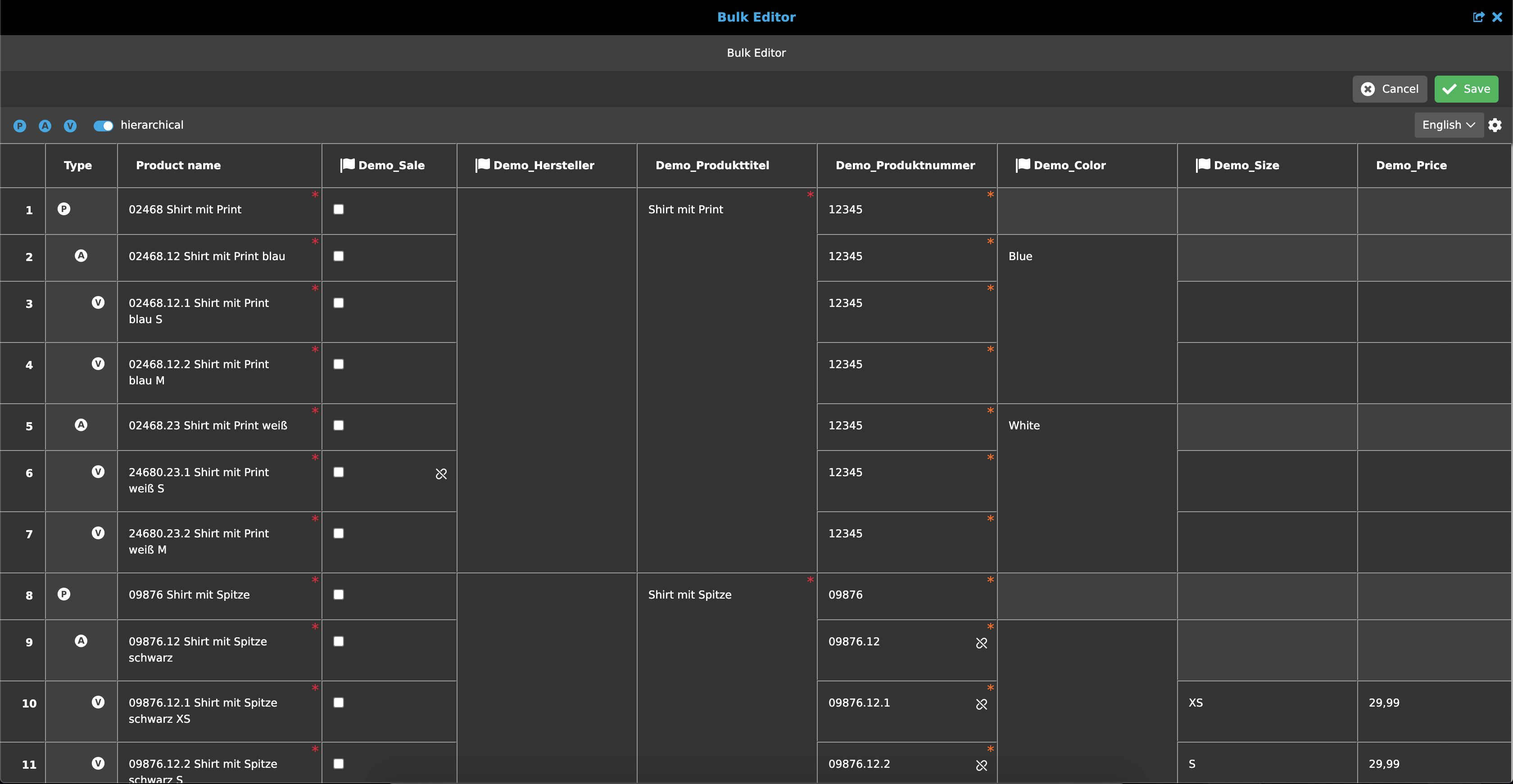
Bulk Editor
The Bulk Editor is an Excel-like tool to maintain mass data easily, quickly and clearly.