DAM (Digital Asset Management)
The DAM (Digital Asset Management) module provides an overview of digital assets. An asset can be, for example, an image, a photo, a graphic, a video, an audio file, a 3D file, a 360° product image or a document. The module helps users organize and distribute digital assets. Assets can be imported and exported, moved to folders or linked to other modules. In addition, each asset can be tagged with appropriate metadata. For a clearer and more personalized overview of the existing assets, the DAM includes various views, such as the table view, the light table view, or the single object view. In addition, the DAM has keywording and categorization options that support the search for specific assets, a hierarchical representation of variants and a versioning function. AI services, such as an automated image cropping function (AI mask), can also be used in the DAM.
For more information, visit apollon | DAM
Structure
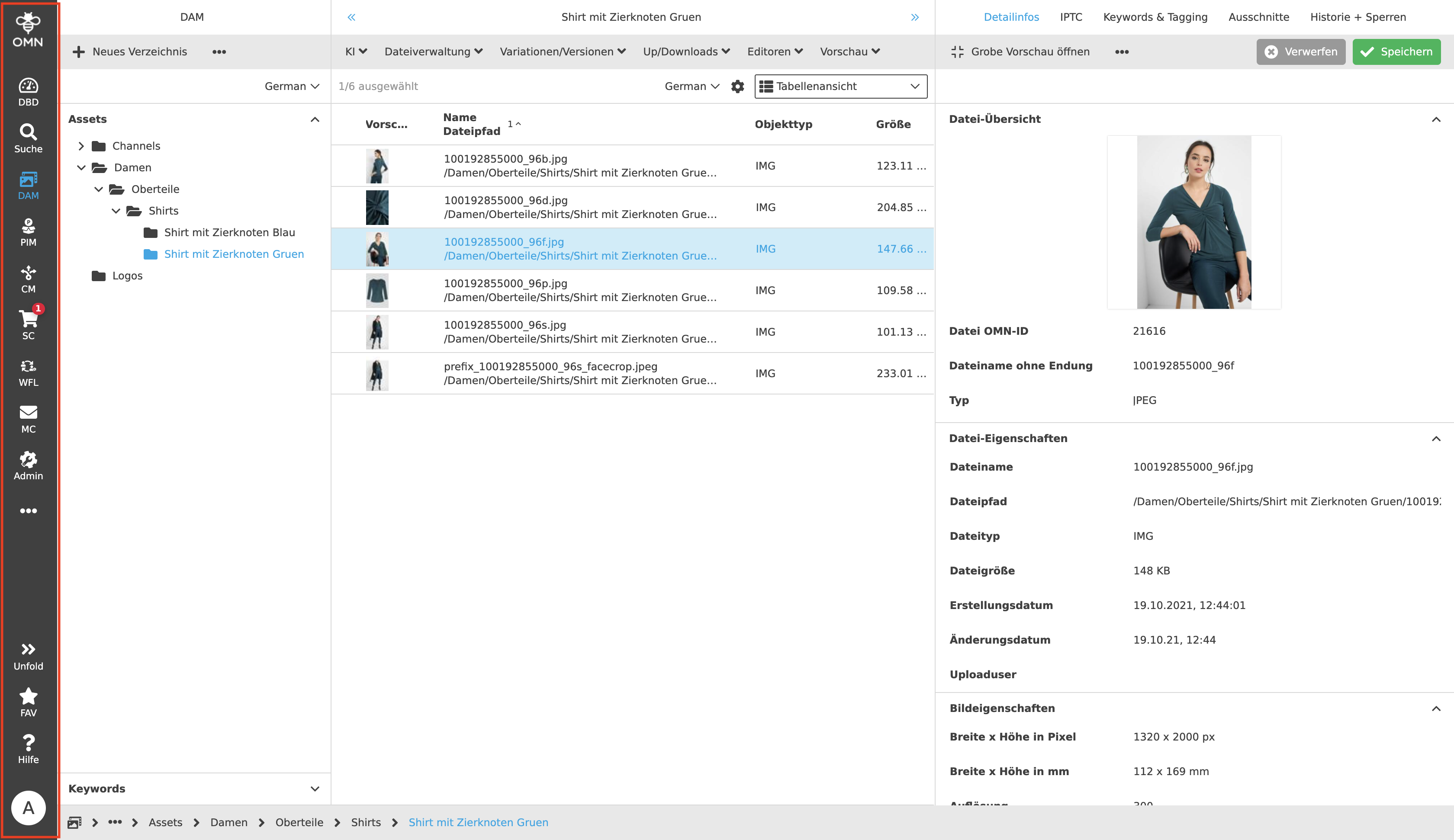
Digital Asset Management (DAM) is an integral part of OMN to the extent described. The DAM can be selected and opened via the sidebar.
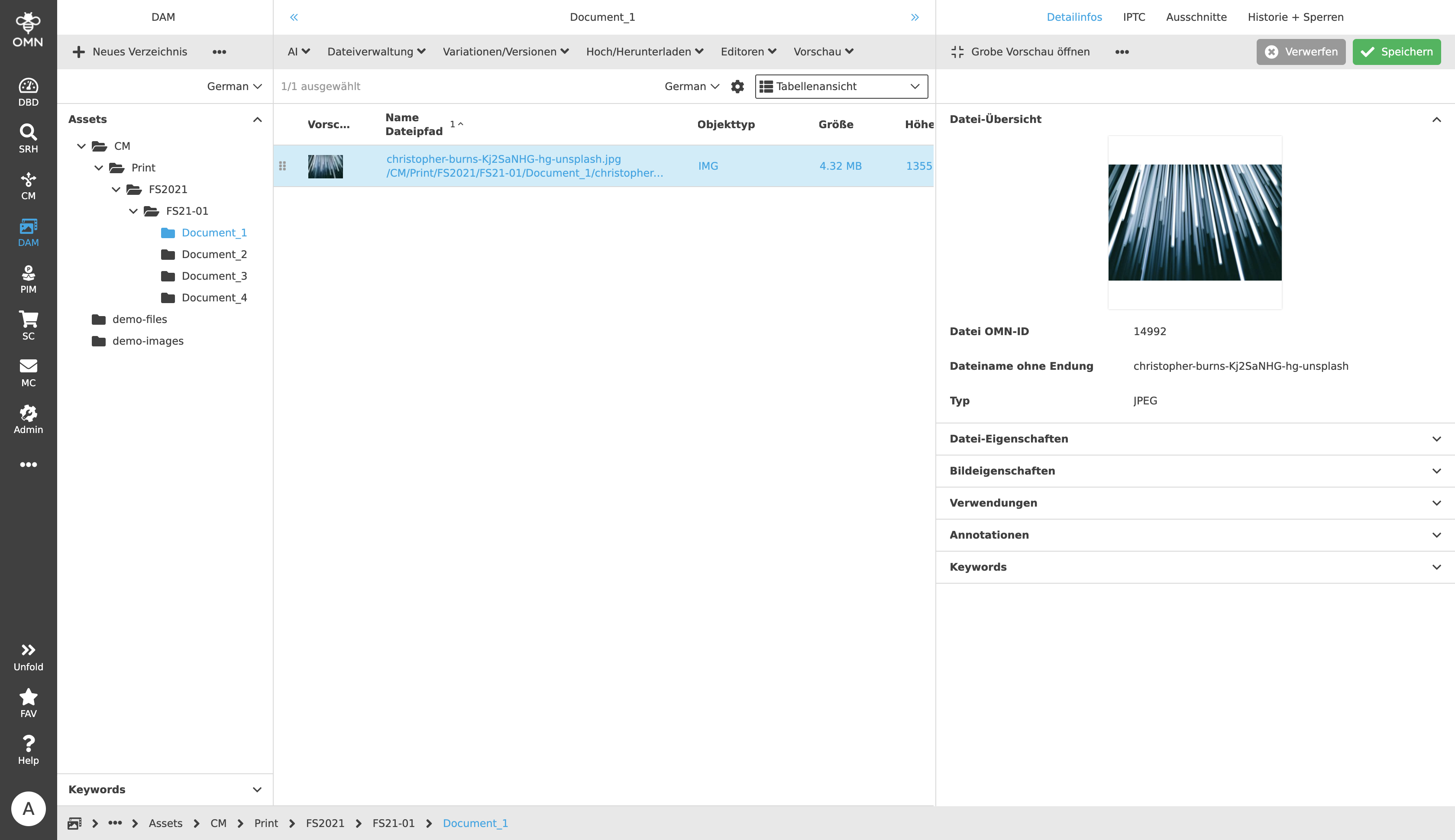
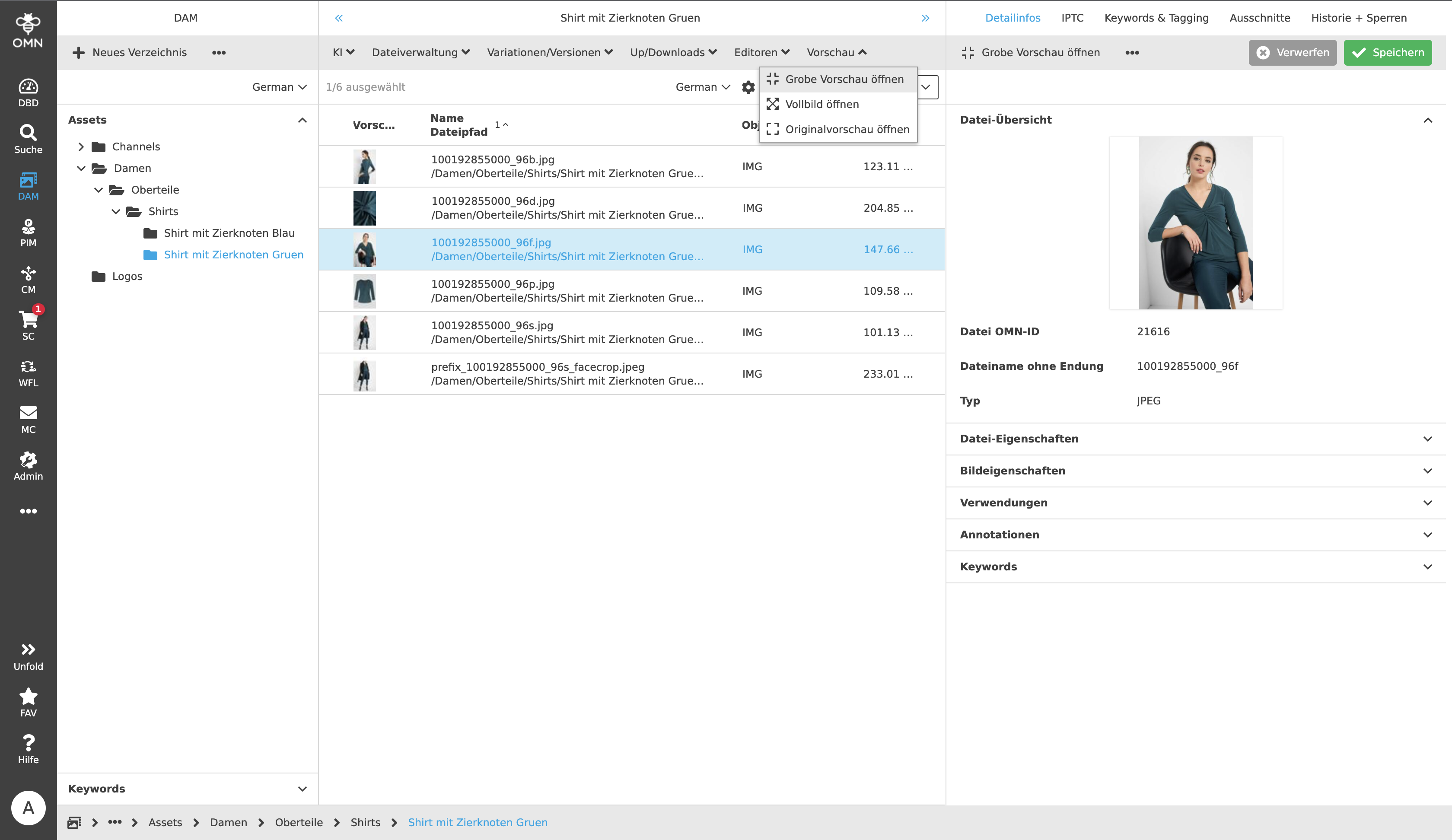
The DAM user interface is divided into three parts and includes the following components:
-
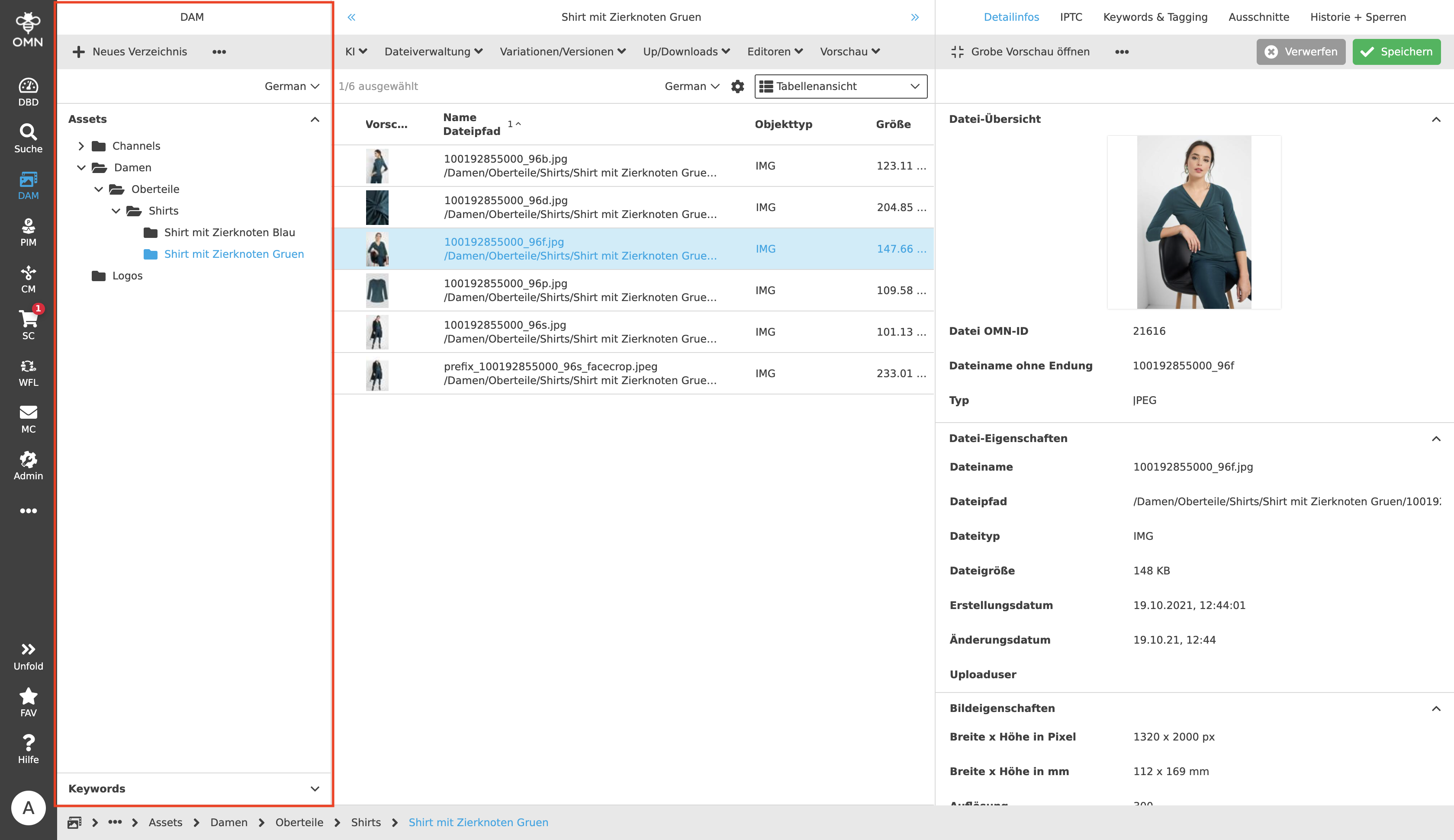
Left View: The left column for navigation is divided into a directory structure and keyword structure. By selecting folders and subfolders, it is thus possible to navigate through the structure. If a folder is empty, nothing is displayed in the middle column. Note: An empty folder does not mean that the subfolders are empty.
-
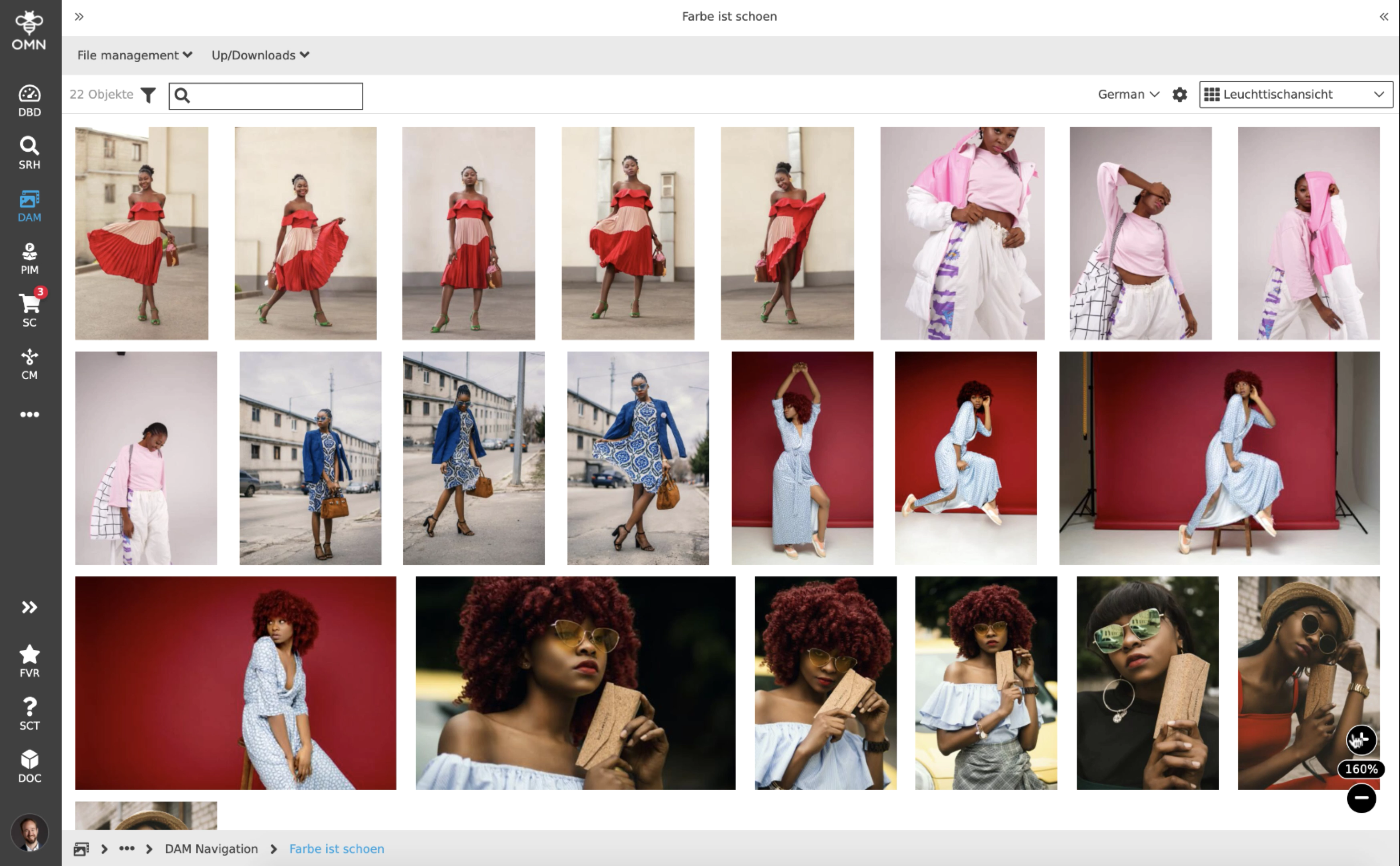
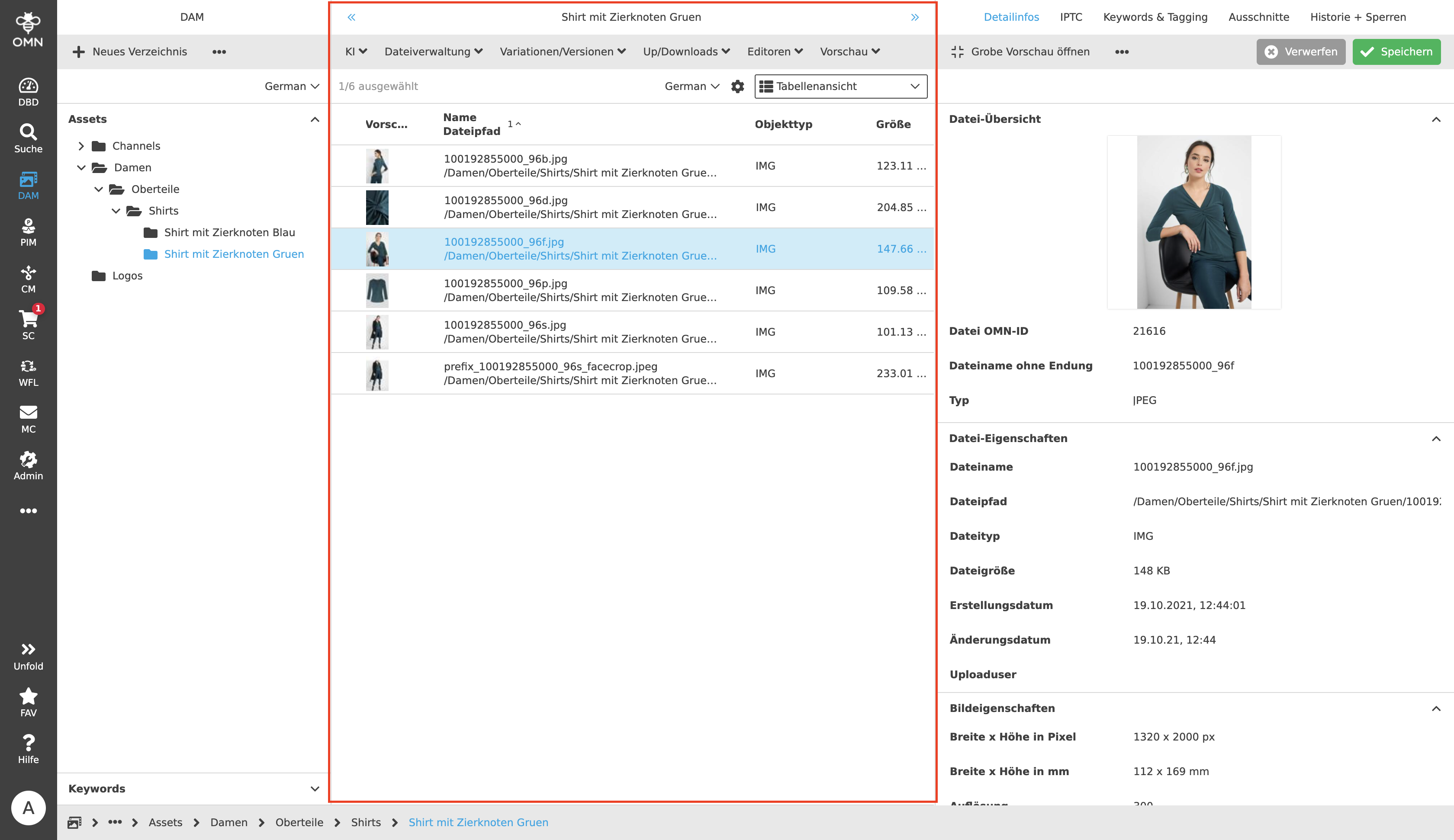
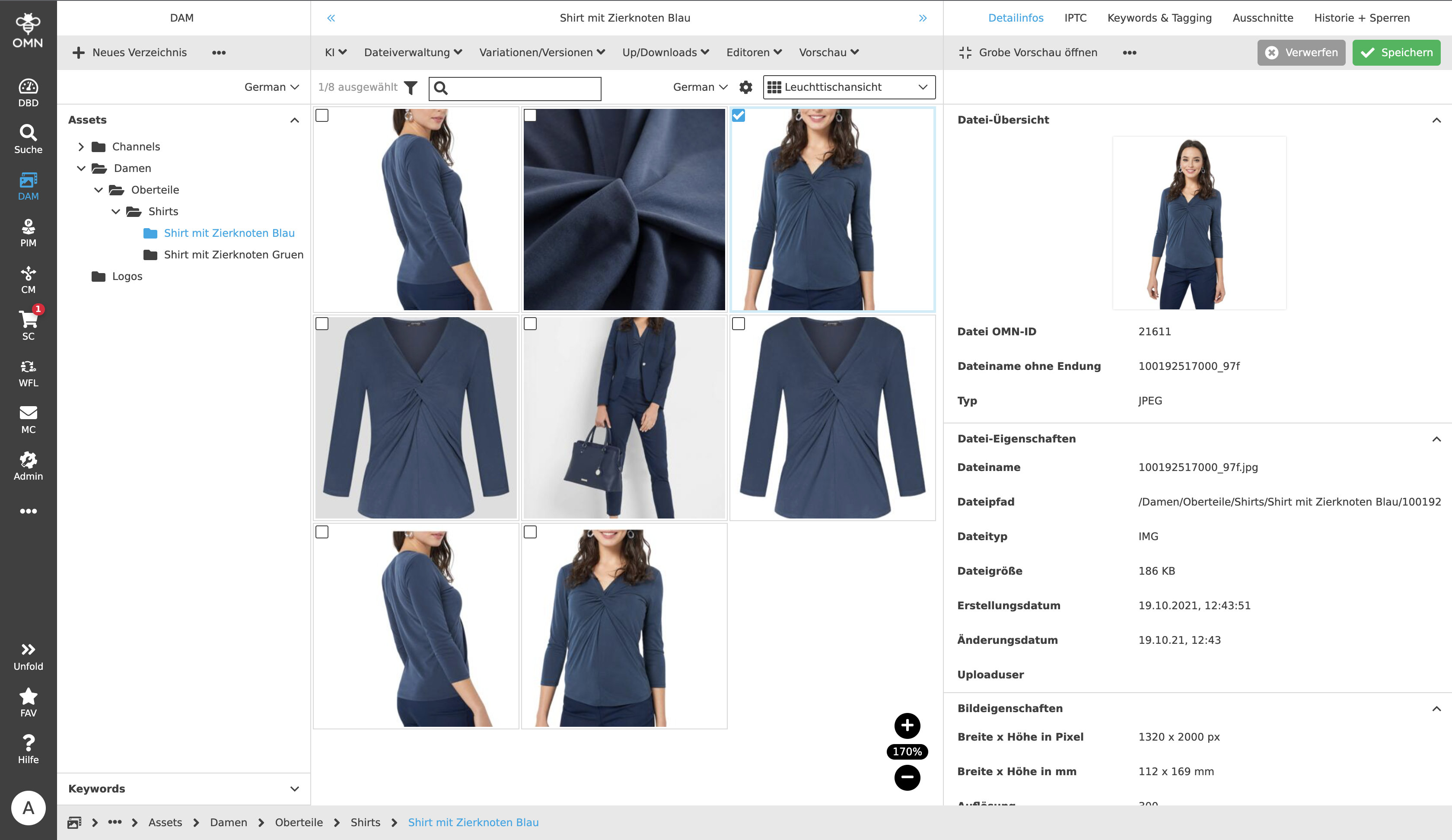
Center View: Is the center column where the assets or files are displayed. By default this is the Table View, but there are other views such as Light Table View, Single Object View, Compare View, etc. The entire content of a folder is always displayed.
-
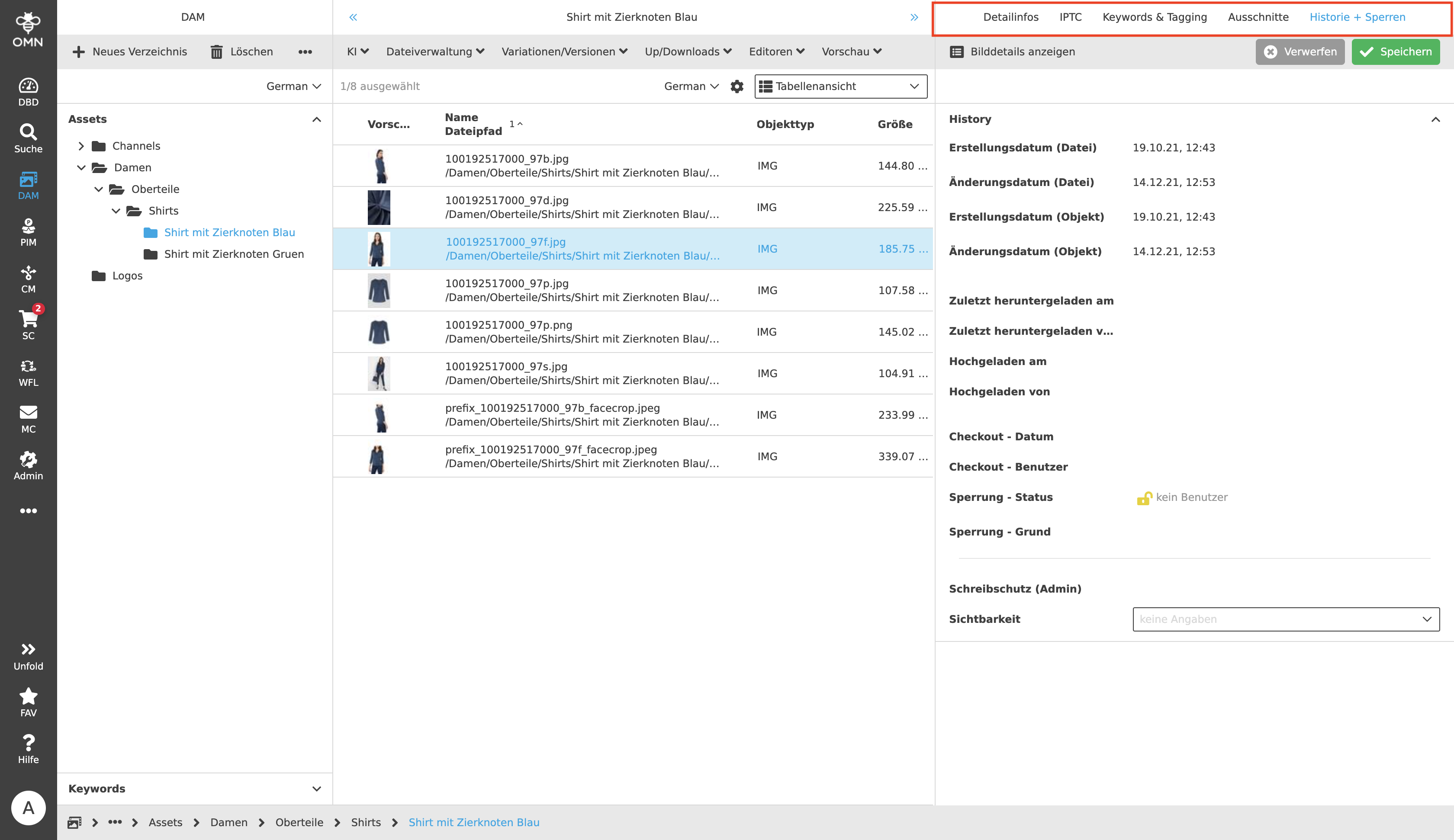
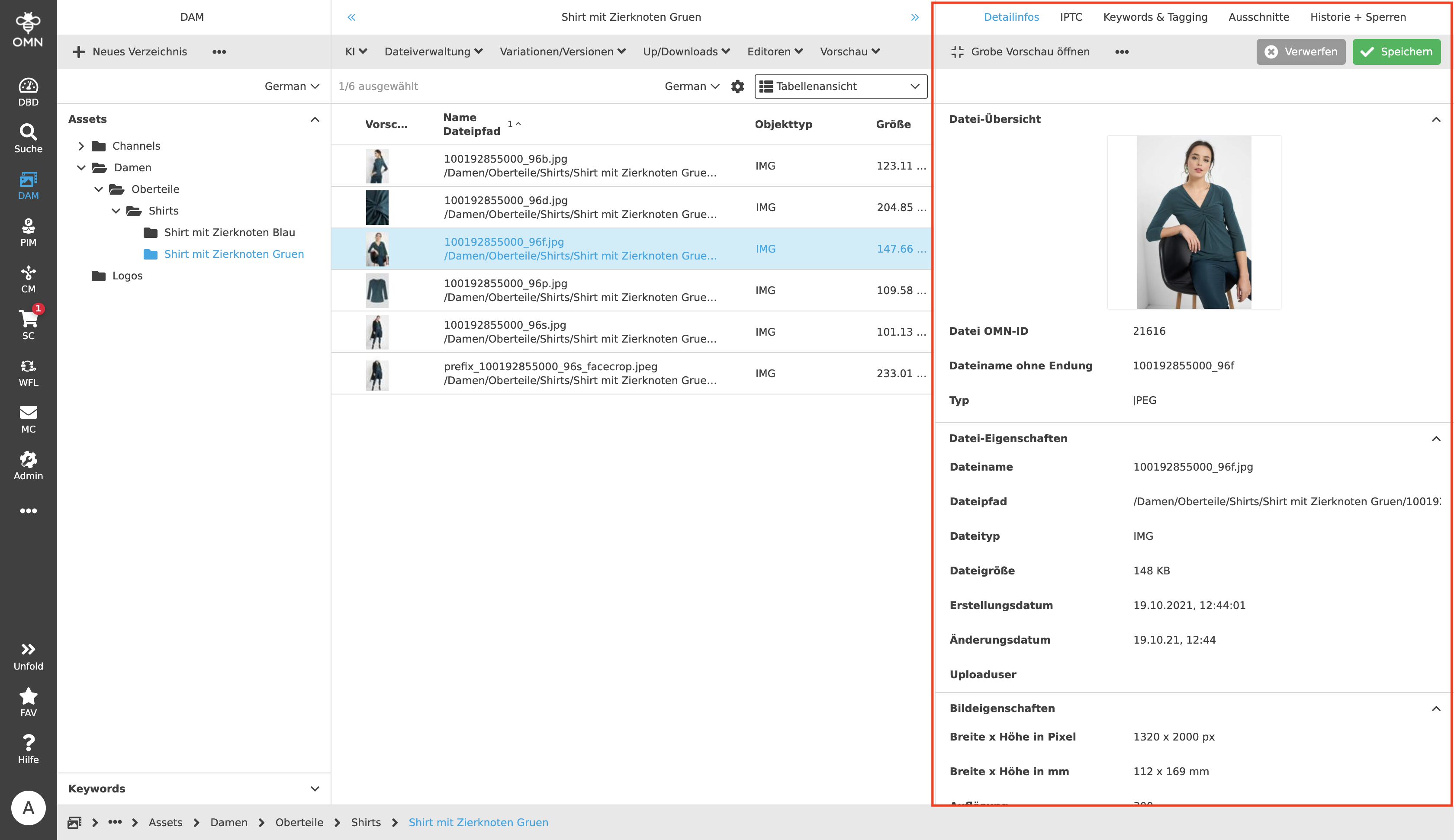
Right View: The right column is a view for details of any kind and is used, for example, to display and edit metadata. Under the heading "Functions and Views", properties of the Right View are listed.
Functions and views
There are several functions and views in the DAM toolbar that help users to complete tasks as efficiently as possible when editing files within the folder structures, or within the structure itself. The following functionalities and views are available in DAM:
-
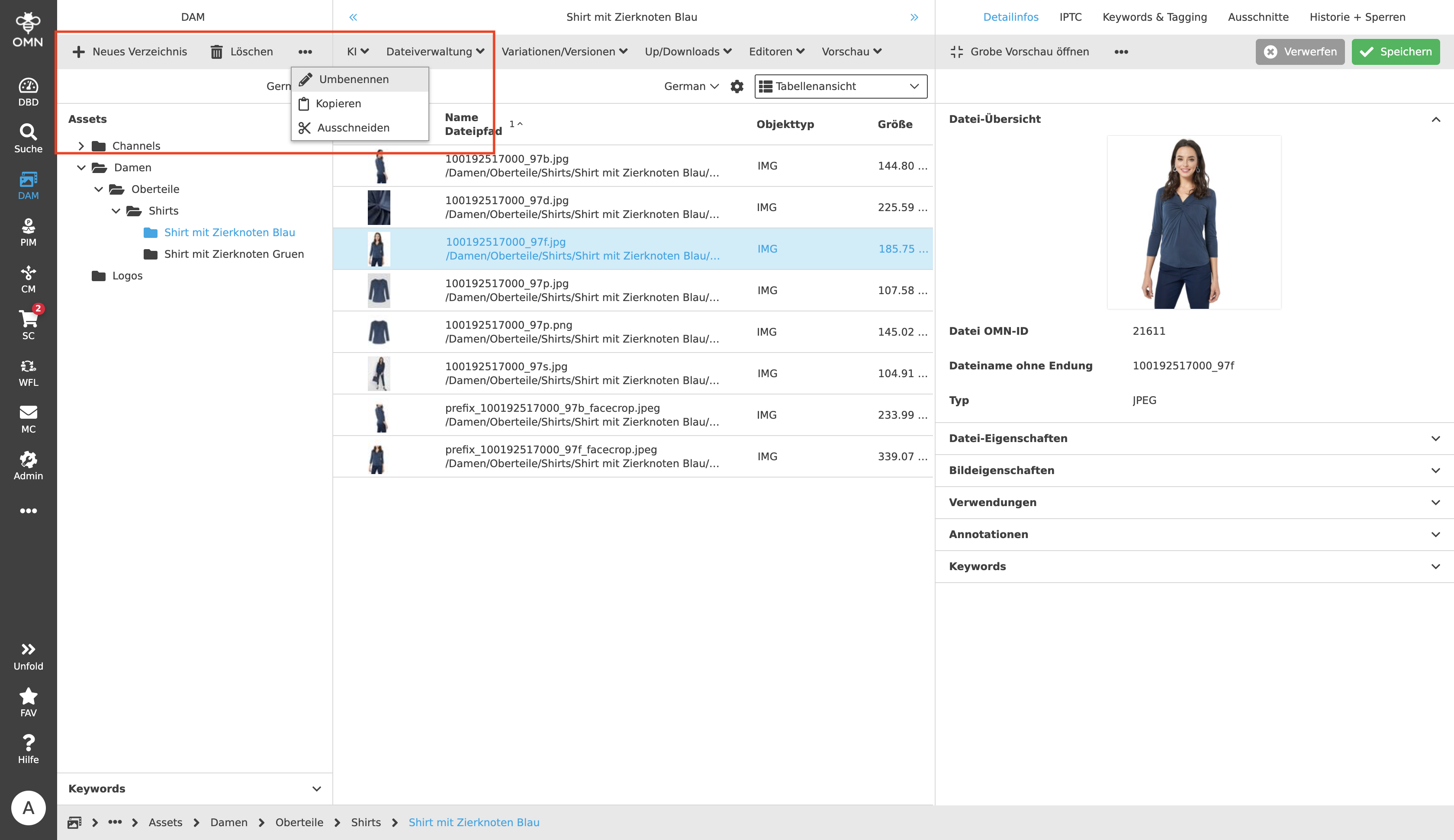
Standard functionalities for file system operations such as copy, cut, paste, delete, rename, check out, create new folders (copy and move also via drag and drop).
In addition, various AI services are available on request:
-
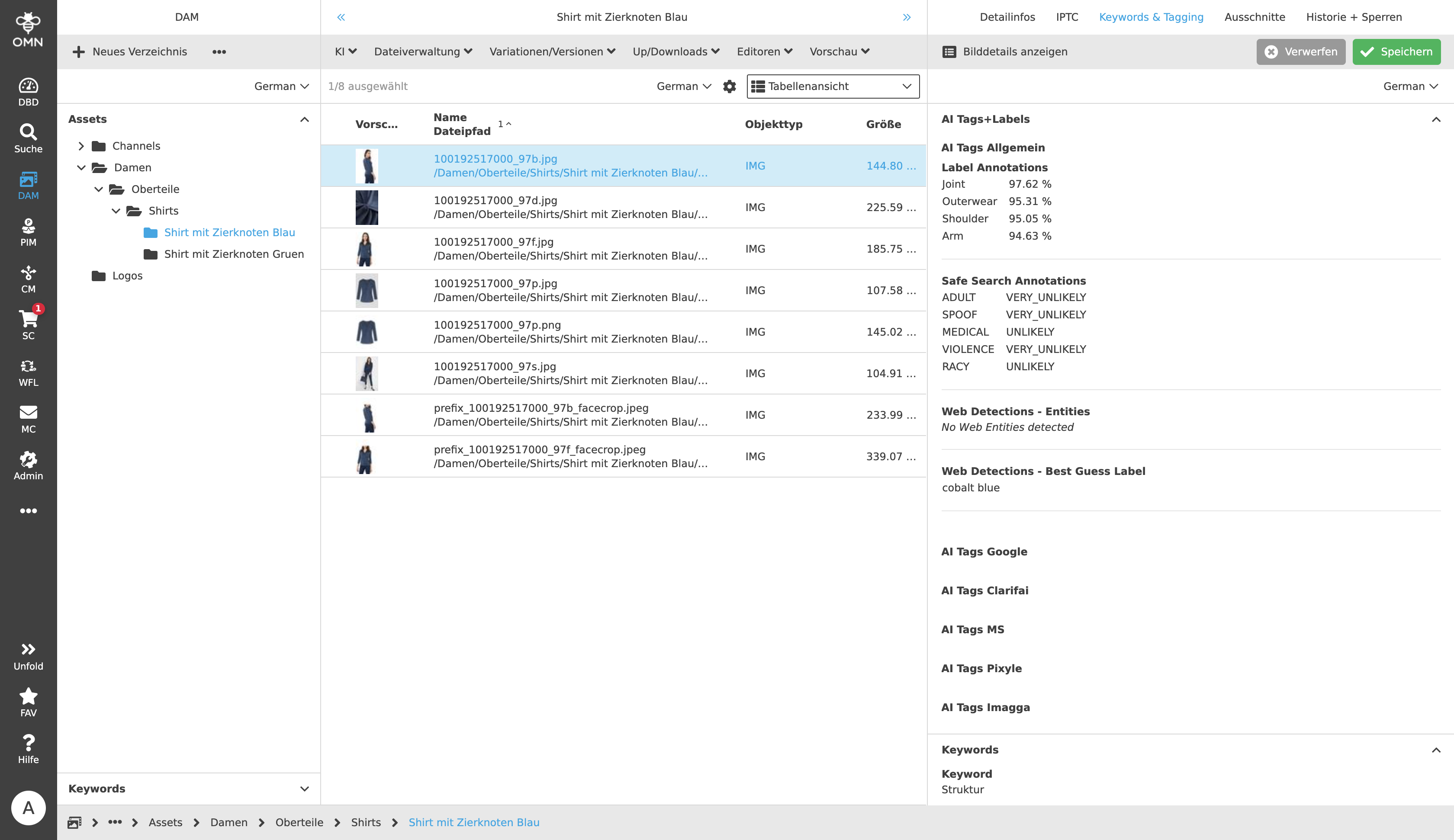
AI Tagging: When tagging assets, for example, it recognises what type of garment and which body parts are visible in the image.
-
AI Mask (Remove background): With this, the image can be cropped and the background can be removed with a simple selection.
-
AI Mask (Ghost Mannequin): Two fashion images (outside and inside of a product) can be automatically merged into one image.
Variants and versions:
-
Variant generation at the touch of a button incl. graphical variant overview.
-
Versioning function for easy creation/restoration of asset backups.
Down-/upload functions:
-
Various upload and download options, including automatic check-out/check-in of files if desired.
-
Add to shopping cart: Files can be added to the Shopping Cart and thus downloaded later.
Editors for editing files (e.g. images, PDFs, etc.). Some are listed in the following section:
-
Aperture-Tool for "non-destructive" and memory-saving image cropping.
-
Annotation-Tool for setting and commenting annotations (remarks) on files (assets) and PDFs. For this purpose, the detailed description with introductory video can be viewed.
-
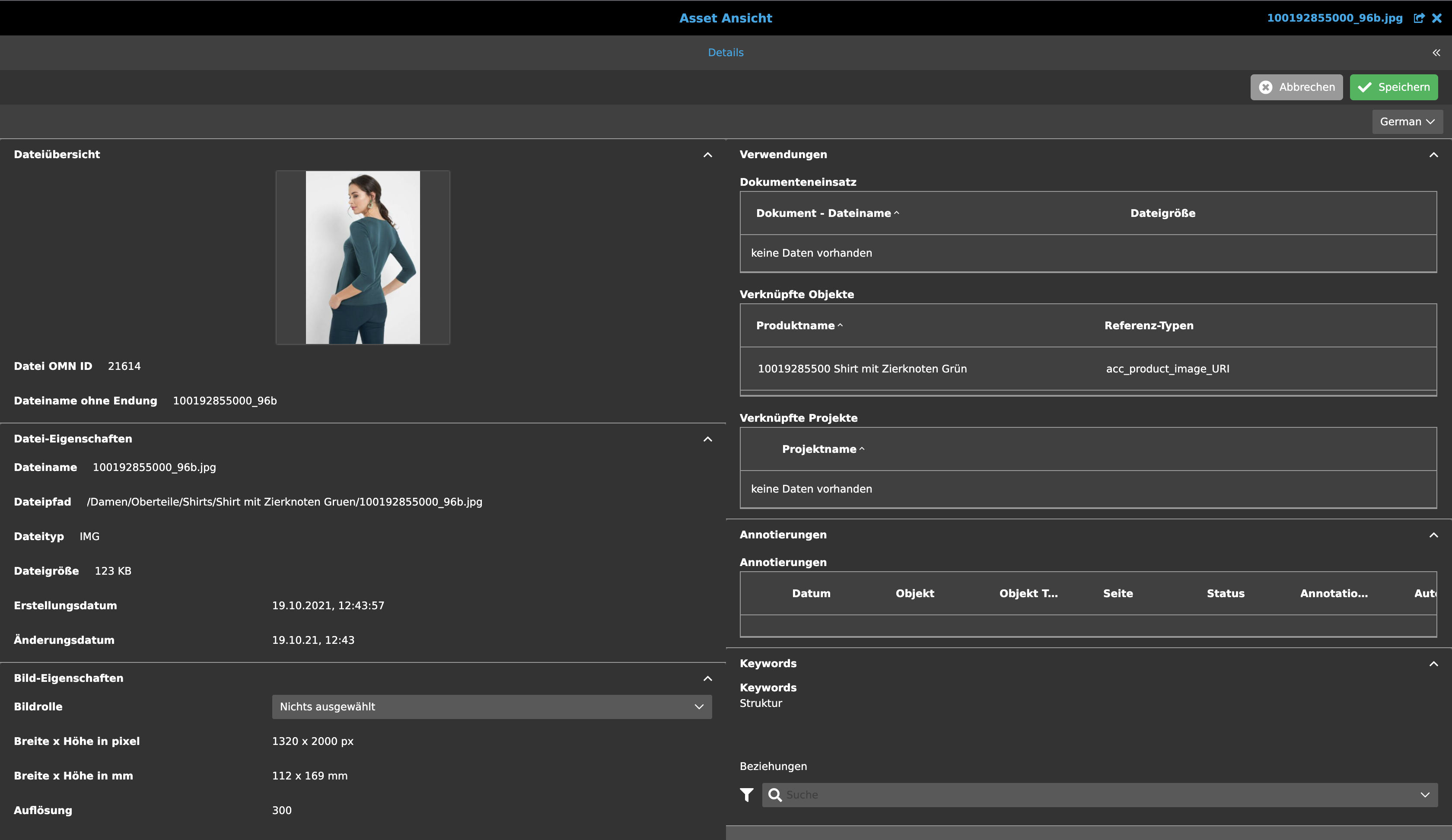
Image details can be viewed and edited in a full-screen Asset View for a better overview.
Representation and view of files:
-
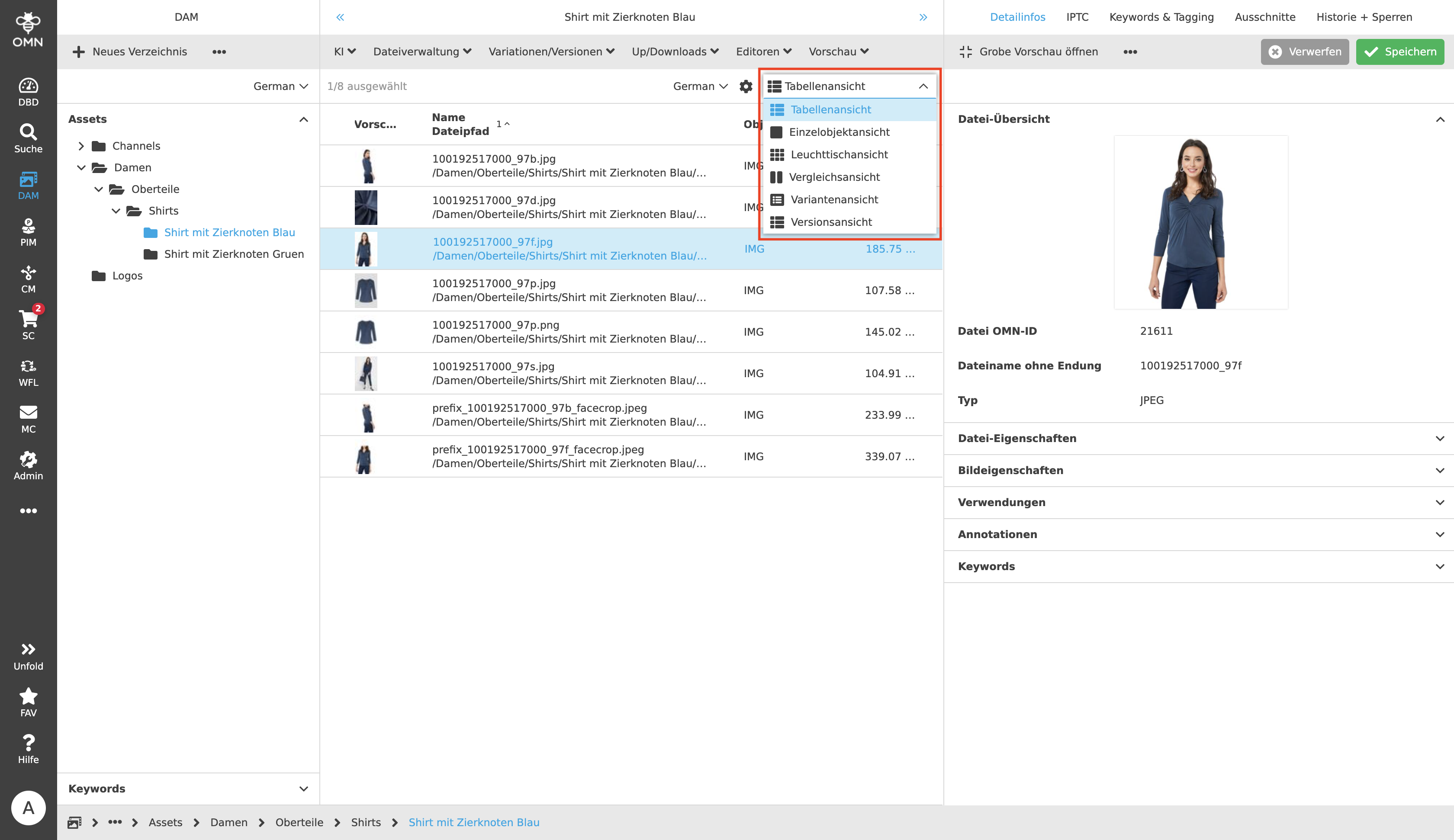
There are different management views for displaying the existing assets (e.g. Table View, Light Table View, Compare View, etc.).
Preview:
-
There are different ways to view assets or images in the desired preview (Open rough preview, Open full screen and Open original preview).

Right Detail Column:
-
The Right Detail Column is used to display and maintain the existing asset metadata.
-
Preparation for upload workflow with possibility for mass data maintenance and assignment of tasks to defined roles/users.
-
Display and maintenance of all common XMP/IPTC details (for direct exchange e.g. with Adobe programmes).
-
Preparation for customer-specific fields/meta data.
-
Detailed display of history information (e.g. upload user, the latest changes, the latest annotations).