Sidebar - Getting started with the modules
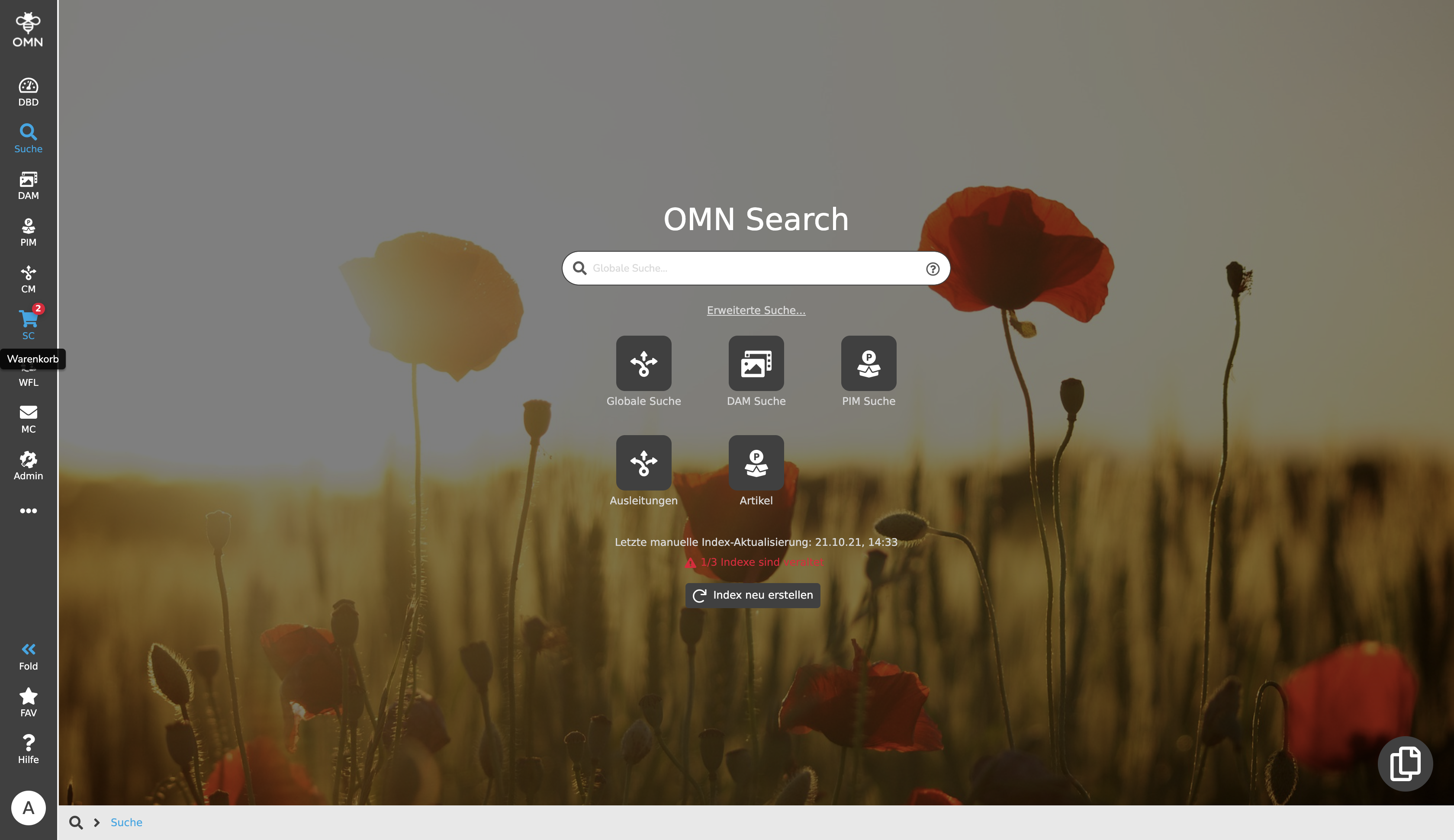
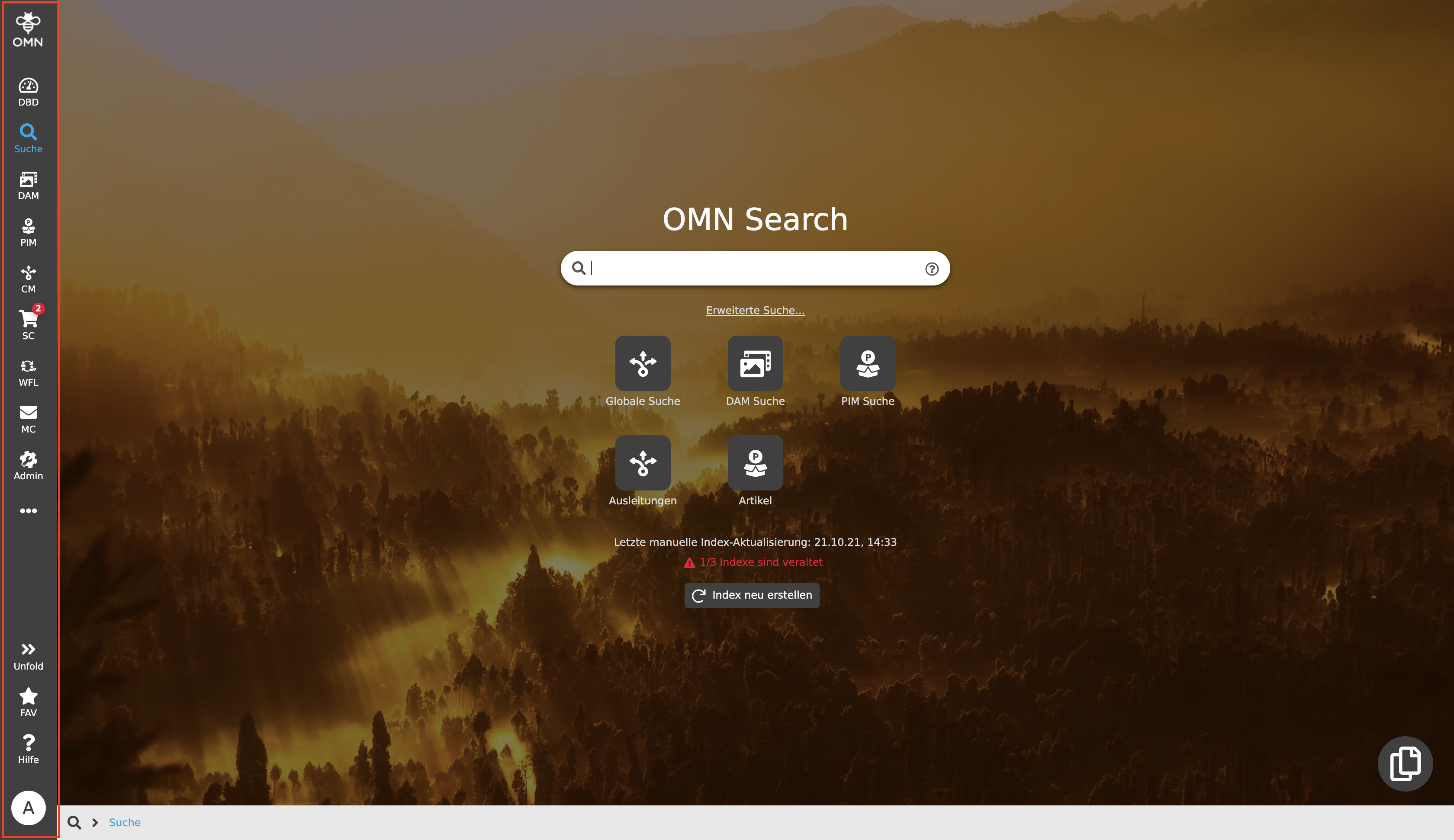
The sidebar is the central control element in OMN. The sidebar can be used to access the main modules (e.g. DAM, PIM, CM, etc.) and User Settings. But also other modules like Shopping Cart or Message Client can be navigated. The main characteristics of the sidebar are its gray background and white icons. When an icon is selected, it appears in blue (color system). The different areas of the sidebar and their functions are explained in the following text below.
Sections of the sidebar
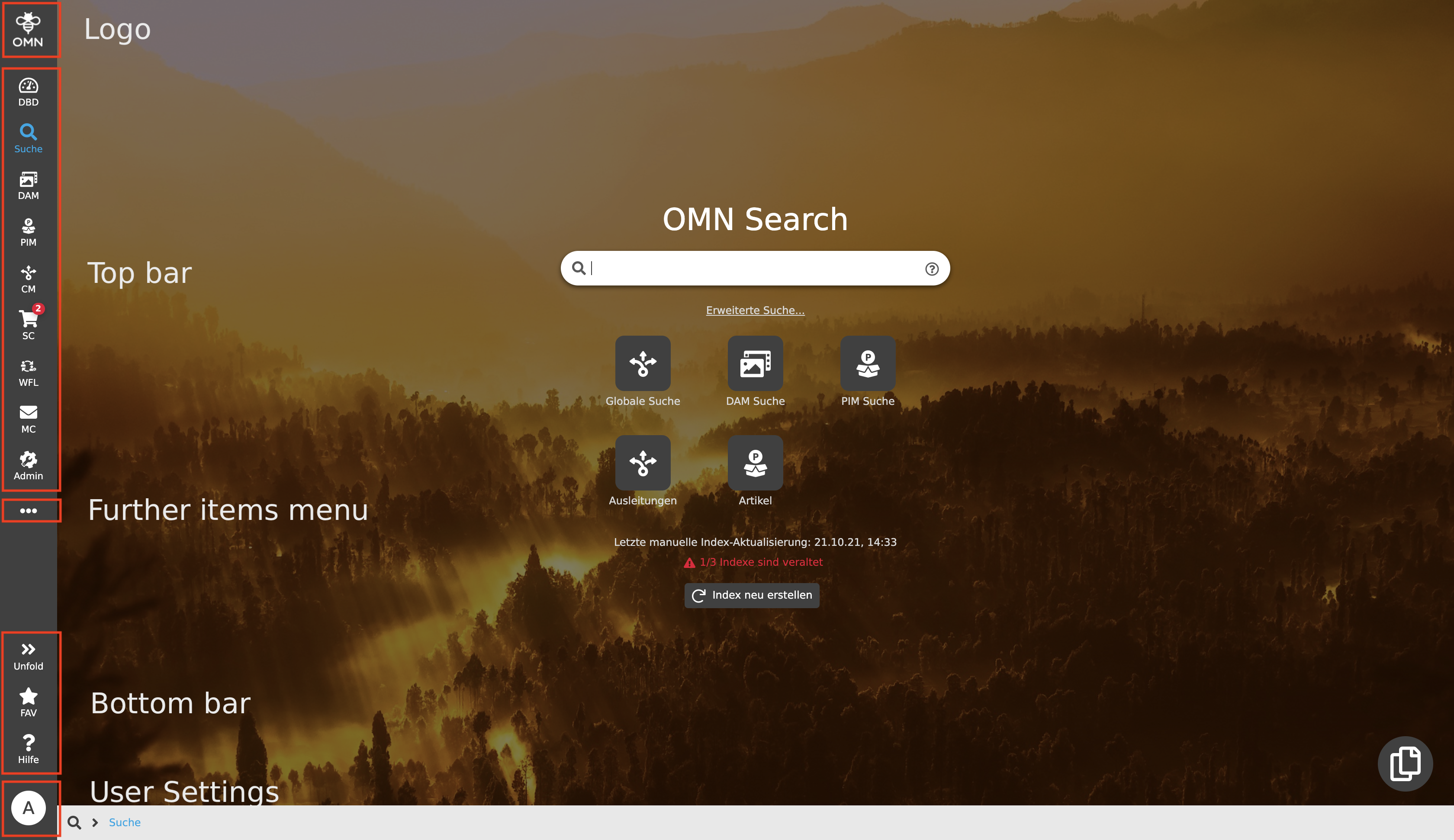
The sidebar is divided into different sections (Logo, Top bar, Further items menu, Bottom bar, User Settings), so related elements are grouped together and navigation is made easier. The modules can be accessed via the Top bar, while the Bottom bar provides help, settings and additional functions.
Further items menu.
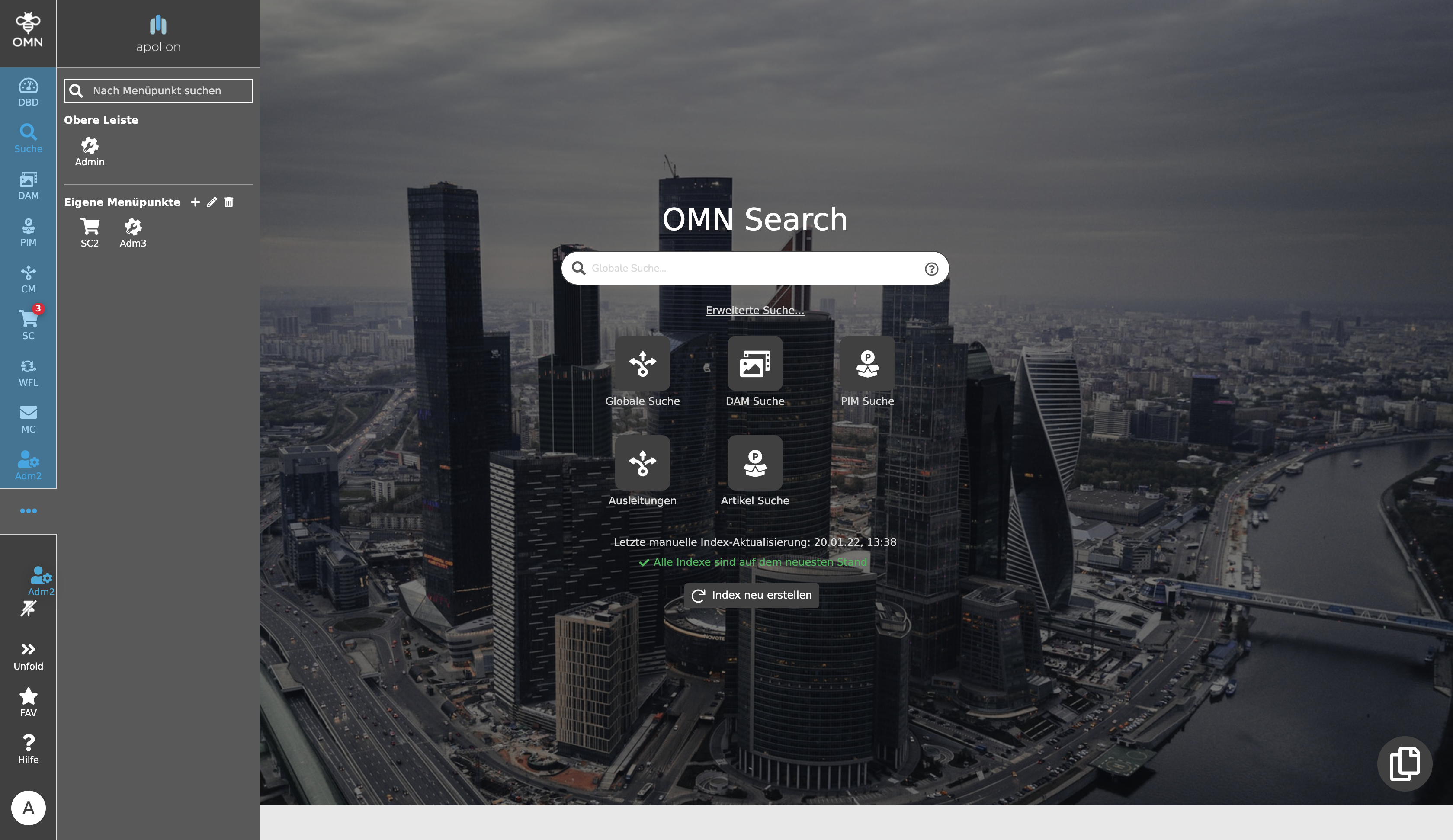
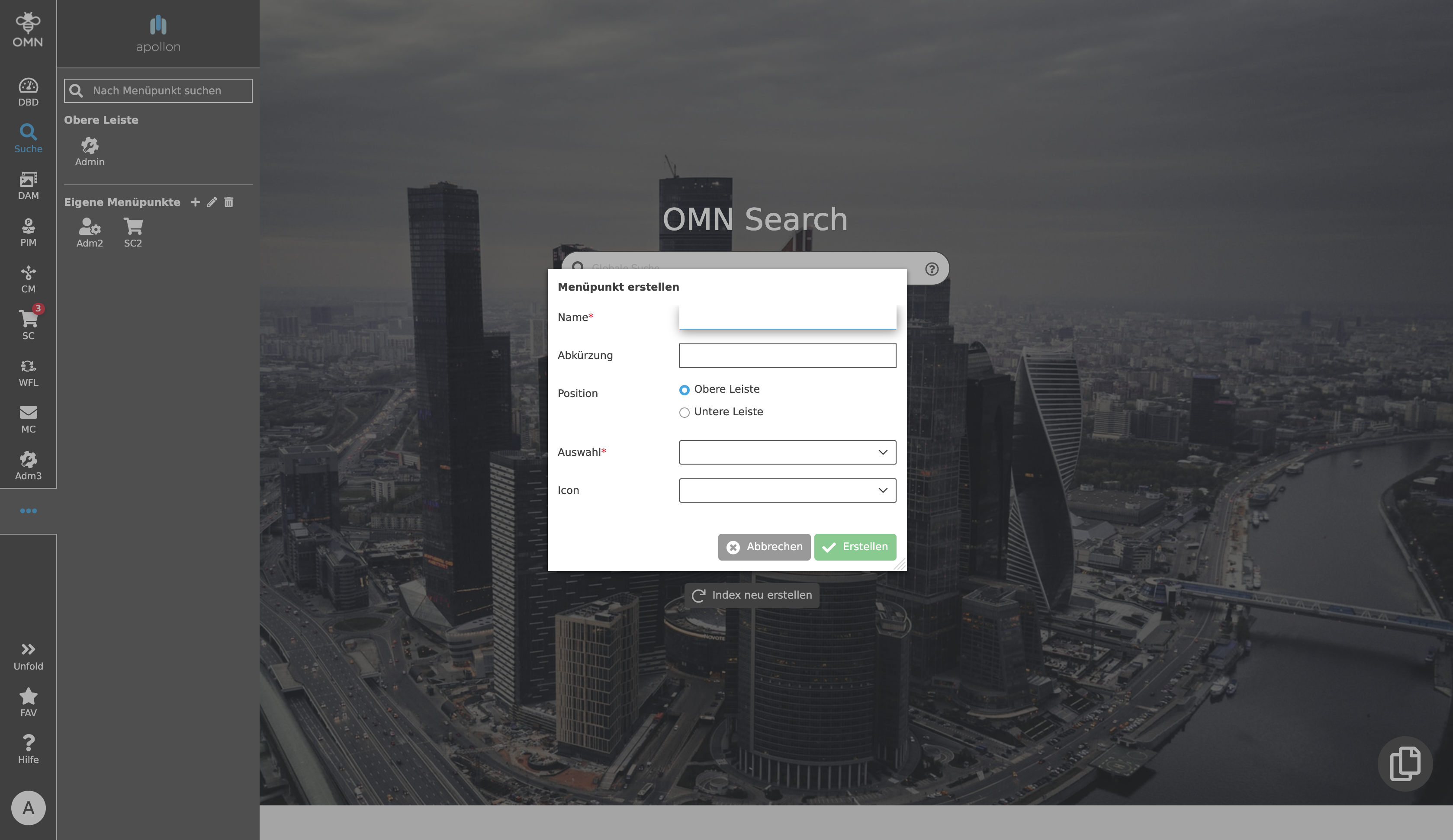
If, for example, there is not enough space in the top bar for further items, they will be placed in the "Further items menu". In the expanded form of the sidebar, there is enough space for further items in the "Top bar" section. In the "Custom menu items" area, custom menu items can be created, renamed and deleted. To create a menu item, click on the "Plus" icon. Then, under "Create menu item", first the name and the abbreviation are entered, then the position " Top" or "Bottom bar", the selection of the module and finally the icon of the menu item is selected. The created menu item could be, for example, a second shopping cart.
To rename a self-created menu item, the "Pencil icon" must be selected, then a click on the menu item opens the dialog box. Now these can be renamed and finally saved.
Bottom bar
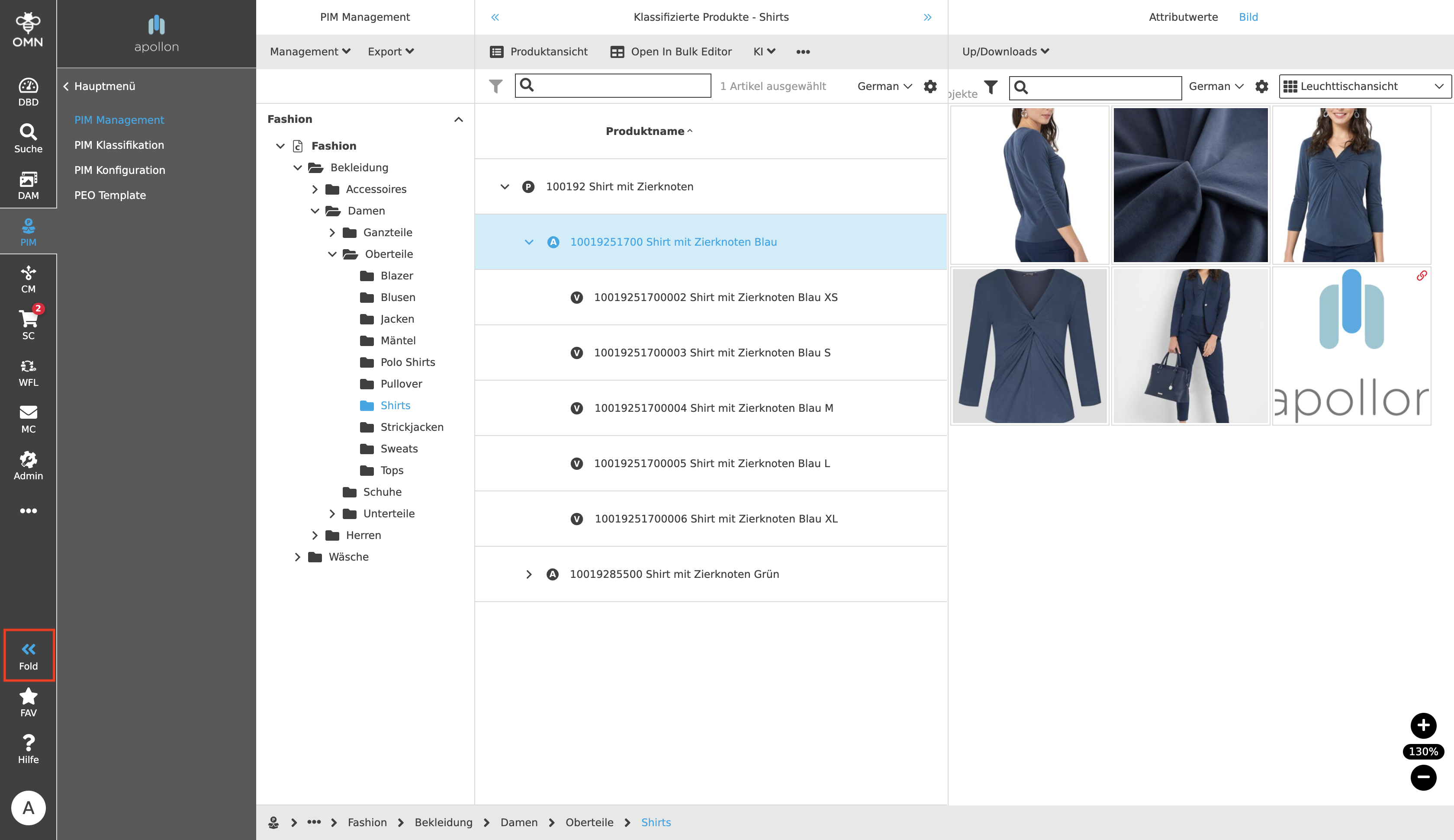
In the bottom bar you can find more functions like "Fold/Unfold" to expand and collapse the sidebar column, "Favorites" to save favorite paths and the "Help" to display shortcuts/key combinations.
Fold/Unfold (folding and unfolding the sidebar column)
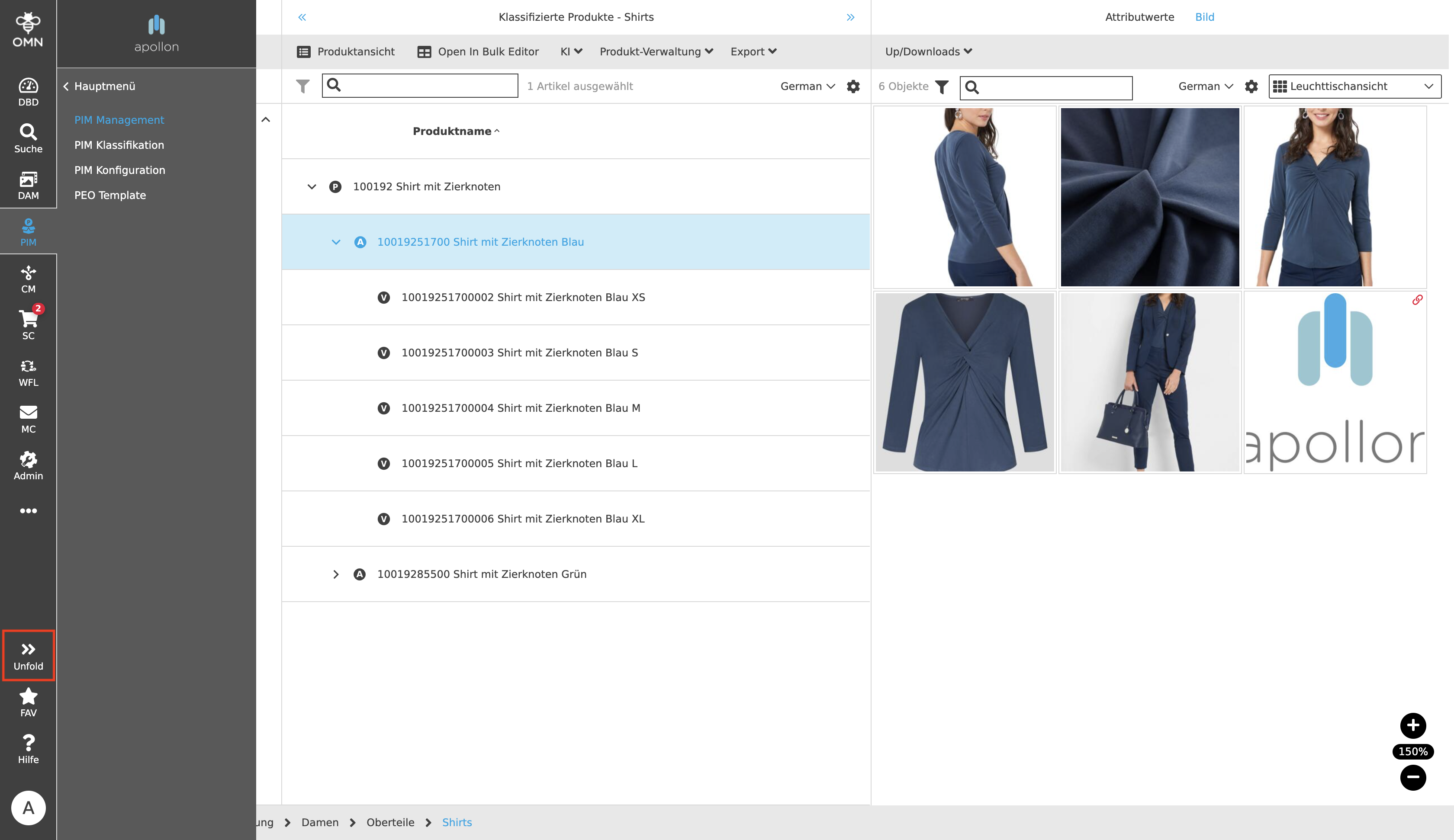
The sidebar has the property to fold out by another side column, which is very helpful e.g. for the PIM, because it allows navigating to the corresponding views (management view, configuration view, etc.). The additional function "Fold/Unfold" either overlays ("Unfold") or pushes ("Fold") the content of the selected module in the left, right and middle columns. For a wider screen, for example, the "Fold" variant is recommended, since there is enough space for the content in the left, right or middle column and the side column cannot cover the content.
User Settings
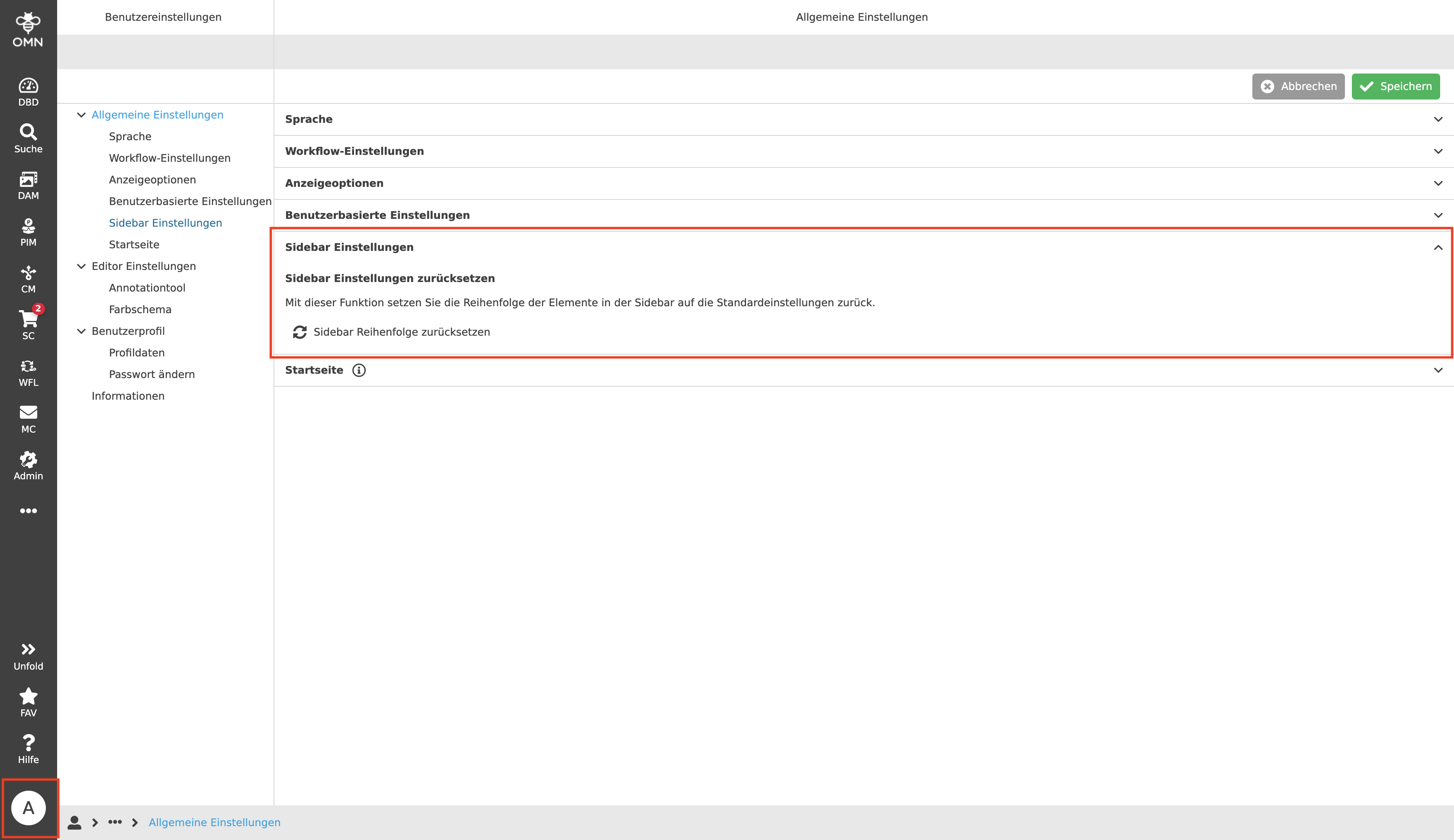
At the bottom, visible with a profile picture or the initials of the user, the User Settings are selectable.
Regarding the sidebar, there is a corresponding setting that can be made here. By clicking here the elements in the sidebar can be set back to default settings.
Drag and Drop in the Sidebar
Drag and drop is possible within the sidebar. Modules can be moved up or down depending on preference and priority. However, there is only a certain number of elements that can be placed in the top and bottom bar. If the maximum number is exceeded, the additional items can be found in the Further items menu. For the Top bar it should be noted that only modules can be moved and placed. For the Bottom bar this applies to the already described help and additional functions.
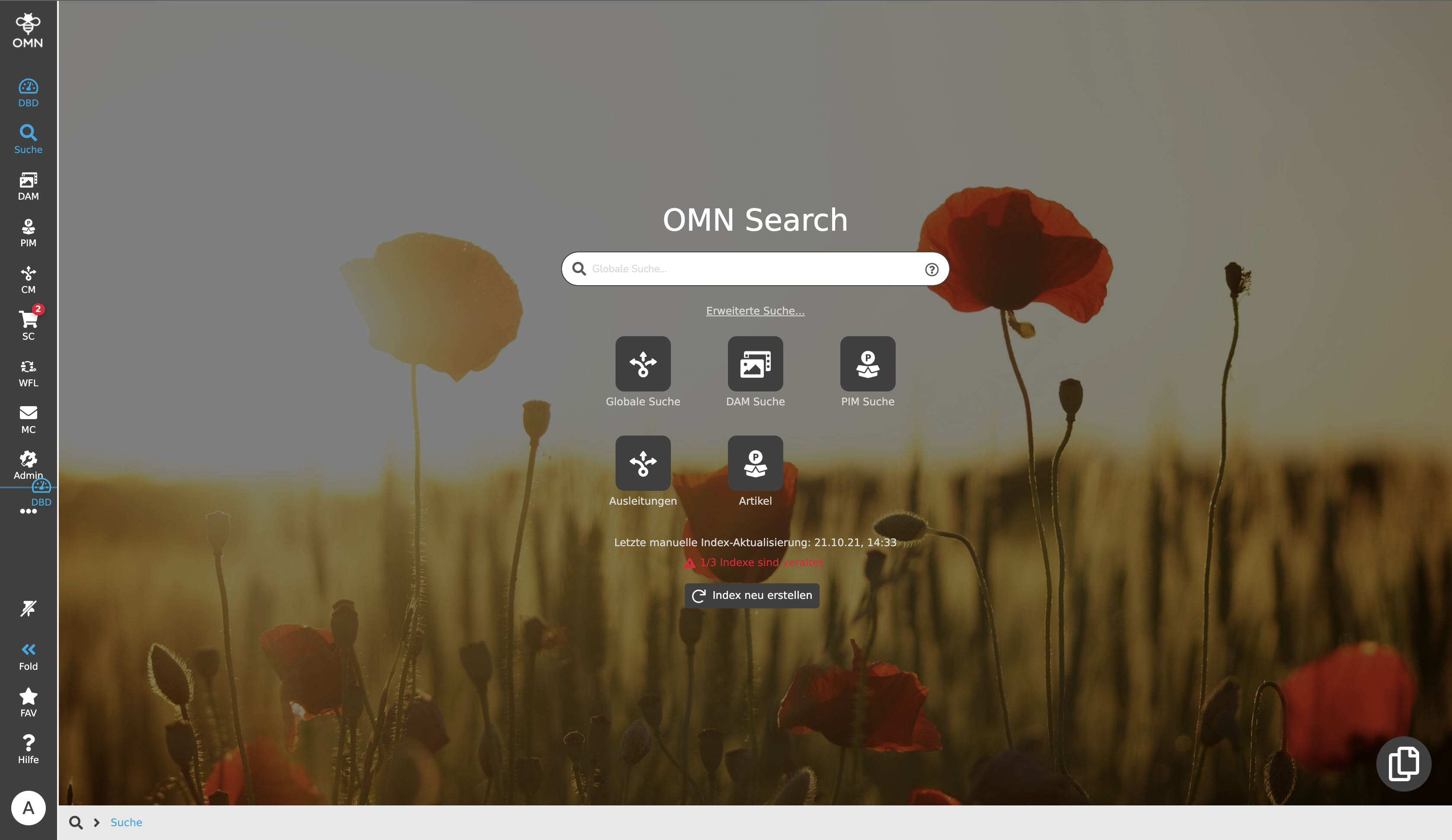
If you want to detach an item that is pinned in the top bar, you have to drag it to the "rice nail" icon. After that it will be placed in the Further items menu. More about Drag and Drop can be found in the topic Working with OMN.