Favorites
Purpose of the plugin
The sidebar includes an option for saving favorites. This allows pages to be saved individually or as a group so that they can be quickly reopened as a kind of quick access or bookmark.
Introduction
The sidebar not only provides a navigation overview, but also an integrated favorites function that allows users to quickly access frequently used pages.
Entries can be saved flexibly as individual favorites or in groups. For example, thematically related pages can be stored together so that they can be opened collectively with just a few clicks.
This feature is suitable both as quick access for regularly used content and as personal bookmark management within OMN. This eliminates the need for potentially time-consuming searches in the navigation and ensures that important content is always within easy reach.
Prerequisites and relations to other modules
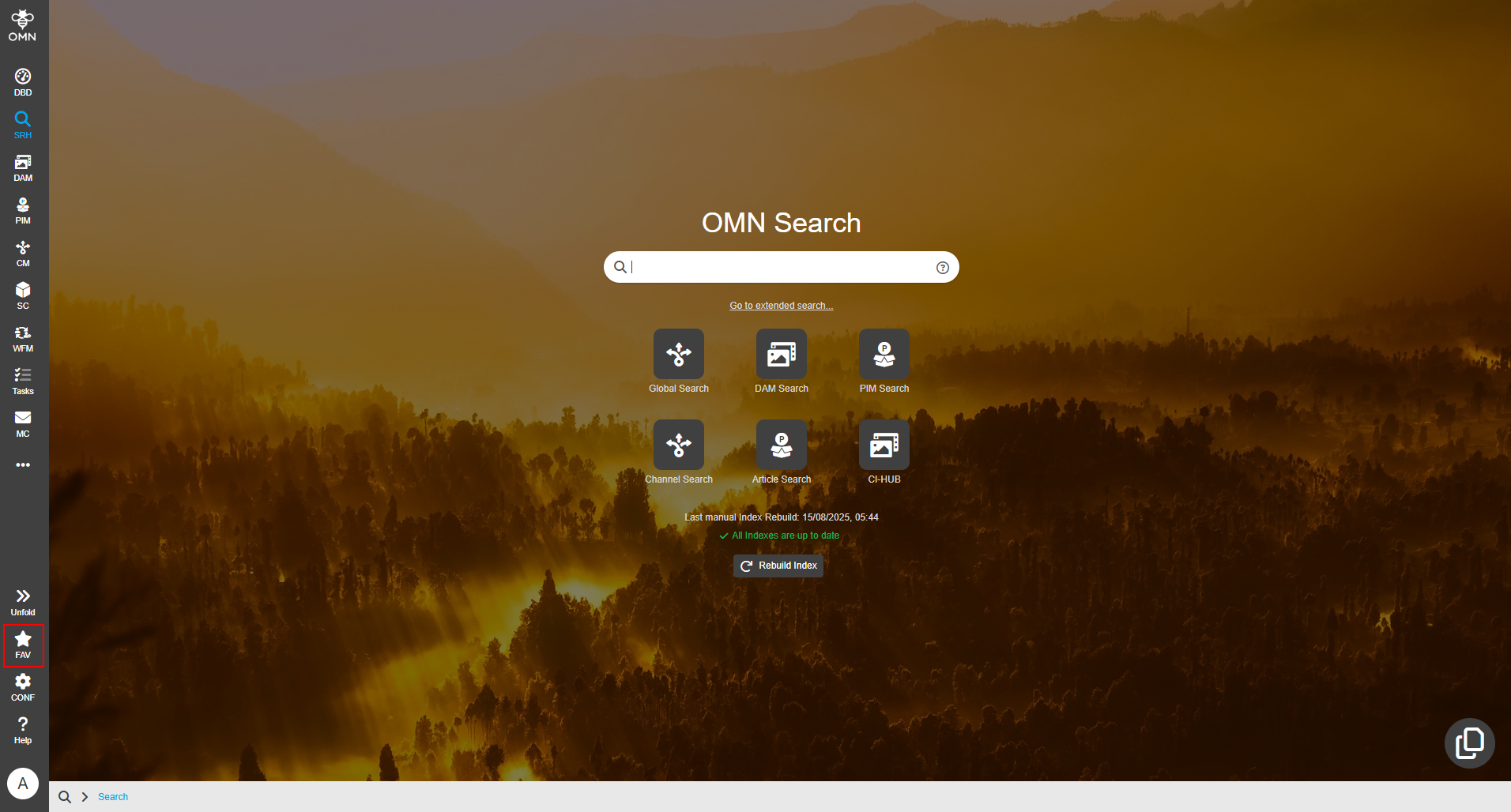
The favorites are accessible via the lower sidebar and display all saved favorites.
To create new favorites, users must first open the desired page, as this is the only way to store its address or context in the favorites list.
The favorites function can be used independently and is not necessarily dependent on other modules.
How to use
To create a favorite, the user opens the desired page and selects the “Add favorite” option in the menu under “FAV” (Favorite).
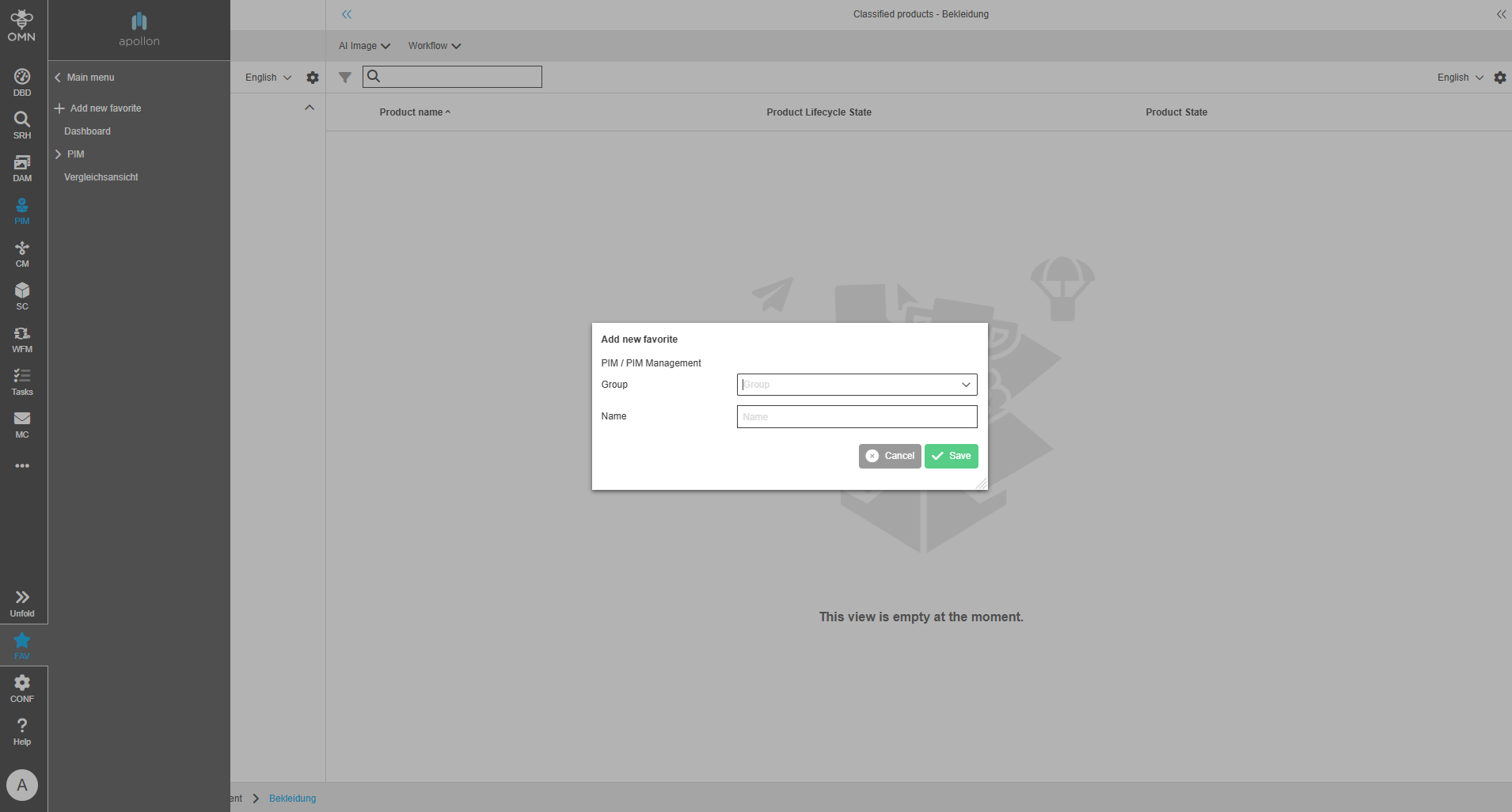
This opens the “Add favorite” dialog box, which displays the plugin path so that the user can see which area the favorite comes from.
In the “Group” field, the user can select an existing favorite group from a dropdown menu or create a new group with a meaningful name. If the field is left blank, the favorite is saved without being assigned to a group.
In the “Name” field, the user enters a suitable, self-explanatory name that makes it easier to find the favorite later in the favorites overview.
The favorite is created by clicking on “Save.”
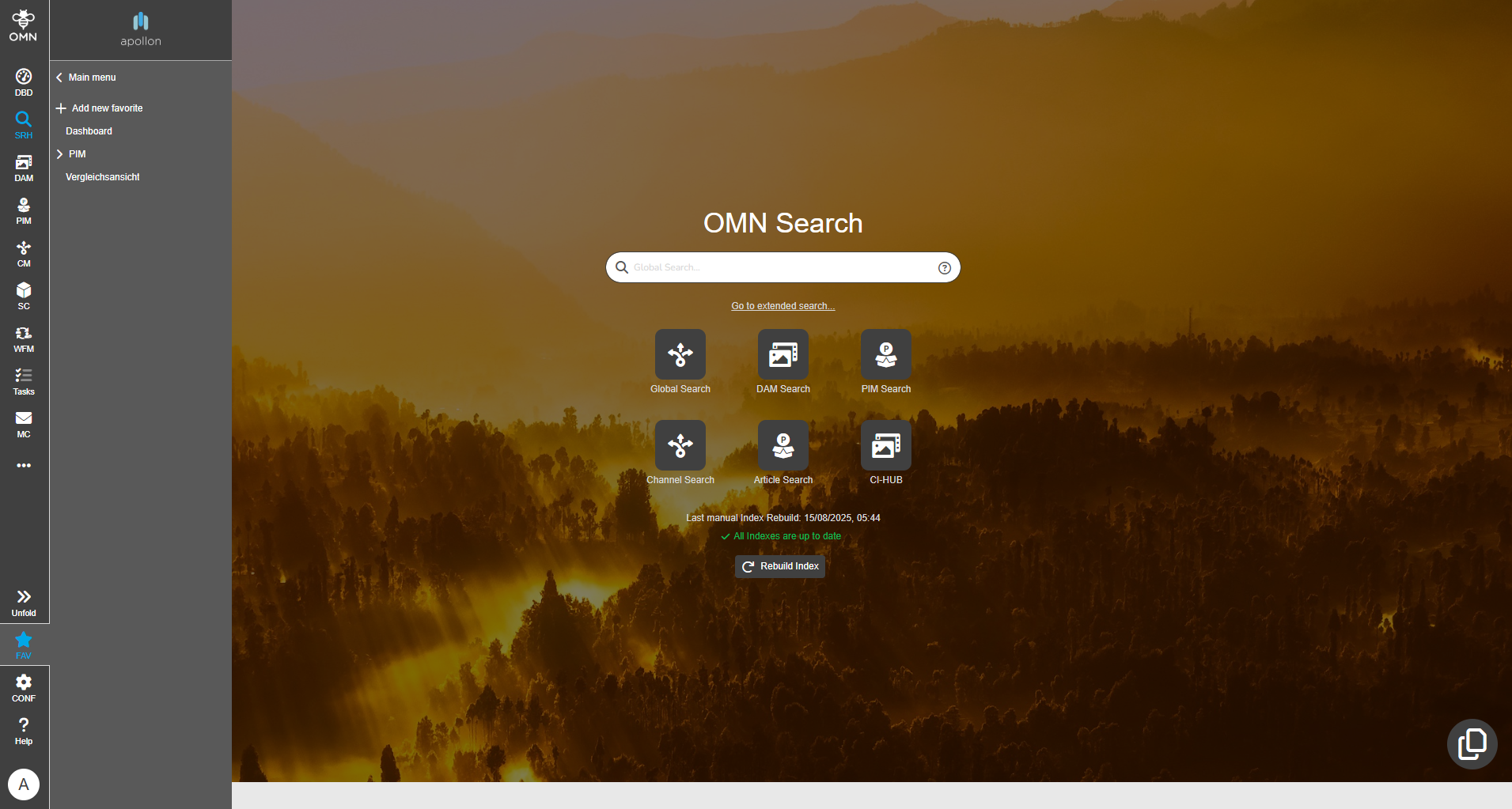
Saved favorites can be accessed at any time via the favorites overview.
By using favorites, users can open frequently used pages directly without having to navigate through the entire menu structure again.
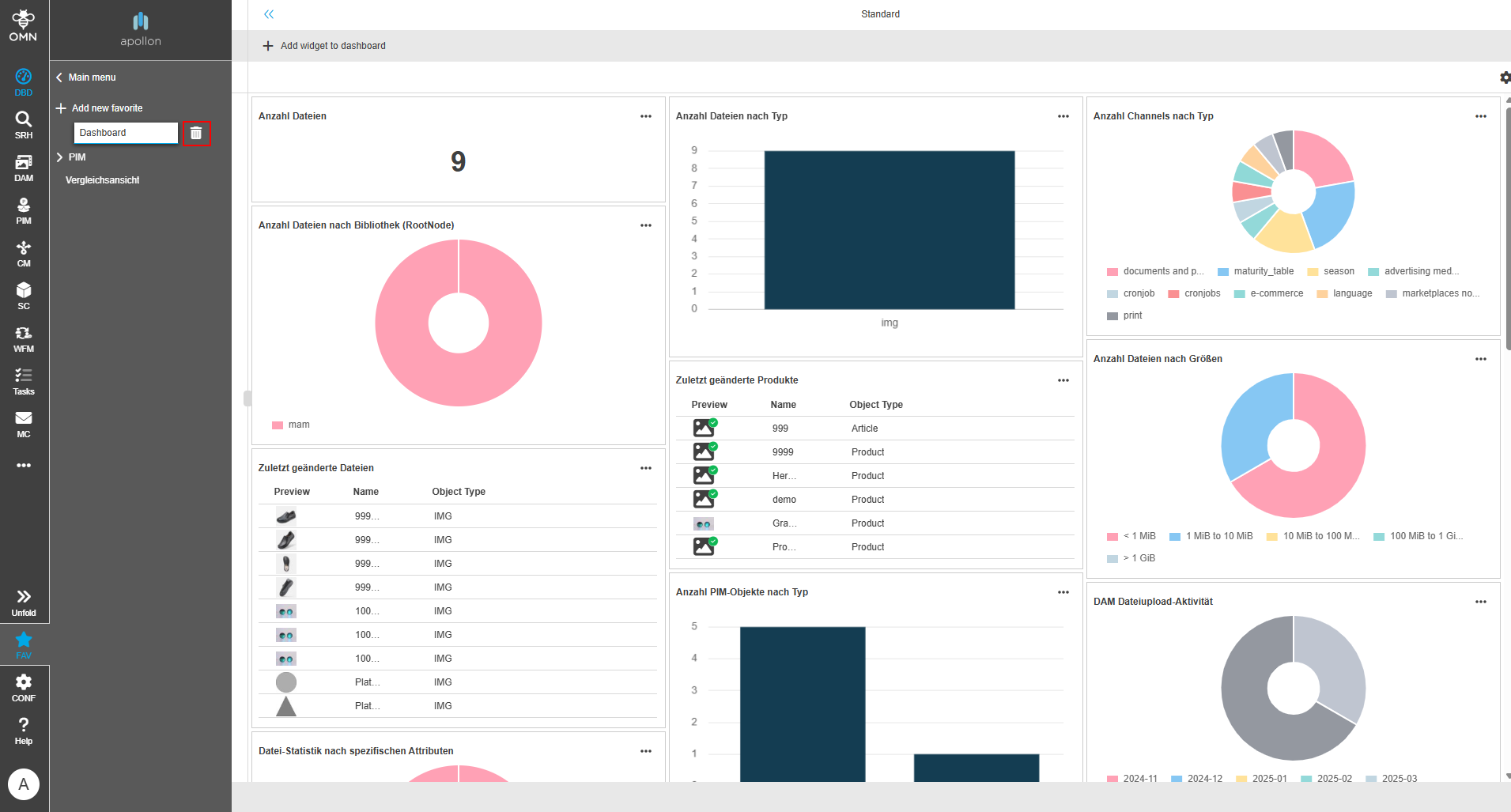
To rename a favorite, users switch to edit mode by clicking on the pencil icon next to the desired entry and then entering the new name.
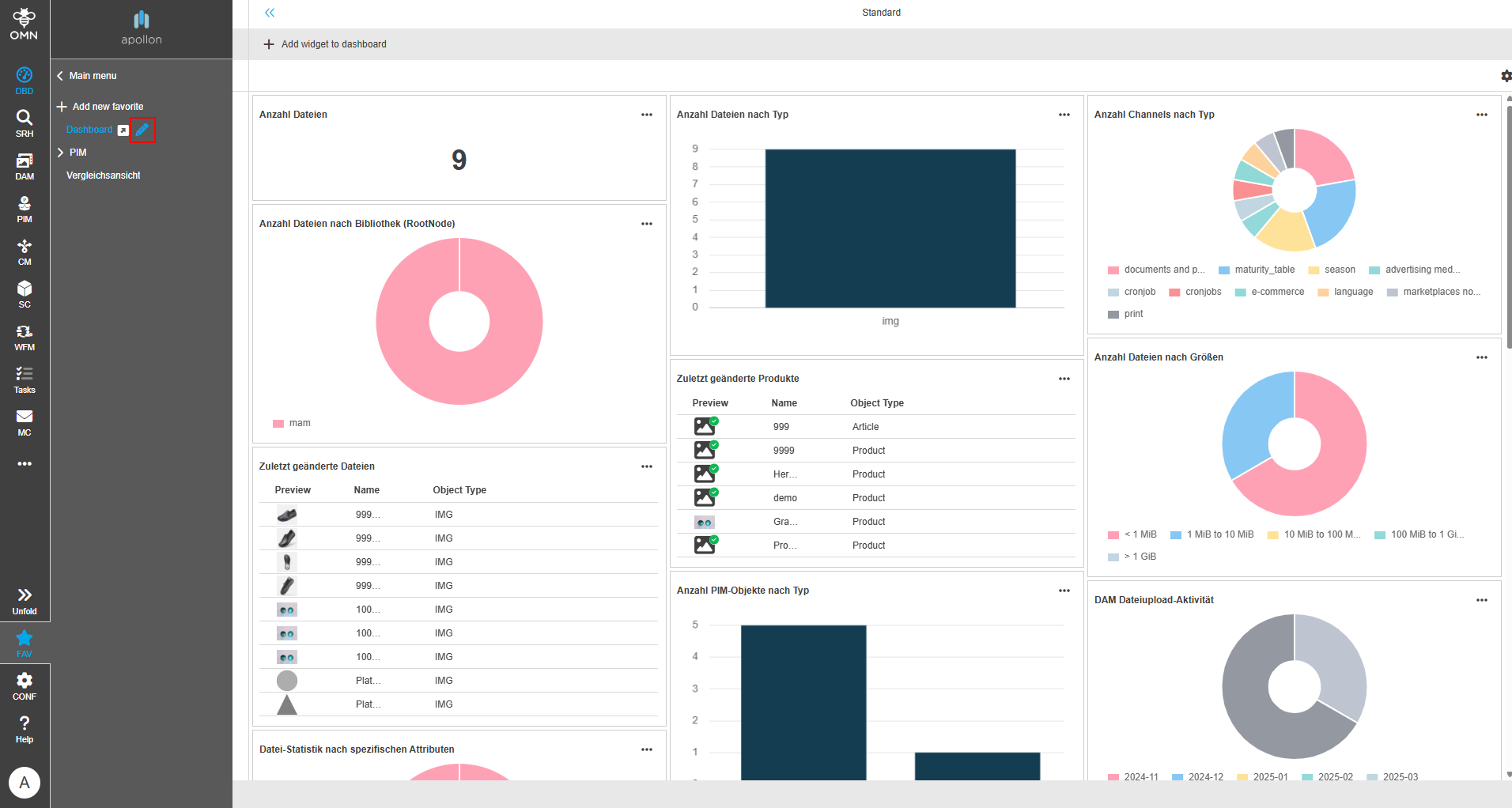
Deleting a favorite is also possible in edit mode. To do this, the user activates edit mode and clicks on the delete icon (trash can) next to the corresponding favorite.