Nodes
The Nodes tab defines which navigation nodes are available in the DAM Navigation. Each configured node type appears as a sub-tab where you can configure its details, views, and functions.
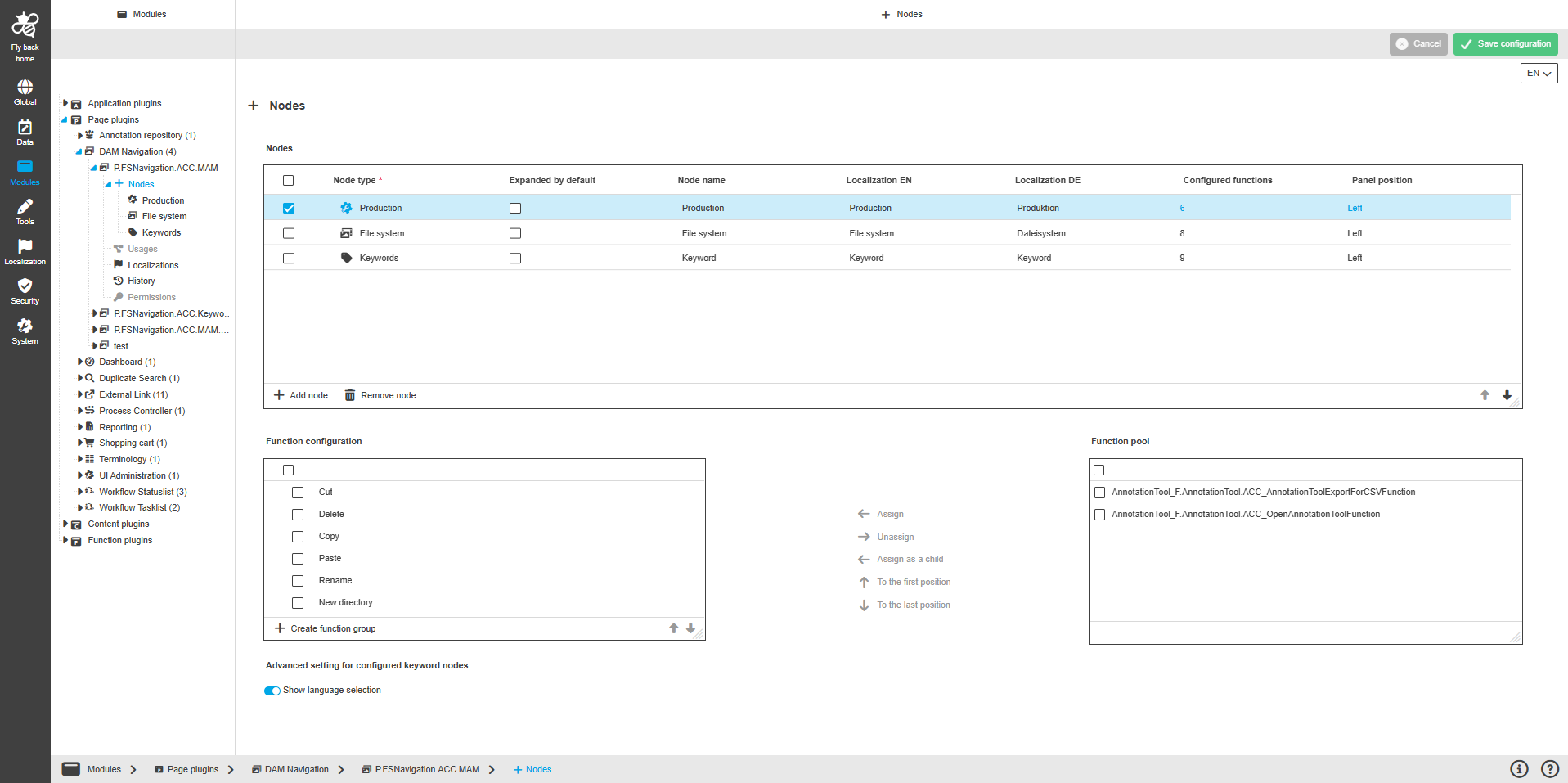
The node configuration is managed in a table widget on this page.
| Setting | Description | Note |
|---|---|---|
Node type |
Select the node type for the row. |
Supported values: Production, Filesystem, Keyword. At least one node is required to save the page. |
Expanded by default |
Defines whether the node is expanded when users open the DAM Navigation. |
User-based settings can override this value. |
Node name |
Default name shown in the DAM Navigation tree. |
Must be unique. Duplicate names are rejected and prevent saving. |
Localization columns |
Provide localized names per enabled system language. |
The localized value is shown when the language is selected in the UI. |
Configured functions |
Shows the number of functions configured for the node. |
Read-only. |
Panel position |
Shows where the node appears in the UI. |
Always left. Read-only. |
The table widget provides the following functions:
| Function | Description | Note |
|---|---|---|
Add node |
Adds a new node row to the table. |
After adding, select a node type for the row. |
Remove node |
Removes the selected node(s) after confirmation. |
The function is available only when at least one row is selected. |
Function configuration
Functions can be configured for the selected node. The function configuration section becomes available when you select a row in the node configuration table.
The concept of adding functions to content views is the same throughout the whole Configuration Client, detailed description can be found here.
Advanced settings for keyword nodes
This section is available only if at least one keyword node is configured.
| Setting | Description | Note |
|---|---|---|
Show language selection |
Shows a language dropdown in the left panel status bar when a keyword node is in focus. |
Default: Off. |
Production node
Use the Production node to navigate across one or more DAM volumes. Production nodes should be used by administrators only because they are performance-intensive and can also show unchecked assets.
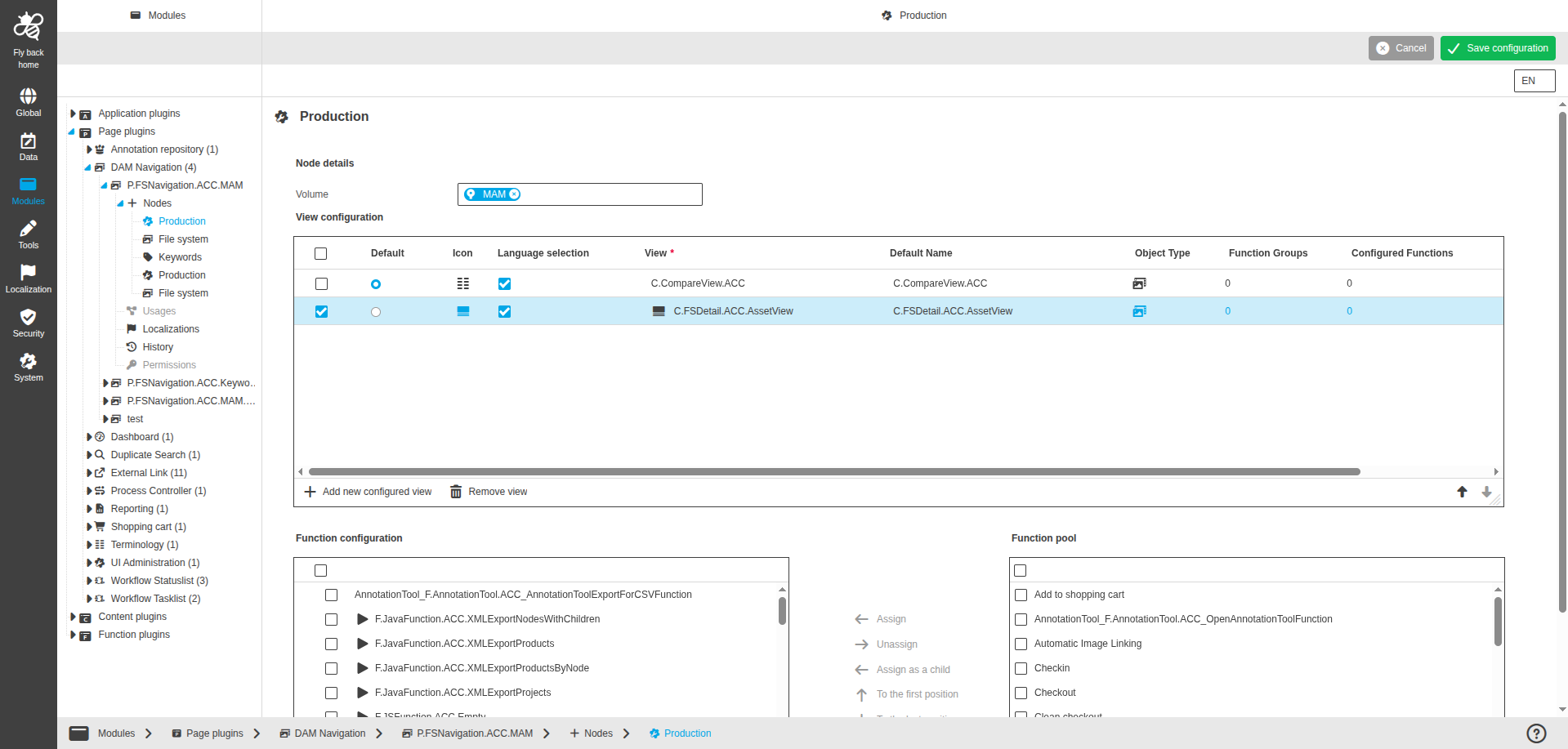
Adding content views
The concept of adding the content views to a page is the same throughout the whole Configuration Client, detailed description can be found here.
|
The following views and object types can be configured:
|
Function configuration
The concept of adding functions to content views is the same throughout the whole Configuration Client, detailed description can be found here.
|
Filesystem node
Use the Filesystem node to navigate within a specific DAM volume and a relative path inside that volume.
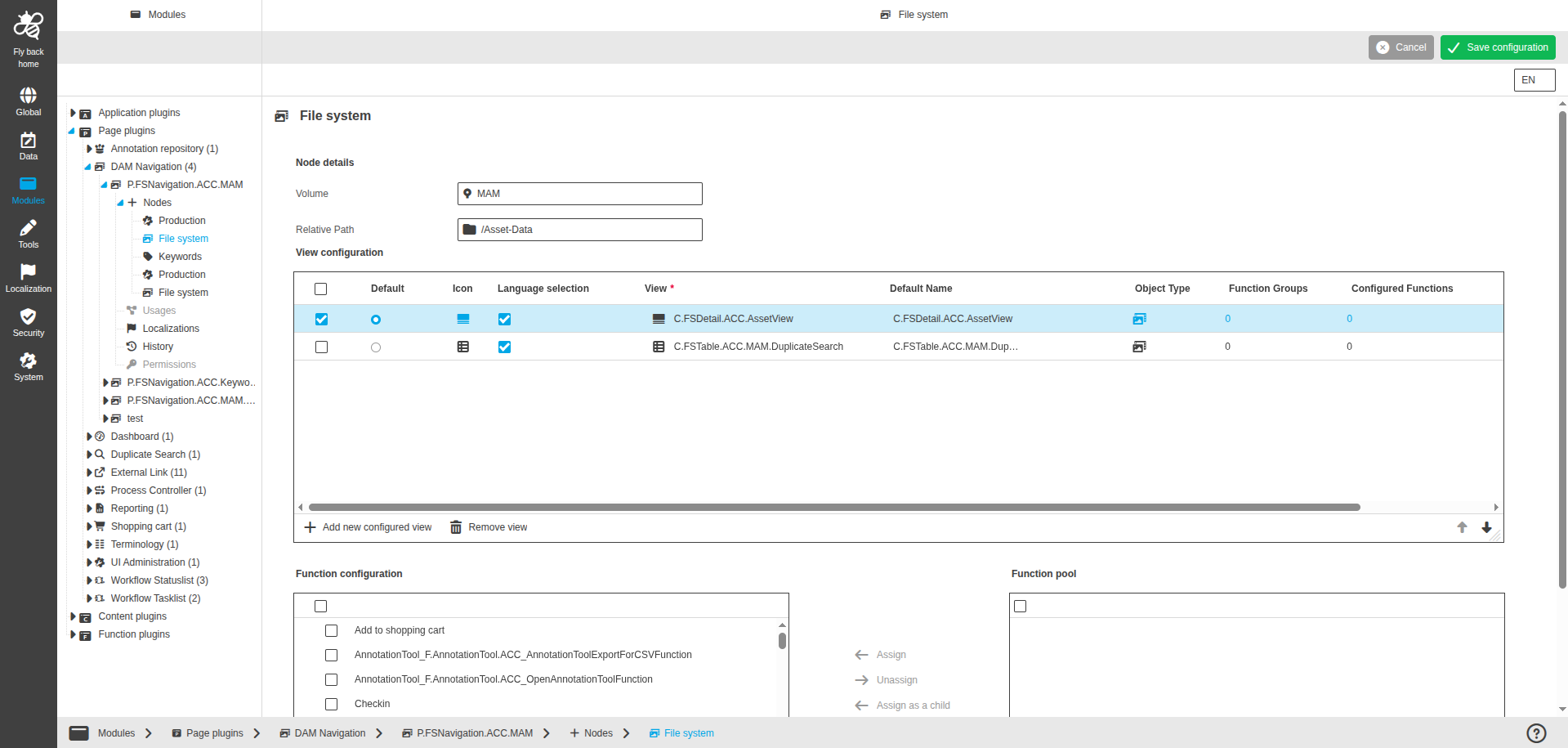
Node details
| Setting | Description | Note |
|---|---|---|
Volume |
Select one DAM volume (storage) that is enabled in the DAM application plugin. |
Single select. |
Relative path |
Select a folder from the selected volume. The dropdown shows the folder structure of the volume. |
Folders are only available after they are checked in via the Production node. |
View configuration
The view configuration is identical to the production node. See View configuration.
Function configuration
The function configuration is identical to the production node. See Function configuration.
Keyword node
Use the Keyword node to navigate within the configured keyword folder structure.
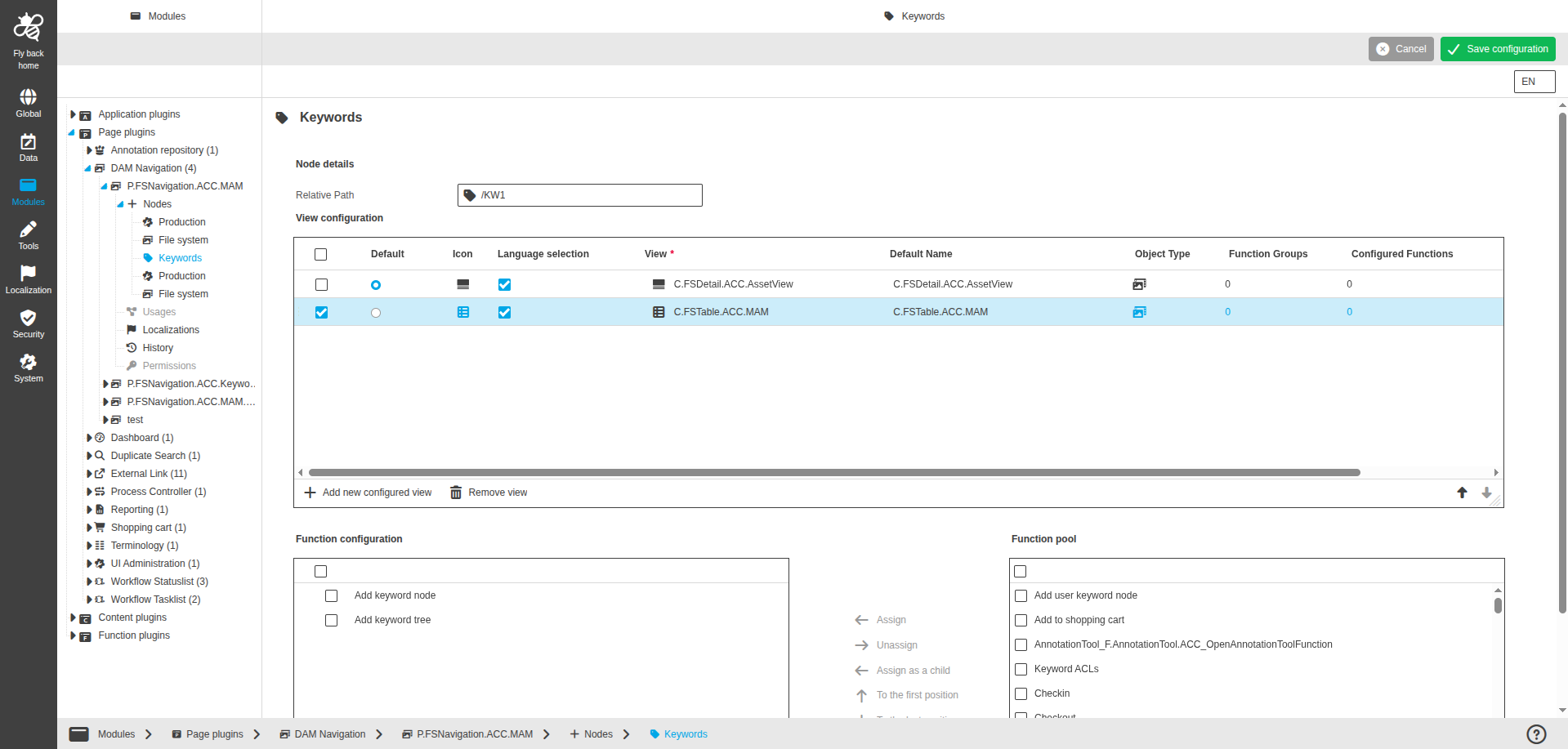
Node details
| Setting | Description | Note |
|---|---|---|
Relative path |
Select a folder from the configured keyword structure. The dropdown shows the keyword folder tree. |
Single select. |
View configuration
The view configuration is identical to the production node. See View configuration.
Function configuration
The function configuration is identical to the production node. See Function configuration.