Table View
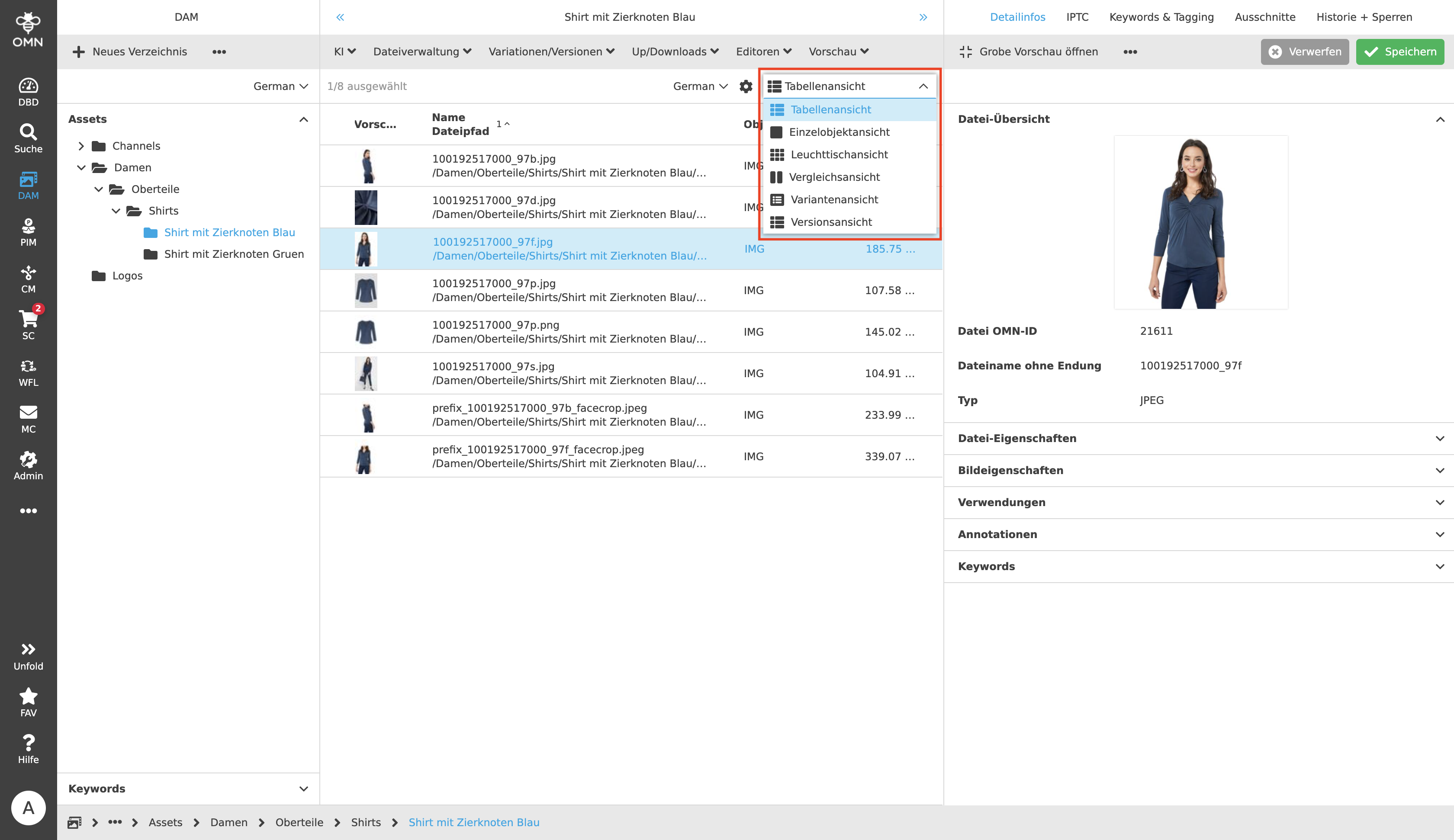
To view the content in tabular form, as with the other views (Light Table View,
Single Object View, etc.), the entry "Table View" inside the content
switcher dropdown must be selected. The dropdown is located in the statusbar.
The table columns can display not only the pure file information but also
further meta information.
In the statusbar the number of files found and selected is displayed. The
Table View can display structured data individually, tailored to the user.
The following options are available:
-
Sorting files (ascending and descending)
-
Filtering of columns
-
Maintenance of data in the detail view
-
Showing and hiding of columns
-
Single and multiple selection for data maintenance
-
Changing the column order
-
Changing the row size
Sorting files (ascending and descending)
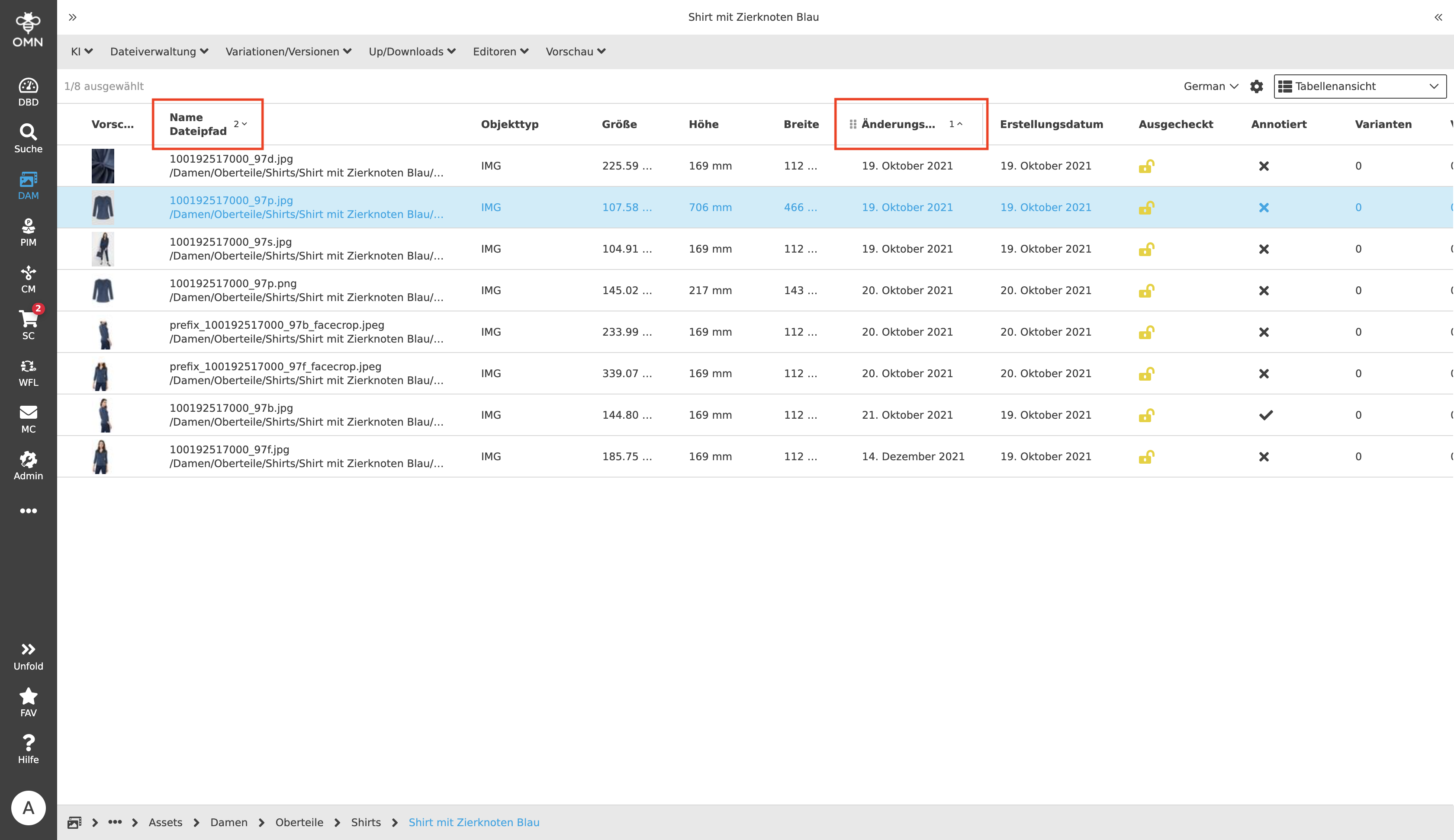
If the respective arrow symbol in the column header is clicked (appears on hover), the contents can be sorted in ascending (e.g. from 1 to 10) or descending (e.g. from 10 to 1) order. A further (third) click dissolves the sorting.
Up to three columns can be used for sorting, here there will be a numbering from "1" to "3" (i.e. a maximum of three columns can be used for sorting). The column that has the number "1" is the column that is sorted by first. This sorting is kept and then sorted according to the criteria of column "2" and so on.
As soon as sorting is switched off for an attribute, this column loses the sorting mark and the other columns move up. For example, if the column "1" is removed, the column with the number "2" becomes the new number "1" and is from now on the column that is sorted by first.
Also see Filtering and Sorting.
Filtering of columns
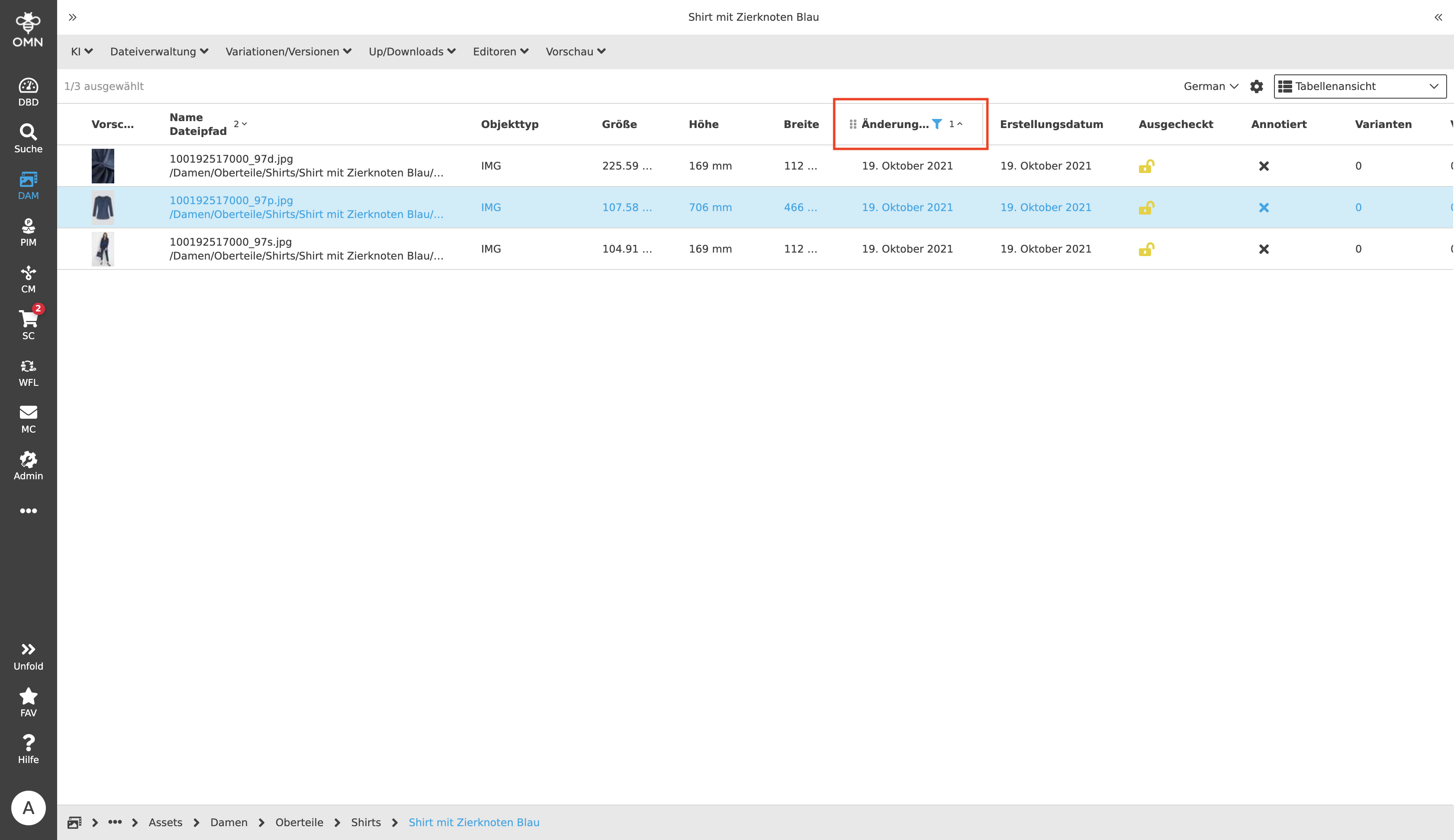
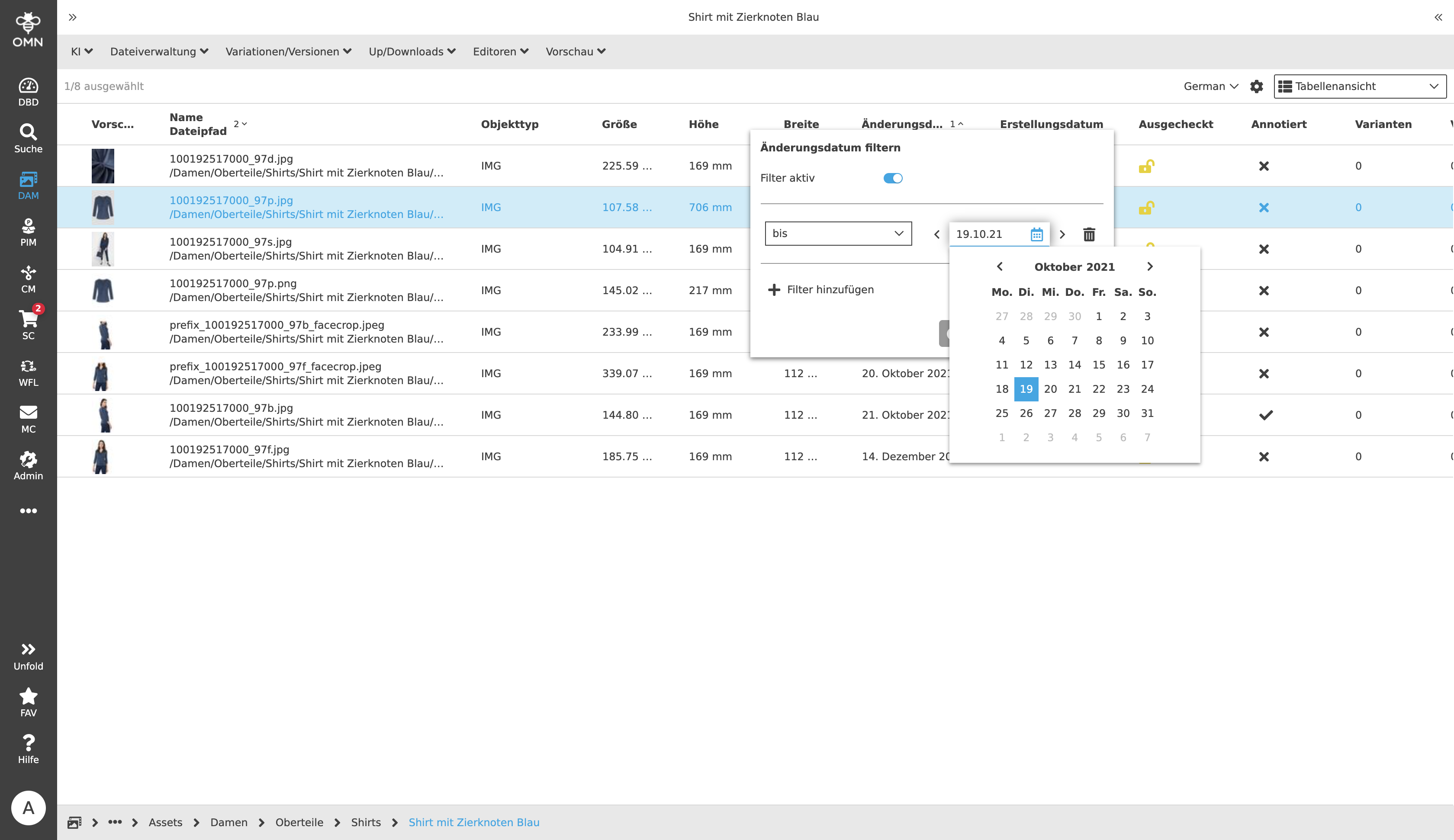
In the column header, next to the sort icon (arrow), there is also a filter icon that can be used to filter columns by specific values. One or more filters can be used at the same time. In the filter dialog, which opens after clicking on the filter symbol, the different filter options can be selected.
Example: If users want to see files from or up to a certain date, this can be filtered in with the support of the datepicker.
Maintenance of data in the detail view
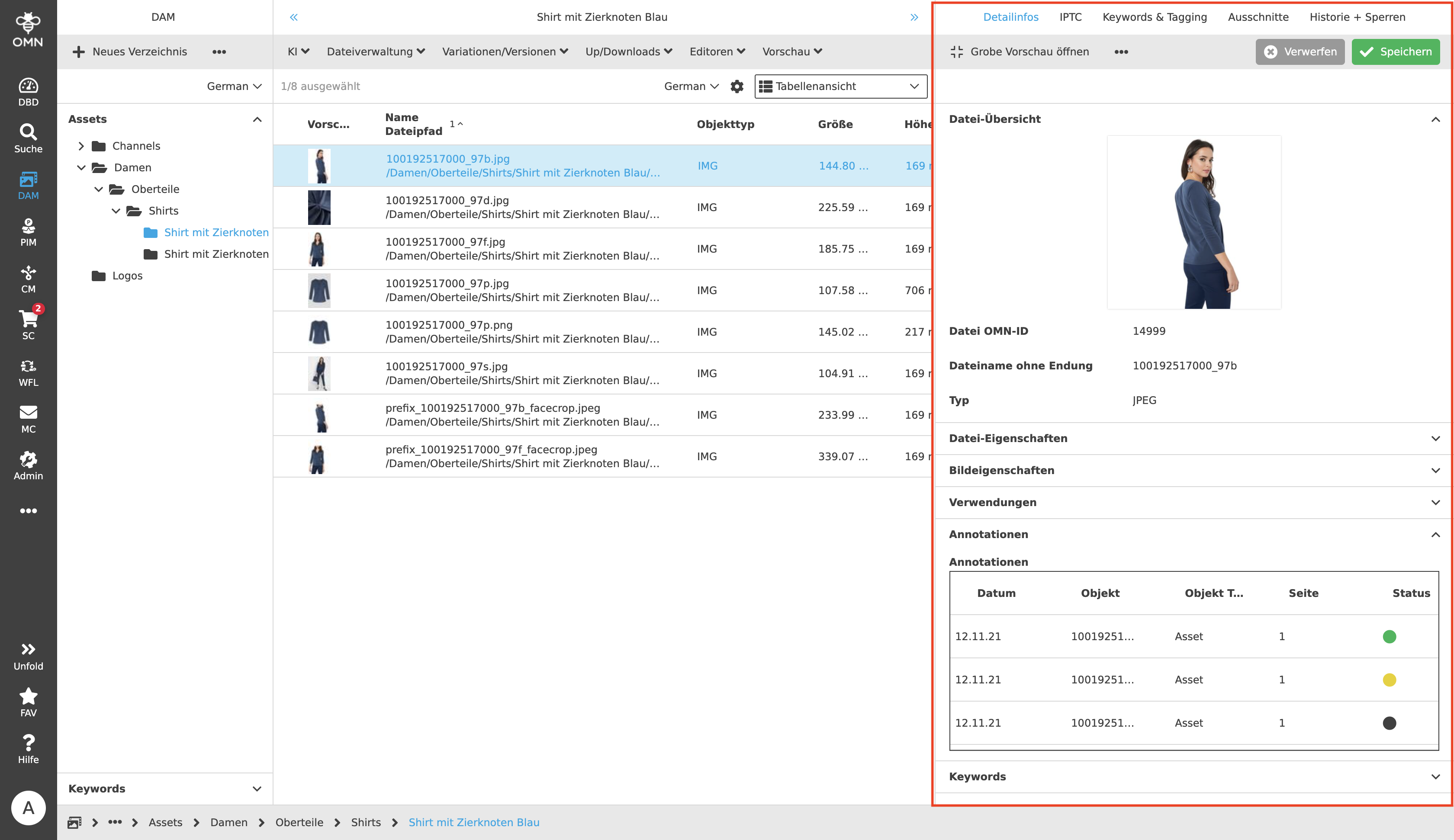
In the Table View, the right panel appears as a detail view after a file has been selected. There you can find, among other things, file properties of the selected file, such as information about the annotations.
Showing and hiding of columns
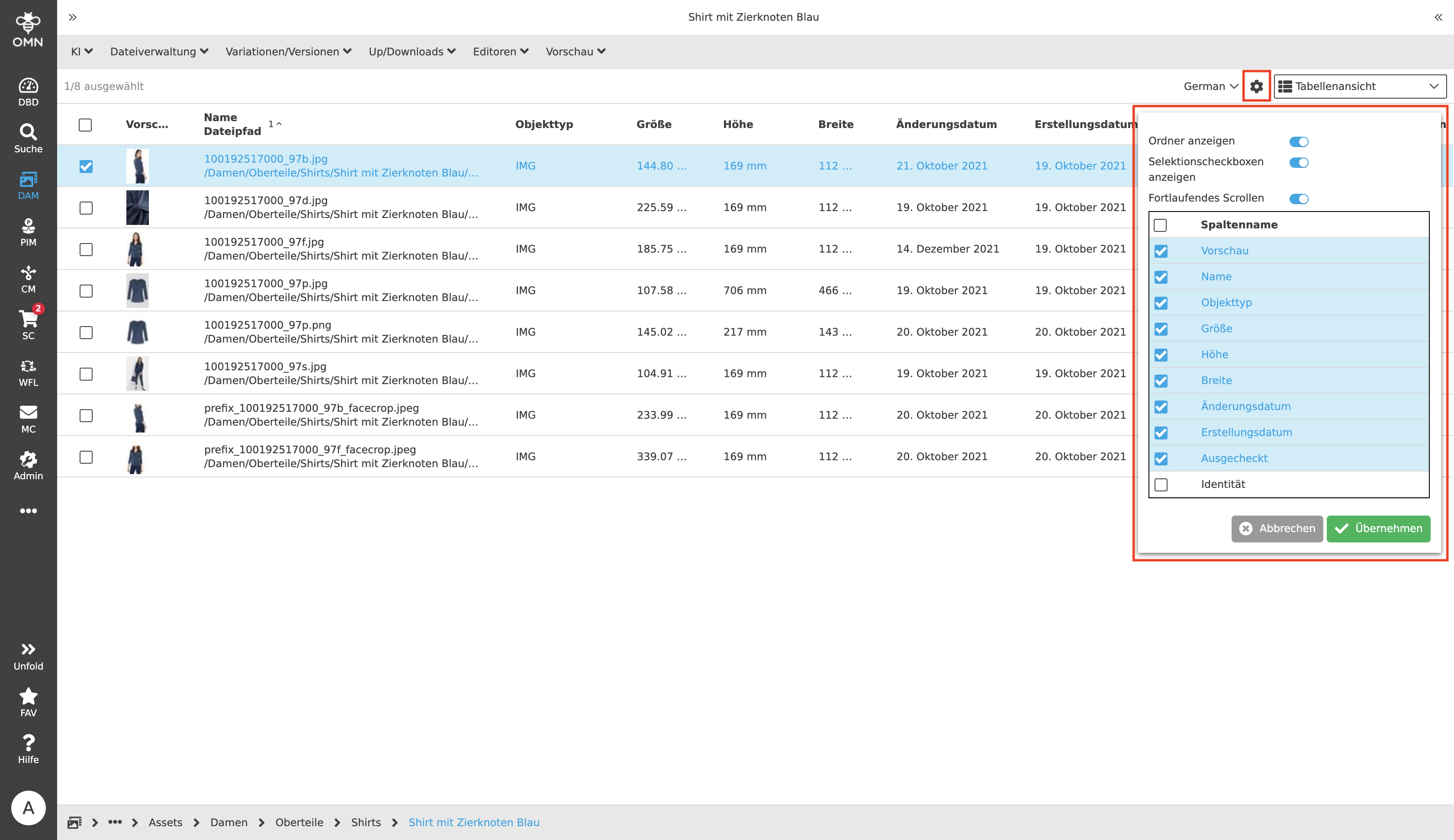
Columns can be shown or hidden. For this purpose, the statusbar settings are selected (cogwheel symbol) and then the checkboxes under "Column name" are selected or deselected by the user. The action is confirmed by selecting the "Apply" button.
Single and multiple selection for data maintenance
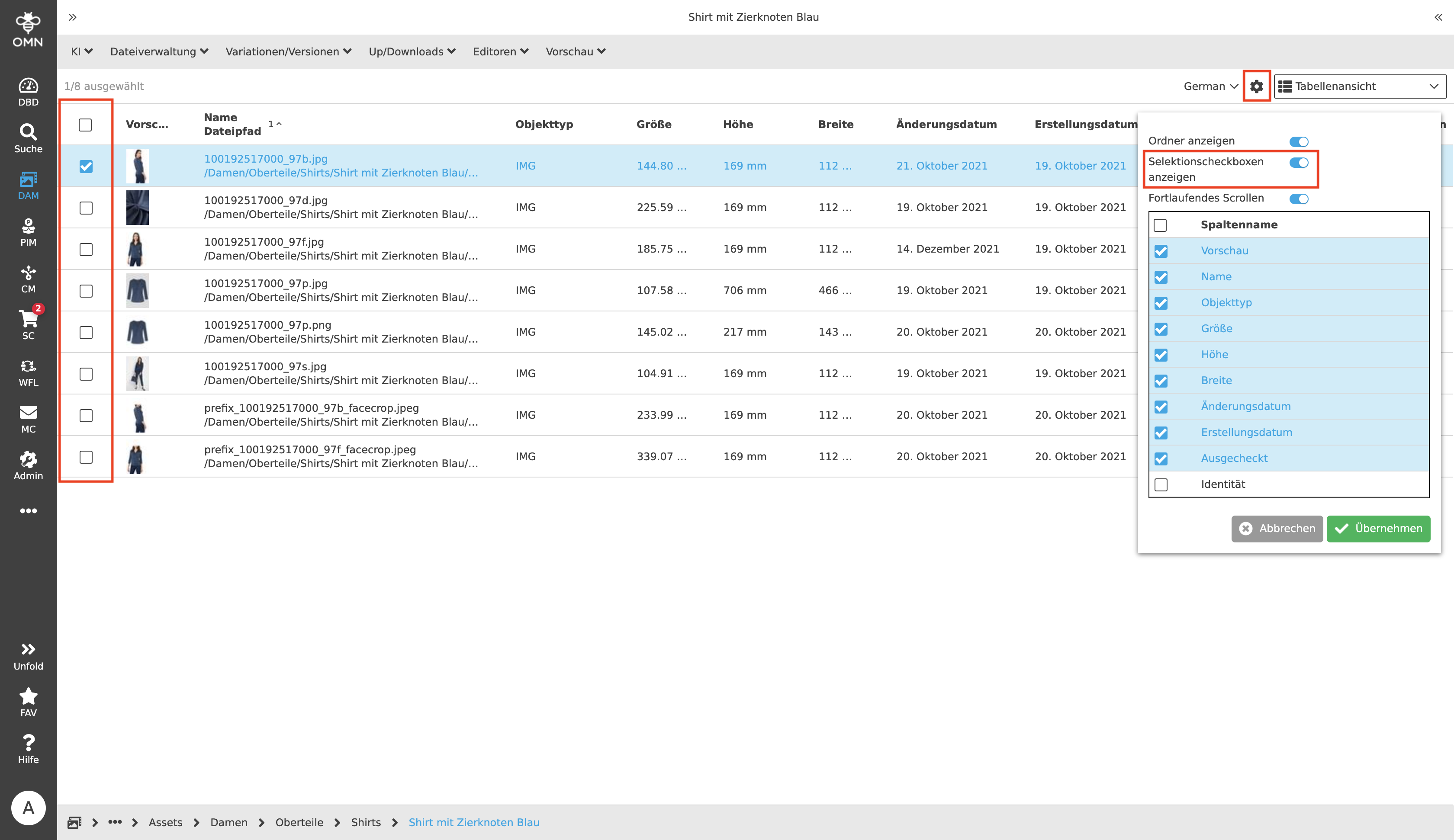
The option for single and multiple selection for data maintenance (e.g. delete, edit, etc.) can either be done via checkboxes at the beginning of each line or by using shortcuts.
Checkboxes can be shown or hidden by using the statusbar settings. Single or multiple objects can now be selected by clicking on the checkboxes. If all objects are to be selected at the same time, this can be done by a single click on the checkbox in the column header.
Changing the column order
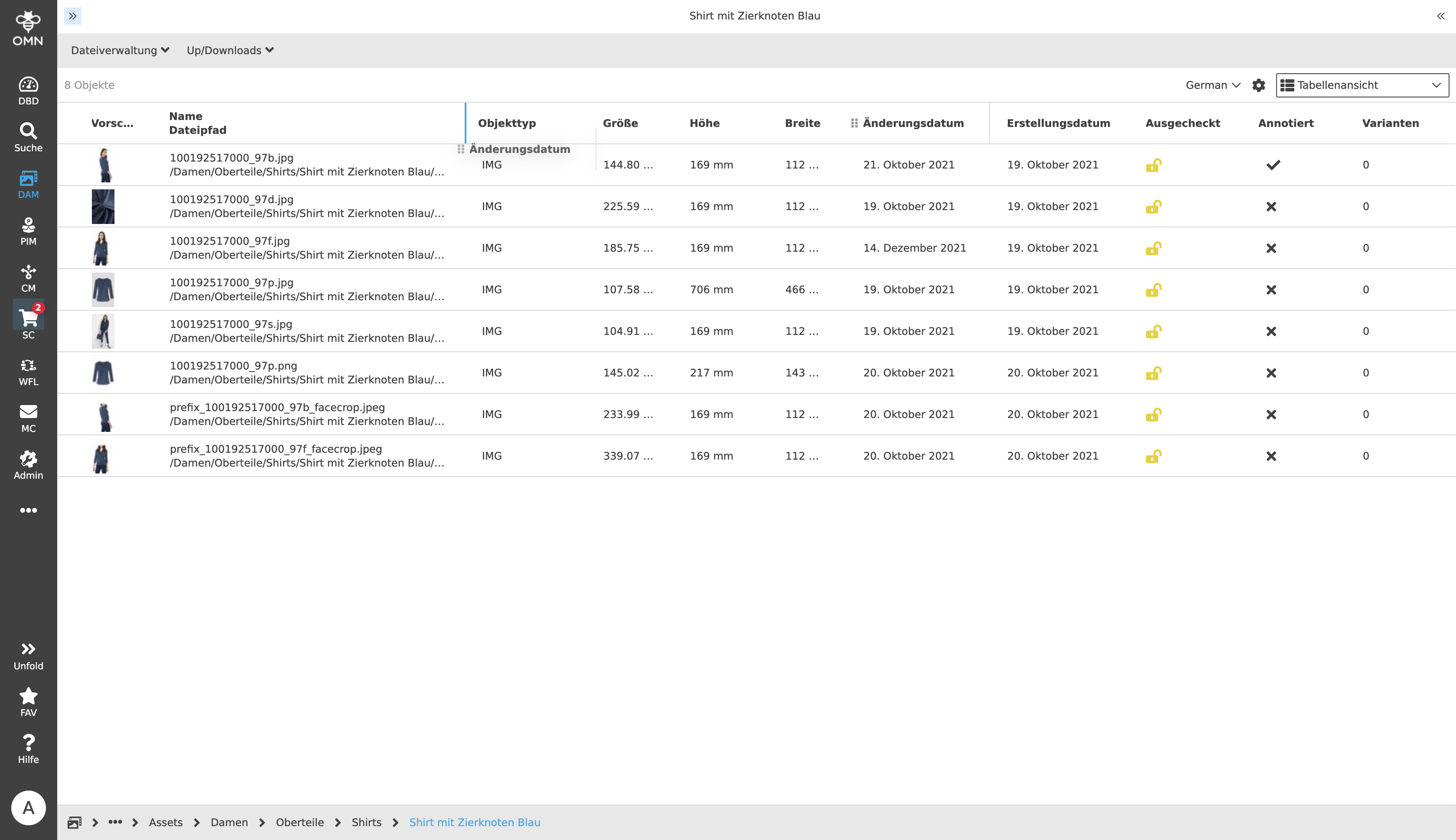
The order of the columns can be changed by moving the columns to the respective position via drag and drop.
To move the position, the user has to hover over the respective column header and select the "grab" icon with the cursor and keep it pressed. Now the column can be moved to the desired location and thus rearranged.
The possible positions are marked between the respective columns with a blue line.
Changing the row size
The row size or height can be adjusted in the user settings under the display options.
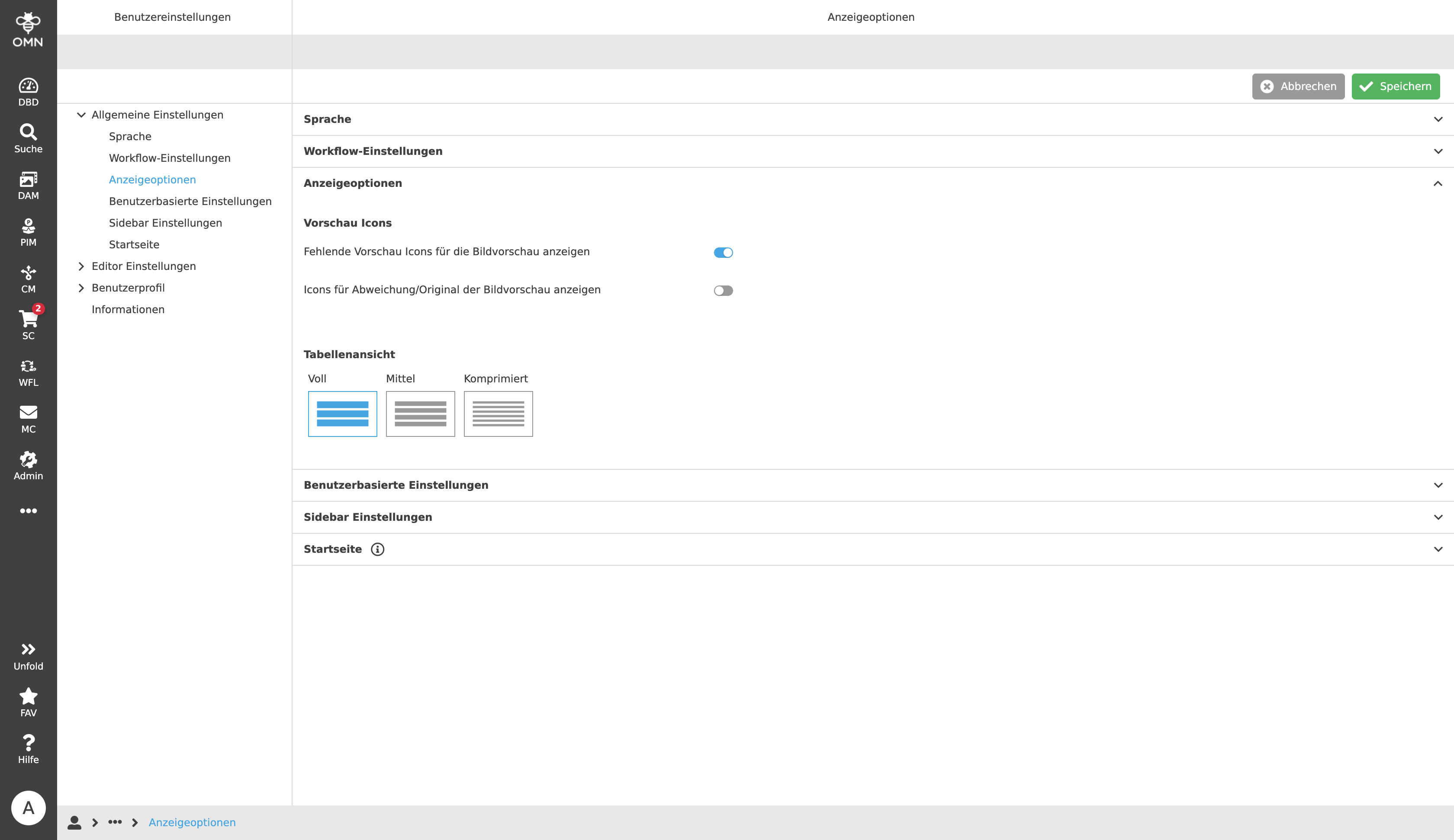
Three different view modes for tables are available to the user:
-
Full
The "Full" line height displays the lines at their maximum height. The view becomes generally airier, there is more space for information and the preview image is larger.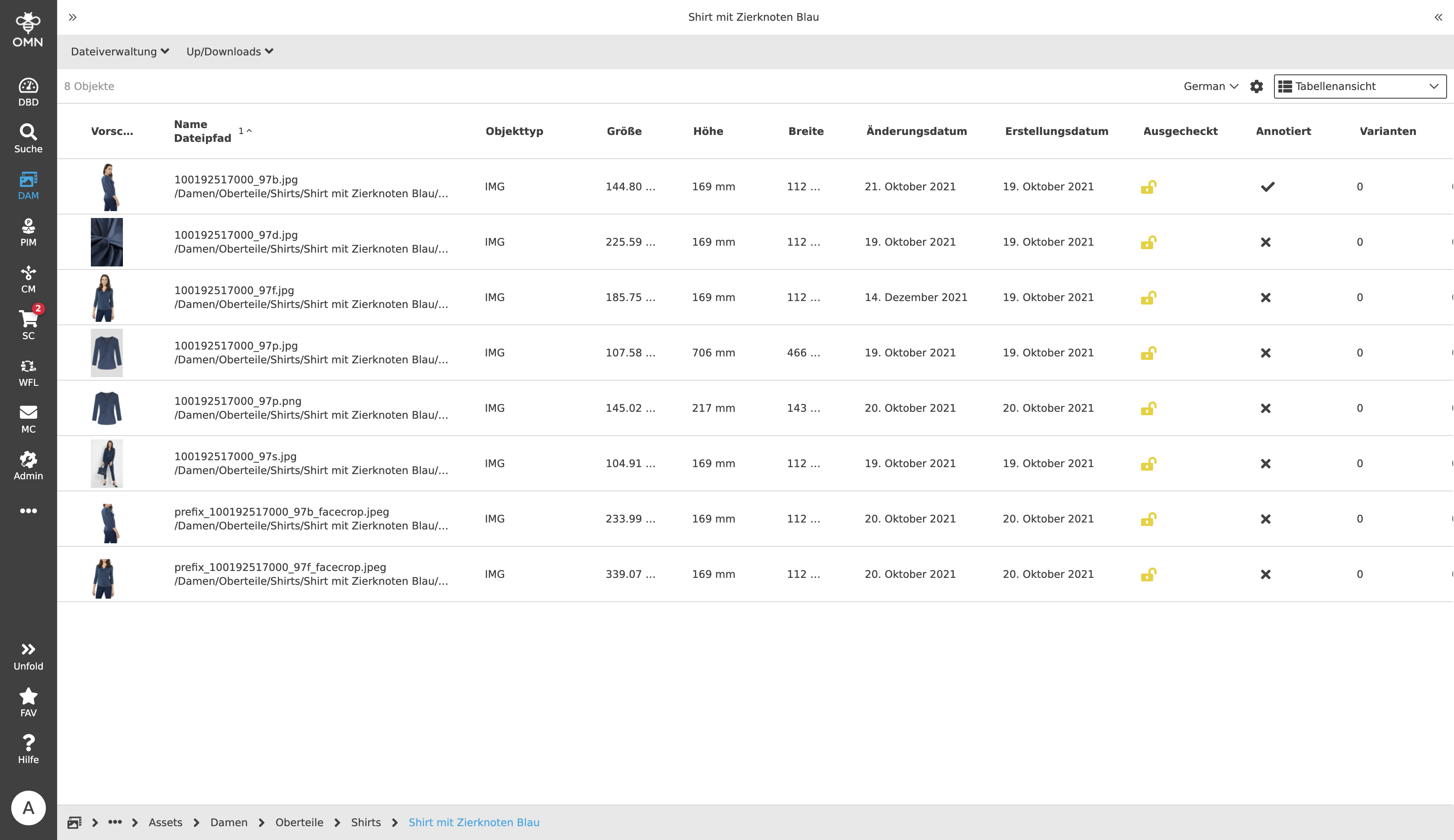
-
Medium
The medium line height is the standard size of the lines that displays all information and images on a "normal" area. -
Compressed
The "Compressed" row height displays information and images in very thin rows. This allows significantly more rows to be displayed within the table.