Editor settings
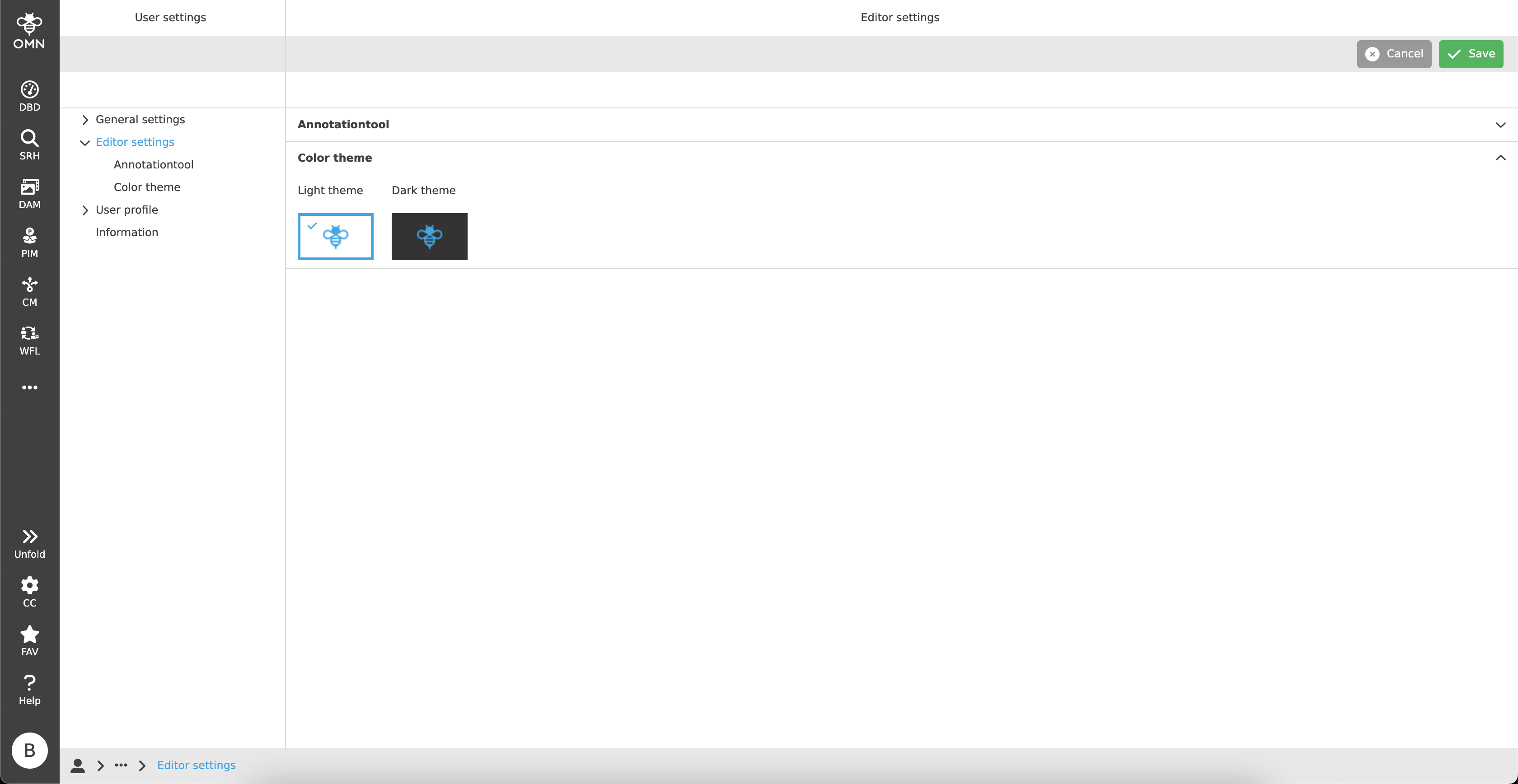
In the Editor settings, users can make all settings that affect specific editors. Currently, this concerns settings within the Annotation Tool and the color scheme of editors.
Annotation Tool
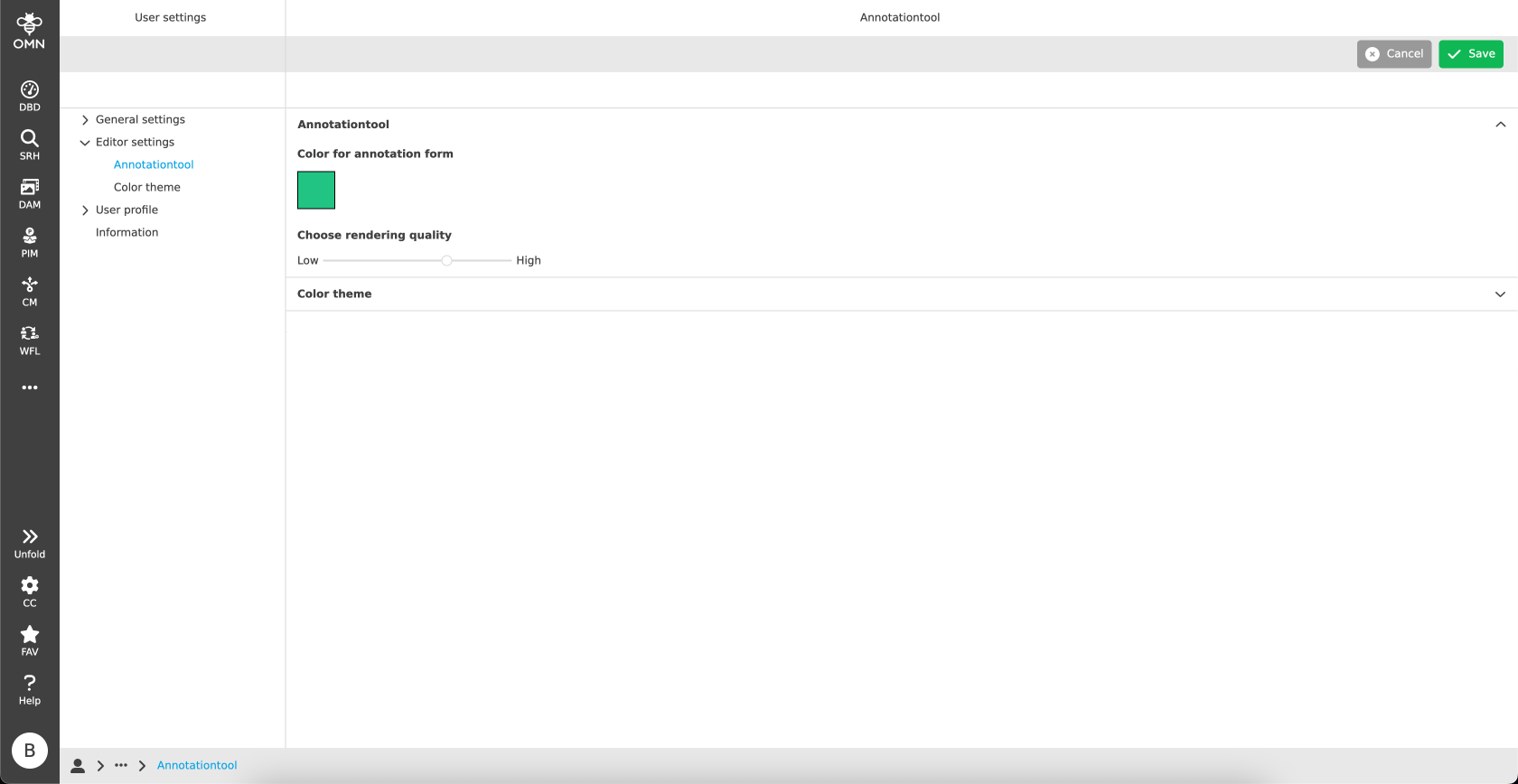
Within the Annotation Tool accordion, the user can decide which color to use for annotation forms and which rendering quality for assets should be used.
| The section is only available if the Annotation Tool is configured in the Configuration Client. |
Color for annotation form
A user can individually set his personal annotation form color.
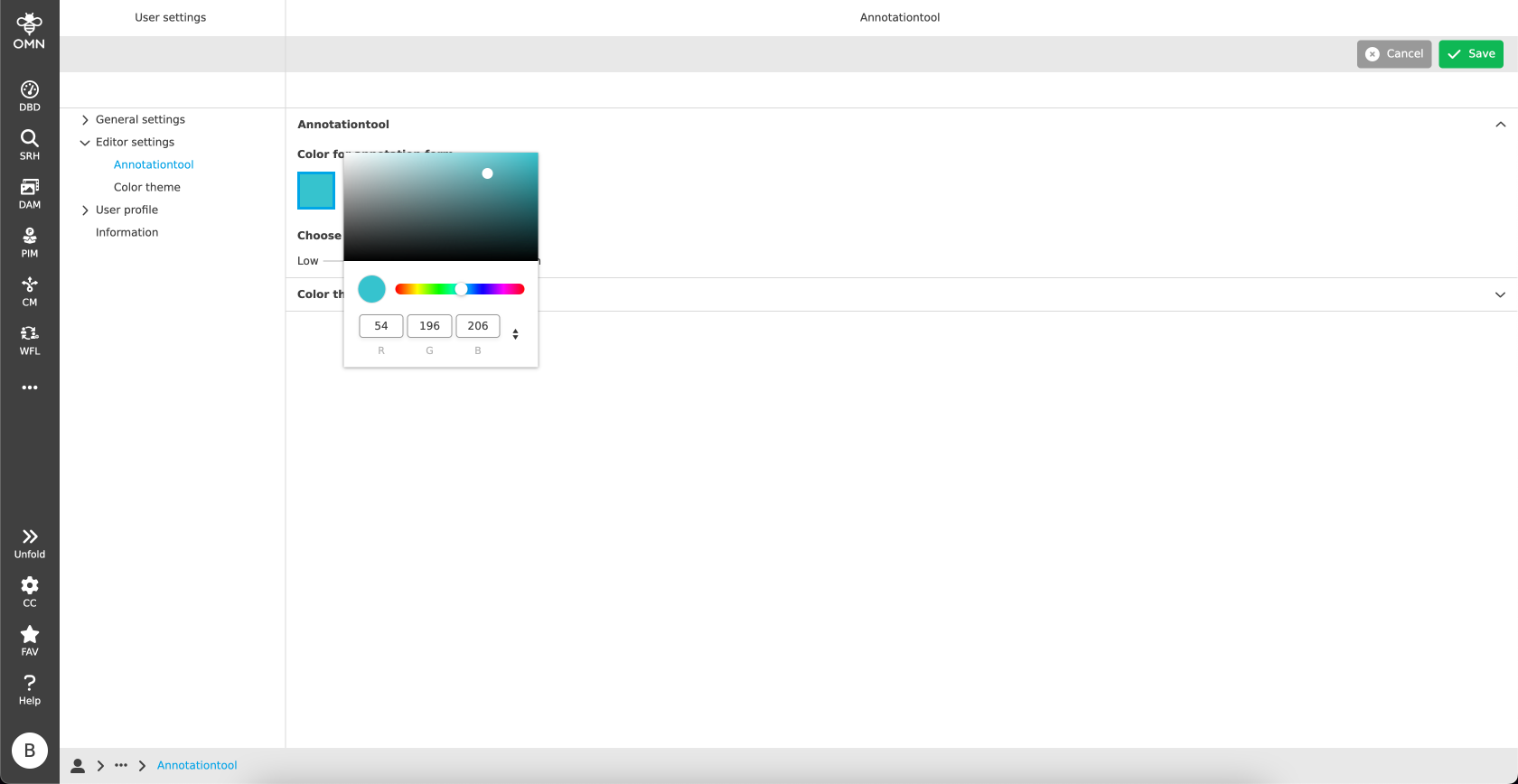
With a simple click on the color box, a color picker will be opened, and it can be set either by using the color palette or by adding RGB values.
| The default color is black. |
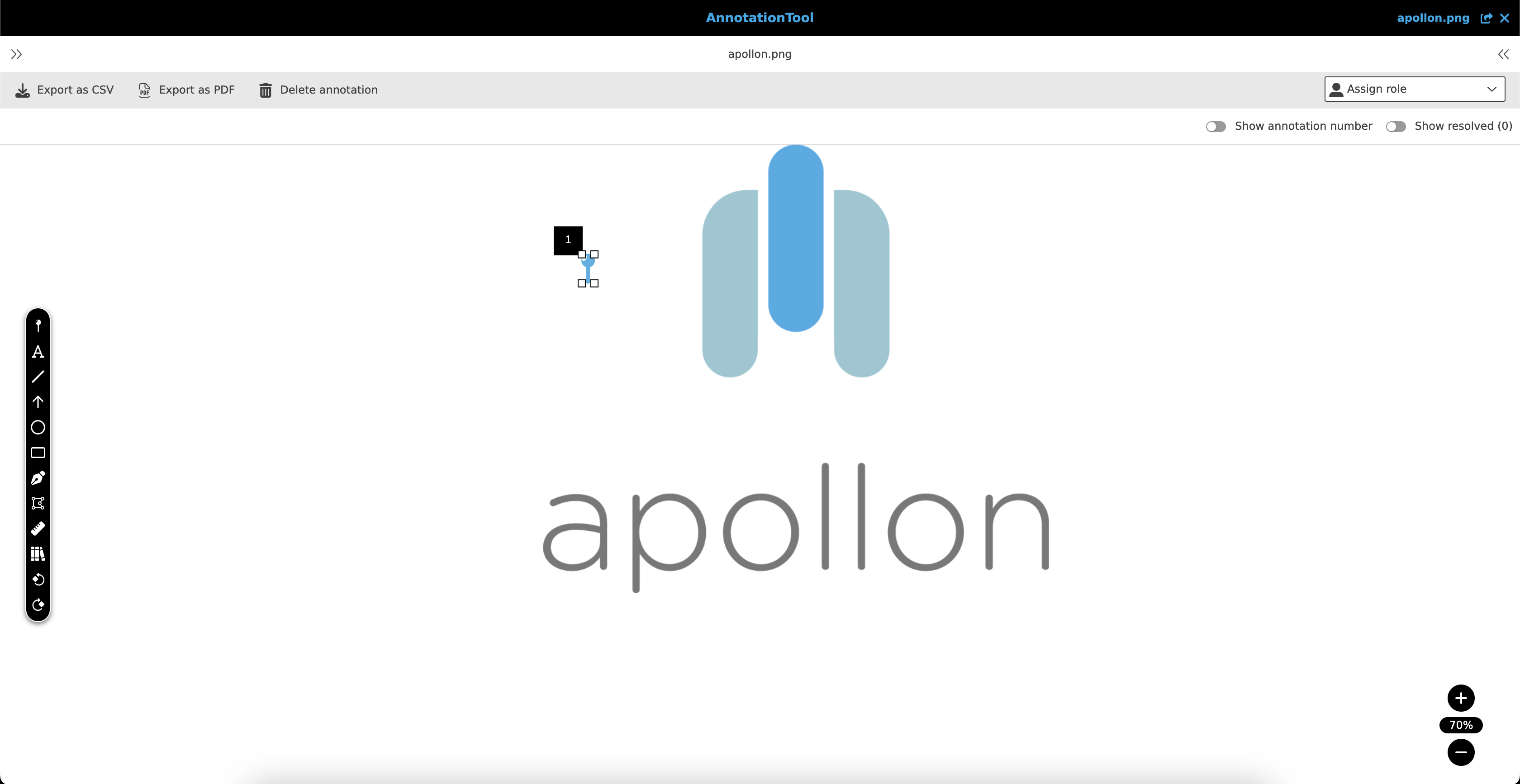
As a result, forms and frames (this does not mean the comment color) are visualized in the desired color.
Color theme
Within the Color theme accordion, the user can decide which color scheme to use for editors.
The choice is between the light theme (white background) and the dark theme (dark grey background).
To make the selection, the user must click on the respective tile and click on Save in the toolbar.
The selection is marked with a blue frame and a green check mark.
| By default, the dark mode is selected. |