Image Tagger & Linker
Purpose of the plugin
Using the "Image Tagger & Linker", files can be automatically linked to products in PIM Module, tagged or moved to defined target directories using regular expressions (i.e. file names or integrated XMP/IPTC metadata).
Introduction
The "Image Tagger & Linker" is used to automatically link files (such as product images, secondary images or documents) to products, articles or variants based on their file name or XMP/IPTC metadata.
This linking can be done with any reference type, e.g. as a main or secondary image.
The rules for linking files can be individually adapted to the customer’s needs.
This saves a lot of time compared to manual processing and linking.
Prerequisites and relations to other modules
To be able to work with the "Image Tagger & Linker" function, the DAM, PIM and Message Client modules are required.
The "Image Tagger & Linker" can only apply actions to files that comply with the defined rules and are stored in the specified hotfolders.
The process can be started either automatically or manually via a button. A fixed time or time interval can be selected for automated execution.

Files that do not meet the defined rules, for example due to incorrect naming or non-compliance with file naming conventions, remain in the original directory (e.g. hotfolder).
How to use
As already described, the files can be linked automatically based on their file name.
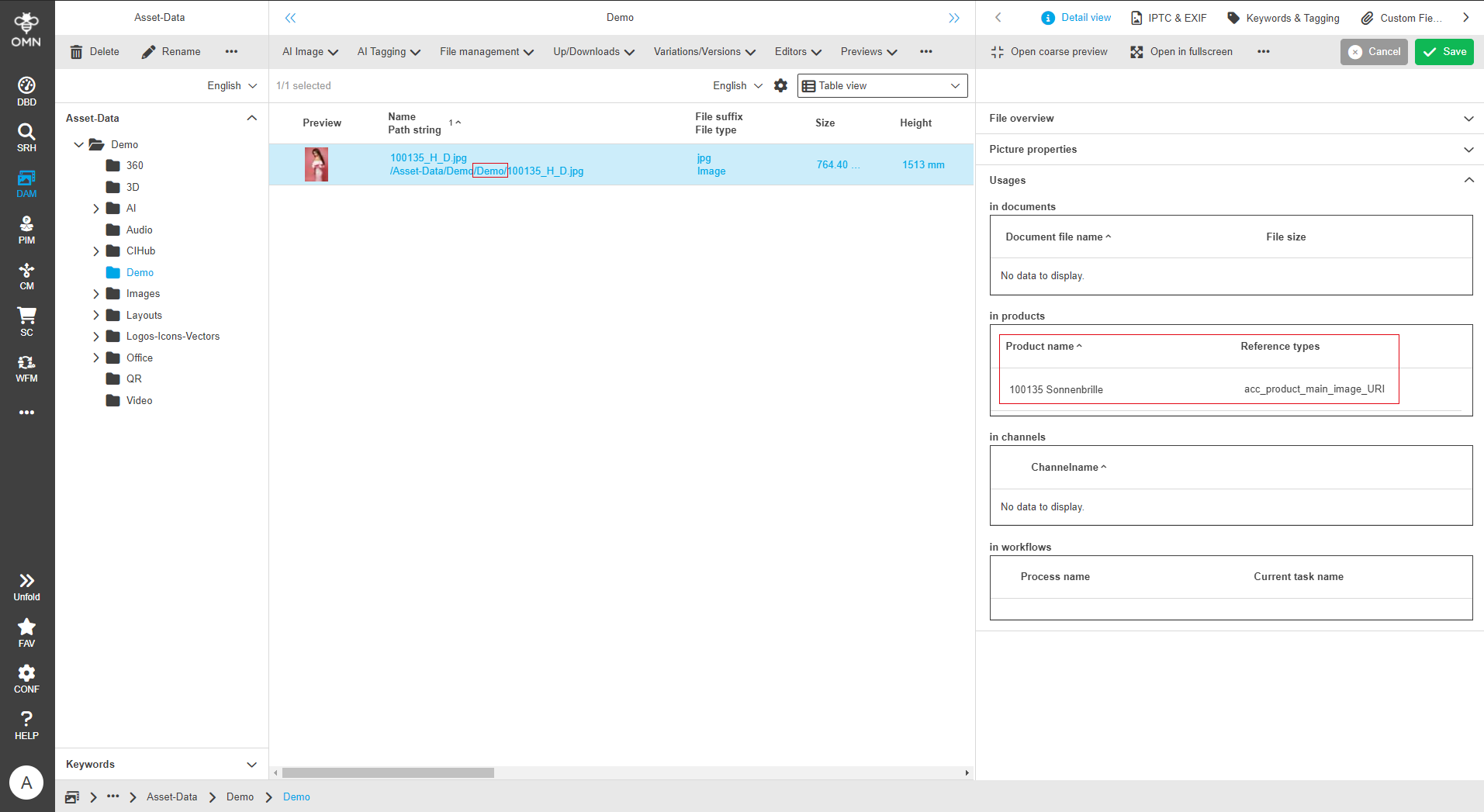
A file name could be structured as follows, for example: 100135_H_D.jpg.
This file is placed in the hotfolder, whereupon the following process is started:
-
The sequence of digits at the beginning represents the article number and assigns this file to the article "100135".
-
The letter sequence "_H_" defines the reference in this example, so that the image is referenced as the main image.
-
The abbreviation "D" defines the storage folder, whereby the file is moved to the "Demo" folder.
To trigger the "Image Tagger & Linker" function, files are placed in previously defined hot folders. The images are then either retrieved automatically or the user starts processing manually using a button.
Various hotfolders with different definitions can be set up.
For example, one hotfolder can be used to link products, while another hotfolder assigns predefined metadata to the image.
In addition, a unique file name can be used to link files as main or secondary images to a specific product.
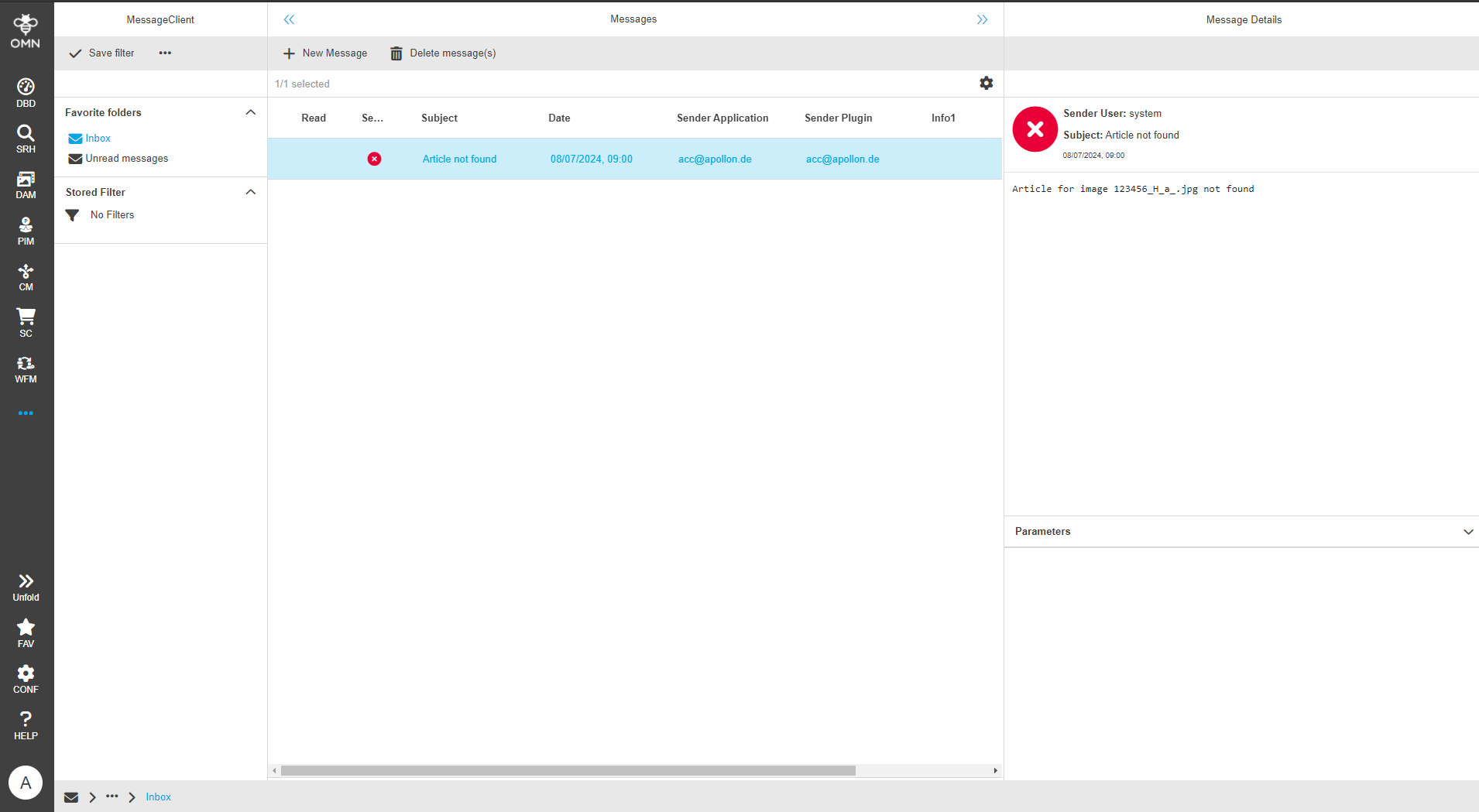
The linking process is monitored and the results or error messages can be sent by e-mail or message via the Message Client can be sent.