Display and attributes
This page provides the possibility to configure the Detail View layout and assign attributes that appear in the UI.
General behavior
-
The tab is available only when the configuration mode in the General tab is set to Manual.
-
If Automatic mode is selected, the tab is hidden in the left panel.
-
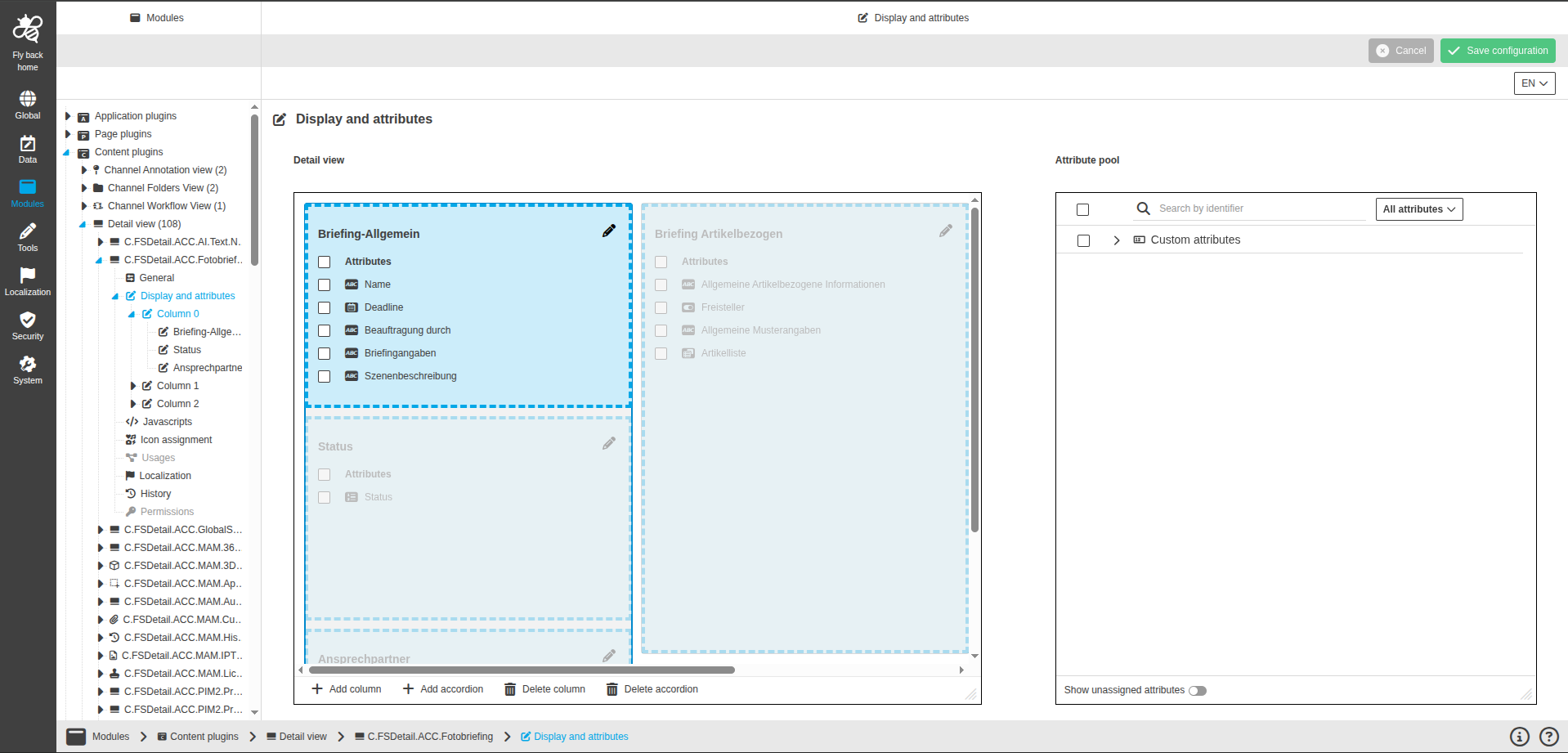
When accordions with assigned attributes are saved in the detail view arrangement, each accordion appears as a subentry in the left panel tree.
-
Selecting an accordion subentry opens its detailed attribute configuration.
Detail view arrangement
The Detail view arrangement component defines the layout of accordions and assigned attributes. The layout can use several columns side by side. Accordions are organized within those columns and can be distributed across different columns. See Add column, Add accordion, and Delete column below.
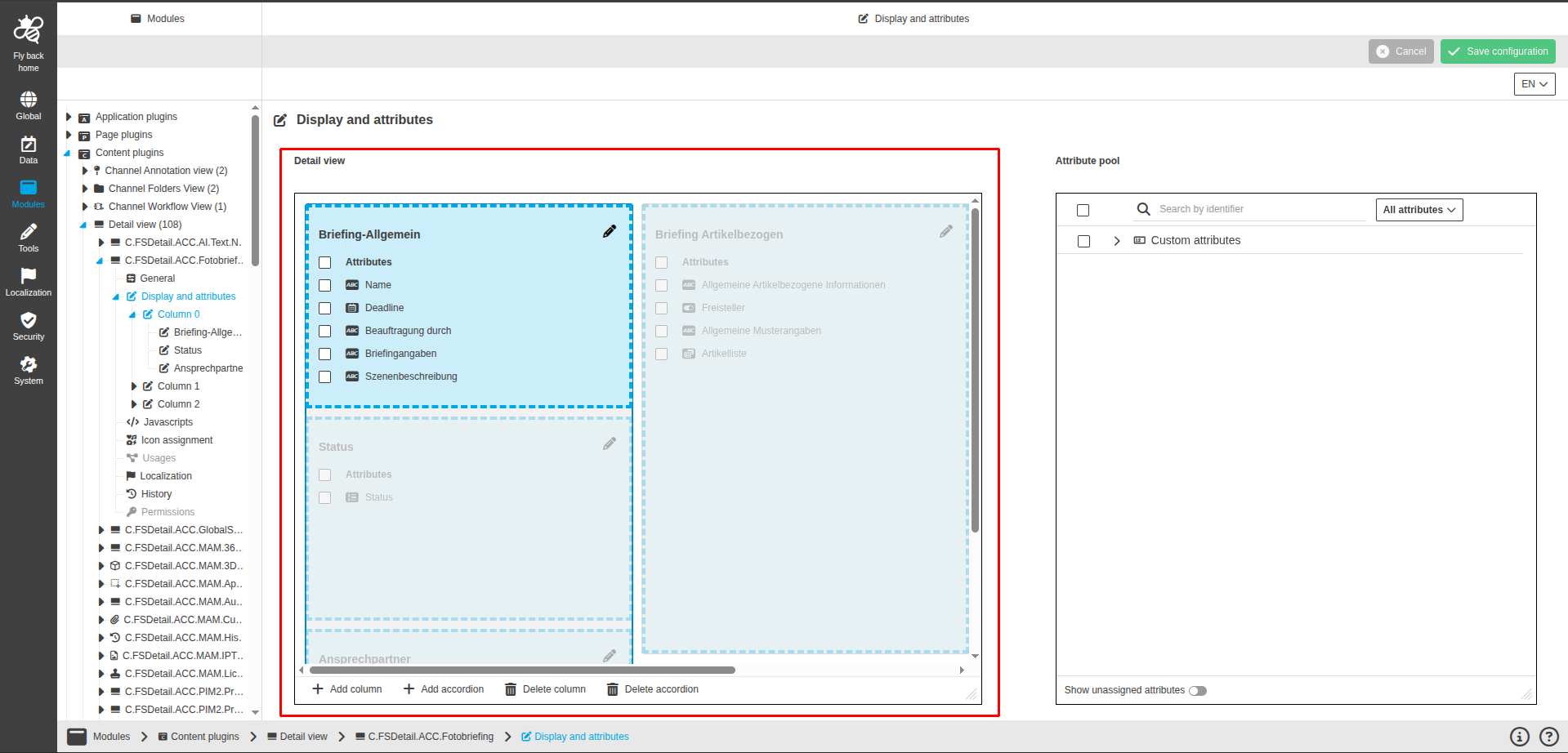
The component contains the following elements:
| Name of option | Description | Note |
|---|---|---|
Accordion |
Area to place attributes using drag and drop from the Attribute pool. Accordions belong to a column. When multiple columns exist, each accordion sits in one of those columns. |
Each accordion shows its identifier. The pencil icon opens the Accordion settings modal. |
Assigned attributes list |
List of attributes assigned to the accordion, including a Select all checkbox. |
Each attribute has a selection checkbox. Long names are truncated with a tooltip. |
Drag and drop hint |
Guidance to add attributes via drag and drop. |
Displayed below the attribute list. |
The following functions are available:
| Function | Description | Note |
|---|---|---|
Add column |
Adds a new column to the layout. |
Available when at least one accordion exists. |
Add accordion |
Adds a new accordion to the layout. |
Available when no dropzone exists or when a dropzone is active. |
Delete column |
Deletes the column that contains the active accordion. |
Available when more than one column exists and an accordion is active. |
Delete accordion |
Deletes the active accordion. |
Available when more than one accordion exists. |
Delete selected attributes |
Deletes all selected attributes from the layout. |
Available when at least one attribute is selected. |
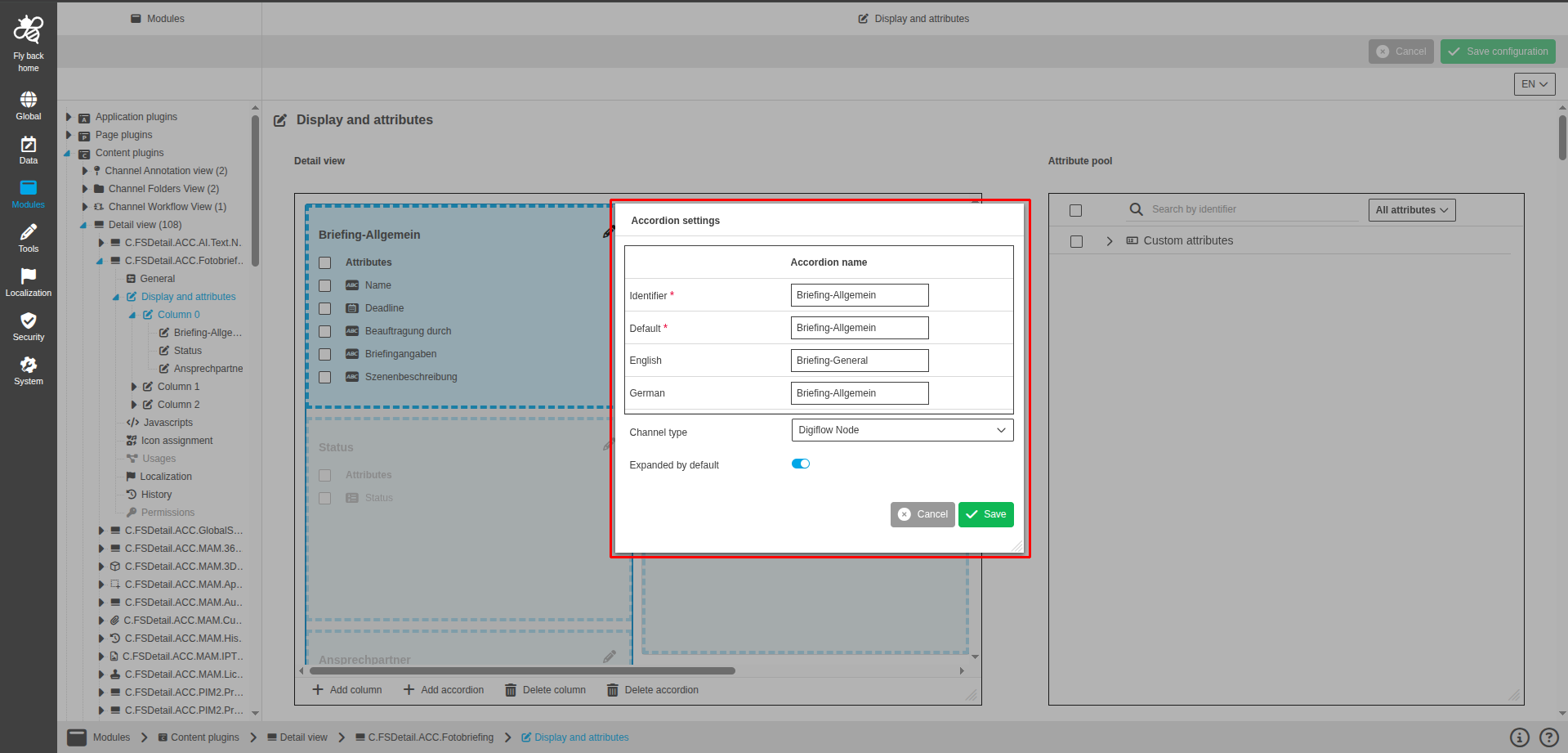
The Accordion settings modal can be opened via the pencil icon, Add column, or Add accordion.
Add column
Add column is used to insert a new column in the detail view layout and configure its accordion settings in a modal.
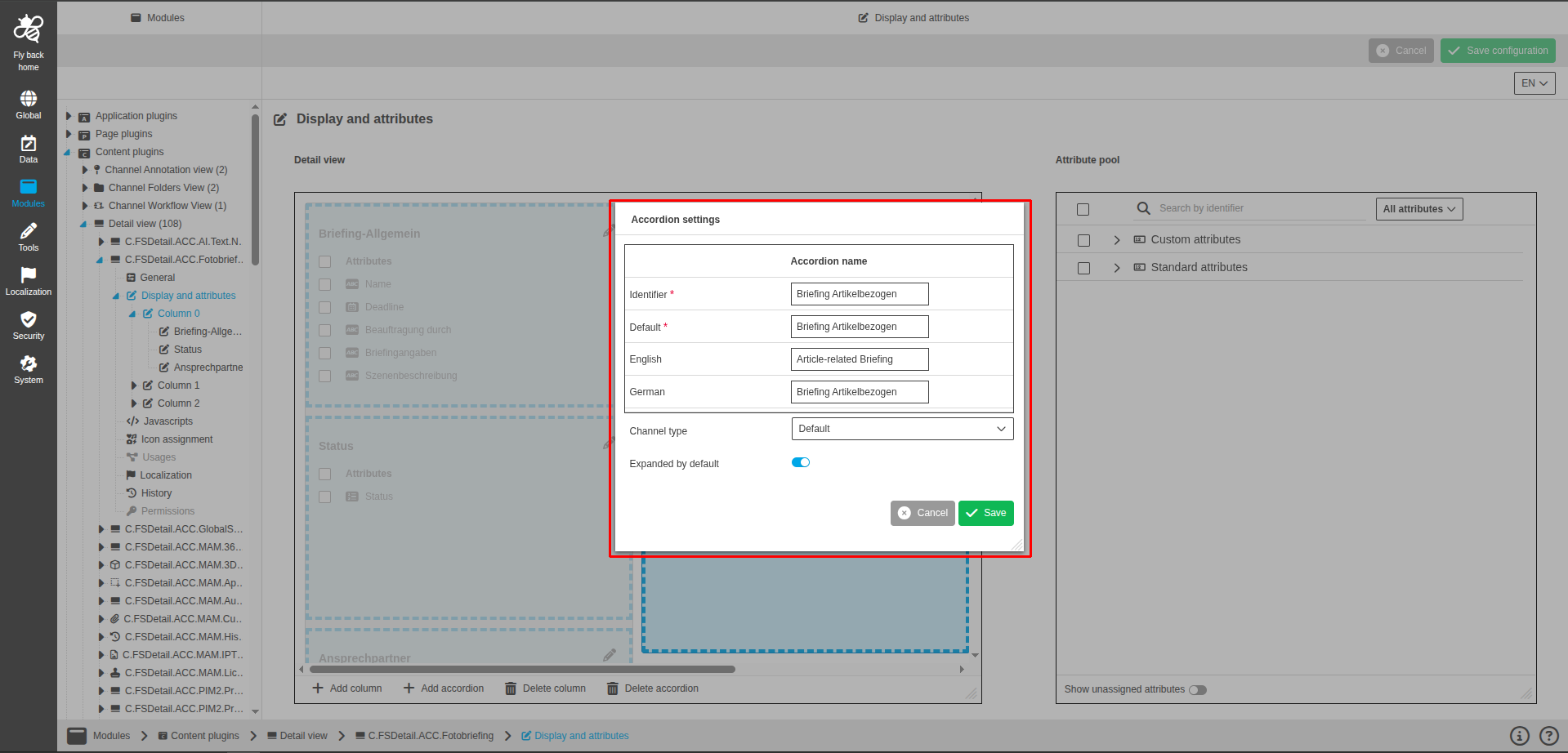
The Accordion settings modal contains the following configuration:
| Name of option | Description | Note |
|---|---|---|
Identifier |
Defines the accordion identifier. |
Mandatory and must be unique. |
Default |
Defines the default name of the accordion. |
Mandatory and must be unique. |
Localization entries |
Defines localized names for each active system language. |
One entry per active system language. |
Subobject type |
Selects the subobject type. |
Available only for DAM object type. |
Specialization |
Selects the specialization. |
Available only for DAM object type. |
PIM level |
Selects the PIM level. |
Available only for PIM object type. |
Channel type |
Selects the channel type. |
Available only for CM object type. |
Expanded by default |
Defines whether the accordion is expanded when the UI opens. |
Enabled by default. If turned off, the accordion is collapsed by default. |
Attribute pool
The Attribute pool component provides the list of attributes that can be assigned to the detail view. The attributes displayed in the attribute pool correspond to the object type set in the General tab.
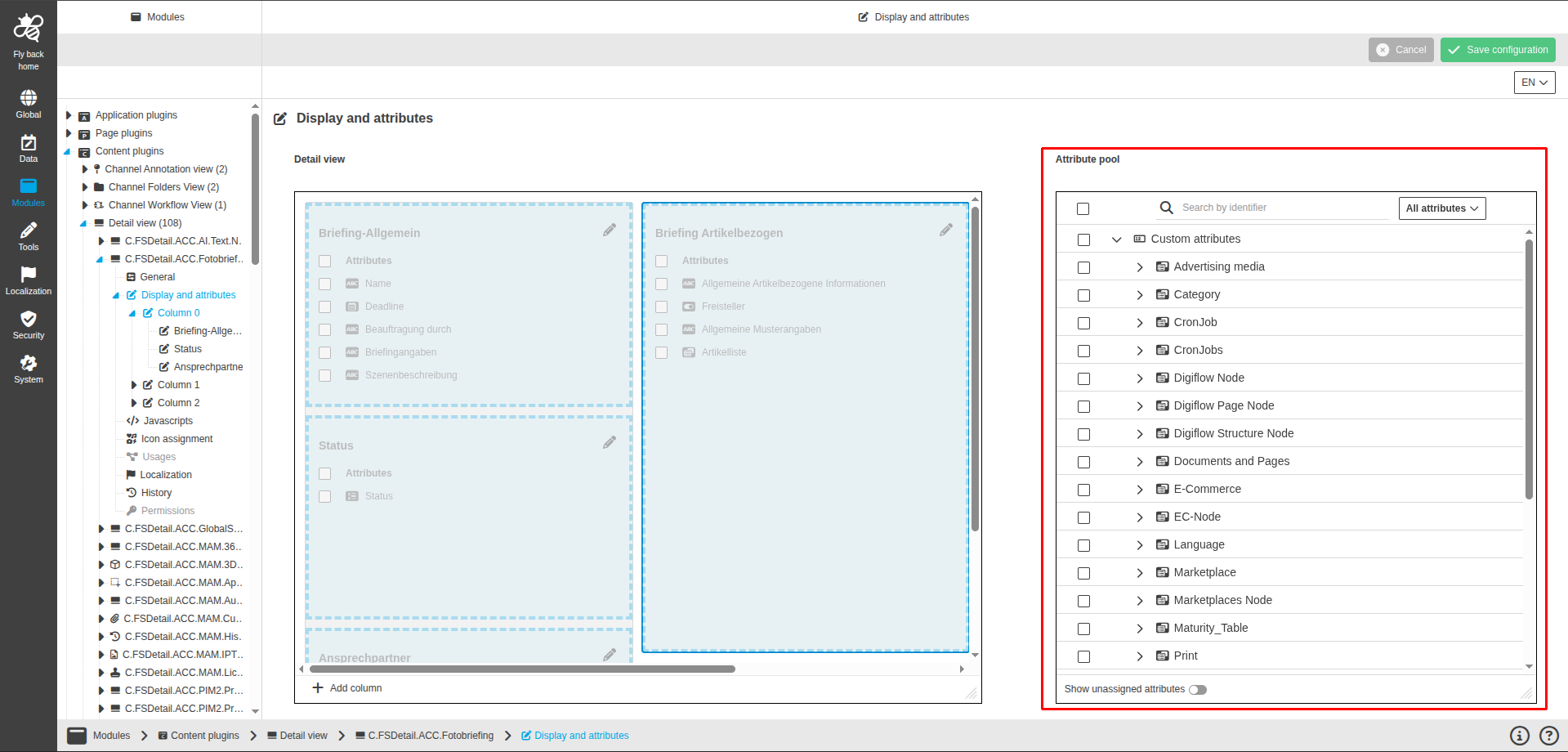
The component contains the following elements:
| Name of option | Description | Note |
|---|---|---|
Select all |
Selects all listed attributes. |
|
Search by identifier |
Filters attributes by identifier. |
|
Attribute type filter |
Limits the list to All attributes, Standard attributes, or Custom attributes. |
The list reflects the selected object type and hierarchy. |
Sorting |
Sorts attributes in ascending or descending order. |
Alphabetical order is the default. |
Attribute list |
Shows all available attributes for the selected object type in their hierarchy. |
Each attribute has a selection checkbox and a data type icon. Standard and custom attributes are grouped. |
Show unassigned attributes |
Controls whether only unassigned attributes are shown. |
Enabled by default. If turned off, all attributes are shown. |
Sub-entry for saved accordion
For each saved accordion with assigned attributes, one sub-entry tab is available below Display and attributes.
The saved accordion sub-entries are grouped by Detail view columns in the left panel tree. The first column is shown as Column 1, others - Column n (n is the column number).
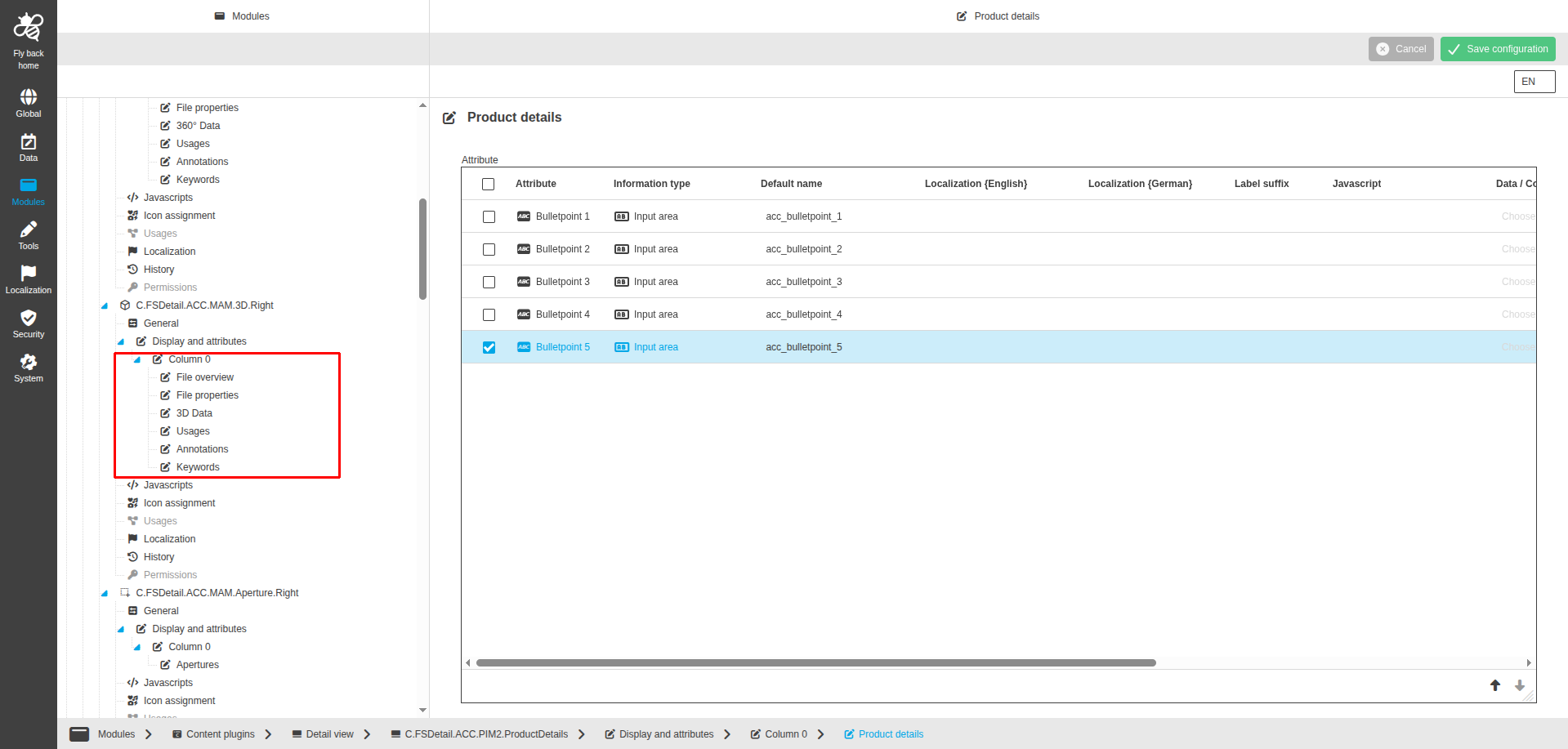
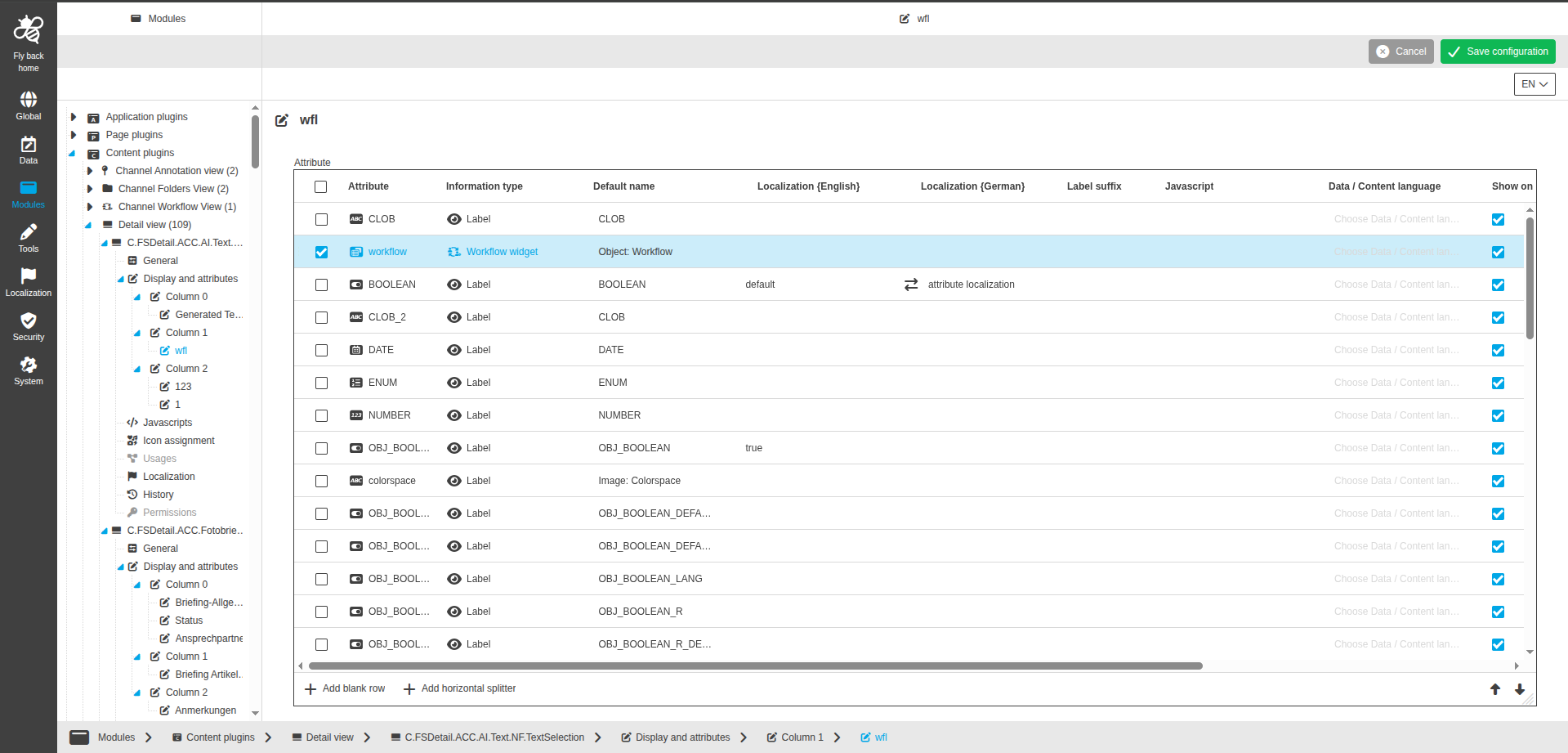
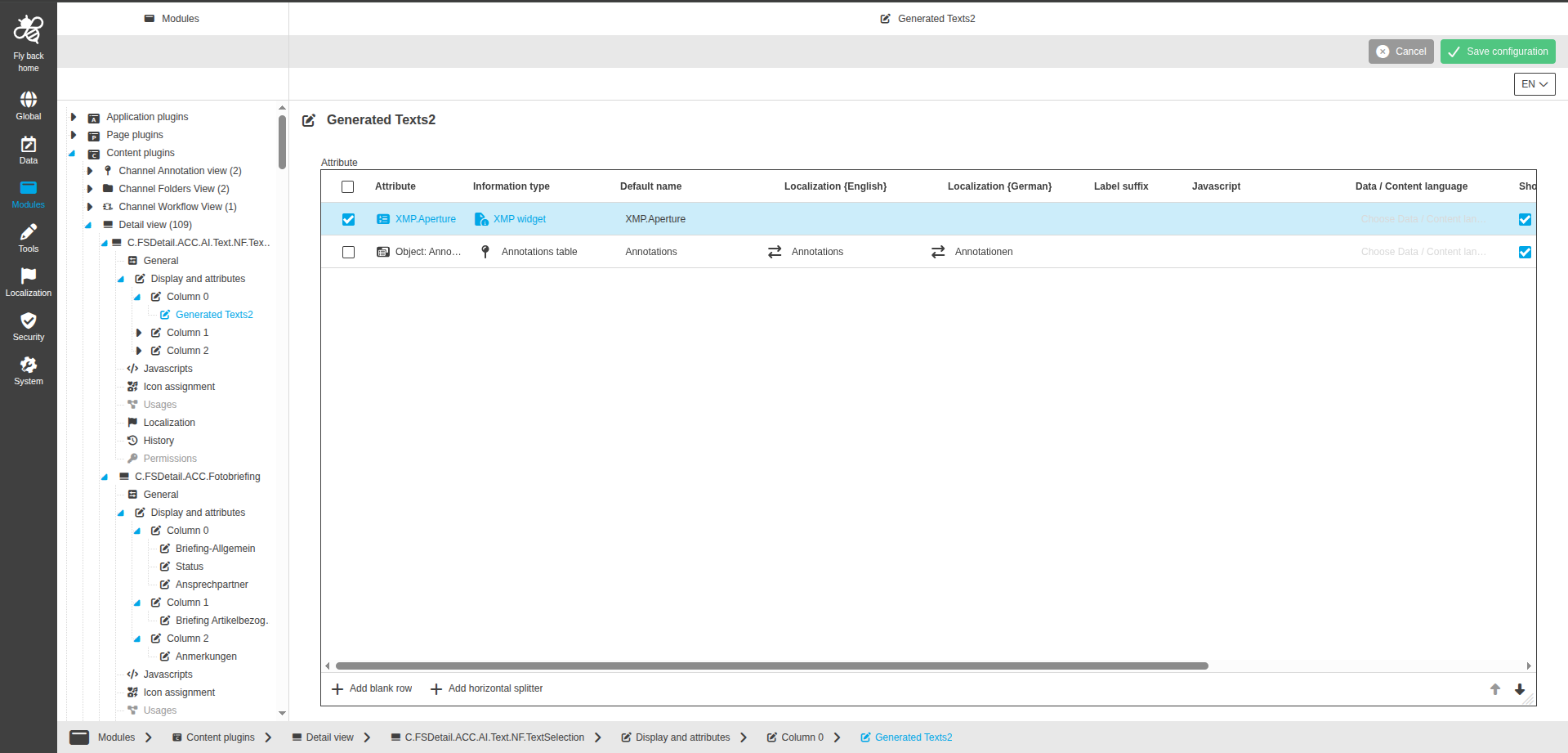
This page contains a table widget for attribute detail configuration.
| Name of option | Description | Note |
|---|---|---|
Attribute |
Contains attributes selected in Display and attributes for the current accordion. |
Read-only. Attribute name is shown with data type icon. |
Information type |
Dropdown to select information type. |
Single select. If no attribute is selected, only Blank row and Horizontal splitter are available. The Add blank row and Add horizontal splitter functions are always available at the table bottom. |
Default name |
Defines the default name for the attribute. |
|
Localization columns |
Defines localization values for each available system language. |
One column per available system language. |
Label suffix |
Defines a suffix for the attribute value shown in the UI. |
Not available for: Role list (CM), User list (CM). |
Javascript |
Dropdown to select one of the configured javascripts. |
Available for: Checkbox group, Date, Dropdown, Initialization dropdown, Input area, Input field, Multi initialization dropdown, Multi input area, Multi input field, Multi richtext editor, Multiline label, Multiselect dropdown, Radio buttons, Richtext editor, Richtext label, Stars. |
Data / Content language |
Dropdown with activated content languages of the mandator. |
Single select. Empty entry is available. The setting is available only for language-dependent attributes. |
Show on new line |
Defines whether the attribute is shown on a new line in the UI. |
Checked by default. |
Hide if empty |
Defines whether empty values are hidden in the UI. |
Unchecked by default. Not available for: Bag/Seq widget, Blank row, Editable table widget, Horizontal splitter, Image slot, Keywords widget, Multiselect Bag/Seq widget, Role list (CM), Stars, Table widget, User list (CM). |
The following row functions are available:
| Function | Description | Note |
|---|---|---|
Advanced settings |
Opens a modal with settings for the selected information type. |
Execute via the pen icon in the function column. |
Remove attribute |
Removes the attribute from detail view. |
After saving, the attribute is not available in this table widget and in Display and attributes. |
Advanced settings
Function is used to maintain information type specific settings.
-
Select an attribute row in the table.
-
Click the pencil icon in the Advanced settings function column.
-
Configure the available settings for the selected information type.
-
Click Confirm to save modal changes or Cancel to discard them.
Remove attribute
Function is used to remove an assigned attribute from the current accordion.
-
Select an attribute row in the table.
-
Execute Remove attribute.
-
Save the page configuration.
After saving, the attribute is removed from this table and from the accordion configuration in Display and attributes.
Add blank row
Function is used to insert an empty spacing row for UI structuring.
-
Click Add blank row at the table bottom.
-
A new table entry is added with information type Blank row.
-
Move the row to the required position with the sorting arrows.
Add horizontal splitter
Function is used to insert a visual separator line in the UI.
-
Click Add horizontal splitter at the table bottom.
-
A new table entry is added with information type Horizontal splitter.
-
Move the row to the required position with the sorting arrows.
The following table-bottom functions are available:
| Function | Description | Note |
|---|---|---|
Add blank row |
Creates a new table entry with information type Blank row. |
The blank row helps structure the display of configured attributes in the UI. |
Add horizontal splitter |
Creates a new table entry with information type Horizontal splitter. |
The horizontal splitter helps structure the display of configured attributes in the UI. |
The table widget supports multi-select, provides arrows to sort attributes within the accordion, and is resizable.
Advanced settings row function modal
The Advanced settings row function opens a modal where settings for the selected information type can be maintained and confirmed.
Function-specific behavior for Advanced settings, Add blank row, Add horizontal splitter, and Remove attribute is described in the previous section.
The sections below describe available information type settings in detail.
The following information types are available:
Annotations table
The information type Annotations table is available in detail view attribute configuration.
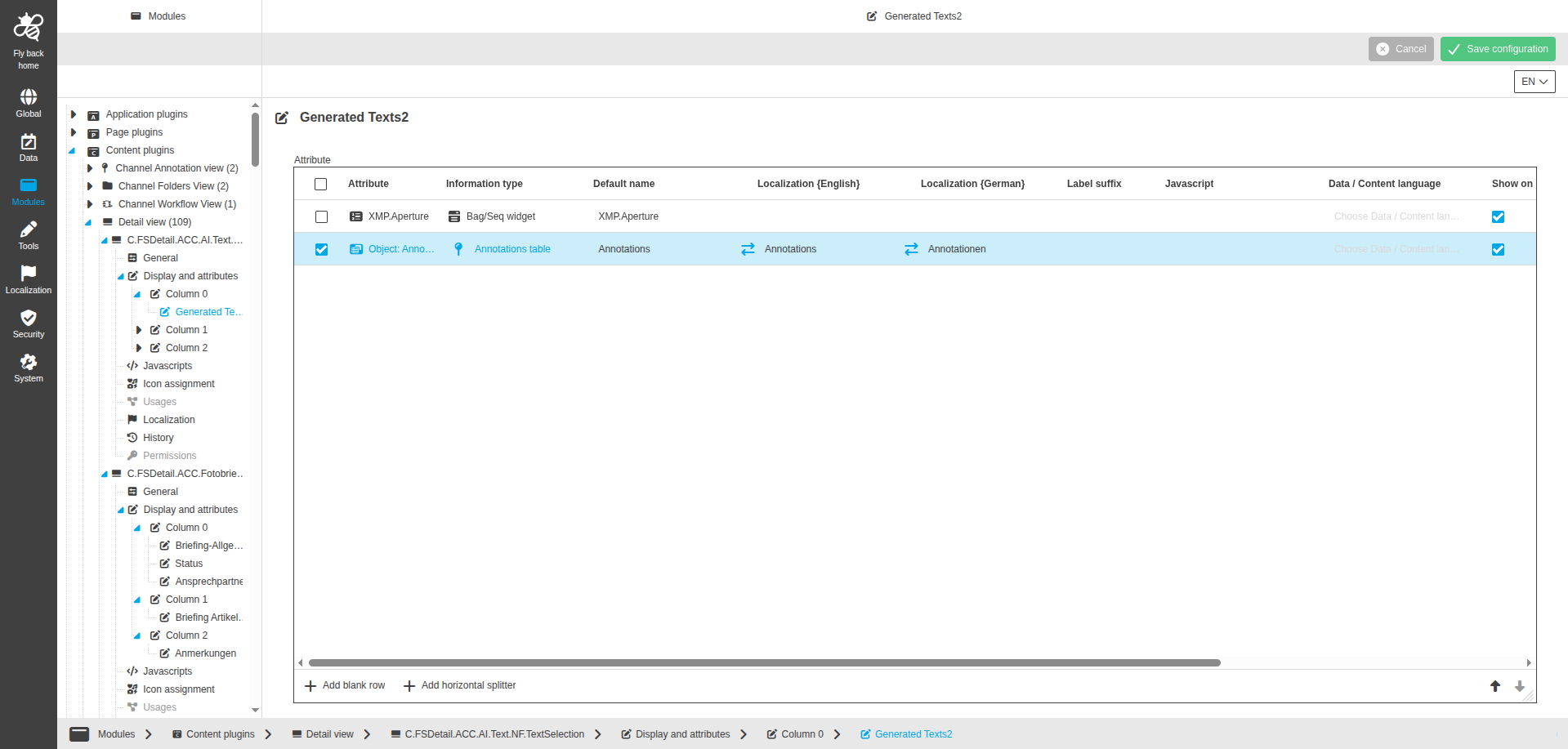
Available for object types:
-
DAM Object
Bag/Seq widget
The information type Bag/Seq widget is available in detail view attribute configuration.
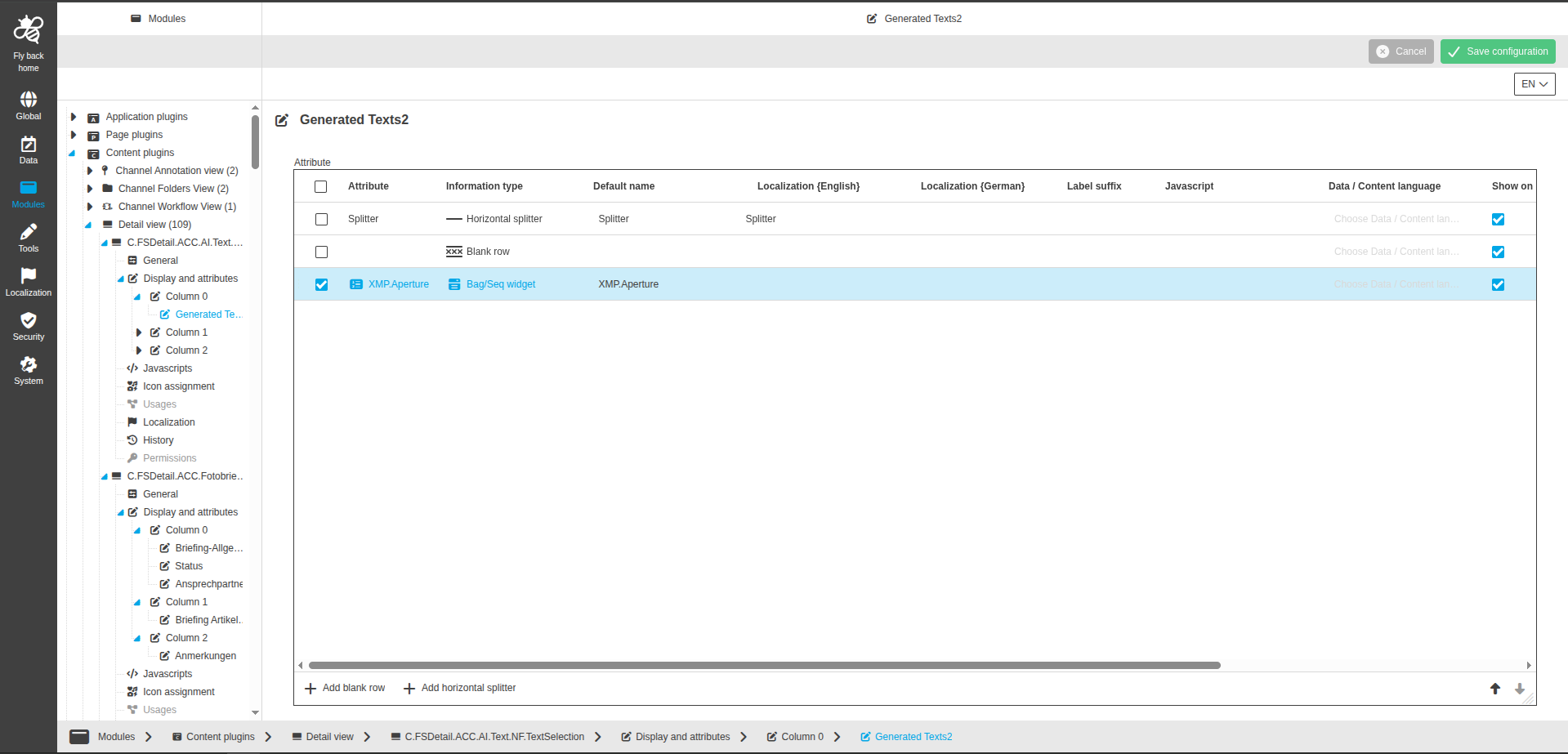
Available for object types:
-
DAM Object
Channel widget
The information type Channel widget is available in detail view attribute configuration.
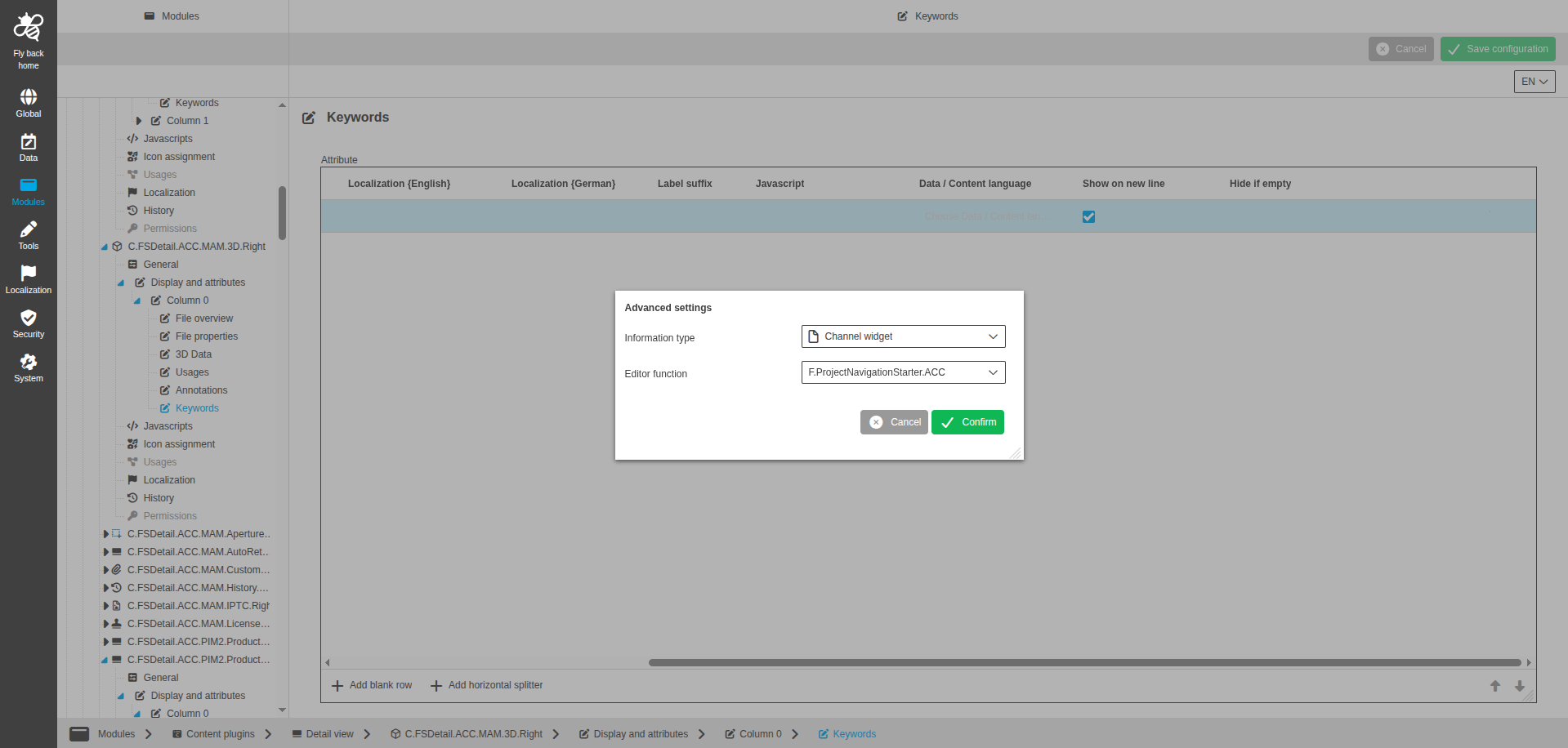
Available for object types:
-
DAM Object
The following settings are available:
| Name of option | Description | Note |
|---|---|---|
Editor function |
Dropdown to select editor function plugin instance. |
Advanced settings modal. Lists configured Show in channel navigation plugin instances. Single select, empty entry is available. |
Checkbox group
The information type Checkbox group is available in detail view attribute configuration.
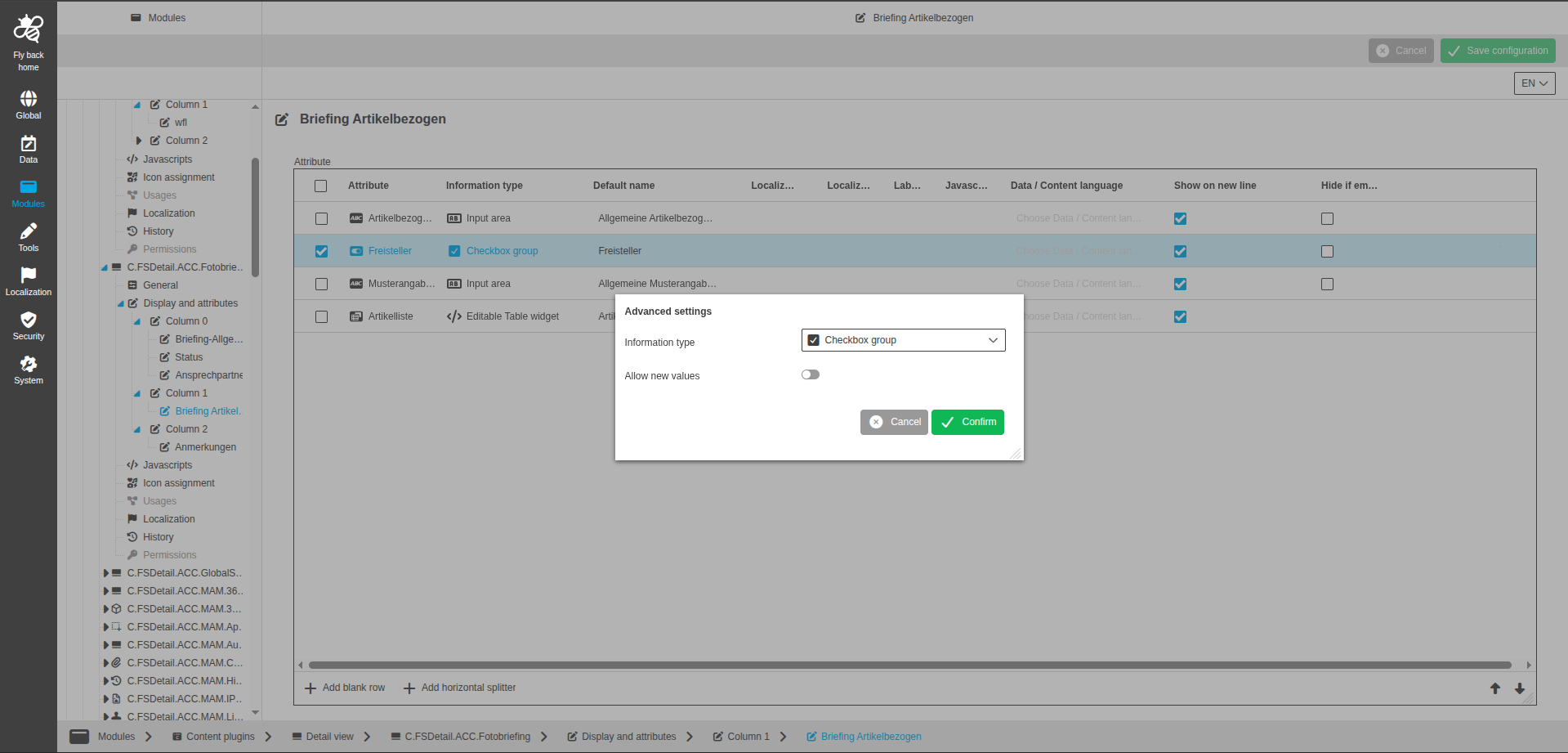
Available for object types:
-
Briefing Details
-
DAM Object
-
PIM Object
-
Glossary
-
User Activity
-
PEO
-
Channel
-
Search
-
Workflow
-
PEO Usage
The following settings are available:
| Name of option | Description | Note |
|---|---|---|
Allow new values |
Defines if users can add new values in the UI. |
Advanced settings modal. Toggle is turned off by default. |
Date
The information type Date is available in detail view attribute configuration.
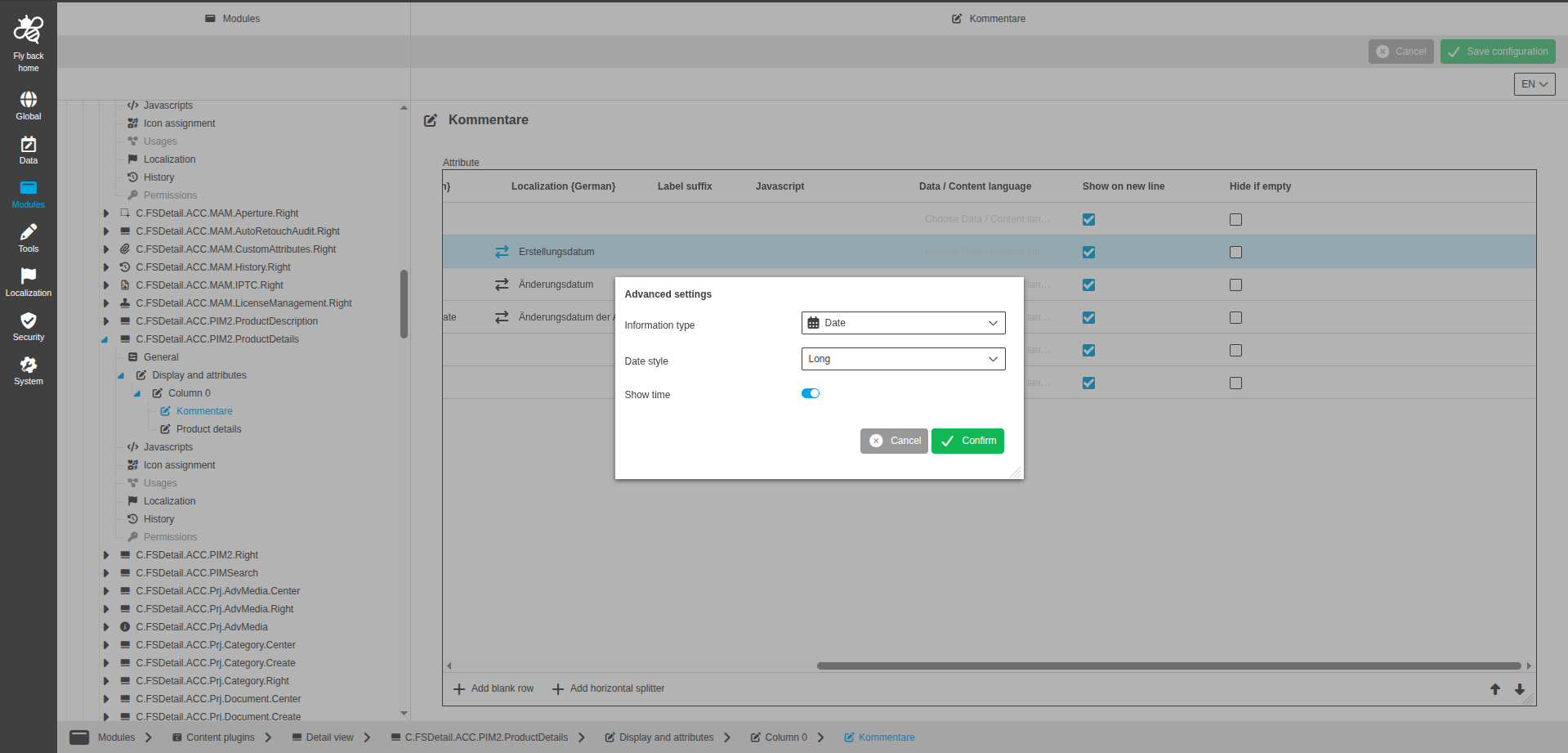
Available for object types:
-
Briefing Details
-
DAM Object
-
PIM Object
-
Glossary
-
User Activity
-
PEO
-
Channel
-
Search
-
Workflow
-
PEO Usage
The following settings are available:
| Name of option | Description | Note |
|---|---|---|
Date style |
Dropdown to select date style. |
Advanced settings modal. Only available for date attributes. |
Show time |
Toggle to define if timestamp is shown in the UI. |
Advanced settings modal. Only available for date attributes. |
Document usages widget
The information type Document usages widget is available in detail view attribute configuration.
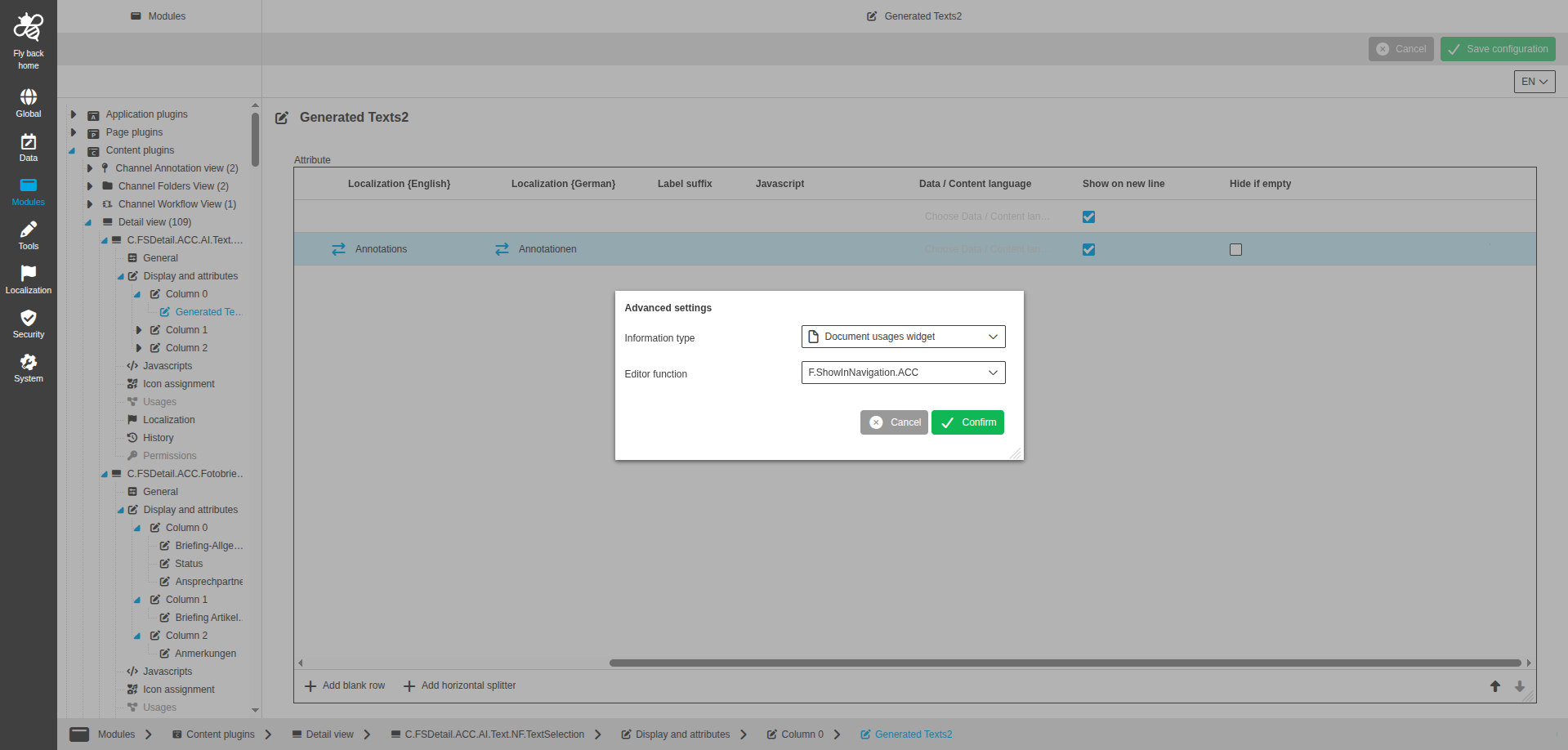
Available for object types:
-
DAM Object
The following settings are available:
| Name of option | Description | Note |
|---|---|---|
Editor function |
Dropdown to select editor function plugin instance. |
Advanced settings modal. Lists Show in DAM Navigation and Asset View plugin instances. Single select, empty entry is available. |
Dropdown
The information type Dropdown is available in detail view attribute configuration.
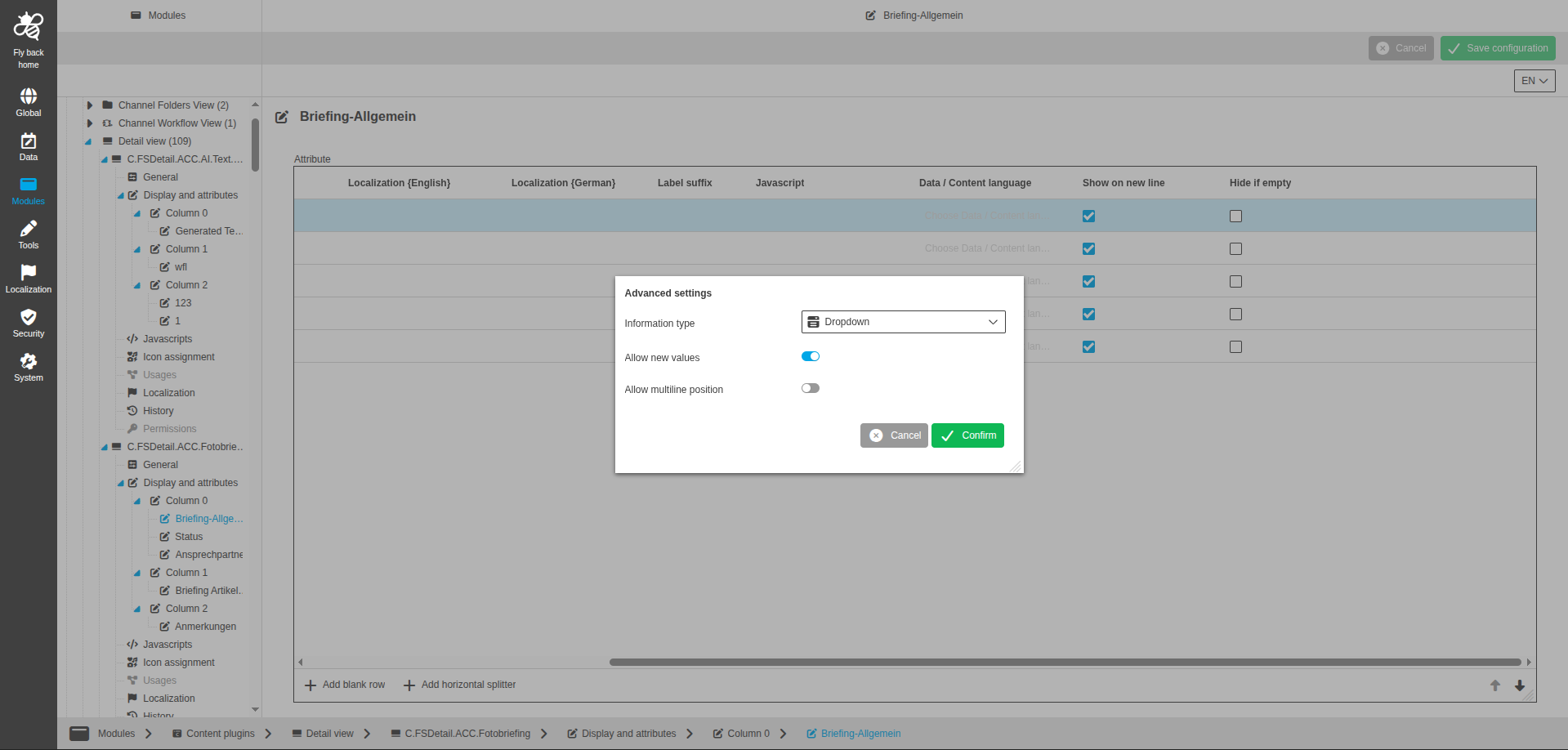
Available for object types:
-
Briefing Details
-
DAM Object
-
PIM Object
-
Glossary
-
User Activity
-
PEO
-
Channel
-
Search
-
Workflow
-
PEO Usage
The following settings are available:
| Name of option | Description | Note |
|---|---|---|
Allow new values |
Defines if users can add new values in the UI. |
Advanced settings modal. Toggle is turned off by default. |
Allow multiline position |
Toggle to display values over multiple lines in the UI when needed. |
Advanced settings modal. Turned off by default. |
Editable table widget
The information type Editable Table widget is available in detail view attribute configuration.
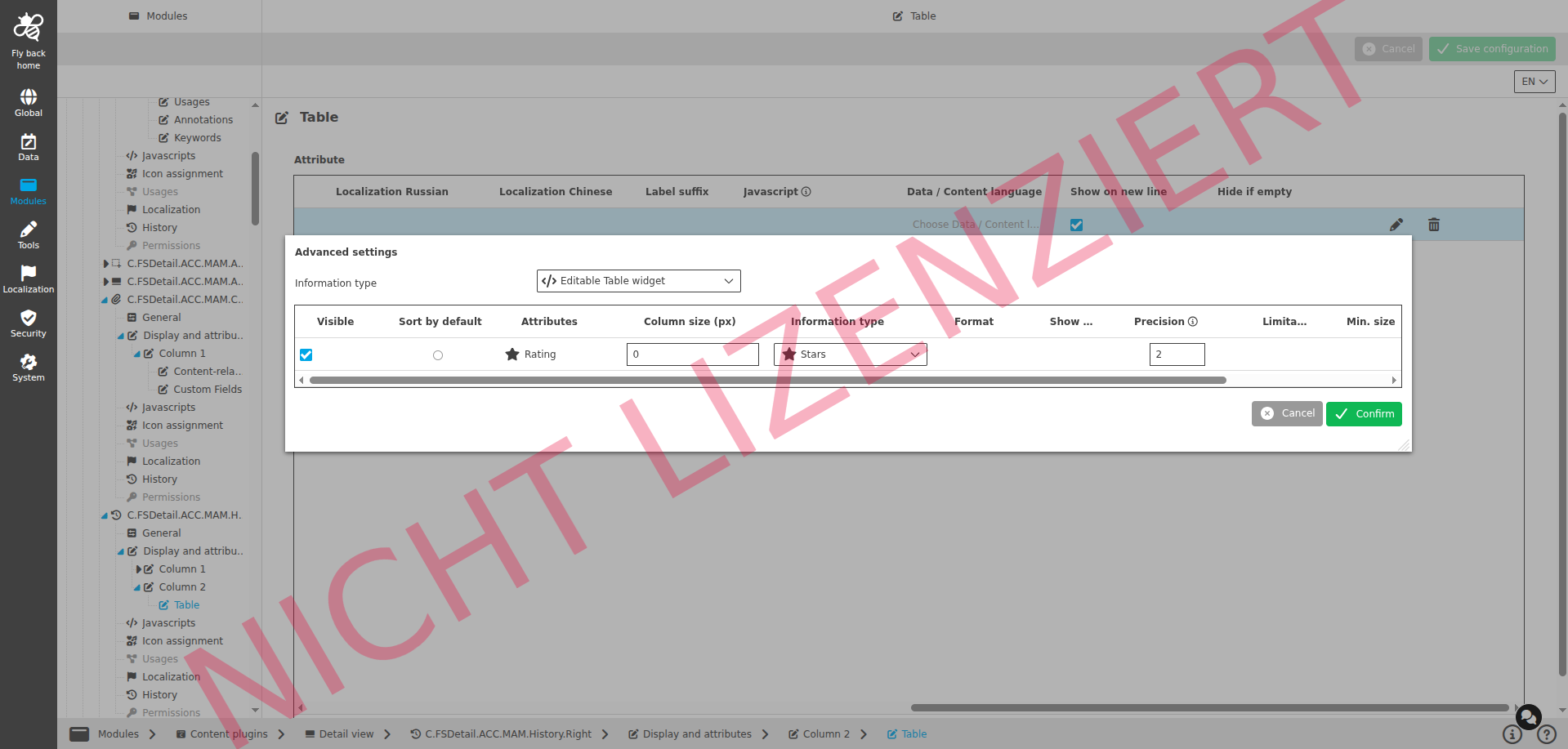
Available for object types:
-
PIM Object
-
PEO
The following settings are available:
| Name of option | Description | Note |
|---|---|---|
Visible |
Checkbox to define if related column is visible in UI table. |
Advanced settings modal. Checked by default. |
Sort by default |
Radio-button to define default sorting attribute. |
Advanced settings modal. First attribute is checked by default. |
Attributes |
Shows configured attributes in the table. |
Advanced settings modal. |
Information type |
Dropdown with possible information types per attribute type. |
Advanced settings modal. |
Column size |
Input field to enter column width in px. |
Advanced settings modal. Only numerical integer input allowed. |
Format |
Configures output format for text, number, and boolean attributes. |
Advanced settings modal. For date attributes, a dropdown date style is available. |
Show time |
Toggle to define if time is shown for date attributes. |
Advanced settings modal. Only available for date attributes. |
Precision |
Single stepper for decimal places. |
Advanced settings modal. Only available for number attributes and editable information types. |
Limitation |
Dropdown with None, Lazy, Strict to control input-length validation behavior in the UI. |
Advanced settings modal. Only available for text attributes and editable information types. |
Min. size |
Single stepper for minimum number of characters users can enter in the UI. |
Advanced settings modal. Available when Limitation is set and information type is editable. |
Max. size |
Single stepper for maximum number of characters users can enter in the UI. |
Advanced settings modal. Available when Limitation is set and information type is editable. |
Image slot
The information type Image slot is planned for Detail view attribute configuration.
|
Coming soon. |
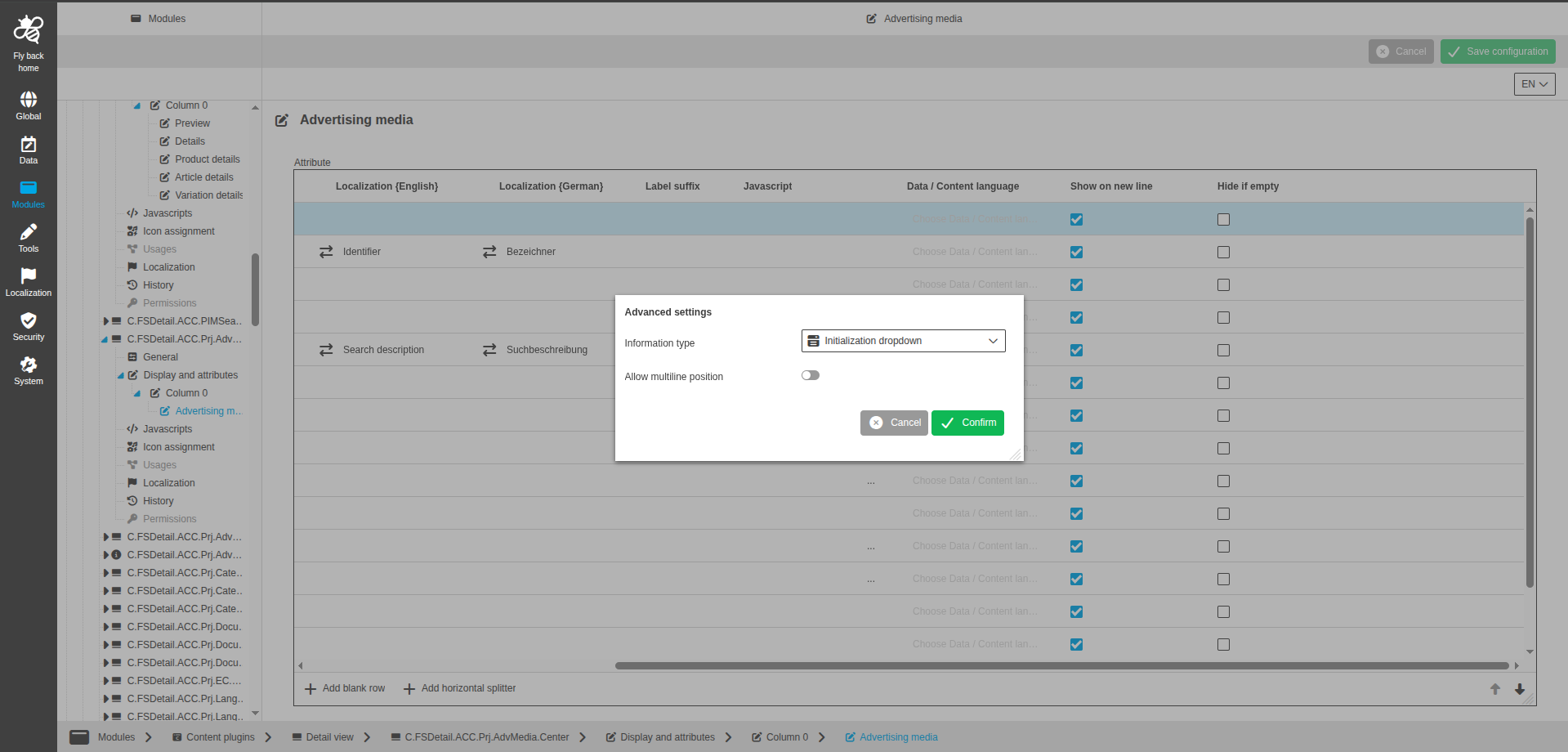
Initialization dropdown
The information type Initialization dropdown is available in detail view attribute configuration.
Available for object types:
-
Briefing Details
-
DAM Object
-
PIM Object
-
Glossary
-
User Activity
-
PEO
-
Channel
-
Search
-
Workflow
-
PEO Usage
The following settings are available:
| Name of option | Description | Note |
|---|---|---|
Allow multiline position |
Toggle to display values over multiple lines in the UI when needed. |
Advanced settings modal. Turned off by default. |
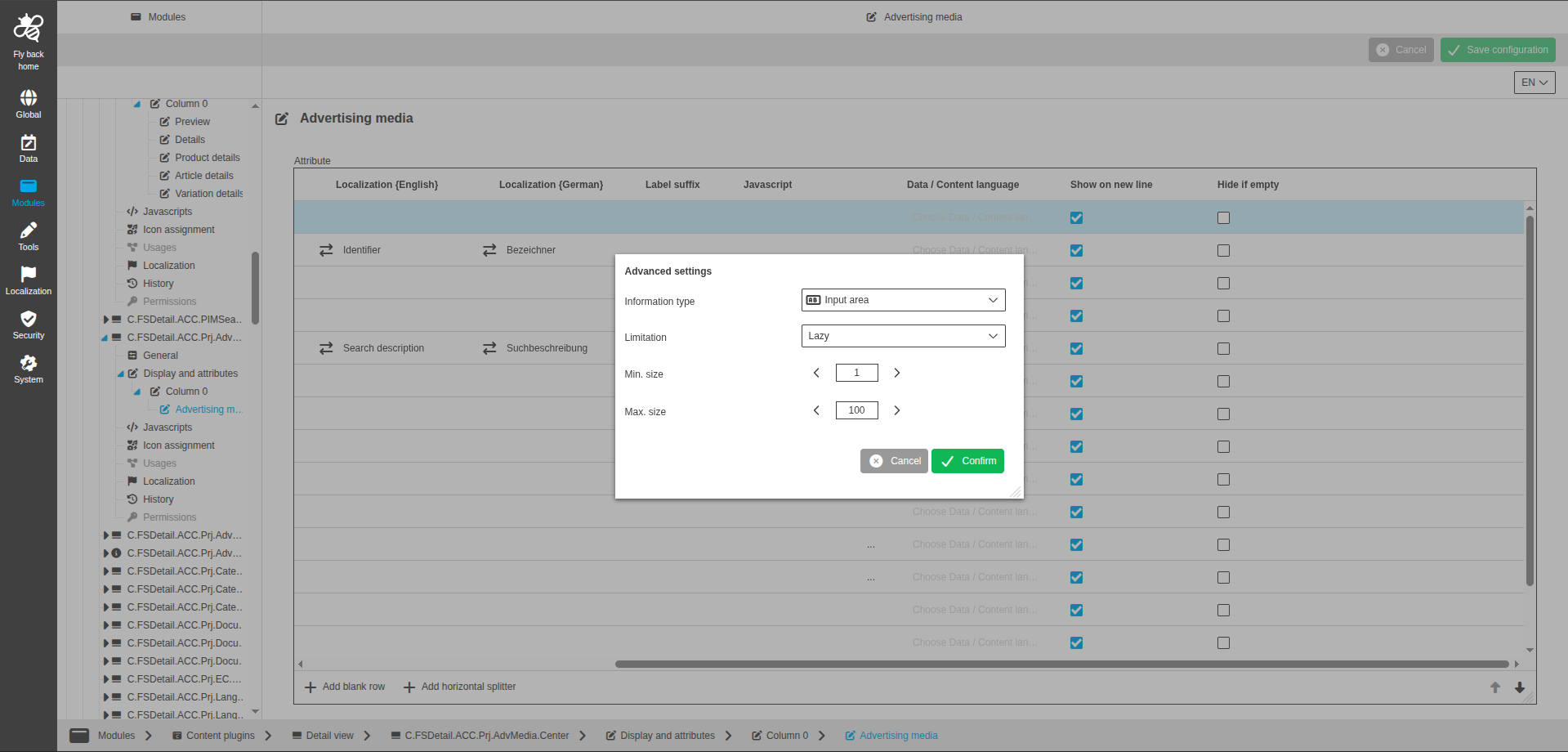
Input area
The information type Input area is available in detail view attribute configuration.
Available for object types:
-
Briefing Details
-
DAM Object
-
PIM Object
-
Glossary
-
User Activity
-
PEO
-
Channel
-
Search
-
Workflow
-
PEO Usage
The following settings are available:
| Name of option | Description | Note |
|---|---|---|
Limitation |
Dropdown with None, Lazy, Strict to control input-length validation behavior in the UI. |
Advanced settings modal. Single select, no empty entry. |
Min. size |
Single stepper for minimum number of characters users can enter in the UI. |
Advanced settings modal. Available when Limitation is Lazy or Strict. |
Max. size |
Single stepper for maximum number of characters users can enter in the UI. |
Advanced settings modal. Available when Limitation is Lazy or Strict. |
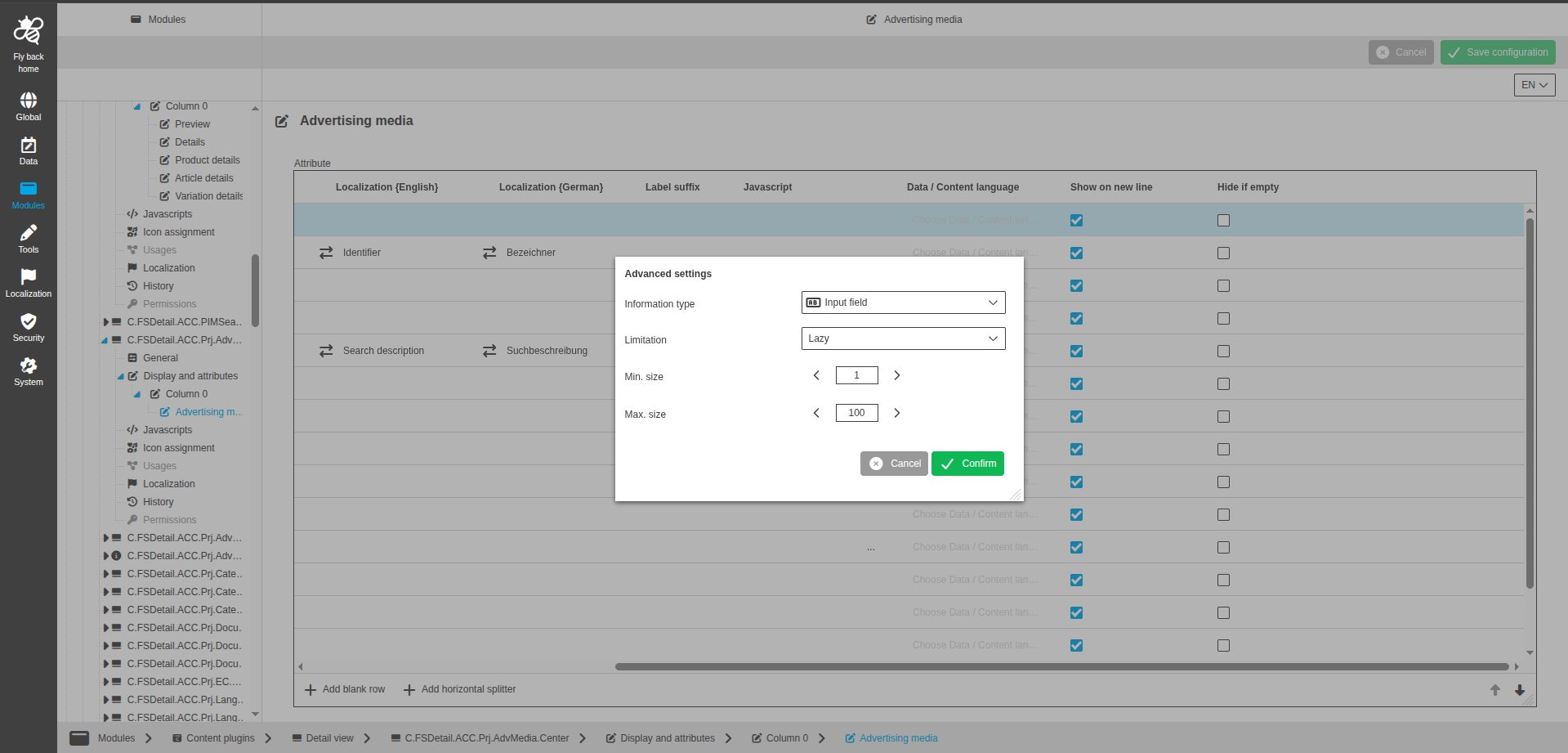
Input field
The information type Input field is available in detail view attribute configuration.
Available for object types:
-
Briefing Details
-
DAM Object
-
PIM Object
-
Glossary
-
User Activity
-
PEO
-
Channel
-
Search
-
Workflow
-
PEO Usage
The following settings are available:
| Name of option | Description | Note |
|---|---|---|
Precision |
Single stepper for decimal places shown in the UI for number values. |
Advanced settings modal. Only available for number attributes. |
Limitation |
Dropdown with None, Lazy, Strict to control input-length validation behavior in the UI. |
Advanced settings modal. Single select, no empty entry. |
Min. size |
Single stepper for minimum number of characters users can enter in the UI. |
Advanced settings modal. Available when Limitation is Lazy or Strict. |
Max. size |
Single stepper for maximum number of characters users can enter in the UI. |
Advanced settings modal. Available when Limitation is Lazy or Strict. |
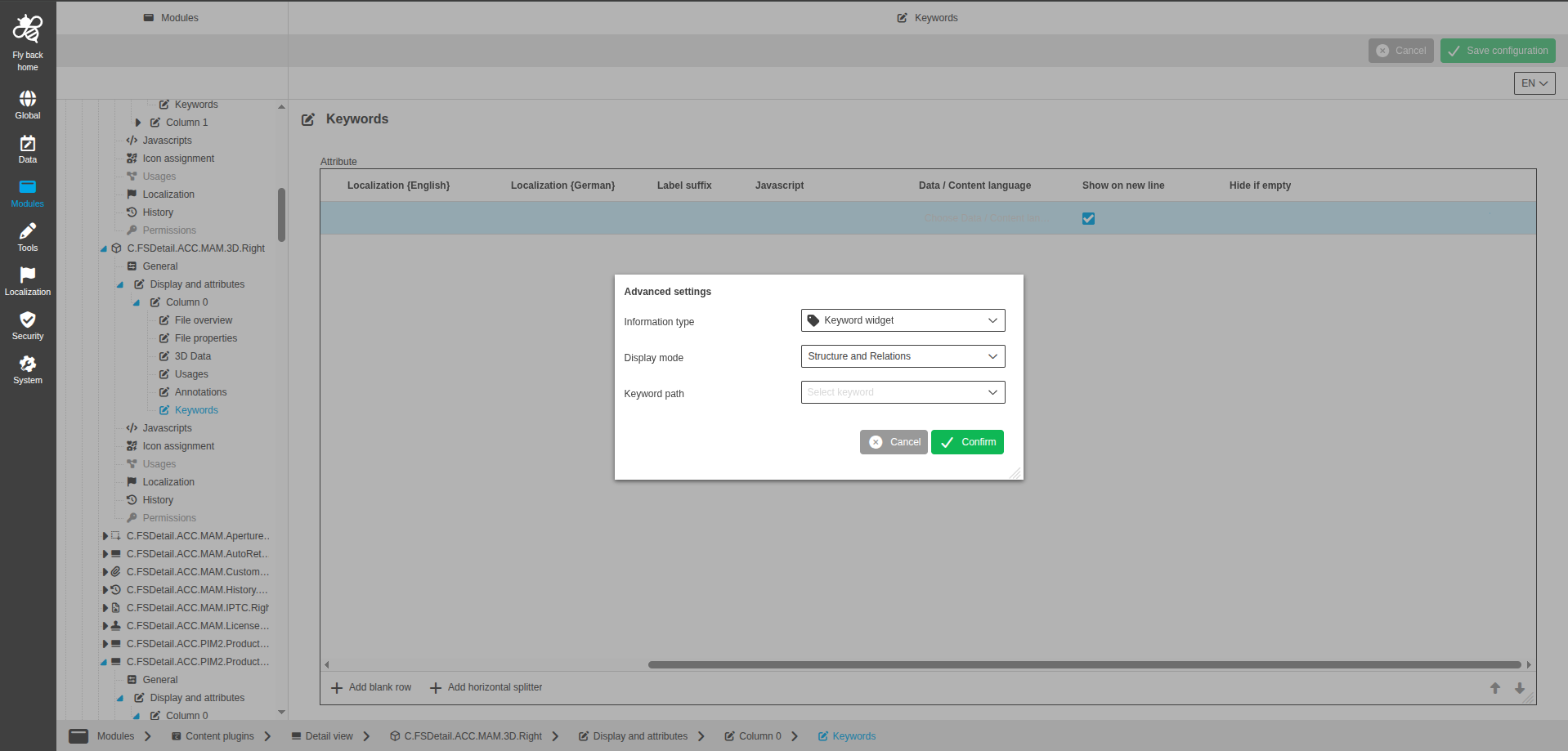
Keywords widget
The information type Keyword widget is available in detail view attribute configuration.
Available for object types:
-
DAM Object
The following settings are available:
| Name of option | Description | Note |
|---|---|---|
Format string |
Input field for format string. |
Advanced settings modal. Only available for text or number attributes. |
Display mode |
Dropdown to select keyword widget display mode. |
The following display modes are available.
|
Keyword path |
Dropdown to select keyword path from configured keyword structure. |
Advanced settings modal. |
Label
The information type Label is available in detail view attribute configuration.
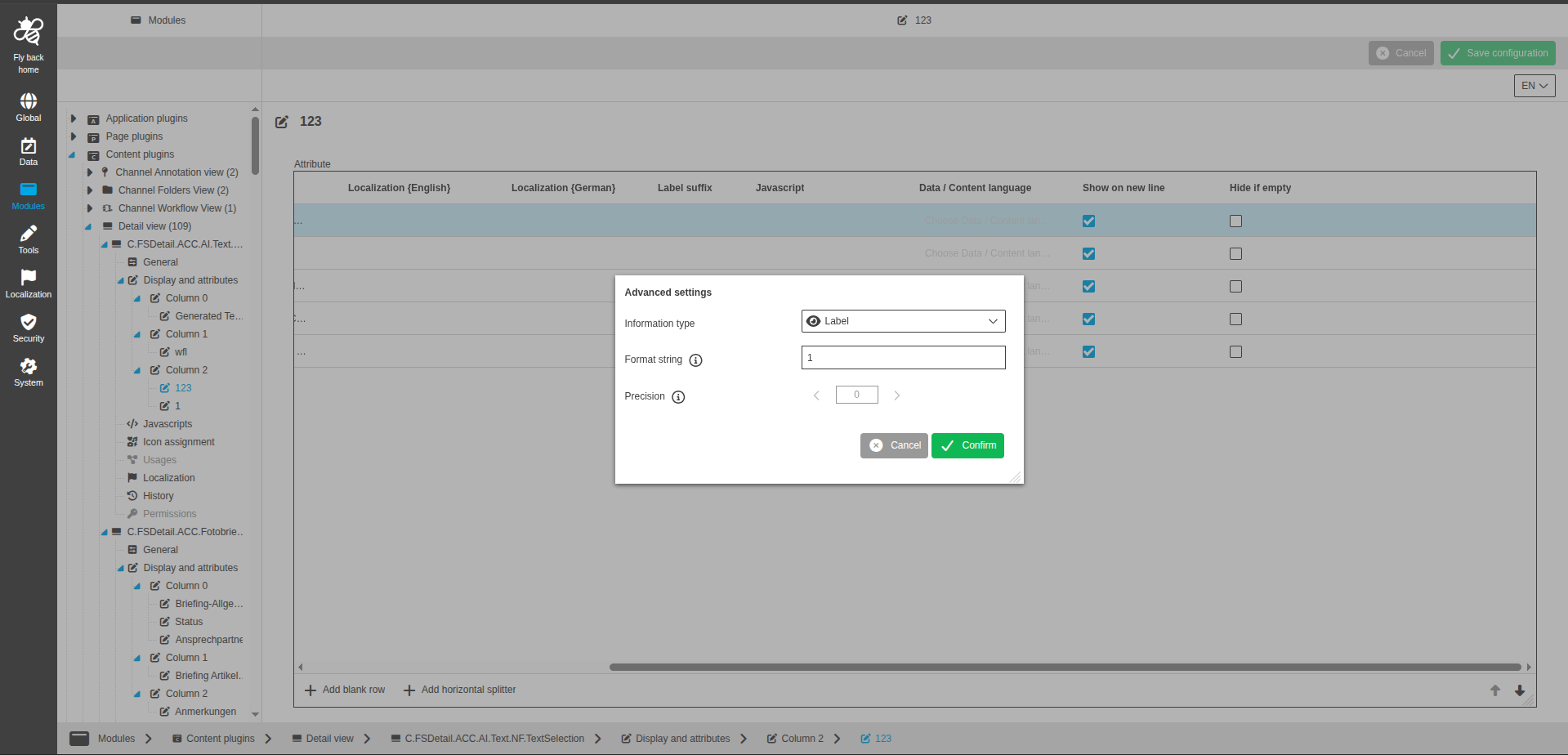
Available for object types:
-
Briefing Details
-
DAM Object
-
PIM Object
-
Glossary
-
User Activity
-
PEO
-
Channel
-
Search
-
Workflow
-
PEO Usage
The following settings are available:
| Name of option | Description | Note |
|---|---|---|
Date style |
Dropdown to select date style. |
Advanced settings modal. Only available for date attributes. |
Show time |
Toggle to define if timestamp is shown in the UI. |
Advanced settings modal. Only available for date attributes. |
Format string |
Input field for format string. |
Advanced settings modal. Only available for text or number attributes. |
Precision |
Single stepper for decimal places. |
Advanced settings modal. Only available for number attributes. |
Linked products
The information type Linked products is available in detail view attribute configuration.
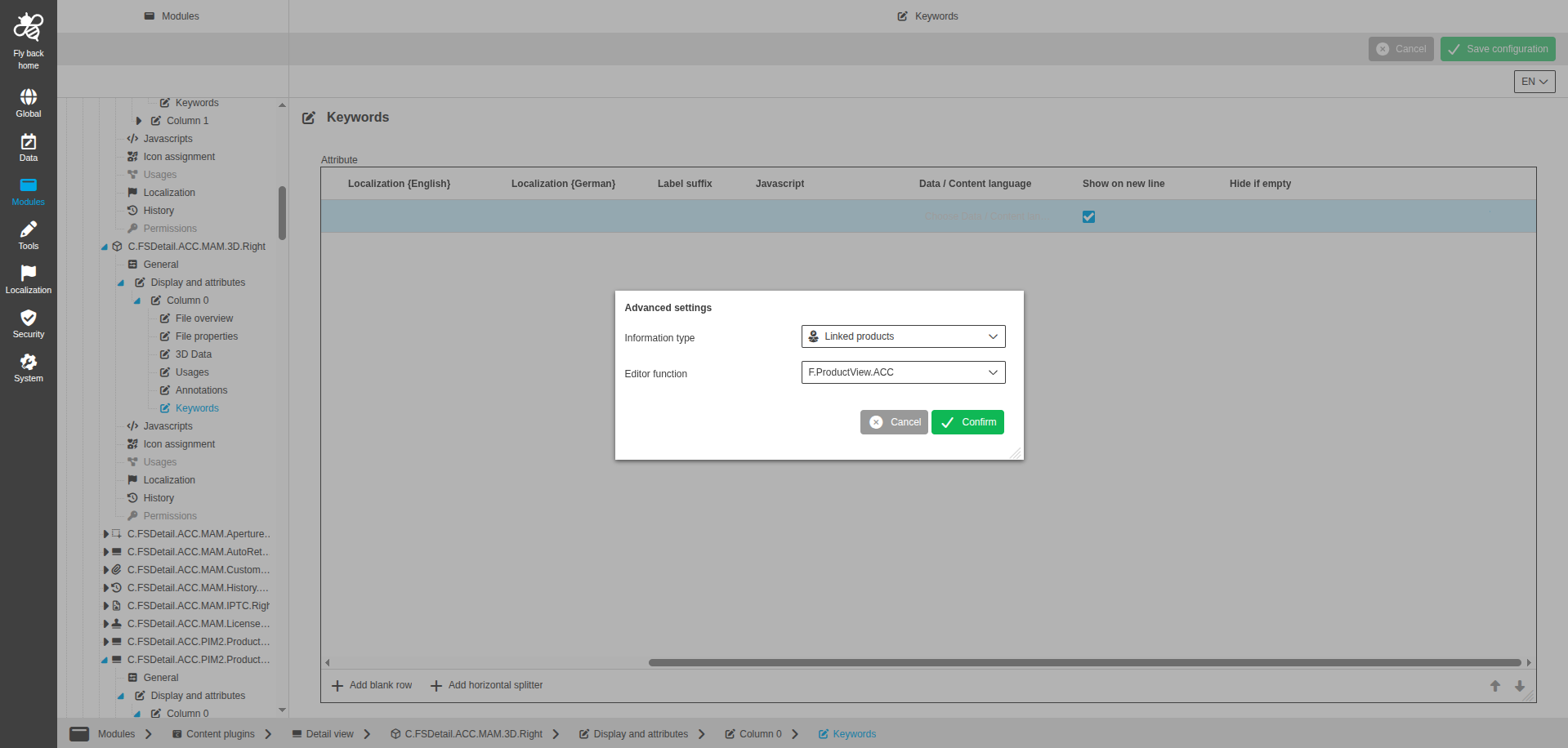
Available for object types:
-
DAM Object
The following settings are available:
| Name of option | Description | Note |
|---|---|---|
Editor function |
Dropdown to select editor function plugin instance. |
Advanced settings modal. Lists Classification view and Product View plugin instances. Single select, empty entry is available. |
Multi date
The information type Multi Date is available in detail view attribute configuration.
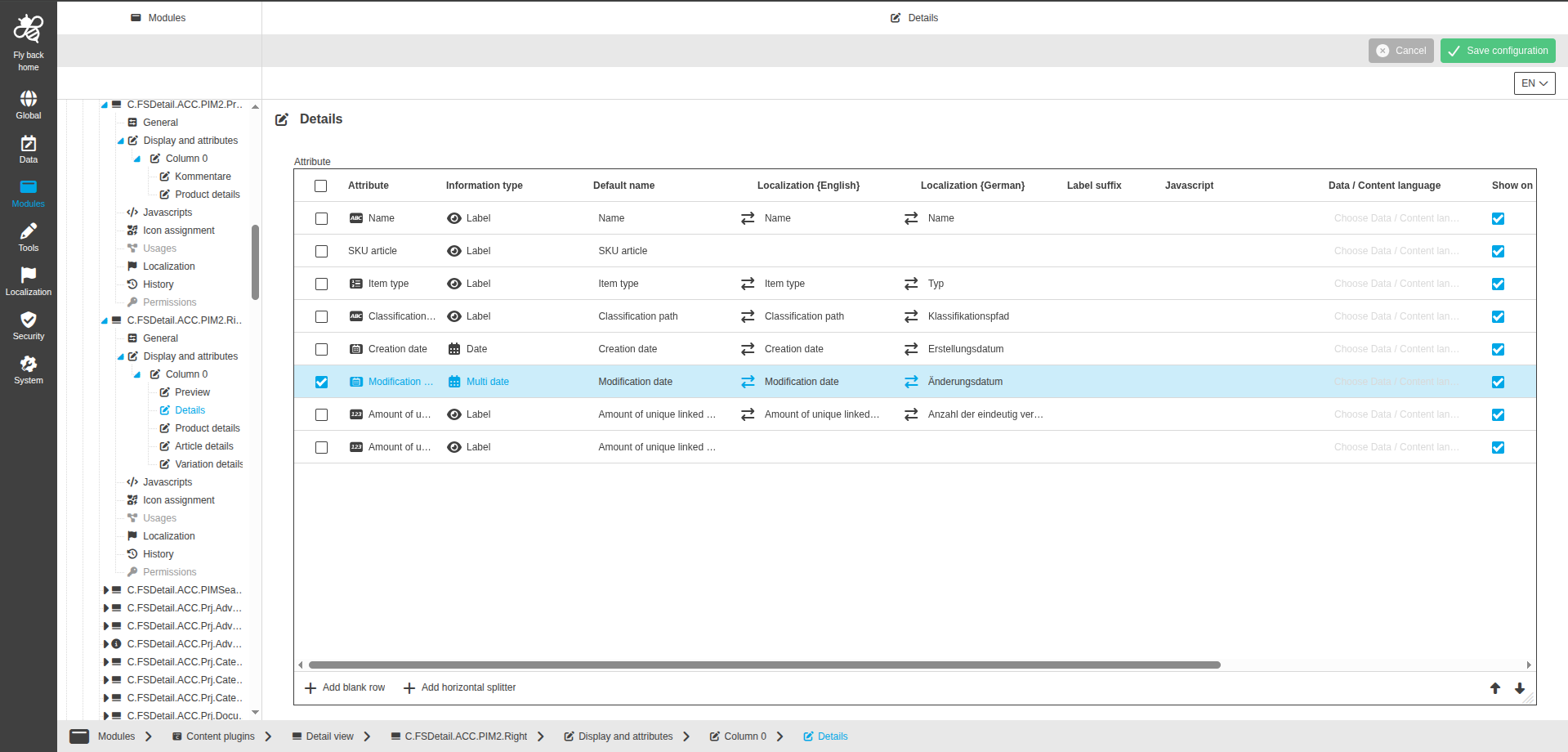
Available for object types:
-
PIM Object
-
PEO
Multi initialization dropdown
The information type Multi Initialization dropdown is available in detail view attribute configuration.
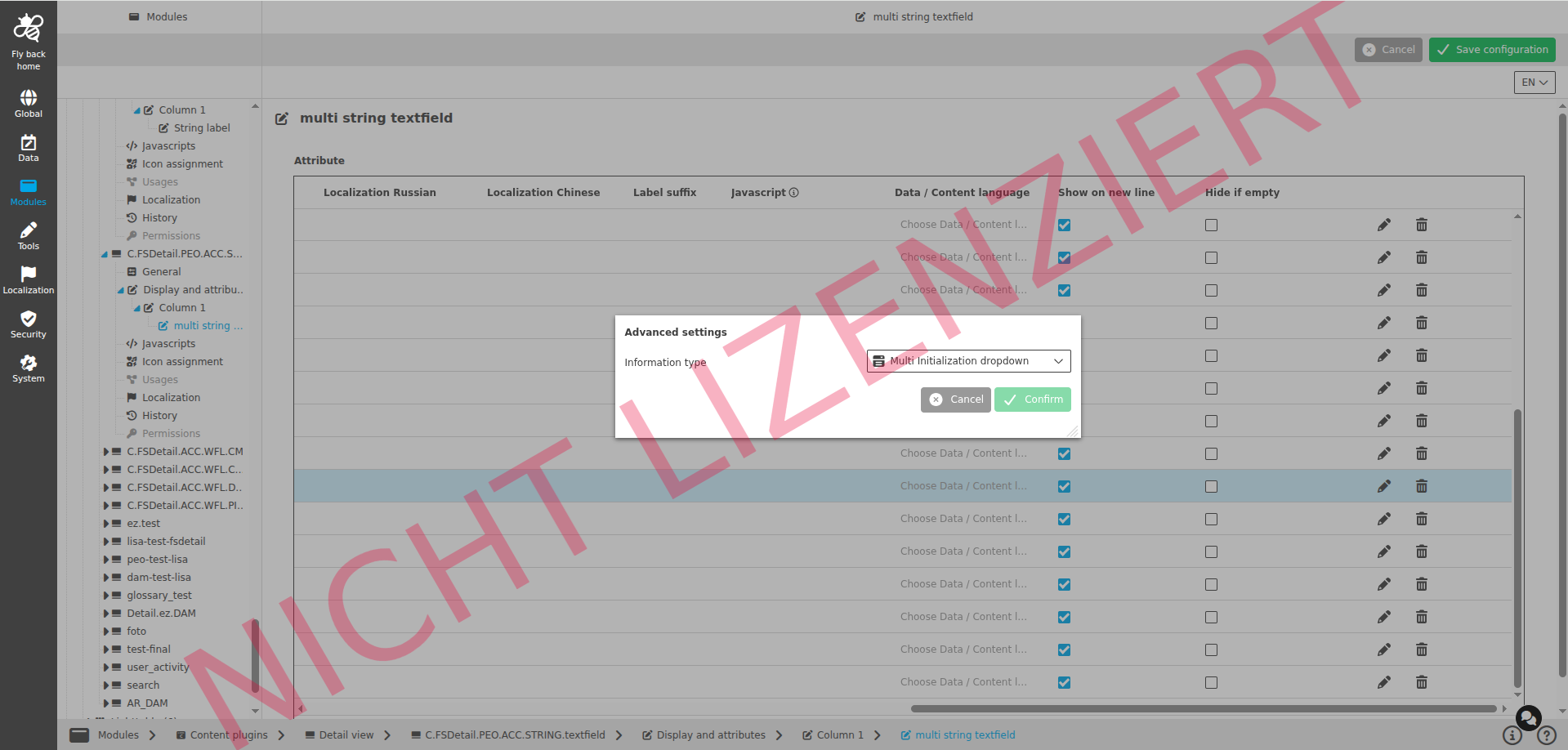
Available for object types:
-
PIM Object
-
PEO
Multi input area
The information type Multi input area is available in detail view attribute configuration.
Available for object types:
-
PIM Object
-
PEO
The following settings are available:
| Name of option | Description | Note |
|---|---|---|
Limitation |
Dropdown with None, Lazy, Strict to control input-length validation behavior in the UI. |
Advanced settings modal. Single select, no empty entry. |
Min. size |
Single stepper for minimum number of characters users can enter in the UI. |
Advanced settings modal. Available when Limitation is Lazy or Strict. |
Max. size |
Single stepper for maximum number of characters users can enter in the UI. |
Advanced settings modal. Available when Limitation is Lazy or Strict. |
Multi input field
The information type Multi Input field is available in detail view attribute configuration.
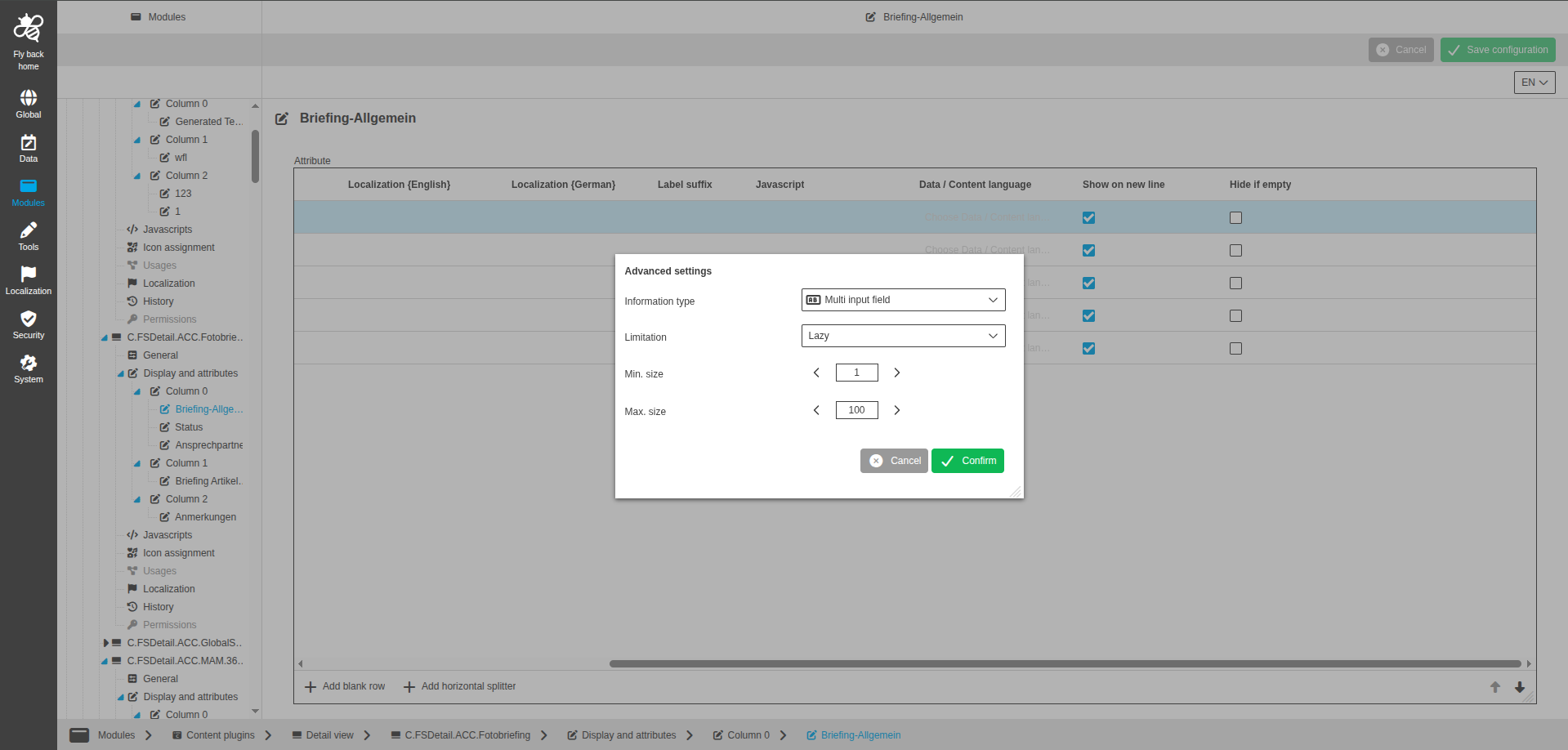
Available for object types:
-
PIM Object
-
PEO
The following settings are available:
| Name of option | Description | Note |
|---|---|---|
Precision |
Single stepper for decimal places shown in the UI for number values. |
Advanced settings modal. Only available for number attributes. |
Limitation |
Dropdown with None, Lazy, Strict to control input-length validation behavior in the UI. |
Advanced settings modal. Single select, no empty entry. |
Min. size |
Single stepper for minimum number of characters users can enter in the UI. |
Advanced settings modal. Available when Limitation is Lazy or Strict. |
Max. size |
Single stepper for maximum number of characters users can enter in the UI. |
Advanced settings modal. Available when Limitation is Lazy or Strict. |
Multi richtext editor
The information type Multi Richtext editor is available in detail view attribute configuration.
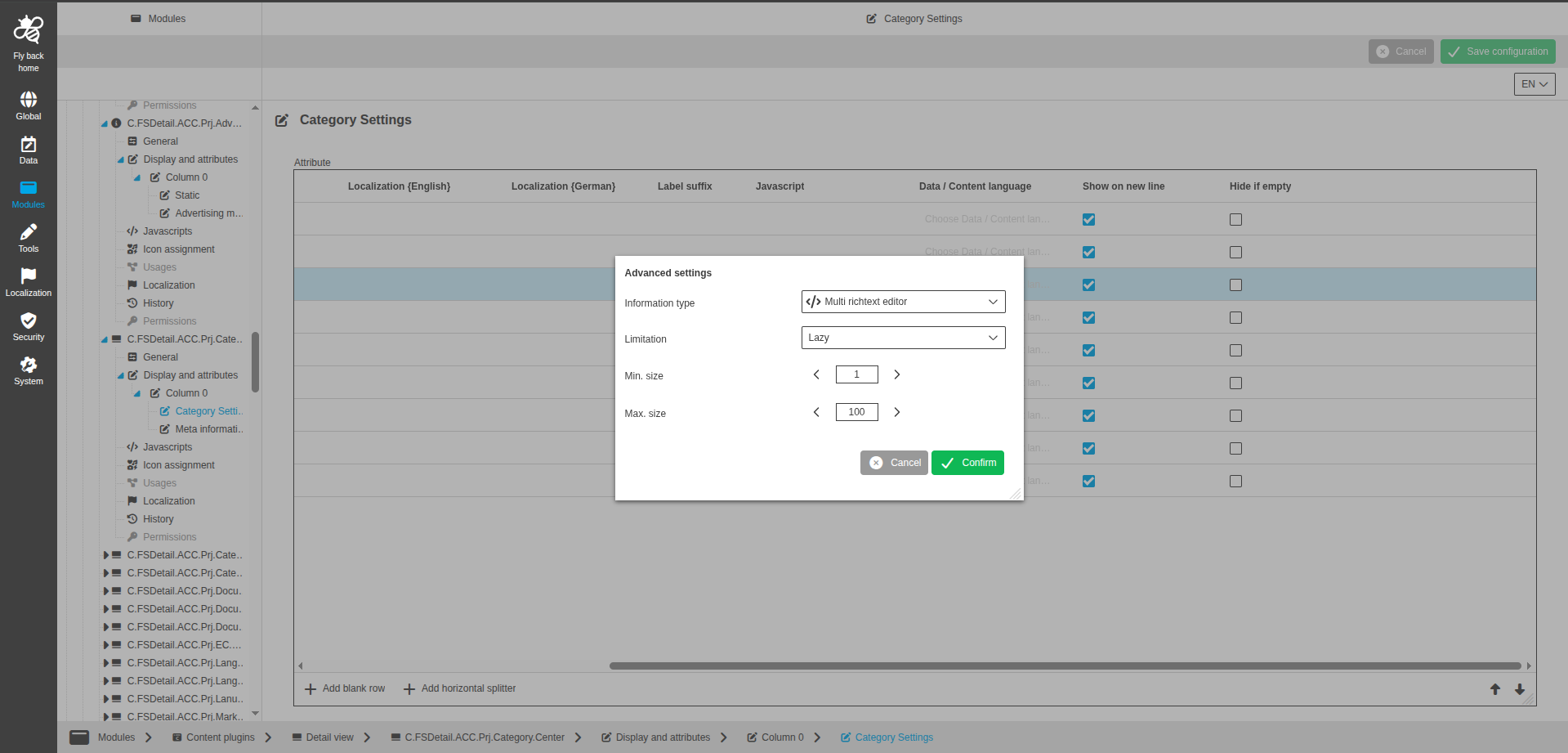
Available for object types:
-
PIM Object
-
PEO
The following settings are available:
| Name of option | Description | Note |
|---|---|---|
Format string |
Input field for format string used to format the shown value text in the UI. |
Advanced settings modal. Only available for text or number attributes. |
Limitation |
Dropdown with None, Lazy, Strict to control input-length validation behavior in the UI. |
Advanced settings modal. Single select, no empty entry. |
Min. size |
Single stepper for minimum number of characters users can enter in the UI. |
Advanced settings modal. Available when Limitation is Lazy or Strict. |
Max. size |
Single stepper for maximum number of characters users can enter in the UI. |
Advanced settings modal. Available when Limitation is Lazy or Strict. |
Multiline label
The information type Multiline label is available in detail view attribute configuration.
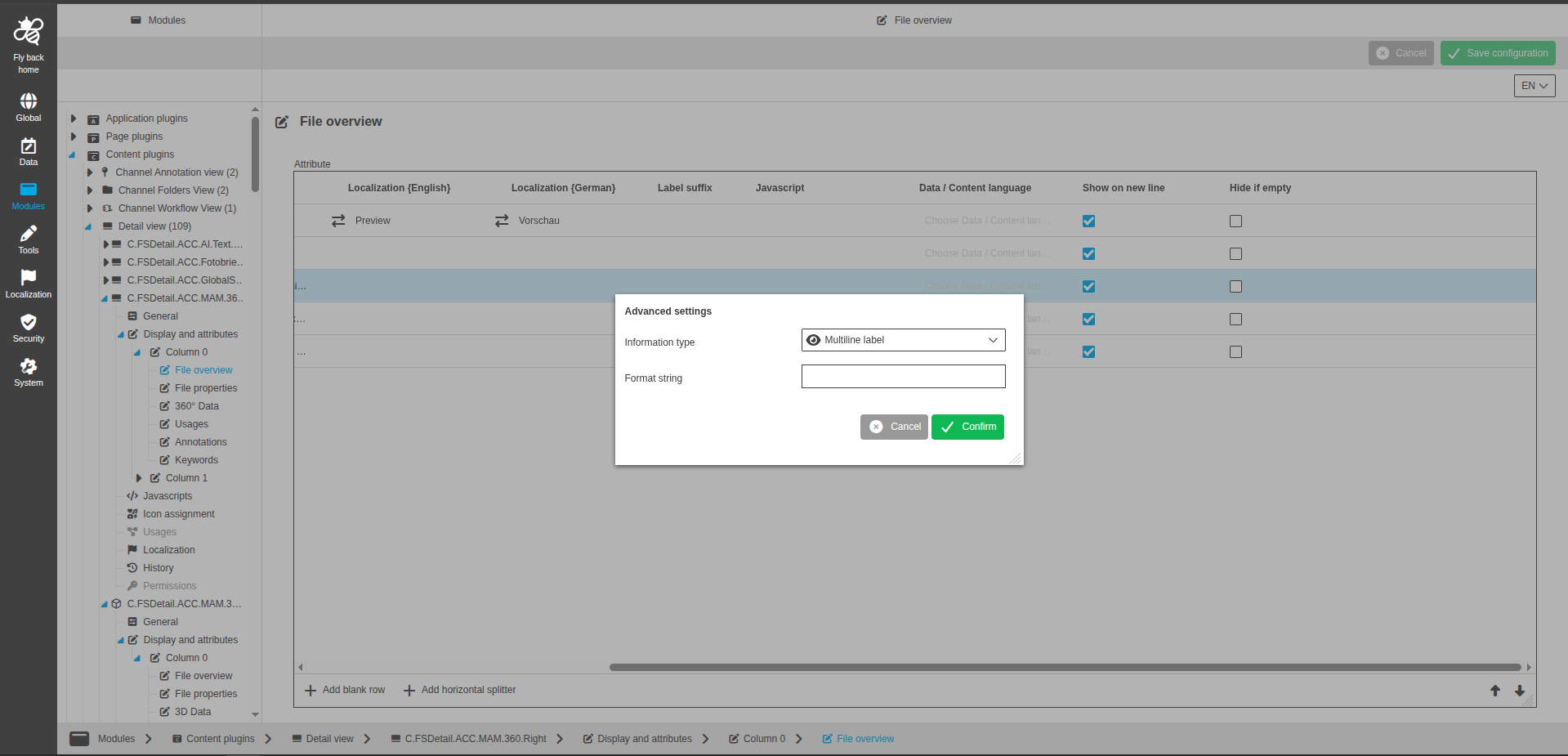
Available for object types:
-
Briefing Details
-
DAM Object
-
PIM Object
-
Glossary
-
User Activity
-
PEO
-
Channel
-
Search
-
Workflow
-
PEO Usage
The following settings are available:
| Name of option | Description | Note |
|---|---|---|
Format string |
Input field for format string. |
Advanced settings modal. Only available for text or number attributes. |
Multiselect Bag/Seq widget
The information type Multi Bag/Seq widget is available in detail view attribute configuration.
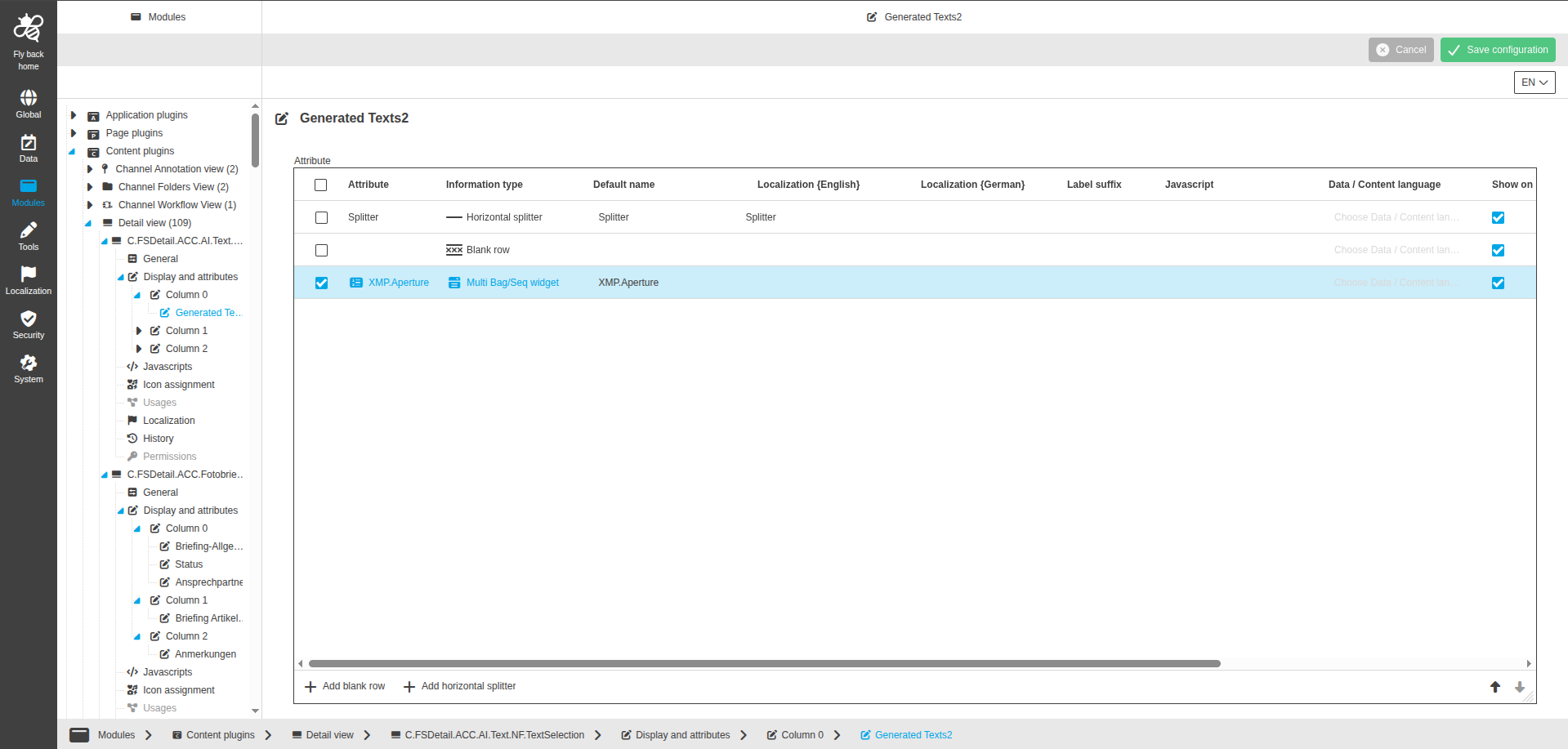
Available for object types:
-
DAM Object
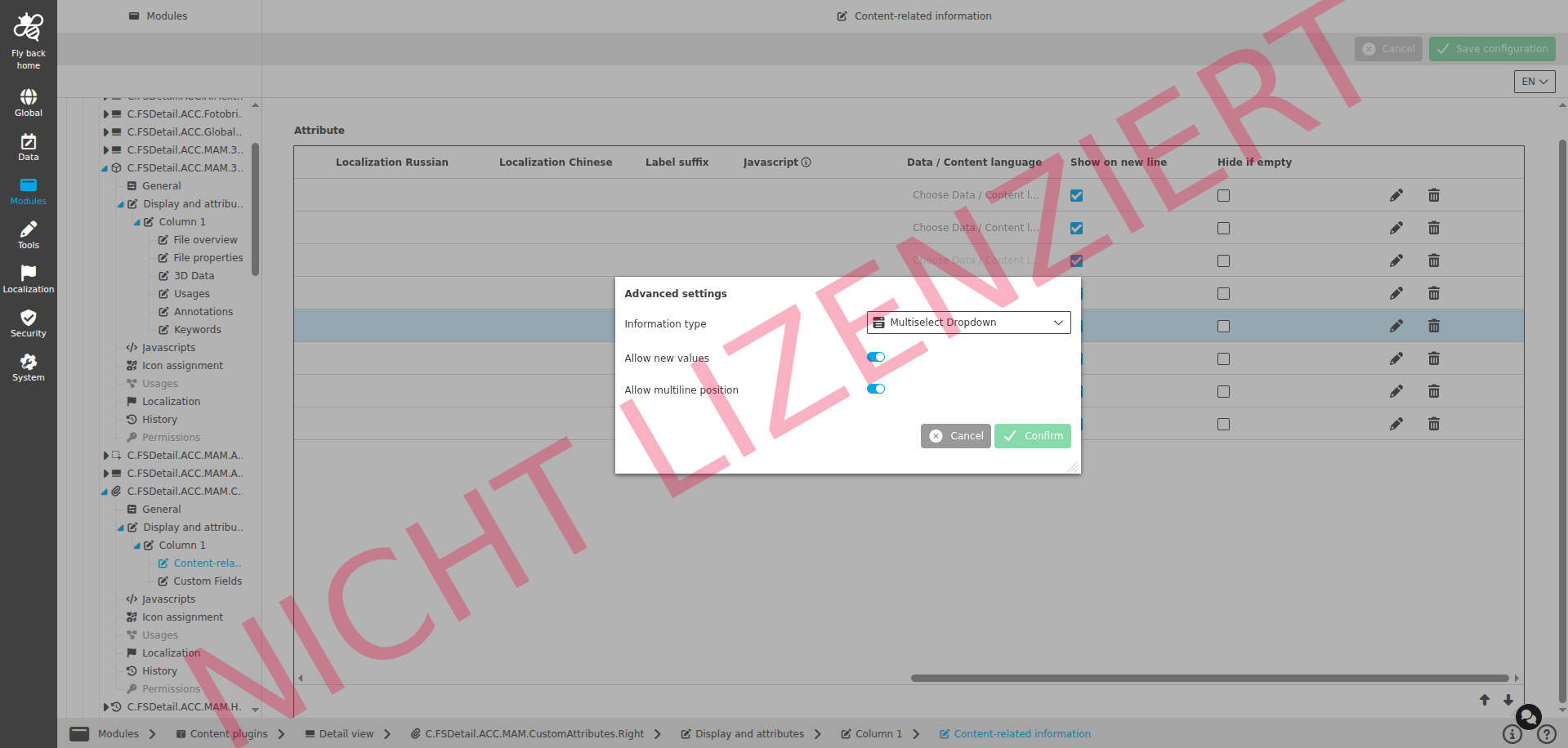
Multiselect dropdown
The information type Multiselect Dropdown is available in detail view attribute configuration.
Available for object types:
-
PIM Object
-
PEO
The following settings are available:
| Name of option | Description | Note |
|---|---|---|
Format string |
Input field for format string. |
Advanced settings modal. Only available for text or number attributes. |
Allow new values |
Defines if users can add new values in the UI. |
Advanced settings modal. Toggle is turned off by default. |
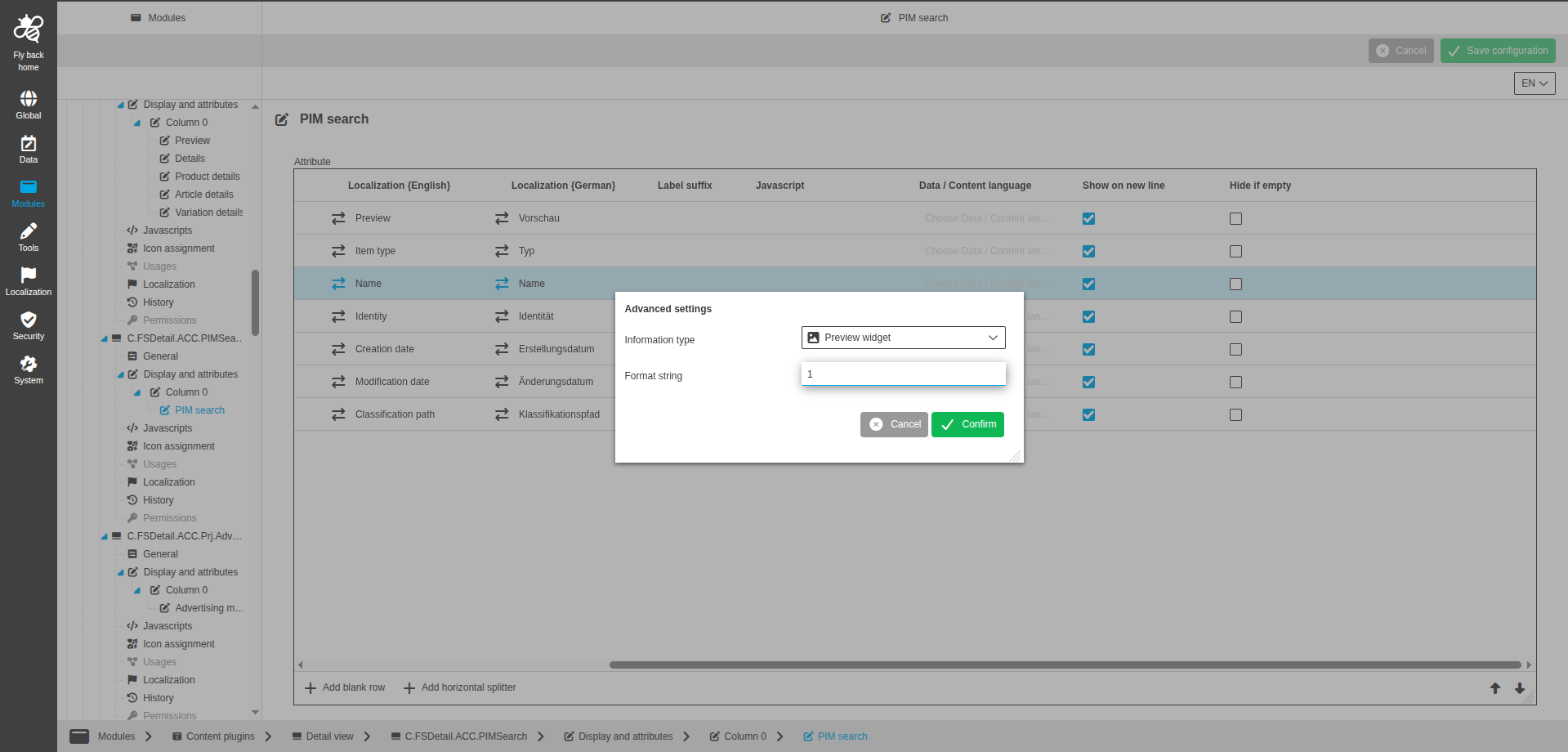
Preview widget
The information type Preview widget is available in detail view attribute configuration.
Available for object types:
-
Briefing Details
-
DAM Object
-
PIM Object
-
Glossary
-
User Activity
-
PEO
-
Channel
-
Search
-
Workflow
-
PEO Usage
The following settings are available:
| Name of option | Description | Note |
|---|---|---|
Format string |
Input field for format string. |
Advanced settings modal. Only available for text or number attributes. |
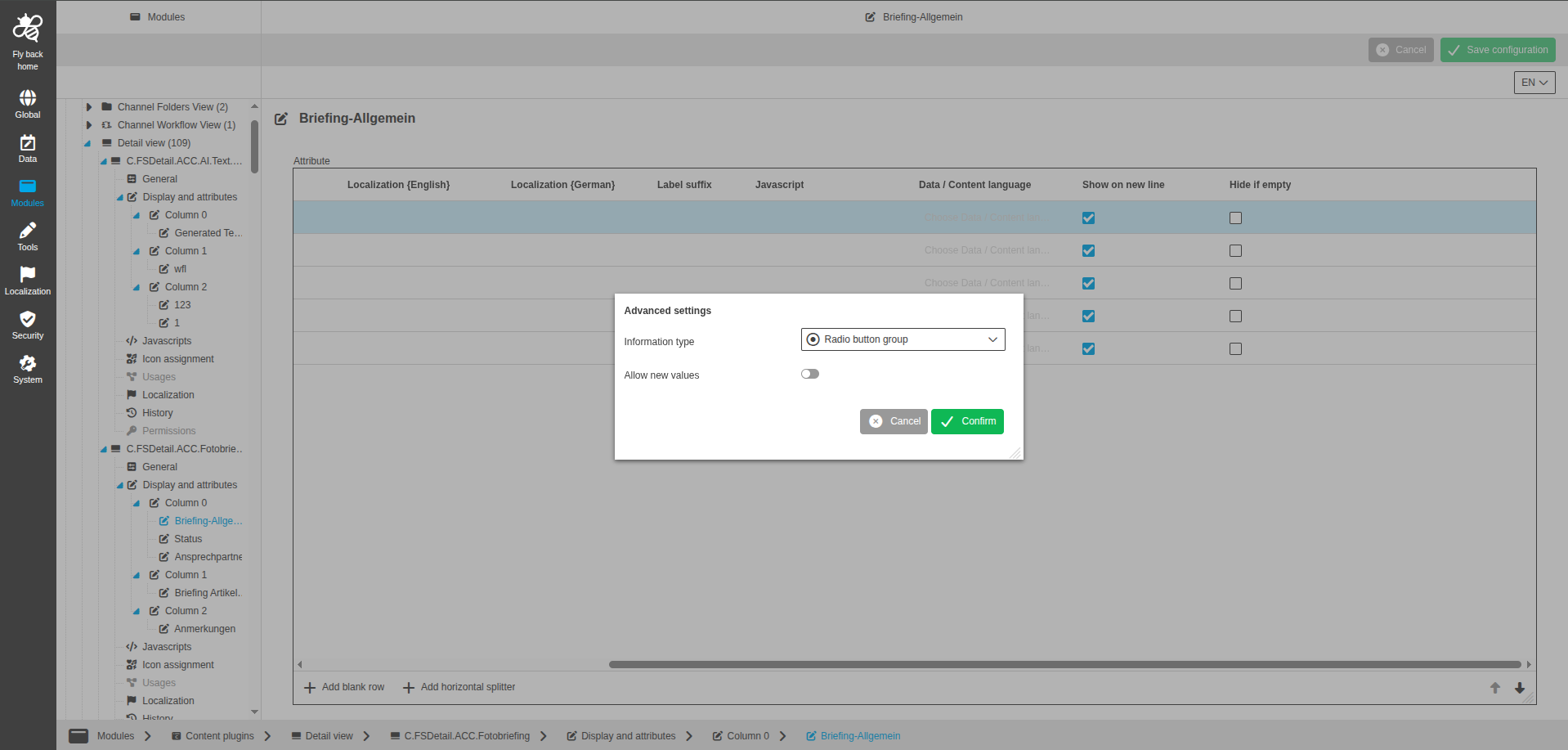
Radio buttons
The information type Radio button group is available in detail view attribute configuration.
Available for object types:
-
Briefing Details
-
DAM Object
-
PIM Object
-
Glossary
-
User Activity
-
PEO
-
Channel
-
Search
-
Workflow
-
PEO Usage
The following settings are available:
| Name of option | Description | Note |
|---|---|---|
Allow new values |
Defines if users can add new values in the UI. |
Advanced settings modal. Toggle is turned off by default. |
Allow multiline position |
Toggle to display values over multiple lines in the UI when needed. |
Advanced settings modal. Turned off by default. |
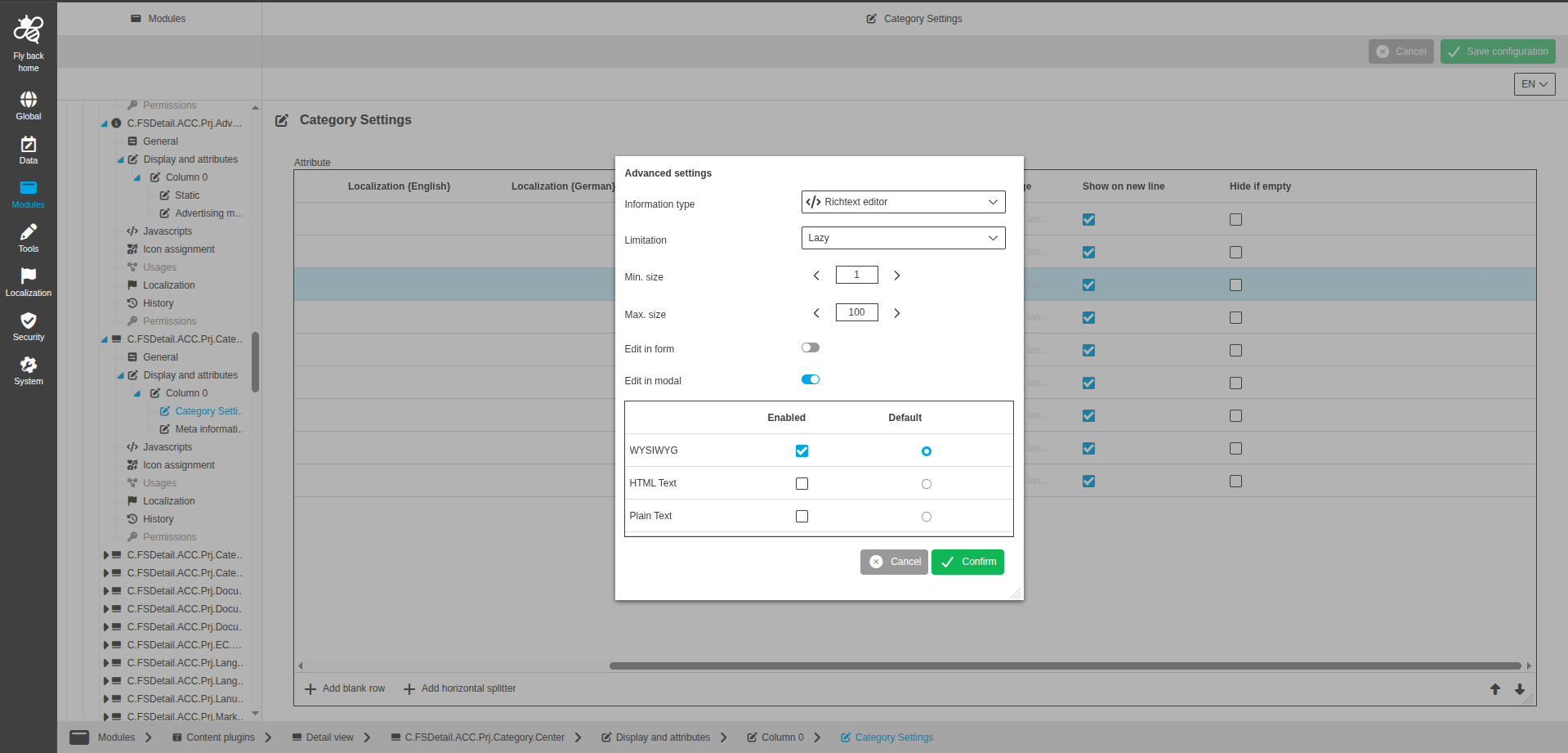
Richtext editor
The information type Richtext editor is available in detail view attribute configuration.
Available for object types:
-
PIM Object
-
PEO
The following settings are available:
| Name of option | Description | Note |
|---|---|---|
Format string |
Input field for format string. |
Advanced settings modal. Only available for text or number attributes. |
Edit in form |
Toggle to enable form editing modes. |
Advanced settings modal. Turned off by default. |
View mode configuration (Edit in form) |
Table widget with view modes WYSIWYG, HTML Text, Plain Text and columns Enabled and Default. |
Advanced settings modal. Available when Edit in form is turned on. |
Edit in modal |
Toggle to enable modal editing modes. |
Advanced settings modal. Turned off by default. |
View mode configuration (Edit in modal) |
Table widget with view modes WYSIWYG, HTML Text, Plain Text and columns Enabled and Default. |
Advanced settings modal. Available when Edit in modal is turned on. |
Limitation |
Dropdown with None, Lazy, Strict to control input-length validation behavior in the UI. |
Advanced settings modal. Single select, no empty entry. |
Min. size |
Single stepper for minimum number of characters users can enter in the UI. |
Advanced settings modal. Available when Limitation is Lazy or Strict. |
Max. size |
Single stepper for maximum number of characters users can enter in the UI. |
Advanced settings modal. Available when Limitation is Lazy or Strict. |
Richtext label
The information type Richtext label is available in detail view attribute configuration.
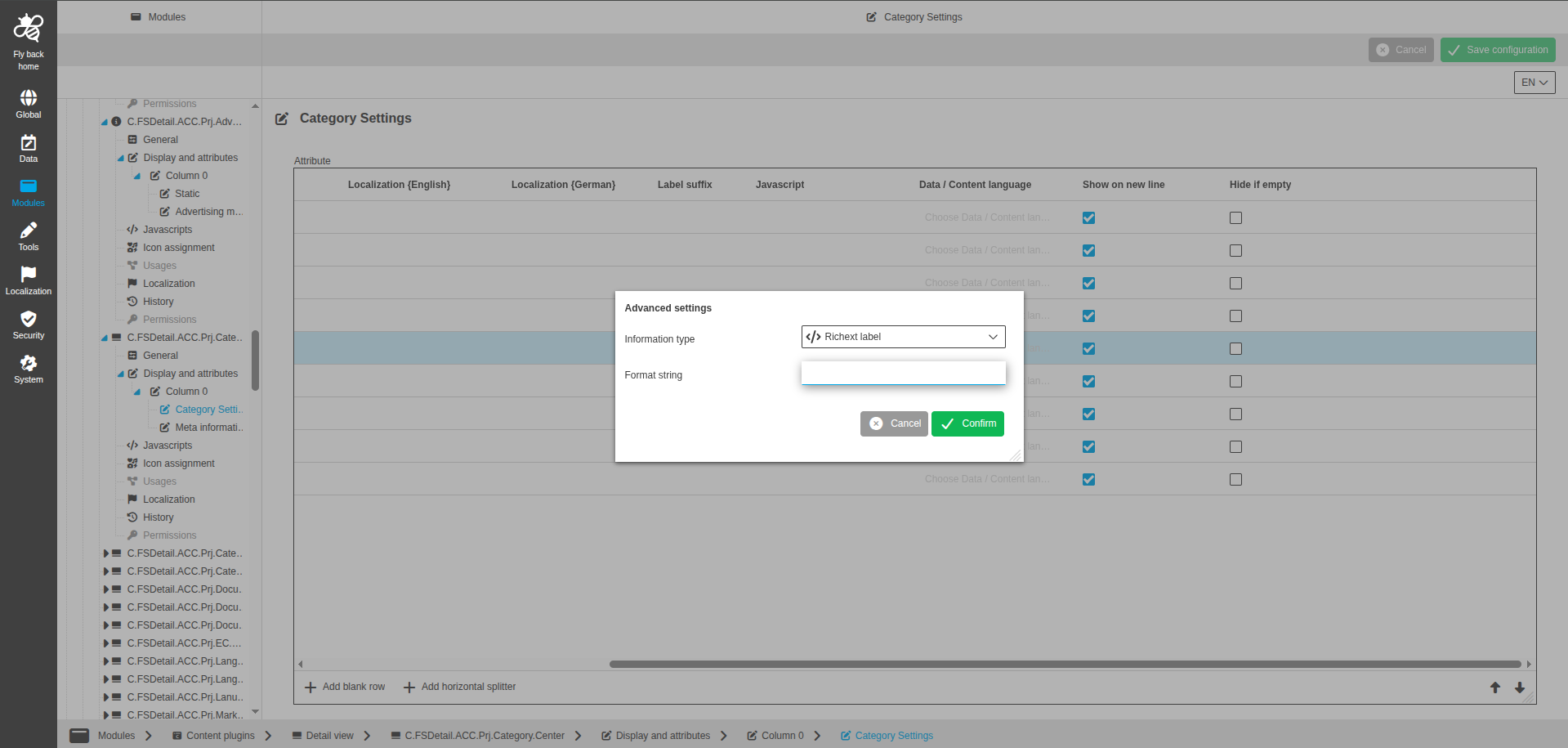
Available for object types:
-
PIM Object
-
PEO
The following settings are available:
| Name of option | Description | Note |
|---|---|---|
Format string |
Input field for format string. |
Advanced settings modal. Only available for text or number attributes. |
Role list
The information type Role list is planned for Detail view attribute configuration.
|
Implementation is planned for a later version. |
Stars
The information type Stars is available for number attributes in detail view attribute configuration.
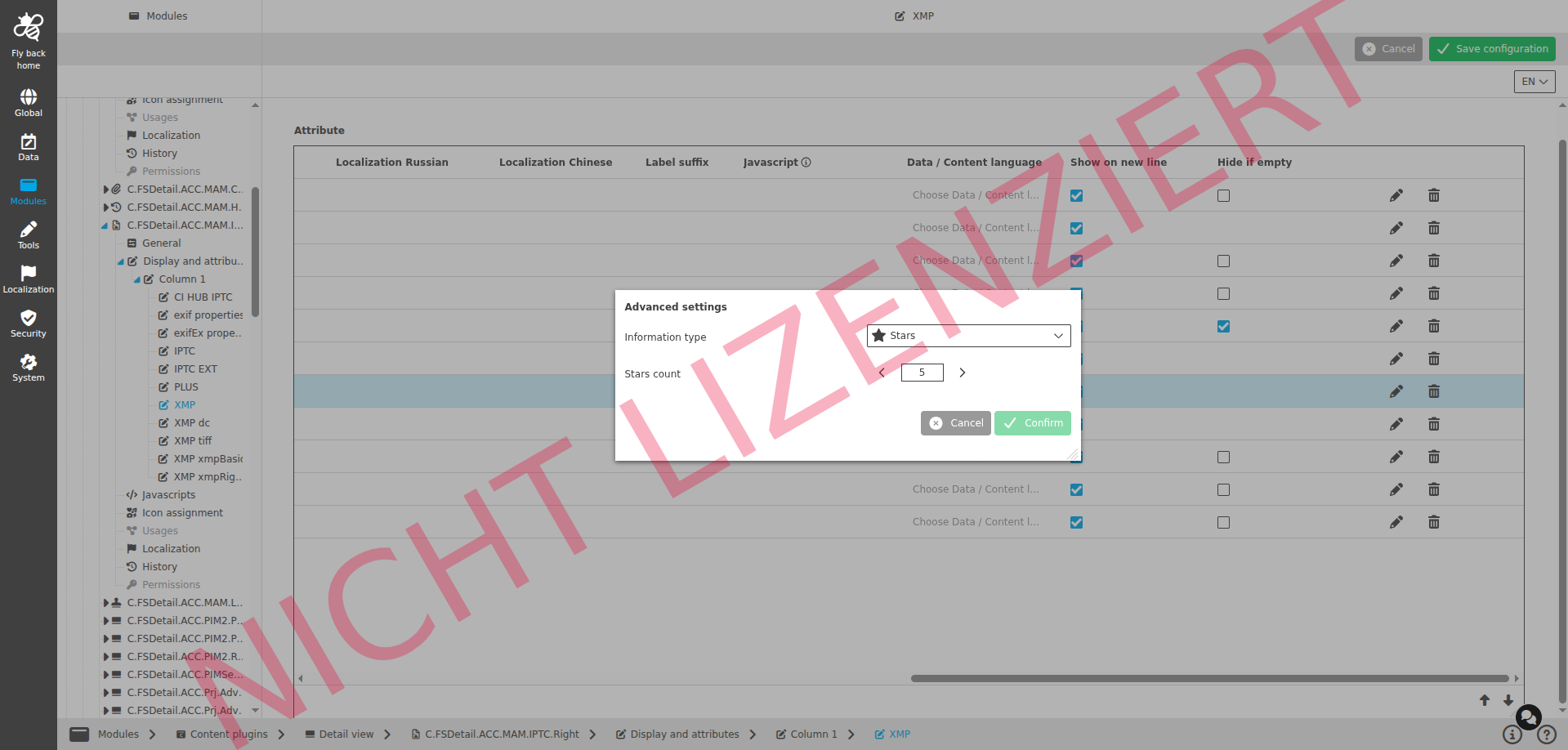
Available for object types:
-
Briefing Details
-
DAM Object
-
PIM Object
-
Glossary
-
User Activity
-
PEO
-
Channel
-
Search
-
Workflow
-
PEO Usage
The following settings are available:
| Name of option | Description | Note |
|---|---|---|
Stars count |
Defines how many stars are rendered for the value scale in the UI. |
Advanced settings modal. Single stepper, default value is 5. |
Table widget
The information type Table widget is available in detail view attribute configuration.
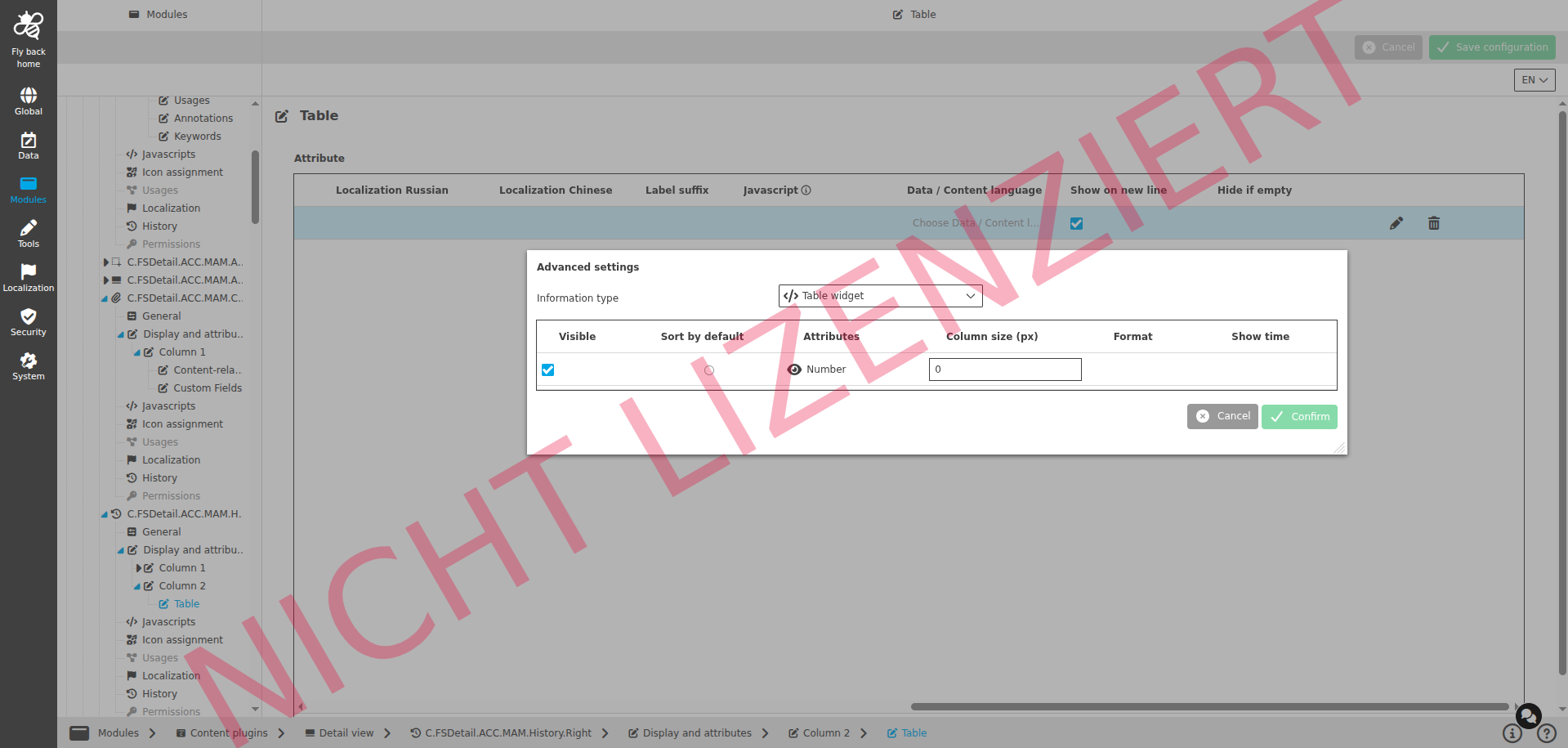
Available for object types:
-
PIM Object
-
PEO
The following settings are available:
| Name of option | Description | Note |
|---|---|---|
Visible |
Checkbox to define if related column is visible in UI table. |
Advanced settings modal. Checked by default. |
Sort by default |
Radio-button to define default sorting attribute. |
Advanced settings modal. First attribute is checked by default. |
Attributes |
Shows configured attributes in the table. |
Advanced settings modal. |
Column size |
Input field to enter column width in px. |
Advanced settings modal. Only numerical integer input allowed. |
Format |
Configures output format for text, number, and boolean attributes. |
Advanced settings modal. For date attributes, a dropdown date style is available. |
Show time |
Toggle to define if time is shown for date attributes. |
Advanced settings modal. Only available for date attributes. |
User list
The information type User list is planned for Detail view attribute configuration.
|
Implementation is planned for a later version. |