Bulk Editor
Introduction
The Bulk Editor is an Excel-like and Excel-compatible tool to maintain mass data easily and quickly. The Bulk Editor offers many useful functions, such as the automatic inheritance of values to child objects, the separate maintenance of language-dependent attributes per language or the simple copying of values to underlying objects. Besides that, it offers the possibility to choose two different views to edit the data either merged or separated.
Opening Bulk Editor
For now, the Bulk Editor can be opened either via the Management View in the PIM2 module or via OMN Search. Further options (e.g. MAM) will follow later.
Management View
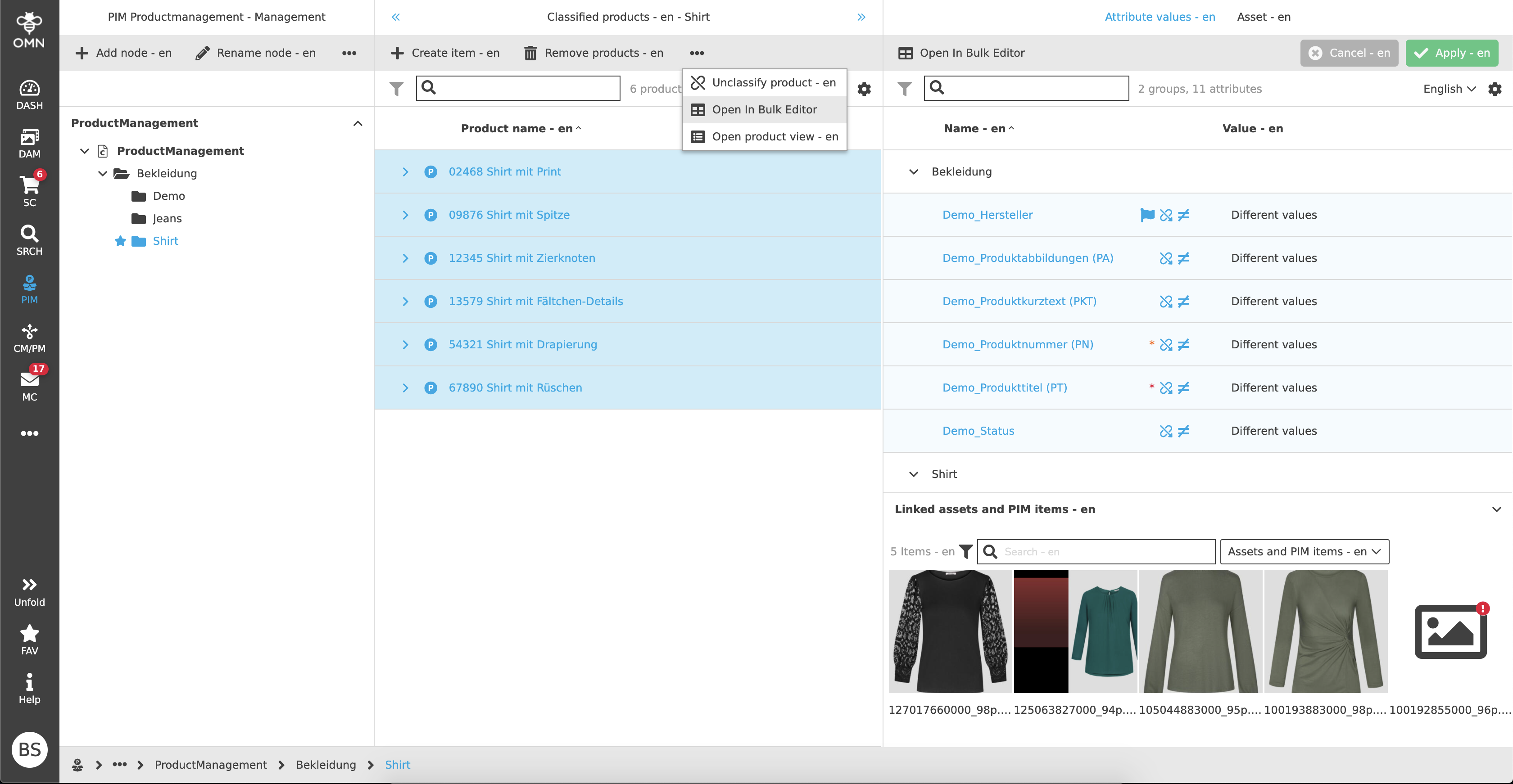
In the Management View, single or multiple products, articles and/or variants can be selected and opened using the toolbar function "Open in Bulk Editor". If products are selected, the articles and variants below them are also opened automatically.
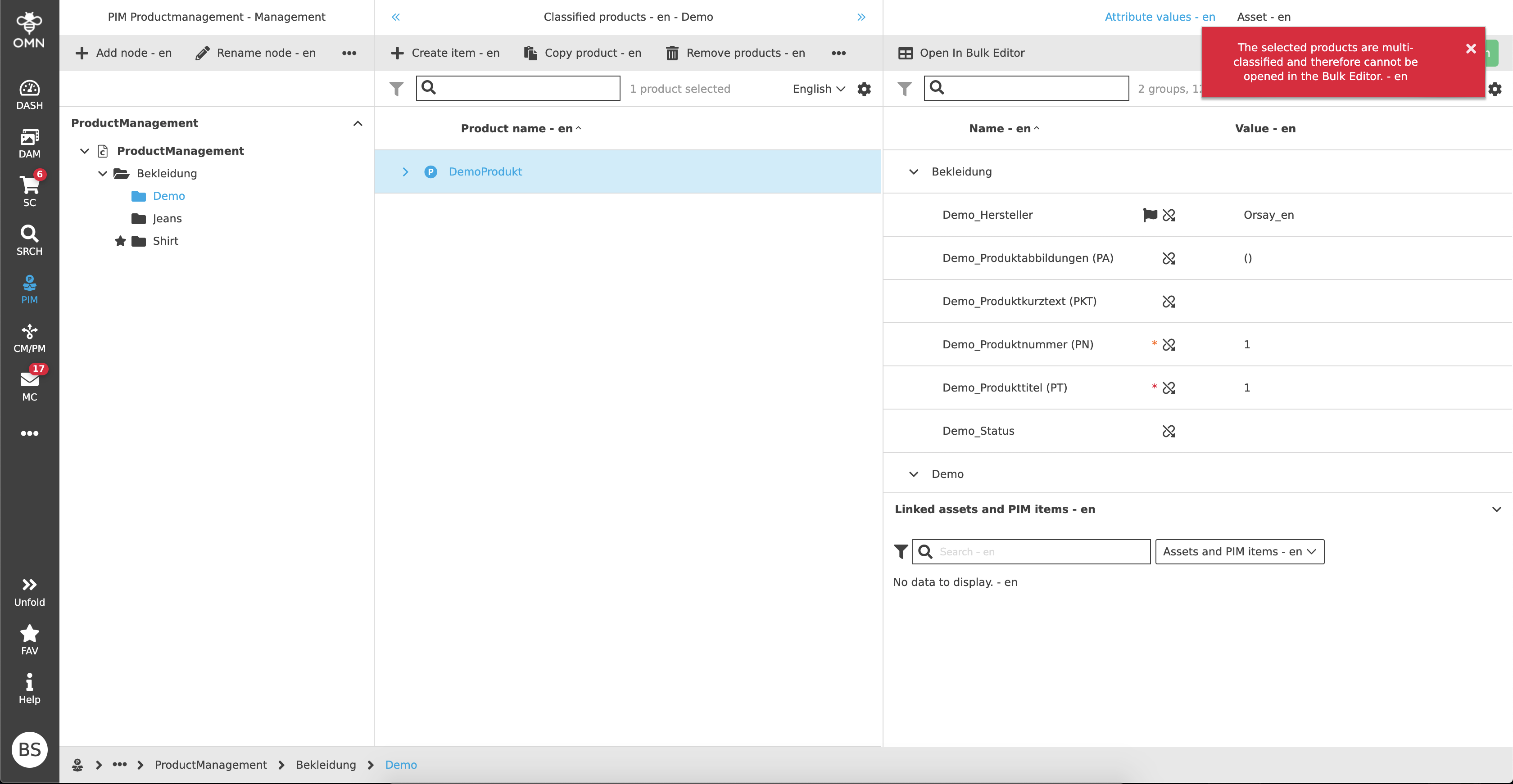
There are a few limitations why the Bulk Editor sometimes cannot be opened. These are multi-classified and/or unclassified objects.
OMN Search
The second option to open Bulk Editor is to open it from OMN Search context. Here, as well, individual or several products, articles and/or variants can be opened with the help of the configured toolbar function.
The same restrictions apply as with the Management View.
Working with Bulk Editor
In addition to two different views, the Bulk Editor also offers various functions and setting options. By combining the various options, it is possible to set the opened objects, so that only the desired products, articles and variants are visible for data maintenance.
Views
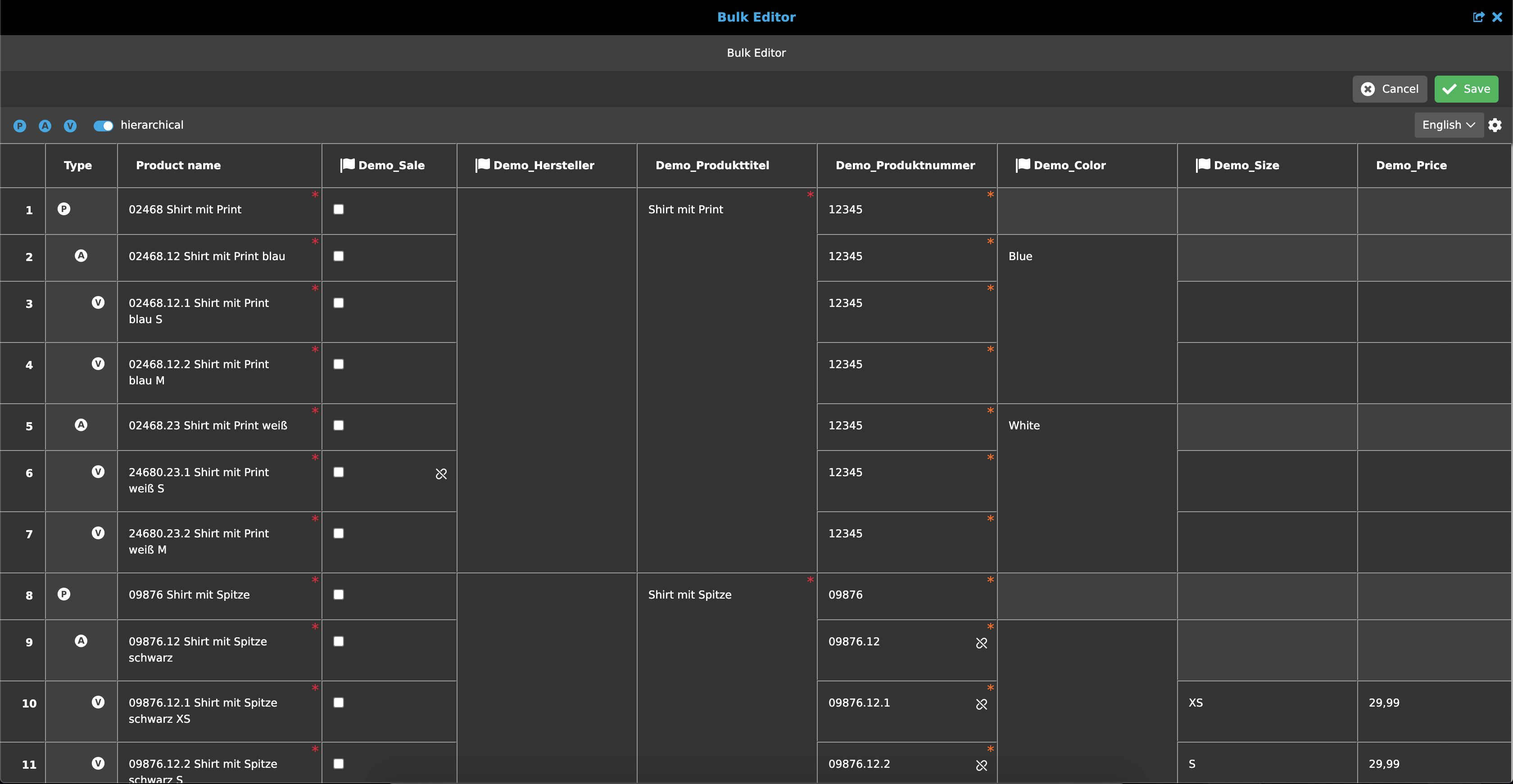
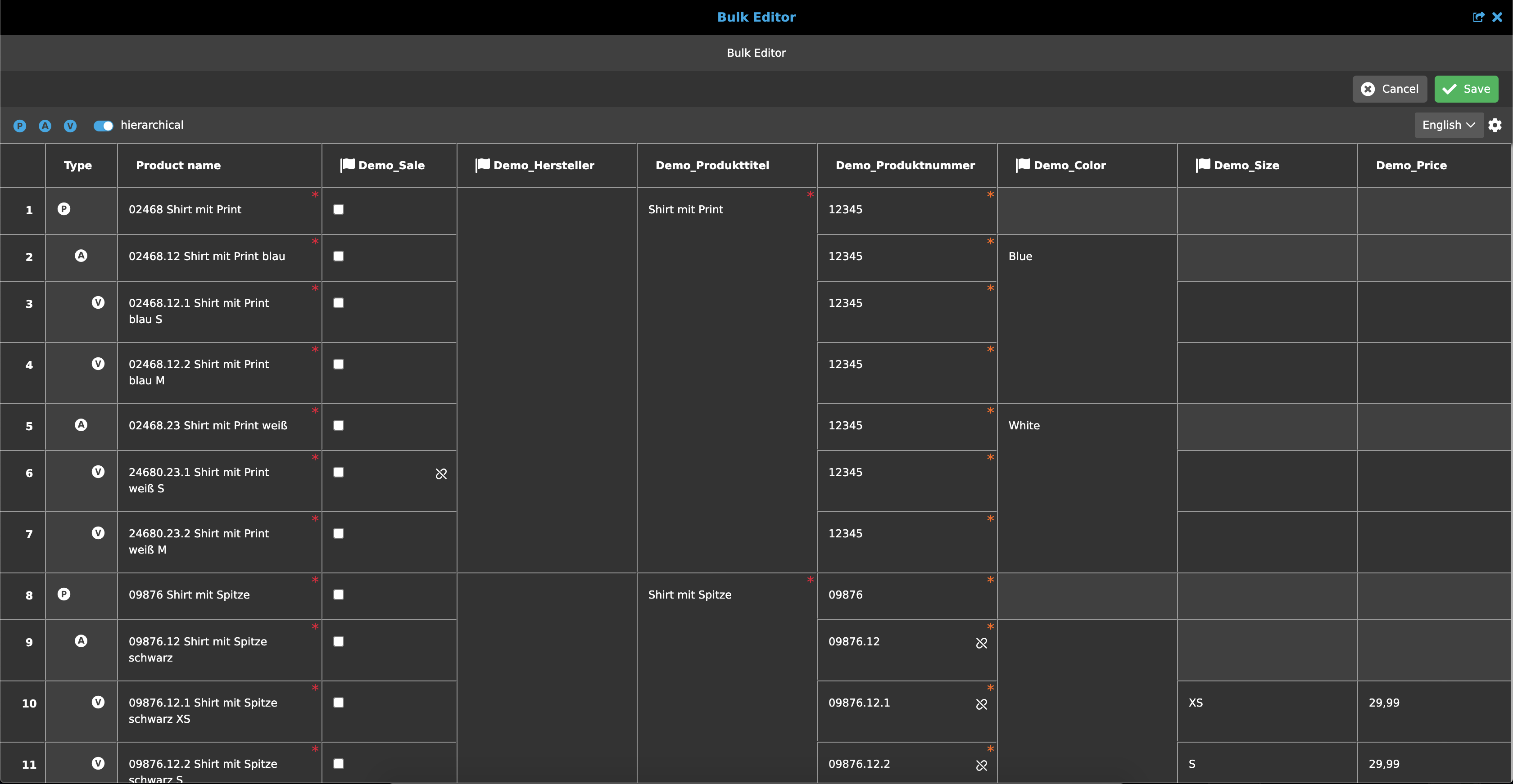
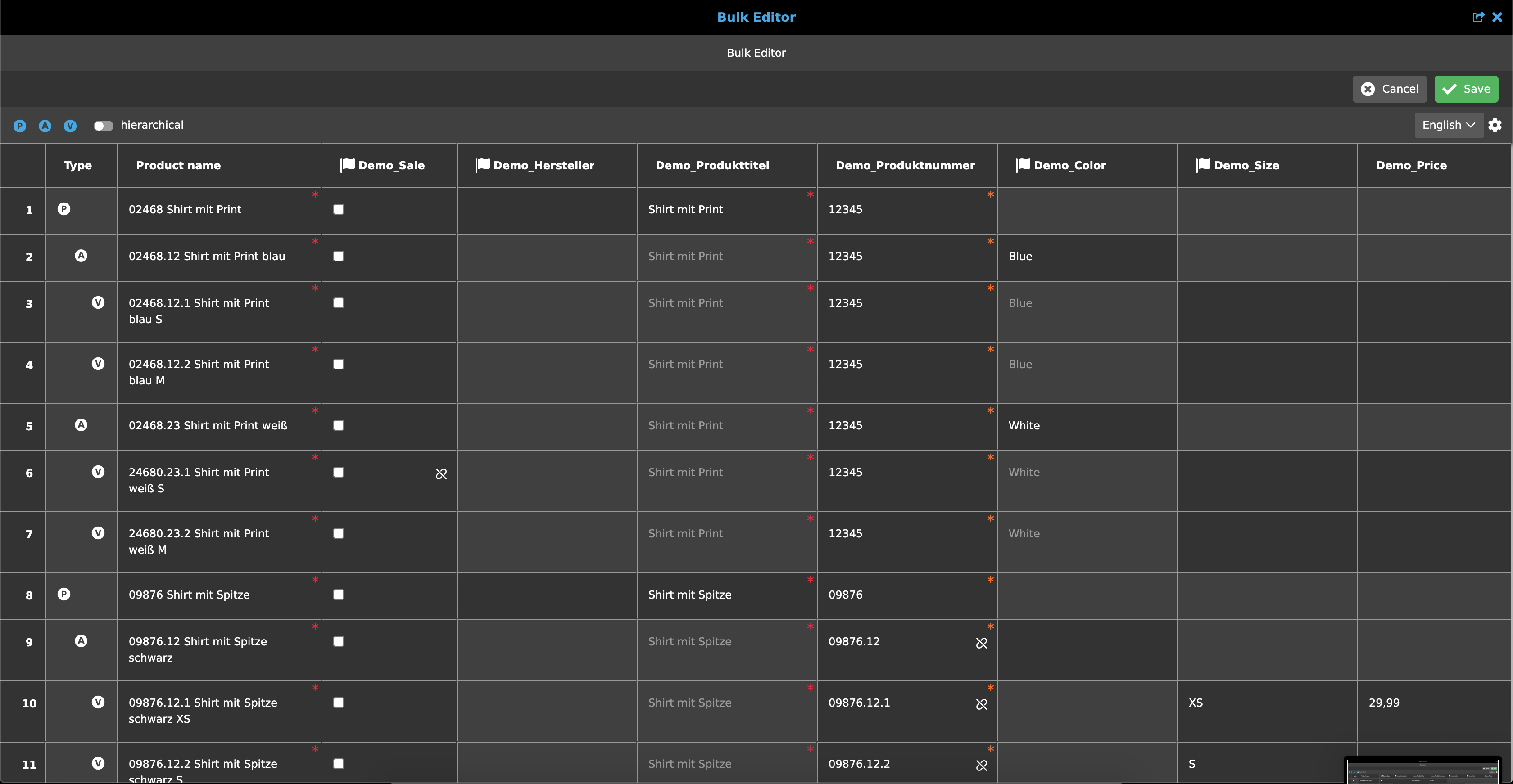
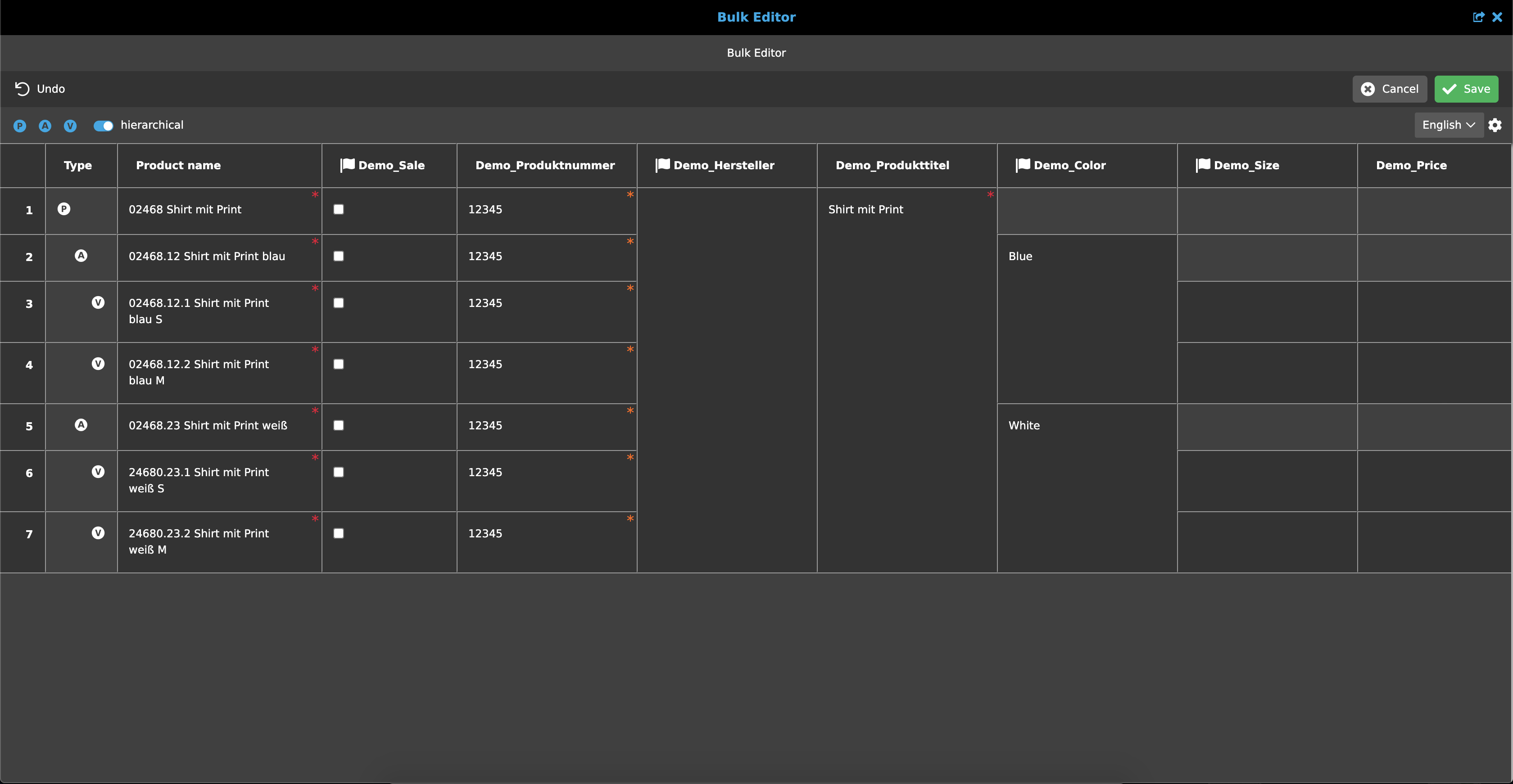
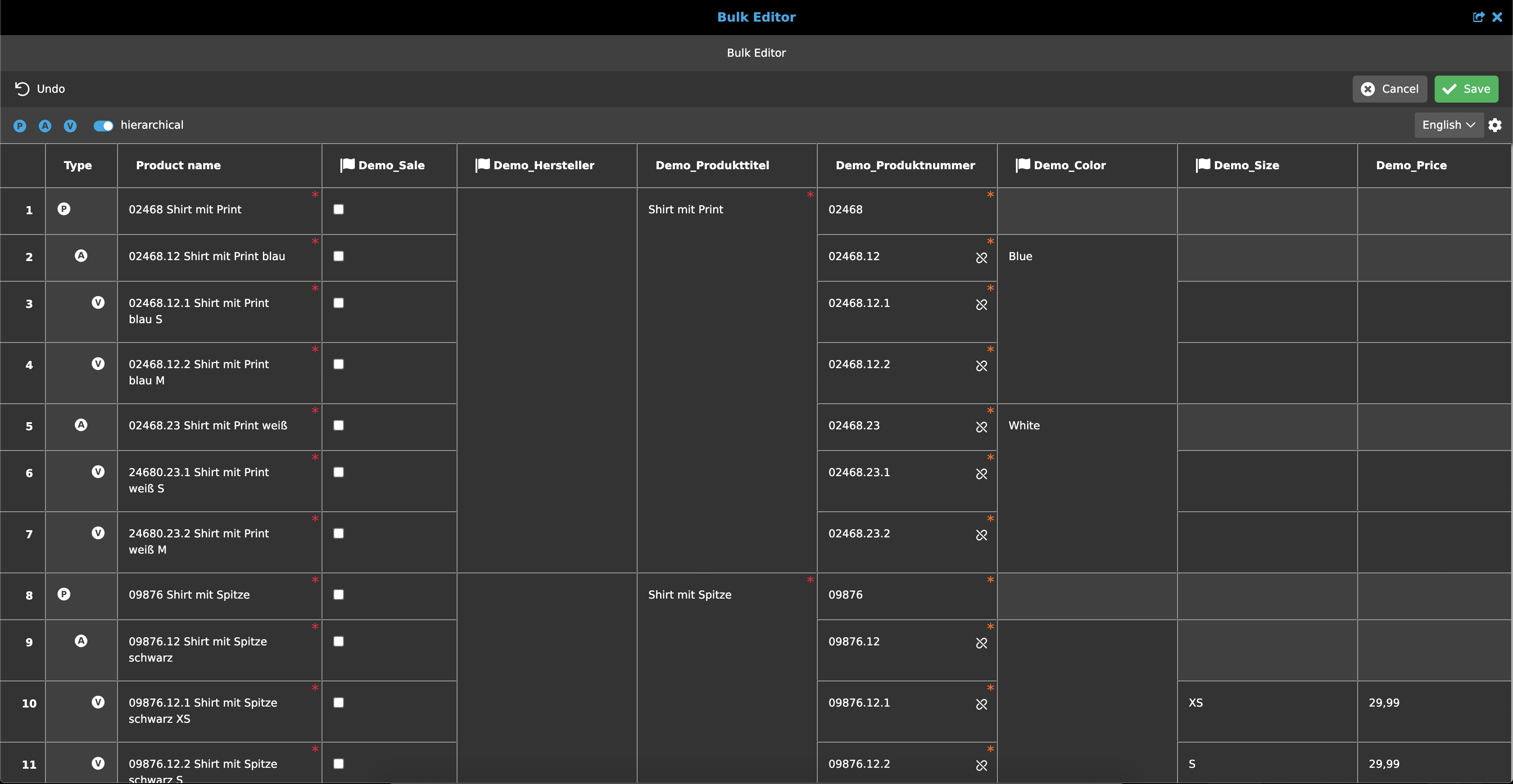
As mentioned before, there are two different view options with specific functionality. By default the hierarchical view is shown, which is a kind of merged cell view. By click on the "hierarchical" toggle in statusbar a flat view is shown, where we see a separated view. Here the article and variant cells are not merged to the product level.
Hierarchical view
The hierarchical view is the default view of Bulk Editor. All cells of a specific product, including articles and variants, are merged together and can not be split. Since these cells can not be mixed it is not possible to filter or sort columns in this view. They will always be shown in alphabetical (ASC) order.
Flat view
With the Flat View, on the other hand, the objects are no longer bound to a product. Although they are also displayed in alphabetical order by default, they can now be filtered and sorted, which can result a different order of objects.
Column Headers
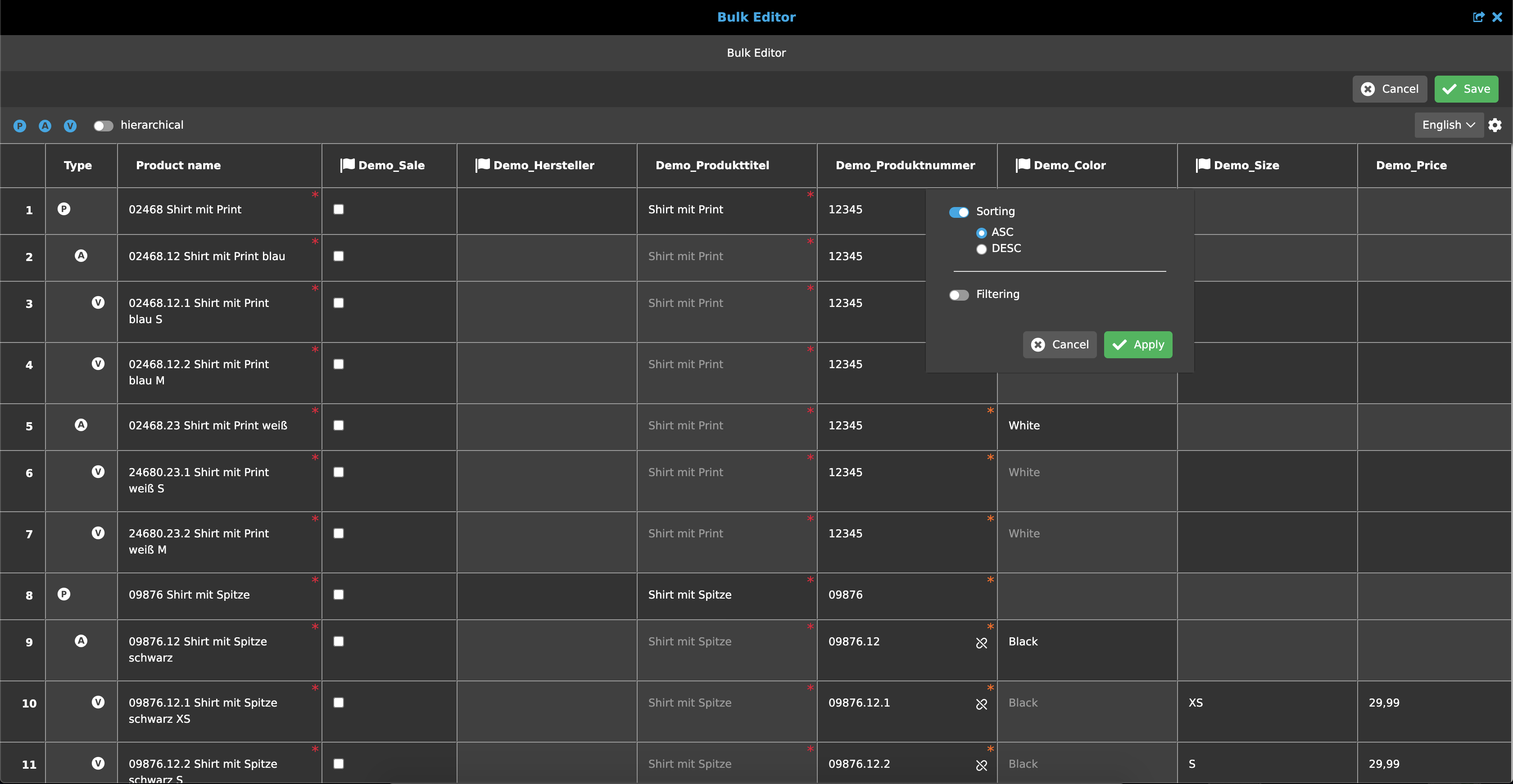
By hovering over a column header a triangle icon appears next to the attribute name. When clicking on that icon, a filter modal will be opened, where different sorting and filtering options are available.
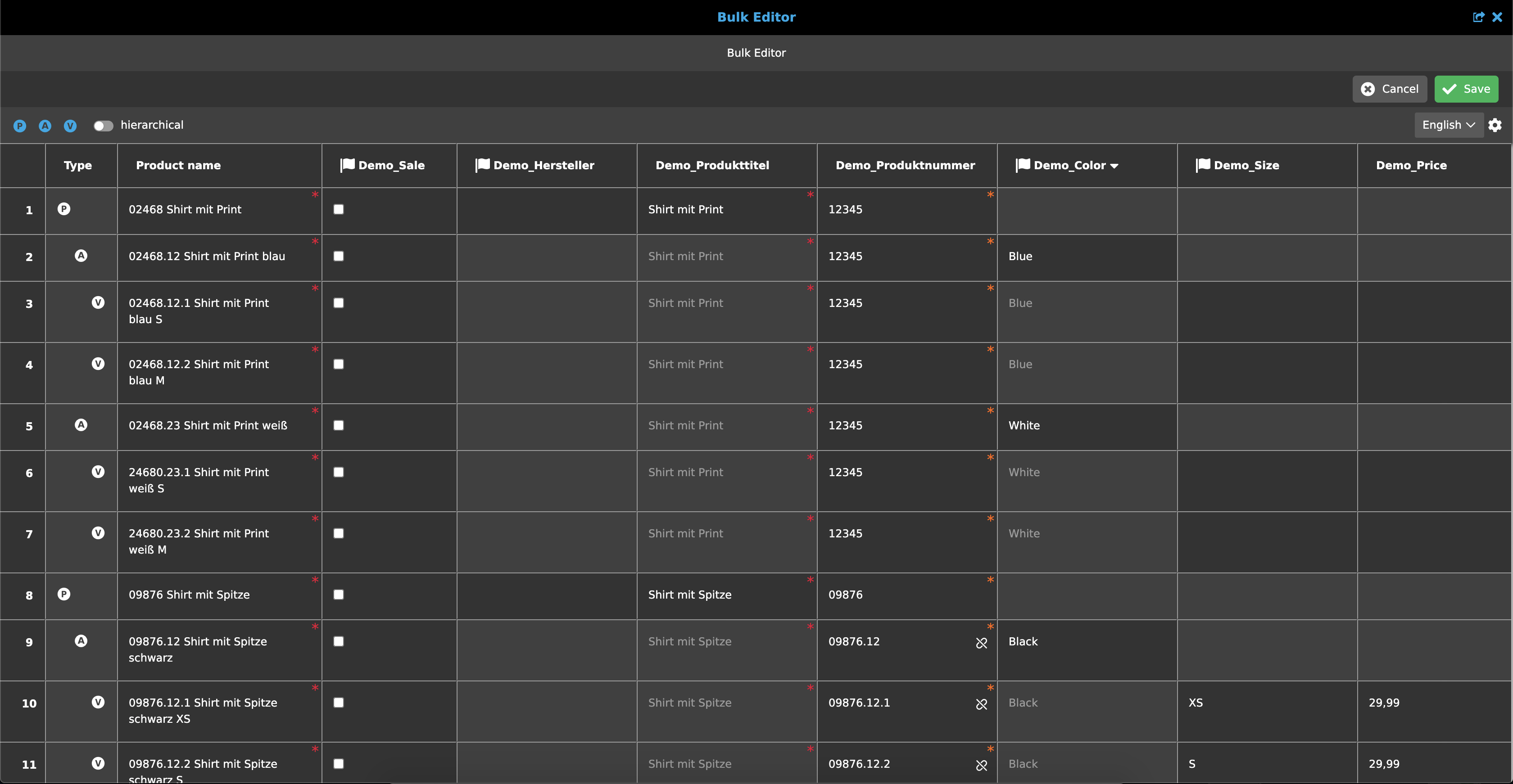
When filters or sorting options are selected and saved, a specific icon appears next to the attribute name to indicate that something is active.

Sorting
The Bulk Editor allows sorting in ascending (ASC) or descending (DESC) order. To do this, open the filter modal through the column header and select the respective setting.
Filtering
Currently, only a basic filter is available. To be able to filter, the filter modal must be opened via the column header and the filter toggle has to be activated. Specific values can now be selected from the available values via checkboxes. This reduces the number of values within the table to the selected ones. Furthermore, there is the option to select all values or to reset all values already selected with a single click.
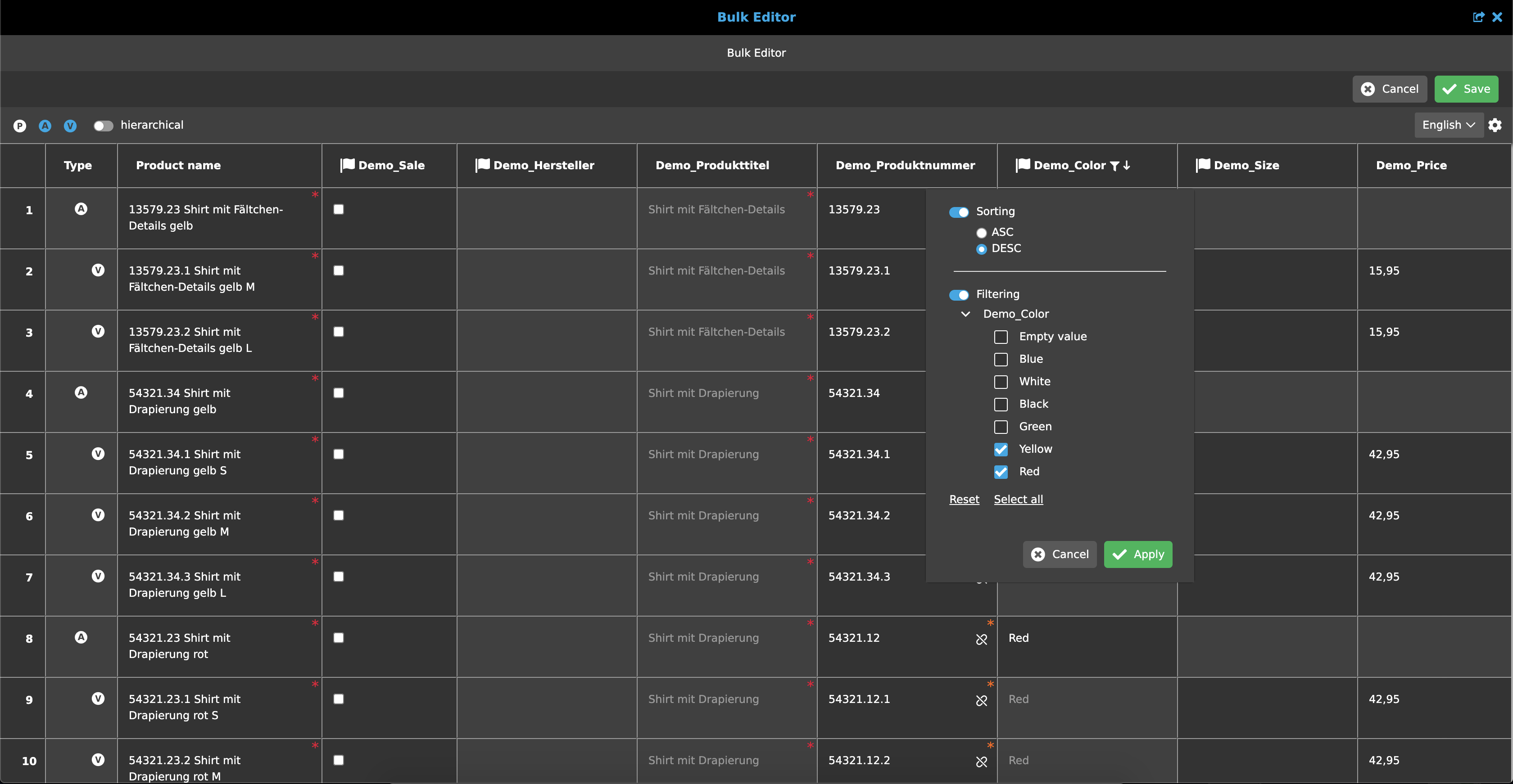
In the near future there will be the option to also filter by conditions.
Visualization of editable and not editable cells
In Bulk Editor the user has two different types of cells: editable and not editable cells. The cells that are shown in dark grey are all editable cells, so the user can add new or change available values, whereas the cells shown in light grey are not editable. If values in light grey cells are available they are just visible and not editable, since they are just inherited and due to attributes settings not changeable. How such attributes are set is described in next chapter.
Visualization of different attribute settings
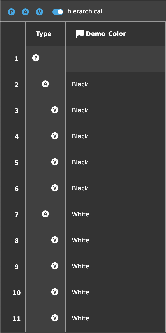
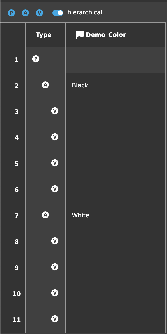
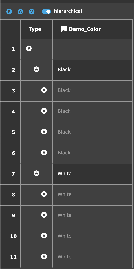
Once an attribute has been created, there are two main options for editing it in the Configuration View, that will have an effect on the visualization of the Bulk Editor table:
-
Attribute product type
-
Inheritance type
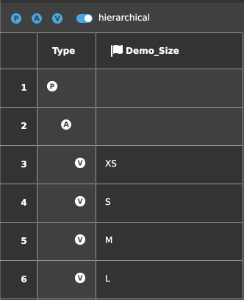
The following shows the interaction of the two options on the table:
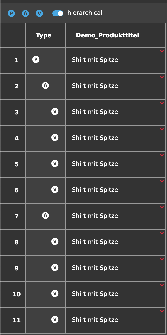
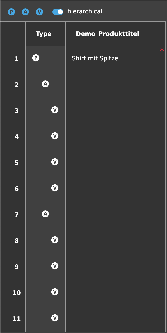
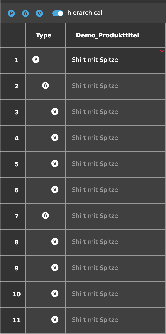
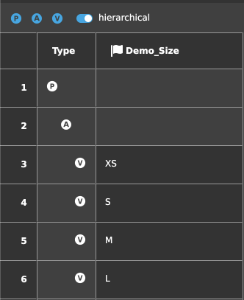
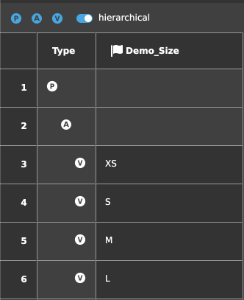
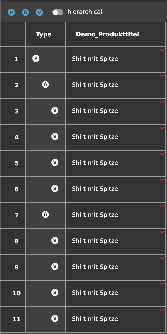
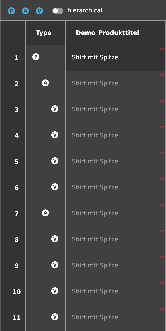
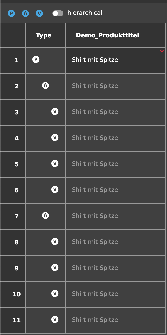
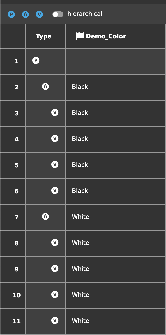
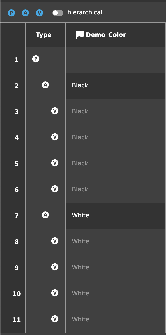
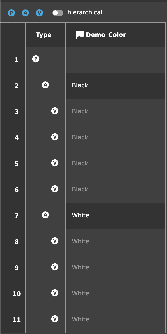
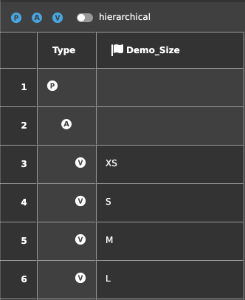
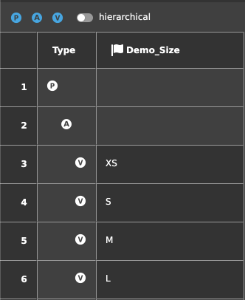
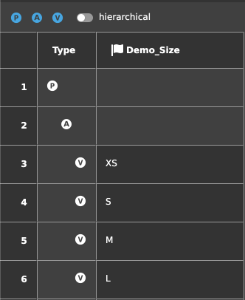
Filter P, A, V
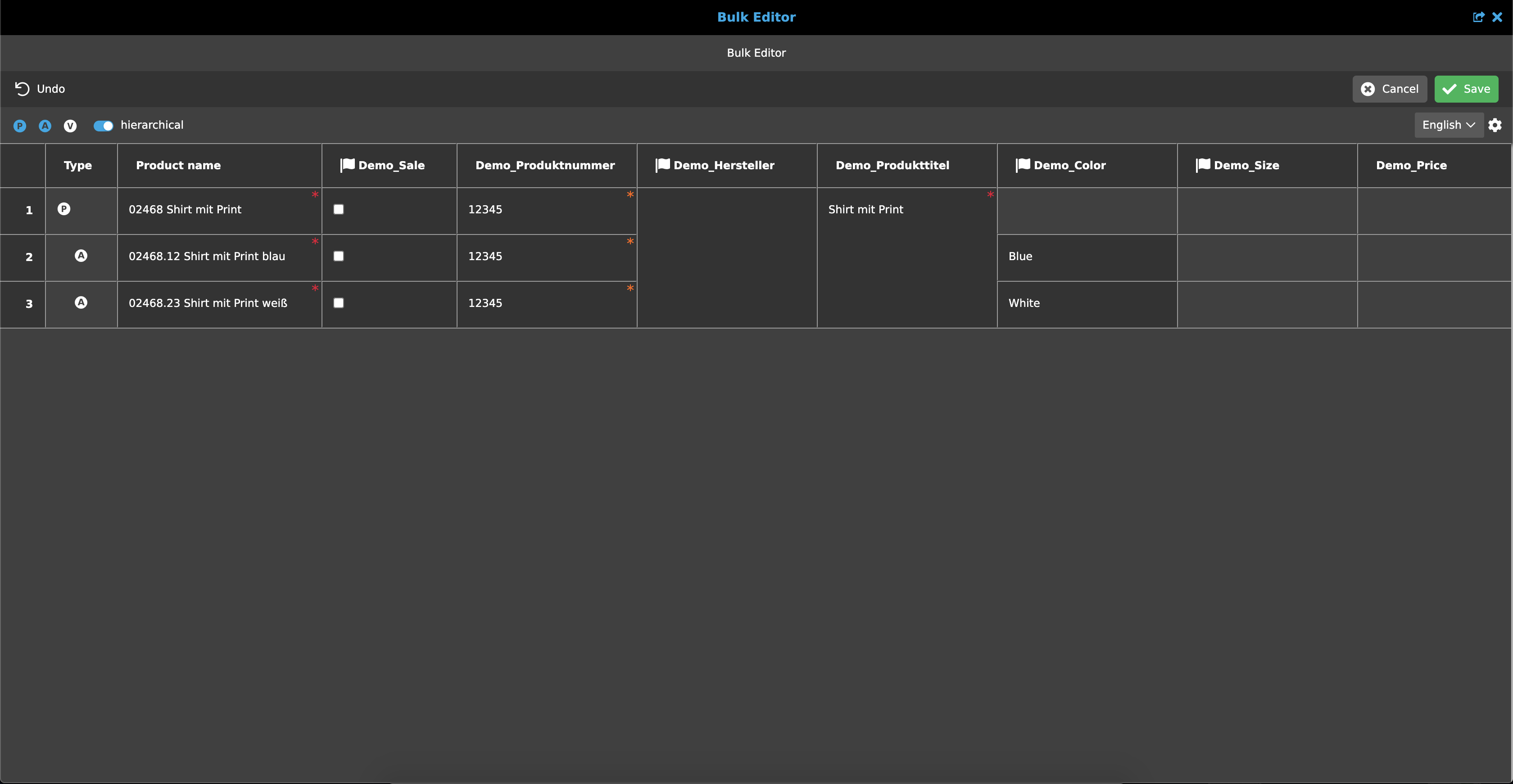
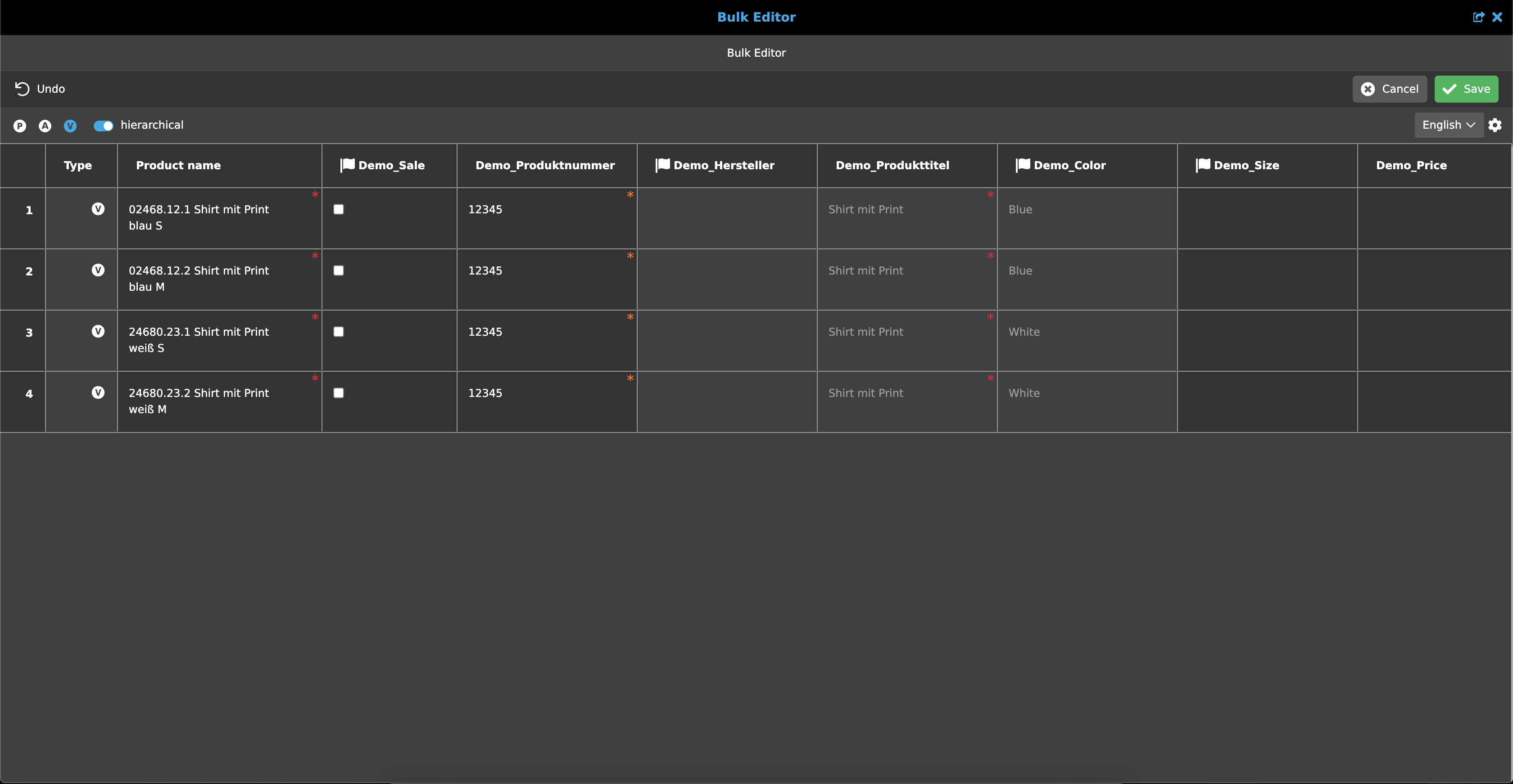
In addition to the view, a filter can also be set in the status bar. This ensures that layers can be shown or hidden. Three icons are displayed, each with P (product), A (article) and V (variant). By default, all levels are displayed. As soon as one of the icons is clicked, it is activated (blue) or deactivated (white). If, for example, "V" is hidden, all variants within the table are hidden. To prevent the table from being displayed empty, a maximum of two levels can be hidden at the same time, which means that one level always remains visible.
Functions and Shortcuts
In Bulk Editor two different types of functions are available: Toolbar functions and right click functions. Furthermore some Shortcuts are available to execute specific functions.
Toolbar Functions
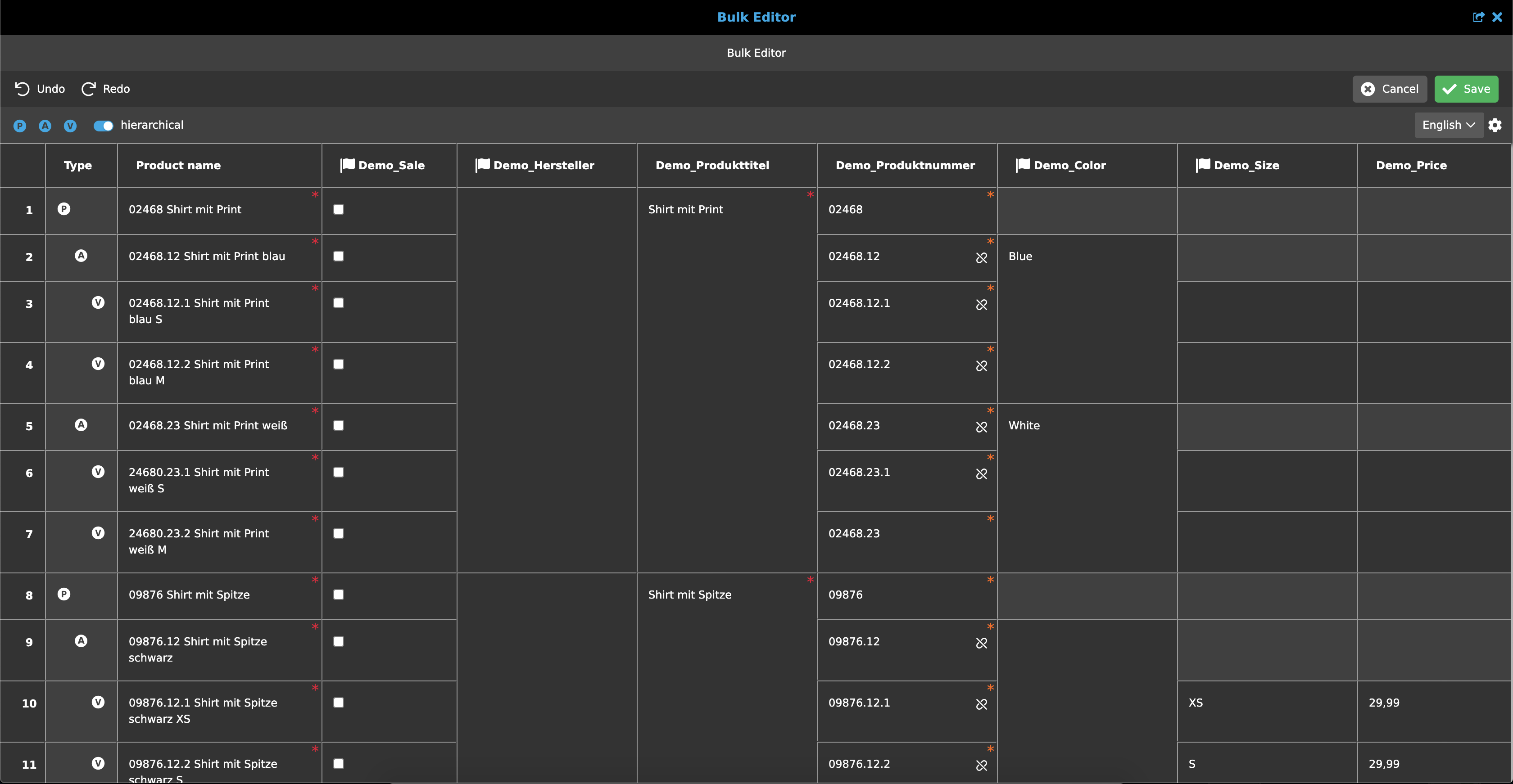
For now only two toolbar functions - undo and redo - are available. Undo is available as soon as minimum one change was done. Afterwards the undo function is appearing in toolbar. As soon as the undo function was executed, the last made change is discarded and the redo function is appearing in toolbar.
Right Click
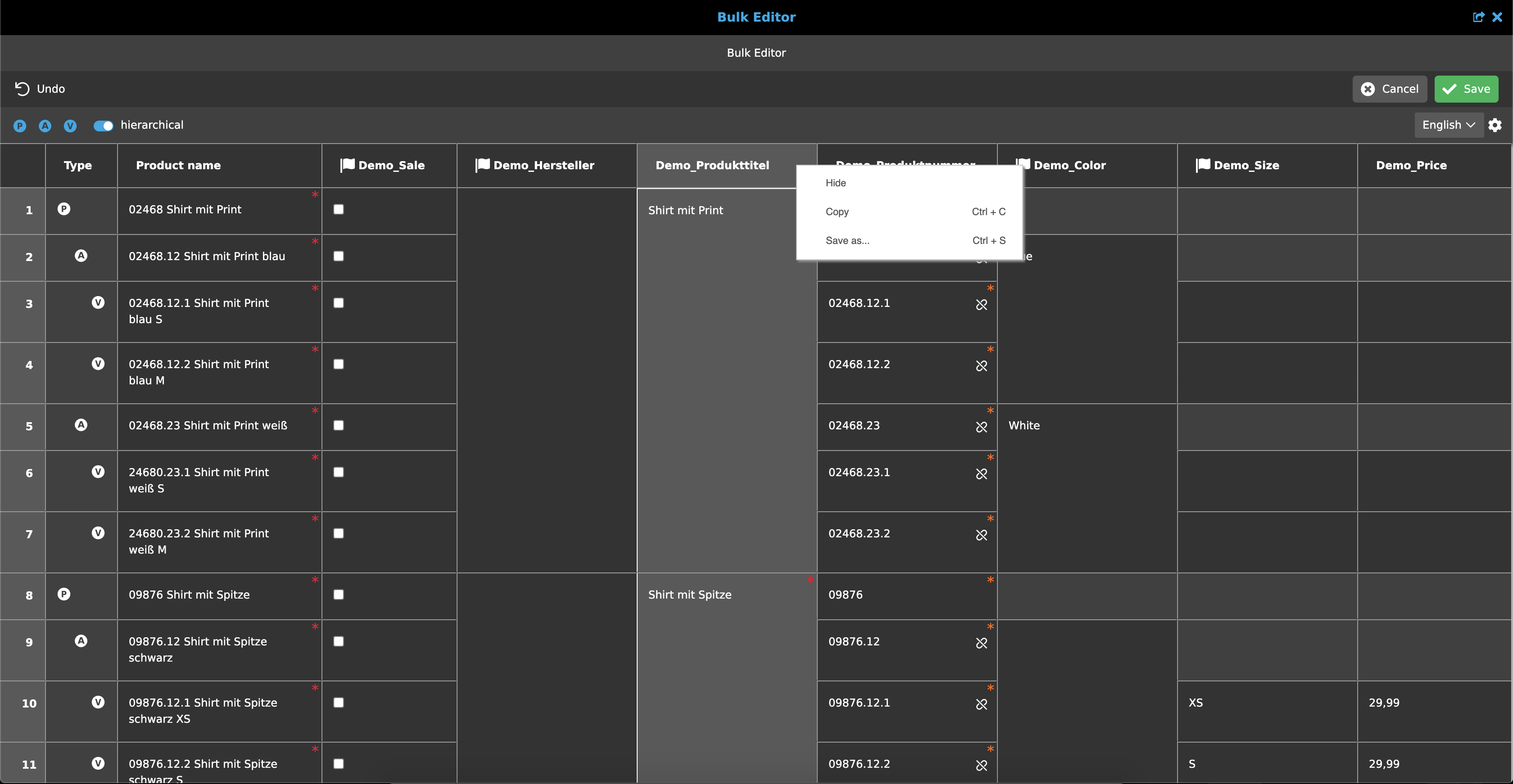
There is a special function type in the Bulk Editor that is not used elsewhere in the OMN system. By right click on the column header, a popup with functions appears.
The user can "Hide" or "Copy" a column or save the page as html or csv.
Shortcuts
In addition to the visible functions, certain shortcuts are available in the Bulk Editor. At the moment, there are four in particular.
Copy function can be executed via Ctrl/CMD + C. You can either select specific cells or directly whole columns by clicking on the table header and afterwards execute the function.
Cut function can be executed via Ctrl/CMD + X. As for copy function you can either select specific cells or directly whole columns and afterwards execute the function.
Paste function can be executed in two different ways, either by pressing Ctrl/CMD + V into a selected cell or by pulling down a selected cell to underlying cell(s) with the help of the white rectangle on the right bottom border.
Save/Download function can be executed by Ctrl/CMD + S. Thus, the entire table is downloaded as a csv file.
The copy, cut and paste functions can be used internally in the Bulk Editor as well as in external applications, for example in an Excel file.
Icon Explanations
Inheritance
When adding a value to a product or article cell, automatically the value will be inherited down to the underlying cells. Afterwards you can hover over an article or variant cell and then an inheritance icon will appear. When clicking on this icon, the inheritance will be broken and this will be visualized by broken inheritance icon. Afterwards another value can be edited. Furthermore the inheritance can be broken by adding another value, then the inheritance icon will be automatically shown.
Language dependency
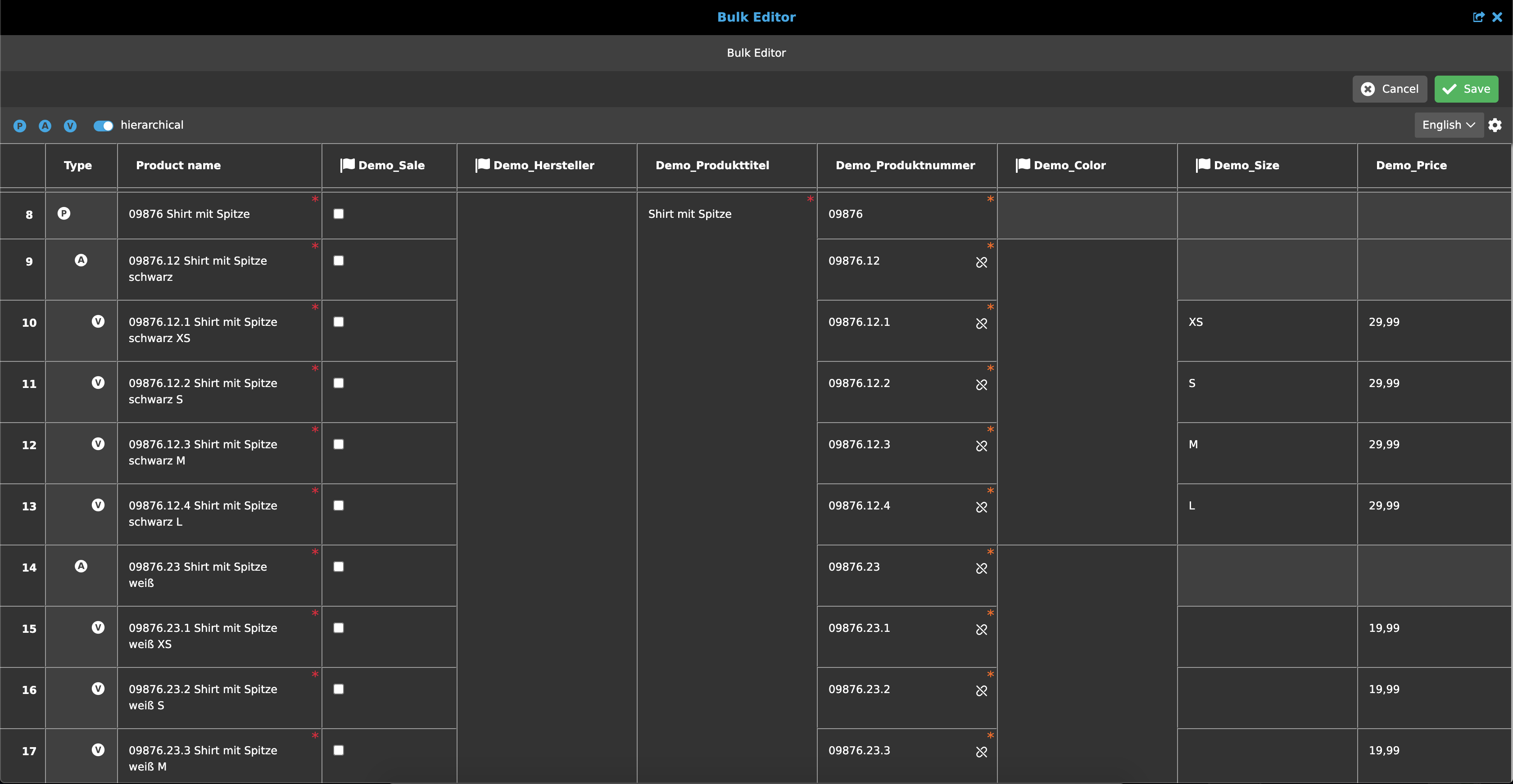
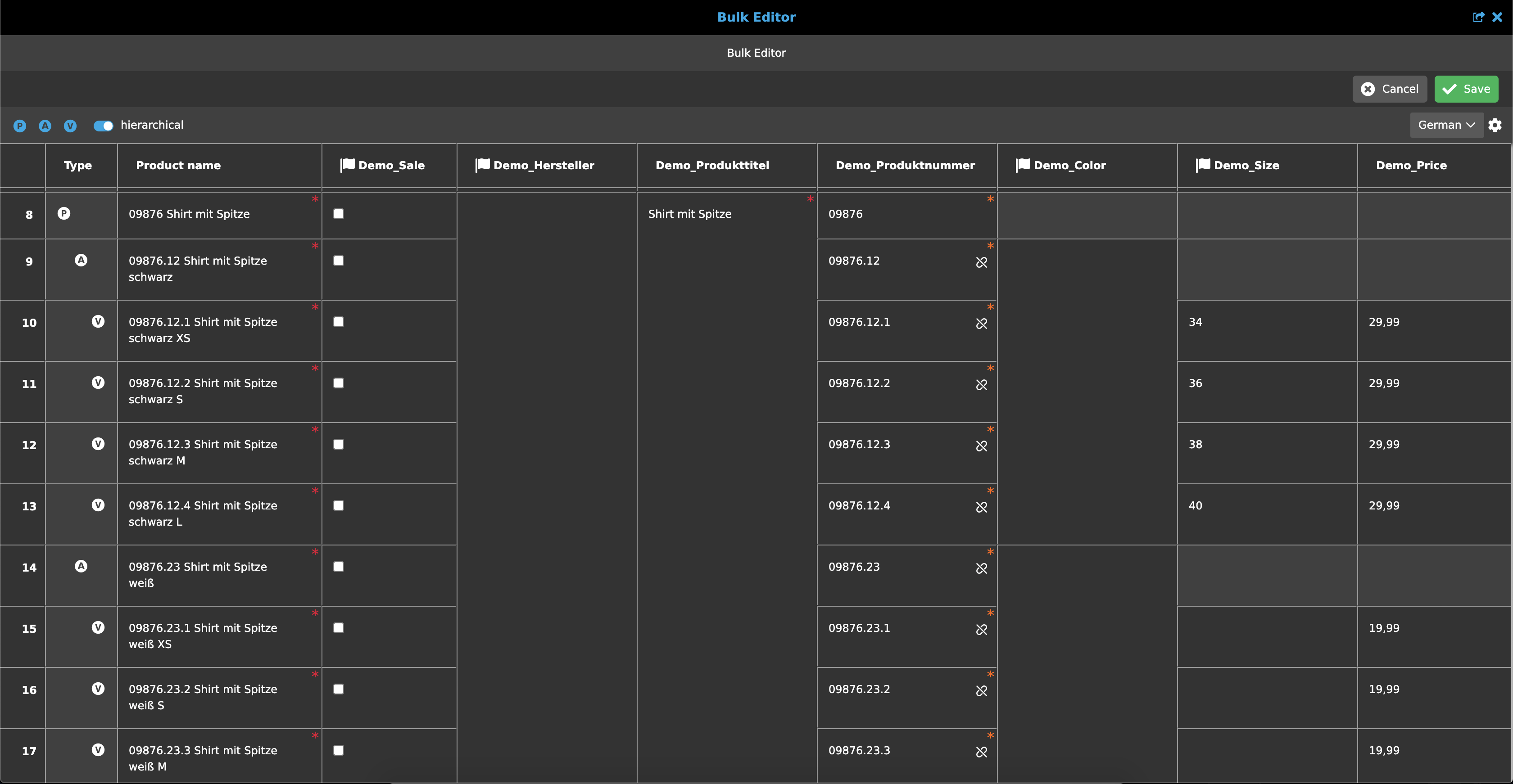
In Configuration View you can set an attribute as language dependent. Language dependent attributes will be marked by flag icon in column header next to the attribute name. If an attribute is language dependent, the user can add several values for several languages. Example: When the user wants to add a size for a dress, in english language letters (e.g. XS - L) and in german numbers (e.g. 34 - 42) needs to be used. So when the user is changing the language dropdown, he or she can add a new value for the new language.
Errors
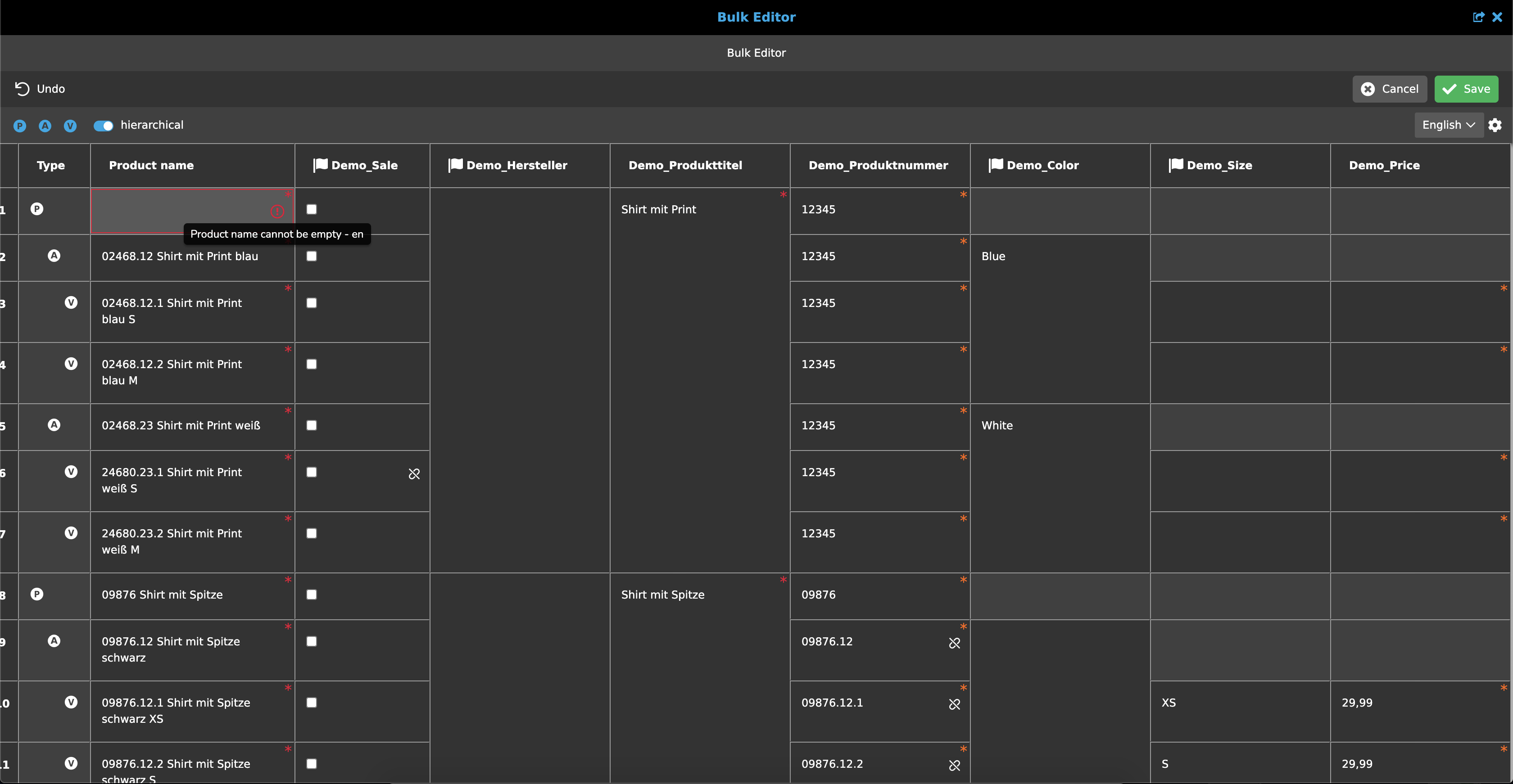
When some input is invalid or a mandatory field is empty, you can receive an error validation directly at the corresponding cell. Errors will be shown by a red border around the cell with an error icon. By hovering over the icon you will see an error message that is explaining the error (e.g. missing input for mandatory field). When an error is available, the changes can’t be saved and the page can’t be left, except if you will discard or improve the invalid cells.