Javascripts
This page provides the possibility to configure Javascript snippets for the Detail View and control when they run.
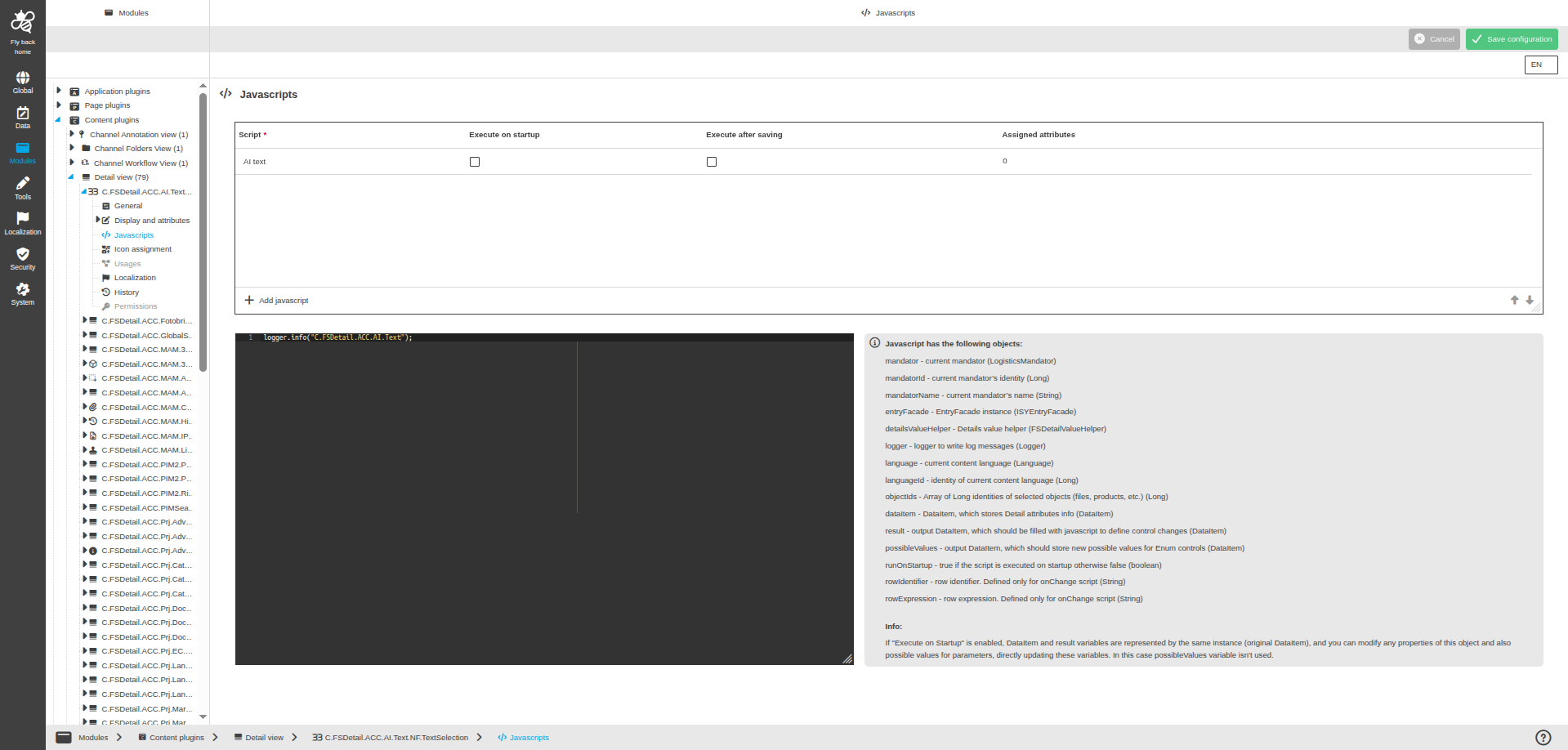
The page contains the following configuration:
Table widget
| Name of option | Description | Note |
|---|---|---|
Script |
Name of the script entry. |
The list is scoped to the current object type of the Detail View configuration. |
Execute on startup |
Runs the script when the Detail View is opened. |
Disabled by default for new scripts. |
Execute after saving |
Runs the script after the Detail View is saved. |
Disabled by default for new scripts. |
Assigned attributes |
Shows how many attributes use this script. |
This field is read-only. |
| If neither Execute on startup nor Execute after saving is enabled, the script is executed on attribute value change. Only these scripts can be assigned to individual attributes via the Javascript column in the sub-entry configuration of the Display and attributes tab. Scripts with Execute on startup or Execute after saving enabled run for the Detail View in general and are not assigned to attributes. |
The table provides the following functions:
| Function | Description | Note |
|---|---|---|
Add javascript |
Adds a new row to configure a script. |
The first field is focused after adding. |
Delete javascript |
Deletes the selected script. |
If the script is assigned to attributes, those assignments are removed after saving the page. |
Code editor
The code editor is available when a script is selected in the table widget. This field is used to define new or edit existing script.
Javascript has the following objects:
Name of object |
Description |
mandator |
current mandator (LogisticsMandator) |
mandatorId |
current mandator’s identity (Long) |
mandatorName |
current mandator’s name (String) |
entryFacade |
EntryFacade instance (ISYEntryFacade) |
detailsValueHelper |
Details value helper (FSDetailValueHelper) |
logger |
logger to write log messages (Logger) |
language |
current content language (Language) |
languageId |
identity of current content language (Long) |
objectIds |
Array of Long identities of selected objects (files, products, etc.) (Long) |
dataItem |
DataItem, which stores Detail attributes info (DataItem) |
result |
output DataItem, which should be filled with javascript to define control changes (DataItem) |
possibleValues |
output DataItem, which should store new possible values for Enum controls (DataItem) |
runOnStartup |
true if the script is executed on startup otherwise false (boolean) |
rowIdentifier |
row identifier. Defined only for onChange script (String) |
rowExpression |
row expression. Defined only for onChange script (String) |
| If "Execute on Startup" is enabled, DataItem and result variables are represented by the same instance (original DataItem), and you can modify any properties of this object and also possible values for parameters, directly updating these variables. In this case the possibleValues variable does not need to be populated directly. |
Examples
The following examples show one script for each execution trigger. They intentionally use a minimal demo configuration instead of a real business scenario: a Detail View for PIM products with the enumeration attributes color, category and subcategory of the attribute class Demo. Attribute values are addressed by an expression following the pattern <entity>.attributeValues.<attribute group>.<attribute class>.<attribute identifier>, for example Pim2Product.attributeValues.Demo.Demo.color.
Execute on startup
The script fills the possible values of the color dropdown when the Detail View is opened and preselects a default value if the attribute is still empty.
The new possible values are not written to the possibleValues variable directly — instead, the script passes the variable to the injected detailsValueHelper (see the object table above), which takes care of storing the values correctly for the current execution context. Because dataItem and result are the same instance on startup, the default value is written directly into dataItem.
Execute after saving
The script compares the value of the color attribute before and after saving and writes a log entry for each saved object if the value changed. In post-save scripts, dataItem holds the values before saving and result holds the values that were saved.
Execute on attribute value change
Scripts without Execute on startup and Execute after saving are executed when the value of an assigned attribute changes. The script below implements two dependent dropdowns: when the category value changes, the possible values of subcategory are restricted to the matching entries, and if the current selection no longer matches, the first allowed entry is preselected via the result DataItem. The script is assigned to both attributes via the Javascript column in the sub-entry configuration of the Display and attributes tab.