DocEdit
DocEdit tool is a second part of the Web-to-Print module.
In DocEdit you can individualize the selected InDesign document in a needed way. Available content elements and editing capabilities depends on what was configured in Preparing for the document.
In DocEdit it is possible to:
-
edit the text content in the document in the needed way
-
add corresponding images
After individualization of the document in DocEdit tool, it can be taken into further usage (e.g. in web-shop).
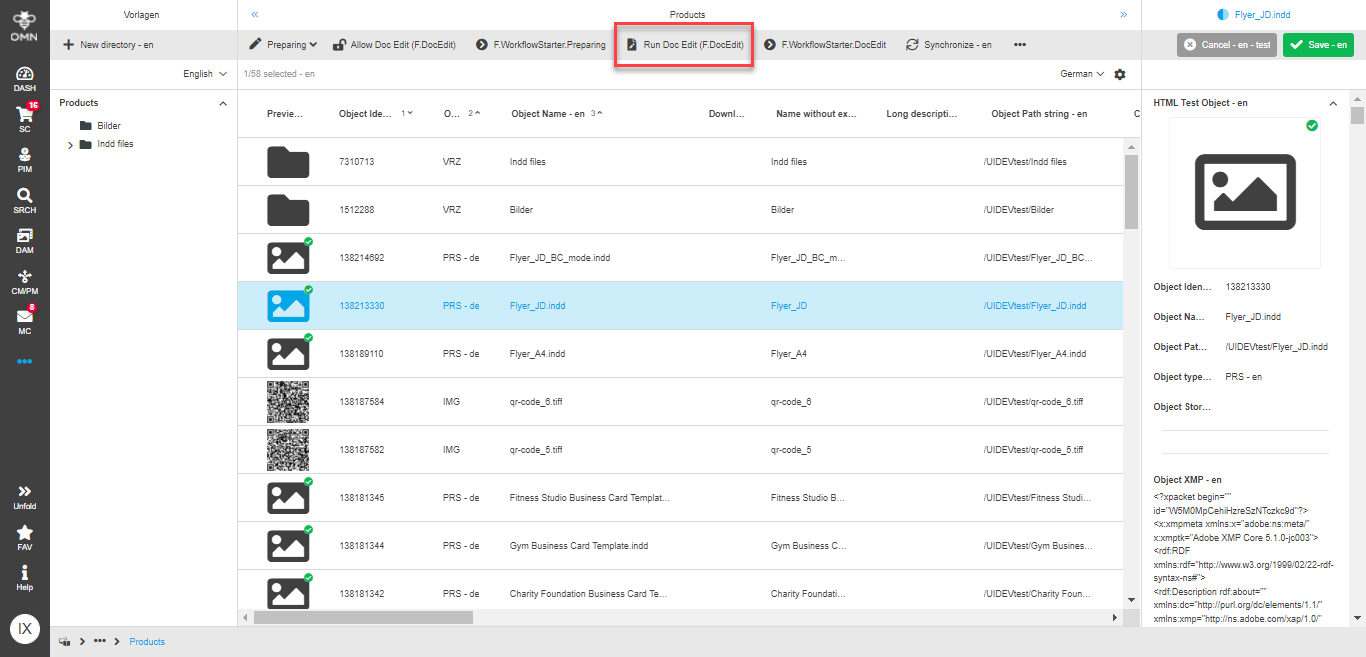
Open DocEdit tool
DocEdit can be opened for InDesign documents from:
-
MAM context → on the InDesign document itself
-
PIM context → on the product that has linked InDesign document
-
Workflow context → on the defined step of the process for Indesign document via workflow function
| It is possible to open DocEdit tool for several documents at once. In this case, a special navigator appears in the top right corner. image::en@doc-edit/DocEdit_multiple_documents.png[] |
Structure
The DocEdit tool is divided into three areas:
-
left panel → here you can see the structure of the document. In DocEdit tool there are only editable content elements available in the shown structure.
-
central panel → here you can always see the actual preview of the document’s page after made changes. In addition, the boxes on canvas are selectable for editing. Work with image placement is also done on canvas.
-
right panel → here the special editors are shown. The editors can be for content elements or for additional functions, e.g. Size adaption.
These areas and their contents are described in more detail below.
Navigation
Navigation tab in the left panel of the opened DocEdit tool contains the structure of the document that was configured in Preparing. Here only editable entries are available. Here you can always see all document’s pages, boxes available for editing on pages and input form entry (if configured in Preparing).
In the navigation you can:
-
check all boxes of the document available for editing
-
switch between different pages of the document
-
select needed content box or input form entry
-
check the overall status of the preparation of the document
As stated before, the navigation shows a lot of useful information in the entries themselves. Navigation for documents with activated 'BC-mode' differs from the navigation for documents with not activated 'BC-mode', so that the following sections describes their common parts and differences.
Navigation for documents with not activated 'BC-mode'
When 'BC-mode' was not activated for the document in Preparing tool, the navigation looks like this:
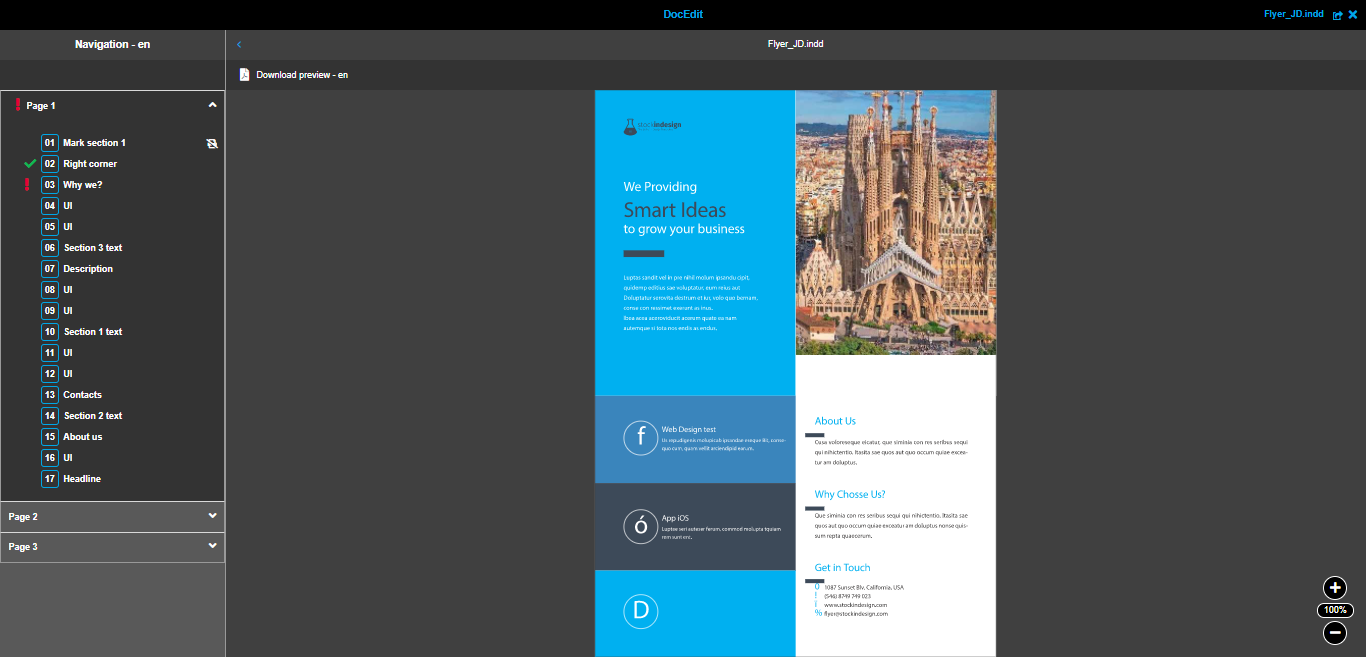
Navigation entries
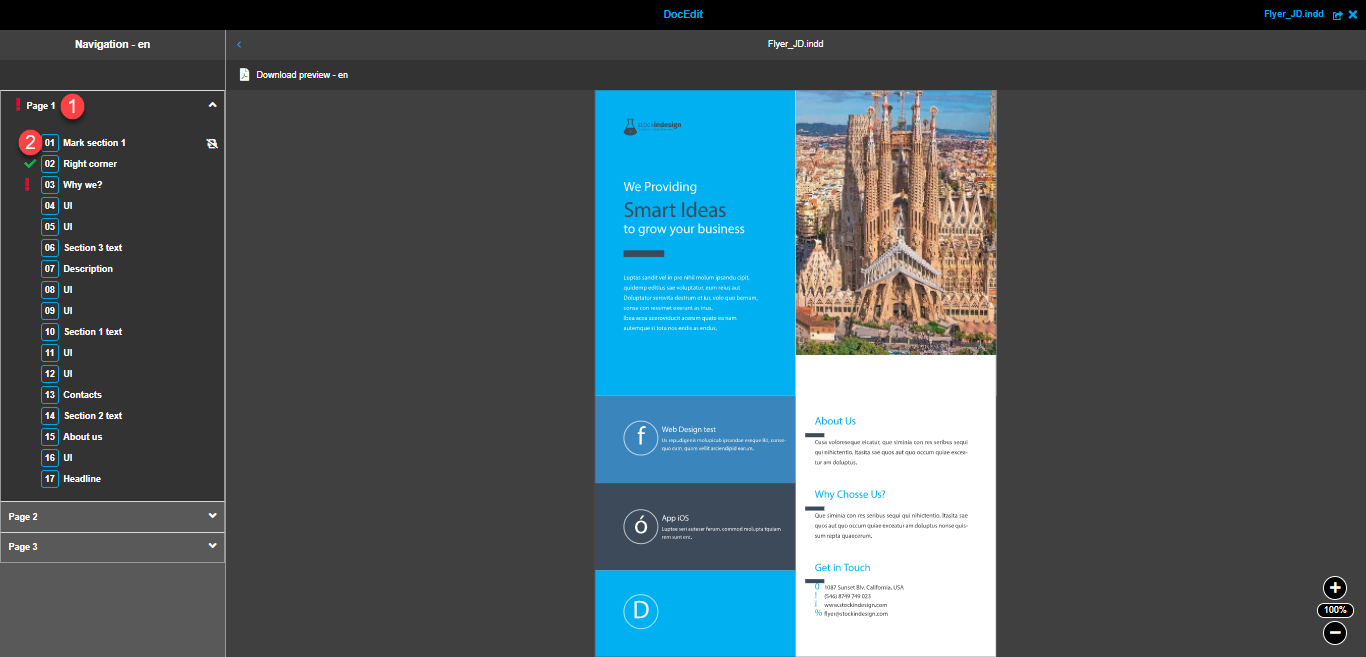
The following entries are available in navigation:
-
Page entry → not selectable and not configurable in Preparing. Entry is shown because it is available in the InDesign file. Click on the entry changes the preview to a specific page and expands the list of page’s boxes
-
Box entry → selectable and configurable in Preparing (box should be 'Editable'). Click on the entry opens the specified editor in the right panel (depending on the box type - text box editor or image box editor)
Visual hints for navigation entries
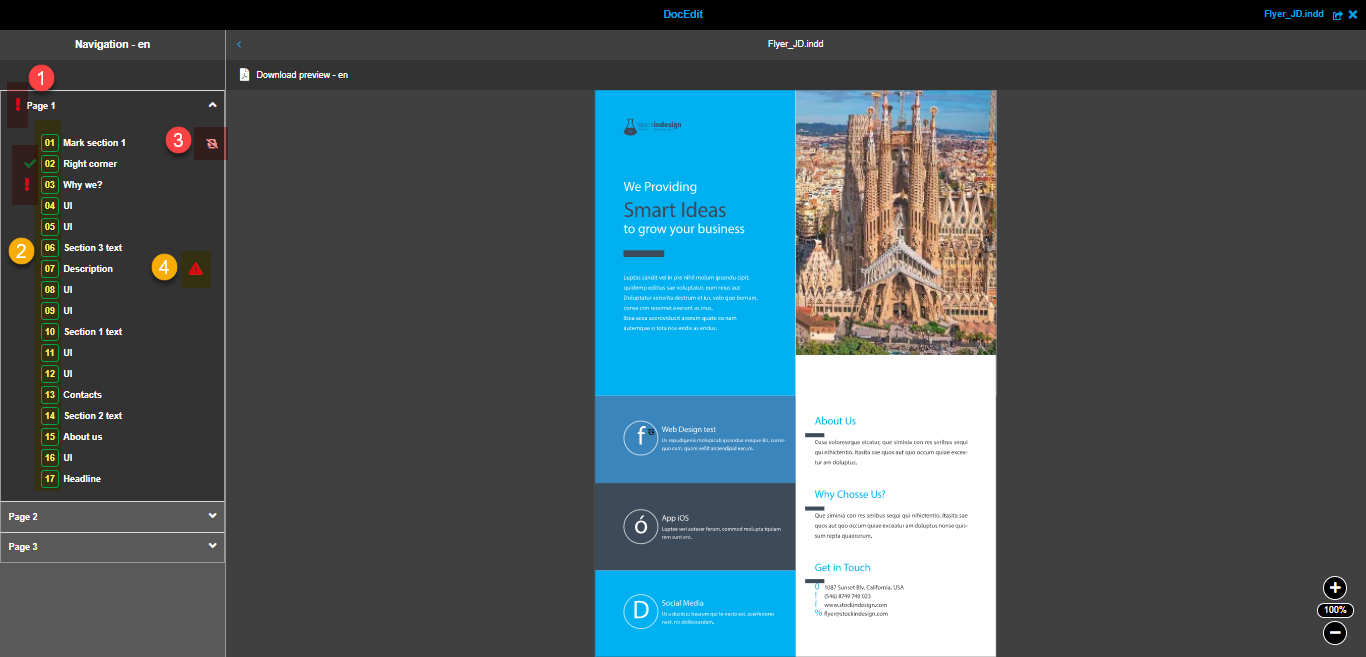
Since one of the purposes of the navigation is to have an intermediate state of the document’s preparation, there are the following visual hints:
-
Entry state icon
-
→ shows that the entry is mandatory (or the form has mandatory fields) and it was not filled in yet
-
→ shows that entry is mandatory and is already filled in
-
-
Numbering of the boxes → helps to differ between boxes (especially on canvas)
-
 → means that 'Delete on print' option is activated for the box. In this case the box with its content will not be present in the output document (e.g. downloaded PDF)
 -
→ means that the text entered for the box cannot be fully shown within the box and some part is invisible on the preview
| Page entry also has a state icon → it shows exclamation mark as long as there is at least one not filled in mandatory box on the page. |
Navigation for documents with activated 'BC-mode'
When 'BC-mode' was activated for the document and input form was configured for the document in Preparing tool, the navigation looks like this:
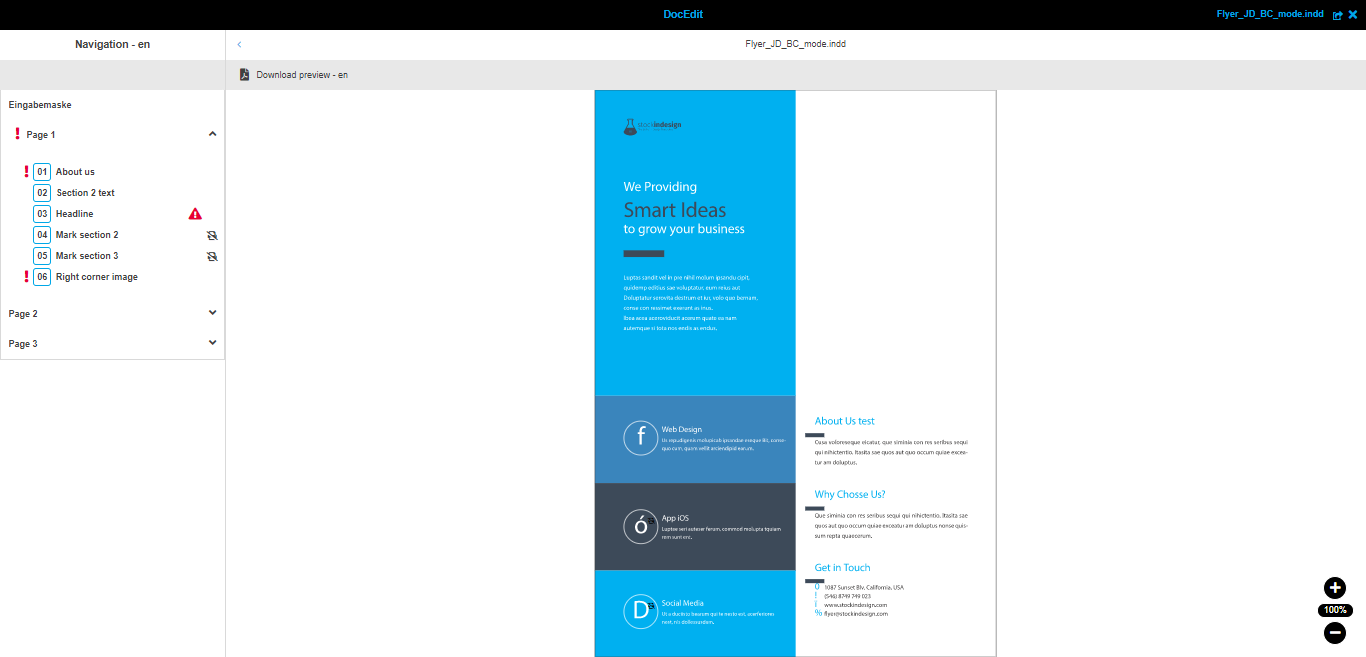
Navigation entries
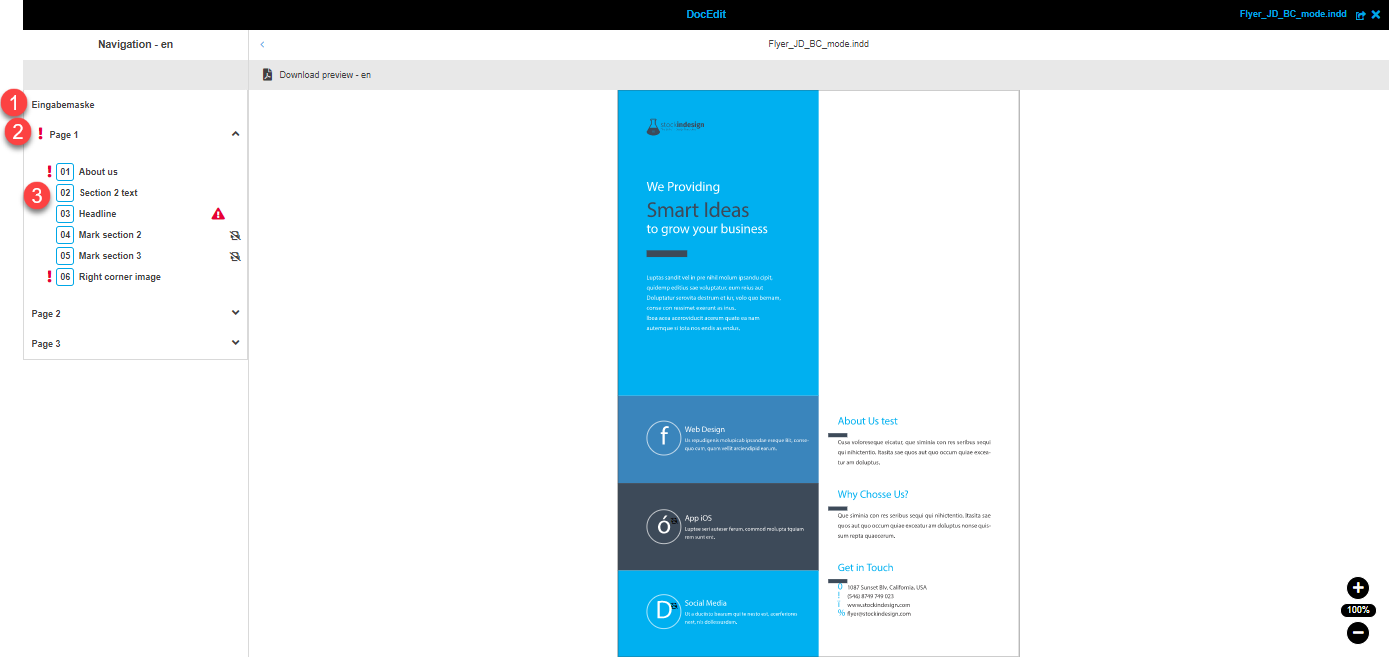
The following entries are available in navigation:
-
Input form entry → selectable and configurable in Preparing. Entry is shown, because it was added in Preparing tool. Click on the entry opens the form editor in the right panel
-
Page entry → not selectable and not configurable in Preparing. Entry is shown because it is available in the InDesign file. Click on the entry changes the preview to a specific page and expands the list of page’s boxes
-
Box entry → selectable and configurable in Preparing (box should be 'Editable'). Click on the entry opens the specified editor in the right panel (depending on the box type - text box editor or image box editor)
Visual hints for navigation entries
The following hints are available for navigation entries:
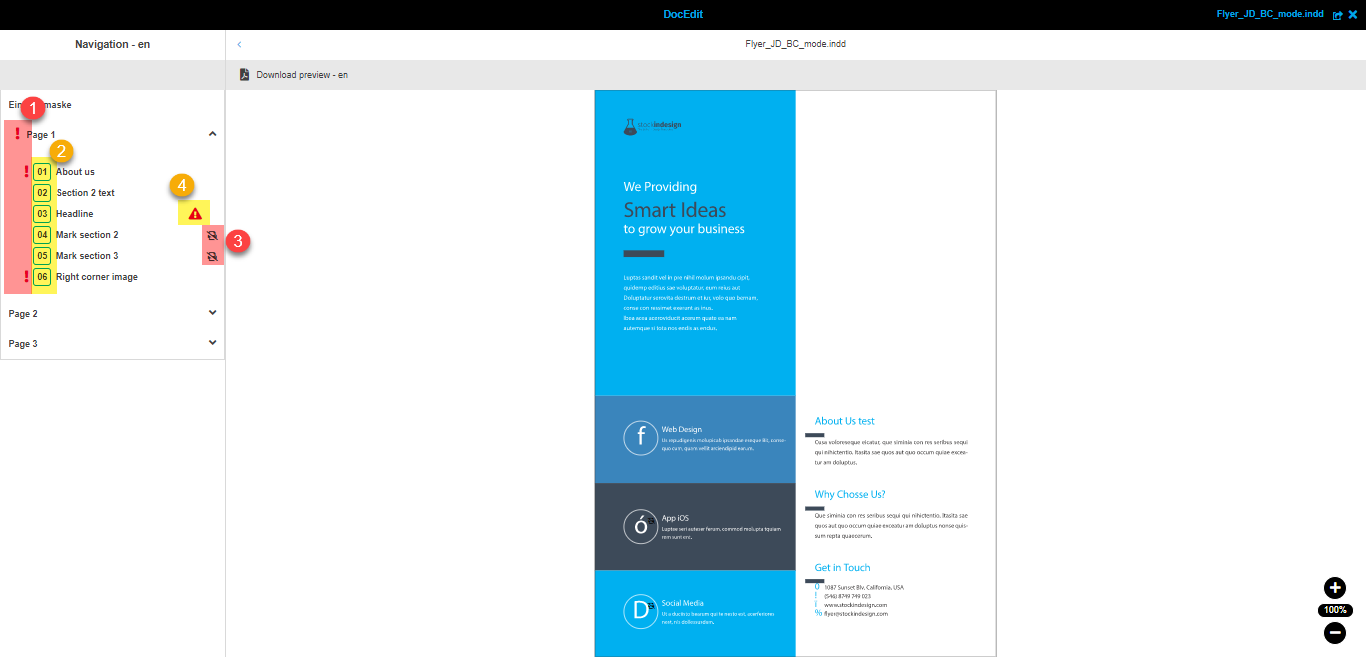
The hints are the same as for navigation for the documents with not activated 'BC-mode'. Description is available below.
| Entry state icon is also shown for the input form entry → exclamation mark is shown as long as there is at least one not filled in required field in the form. |
Canvas
Central panel of the DocEdit tool contains the canvas - the place where the document’s state can really be seen.
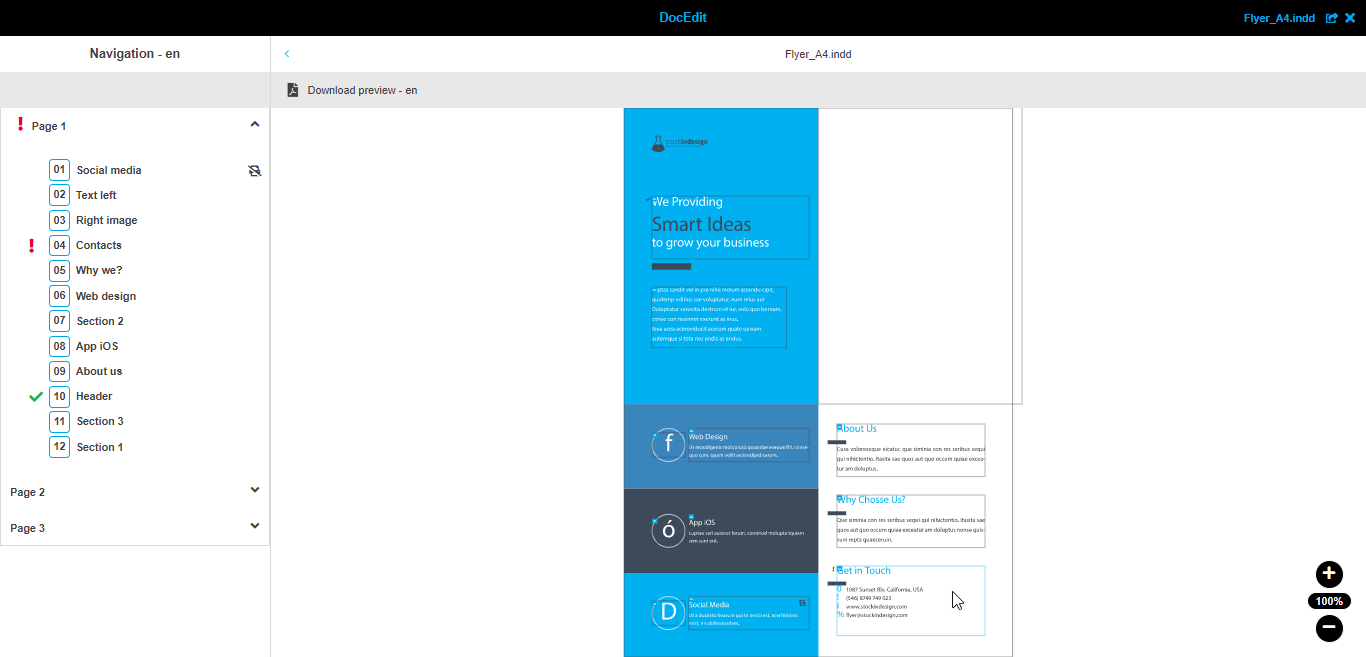
On canvas you can:
-
check the previews of the document’s pages (placement of boxes and their content)
-
have a visual representation of what can be edited on each page
-
select needed content box
-
manage the placement of the image within the image box (more details are available in this section)
Here you can see the overview video of the main functions available on canvas with the comments below:
-
When you are hovering the canvas, all content elements (their frames) are shown. If any box is selected, its frame is shown in blue color. The frame is also blue if the cursor is over the box.
-
The navigation in the left panel and canvas are synchronized, meaning: selected and hovered boxes are always the same in both places.
-
There is a possibility to zoom in/out. Maximum value is 300%, minimum value is 10%.
-
Special hint icons are shown near the boxes. They are also synchronized with the navigation in the left panel. Explanation of the icons is available in this section.
Text box editor
Since Web-to-Print module works with InDesign documents, the most part of work is done in the context of the boxes. If you need to edit any text of the document, DocEdit provides you with text box editor:
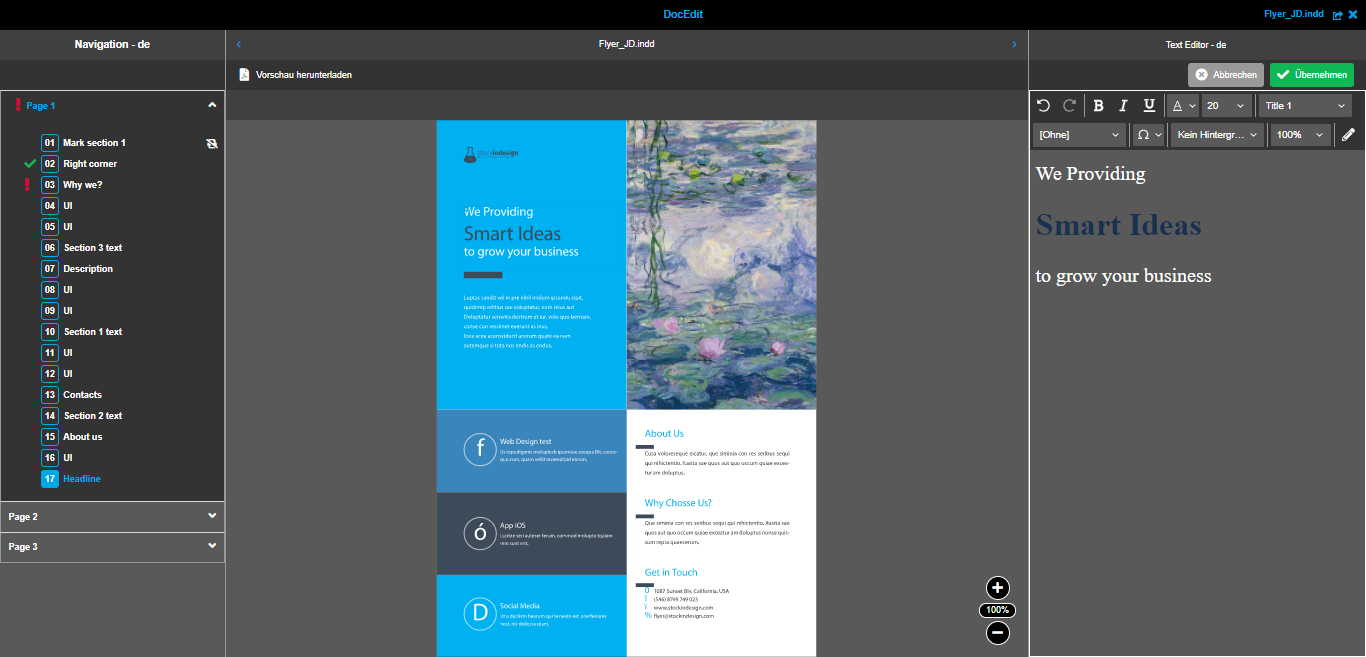
| The availability of the functions inside the editor depends on the configuration in Preparing. More details about configuration can be found here. |
Most of the available in rich-text editor functions are commonly used in different text editors:
-
Undo/redo → you can undo/redo any made action from the editor’s opening till the saving
-
Bold → standard button to make text bold
-
Italic → standard button to make text italic
-
Underline → standard button to make text underlined
-
Font colors → you can color your text in one of the colors in the list
-
Font sizes → standard chooser of font sizes
-
Paragraph styles → you can choose paragraph style for your text. Paragraph style contains full package of styles for the paragraph - in most cases, you don’t need any other formatting
-
Character styles → you can choose character style for your text. The character style is almost the same as paragraph style, but it is applied to characters separately
-
Special characters → with the help of this list you can paste some special characters into your text
-
Background → this is a special function that allows you to switch the background to more suitable one (e.g. to the light one if your font color is black)
-
Zoom → with this function you can zoom in/out the entered text. It is handy to use in case of too small or big font size
-
Open rich-text editor in a modal → this function opens the same rich-text editor in a modal window. In modal window you have more space and it is more handy to work with huge texts:
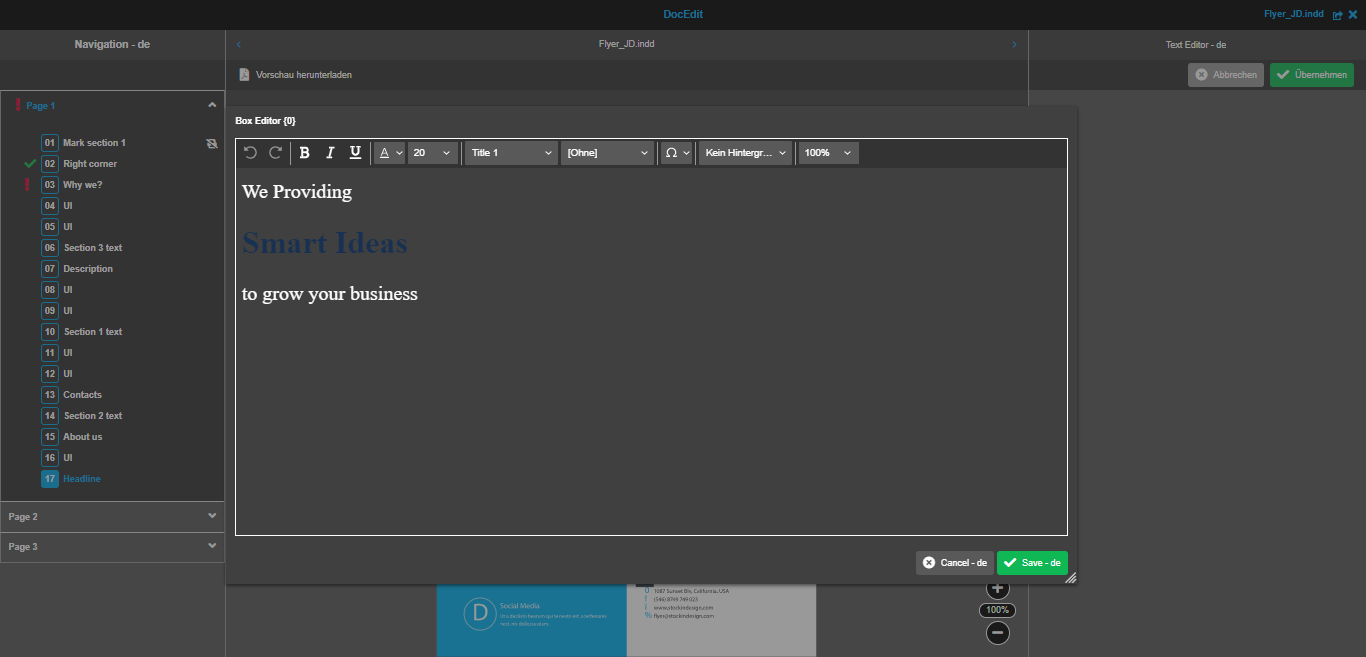
-
Dropdown with alternative contents → from this dropdown you can choose one of the preconfigured variants:
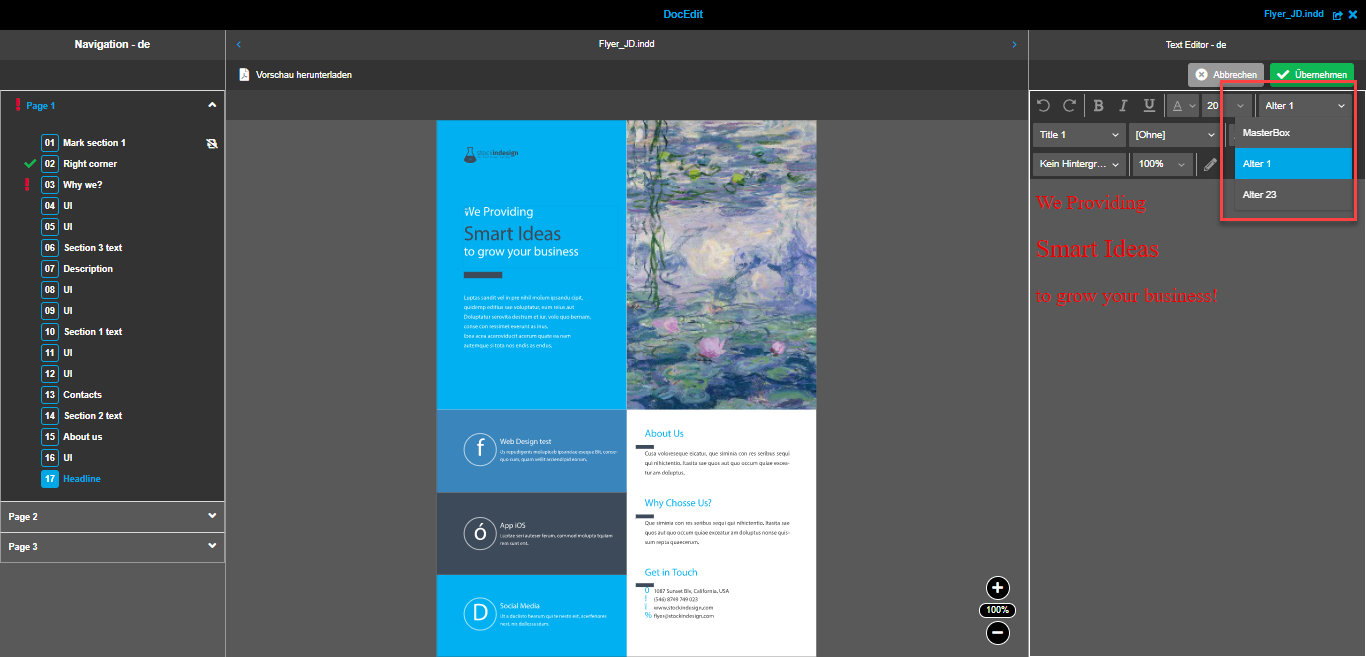
After you have edited the text as you need, you can save the changes and they will be applied to the preview of the documents on canvas.
What if my text box is disabled?
Sometimes it can happen that you see the disabled text box entry in the navigation and no box border on canvas. This is how the disabled box looks like:
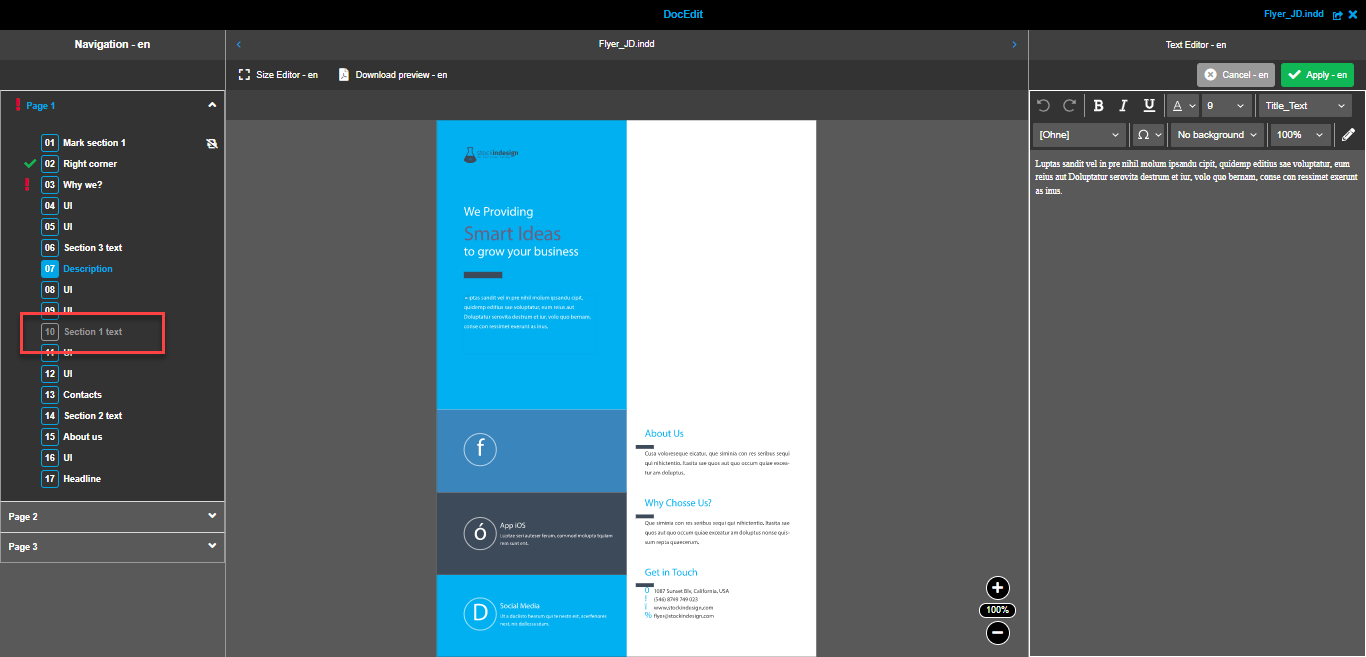
If this is your case, all you need to do is to choose and paste any image into the image box. The meaning behind: an administrator decided that this text box can be seen and edited only if the image is set into the image box.
If you set an image and reset it afterwards, the text box becomes disabled again.
Here is the video showing how it works:
Image box editor
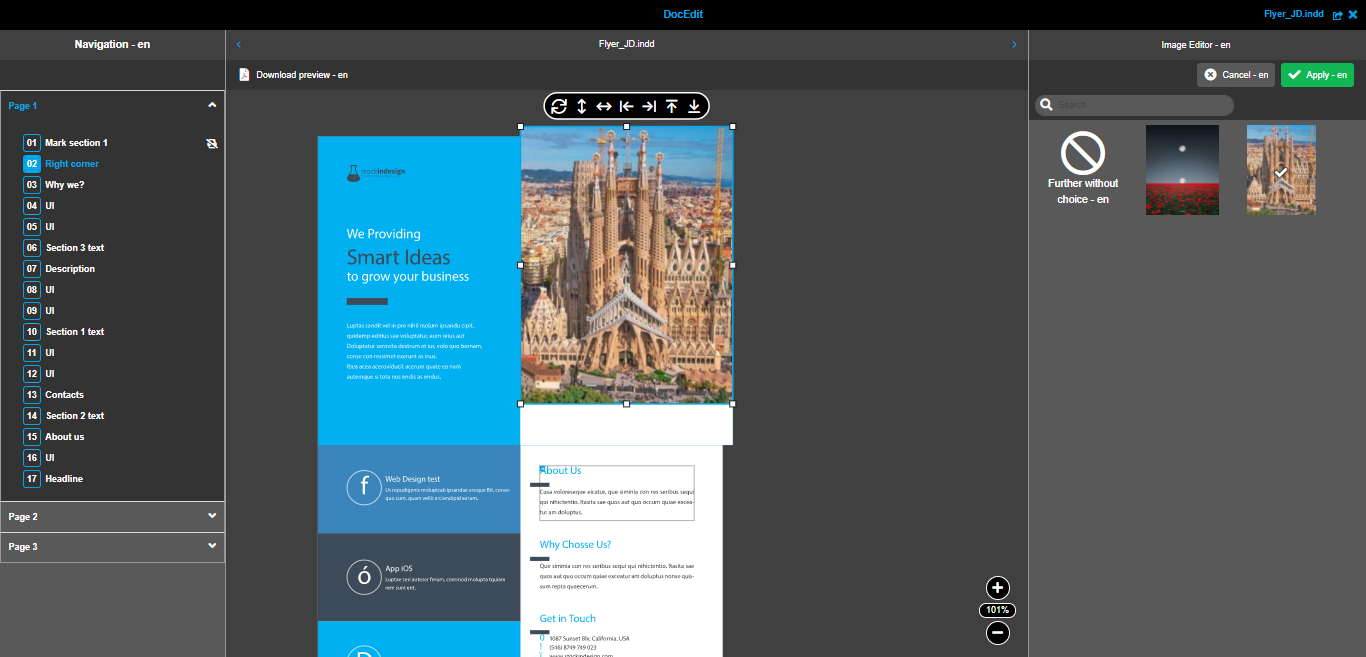
This section describes how you can work with the images in the documents. All images in the documents are placed into image boxes. To start editing of the image box, you need to select it. After that the image box editor is opened in the right panel:
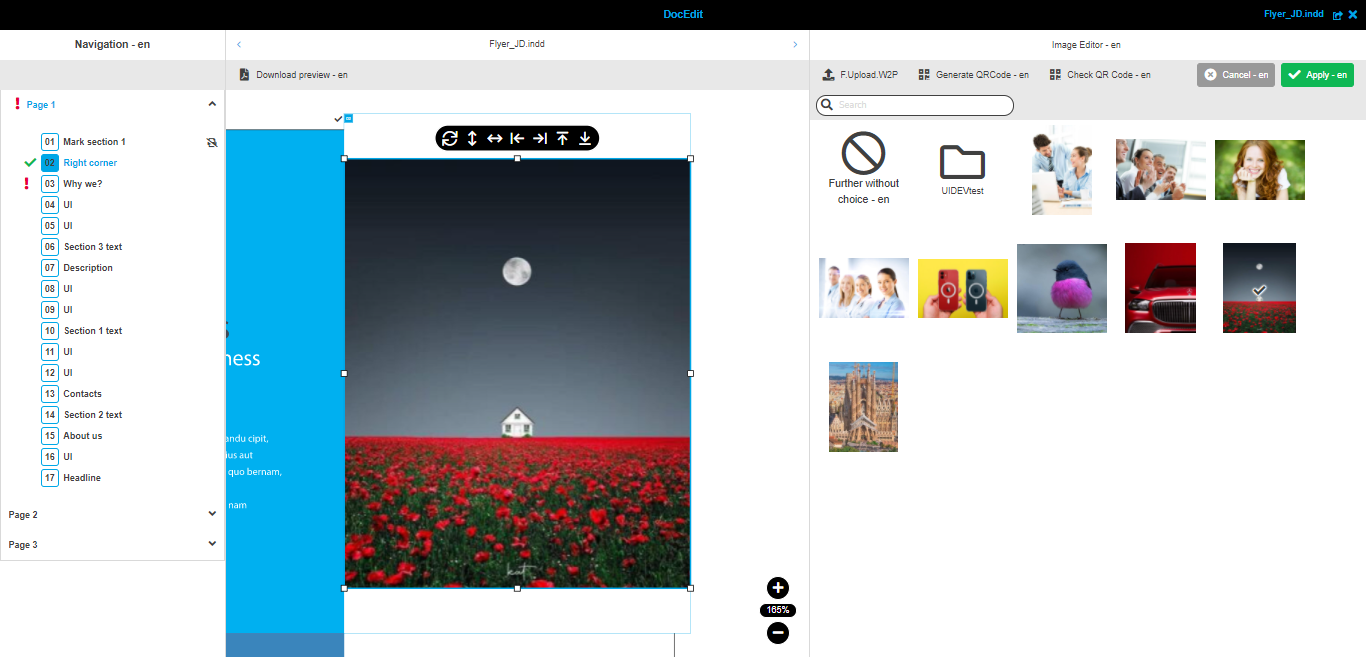
| The appearance of the editor and availability of the functions described below depends on the configuration in Preparing. More details about configuration can be found here. |
Here in the editor you can see the list of available images - you can choose any image and it will be pasted into the box. Selected image is marked with a tick icon → .
You can also see the folders in this list - in this case you can open them by click. If you need to go back to the previous level, the button 'Level Up' appears in the toolbar.
If you have not found the image you need, there are two scenarios:
-
Continue without image → there is a special tile for this case. Just select it and proceed to saving. The box will stay empty.
-
Upload your own image → there is a button 'Upload' in the toolbar of the editor. It opens a modal where you can add your file. After successful upload, the image is available in the list for selection.
Here is the overview video of all functions described above:
QRCode generation
QRCode generation is a special functionality available in DocEdit for image boxes. You can create a new QRCode or edit an existing one for the image box.
But the functions are not always available in the image editor in DocEdit. Availability depends on the configuration from Preparing. More details about configuration can be found here.
Create new QRCode
The function 'Generate QRCode' is available:
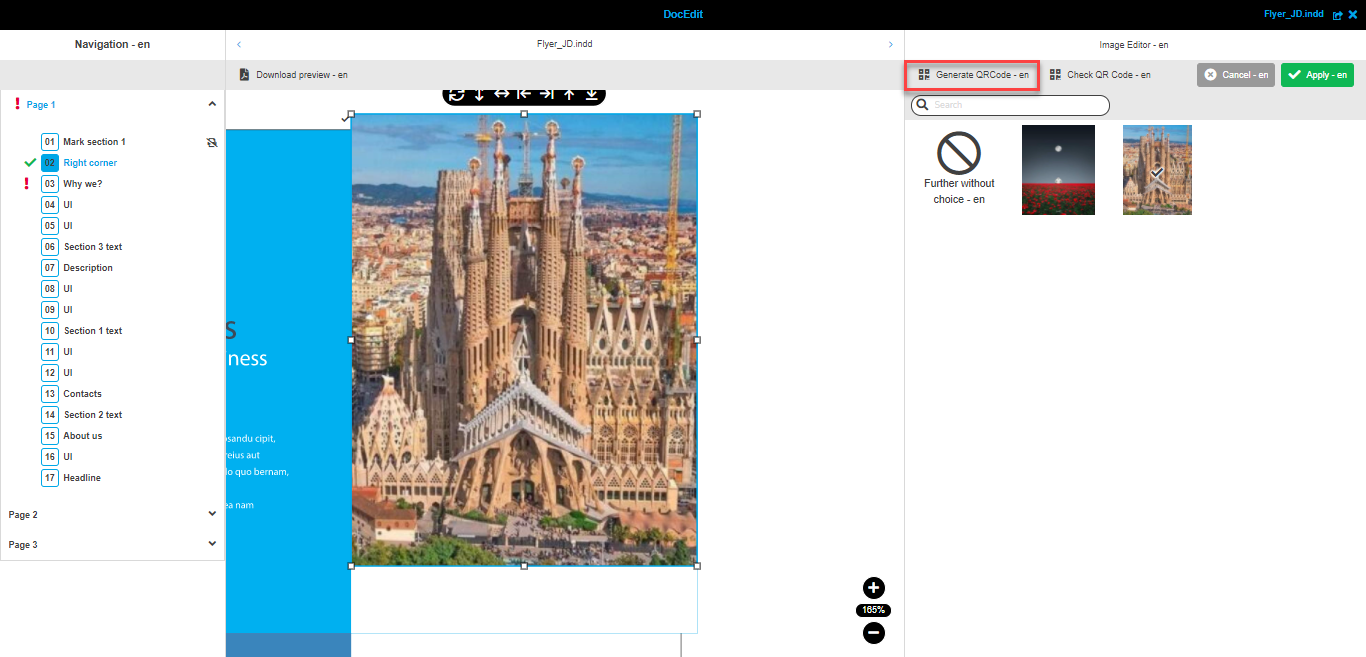
Execution of the function opens a modal window with the configured fields where you can enter the needed information:
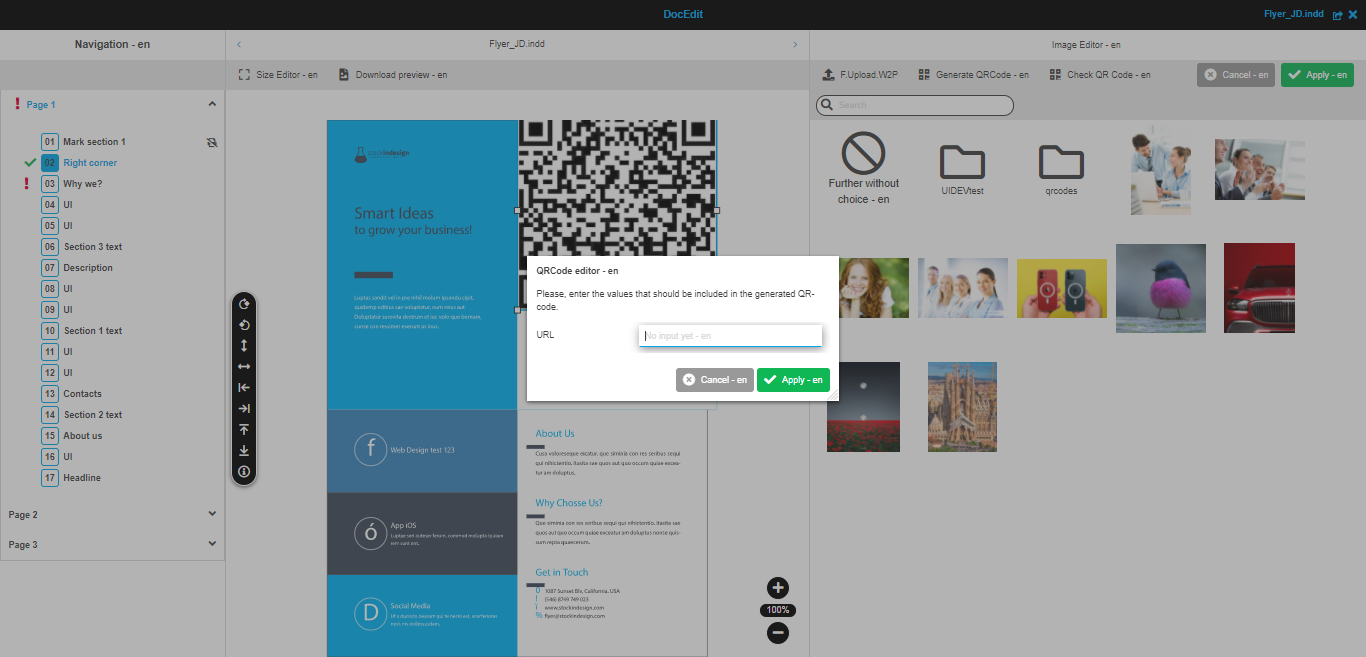
When you have entered all required information, click on 'Apply' button and generation of QRCode will start automatically.
→ The generated QRCode is automatically selected in the right panel and placed into image box on the canvas. The editor is closed automatically - if you need to make more changes to the image box, you can simply select it again and continue work.
| Right now, generated QR-codes are not shown on the canvas after applying changes. But you can still see it in the image box editor and can change the placement of the image within the box. QR-code can be seen in the downloaded PDF. It is a known issue and will be fixed soon. |
Check and edit an existing QRCode
The function 'Check QRCode' is available when the QRCode image is selected:
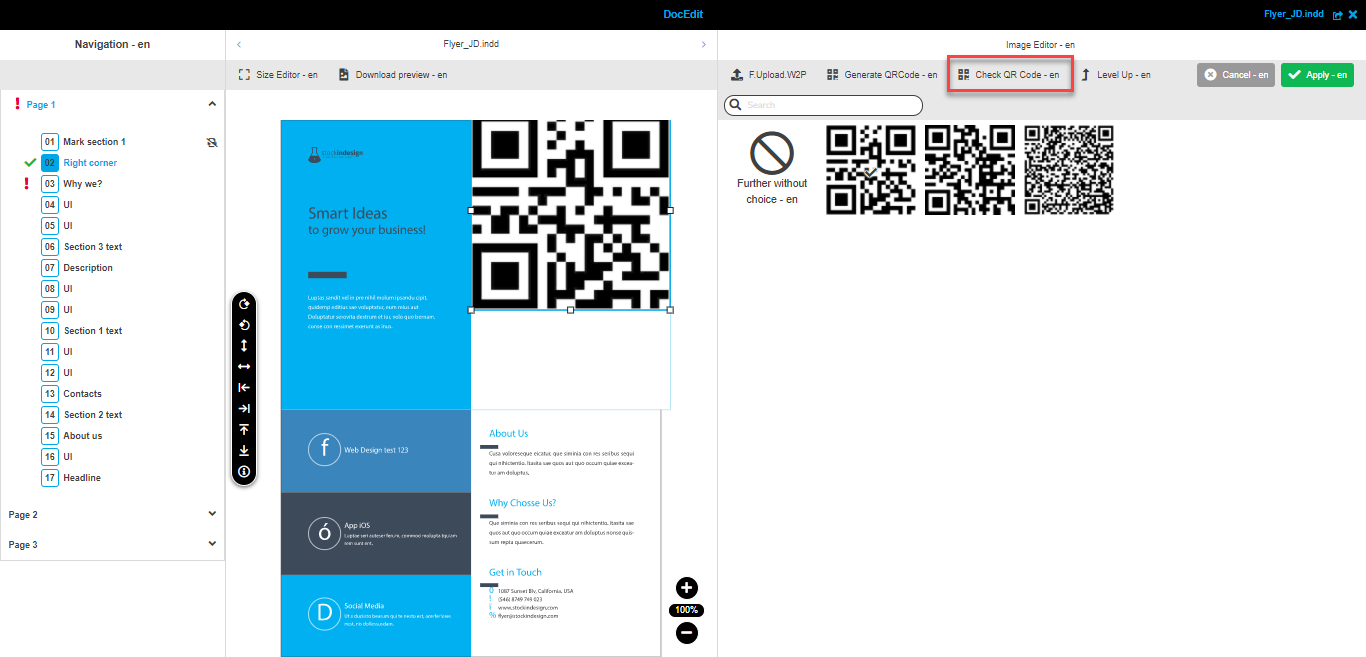
Executing the function opens the same modal window as for QR-code creation → you can check the entered data and make edits in the available fields if needed. Applying the modal works in the same way as well → new QR-code is generated, editor is closed and QR-code is placed in the image box.
Functions' toolbar on canvas
When you have selected the needed image in the editor in the right panel, you have the possibility to modify the positioning of the image inside the box. This is done right on the canvas with the help of functions' toolbar that is shown above the top side of the image.
Here is how the toolbar with functions looks like:
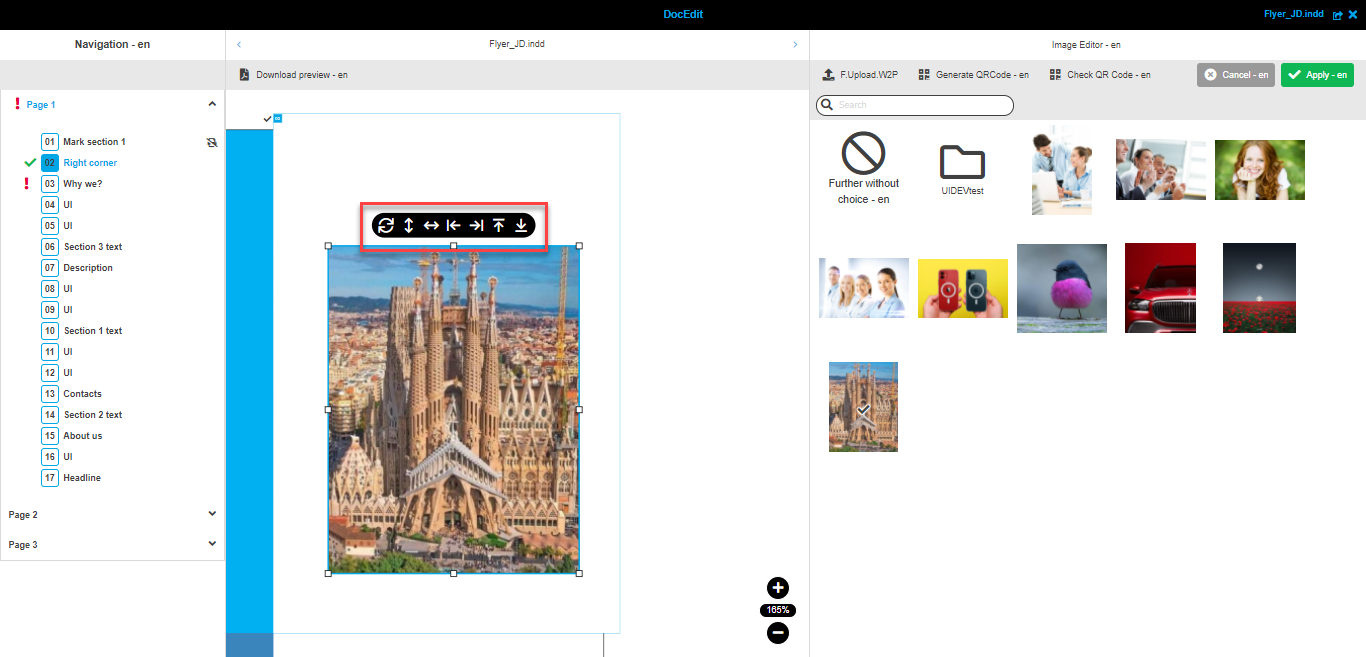
| Availability of the functions in the toolbar depends on the configuration in Preparing. More information is available on the page. |
There are the following functions available in the toolbar:
-
 - Rotate → you can click on the function and start rotation of the image. Rotation stops when you release the mouse
 -
 - Align vertically → on single click the center of the image is aligned to the center of the box vertically
 -
 - Align horizontally → on single click the center of the image is aligned to the center of the box horizontally
 -
 - Align to left → on single click the left side of the image is aligned to the left border of the box
 -
 - Align to right → on single click the right side of the image is aligned to the right border of the box
 -
 - Align to top → on single click the top side of the image is aligned to the top border of the box
 -
 - Align to bottom → on single click the bottom side of the image is aligned to the bottom border of the box
Besides the toolbar with functions, the image on the canvas has a special border with squares on the sides and in the corners. They can be used to resize the image. By clicking on any of the squares you can start resizing. It is always done proportionally.
Also you can always move the image within the box. To start moving the image within the box you should click anywhere on the image.
Here you can see the overview video showing all described functions in action:
Toolbar
This section contains the description of functions that relate to the whole document, not to specific boxes. Such functions are placed in the toolbar of the central panel:
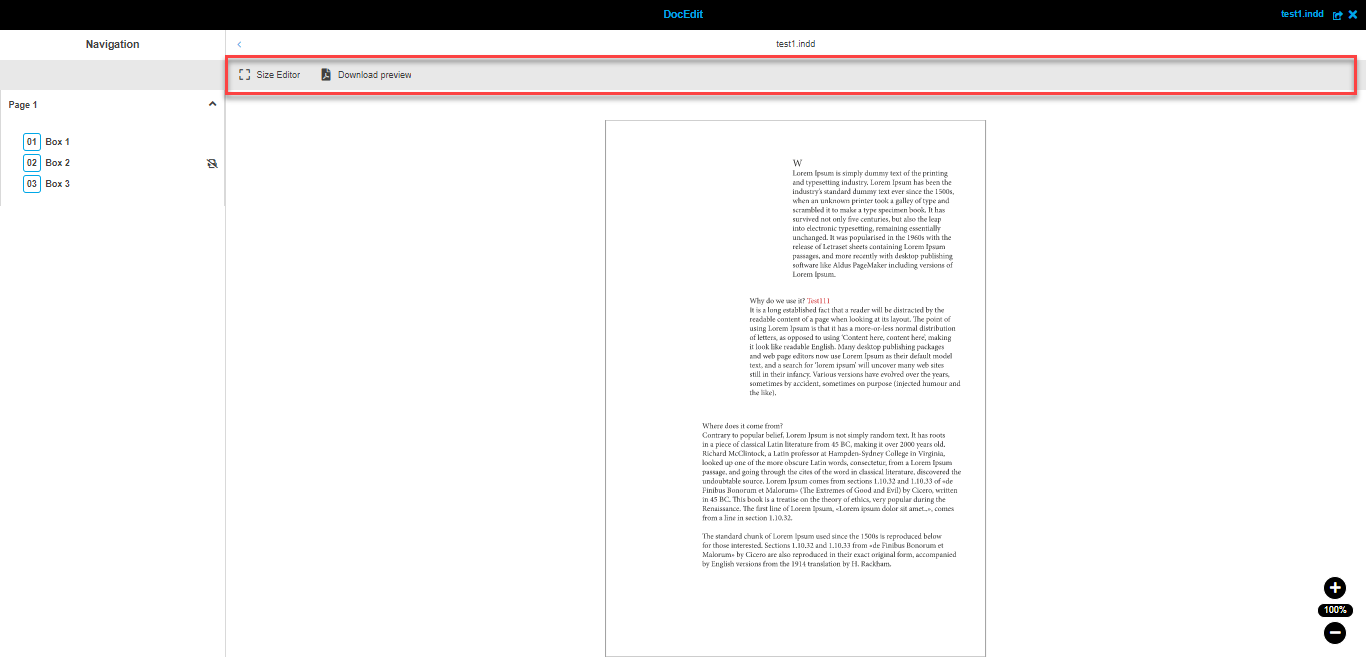
Size editor
This function allows you to resize the pages of the document from the original size to a needed one, e.g. to adapt the document to A5 paper size or make it square instead of rectangle.
| This function’s availability depends on the configuration in Preparing. The functionality inside an opened editor can also be limited by configuration in Preparing. |
When you execute the function, the Size editor is opened in the right panel:
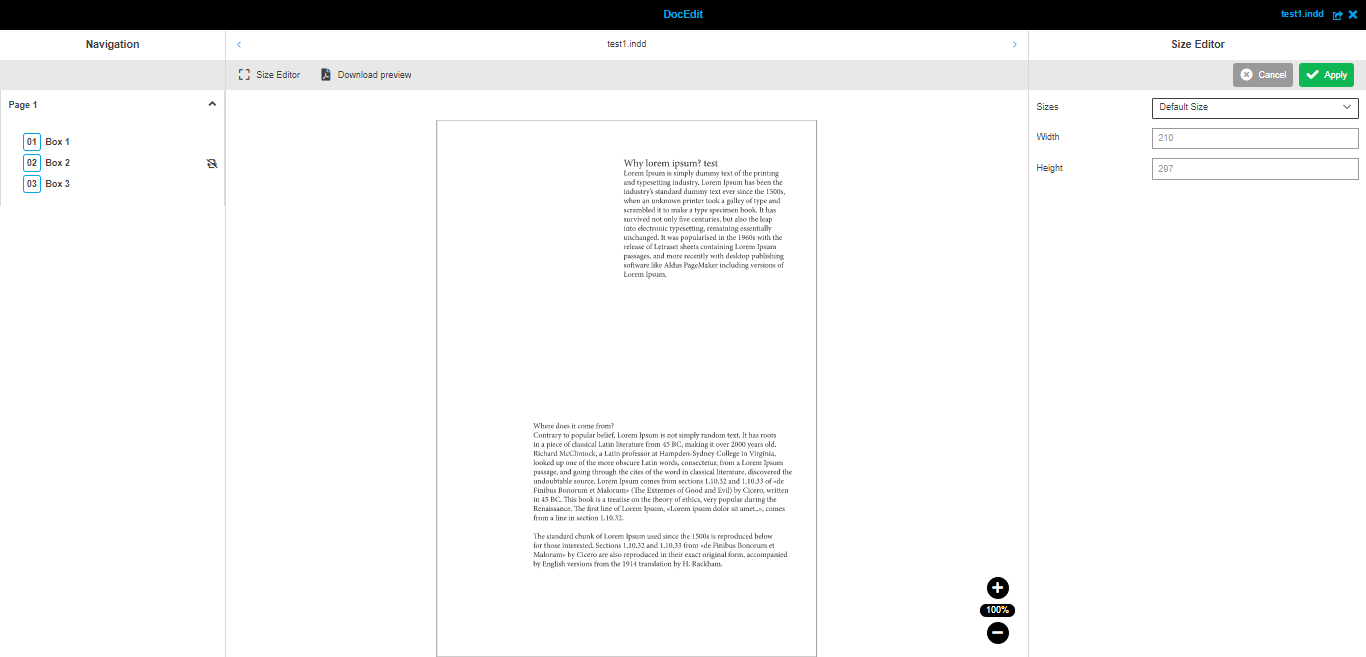
You can select one of the available sizes from dropdown and apply changes. The applied size can be seen only in the result PDF, size on canvas is not changed.
Also, there is a possibility to adapt size of the page manually by typing in the values for width and height. The values are limited and you can see the maximum and minimum allowed numbers in the brackets:

Here you can see how the function works:
Download preview
This function gives you the possibility to download the preview of the document in PDF format. All made changes are applied to generate PDF file, e.g. actual box content, only boxes not marked as 'delete on print', correct page sizes are shown.
Here you can see how the function works: