Drag and Drop (DnD)
Drag and Drop (DnD) enables intuitive work in OMN. DnD is already a common interaction on operating systems such as Windows or macOS, moreover when working with various browsers such as Firefox or Google Chrome. By picking up objects via "click and hold" (clicking and holding down the mouse button) and dragging, they can be moved and repositioned. How this work simplification works and where it can be applied in OMN is explained in this chapter.
Drag and drop can be exercised in the following areas:
-
Adding objects in folder structures
-
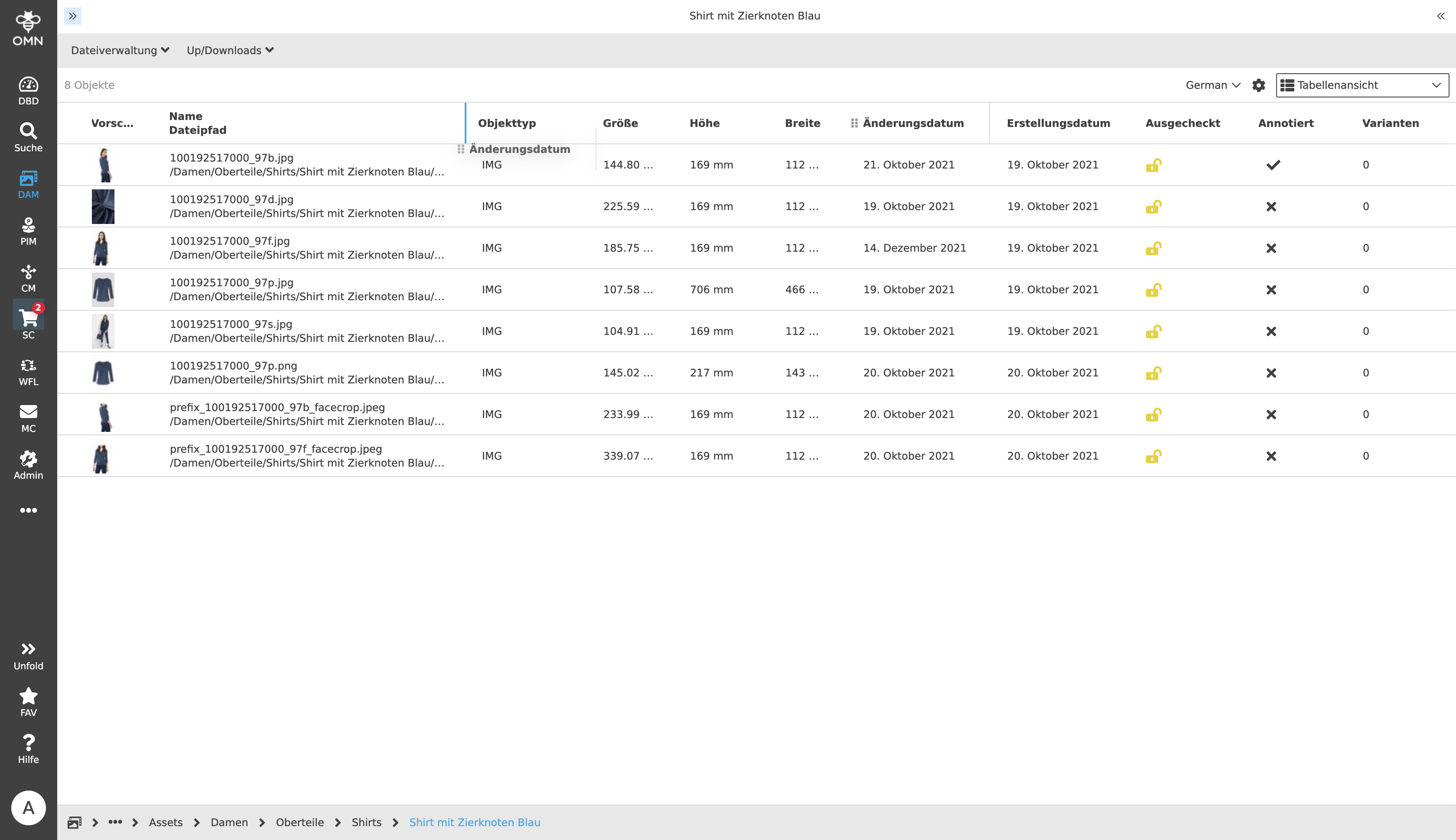
Arranging objects and elements in tables
-
Linking objects and creating relationships (across tabs)
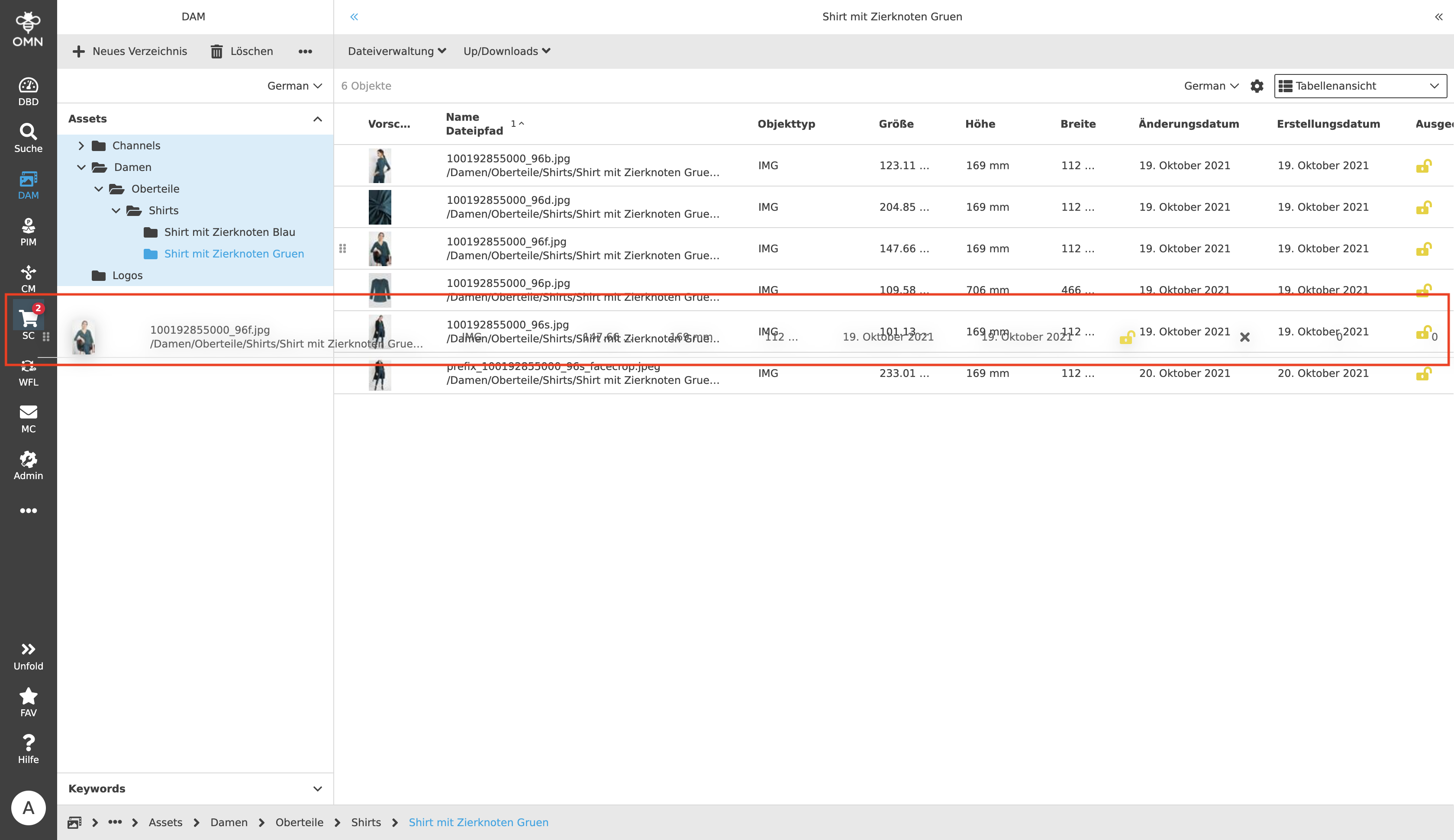
Procedure for Drag and Drop
To use the drag and drop functionality within the system, the following procedure should be followed:
-
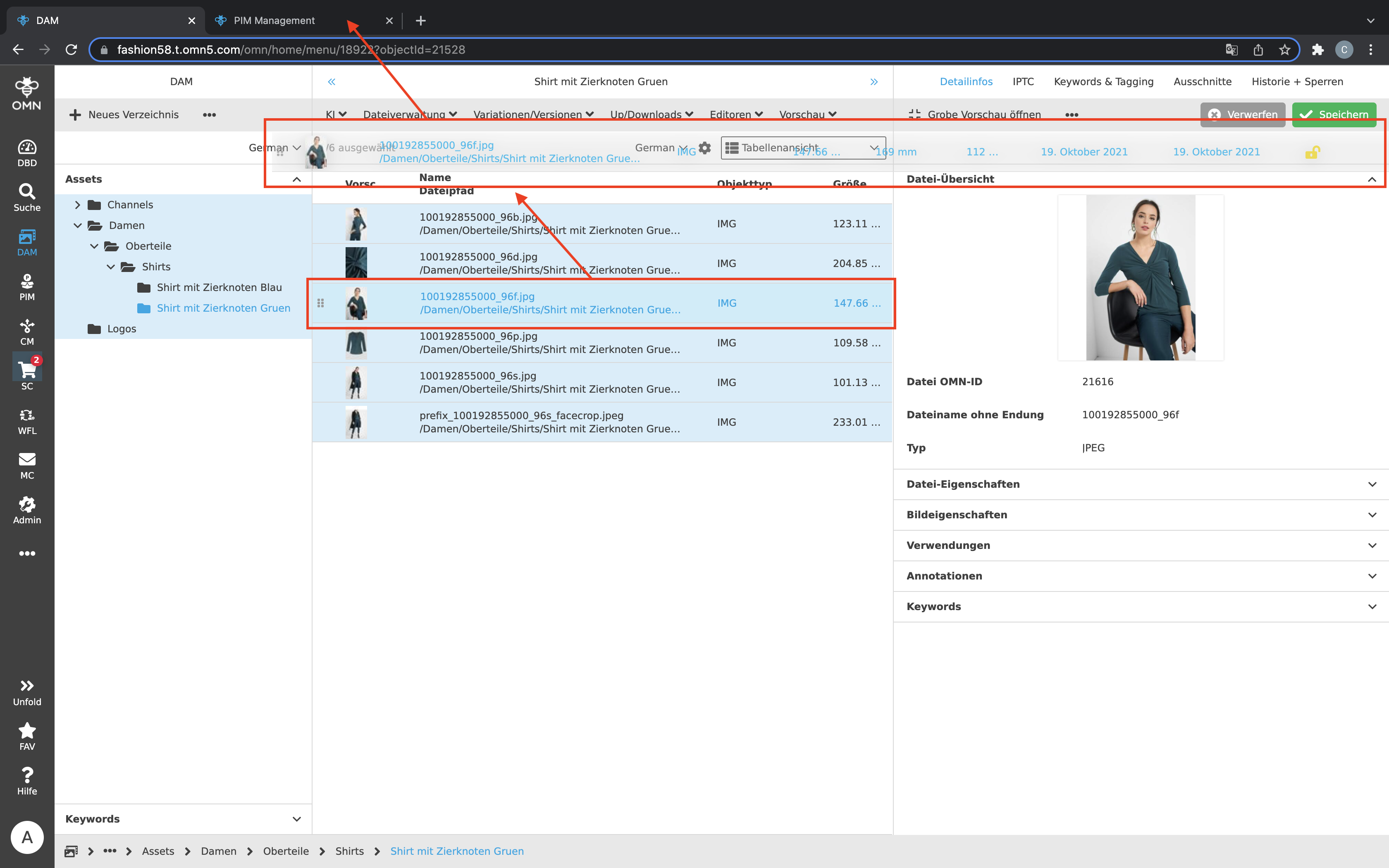
First a desired object, e.g. an image or an article, is selected.
-
Then a user clicks on the object and holds down the left mouse button ("Click and Hold"). Now the mouse can be navigated in any direction.
-
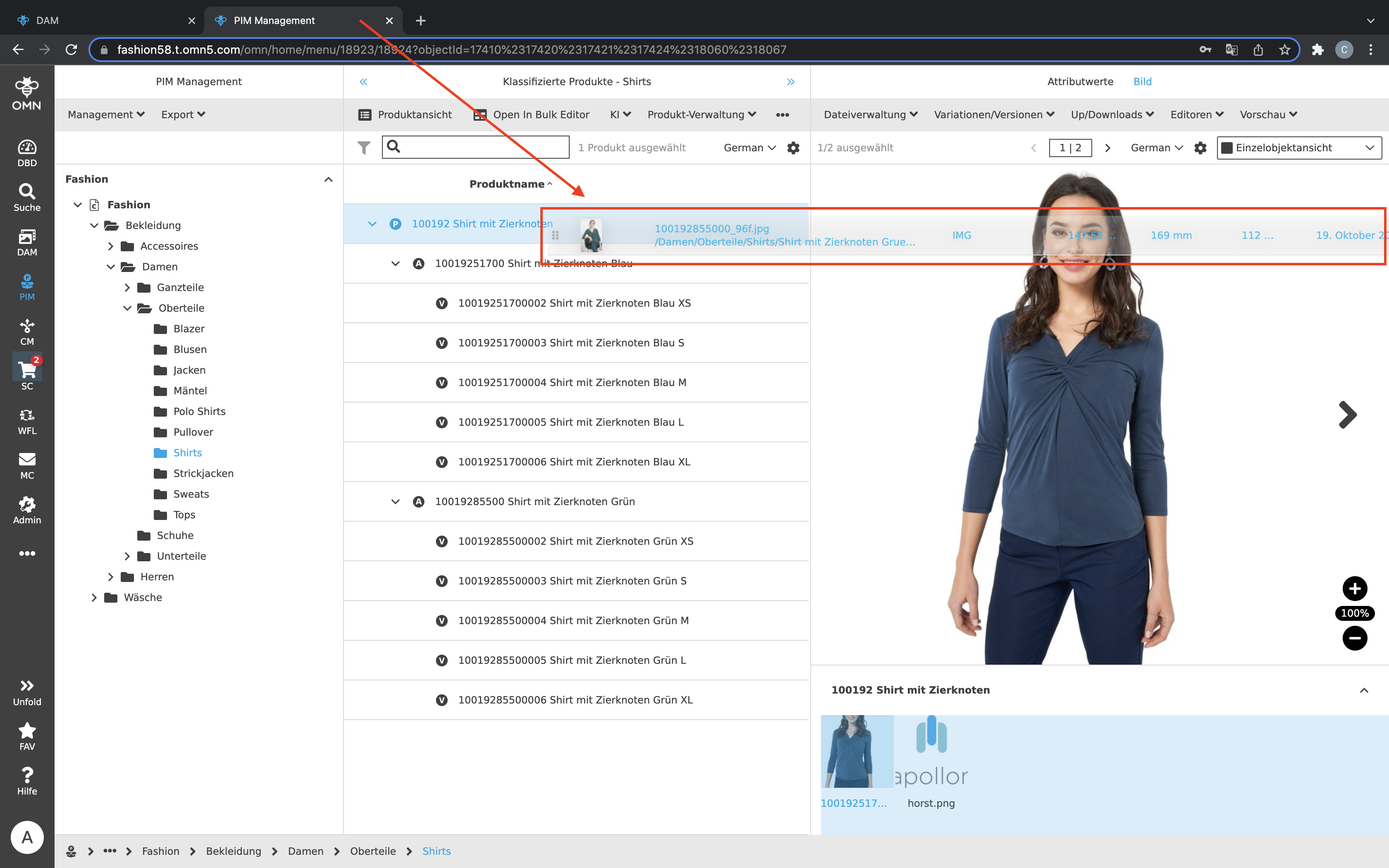
The object can now be dragged to the desired destination.
-
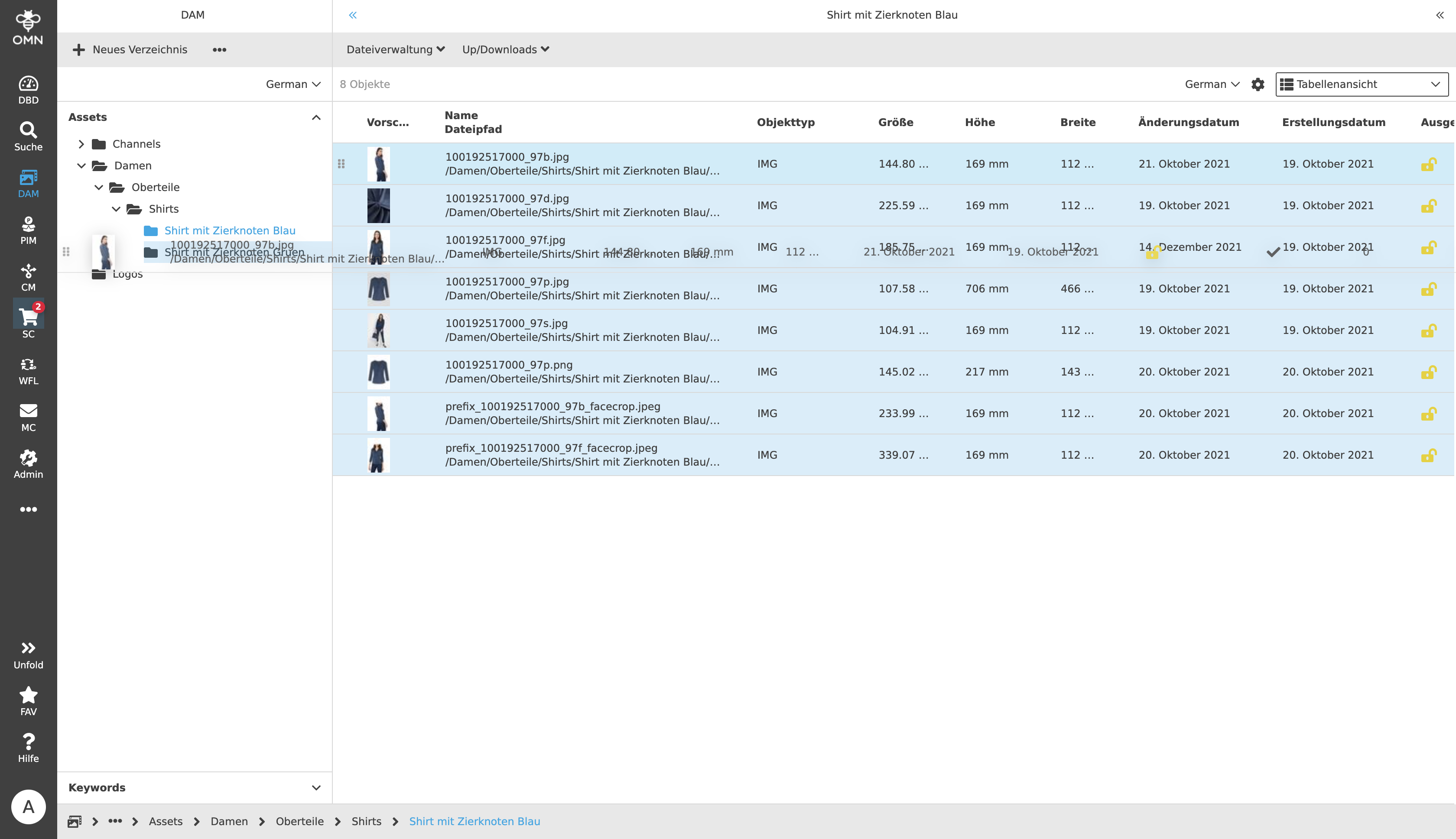
Places where the object can be dropped are displayed in light blue. Depending on the browser the symbol of the mouse pointer can additionally show a "green plus".
-
If the object cannot be placed at a certain location, this location will not be displayed in light blue.
-
-
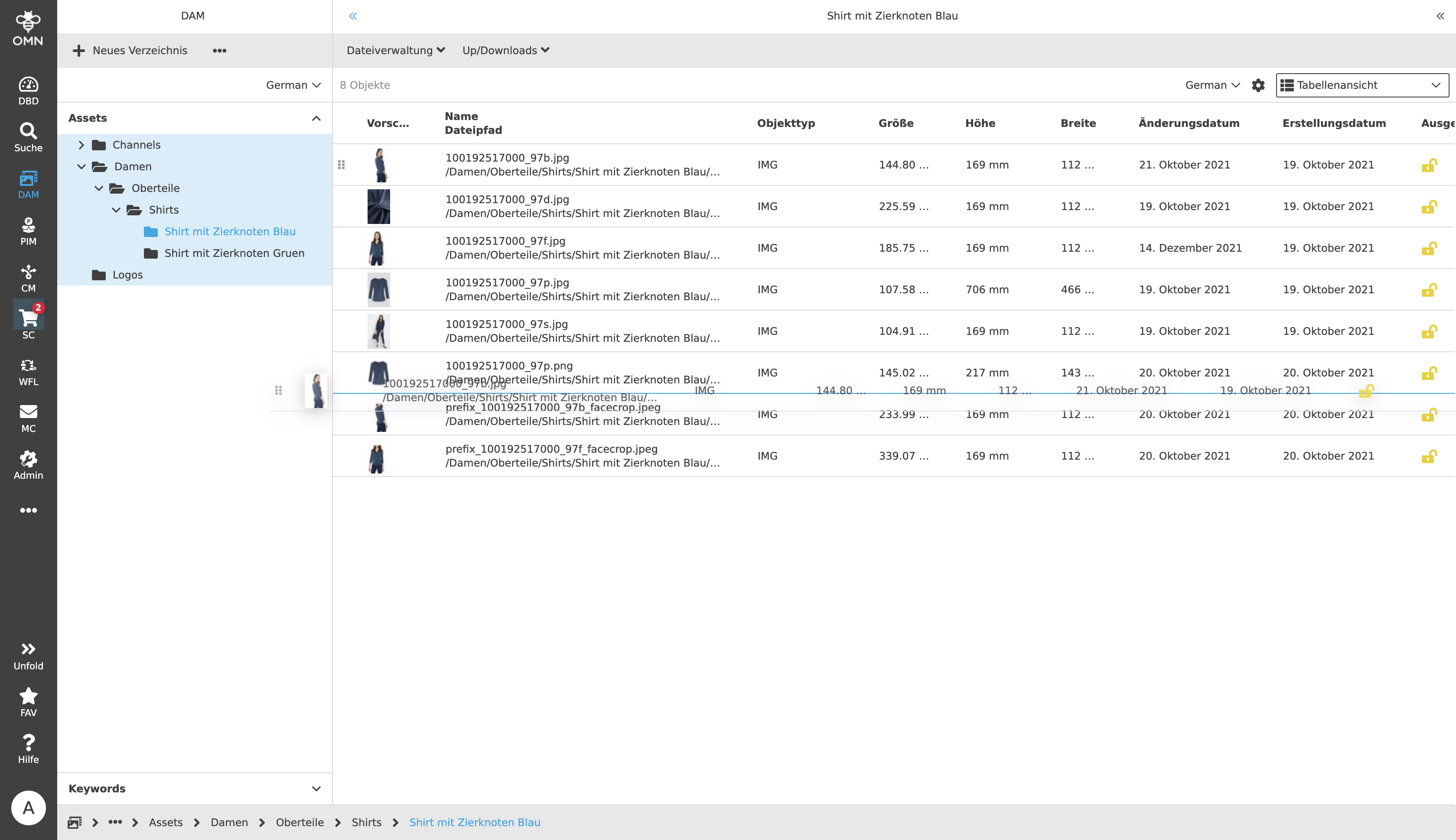
When the left mouse button is released, the object is dropped at the desired position and assigned to it. Depending on the use case, the display of a symbol or project node may change. For example, the number next to the shopping cart icon changes after adding objects by the corresponding number of added objects. Furthermore, depending on the use case, it can happen that after assigning one object to another, a dialog box is opened by the system in which users have to specify the link between the two objects in more detail. This can be the case, for example, when assigning an image to an article. Here a user will be provided with a dialog box for defining the image type, where he can choose between a main image, secondary image or logo.
DnD with the upload function
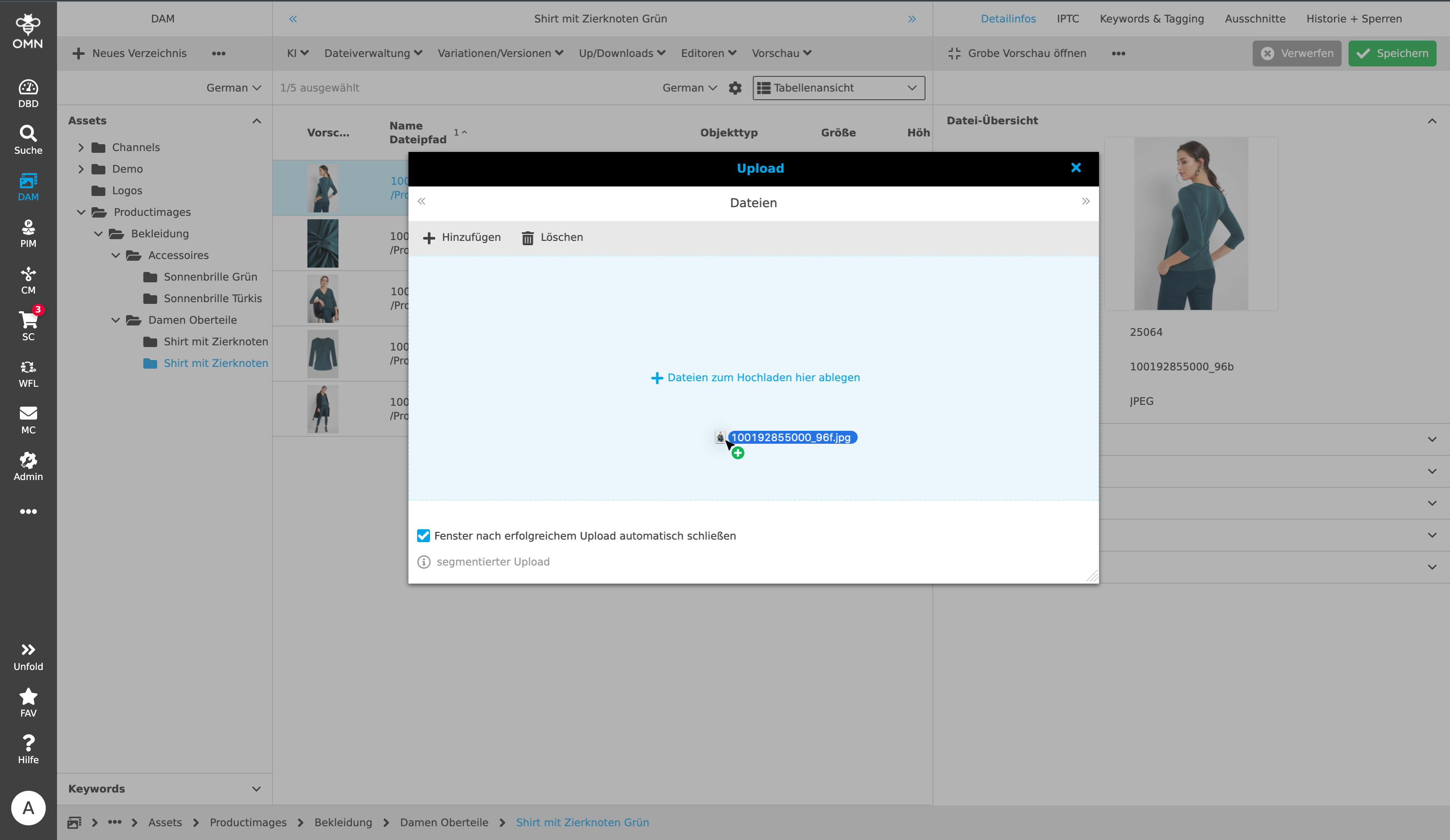
If the users want to upload files, they can do so via the "Upload" function and using drag and drop. The folder and afterwards the file can be selected either under "Add" and then be uploaded, or the file is dropped from the appropriate folder by DnD. To do this, the file can simply be dragged into the light blue area (with the sentence "Drop files to upload here") and dropped. The file is then ready for upload.
Further possibilities to use DnD
The following are a few suggestions on how DnD functionality can be usefully incorporated into daily work with OMN:
-
Reorganizing data as in Explorer on your computer.
-
Putting data into the Shopping Cart.
-
Assign images to products, articles or variants.
-
Create sales groups by assigning items to each other.
-
Assigning articles to an advertising material or a store rubric