Search in configuration
The Configuration Client offers the user a number of search options to find configurations quickly and clearly.
The following search types are available in the configuration:
| Search type | Description |
|---|---|
Search in tree |
Content coming soon… |
Search in table widgets |
Content coming soon… |
|
Search in tables
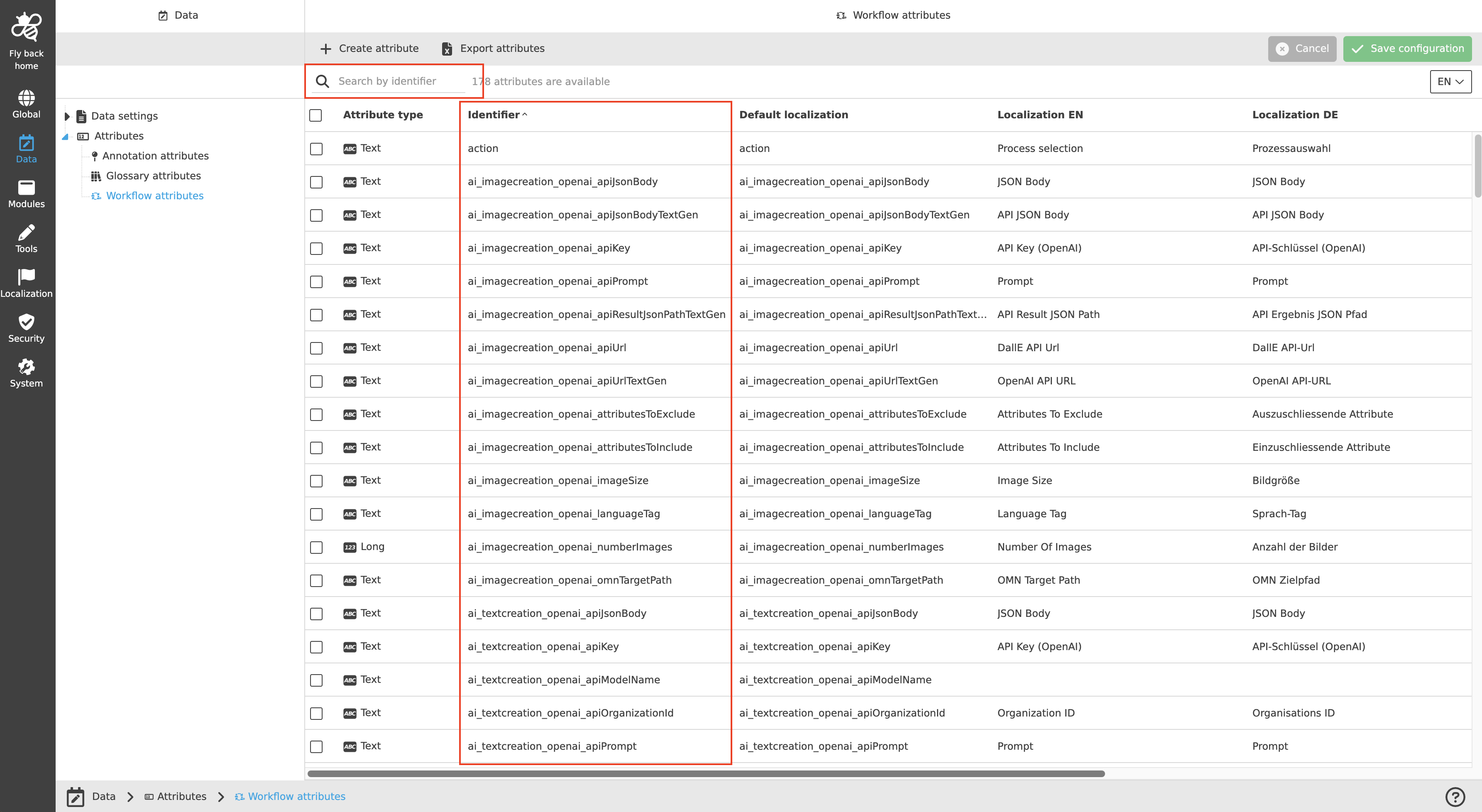
The search in tables is available in all center views with tables, for example the attribute overviews, the plugin instance overviews and History tabs of Modules and Tools, the Human function overview of the Workflow application plugin and the Storage administration (storages and volumes). See the full list of locations below.
Search behavior
-
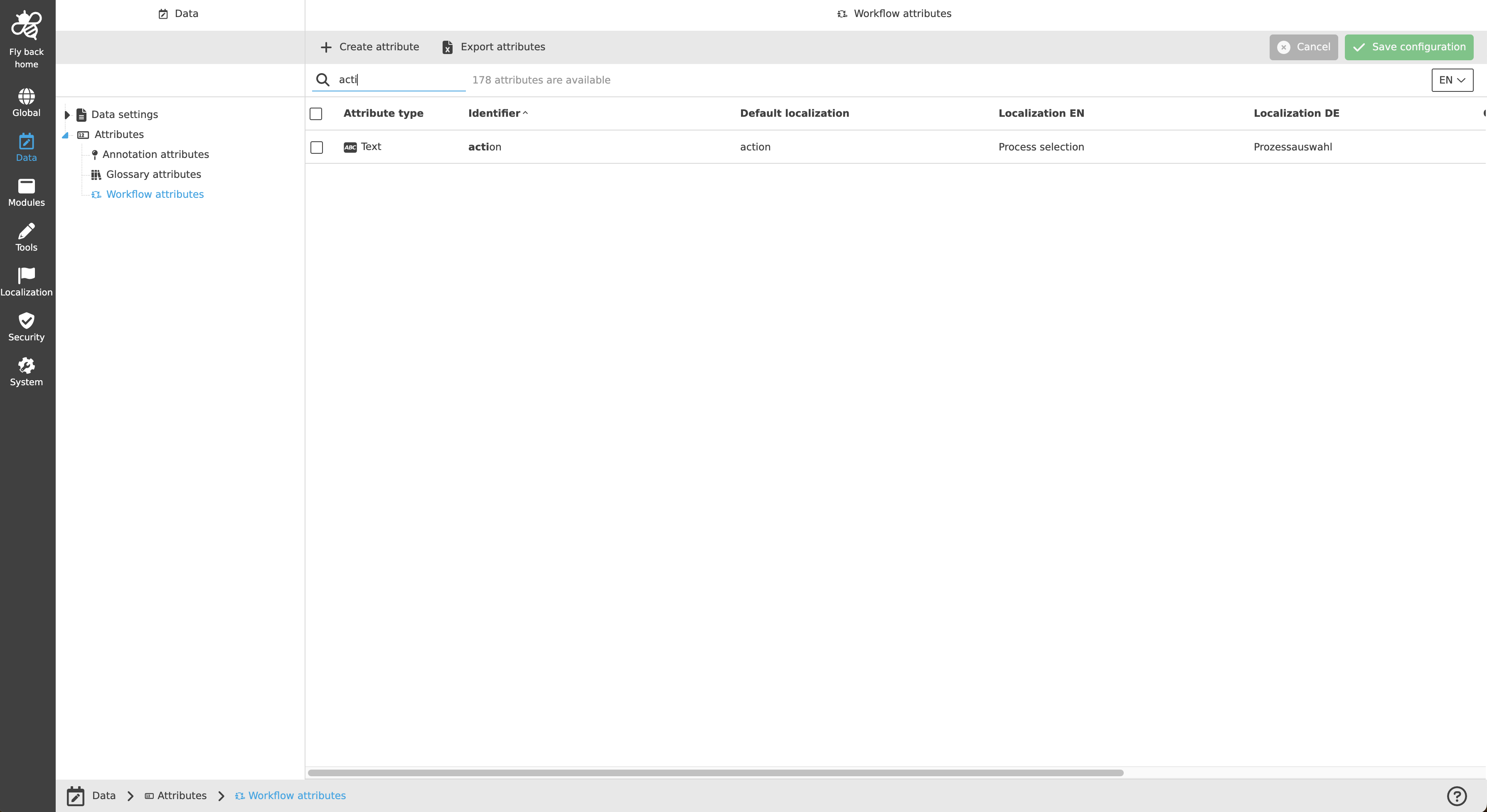
The search result only shows the table rows that include the typed-in characters in the defined search criterion.
-
The search is not case-sensitive.
-
It does not matter where the typed-in characters are located in the word (start, middle or end of the word).
-
The matching characters are always highlighted in bold in the search result.
-
The result updates dynamically while the user is typing - the rows in the table are reduced accordingly.
-
All visible column entries can be searched. Hidden columns (unchecked in the status bar settings) are not considered.
-
The search is performed on all elements of the table, also if the table loads its content lazily or entries are collapsed.
Certain information cannot be searched with the search component:
-
Boolean values that are visualized with a check or cross icon in the table - use the column filters instead.
-
Within dropdowns only the selected entry is searchable, not all options of the dropdown.
Where to find the search
Each table search uses a predefined search criterion, which is shown as the placeholder text in the search slot:
| Location | Search criterion |
|---|---|
Data → Attributes (Annotation, DAM, Glossary, Workflow attributes) |
Search by identifier |
Data → Generic configuration |
Search by identifier |
Data → Tags |
Search by identifier |
Modules / Tools → all plugin instance overview tabs |
Search by plugin instance name |
Modules / Tools → all History tabs |
Search by user |
Modules / Tools → Localization tab of the plugin instances |
Search by default localization |
Modules → Application plugins → Workflow → Human function |
Search by human function name |
Security → Rules |
Search by rule name |
System → Authentication (Users, Groups, Roles) |
Search by name |
System → Storage administration |
Search by identifier |
System → Storage administration → volumes of a storage |
Search by volume name |
|
Depending on the used OMN version, not every location may be available yet - the search component is added to more and more center views continuously. |