Assets
This page provides the possibility to configure the available assets pool which should be available within the Article Briefing and needed to define which information and filters should be available
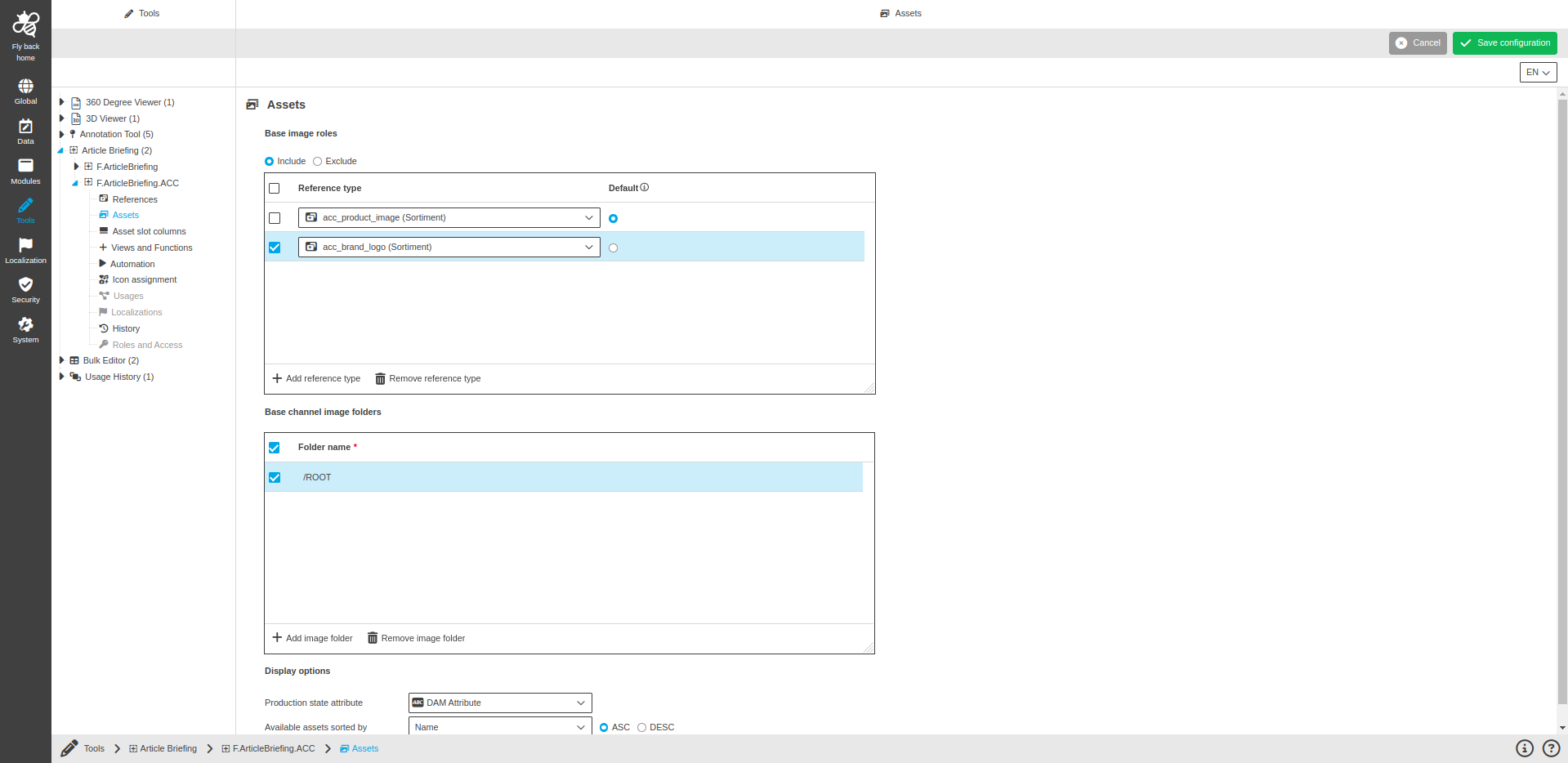
Base image roles
Table widget to configure base image roles for the Available Assets view.
There are radio buttons to define white or blacklist for reference types which are available in the Available Assets pool above the table widget.
-
Include - if the radio button is active, this means that assets of the reference types, which are configured in the table widget below, will be included in the available assets pool.
-
Exclude - if the radio button is active, this means that assets of the reference types, which are configured in the table widget below, will be excluded in the available assets pool.
| Column name | Description | Note |
|---|---|---|
Reference type |
Dropdown lists all available reference types attributes of the selected classification. |
This field is mandatory. |
Default |
Radio button is needed to configure default base image role reference type. |
This column is visible only if "Include" radio button is selected above the table widget. If a base image role reference type is configured as default, the following behavior will be applied for linking external assets to Article Briefing: the asset will be linked to the default base image role (it will be shown in the right view) and the slot will be saved for the Article Briefing. If a default image role is not configured, the asset will not be linked to the base image role. It will only be linked to the slot. |
Base channel image folders
Table widget to configure base channel image folders for the Available Assets view.
| Column name | Description | Note |
|---|---|---|
Folder name |
Input field to enter the name of the folder. |
This field is mandatory. If Article Briefing is opened on a channel and the configured folder is available in the channel type (project type) and contains assets, those assets will be shown in the Available Assets panel in the Article Briefing. |
Display options
| Name of option | Description | Note |
|---|---|---|
Production state attribute |
Dropdown to select a DAM Attribute. The available groups are: DAM, File, Image. |
This field is mandatory. |
Available assets sorted by |
Consists of two fields. Dropdown to select sorting criteria. Radio buttons group to select sorting order. |
No sorting is applied if criteria is empty. |
Show child base images |
Toggle to configure child base images should be shown. |
Turned off by default. If activated, linked assets from every level are taken into account and are shown in Available Assets pool. |