OMN local open functions
General information
The "OMN Local Open Function" Installer is a product solution that configures a user’s operating system, so that it can open files and folders on the ‘mounted’ Windows storage systems, allowing the user to work with the resources as if they were local resources.
This includes opening for editing in suitable software, namely:
-
opening an asset managed by OMN in a locally installed application on the user’s computer in order to be able to process the assets locally using the standard file management functions of the operating system such as Windows Explorer and Mac Finder.
-
opening a directory with the required files in Windows Explorer or Mac Finder in order to be able to continue working with the files at this point.
The "OMN Local Open Function" Installer is available for the two common operating systems Windows and iOS.
This installer is needed to open a directory or file on the local environment directly from the OMN web client. As a web application has no access rights to local resources and network access, the OMN-localopener application must be installed. The open functions in OMN (more information here) communicates with this installed OMN-localopener application, e.g. to open an image file locally directly from the network volume.
With the appropriate configuration, the OMN client has the option of opening files or directories directly from the OMN web application in order to process them.
The following chapters explain the correct installation step by step.
Mac Version Installation Guide
-
Download the latest installer for the application OMN-localopener (installer will be provided soon)
-
Execute the DMG file by double-clicking on it
-
Drag the app into the application folder (with drag and drop)
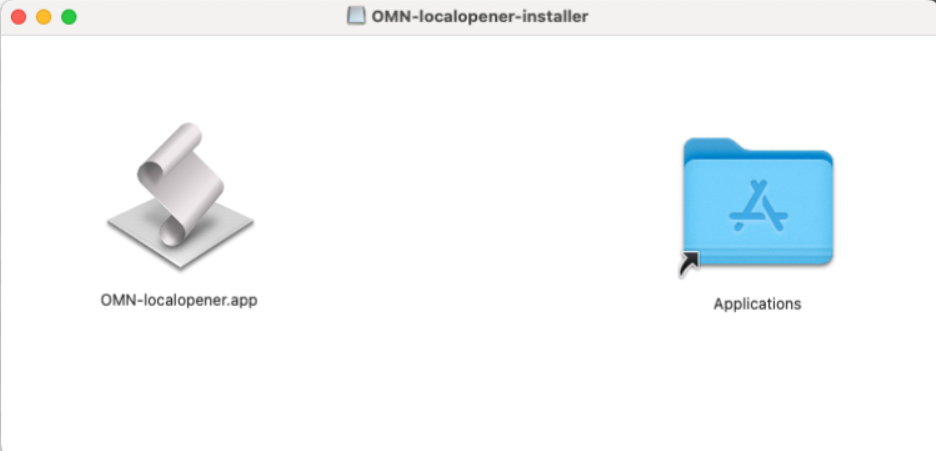 neues bild
 -
Double-click on the app in the application folder to run it
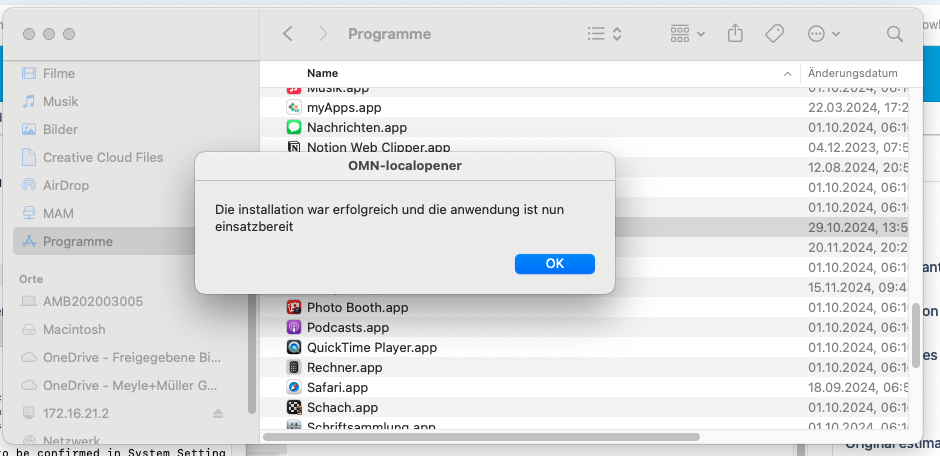 neues bild
 -
Then connect to the network drive (Finder → Go to → Connect with server…)
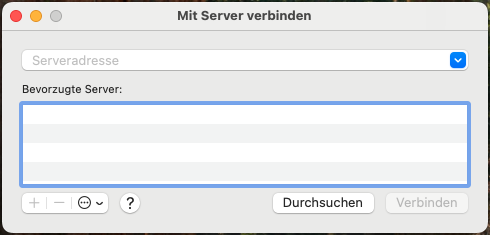
-
Enter server credentials and confirm
In order to use the function in OMN the user must have a direct network access to the file volume with appropriate access rights.
If the user is working from homeoffice: Please secure that the user has VPN Connection and appropriate access rights to access the volume. -
See connection in Finder
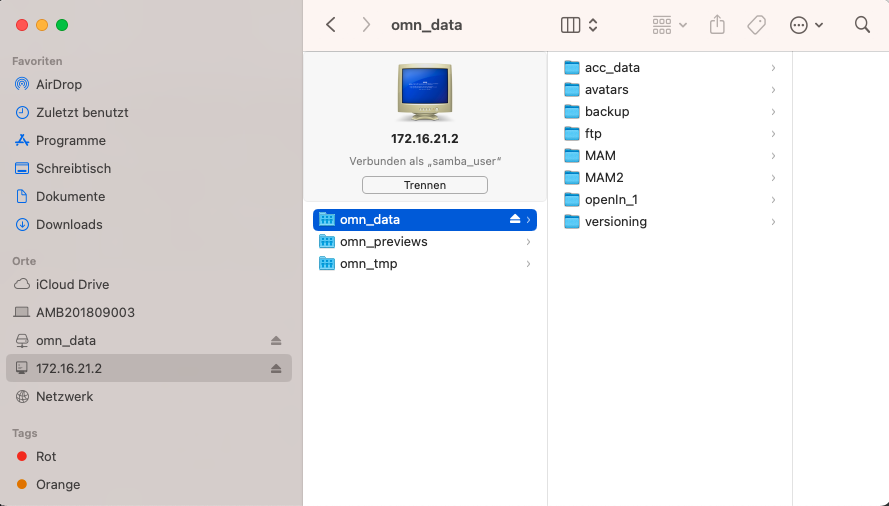
-
Login to OMN system
-
Store path mapping under Generic Configuration in the Configuration Client
The local open function must be enabled and configured in the system by the OMN administrator. The background to this is that special configurations must be stored in OMN so that the open function knows on which mounted network volume to be found. As mounts differ between Mac and PC, this must be taken into account by the administrator in the configuration. -
Configure the functions in the desired views (more information here)
The "Mam.openAssetLocally.enabled" property must be set to "True" during system initialization for the functions to appear in the Configuration Client. -
Execute OMN Local Open Functions in OMN Client (more information here)
If the "Local Open" function is configured in the system, the user can open a file or directory locally for a file selected in the web client. When the user will use the open file in directory function from OMN web client, the first time he will be asked to grant network access for the "OMN-localopener.app" (see screen) which he has to allow. Otherwise, the web client is not allowed to open the directory locally. 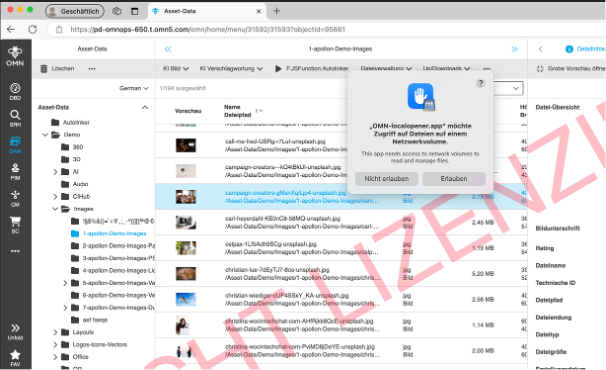
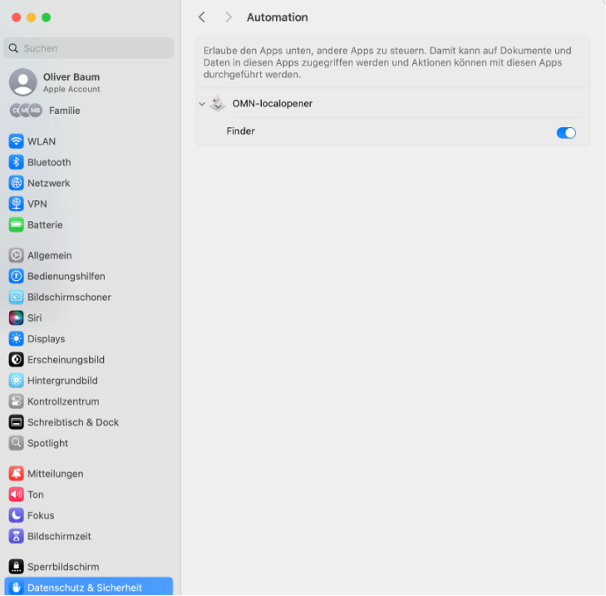
After allowing access, an entry is automatically created in the Automatic section of the Mac system settings (Privacy & Security). The function opens the file directory in which the file is located.
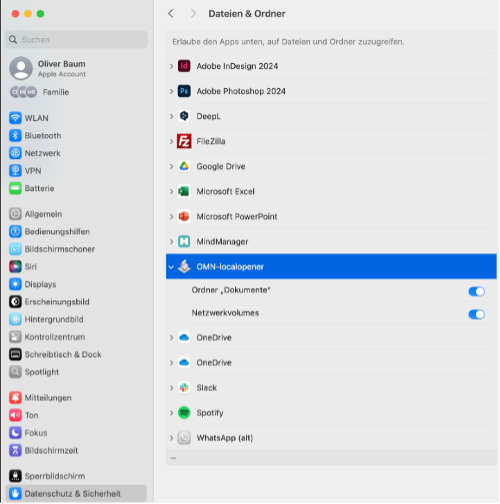
If the local open function is configured in the system, the user can open a file or directory locally for a file selected in the web client. When he will use the open file in application function from OMN web client the first time you will be asked, to grant network access for the "OMN-localopener.app" (see screen) which he has to allow. Otherwise, the web client is not allowed to open the file in a local application. 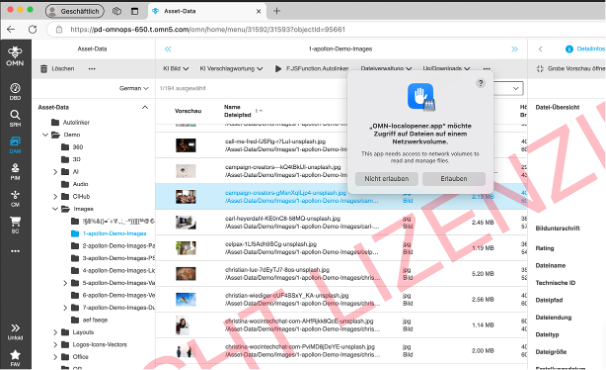
The function opens the file in default application which the user has defined on his MAC for the corresponding file type.
Windows Version Installation Guide
-
Download latest installer for the application OMN-localopener (installer will be provided soon)
-
Execute the exe-file by double-clicking on it
-
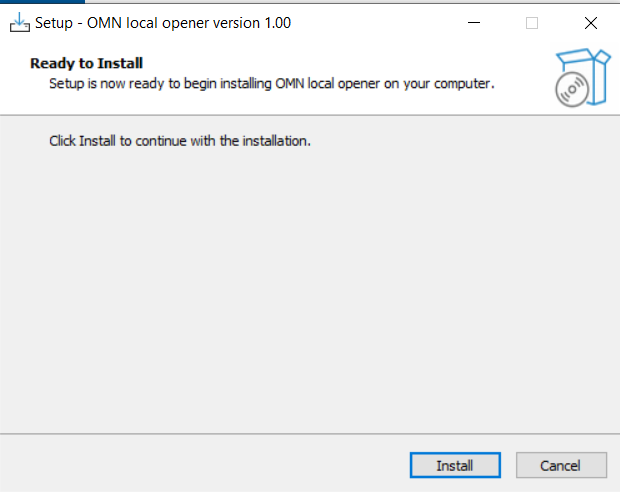
Run the setup routine by clicking on Install
-
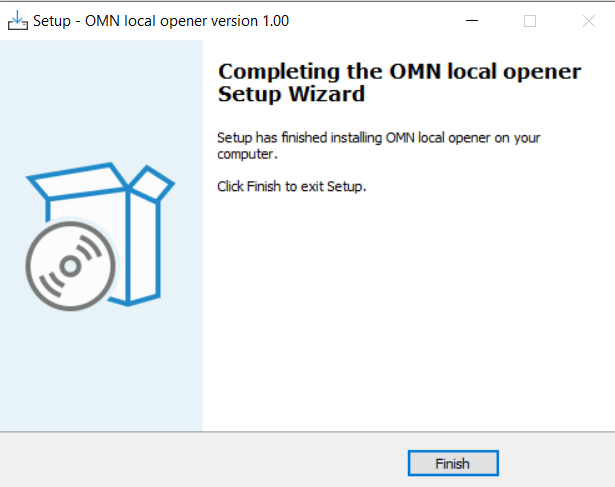
Complete the installation by clicking on Finish
-
Then connect to the configured server mount
-
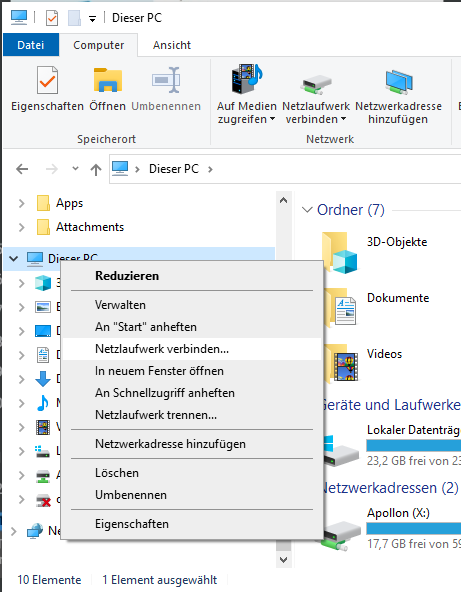
Go to explorer → network → new network connection
-
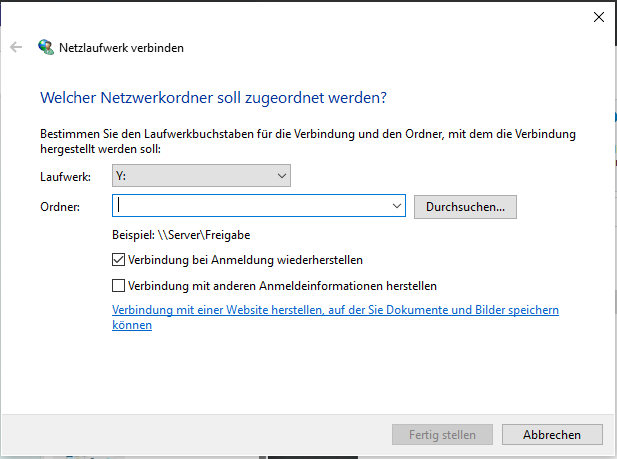
Select drive, enter server IP and relative path
-
Enter server credentials and confirm
In order to use the function in OMN, the user must have a direct network access to the file volume with appropriate access rights.
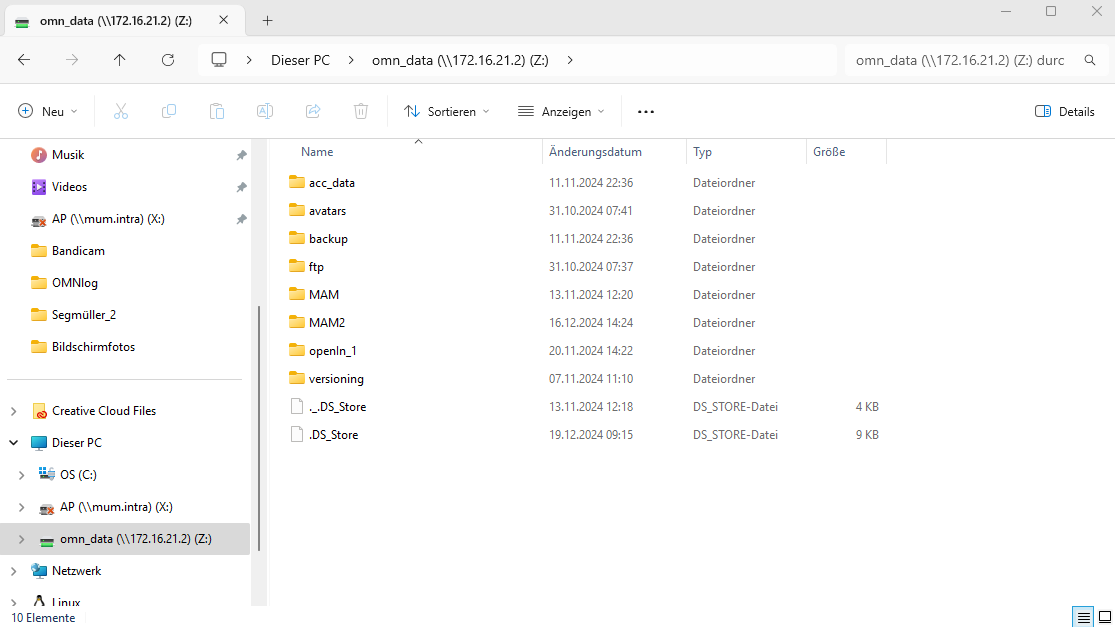
If the user is working from homeoffice: Please secure that the user has VPN Connection and appropriate access rights to access the volume.The open function can only be used if the mount, i.e. the drive, is created centrally, i.e. each user has the same drive letter for the volume. BILD -
See connection in Explorer
-
Login to OMN system
-
Store path mapping under Generic Configuration in the Configuration Client
The local open function must be enabled and configured in the system by the OMN administrator. The background to this is that special configurations must be stored in OMN so that the open function knows on which mounted network volume to be found. As mounts differ between Mac and PC, this must be taken into account by the administrator in the configuration. -
Configure the functions in the desired views (more information here)
The "Mam.openAssetLocally.enabled" property must be set to "True" during system initialization for the functions to appear in the Configuration Client. -
Execute OMN Local Open Function in OMN Client (more information here)
Troubleshooting
In case of troubleshooting with installation or using the function from OMN please check FAQ section.