Volumes
The Volumes page provides an overview of all volumes of a storage created on the OMN system. It is possible to create new volumes for the parent storage and to delete volumes from the OMN system.
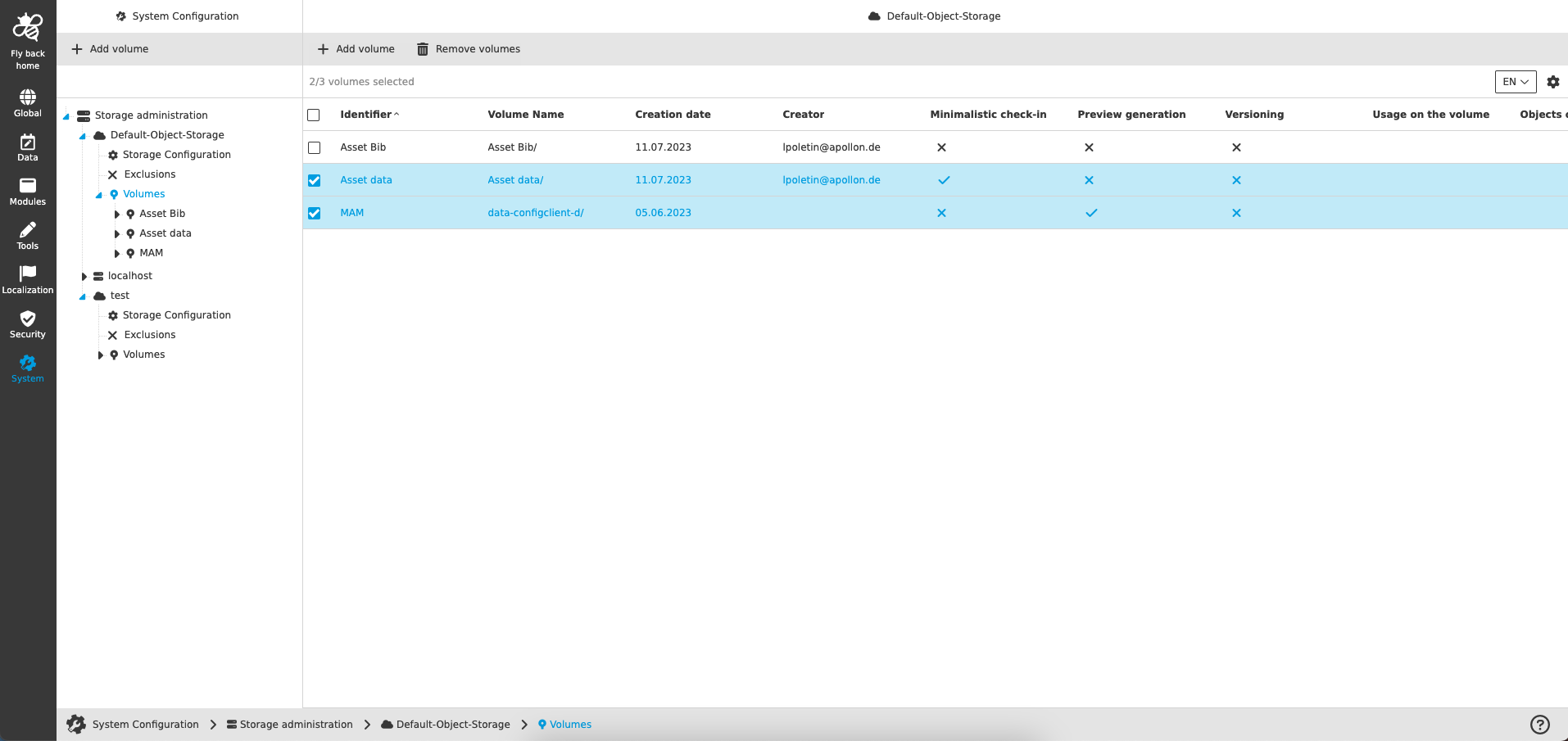
The table provides the following information:
| Name of column | Description | Note |
|---|---|---|
Identifier |
Shows identifier of the volume, which has been defined during volume creation. |
The identifier of the volume is also shown in left navigation tree. |
Volume name |
Displays the volume name, which is the name of the volume on the storage. |
The volume name must be stored when the volume is created. |
Creation date |
Displays the date when the volume was created. |
|
Creator |
Shows the user name of the person who created the volume. |
|
Minimalistic check-in |
Shows the user whether a minimalistic check-in has been configured or not. |
See more details Volume Configuration |
Preview generation |
Shows the user whether the preview generation has been configured or not. |
See more details Preview generation |
Versioning |
Shows the user whether the versioning has been configured or not. |
See more details Versioning |
Usage on the volume |
Displays the load on the volume in MiB. |
This option will be supported in the future |
Objects on the volume |
Displays the amount of objects on the volume. |
This option will be supported in the future |
Volume size |
Displays the general size of the volume. |
This option will be supported in the future |
The following functions are available on this page:
Add volume
The function is available in left and center view if volume level is selected in the navigation tree.
-
Execute Add volume function
-
Enter identifier to name the volume
-
Enter volume name, which is the name of the volume on the storage
-
Click on Add volume to confirm the volume creation
-
Newly created volume will be added to the list and its Volume Configuration will be opened.