OMN Page Preview Plugin for InDesign
The Online Media Net does not generate preview images for InDesign files by default. So, to be able to preview InDesign files, users should work with the Preview Plugin developed specifically for OMN.
The OMN Page Preview Plugin is a plugin (extension) for the layout program Adobe InDesign for the platforms Windows and MacOS, which is developed by the company apollon.
Until some time ago, the plugin was also developed for the layout program QuarkXPress, but the support as well as the distribution has been discontinued by apollon in the meantime, because the layout program has too little relevance in practice.
The OMN Page Preview Plugin for InDesign is provided by apollon free of charge for use with OMN.
Scope of functions
The functionality of the plugin includes saving extended information about a layout document during the saving process of an InDesign document. The plugin saves additional information in the document (in the XMP properties):
-
Assets used in the document (image references)
-
Geometry information for text and image boxes
-
Texts in text boxes
-
Embedded page previews for each document page in the form of a JPG (the quality can be set in the plugin)
If InDesign documents are saved with the OMN Page Preview Plugin, this information is read out when the document is imported (= checked in) into Online Media Net and enables
-
(1) Display the previews of InDesign documents and its pages in different views of the DAM module (table, single object view, light table view)
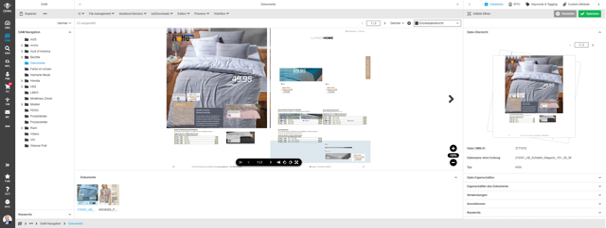
Display document previews -
(2) Reading access to image information via image boxes
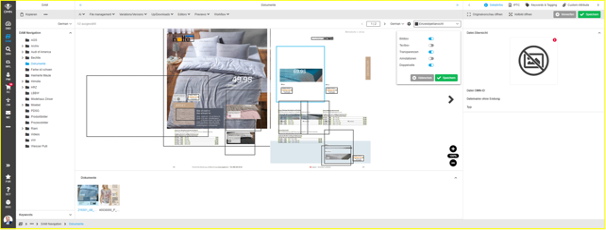
Access to image boxes and used images -
(3) Read access to text boxes with corresponding texts
.png)
Access to text boxes and contained texts (reading) -
Display of assets used in the document per document page in the Usage History plugin
-
This plugin displays all assets used in the document. If the assets are present within OMN, corresponding previews are displayed; in case the assets were used in the document and are not present in OMN, they are displayed as text information.
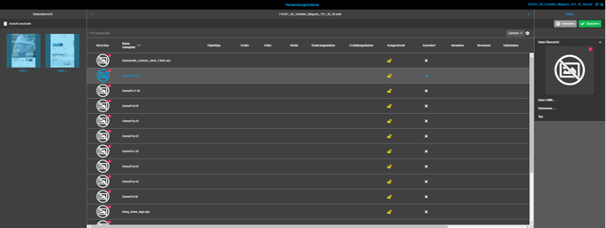
Display of referenced assets per page in Usage History plugin
-
Usage of the Preview Plugin
Configuration
After the Preview Plugin has been installed, it must be configured, so that it can be used in InDesign.
To do this, the user must make the following settings:
-
Plugin → OMN → Preview Plugin for Online Media Net (OMN) → Show page preview resolution settings

-
the checkbox "Save XML data in document on save" must be activated
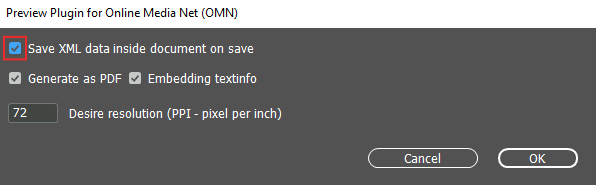
In addition to these settings, there are other options that each user can set individually according to their own quality preferences and wishes. More information about the possible configuration settings can be found on this page.
InDesign actions
To be able to generate a document preview in OMN, a user must perform the following actions in InDesign:
-
Opening the document in InDesign
-
Editing the document as needed
-
Saving the document ("File → Save as…") - the Preview Plugin is automatically executed each time the document is saved
| Even if the plugin is configured, it is possible to save a document without using the Preview Plugin. To do this, click on "File → Save without preview". |
After saving, a document is ready for integration into OMN.
Document preview in OMN
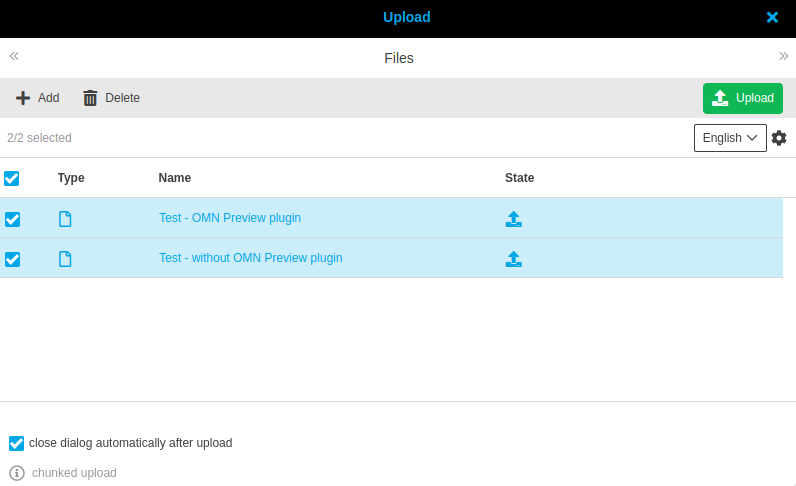
Documents can be uploaded to the OMN system using the upload function found in the toolbar. This is done by opening the upload dialog window and adding the desired files.
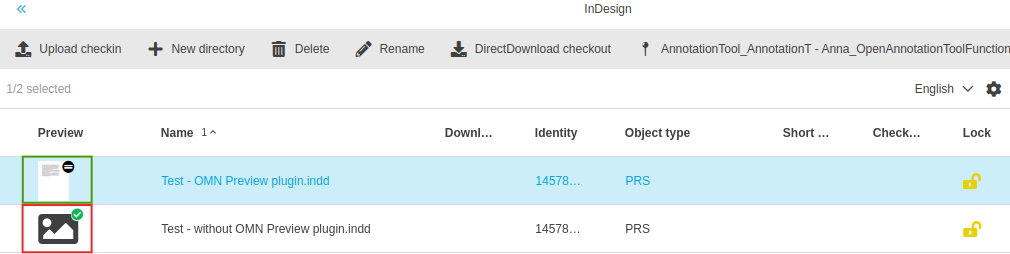
InDesign documents can now be displayed in two ways: with or without a preview image.
Example: A user uploads the following documents:
-
A document created with InDesign and the OMN Page Preview Plugin
-
A document created with InDesign without using the OMN Page Preview Plugin
After uploading, an InDesign document created with the OMN Page Preview Plugin displays a preview of the file.
A document created with InDesign without OMN Page Preview Plugin does not show a preview of the file after upload.
The following video shows how to use the OMN Page Preview Plugin: