JavaScript Function
Purpose of the plugin
With the JavaScript function, specific customer requirements (e.g. automatic links) can be programmed directly in the OMN Configuration Client using JavaScript and executed in OMN via a function button.
Introduction
The JavaScript function makes it possible to program customer-specific requirements for objects in the OMN using JavaScript.
An object can be an asset, a product or a project, for example.
Application examples include imports and exports that deviate from the standard OMN process, as well as folder creation or image conversions.
| Depending on the complexity of the requirement, the developer decides whether the JavaScript function can be used or whether the Java Function is more suitable. |
Settings for the execution of the JavaScript function can be activated in the OMN Configuration Client.
On the one hand, users can control whether the function can only be executed on individual objects or on multiple objects.
It is also possible to start processing asynchronously.
| Asynchronous means that objects can be edited independently of each other and not in a fixed order. |
After executing the function, a dialog with information can be displayed to the user, which can also be provided as an HTTP link.
Prerequisites and relations to other modules
To be able to execute the JavaScript function, it must be integrated in at least one of the following modules:
How to use
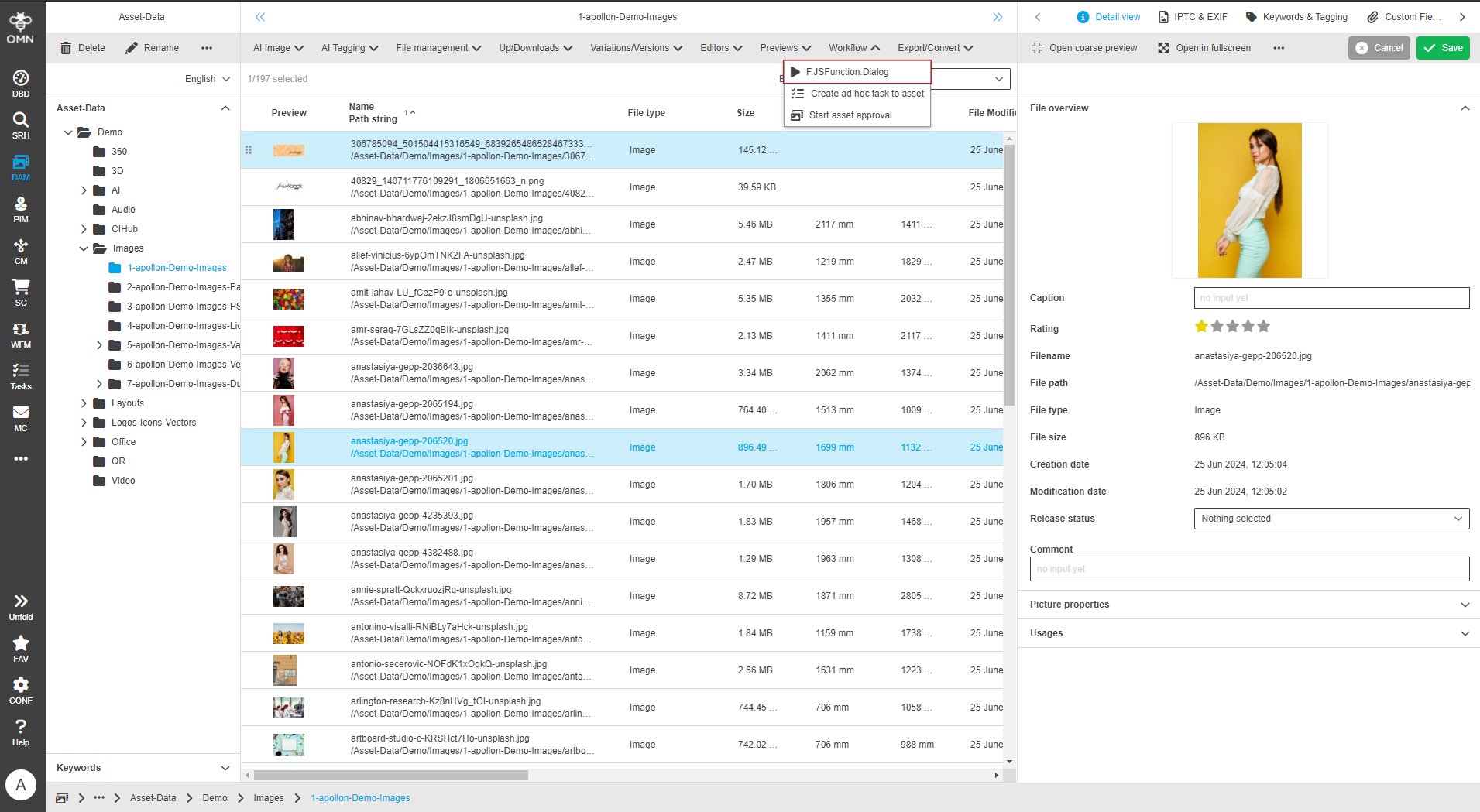
If the JavaScript function is available, it is displayed in the toolbar after selecting an object.
It is executed by clicking on it.
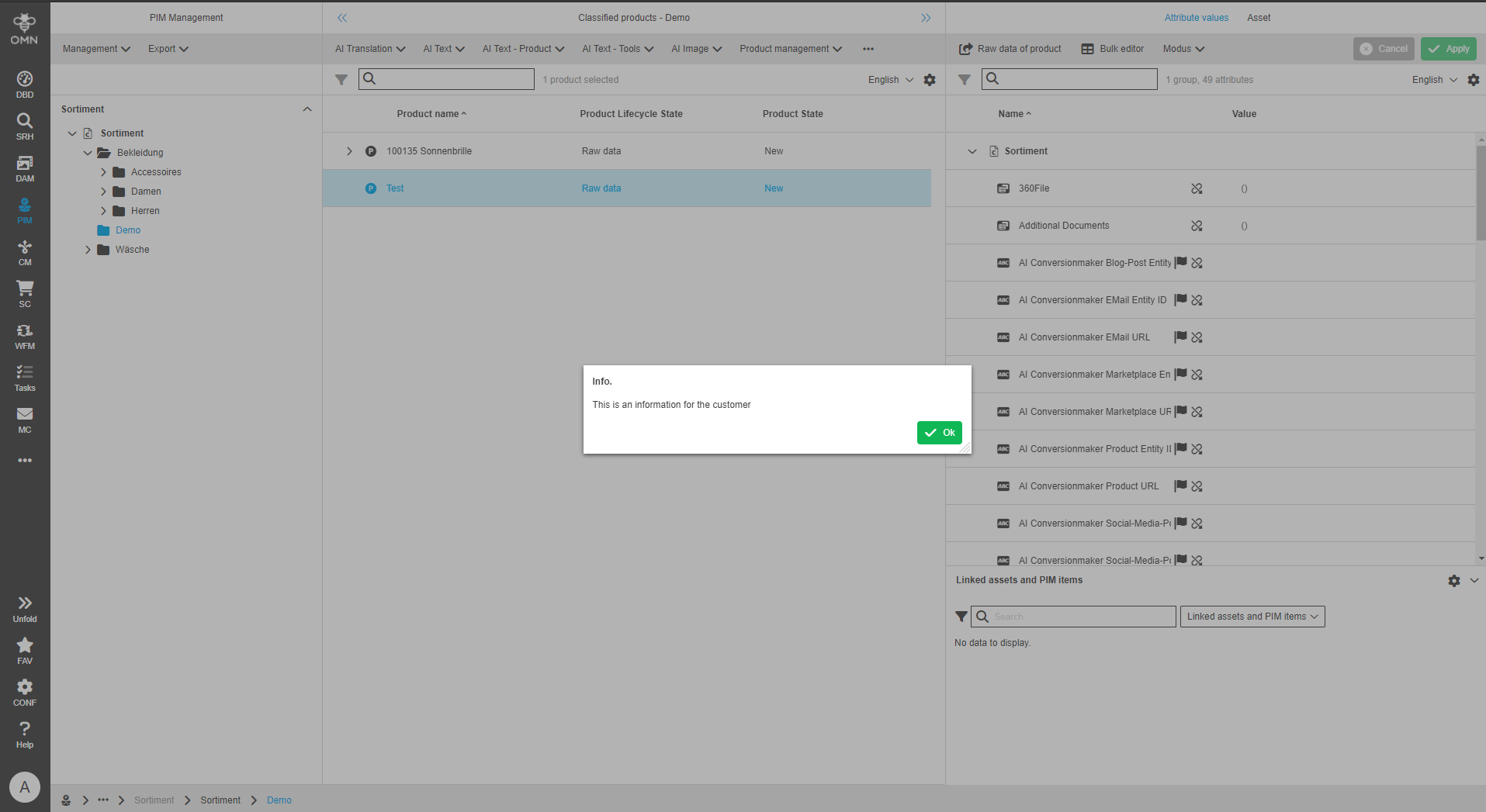
If feedback to the user is set in the configuration, this is displayed as a pop-up.
Application examples
Some use cases and examples of the JavaScript function are listed below:
-
Creating and displaying project nodes from within a product:
Within a product, a node can be created via a button in Channel Management.
In addition, after the node has been created, a user can jump directly from the product to it. -
Hide files with blocking reason:
For license reasons, assets should no longer be visible to all users in this use case.
A user selects the affected files, presses the button provided for this purpose and a dialog appears.
In this dialog, the user can now enter the reason for blocking the assets (e.g. obsolete) in order to document the reasons for blocking.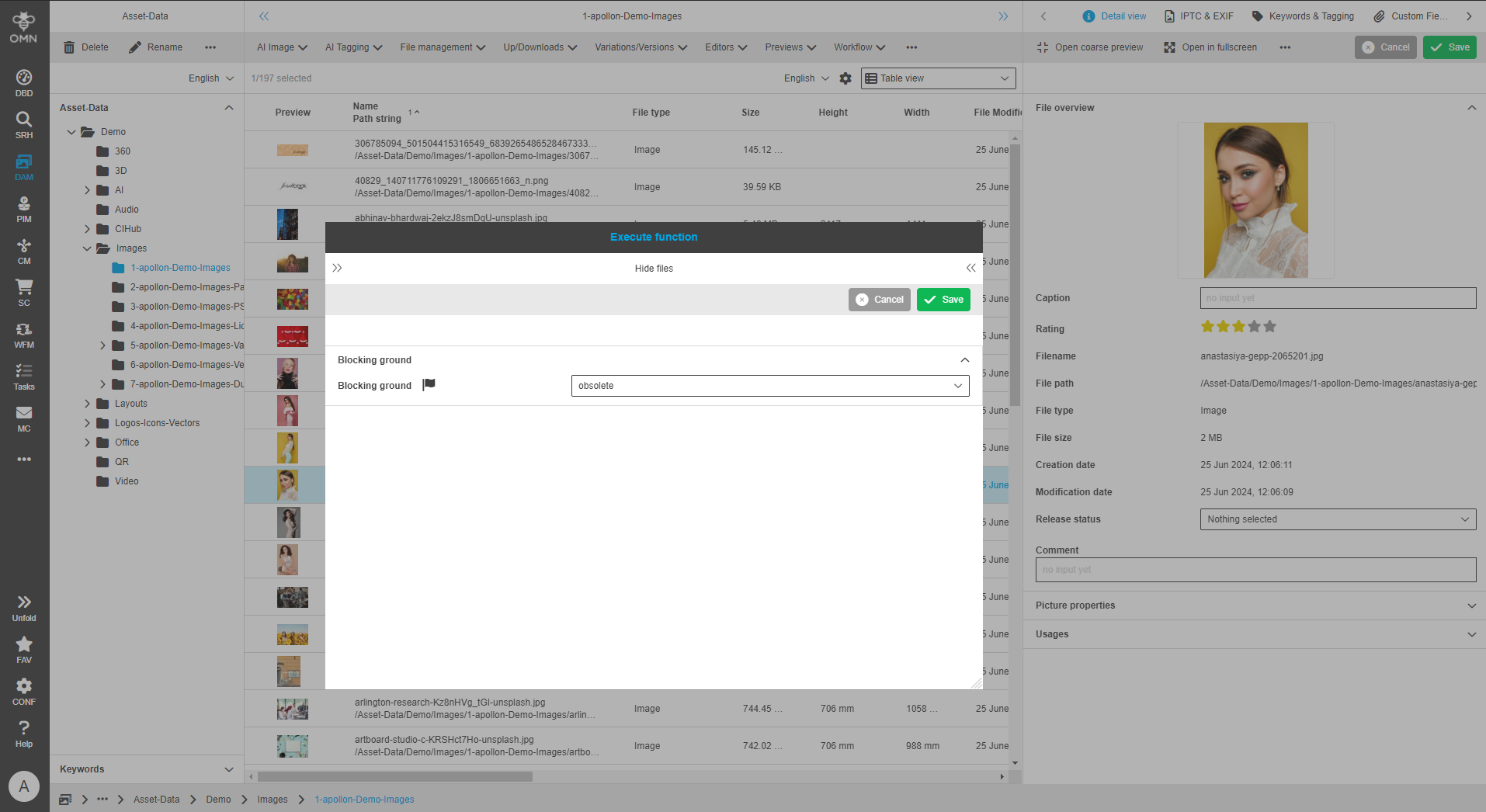 Figure 3. Example dialog
 -
Create and rename print variant:
A print image with a fixed naming convention is created from an eCom image and linked directly to the article. -
Export the products contained in a list:
A text file is stored in a predefined folder and the function is started via a button.
The function lists all products and passes them on to the export. This then starts.