Export Profile
Purpose of the plugin
The plugin is used to create Export Profiles with which the PIM attributes for the export are specified.
The exact assignment of the attributes is defined in the Export Editor.
Introduction
Any number of Export Profiles can be created within the module.
In principle, they define the PIM classification from which the attributes are obtained and the format in which the subsequent export is to be carried out.
The module can be used to directly access exports that have been executed with the respective profile.
In addition, a profile can be used to open the Export Editor, in which the exact attribute list is defined and special transformations can be performed if required.
Prerequisites and relations to other modules
The Export Profiles must usually first be edited in the Export Editor so that certain attributes can be selected and, if necessary, provided with transformations.
The profiles on their own cannot be used to perform an export. Only by linking Selectors and profiles under a Collective Job a file can be exported.
How to use
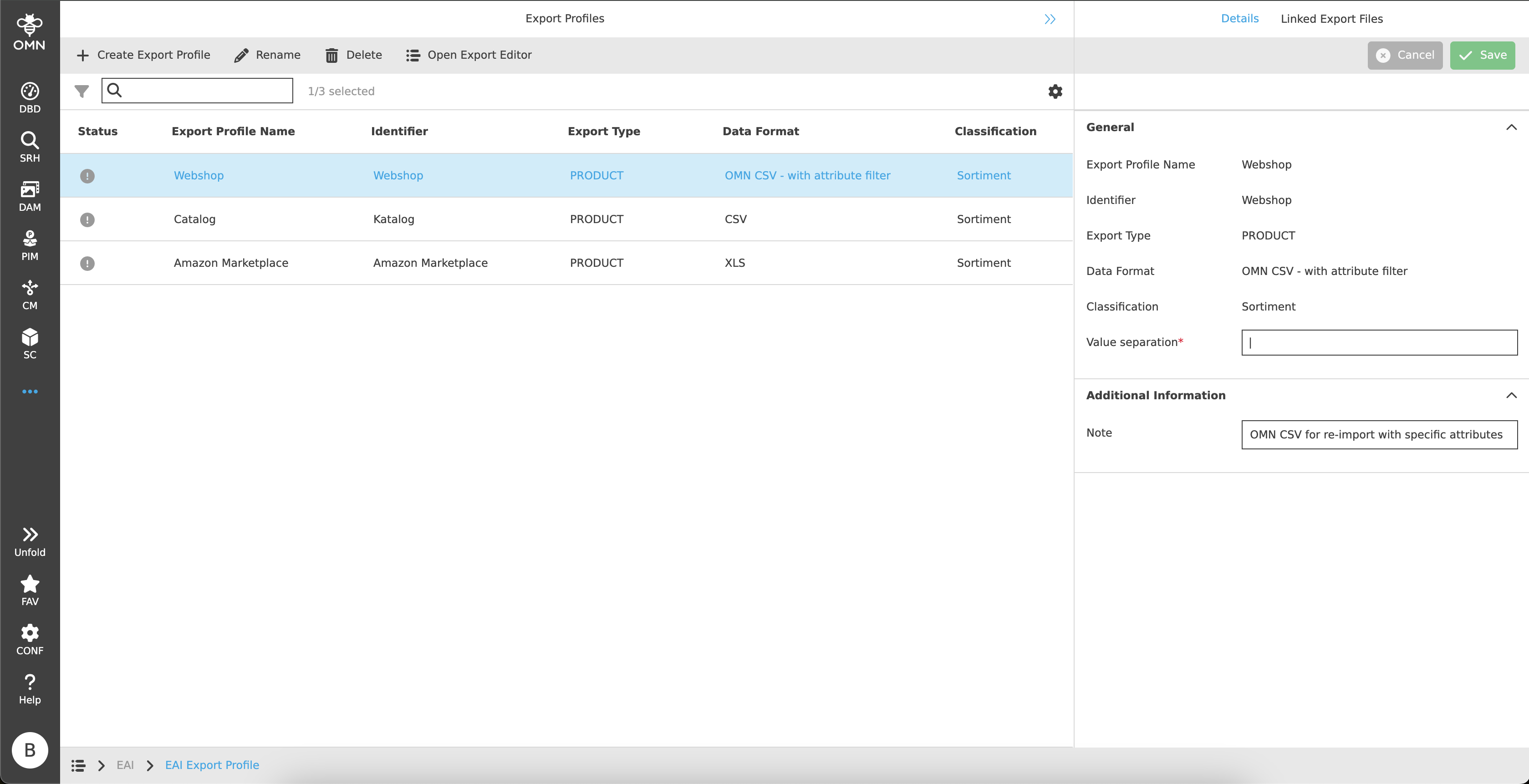
The Export Profile plugin consists of a center and right view.
-
Center View
Displaying export profiles -
Right View
Details about export profiles and linked export files
Center View
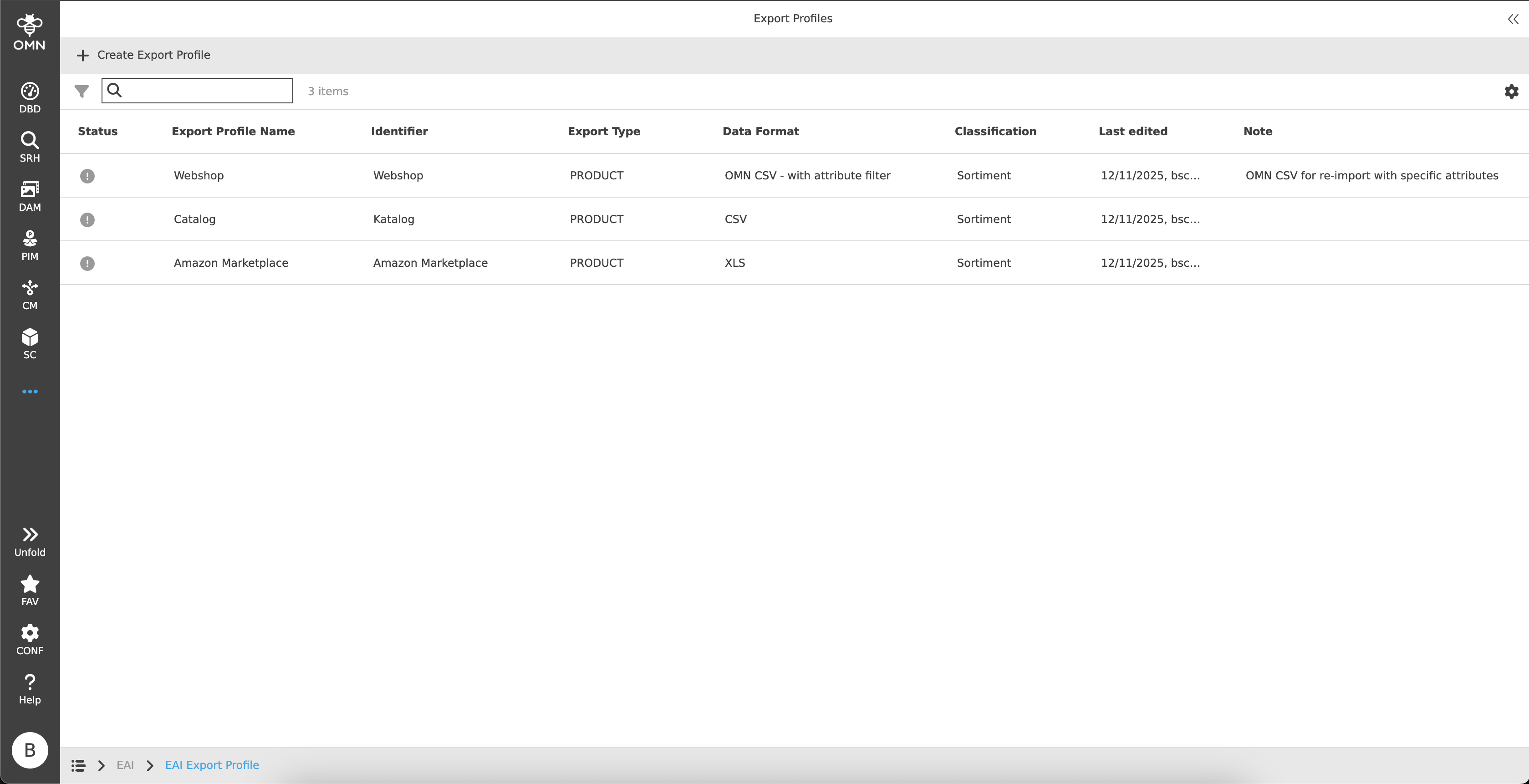
Export profiles can be created and displayed in the center view. The exact structure and its functionalities are explained in more detail in the following chapters.
Toolbar & Functions
The toolbar contains the following functions:
Create Export Profile
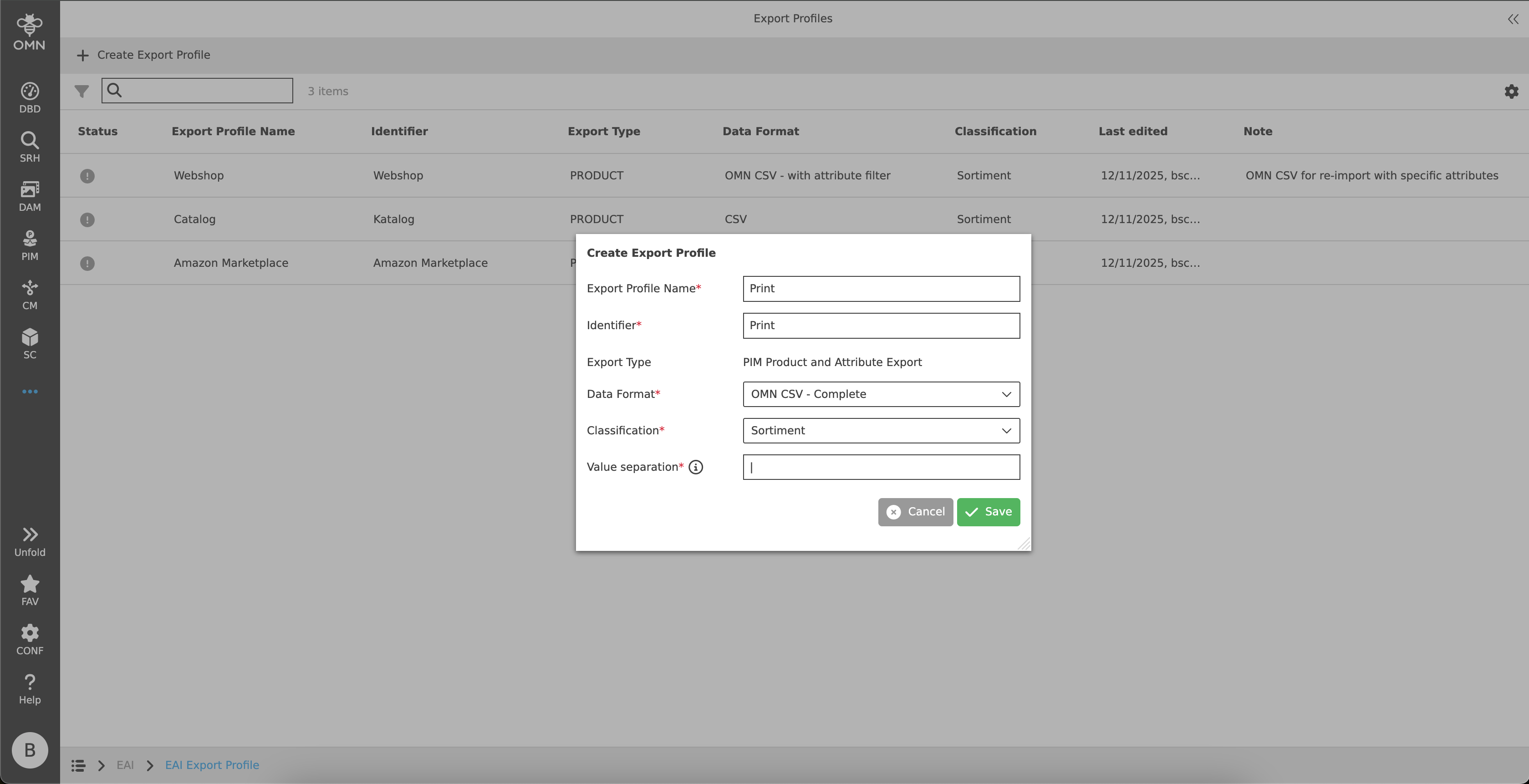
When the function is executed, a dialog opens with the following settings options:
-
Export Profile Name
The entered name must be unique. -
Identifier
The entered identifier must be unique. -
Export Type
Initially, "PIM Product and Attribute Export" is possible. -
Data Format
-
Available file formats are:
-
CSV
-
OMN CSV - Complete
-
No export editor is required, as all attributes of the classification are exported 1:1.
-
-
OMN CSV - with attribute filter
-
The selection of attributes can be restricted in the Export Editor, but no transformations or name changes can be made.
-
-
OMN XML - Complete
-
No export editor is required, as all attributes of the classification are exported 1:1.
-
-
OMN XML - with attribute filter
-
The selection of attributes can be restricted in the Export Editor, but no transformations or name changes can be made.
-
-
XLS
-
-
-
Classification
Dropdown menu with all available classifications for restricting attributes. -
Value separation
If an attribute has multiple values, these are separated by a separator during export.
By default, the input field is filled with ‘|’.
|
OMN formats can be reimported quickly and easily as long as no changes are made to the structure of the export file. No additional (user-defined) attributes or columns are allowed be added. |
Open Export Editor
The Export Editor will be opened.
Statusbar
The statusbar contains a quick search with object counter as well as the statusbar settings.
Quick Search and Object Counter
A quick search is available to users to reduce content and simplify the search for specific export profiles.
One or more values can be entered here to find the desired profile.
Next to the quick search is an object counter, which displays the number of export profiles.
Canvas
The workspace displays a table showing all available export profiles.
The table contains the following headings and content:
-
Status
The status indicates whether an export can be performed with an export profile or not.
Three different icons are displayed with the following meanings:-
grey:
Grey indicates a newly created export profile. In general, at least one attribute must be selected in the export editor in order for an export to be carried out.
OMN complete exports are excluded, as these are automatically preselected. -
green:
At least one attribute has been added to the export attributes in the Export Editor, enabling an export. -
yellow:
There is an error in the export attributes in the Export Editor (e.g. an OMN attribute is no longer available).
Exporting is still possible, but the faulty attributes will be ignored/not exported.
-
-
Export Profile Name
-
Identifier
-
Export Type
-
Data Format
-
Classification
-
Last edited
-
Note
| It is not possible to select more than one profile at a time. Therefore, a function can only be executed on one row at a time. |
Right View
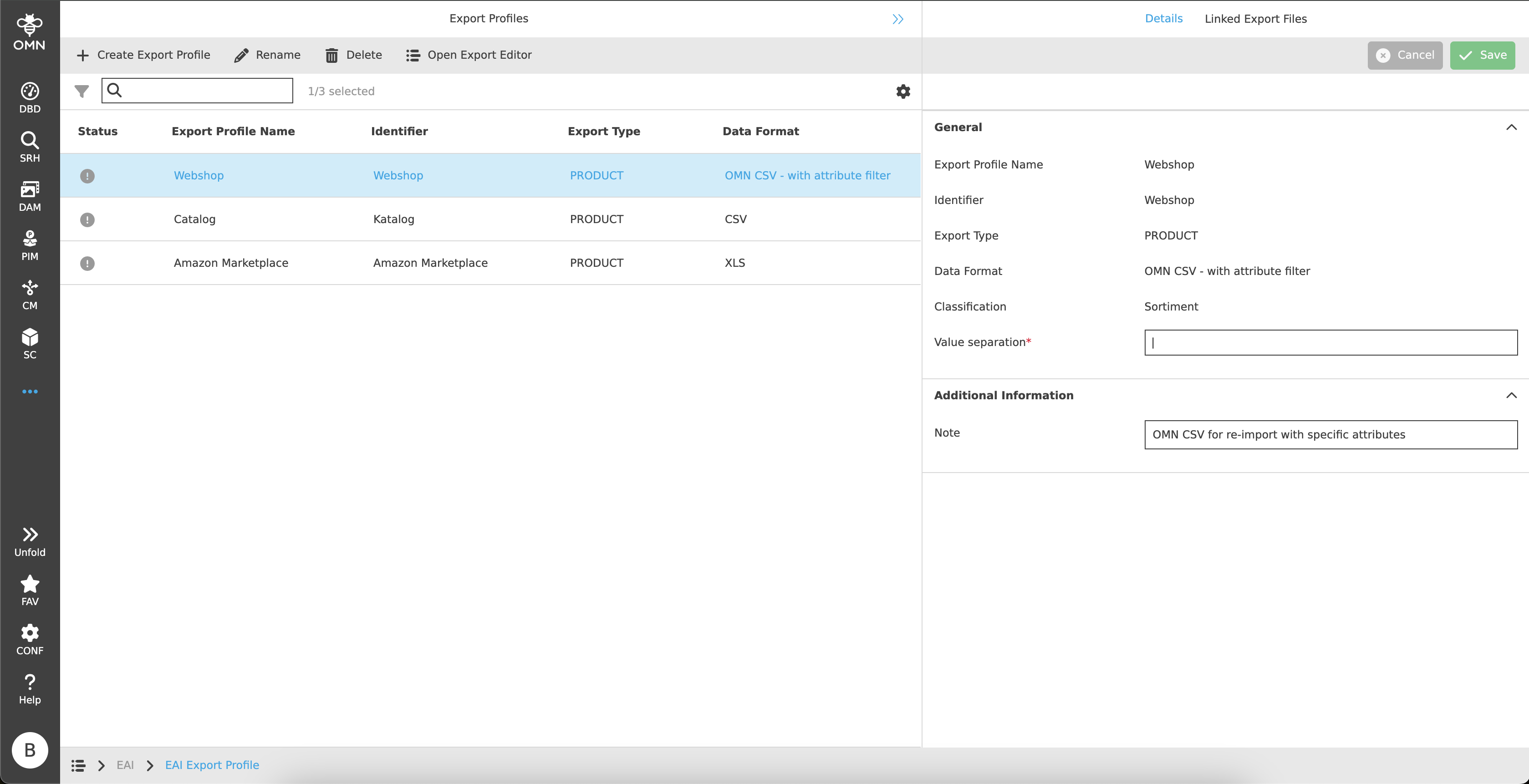
The view on the right is divided into two tabs:
-
Details
Detailed information about the export profile -
Linked Export Files
Export files linked to the export profile
Details
The Details tab consists of two accordions.
The respective accordions are described in more detail in the following chapters.
Linked Export Files
All export files linked to the export profile are displayed within this tab.
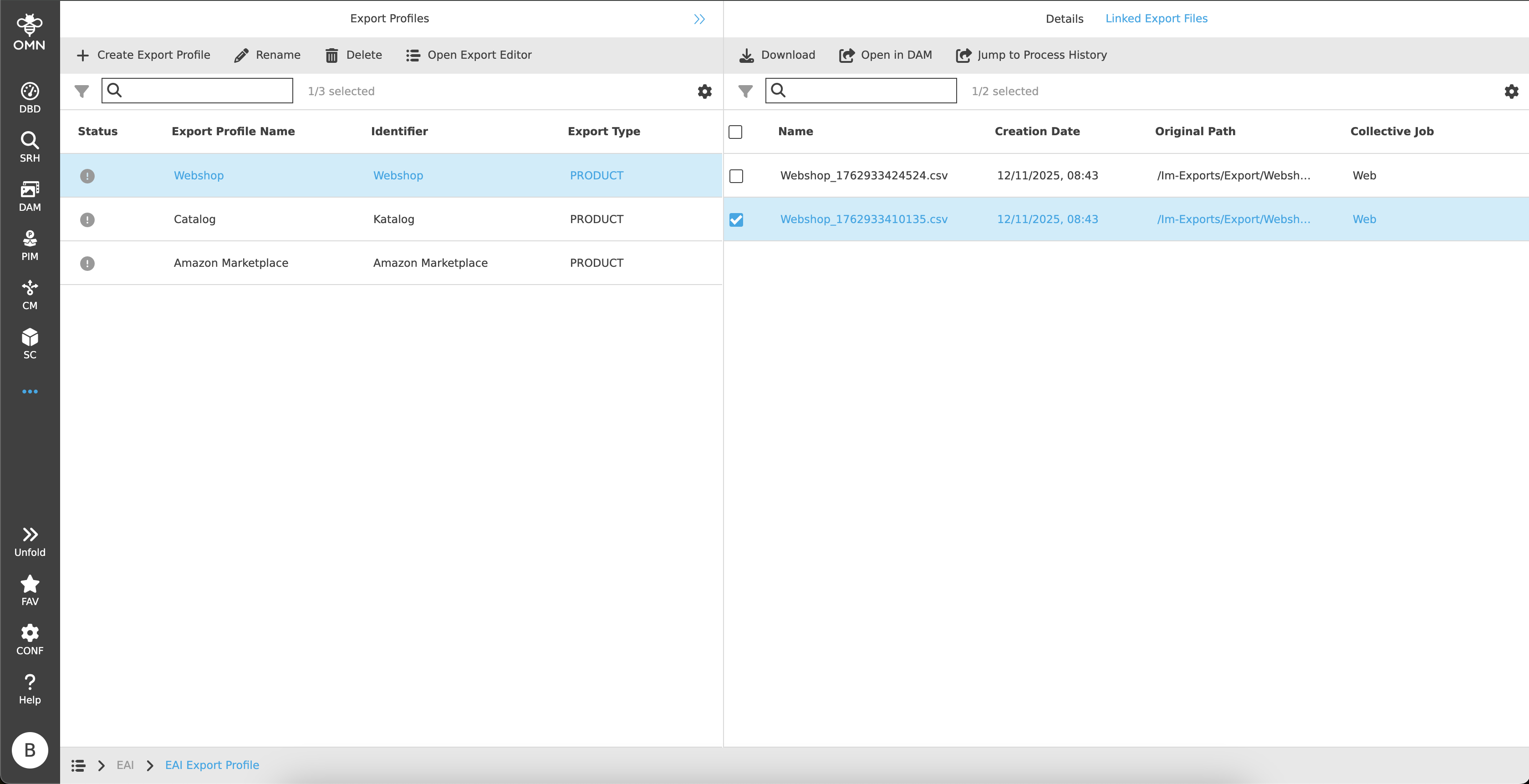
Toolbar & Functions
The toolbar contains the following functions:
Statusbar
The statusbar contains a quick search with object counter as well as the statusbar settings.
Canvas
The workspace displays all linked files in tabular form that were created while export.
The following columns are displayed:
-
Name
-
Creation Date
Date when the export was created. -
Original Path
DAM path where the export file was saved in OMN.
If the file was saved in FTP, ‘FTP’ is displayed instead. -
Collective Job
Name(s) of the collective jobs on which the export is based.