Metadata Translation
The configuration of the Metadata Translation plugin is located in the Content plugins section.
-
Access the plugin via Mandators → <Mandator name> → Content plugins → MetaDataTranslation
General configuration tab
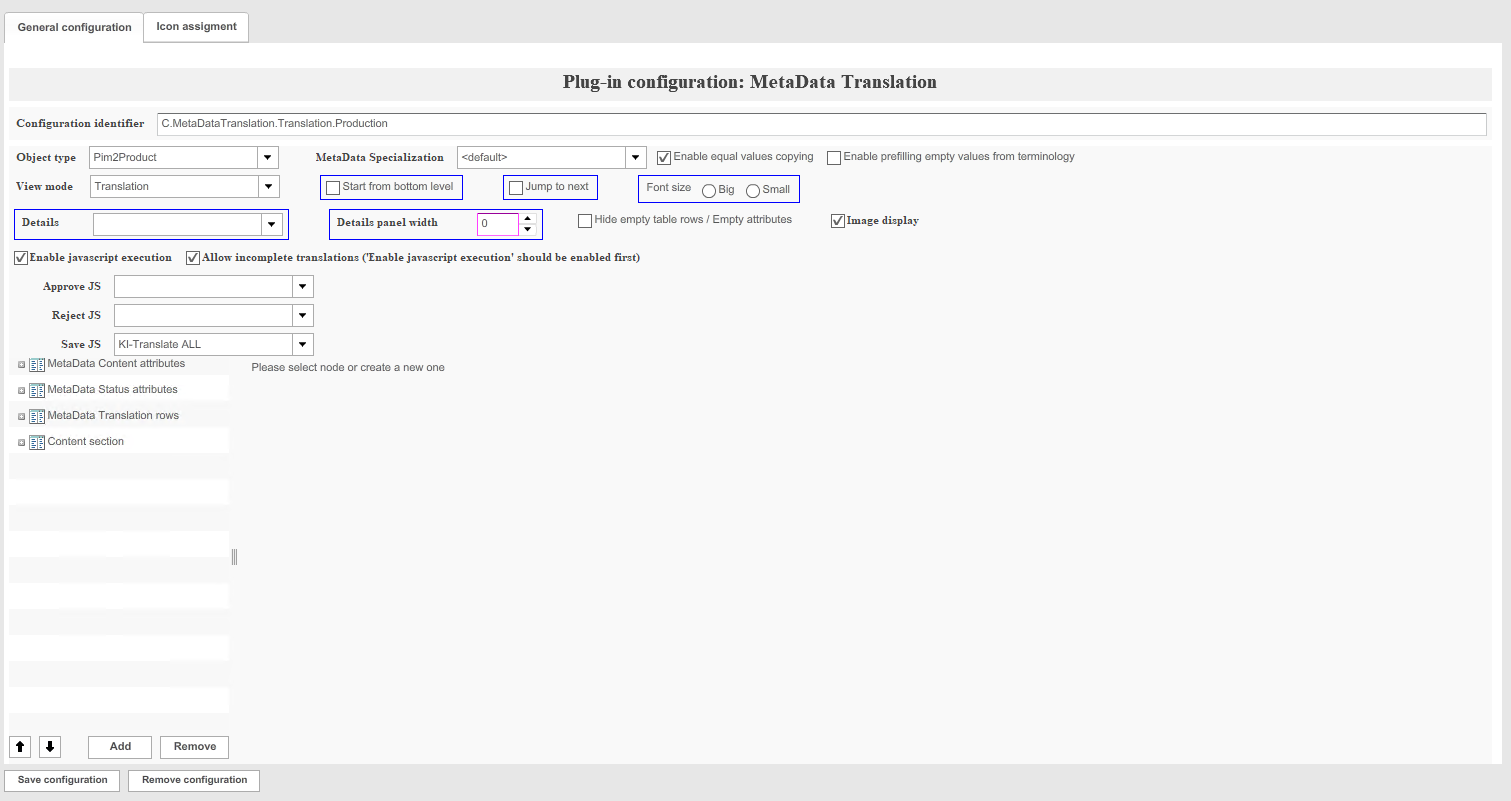
Available configuration parameters
| Field | Description | Notice |
|---|---|---|
Object type |
Dropdown list “Object type” allows users to choose the needed type of the OMN objects. Subsequently this entity of Metadata Translation configuration will work only with the specified objects. For using HTML5 Metadata Translation version the “Pim2Product” should be selected. |
|
MetaData Specialization |
This option is no longer supported for HTML5 Frontend. |
|
Enable equal values copying |
The option enables the copy function in MDT which allows copying values from the source field to the translation field. |
|
Enable prefilling empty values from Terminology |
Enable this option to activate the integration with Terminology: if an attribute’s source value contains a word or a sentence which matches some entry from the Terminology dictionary, the user will get an indication and the possibility to copy the corresponding translation. |
This option is no longer supported for HTML5 Frontend. |
View mode |
Metadata Translation plugin can be configured in two modes: |
|
Start from bottom level |
This option is no longer supported for HTML5 Frontend. |
|
Jump to next |
This option is no longer supported for HTML5 Frontend. |
|
Font Size |
This option is no longer supported for HTML5 Frontend. |
|
Details |
This option is no longer supported for HTML5 Frontend. |
|
Details panel width |
This option is no longer supported for HTML5 Frontend. |
|
Hide empty table rows / Empty attributes |
This option is no longer supported for HTML5 Frontend. |
|
Image display |
This option enables an additional panel at the bottom of the screen, where assets linked to the product will be displayed. |
|
Enable javascript execution |
The option enables choosing JS scripts which will run after the corresponding trigger happening in the Metadata Translation: Approve, Reject or Save. |
Currently only the "Save JS" option is implemented |
Allow incomplete translation |
Enabling this option makes it possible to save empty attribute values. |
To enable the option firstly the “Enable javascript execution” option must be enabled (no JS scripts are needed to be chosen). |
Sections
There are four available sections to be displayed within the MDT plugin:
-
MetaData Content attributes
-
MetaData Status attributes
-
MetaData Translation rows
-
Content section
Users can manage attributes displayed for each of the sections.
A common option across all sections is:
| Field | Description | Notice |
|---|---|---|
Expanded by default |
Option determines state of the section (expanded/minimized) when the plugin is opened. |
If the user-based settings are activated, this setting is overwritten by the settings made in the frontend. |
MetaData Content attributes
This section allows to manage “not STRING” attributes, so that users can set values for language dependent attributes that are not translatable.
Language dependent attributes of the following types can be added to the section:
-
LISTABLE STRING
-
REAL
-
LISTABLE REAL
-
DATE
-
LISTABLE DATE
-
BOOLEAN
-
LISTABLE BOOLEAN
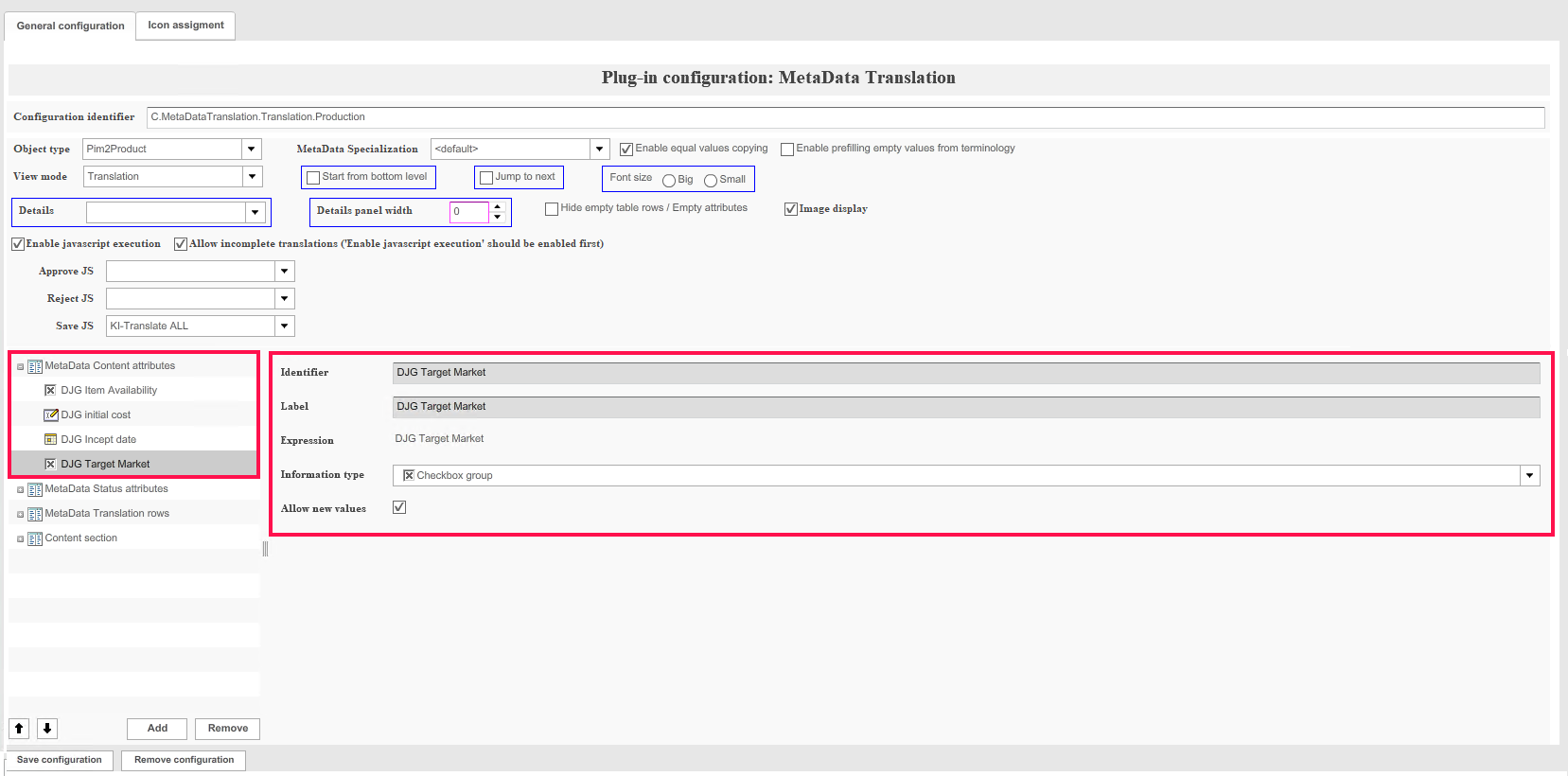
The following specific options are available:
| Field | Description | Notice |
|---|---|---|
Hide section |
This option allows to hide the section in the frontend. |
|
Allow new values |
The option enables the addition of new values to the attribute while using the Metadata translation plugin. |
This option is only available for listable attributes. |
MetaData Status attributes
This section allows a user to see and manage the overall status of the translations.
Notes:
-
Language dependent listable and not listable attributes can be added to the section
-
Only “dropdown list” information type can be selected for attributes
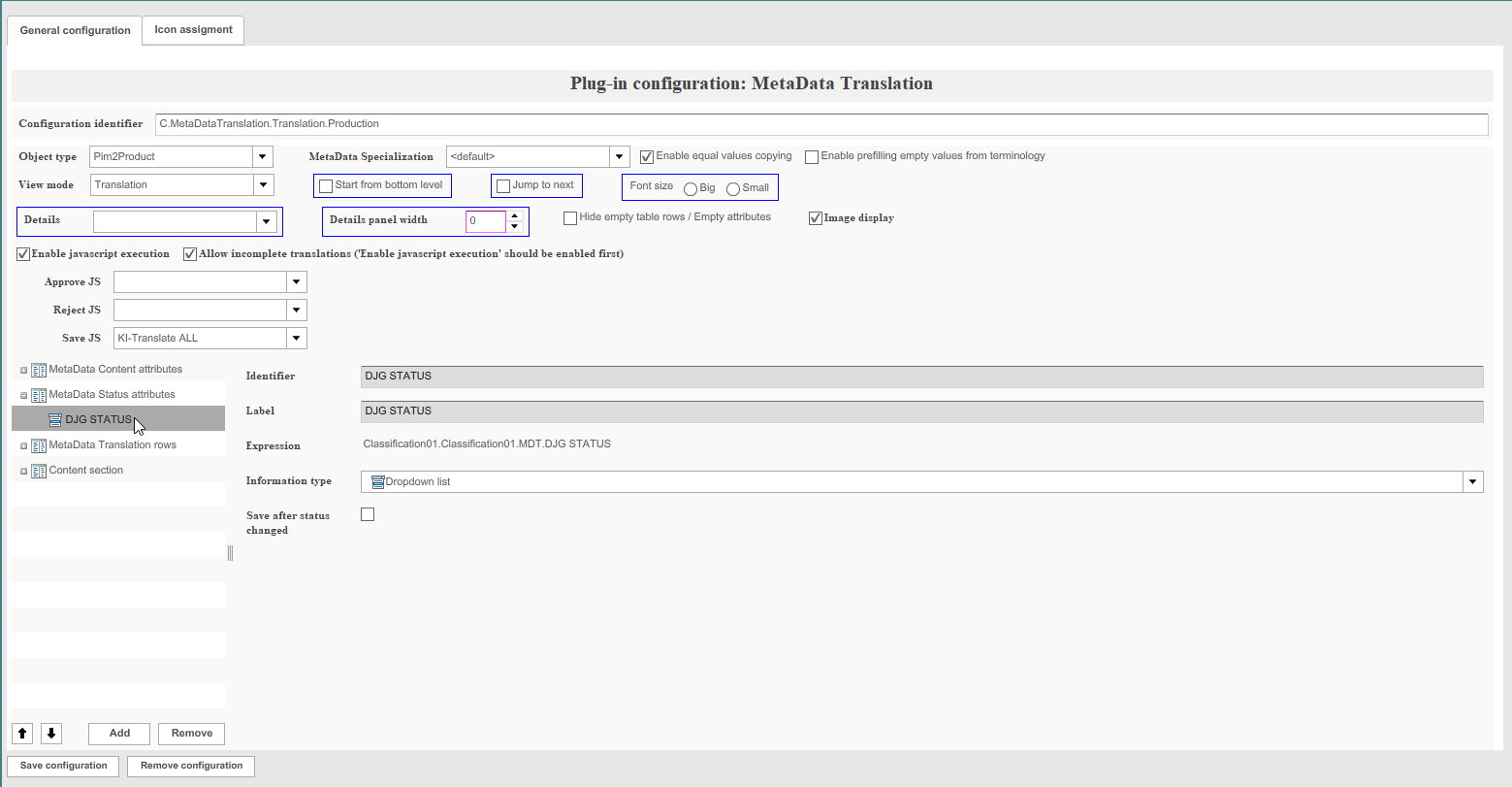
The following specific option is available:
| Field | Description | Notice |
|---|---|---|
Hide section |
This option allows to hide the section in the frontend. |
MetaData Translation rows
This section allows a user to configure attributes for translations.
Notes:
-
Only language dependent attributes of STRING and LISTABLE STRING types can be added to the section
-
For LISTABLE STRING attributes “string textfield” information type must be used
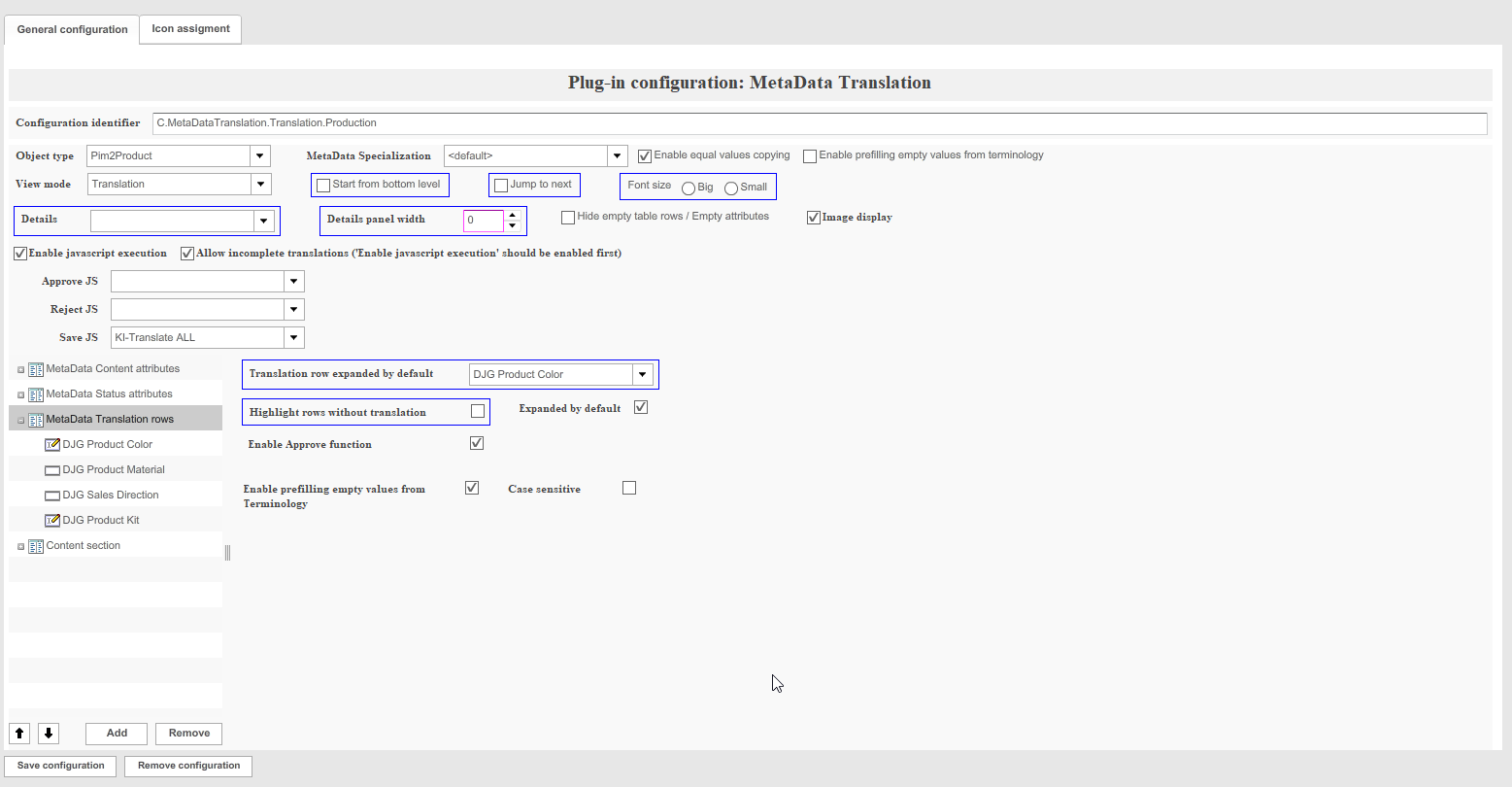
The following specific options are available:
| Field | Description | Notice |
|---|---|---|
Translation row expanded by default |
This option is no longer supported for HTML5 Frontend. |
|
Highlight rows without translation |
This option is no longer supported for HTML5 Frontend. |
|
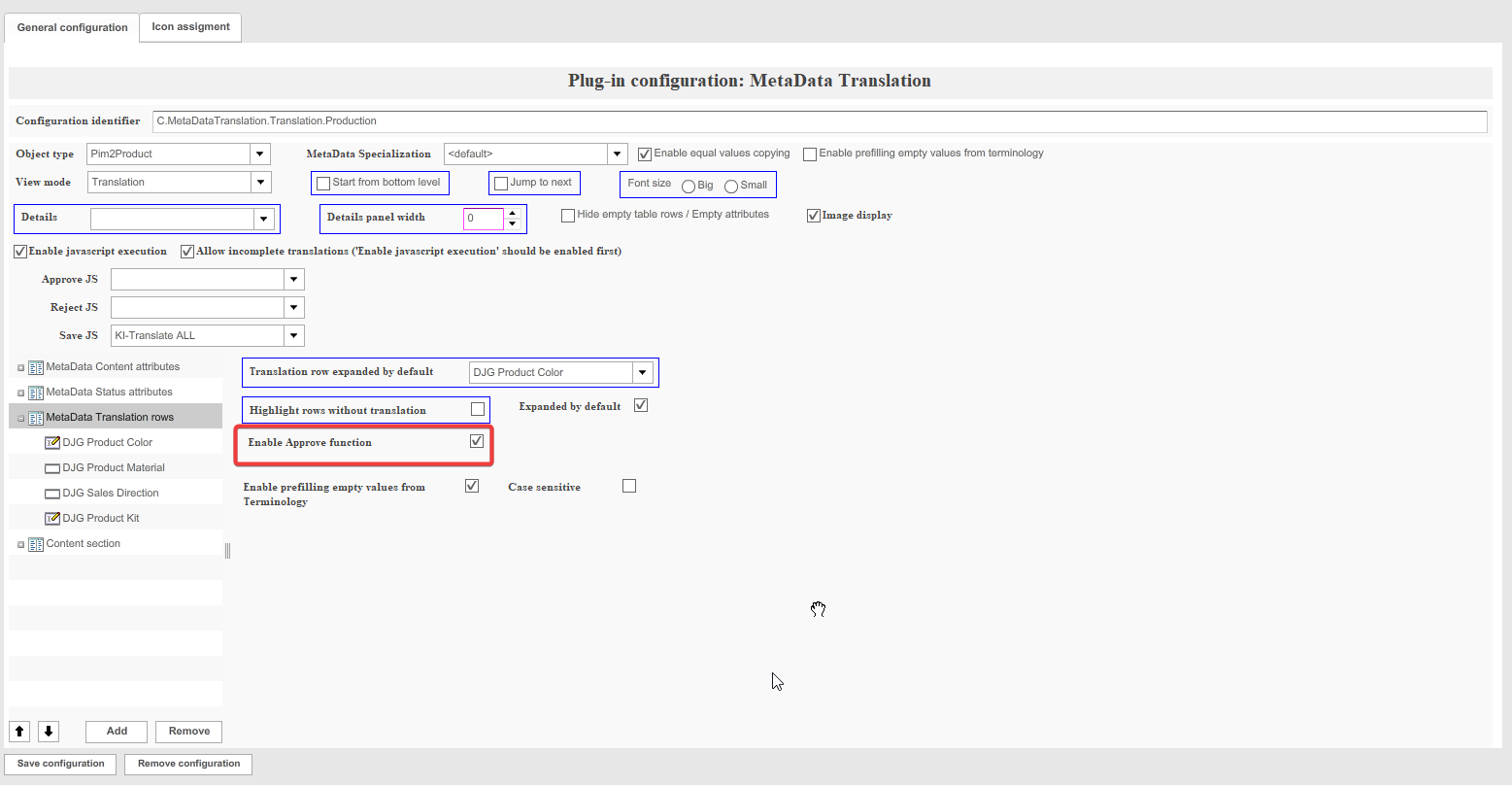
Enable Approve function |
This option enables the functionality where the user will get the opportunity to manually approve a translation. |
|
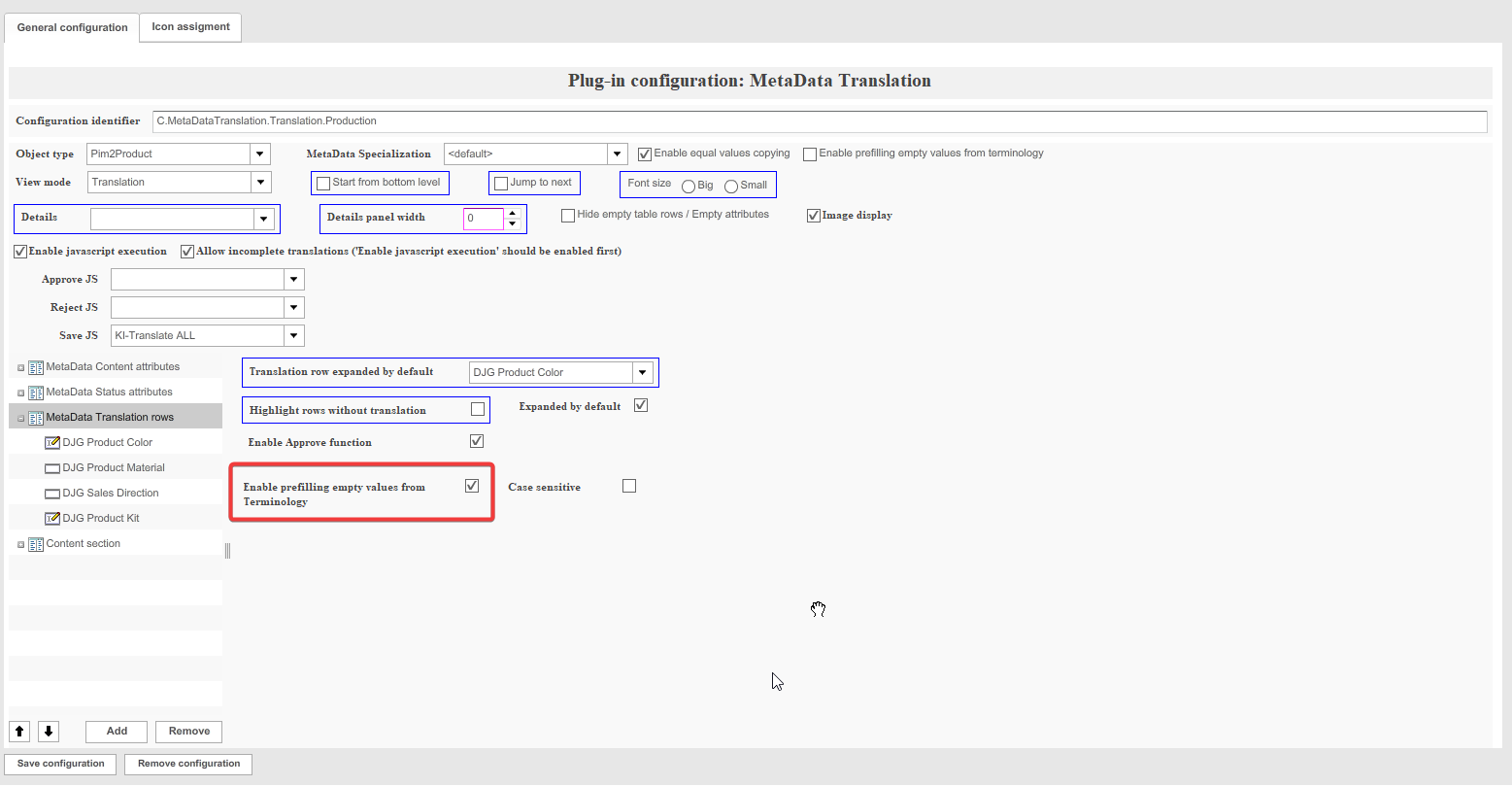
Enable prefilling empty values from Terminology |
The user can enable this option to activate integration with Terminology: if attribute’s source value contains a word or a sentence which matches to some entry from Terminology glossary, then the value is highlighted and the user has the possibility to check possible translations and copy them. |
|
Case sensitive |
This option determines if the search for the previous option will be performed as case sensitive or case insensitive. |
Content section
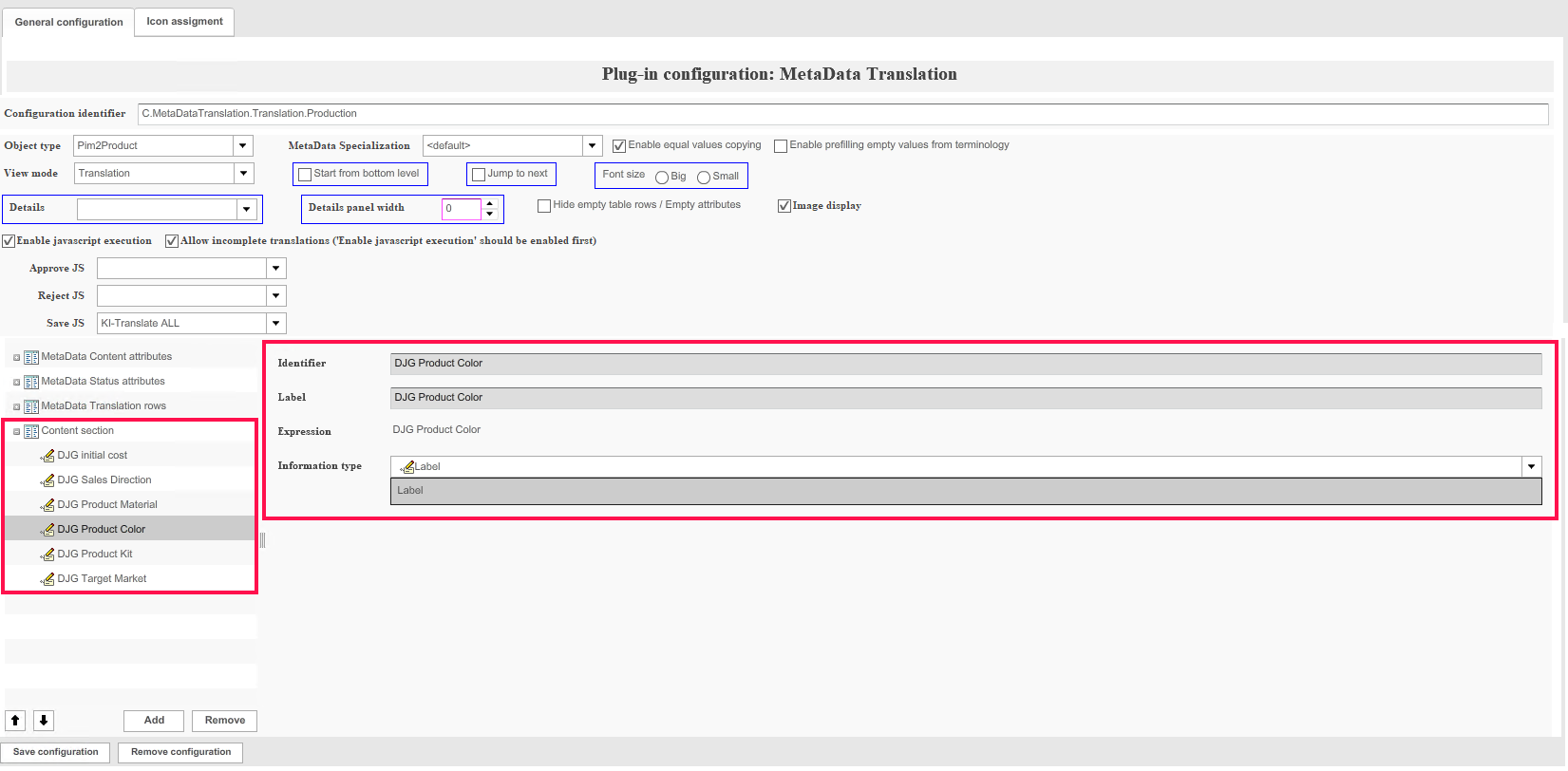
The section allows users to view the contextual information about translations.
Notes:
-
Language dependent attributes of any type can be added to the section
-
Only “label” information type can be selected for attributes
-
Attributes from the section are not editable in Metadata Translation plugin
The following specific option is available:
| Field | Description | Notice |
|---|---|---|
Hide section |
This option allows to hide the section in the frontend. |
Icon Assignment tab
The settings represented within the icon assignment tab allow users to specify the icon which will be related to the current configuration.
The settings table contains two items:
-
Translation mode
-
Textcreation mode
The icon for the configuration will be taken according to the plugin mode selected on the “General configuration” tab.
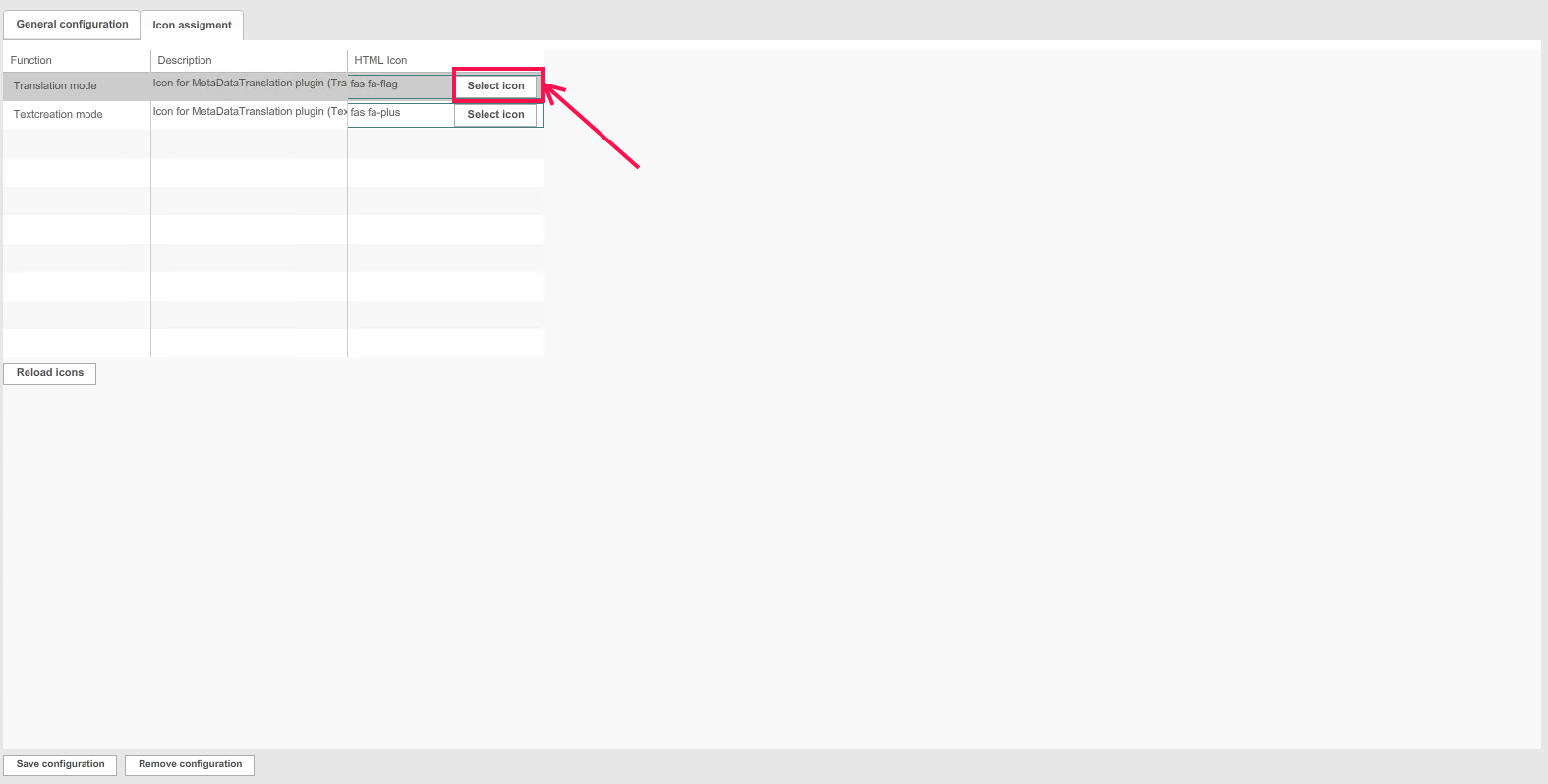
A user can click on the button “Select icon” and choose the needed icon.
Adding the Metadata Translation plugin to the Product View
As soon as the Metadata Translation plugin is created, it can be added to the Product View function plugin.
Users need to add a new Product View menu item and select “Translation” as a type. After that they have to add a new content plugin and select the needed Metadata Translation configuration.
For more information also see here.
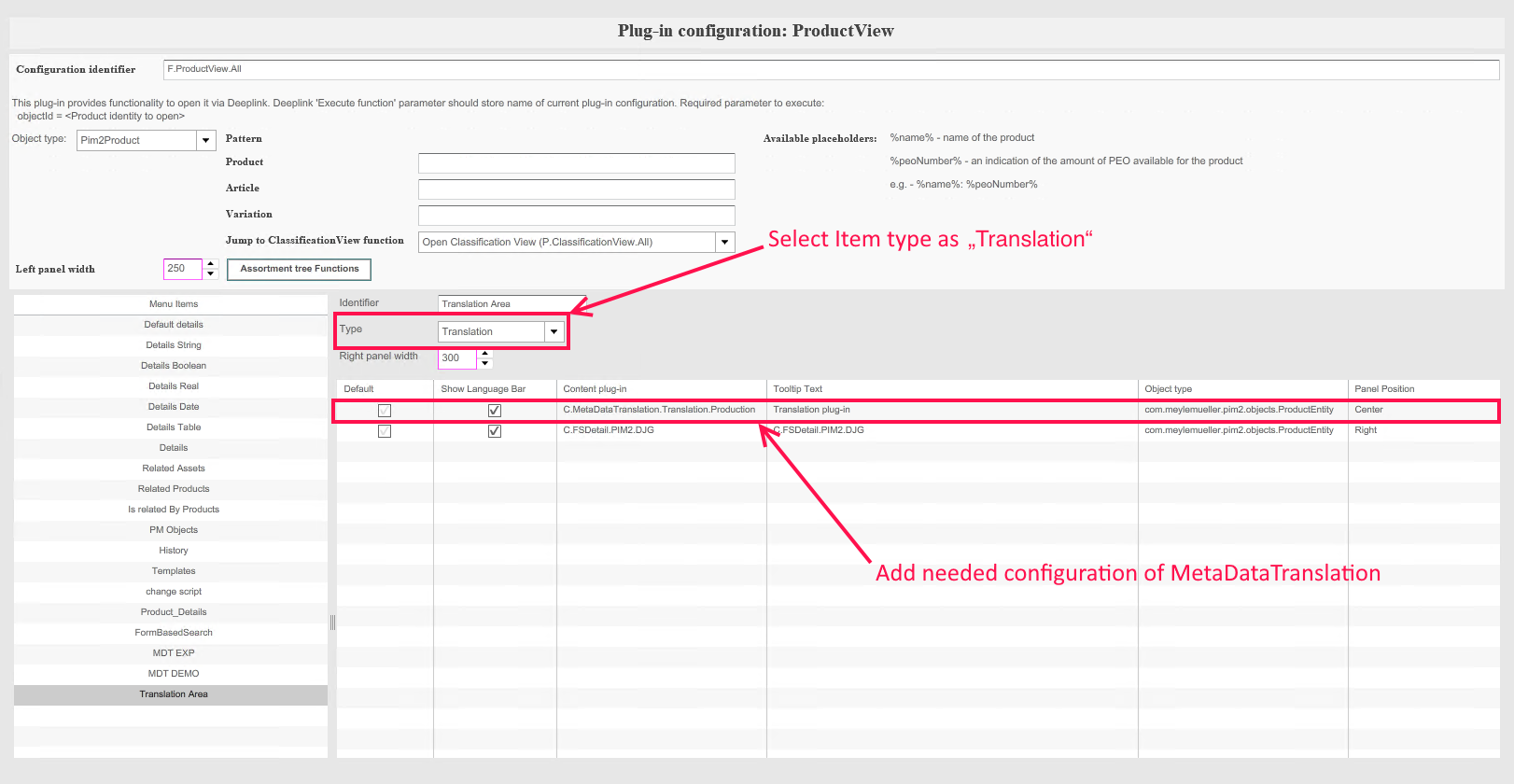
| If the 'Show Language Bar' option is enabled in the Product View for the Metadata Translation plugin, then it’s ignored in the HTML5 client and the standard language switcher doesn’t appear in the center view. |
Secondary Action functions
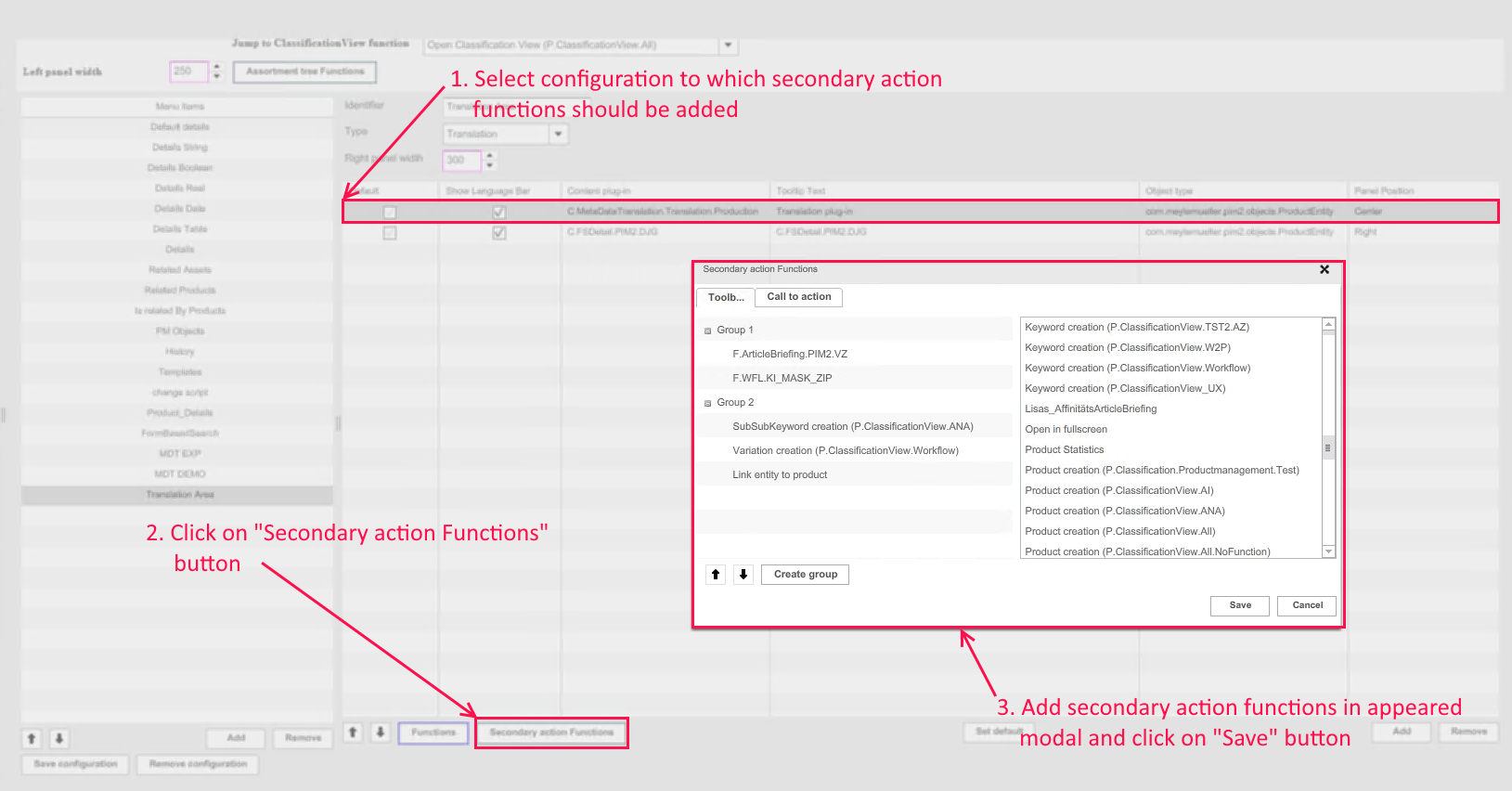
To add secondary action functions to the plugin a user needs to:
-
Select the desired Metadata Translation configuration from the table in Product View.
-
Click on the button “Secondary action function”.
-
Activate the desired functions for Metadata Translation via drag-and-drop within the appeared modal window.
Afterwards, these functions will appear within the Metadata Translation toolbar in frontend.
Adding FSDetail plugin to Product View item
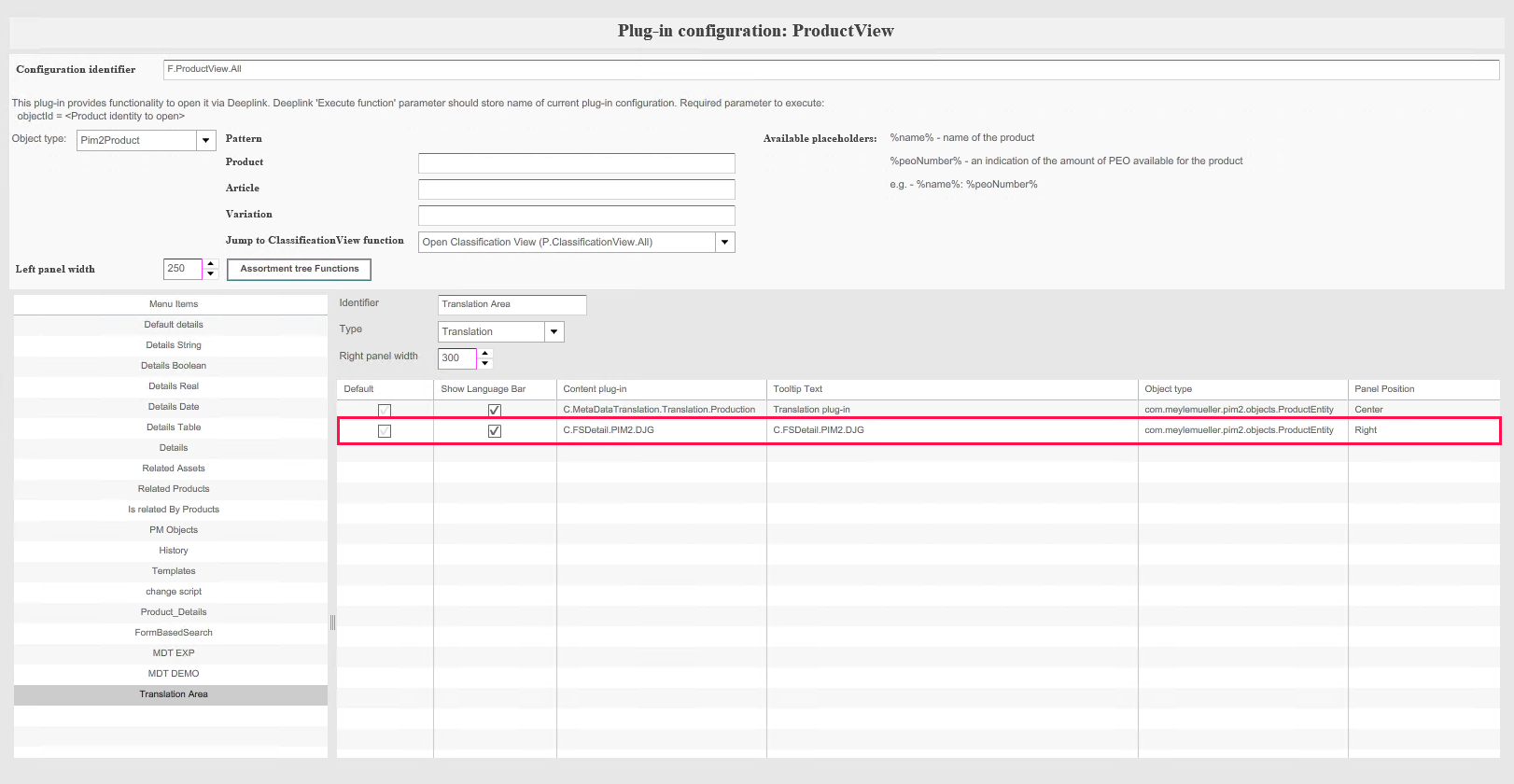
It is possible to configure the FSDetail (Details) plugin as a content view to the “Translation” Product View menu item at the right side of the frontend.
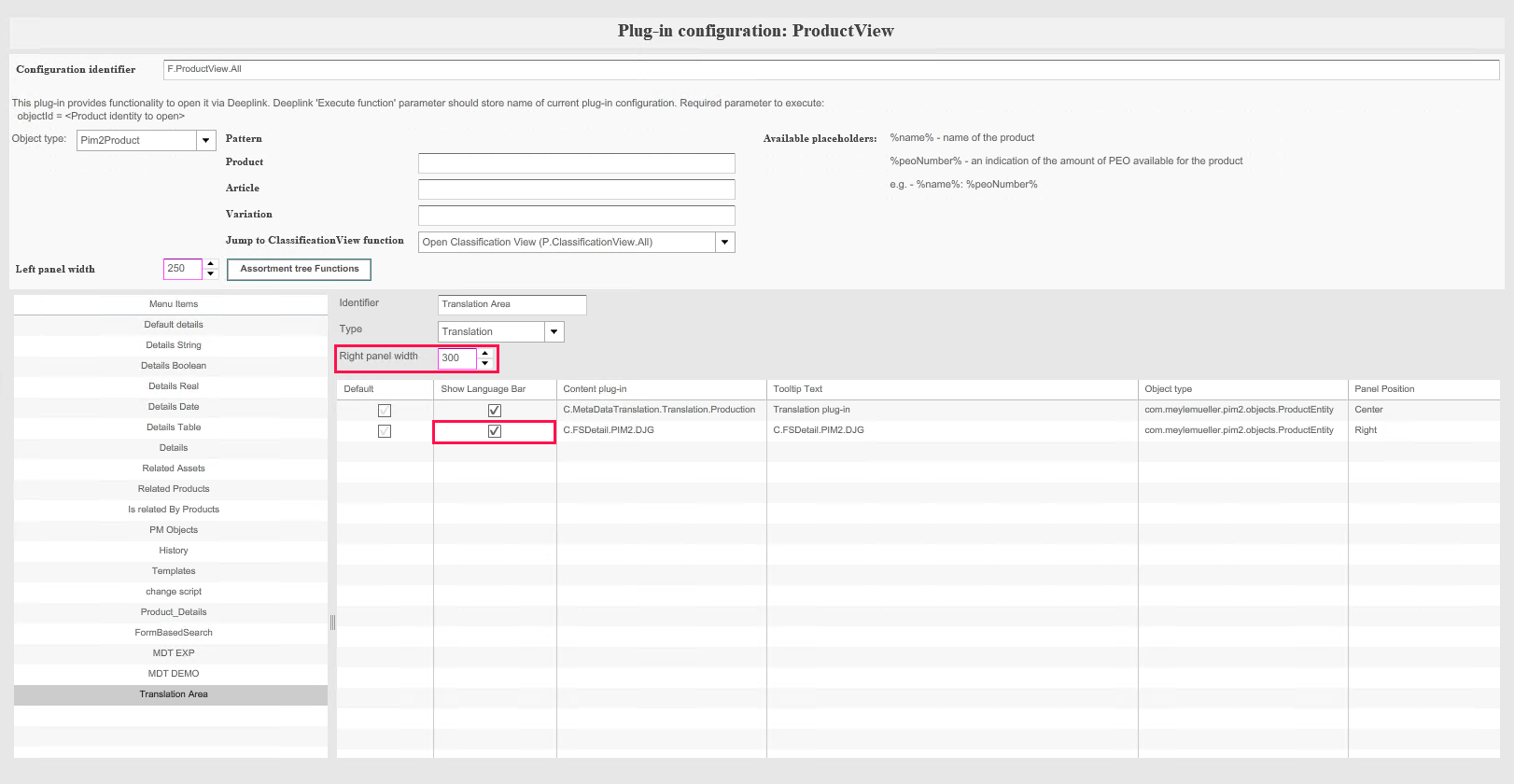
The default width of the plugin can be configured in the “Right panel width” counter:
-
If the value is set as “0”, then the right panel will be closed by default.
-
If size is more than 0, then the FSDetail will be shown in accordance with configured width value.
To enable the language switcher in the FSDetail plugin for the frontend, the user should enable the “Show Language Bar” option.
More information about access rights configuration can be found here.