Adding functions to a content view
Functions can be chosen out of all existing built-in functions and Function plug-ins.
They can appear at the following places in the Frontend:
-
Toolbar
-
Submenu
-
On an asset (only for an FSTable-view with activated Function column index)
-
Not currently supported with HTML5 client, but only in old client
-
-
Double click functions
Configuration for old client (blue border)
To configure any kind of functions for old client, you need to:
1. Choose the content view for which you want to add functions by highlighting it.
2. Click on Functions button.

Toolbar functions
If you want to configure functions for the toolbar, you need to:
1. Open the 'Toolbar' tab in the opened modal window
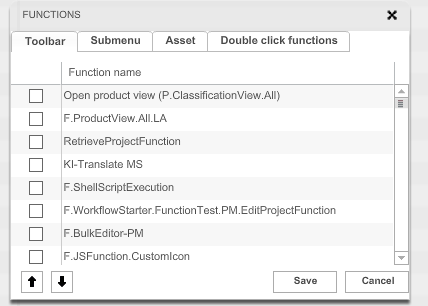
2. Activate the desired functions by marking the checkbox
3. Click on Save button
4. To save the configuration and all changes made, click on Save configuration button
Submenu functions
If you want to configure functions into the group with second-level function in the toolbar, you need to:
1. Open the 'Submenu' tab in the opened modal window
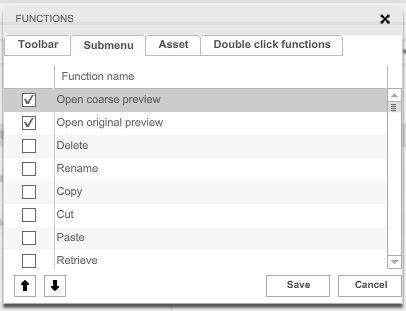
2. Activate the desired functions by marking the checkbox
3. Click on Save button
4. To save the configuration and all changes made, click on Save configuration button
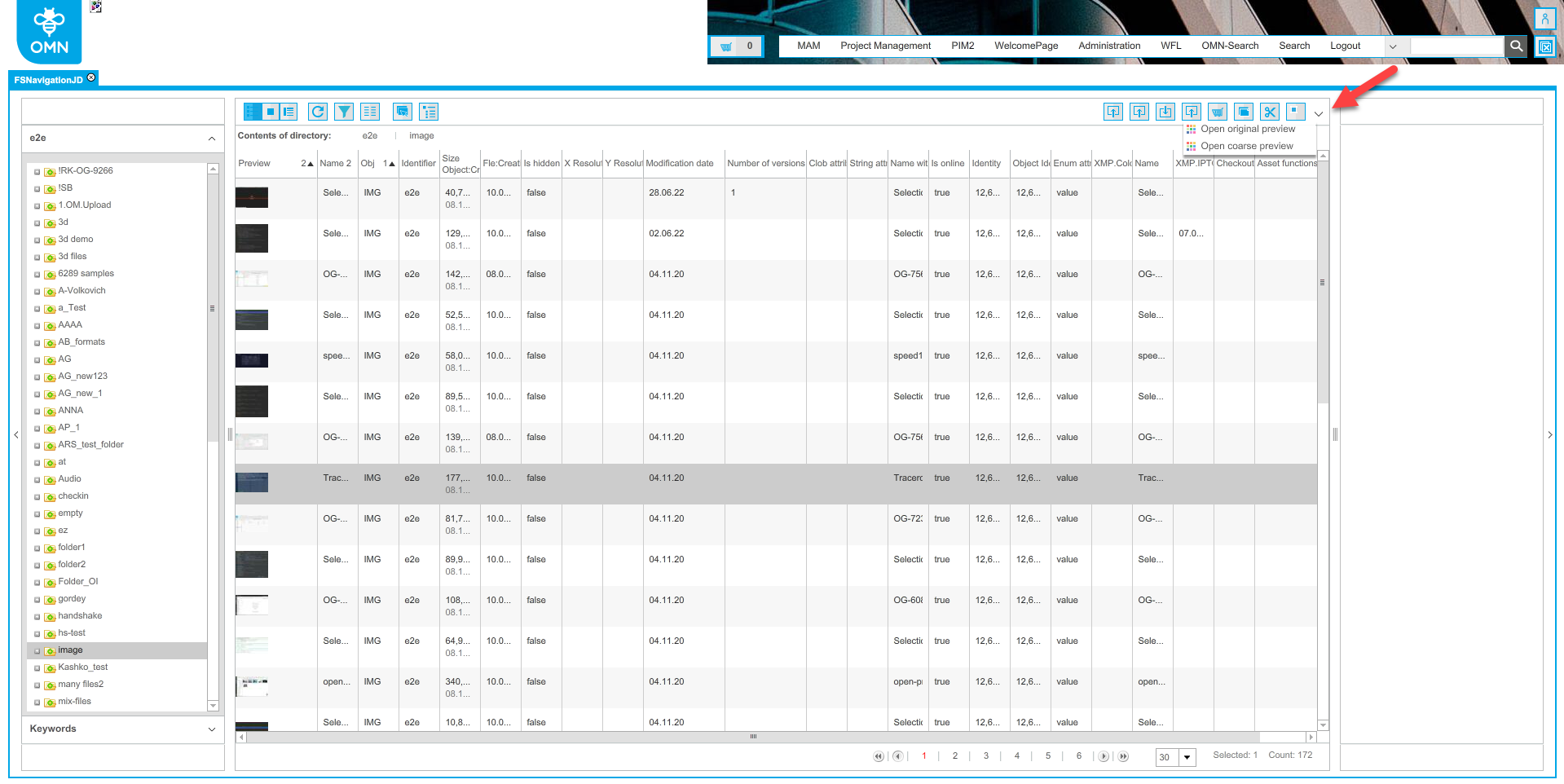
This is how the configured functions are displayed on the frontend client:
Asset functions
If you want to configure functions to be shown in each table row as a separate column, you need to:
1. Open the 'Asset' tab in the opened modal window
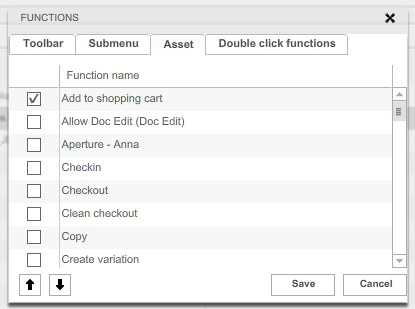
2. Activate the desired functions by marking the checkbox
3. Click on Save button
4. To save the configuration and all changes made, click on Save configuration button
| Full configuration of this feature requires an activated checkbox 'Function column index' in FSTable plugin configuration. More information can be found on the following page. |
Double click functions
If you want to configure functions for the double click action, you need to:
1. Open the 'Double click functions' tab in the opened modal window
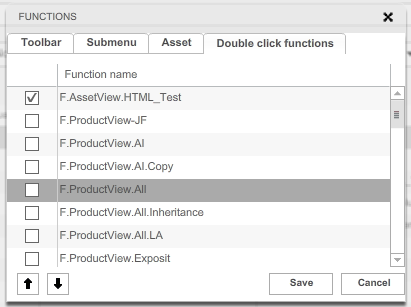
2. Activate the desired function by marking the checkbox
| You should activate only one function. If you activate more, only the first one will be saved. |
3. Click on Save button
4. To save the configuration and all changes made, click on Save configuration button
Configuration for HTML5 client (green border)
To configure any kind of functions for HTML5 client, you need to:
1. Choose the content view for which you want to add functions by highlighting it.
2. Click on Secondary Action Functions button.
Toolbar functions
If you want to configure functions for the toolbar, you need to:
1. Open the 'Toolbar' tab in the opened modal window
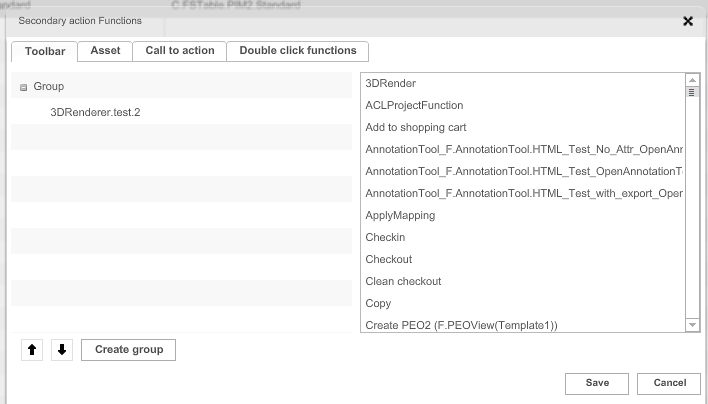
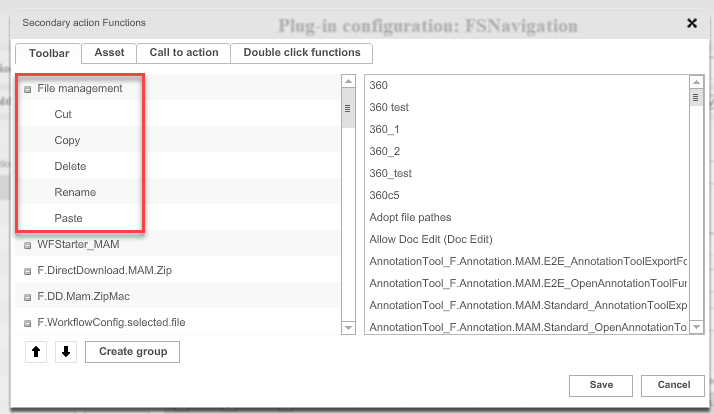
2. Optionally create a Group for the functions, e.g. File management
3. DragNDrop Function Plugin from right section to the left section to the group
4. Click on Save button
5. To save the configuration and all changes made, click on Save configuration button
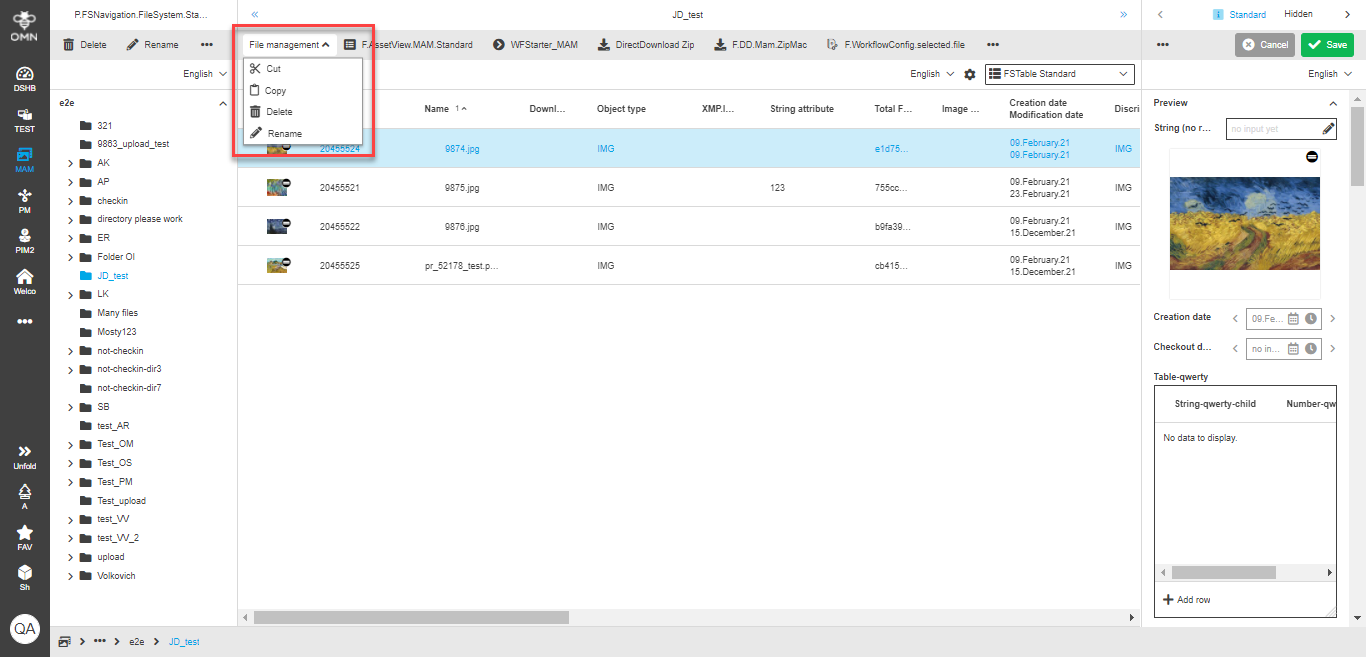
Here is the example how configuration with group element could look like:
Double click functions
If you want to configure functions for the double click action, you need to:
1. Open the 'Double click functions' tab in the opened modal window
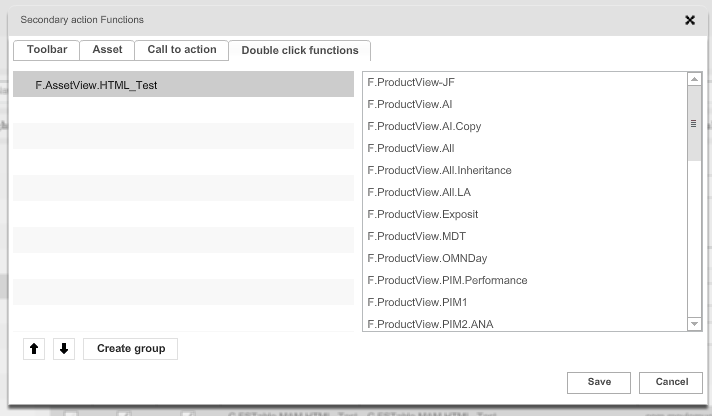
2. DragNDrop Function Plugin from the right section to the left section
| You can add only one function. If you try to drop the second one, the first one will be replaced. |
3. Click on Save button
4. To save the configuration and all changes made, click on Save configuration button