Plug-in Concept
Understanding Frontend Structure
The Frontend is made up of different areas and panels to which will be referred throughout this documentation.
At the left of each client page, resides the main menu (also called sidebar); in old client the main menu is at the top of the client. Beside this there are the program parts, divided in three areas are in sight.
-
Left Area for Navigation or other options like filters, having influence on the Center Area
-
Center Area to view content in an overview
-
Right Area to show details on content view items
| More detailed information about the principles of frontend structure can be found in end user documentation on the following page. |
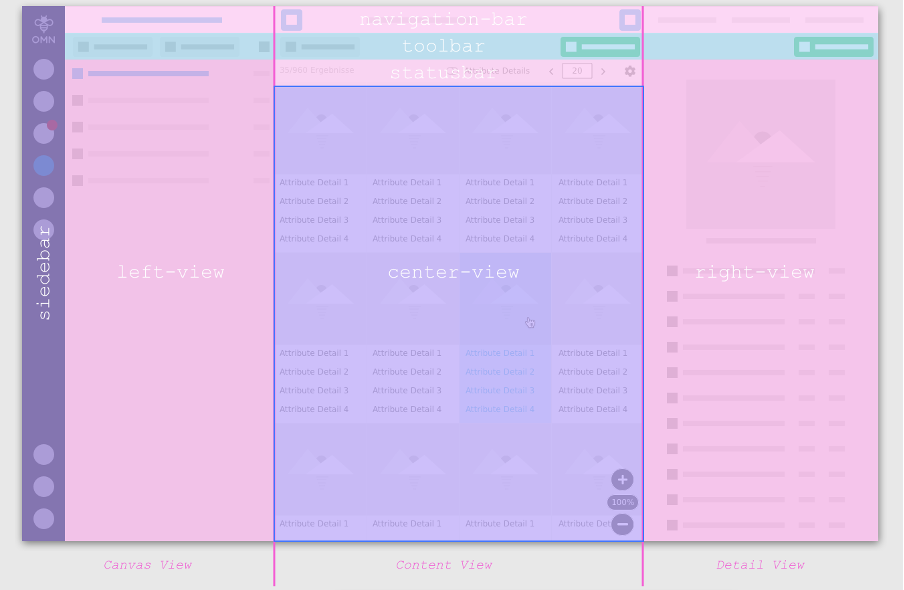
It is also possible to resize the configured width of the left and right area or even collapse/extend it: place the mouse pointer over the small split bar between center and left/right area and holding down the (left) mouse button, move it right or left. The center area will resize accordingly. HTML5 client furthermore has the possibility of folding the left and/or right section by button.
The main menu/sidebar allows the user to access the different client pages, in other words, each entry points to a page plug-in. On clicking a sidebar entry, the corresponding page plug-in appears within the same or new browser tab, so the user can easily switch between pages and last but not the least, use Drag&Drop functionality between the different page plug-ins. Example: The Shopping Card sidebar item (Button) leads you to the shopping card page plug-in.
Understanding Configuration Structure
The navigation appears in the left area. It consists of two configuration sections: Mandators and Administration.
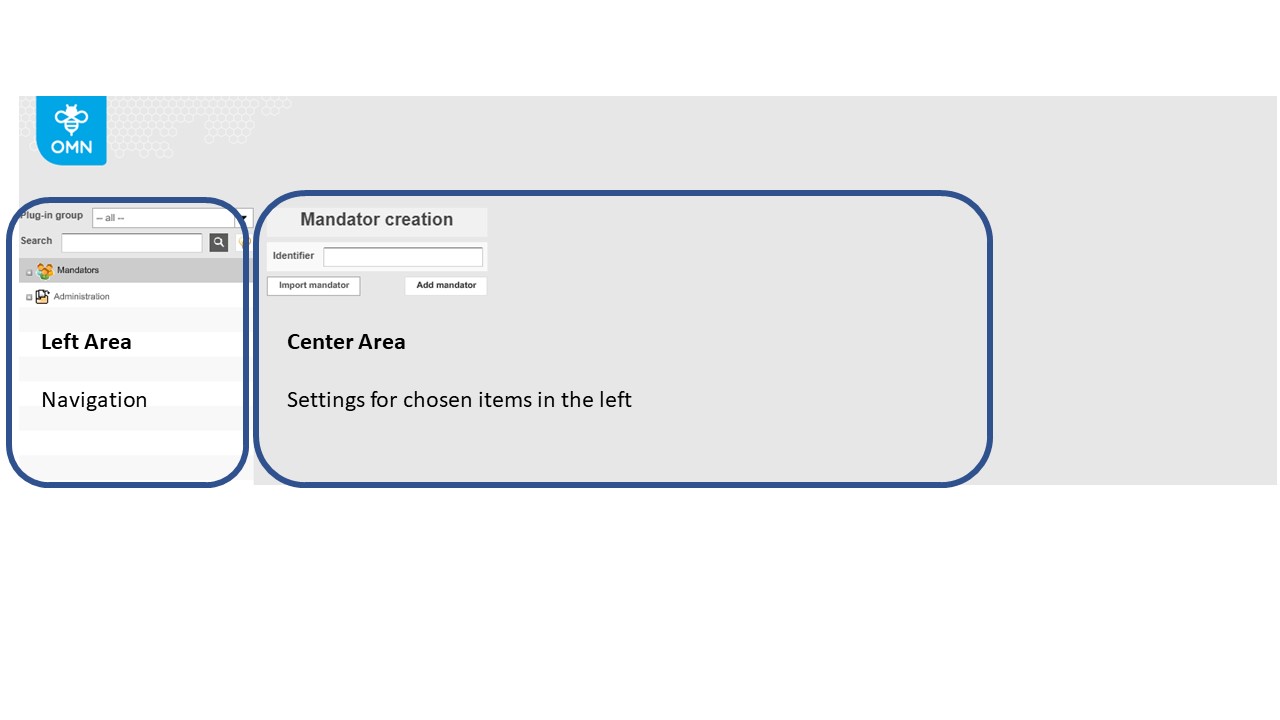
While “Mandators” includes all sub-items to configure a mandator, the configuration within “Administration” is mandator-spanning and includes:
-
the system configuration (configuration of all global system components)
-
the file system configuration (configuration of monitored file systems, hosts and root nodes) and related configuration options like previews
-
configuration of languages that are to be available in the Frontend
-
creation of users and groups
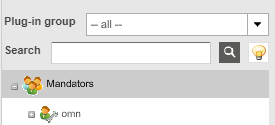
As soon as you expand the item “Mandators”, all already created mandators appear underneath.
In the following figure you find a mandator called “omn”.
Expand the mandator-identifier to view the available configuration sections which includes configurations of the mandator. The following list shows an overview which configurations are made in the different sections.
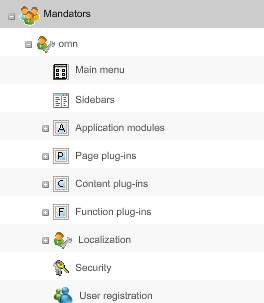
1a) Main menu
Configuration for the main menu in the header of the Frontend (old client)
1b) Sidebars
Configuration for the menu in the sidebar of the Frontend (HTML5 client)
2) Application modules
Contains items which include general settings for OMN Suite application modules like choosing the RNC in OMN digital asset management, configure metadata, etc.
2a) Shopping Cart:
Activating and specifying the view and functions for the shopping cart
2b) Metadata fields:
Adding own custom attributes for assets
2c) Watermarking:
Add watermark to your images
3) Page Plug-ins
These configurations can be used in the main menu / sidebar items to specify menu item.
4) Content Plug-ins
Configurations for different views used inside a page plug-in
5) Function Plug-ins
Different functions which can be configured for the Frontend
6) Security
Create roles and settings to filter content or restrict functions and visibility
7) User registration
Activate the user registration to allow new users to access the mandator
The following image shows the meaning of Plug-ins in relation to the frontend.
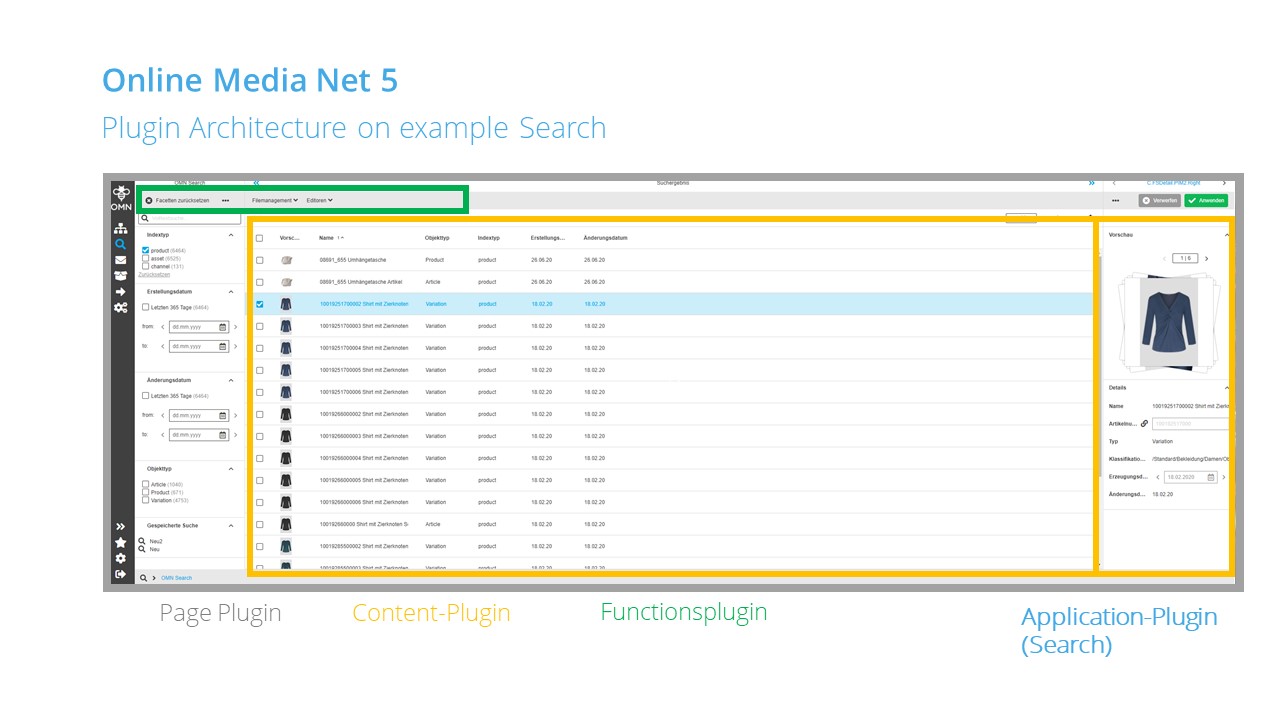
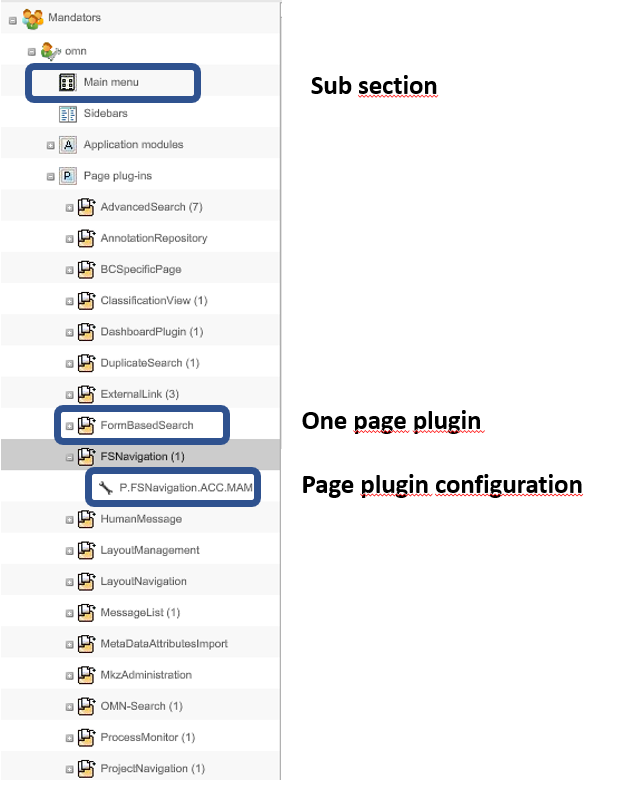
The Plug-in Sections in the backend (Application, Page, Content and backend Plugins) contain sub-sections for the different plug-ins like “FSTable” or “FSNavigation”.
The plug-ins include different configurations. For each plug-in (does not include the application modules) you can create more than one plugin configuration, while the other sections have only one configuration underneath. So they are not expandable (no plus icon in front of the section).
Understanding Version information
The release string (UI/server) includes different version information and looks like:
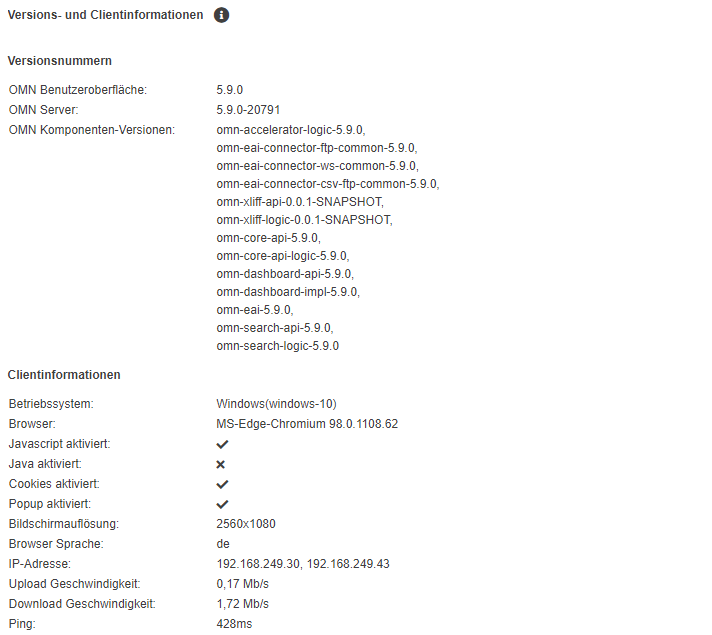
The version information is given for each OMN component as UI, Server, Search, … in the logic of Major.Minor.Hotfix number schema.
E.g. Version tag “5.9.1” means Major Version 5, Minor Version 9, Hotfix Version 1 or in other words the first hotfix version for 5.9. release.
In case of Snapshot-Versions the build number is added to the version tag like “20791”.
How to find version information can be read in end user documentation on the following page.
As this information can be copied from the client, the user should always provide this string to customer support in case of any issues.